
PowerPoint add-in
Interactive games inside your PowerPoint
PowerPoint game templates are clever, but they run on hyperlinks and one person clicking at the front. The free LearnWorkly add-in puts 17 live games between your own slides: the whole room joins on their phones and plays at once, from a 20-second duck race to a 30-minute escape room.
Free on every plan. How to install and use it
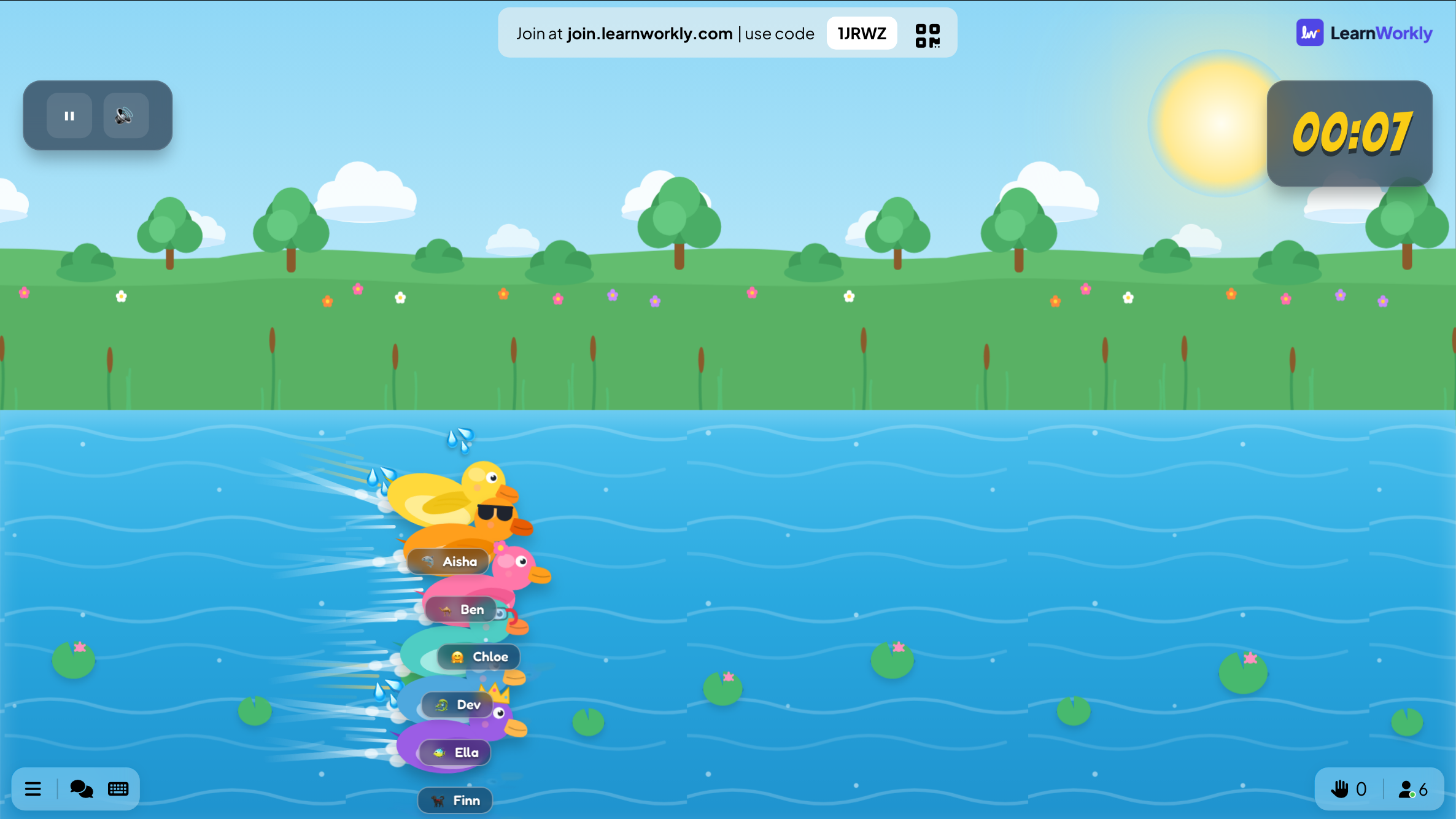
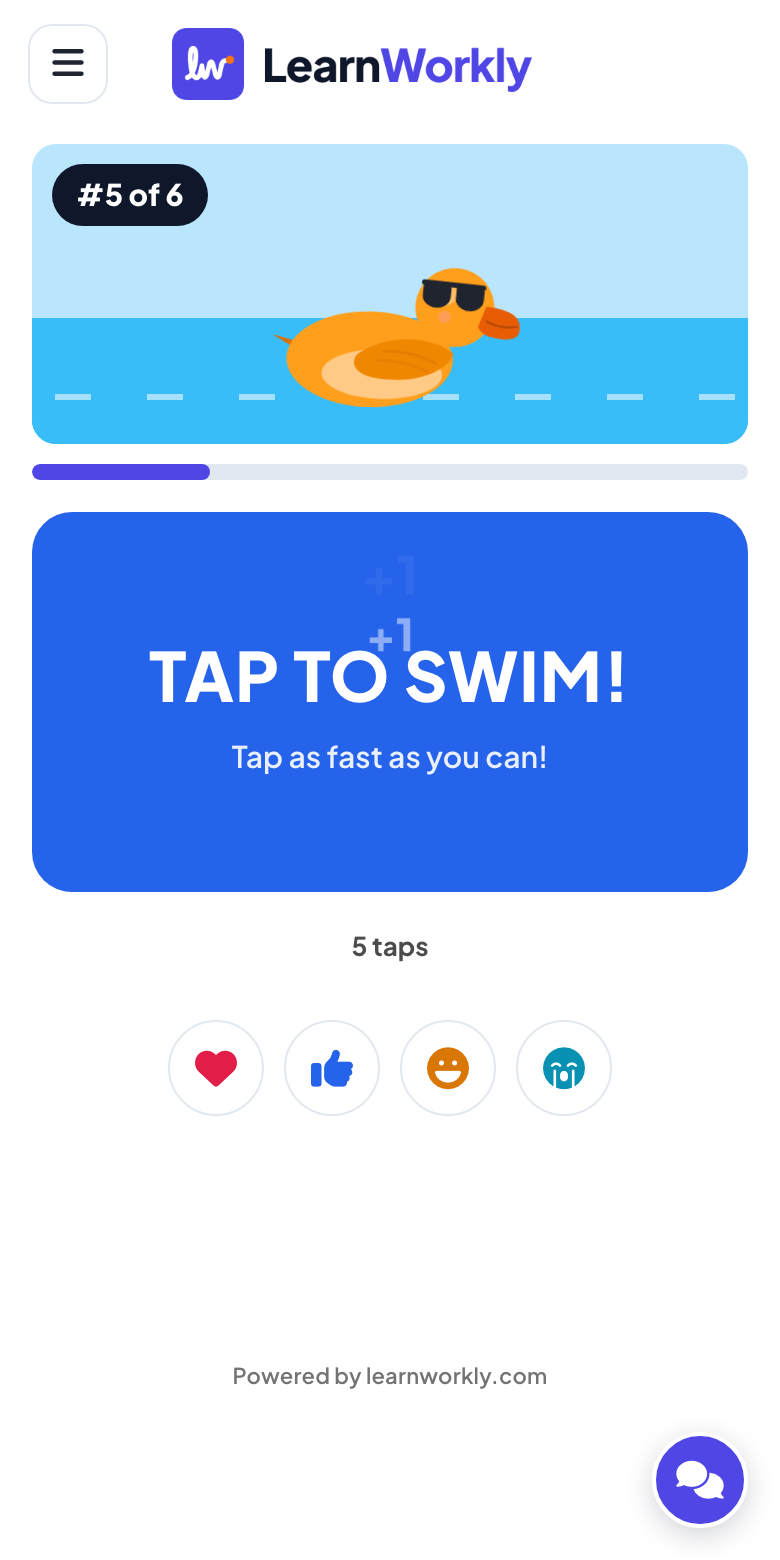
Step by step
Games in PowerPoint, step by step
- 1
Open the Games group
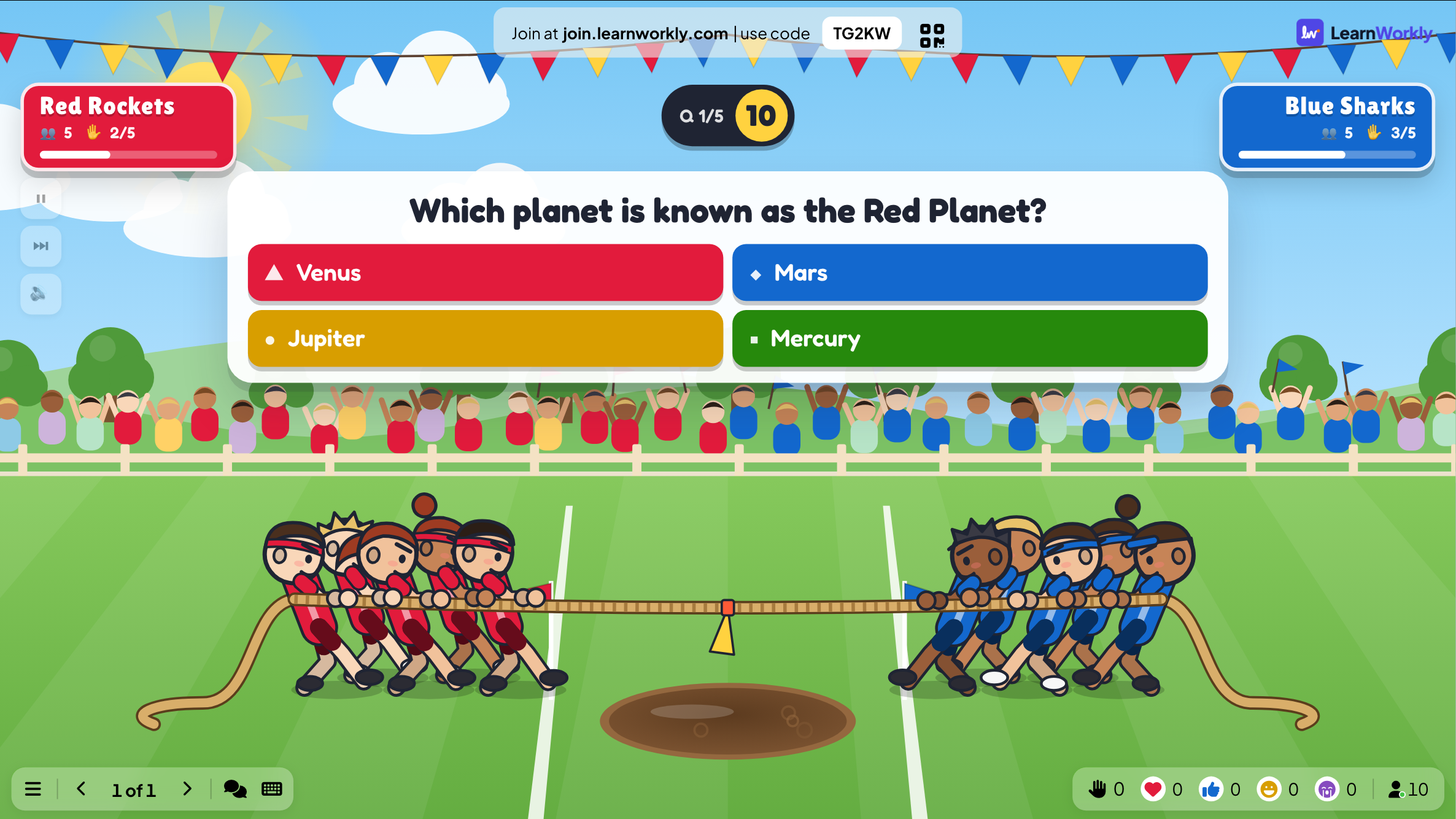
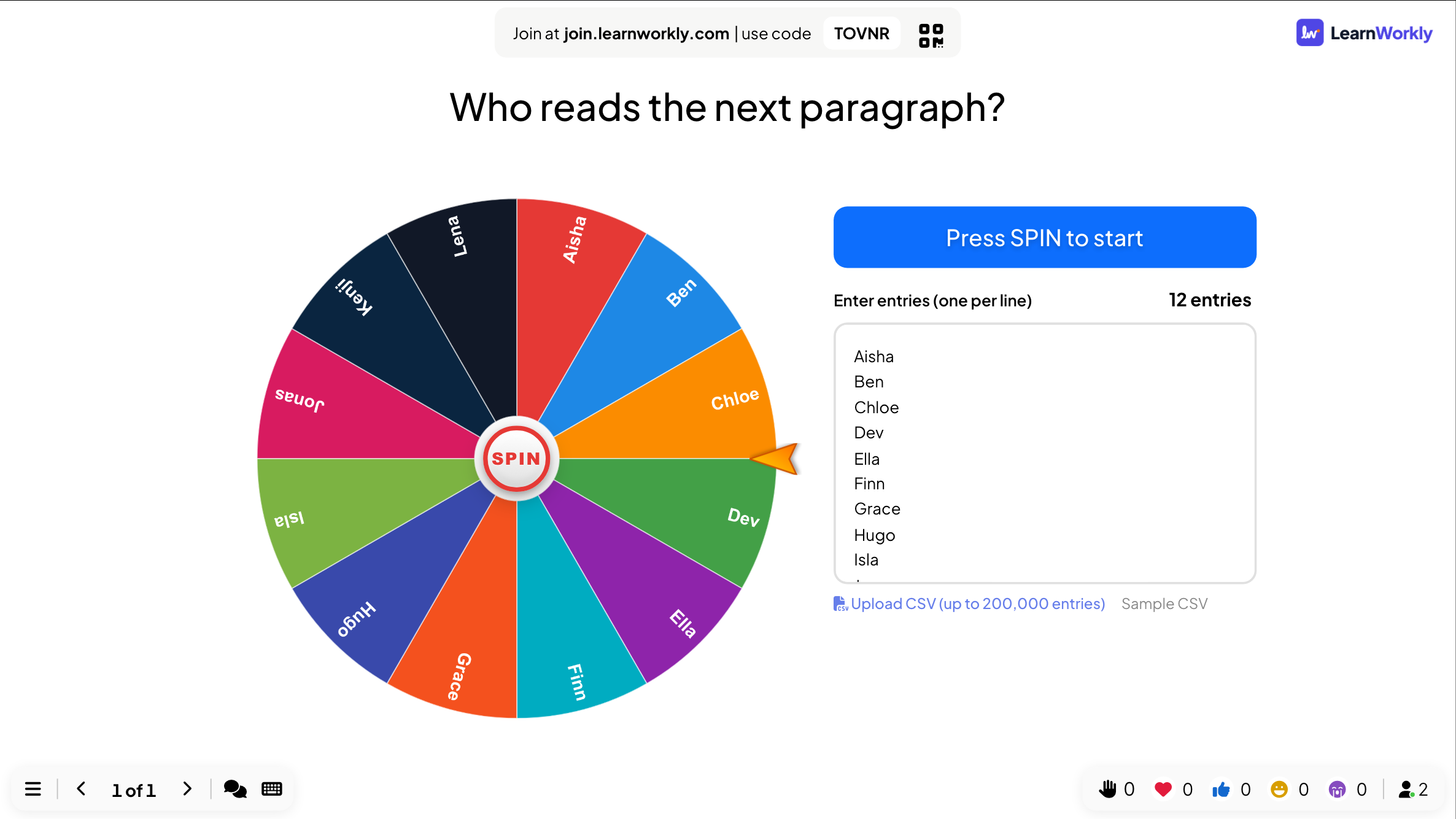
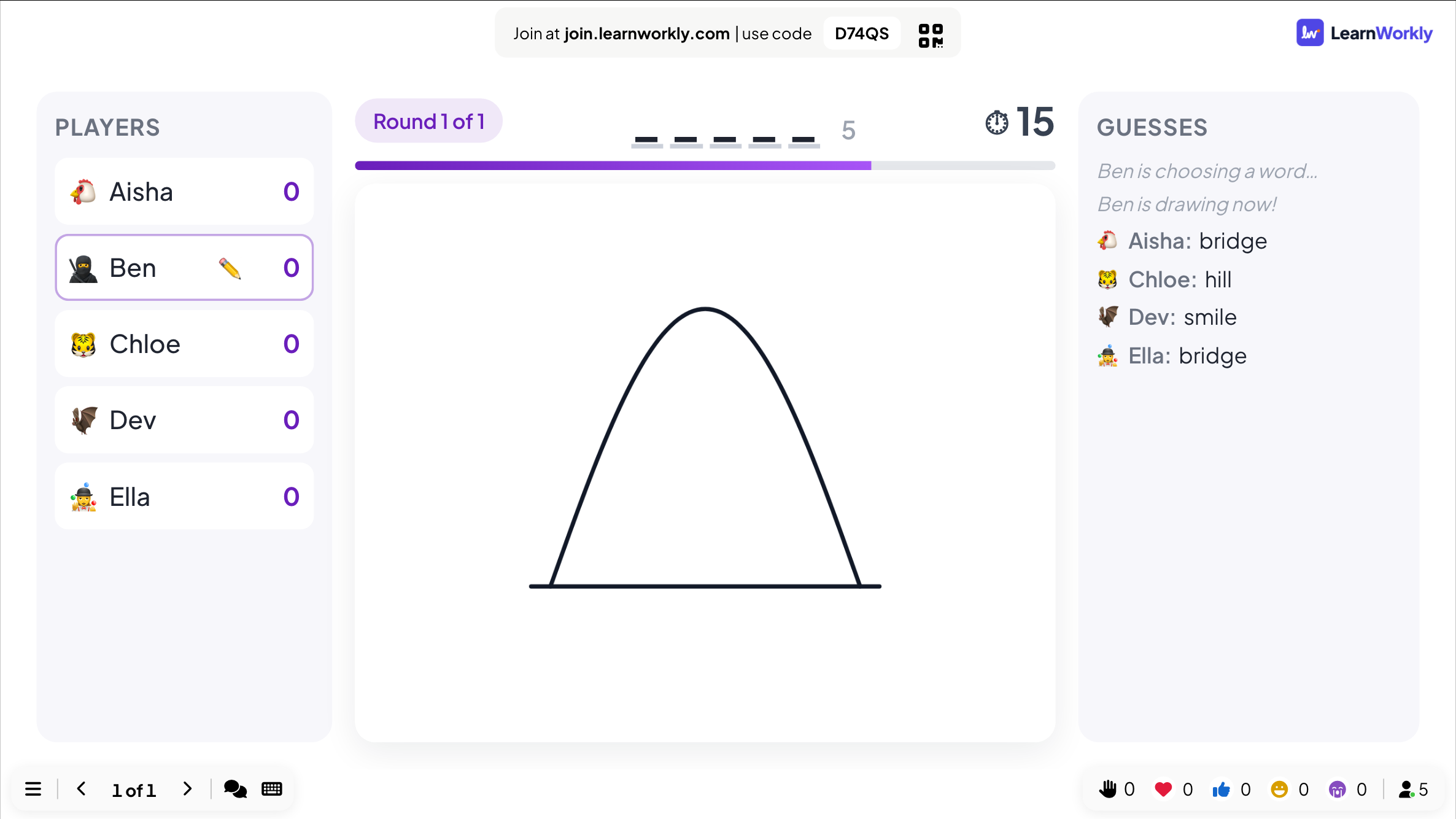
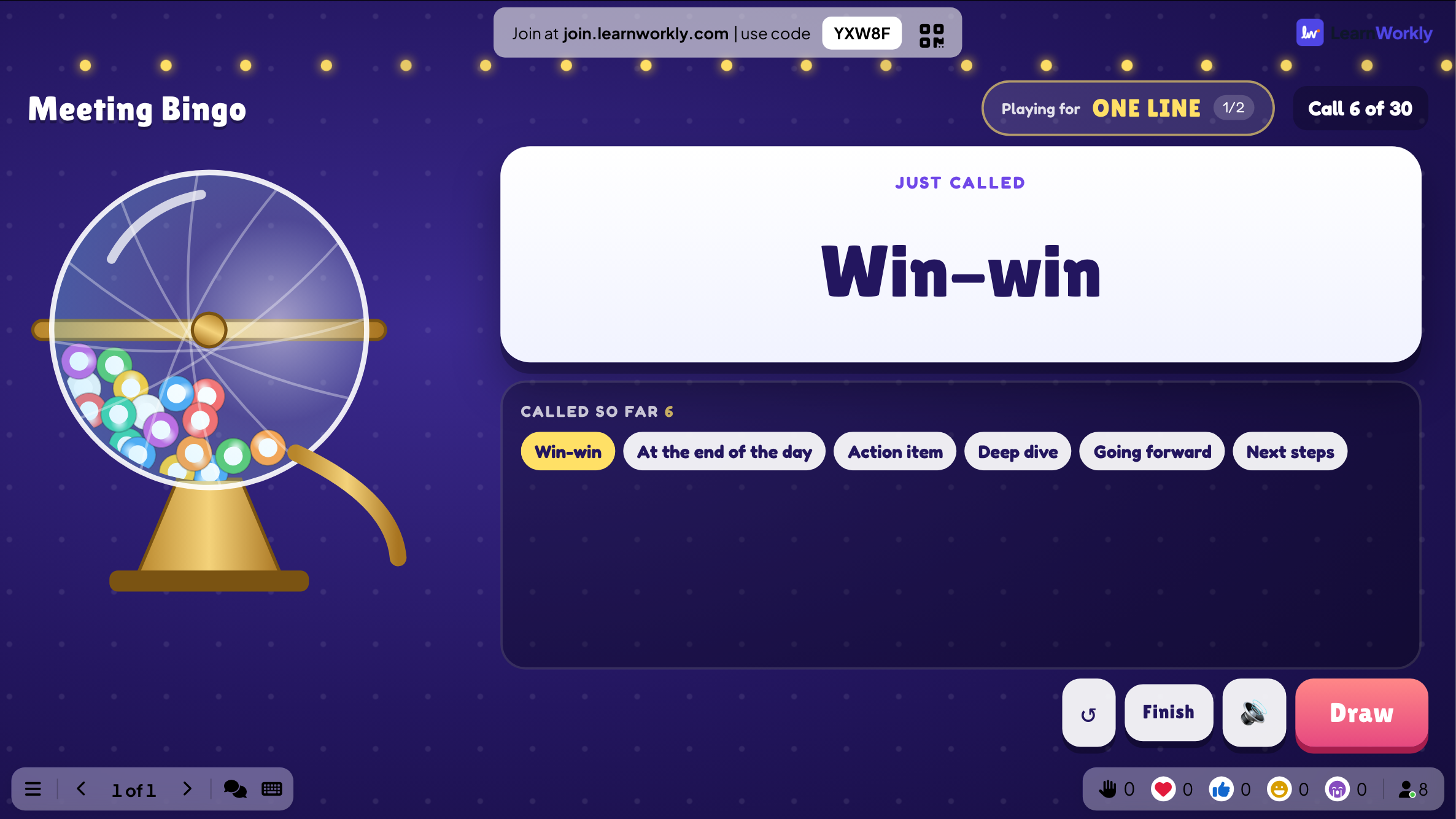
Click LearnWorkly on the Home tab and open Games in the panel: Duck Race, Zombie Race, Tug of War, Spinner Wheel, Draw & Guess, Scenario, Bingo, Last One Standing and more. A click adds the game after the selected slide.
LearnWorkly panel in PowerPoint 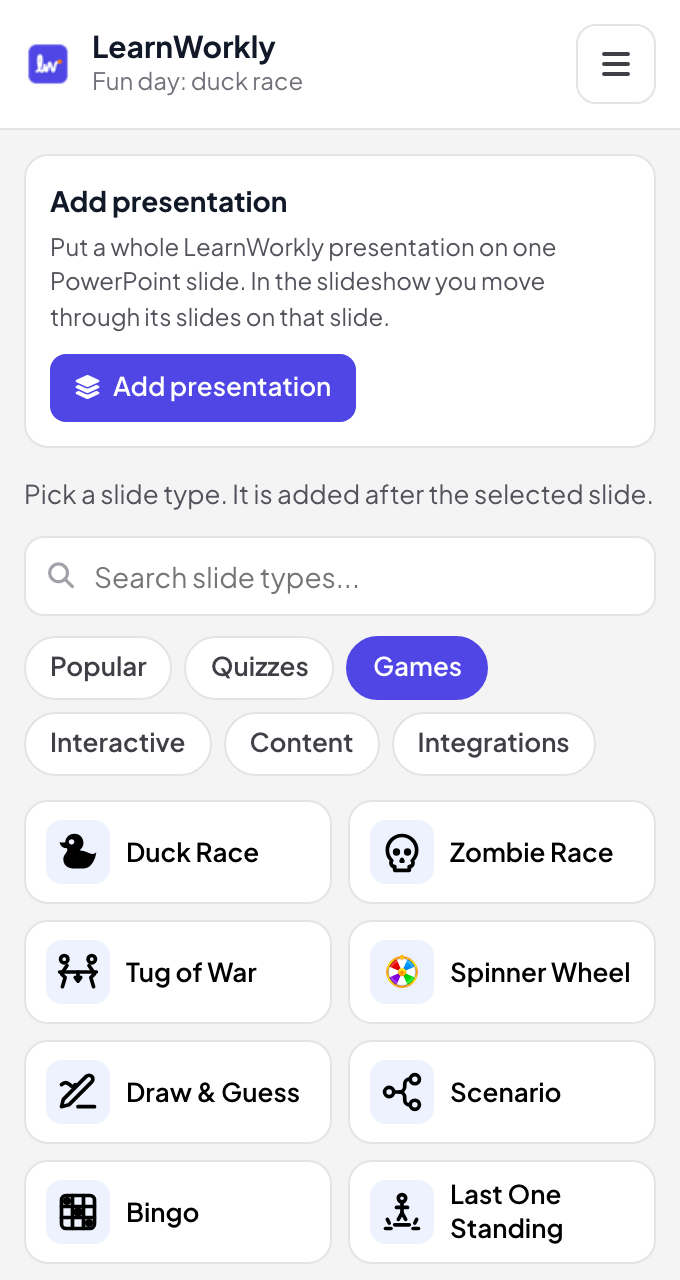
- 2
Set the game up on the slide
In edit view, each game shows its own settings next to the slide, such as the race duration of a Duck Race or the questions of a Tug of War.
Tip: Several games start with sample content, so you can try them before you write your own.
PowerPoint edit view 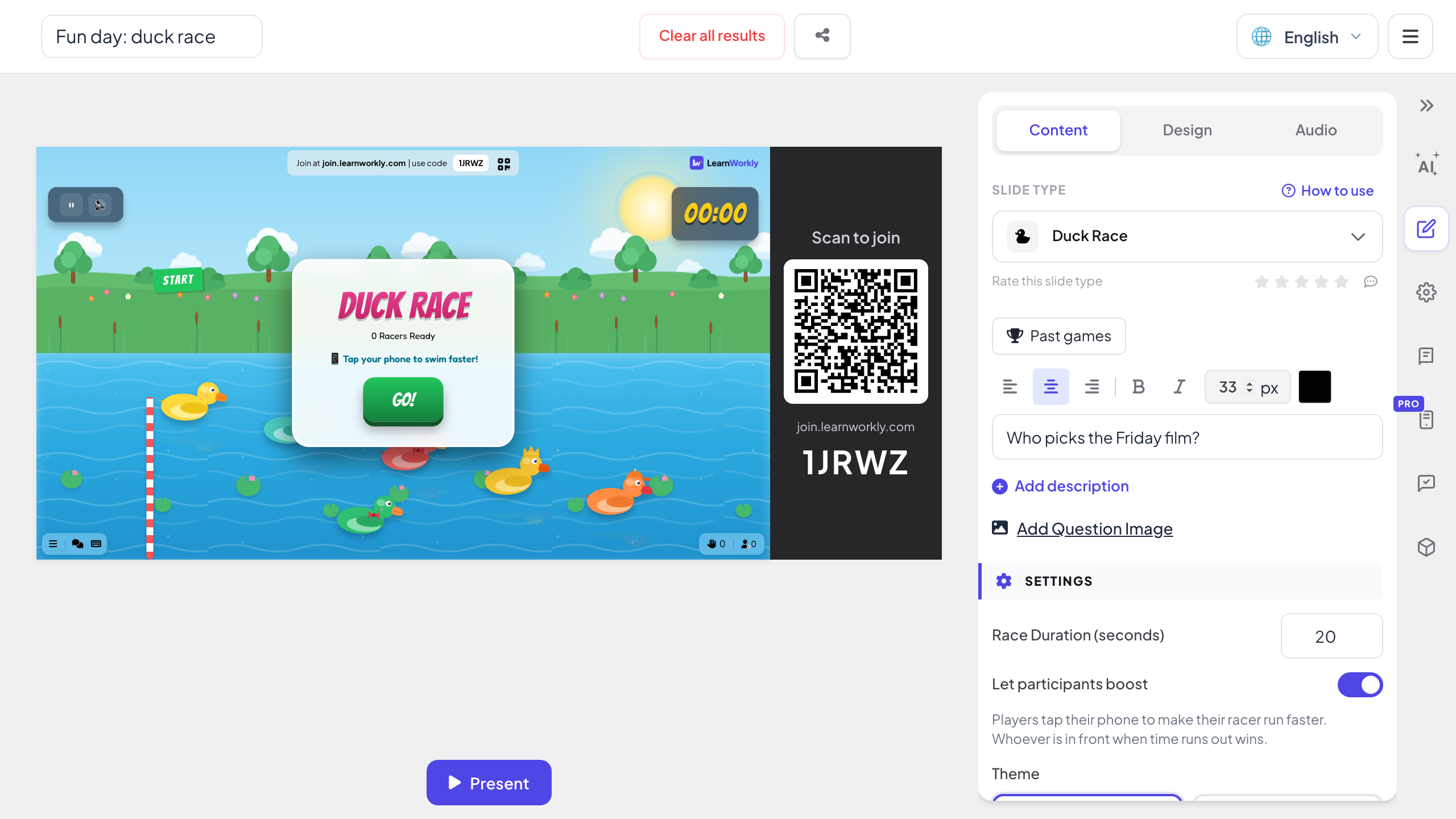
- 3
Play in the slideshow
When the slideshow reaches the game, the join code and QR code are on the slide. Players join on their phones, you press START or GO!, and the slide shows the race, the scores and the winner.
PowerPoint slideshow - 4
Everyone plays on their phone
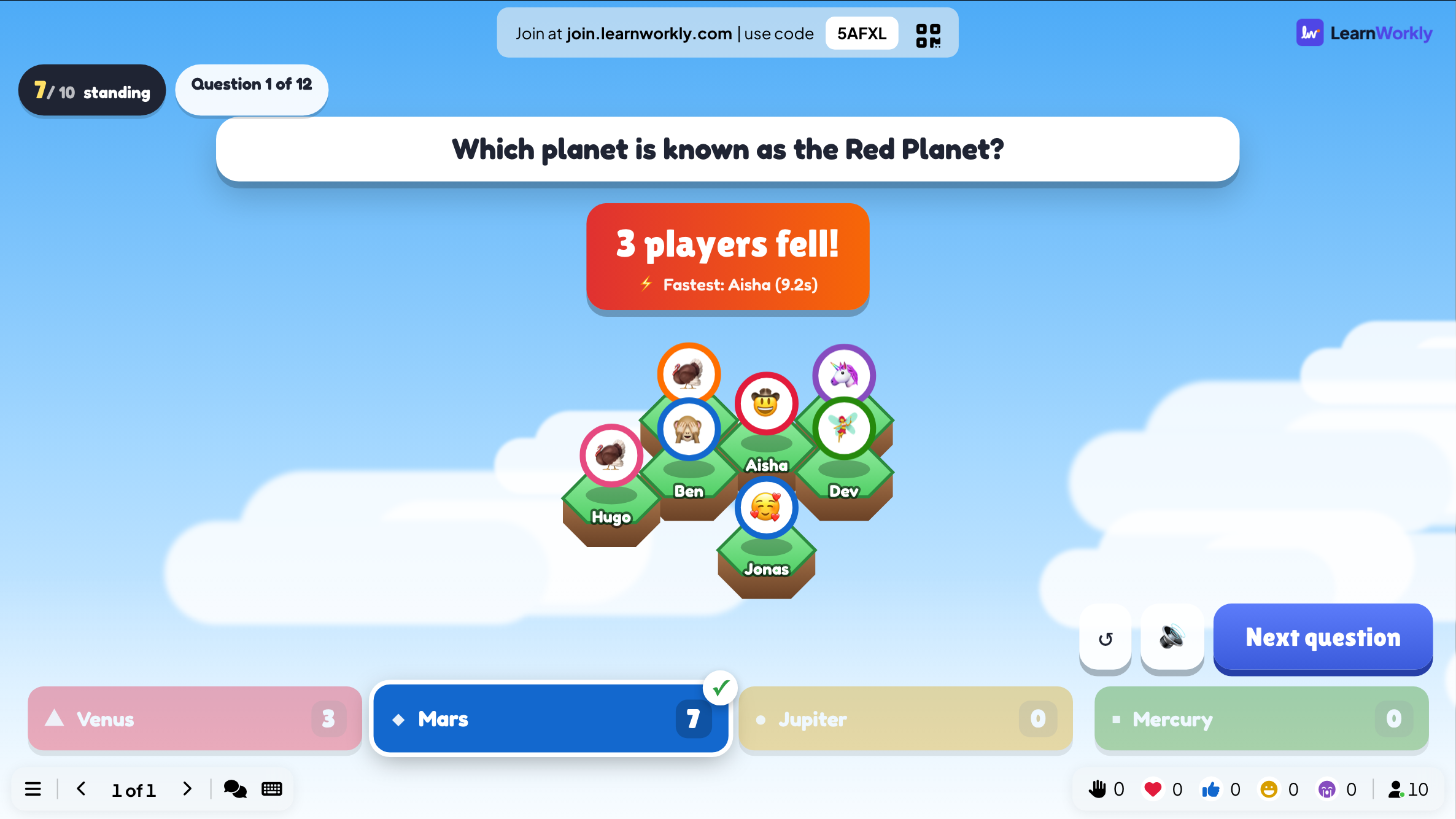
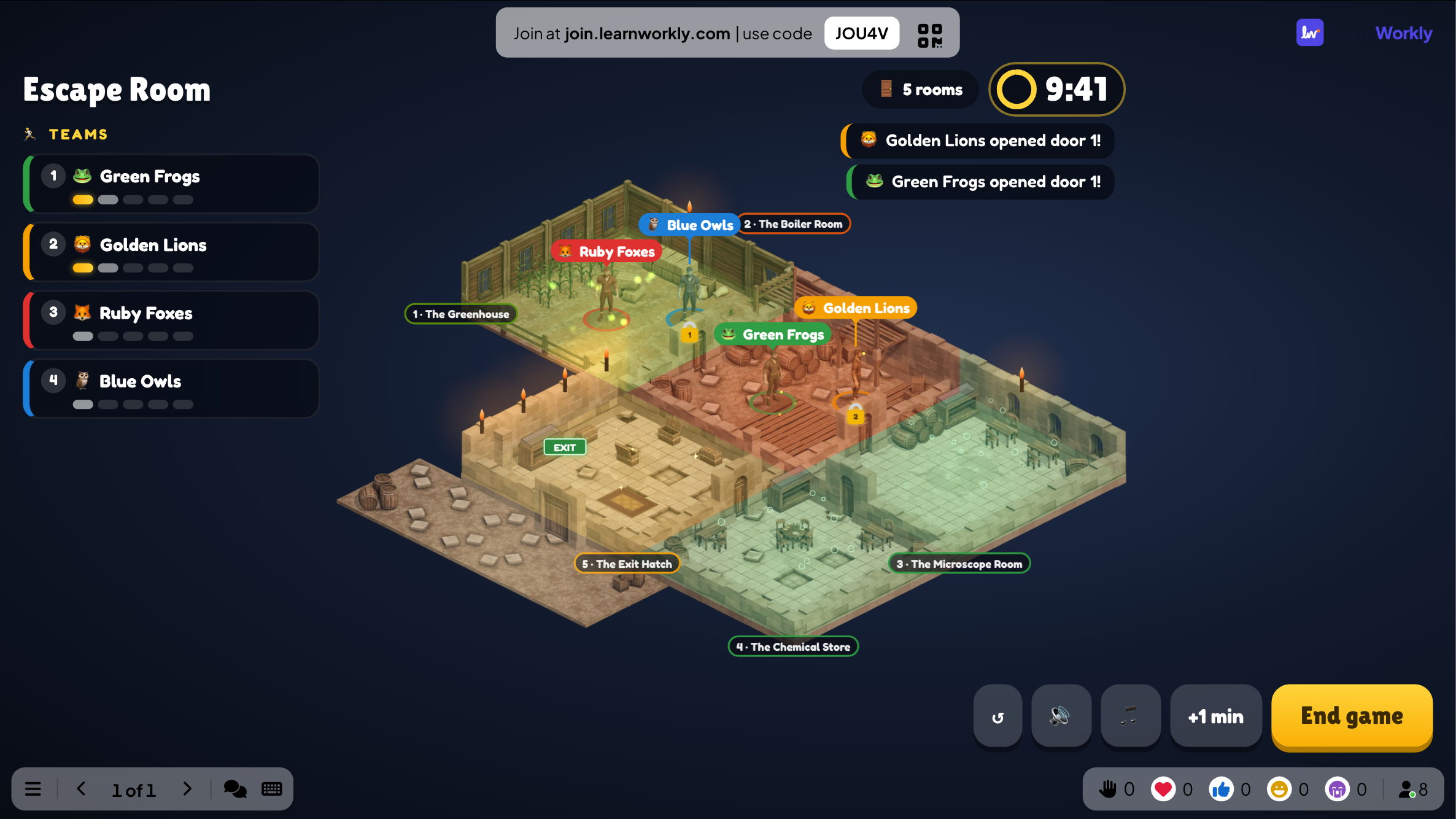
Each game has its own phone screen: tap to swim in Duck Race, tap to pull for your team in Tug of War, daub a card in Bingo, crack a lock in Escape Room.
Game templates or live games?
PowerPoint game templates, such as game shows, board games and mystery doors, use hyperlinks so the presenter can click through. Here is what changes when the games run live on the slide.
| Feature | Template file | LearnWorkly add-in |
|---|---|---|
| Who plays | Volunteers or teams taking turns | The whole room at once, on their phones |
| Setting up | Edit hyperlinks, triggers and scores | Fill in a form on the slide, or keep the sample |
| Scores and winners | Kept by hand | Counted by the game and shown on the slide |
| Chance | Fixed by how the slides were built | Random draws, chests and spins in every game |
| Macros | Some templates need them, and Office blocks macros in files from the internet by default | No macros |
| Results | Nothing kept | Past games for every game slide |
Every game in the add-in
The same games as in the LearnWorkly app. Open one to see how it plays, or try it live in your browser.

Scenario
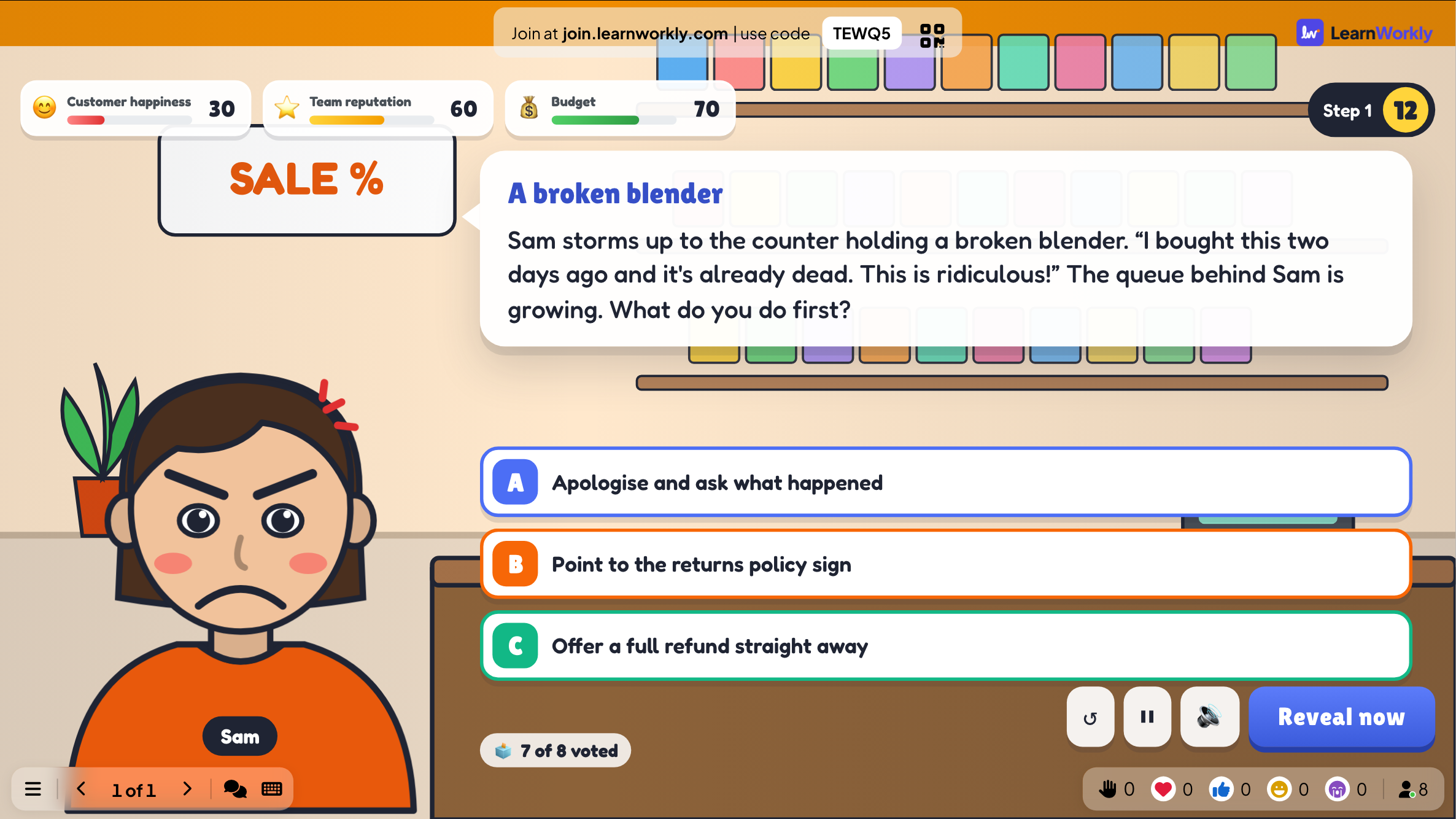
A branching story: the room votes on what to do, and every choice changes what happens next.
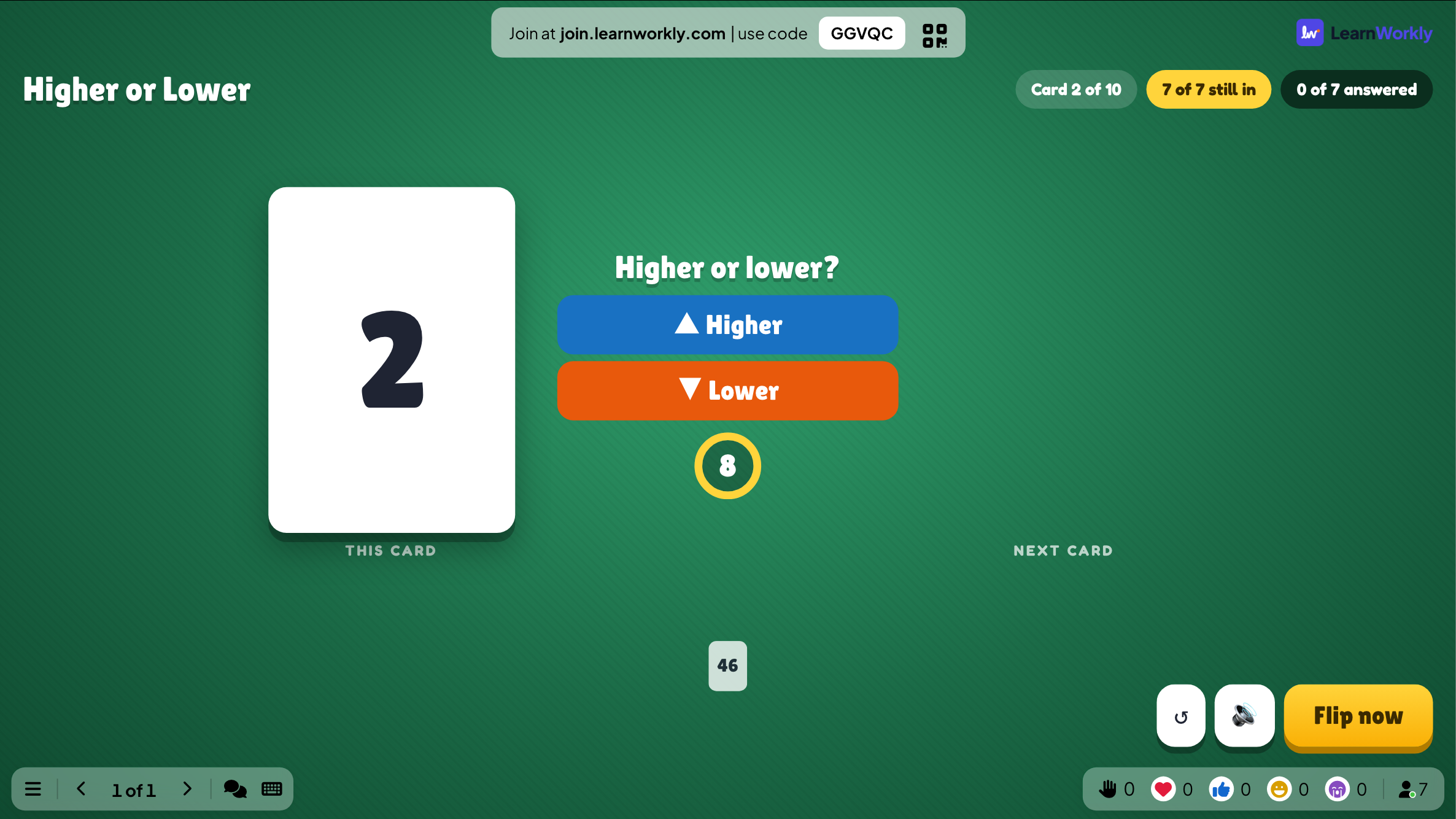
Higher or Lower
Guess whether the next card is higher or lower and keep your streak alive.


Lucky Draw
A prize draw: people join on their phone and the big screen draws the winners of each prize.
Where the games fit
Brain break in a lesson
A 20-second Duck Race between two teaching slides, with the winner choosing the next activity.
End-of-term party
Bingo, Tug of War and a final leaderboard from one deck.
Revision day
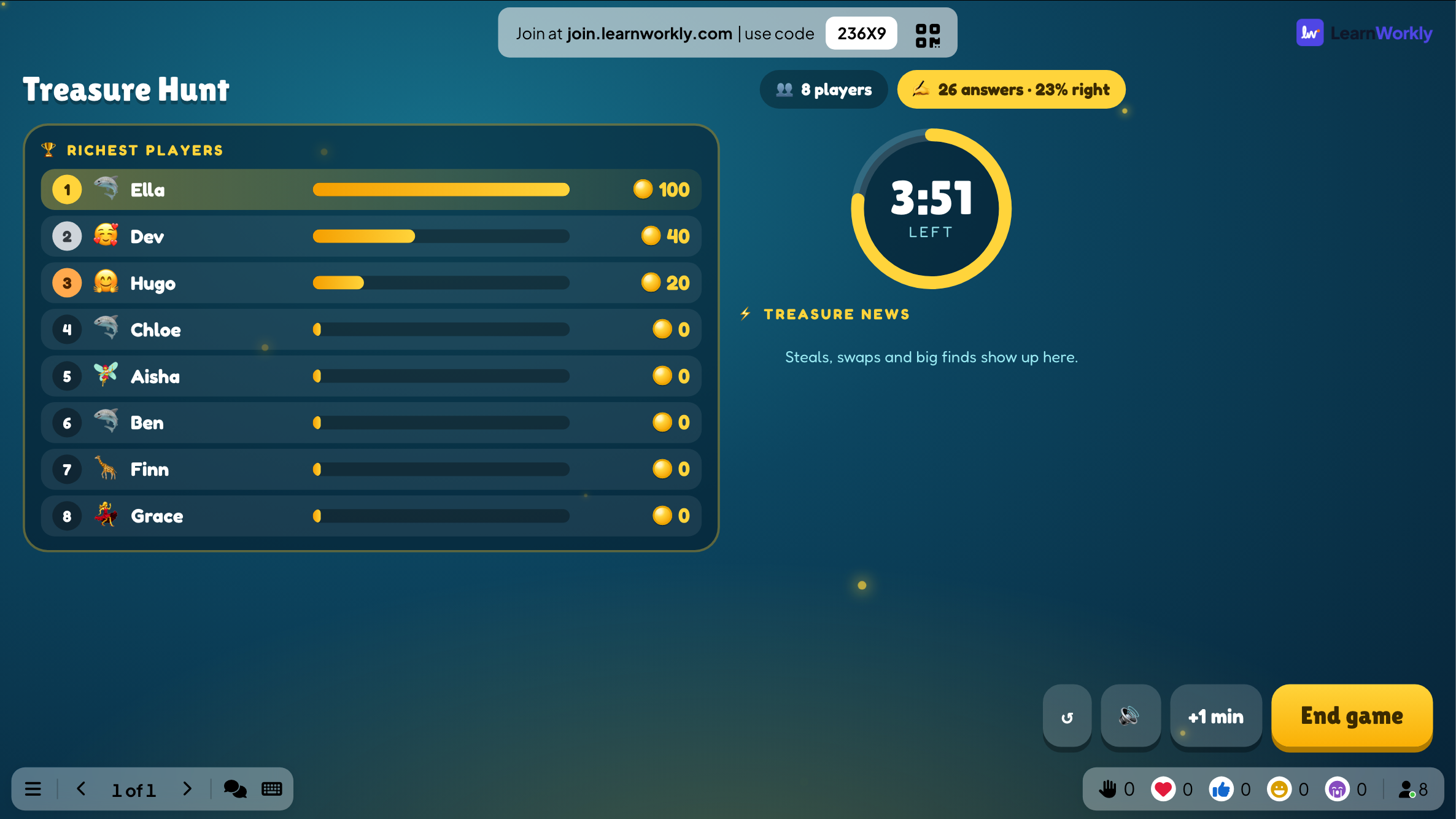
An Escape Room in teams, then a Treasure Hunt for the questions most people missed.
Company fun day
Zombie Race, Rock Paper Scissors and Heads or Tails on the big screen in the canteen.
Workshop warm-up
Draw & Guess or a Spinner Wheel to pick who speaks first.
Prize draw
A Duck Race with boost off, so chance alone picks the winner.
Download the add-in
Close PowerPoint, run the installer, then click LearnWorkly on the Home tab.
Windows
Windows 10 or 11, PowerPoint from Microsoft 365 or Office 2016 and later
Version 1.0.1
Download for WindowsMac
macOS, PowerPoint from Microsoft 365 or Office 2019 and later
Version 1.0.2
Download for Mac
Frequently asked questions
Which games can I add to PowerPoint?
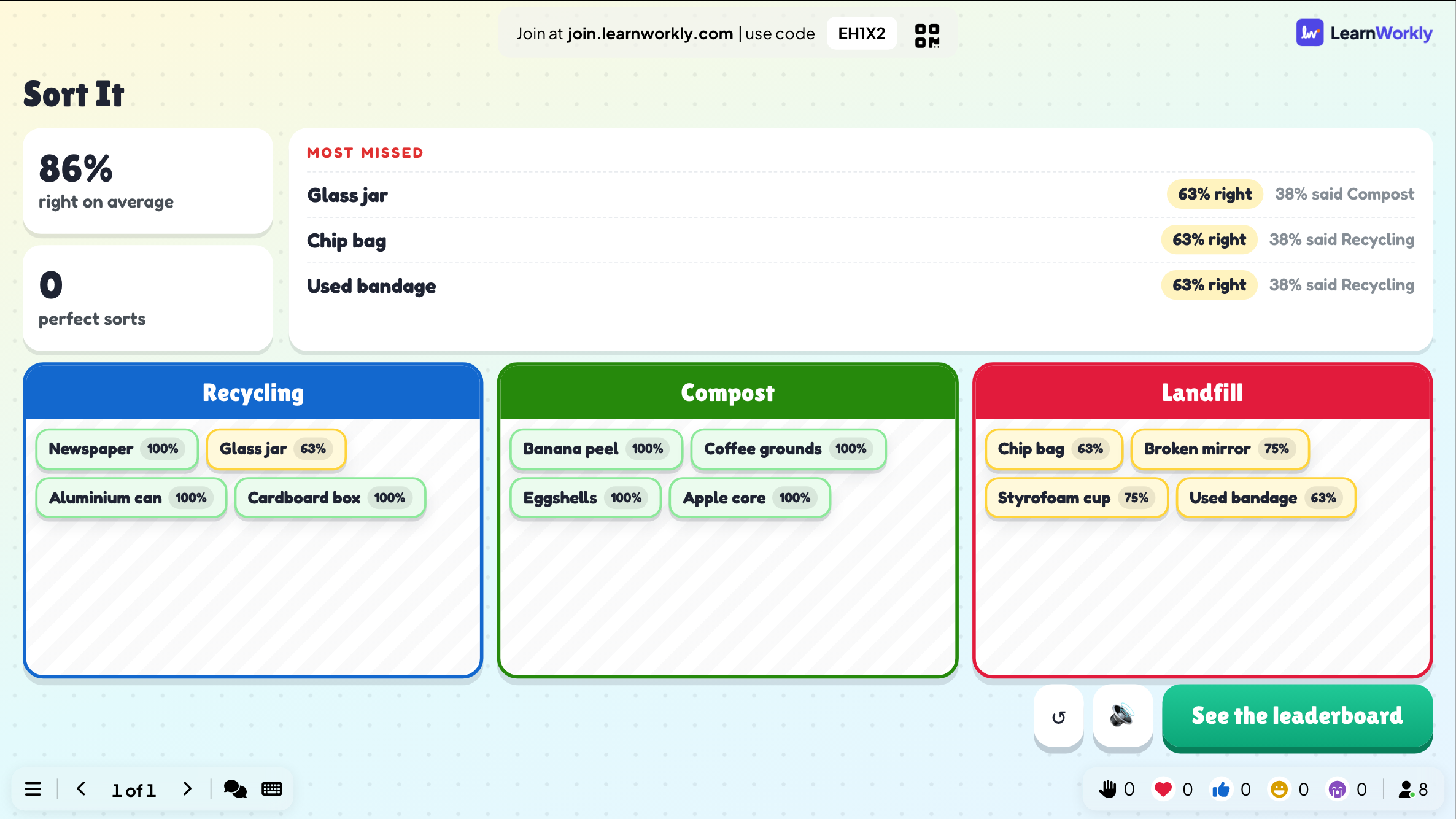
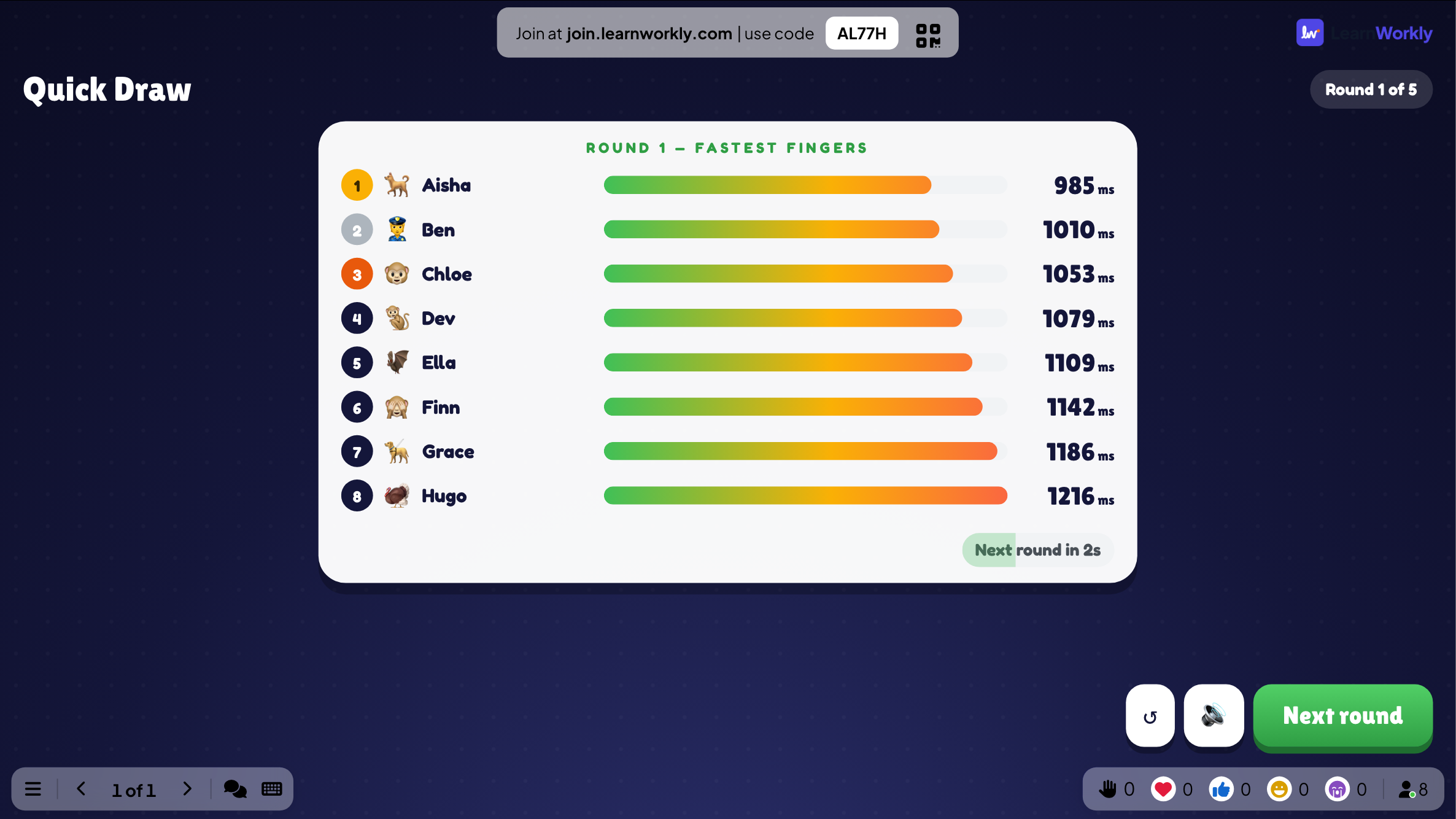
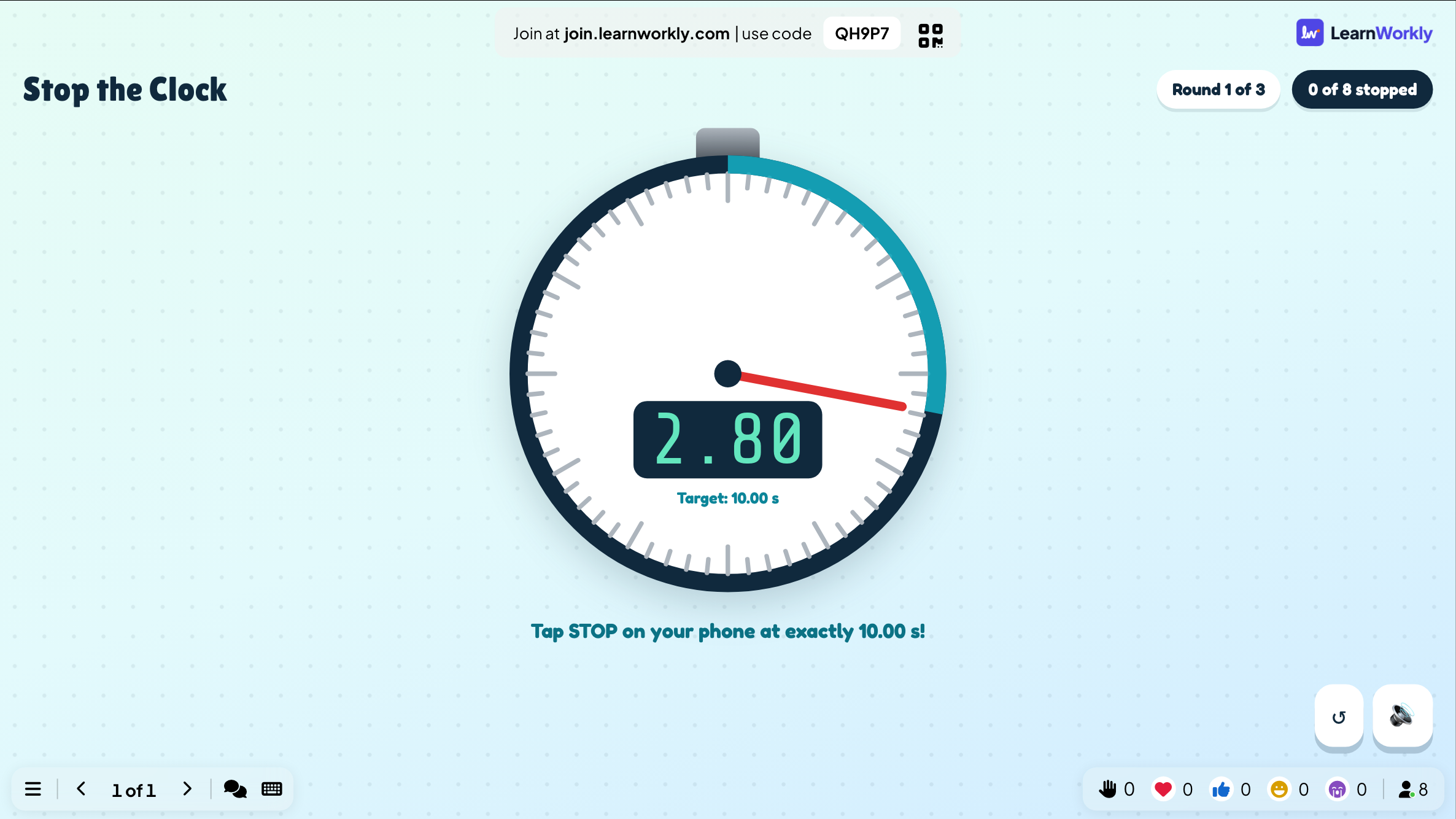
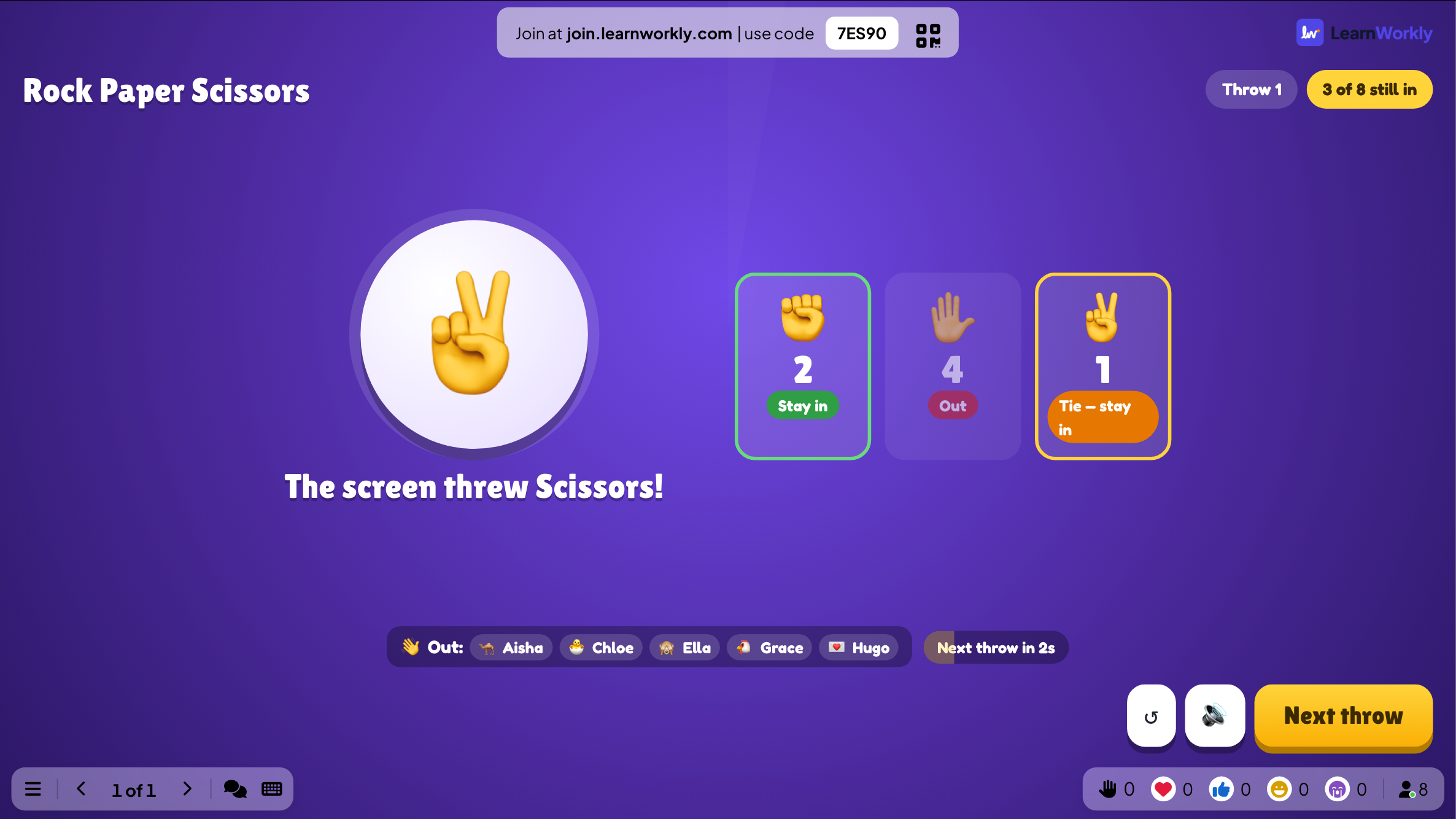
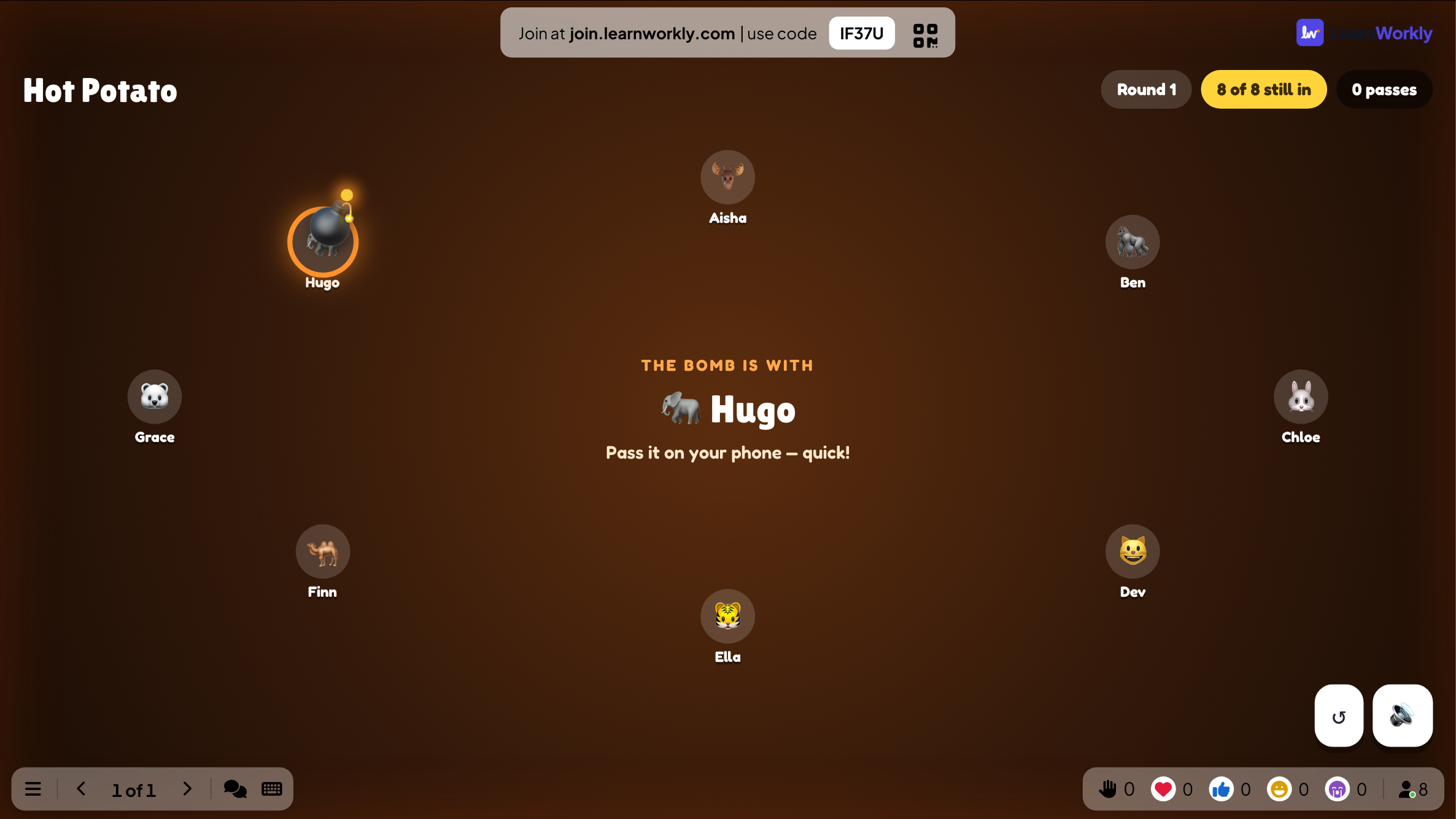
Every game of the LearnWorkly app: Duck Race, Zombie Race, Tug of War, Spinner Wheel, Draw & Guess, Scenario, Bingo, Last One Standing, Sort It, Quick Draw, Stop the Clock, Higher or Lower, Rock Paper Scissors, Heads or Tails, Hot Potato, Treasure Hunt and Escape Room, plus the quiz slides.
Do I need macros or hyperlinks?
No. Each game is one slide that the add-in places in your deck, and it runs on that slide during the slideshow.
Do players need an app or an account?
No. They scan the QR code or open the join address in their phone’s browser and type the code shown on the slide.
Does it work in PowerPoint for Mac?
Yes. The add-in installs on PowerPoint for Windows (Microsoft 365, or Office 2016 and later) and PowerPoint for Mac (Microsoft 365, or Office 2019 and later). PowerPoint on the web is not supported yet.
How many players can join?
It depends on your plan: up to 10 people at the same time on Free, more on the paid plans. The add-in itself is free on every plan.
Learn more
More activities for PowerPoint
Try it in your next session
Free for up to 10 live participants, with every slide type and game. Build your first deck in minutes.
Free for up to 10 participants · No credit card