Reports
Know what the room thought, after the session too
Results build up on the big screen while you present, and every session is saved as a report: the answers to each slide, the scores of each participant and who took part. Look back at it the next day, or export it to share with your team.
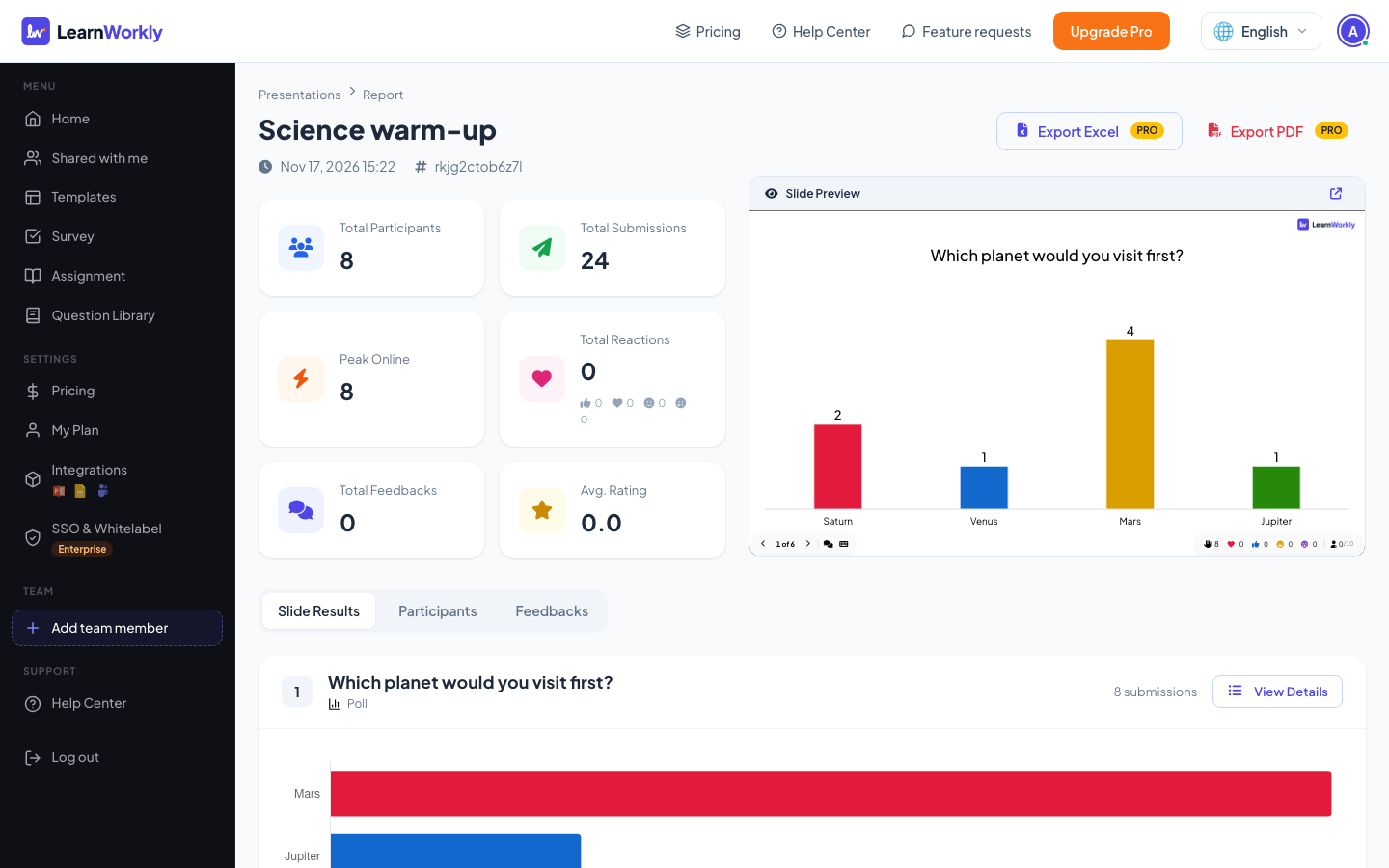
Live results
Votes, word clouds, answers and scores update on the big screen the moment they arrive.
A report for every presentation
Results per slide and per participant, on every plan.
PDF and Excel
Export reports to PDF or Excel on Basic, Pro and Enterprise, with advanced analytics.
Participant details
Ask for the details you need when people join, such as a name or a team, and see them in the report.
In a real session
The morning after a sales training
A sales trainer runs a one-hour session on handling objections for three regional teams. People give their name and team when they join. The next morning she opens the report to see what stuck, who struggled and what to cover in the follow-up.
- 1
Results on screen during the session
The quiz question “A customer says ‘It’s too expensive.’ What do you do first?” splits the room: eight choose “Ask what they are comparing it with”, but three would “Offer a discount” straight away. The reveal starts the best discussion of the hour.
- On phones
- On phones: Each person sees whether they were right and their points.
- On the big screen
- On the big screen: How many chose each option, with the right answer marked, as soon as time is up.
Tip: Turn on Collect Participant Information with a required Team field (Presentation settings → General Settings → Participants) when you need to compare groups afterwards.
Big screen 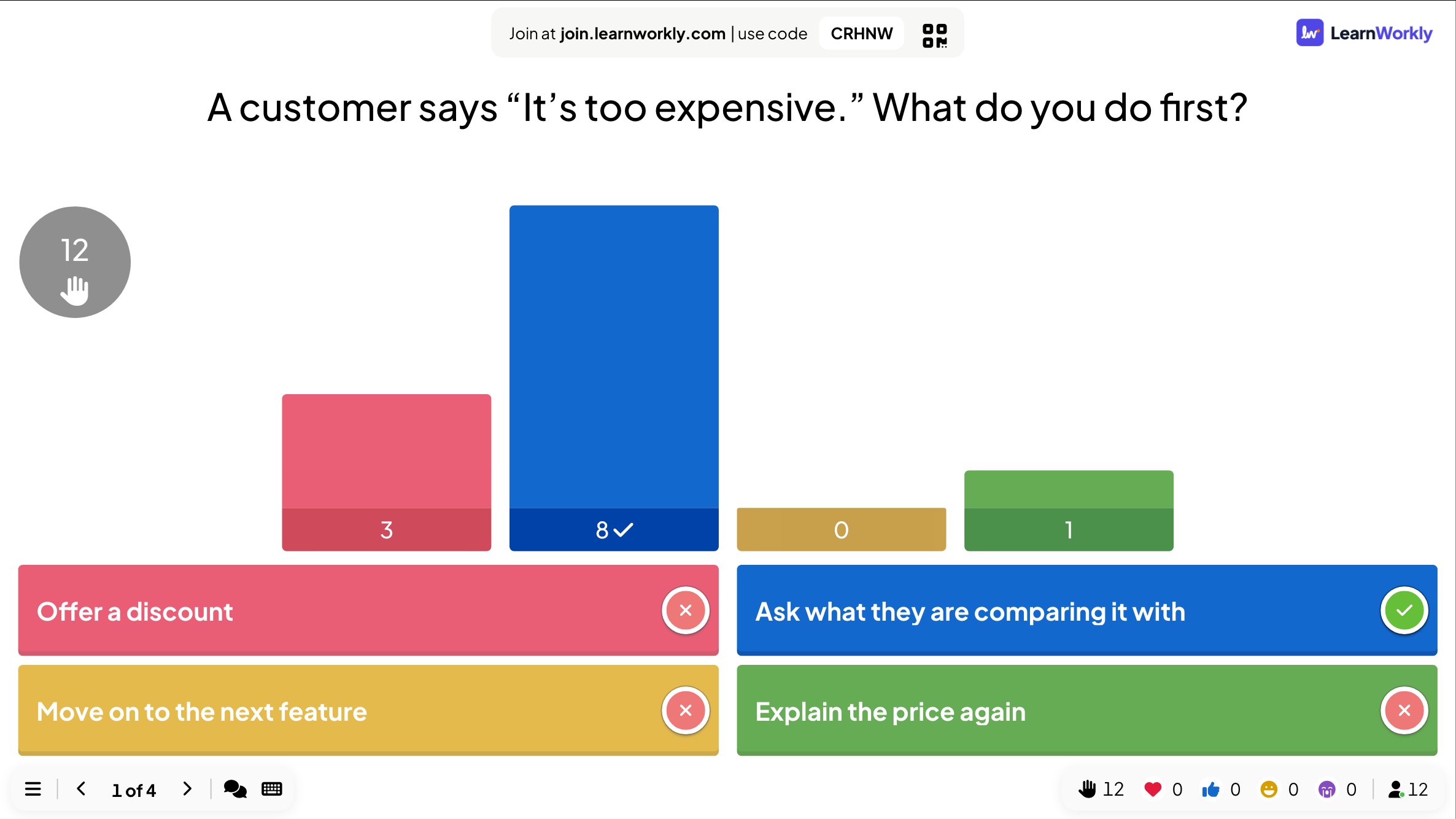
- 2
Open the report the next day
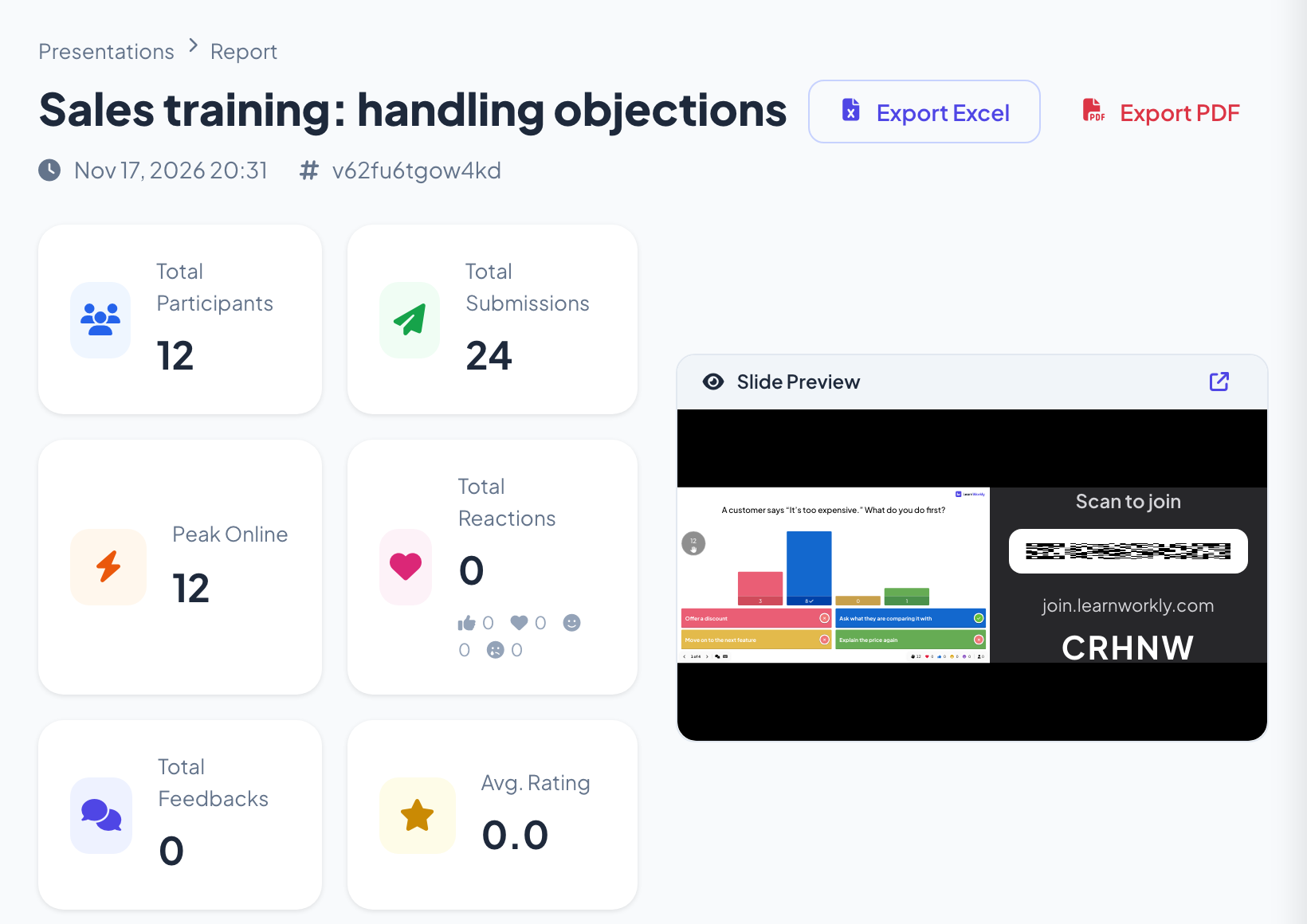
She clicks Report on the presentation on Home. The top of the report shows Total Participants, Total Submissions, Peak Online, Total Reactions, Total Feedbacks and Avg. Rating, with a Slide Preview, and Export Excel and Export PDF buttons.
Tip: If you run the same deck for several groups, use Clear all results between them. Each run is kept as its own session, and you pick it from the list next to the presentation code.
- 3
Read the results slide by slide
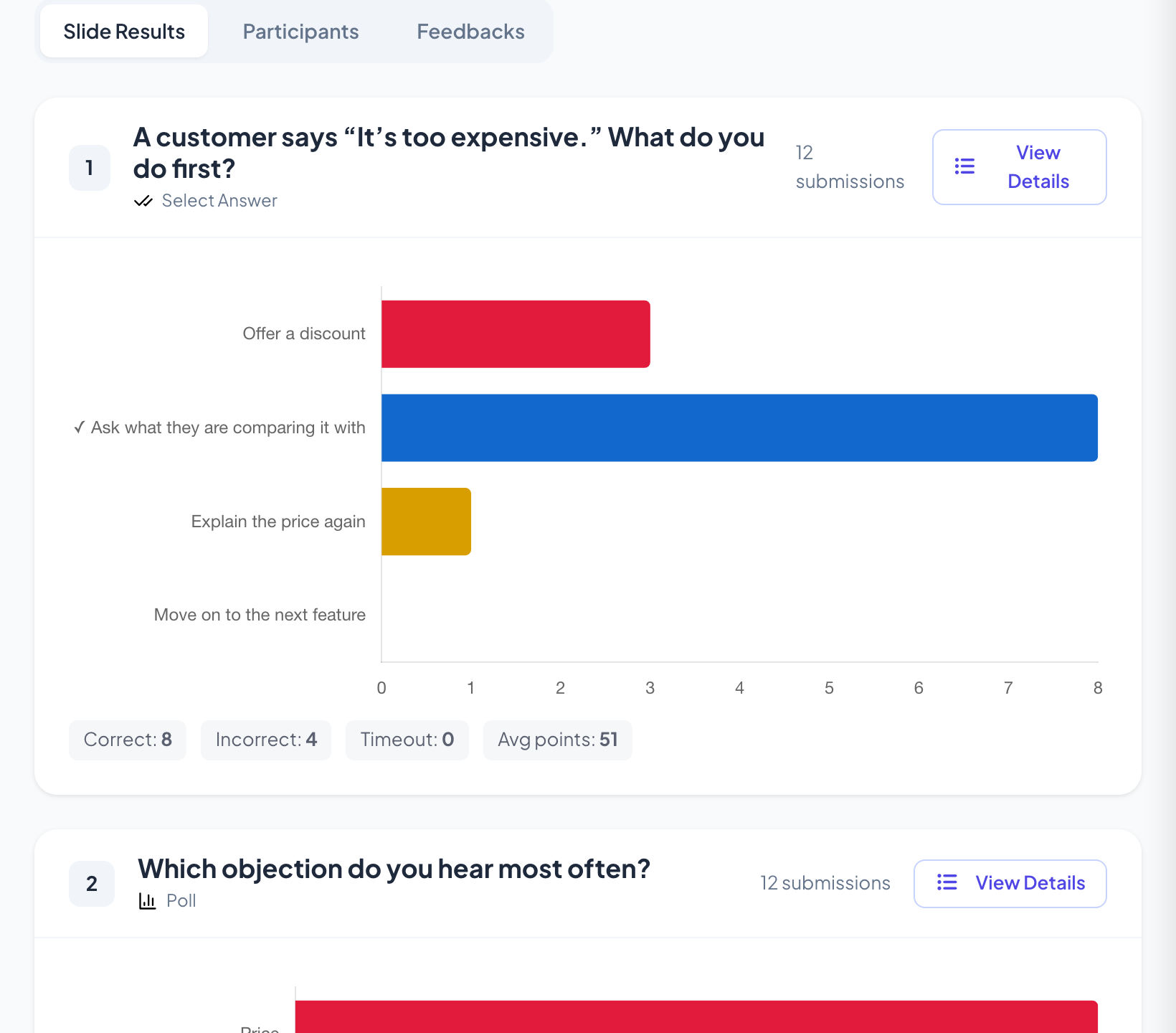
Slide Results has a card for every slide. The quiz card shows how many chose each option, with the right one ticked, and a line with Correct, Incorrect, Timeout and Avg points. The poll card shows that Price is the objection people hear most often, so the follow-up session starts there.
Tip: Word clouds and open questions keep every answer in the report too, so you can read the ones there was no time for in the room.
- 4
See who answered what
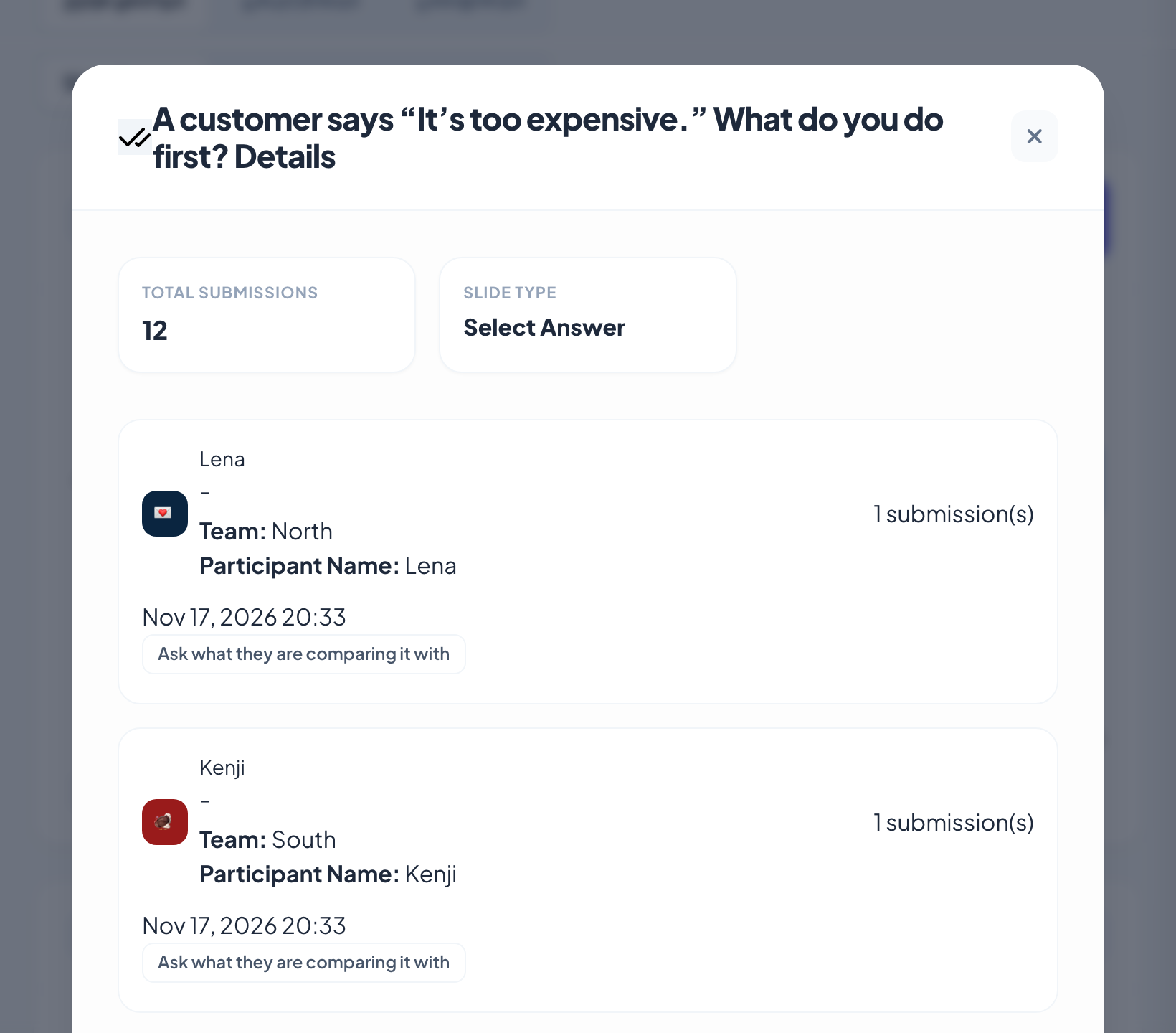
View Details on the quiz card lists every participant with the details they gave when they joined, here their team, and the answer they chose. She sees which three people chose “Offer a discount” and which teams they are in, and sends them a short follow-up exercise.
Tip: Answers are only linked to a name when people gave one. Without names, you still get every answer and every chart.
- 5
Check who took part
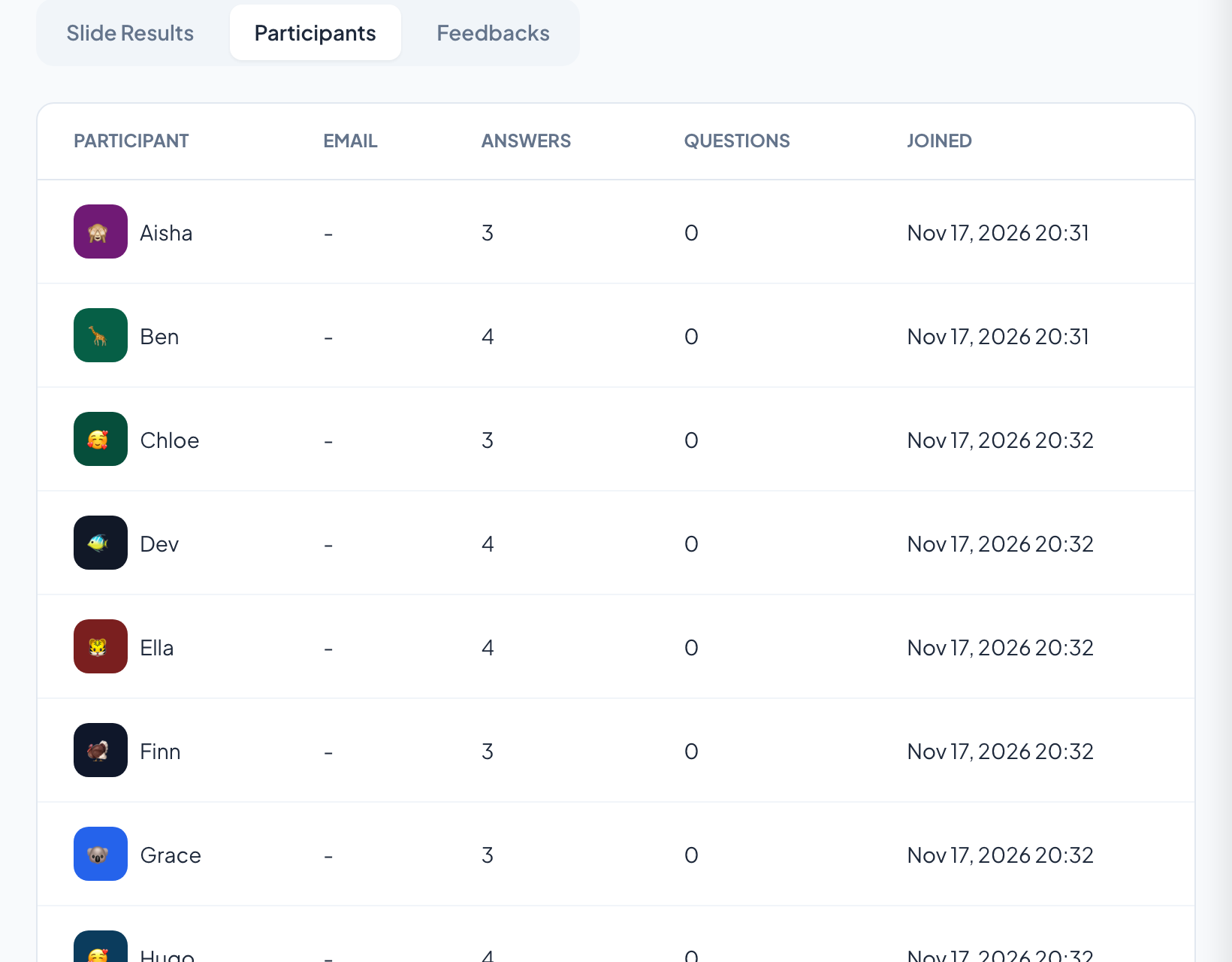
The Participants tab lists everyone who joined, with how many answers they sent and when they joined. Feedbacks shows the ratings out of 5 and the comments people left about the session.
Tip: Export Excel or Export PDF (Basic, Pro and Enterprise) to send the results to the sales managers. The PDF link is emailed to you when it is ready.
Settings that matter
What ends up in a report depends on a few settings you choose before the session.
| Setting | What it does | Default |
|---|---|---|
| Collect Participant Information | Asks for a name and your own fields (Team, Department) when people join; they appear next to each participant in the report. | Off |
| Require Participant Login | People must log in with a LearnWorkly account before they can join. | Off |
| Require Access Code | A personal code per person (1 to 500 codes, Download CSV), each valid for 3 hours. | Off |
| Clear all results | Starts a fresh session in the editor; earlier answers stay in the report as their own session. | Not applicable |
| Enable reactions | Which reactions people can send; the totals appear at the top of the report. | All four |
What participants see
Nothing changes for participants: they answer as usual. If you ask for details when they join, they see Please provide your information with one box per field before they can take part. From the menu on their phone they can also rate the session out of 5 and leave a comment, which you read under Feedbacks.
Ask only for what you will use. Every field you add is personal data you are responsible for.
Limits by plan
| Feature | Free | Basic | Pro | Enterprise |
|---|---|---|---|---|
| Live participants at the same time | 10 | 100 | 5,000 | Flexible |
| Live results and a report for every presentation | ✓ | ✓ | ✓ | ✓ |
| Export presentation reports to PDF and Excel | – | ✓ | ✓ | ✓ |
| Advanced analytics | – | ✓ | ✓ | ✓ |
Frequently asked questions
Are reports on the free plan?
Yes. Live results and the report of every presentation are on every plan. Exporting presentation reports to PDF and Excel starts on Basic.
Can I see who answered what?
If participants gave a name when they joined, or you collected participant information, yes. If they joined anonymously, you see the answers without names.
Where do I find the report?
Click Report on the presentation on Home, or the report button in the editor’s top bar.
What happens to results when I clear them?
Clear all results starts a fresh session. Earlier answers stay in the report as their own session, which you pick from the list next to the presentation code.
Why did my PDF export not download?
A PDF takes a little longer to prepare, so the download link is emailed to the address of your account.
Can I see results during the session?
Yes. Votes, word clouds, answers and scores appear on the big screen as they arrive. Use Hide result when you want to keep them off screen until everyone has answered.
Can I look at one group only?
In surveys and assignments, yes: Add filter shows the responses of one group, for example everyone who picked a certain option, and Export then contains only those responses.
Do surveys and assignments have reports too?
Yes. Their Responses and Results tabs show charts per question, individual answers and, for assignments, scores and insights, with Export to Excel or CSV.
Learn more
Who uses it, and for what
Related features
Try it in your next session
Free for up to 10 live participants, with every slide type and game. Build your first deck in minutes.
Free for up to 10 participants · No credit card