Games
Lucky Draw: draw the winners of every prize on the big screen
A prize draw: people join on their phone and the big screen draws the winners of each prize.
Opens a demo in the app. No sign-up needed.
What is Lucky Draw?
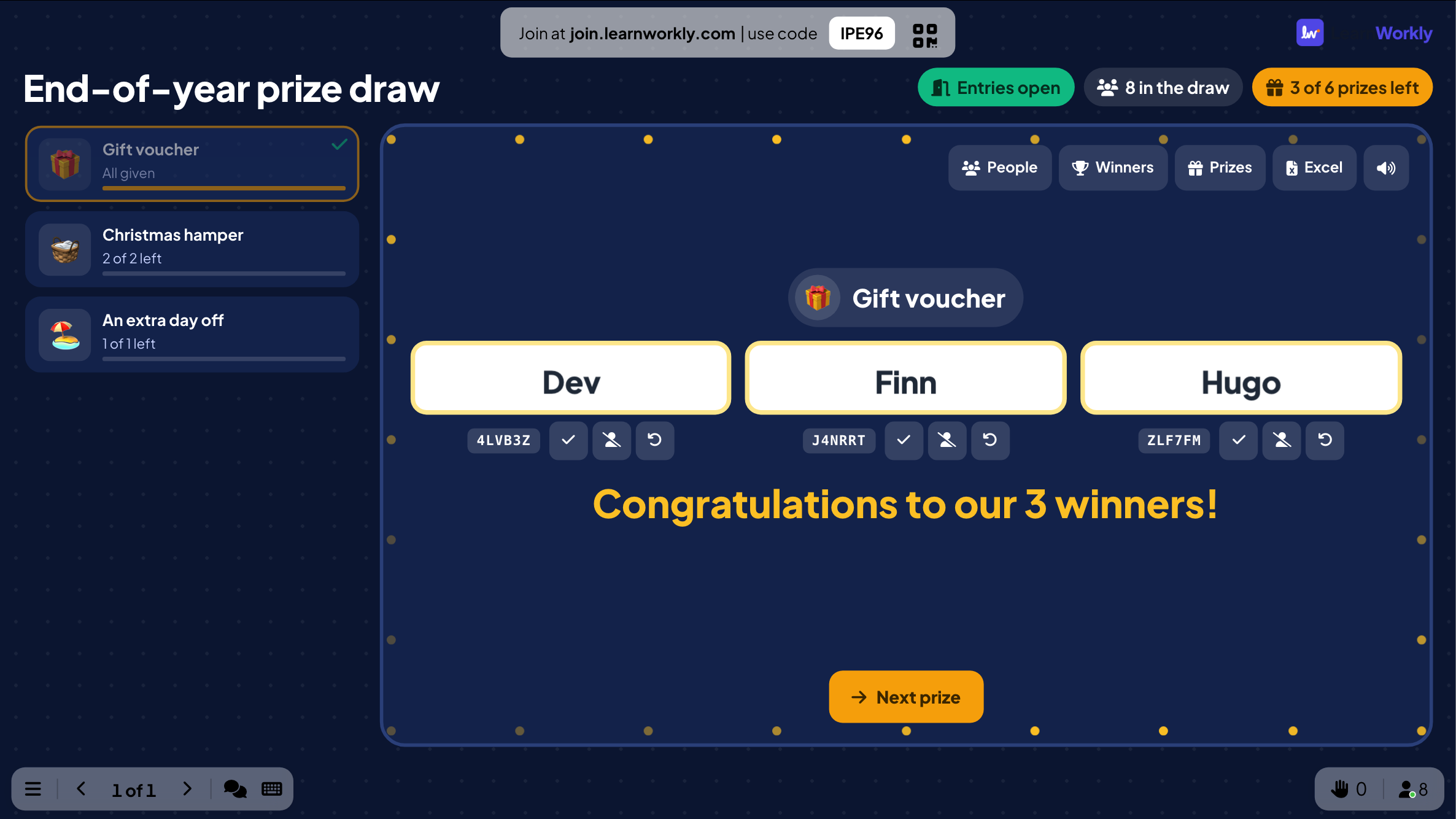
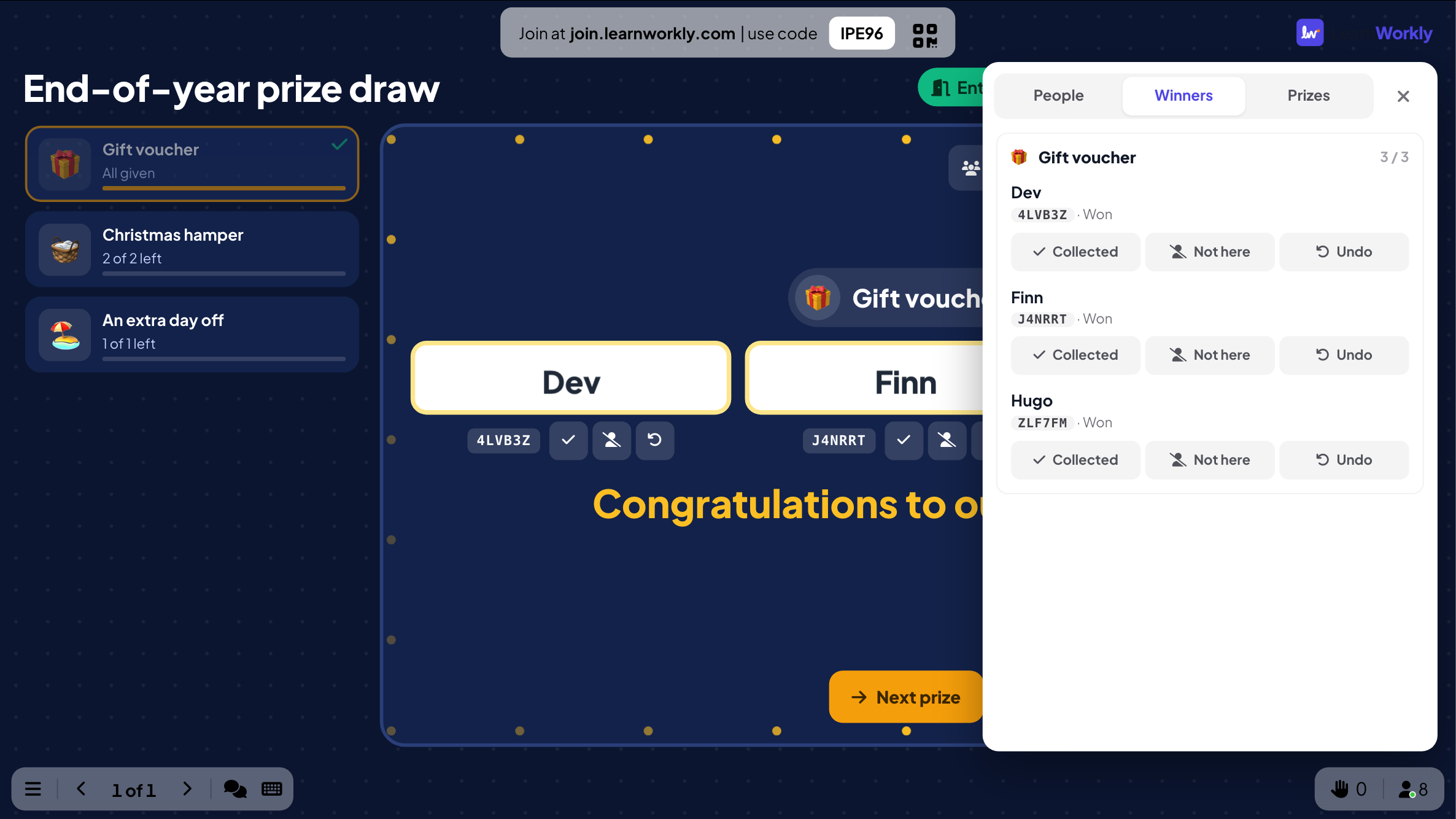
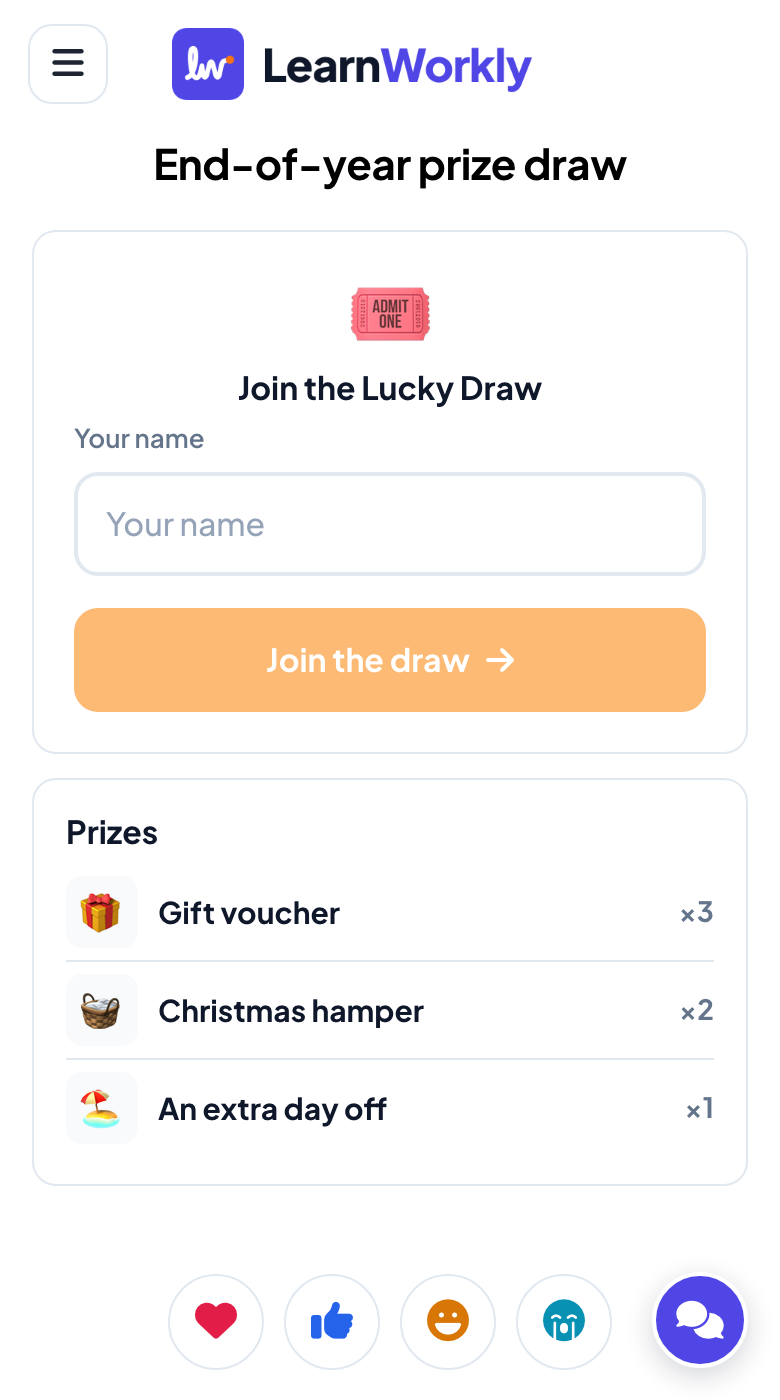
Lucky Draw runs a free prize draw from your presentation. You list the prizes and how many of each you give away. People scan the QR code, type their name and get a ticket with a short code. On the big screen you pick a prize and draw its winners: name reels spin and stop on each one. The server picks the winners at random, every draw is saved as it happens, and the whole record downloads to Excel at the end.
Read the full guide to Lucky DrawOn the big screen
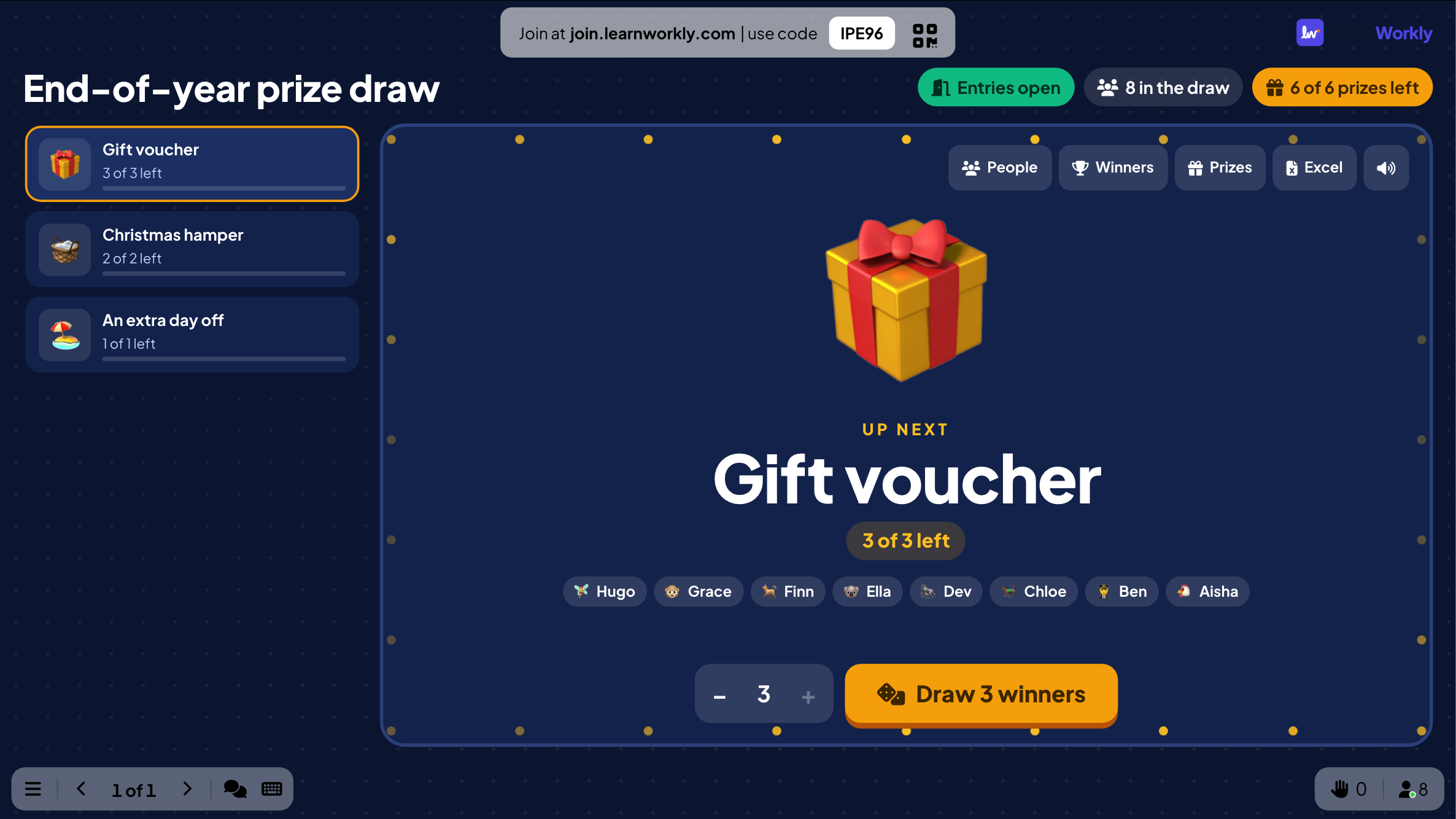
Before a draw, the big screen shows the prize up next, how many people are in the draw and their names as they join, with the prize list down the side. During a draw, one reel spins for each winner; a single grand prize gets the whole screen and a crown.
On phones
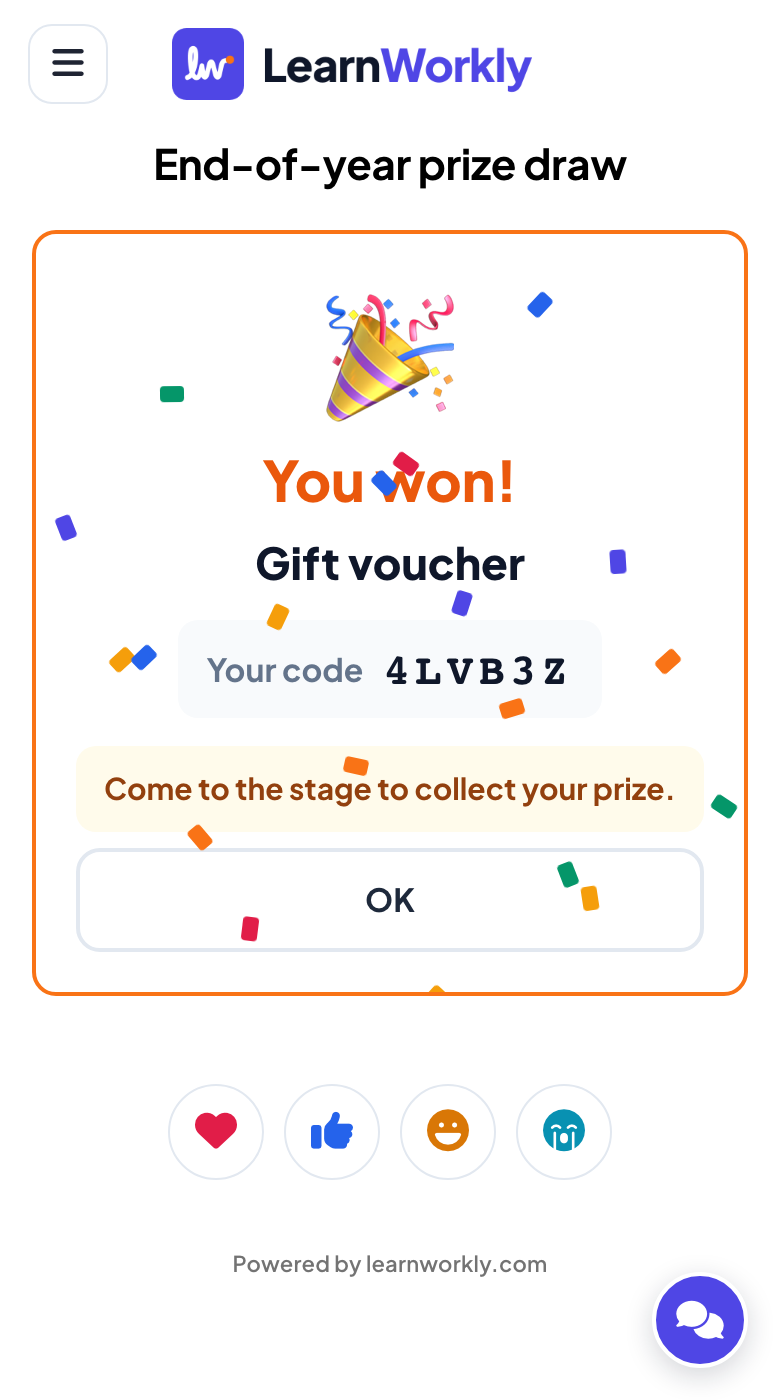
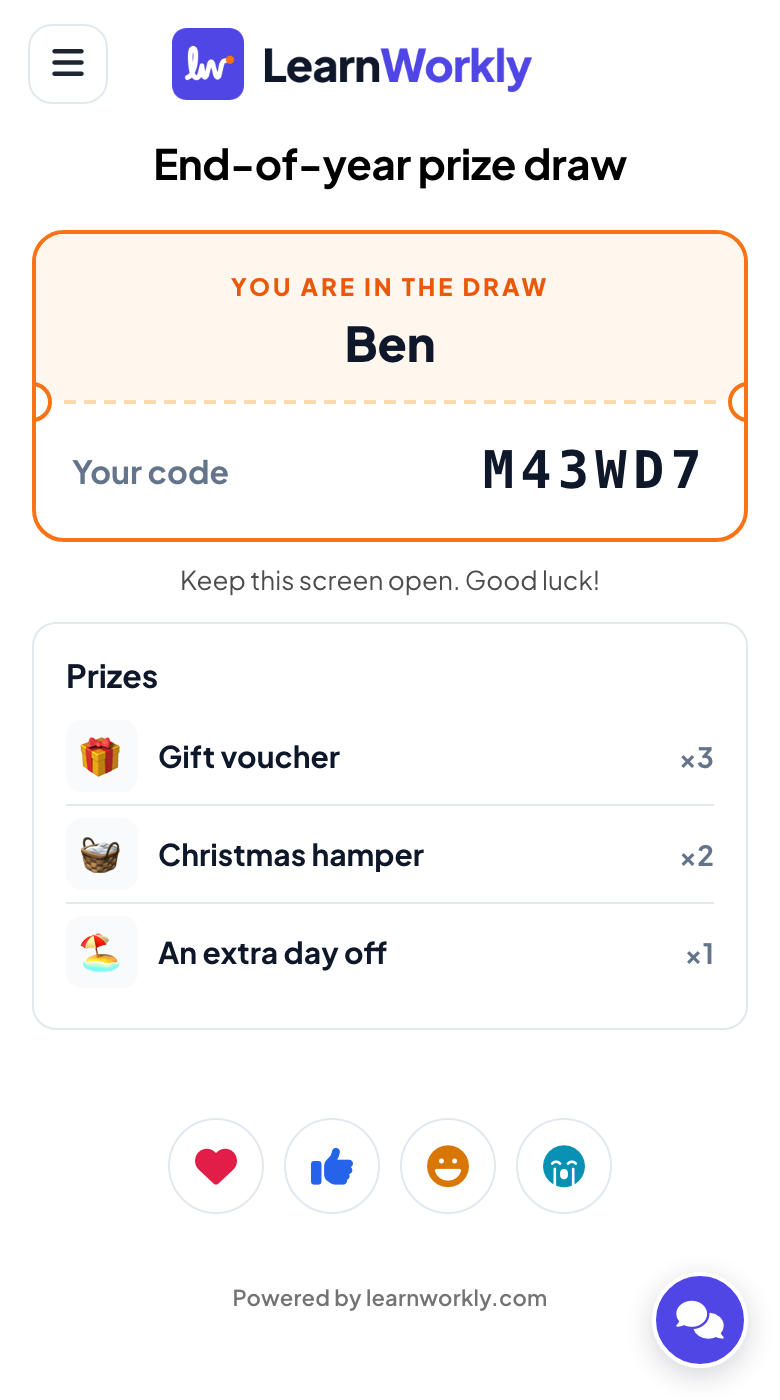
Each person types their name and gets a ticket with a six-character code. During a draw the phone shows Drawing…; when the reels stop, winners see the prize, their code and your message about where to collect it, and everyone else sees No prize this time.
What you control
You set the prizes and quantities, how many prizes one person can win, whether one click draws every winner of a prize, whether entries are open, whether people marked absent can still win, and an optional extra detail such as a badge number. During the event you can add names, remove someone, mark prizes collected or a winner not here, and draw a replacement.
Great for
Office Christmas party
Hand out the hampers, gift cards and the extra day off in front of the whole team, fairly and quickly.
Events and team buildingConference closing draw
Draw the sponsors' prizes at the end of the last session and check winners by badge number.
Events and team buildingSchool fair or fete
A free raffle without ticket books, with first names only and nothing shown on other phones.
School teachersTraining day or workshop
A small thank-you prize at the end of a long session keeps people until the last slide.
Trainers and L&D teamsWays to use it
Copy one into a Lucky Draw slide, or use them as a starting point for your own.
Play it live- 1
Draw the small prizes in one go, then the grand prize on its own
- 2
Name each sponsor in the note under their prize
- 3
Ask for a badge or ticket number to match winners to the guest list
- 4
Add people without a phone from the People panel
- 5
Keep the Excel file as the record of who won and collected what
Run it in three steps
- 1
In the editor, click + New Slide and pick Lucky Draw. Change the sample content to your own.
- 2
Click Present. People join on their phones with the code or QR code on the screen.
- 3
Start the game: it plays out on the big screen while everyone takes part on their phone.
See it in action
Lucky Draw: frequently asked questions
Who picks the winners?
The LearnWorkly server picks them at random among everyone who can still win that prize. The big screen only plays the animation, so the host cannot steer the result.
What if a winner is not in the room?
Mark them Not here and the prize goes back; Draw 1 more draws a replacement. By default, people marked not here are left out of the later draws.
How many people can join?
Your plan sets how many people can join a live session; the free plan allows up to 10 participants. You can also add names yourself for people without a phone.
Can I charge for entries?
Use Lucky Draw for free prize draws. In the UK, a draw that people pay to enter is a lottery, which has its own rules.
More activities like this
All activities
See it in your next session
Free for up to 10 live participants. No credit card, nothing for your audience to install.
Free for up to 10 participants · No credit card