Quizzes and online tests
Quizzes and tests that score themselves
Check what people know without a pile of marking. Run a live quiz where everyone answers at the same time with a timer and points, or share a self-paced assignment people complete on their own. Answers with a right answer are scored automatically, and the results wait for you in the report.
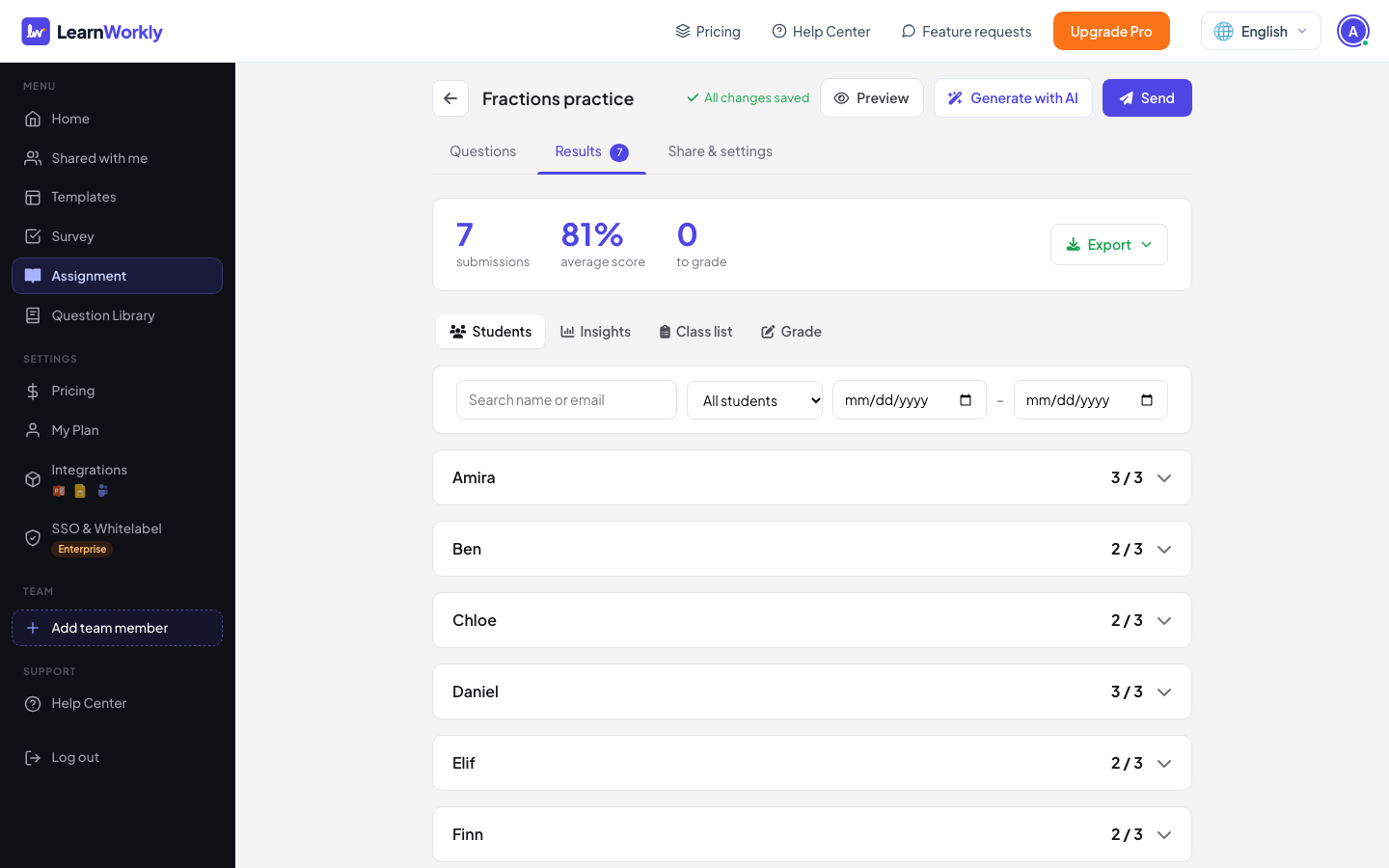
Sound familiar?
What gets in the way today
Marking takes hours
Quiz slides score themselves, so you only read the answers that need a person.
Paper tests arrive too late
Results appear as people answer, and the report is ready the moment the quiz ends.
Not everyone can be there live
Share the same questions as a self-paced assignment for people who answer later.
A real session, step by step
An end-of-module check on data protection
A training team checks what eight people remember after a data protection module: names and teams on the way in, timed questions that mark themselves, a typed answer, and a self-paced version for anyone who missed it.
- 1Instructions 1 min
Know who is answering
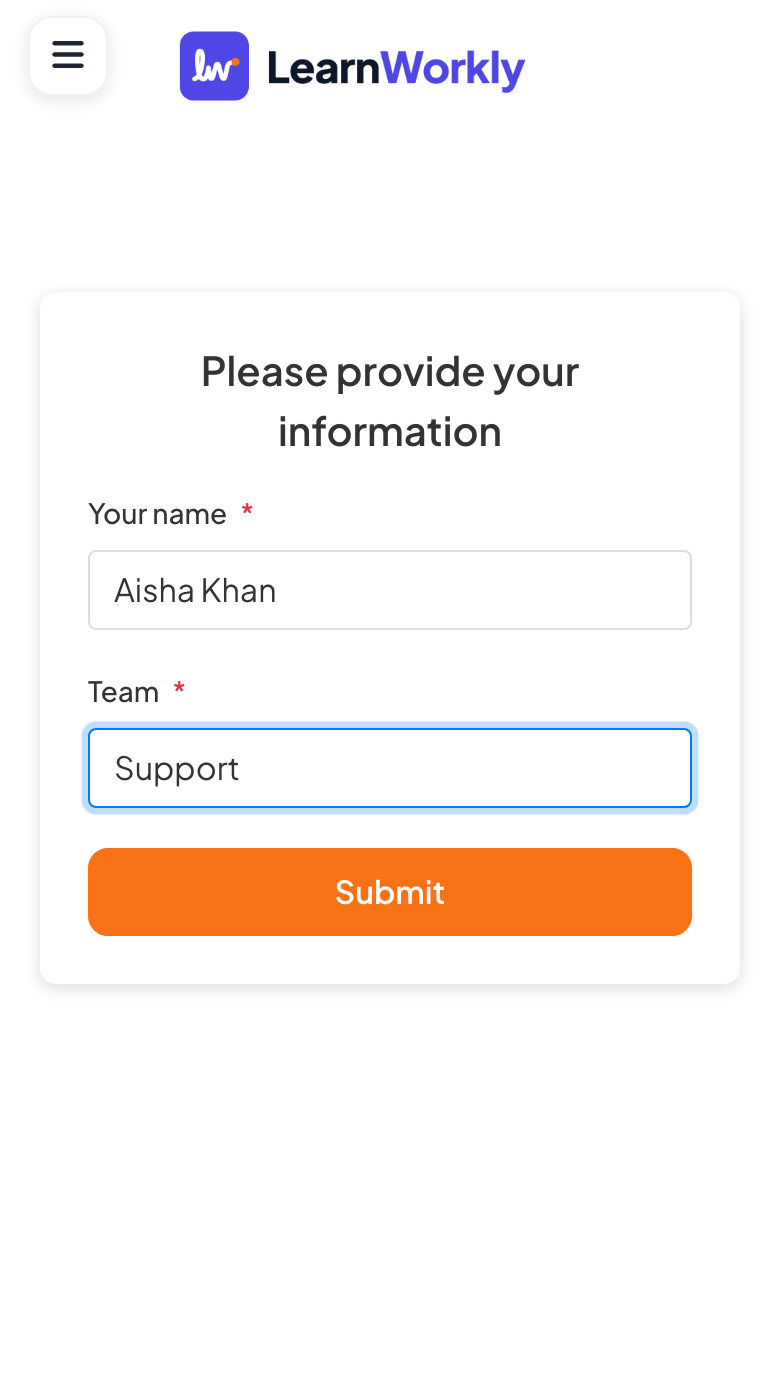
Please provide your information: Participant Name, Team
- You
- In Presentation settings, turn on Collect Participant Information and add a required Team field.
- On their phones
- After the code, people fill in their name and team and tap Submit before they can answer.
- On the big screen
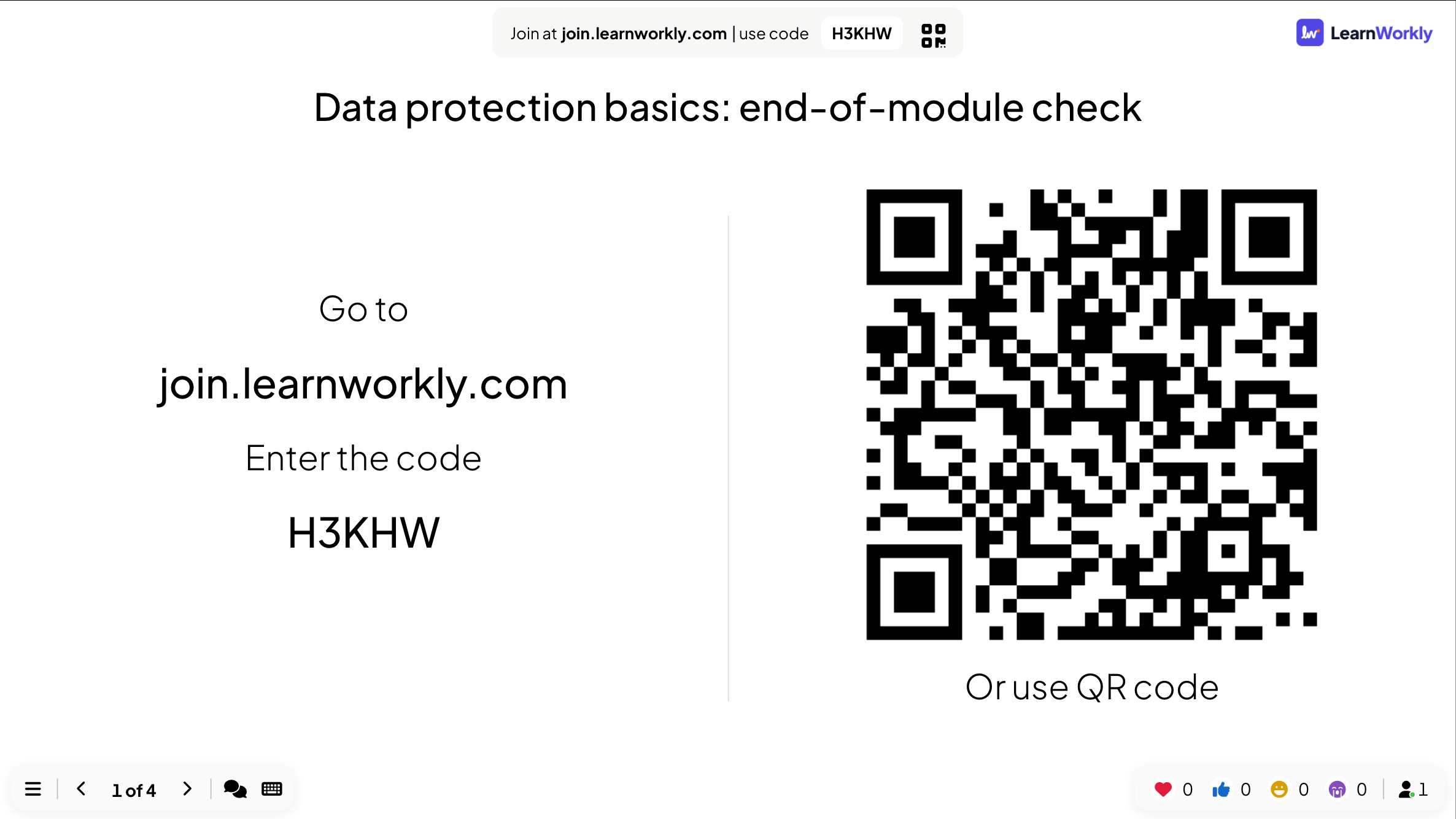
- An Instructions slide with the join address, the code and a large QR code. The details people enter appear next to their answers in the report.
Tip: Ask only for what you will use. For a stricter check, Require Access Code gives each person their own code, and Require Participant Login asks them to sign in.
- 2Select Answer 30 s per question
Timed questions that mark themselves
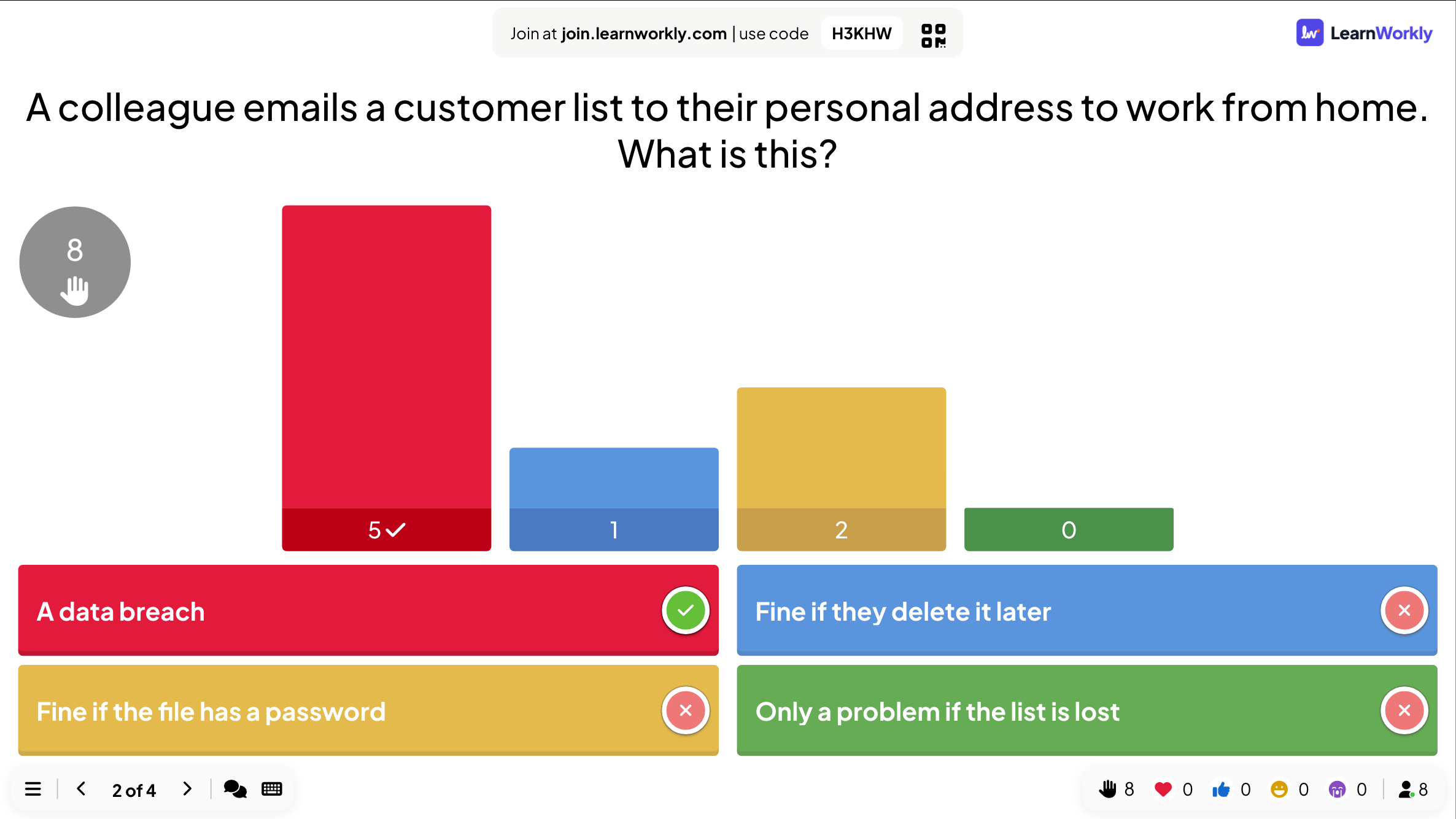
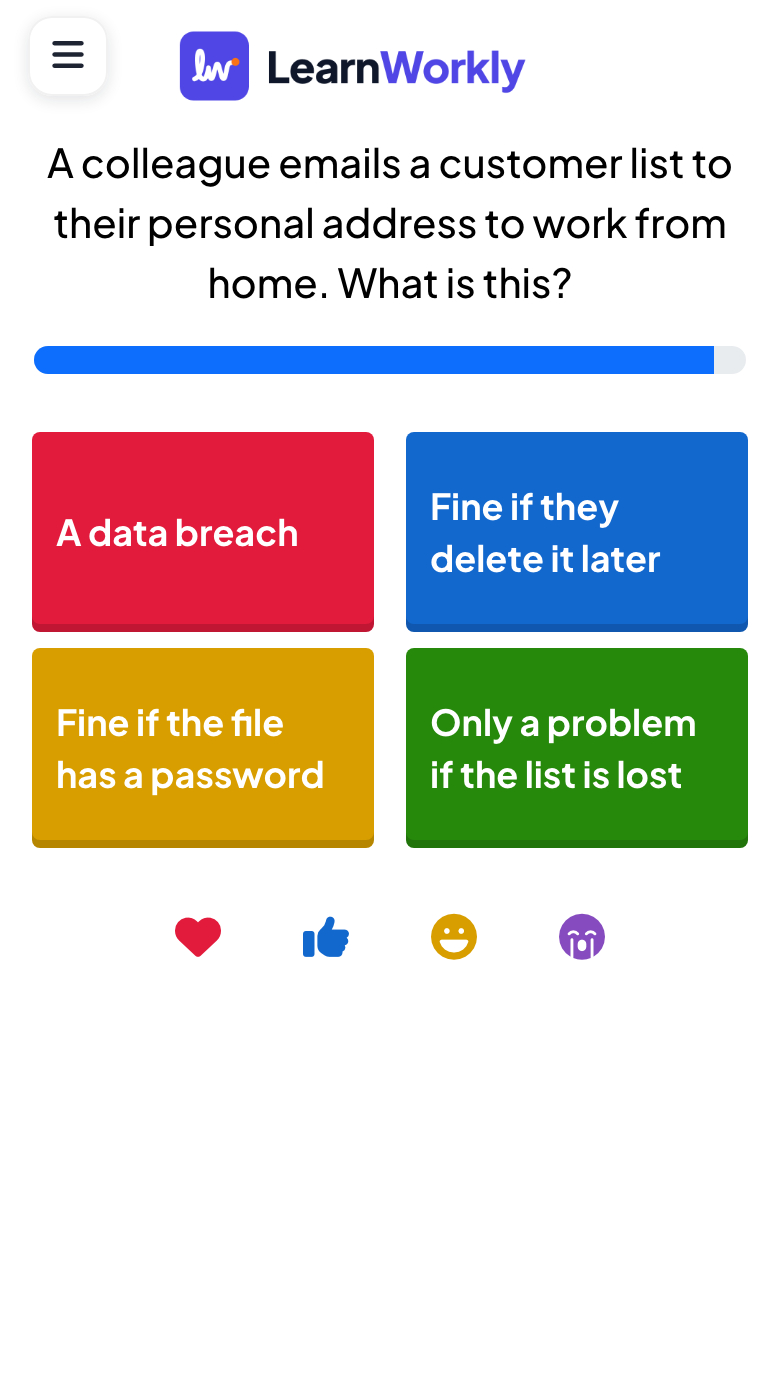
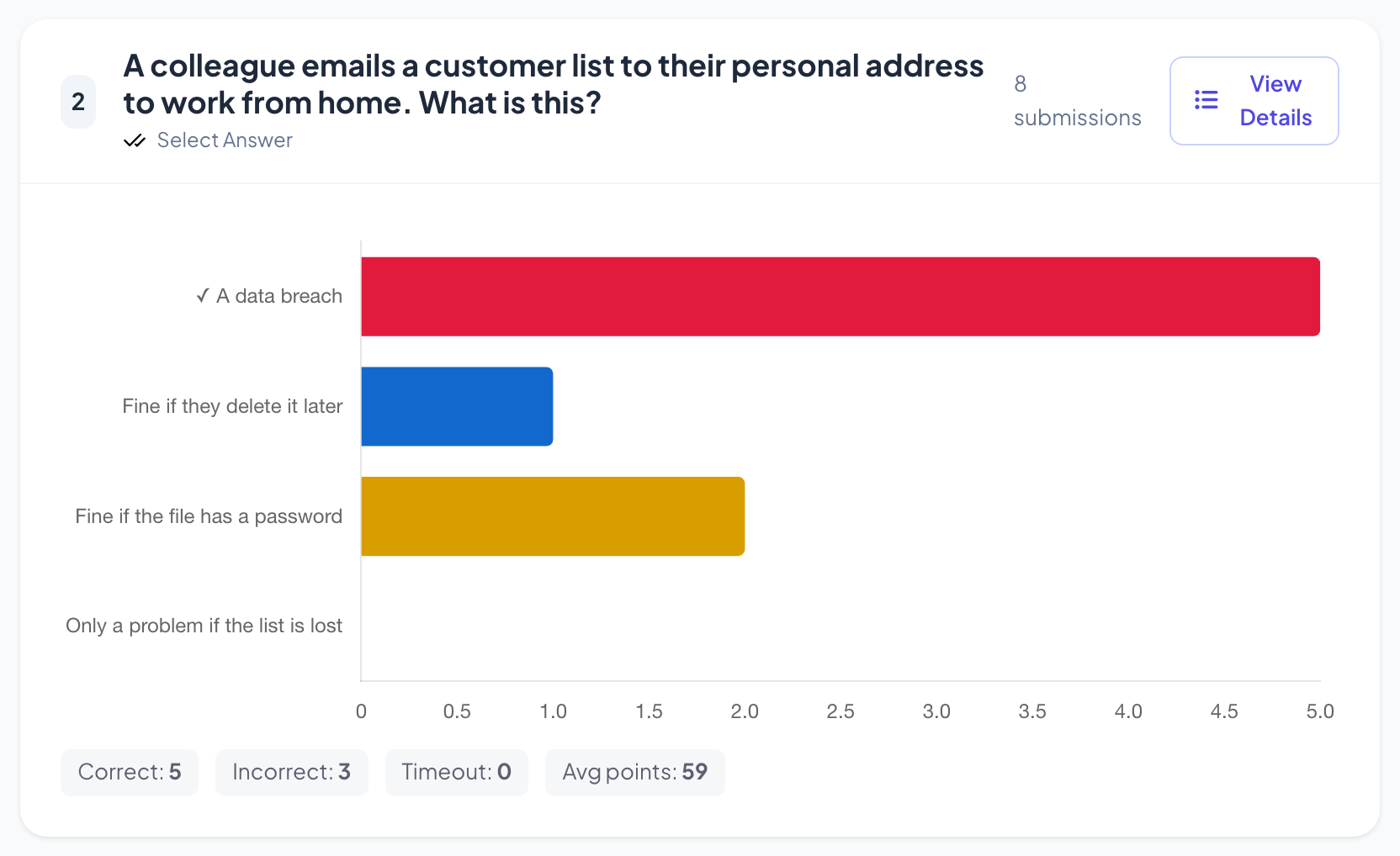
A colleague emails a customer list to their personal address to work from home. What is this? A data breach / Fine if they delete it later / Fine if the file has a password / Only a problem if the list is lost
- You
- Click Start Game. Each question has its own countdown, and the reveal marks the right answer.
- On their phones
- Four answer buttons and a timer. After the reveal, each person sees whether they were right and their points.
- On the big screen
- Five right, three wrong, and two thought a password makes it fine: a point to cover again before people leave.
Tip: Set Seconds to answer per question and turn off More points for fast correct answers when you are testing knowledge rather than speed.
- 3Type Answer 30 s
A typed answer, not a guess
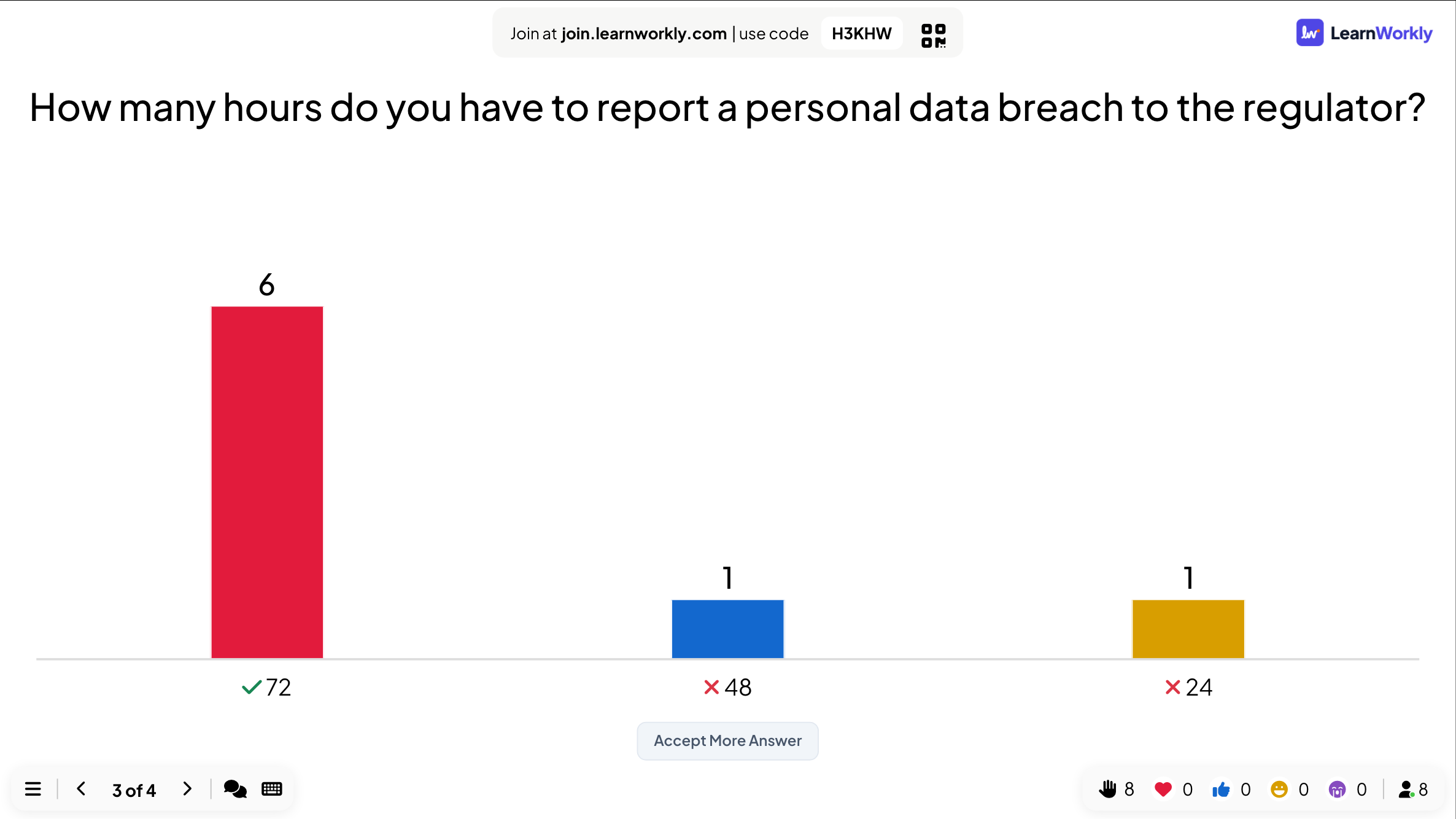
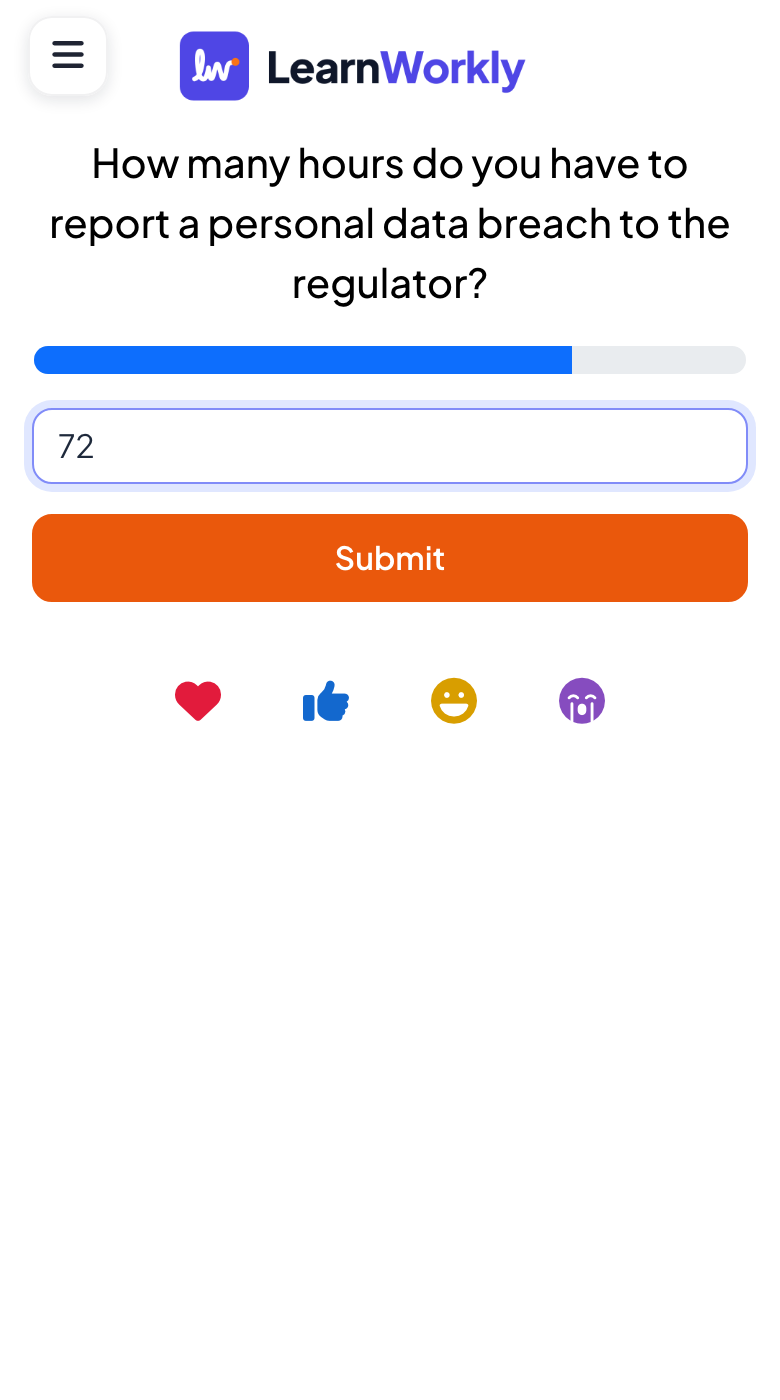
How many hours do you have to report a personal data breach to the regulator? (72)
- You
- Add the right answer and any other spellings you accept under Correct answers.
- On their phones
- People type their answer and submit it. There are no options to guess from.
- On the big screen
- One bar per answer typed, with the right one ticked: six said 72, one 48, one 24. Review Submitted Answers lets you accept an answer you had not thought of.
Tip: Use + Add more answer for accepted variants, such as 72 and seventy-two.
- 4Assignment Set up in 5 min
A self-paced version with a pass mark
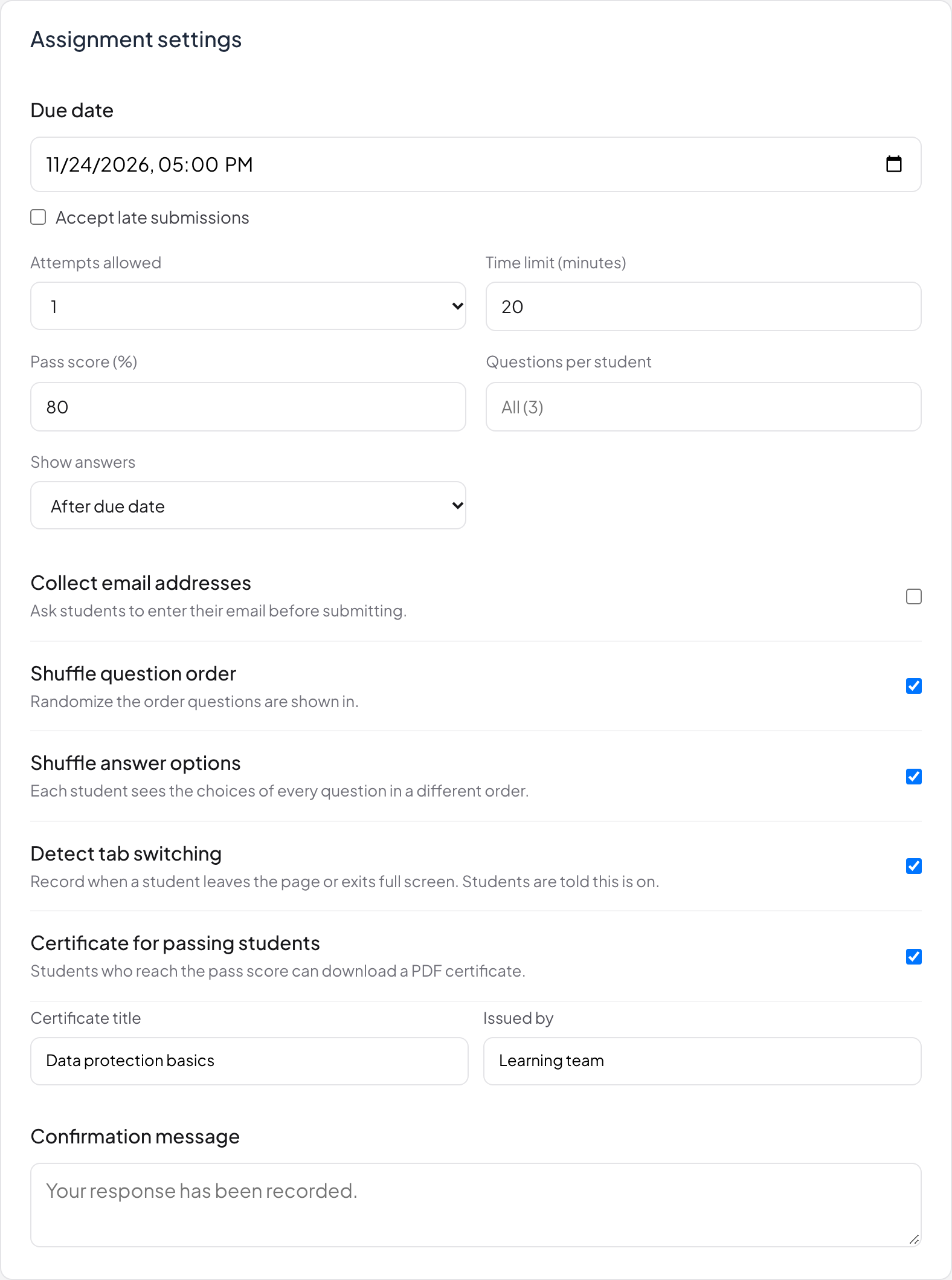
Data protection basics: final check. 20 minutes, one attempt, pass mark 80%.
- You
- Create an assignment with the same questions for people who could not be there, and share the link.
- On their phones
- People answer in their own time, in one sitting, and those who pass can download a certificate.
- On your screen
- The assignment settings: due date, attempts, time limit, pass score, shuffling and tab-switch detection.
Tip: Turn on Detect tab switching to record when someone leaves the page (people are told it is on), and set Show answers to After due date so answers do not get shared.
- 5Report After the session
Results per person
The report of the live check: each question’s results, who answered what, and everyone who took part.
- You
- Open the report, look at each question and each participant, and export it for your records.
- On their phones
- Nothing more to do.
- On your screen
- The results of each question: how many chose each answer, with View Details to see who answered what. The Participants tab lists everyone who joined and how many answers they sent.
Tip: Export to Excel on Basic and above to keep a record per team. Assignment results export from their own Results tab.
How LearnWorkly helps
Built for the way you work
Timers and points
A time limit on each question, points for right and fast answers, and a leaderboard if you want one.
Ten quiz types
Select Answer, True or False, Type Answer, Match Pair, Fill in the Blank, Puzzle, Estimate, Pin Answer and more.
Control who takes part
Ask for participant details when people join, require a login, or run a private session with access codes.
Results per participant
Scores per question and per person in the report, exportable to PDF or Excel on paid plans.
Ideas to start from
Decks you can build in minutes
Slide lists to copy into a new presentation: add the slides in the editor, type your own questions and present.
Weekly class quiz
Ten minutes, every Friday
- 1Select Answer × 5
- 2True or False × 2
- 3Type Answer: a key term
- 4Leaderboard
Certification practice test
Self-paced, before the real exam
- 1Assignment with a time limit
- 2Questions per student: a random subset
- 3Explanation / worked solution on every question
- 4Pass score and certificate
Compliance check
After mandatory training
- 1Participant information: name and team
- 2Select Answer questions on the policy
- 3Match Pair: terms and meanings
- 4Report exported to Excel
Placement check
Before a course starts
- 1Scale: how confident are you in each topic?
- 2Fill in the Blank questions
- 3Puzzle: order the steps
- 4Open Ended: what do you want to learn?
Features you will use most
Read more
Frequently asked questions
Is it a proctoring tool?
No. LearnWorkly does not watch people through their camera or lock their browser. Assignments can record when someone leaves the page, and people are told when this is on. It is made for quizzes, knowledge checks and practice tests.
Do people need an account to take a test?
No. They join with a code or a link. If you need to know who answered, ask for their name and other details when they join, or require a login.
Live quiz or self-paced assignment: which should I use?
Use a live quiz when everyone is in the session at the same time and you want to discuss answers together. Use an assignment when people answer in their own time, with a due date, a time limit, attempts and a pass score.
Which question types are marked automatically?
Quiz slides such as Select Answer, True or False, Type Answer, Match Pair, Fill in the Blank, Puzzle, Estimate and Pin Answer. In assignments, written answers can be marked by hand in the Grade view, with feedback for each person.
Can I stop people copying answers?
Assignments can shuffle the questions and the options, show answers only after the due date, and limit attempts and time. In a live quiz, the options appear at the same moment on every phone, with a countdown.
Can I see each person’s answers?
Yes, when people join with a name or other details you ask for. The report shows the answers and scores per participant, and assignment results list every submission.
Can I export the results?
Presentation reports export to Excel or PDF on Basic and above. Assignment and survey results export to Excel or CSV from their results tab.
How many people can take a live quiz?
Up to 10 on Free, 100 on Basic ($7.99 a month) and 5,000 on Pro ($14.99 a month). Enterprise limits are flexible.
Can AI write the questions?
Yes. Create a presentation with AI from a topic, or use Create with AI in an assignment, then check and edit every question before you use it.
Also made for
Try it in your next session
Start free, with nothing for anyone to install. Build your first deck in minutes.
Free for up to 10 participants · No credit card