Interactive presentations
One deck for your slides, your questions and your games
Build your presentation in the browser, mix content slides with polls, quizzes, word clouds, Q&A and games, and present it on any screen. People join on their phones with a code or by scanning the QR code beside your slide, and their answers appear on the big screen as they arrive.
A full slide editor
About 50 slide types in five groups: quizzes, games, interactive questions, content slides and embedded web pages or decks. Add text, images, video, GIFs and background music.
Join in seconds
Present mode shows a join bar with the code and a QR code beside the slide. No account and no app for participants, on any phone, tablet or laptop.
Remote control from your phone
Move through the deck, start timers and reveal results from your phone while you walk the room (Pro and Enterprise).
Your pace or theirs
Lead the room slide by slide, or let participants go through the deck at their own pace.
Keep the room awake
Slide transitions, emoji reactions, sound effects, background music and keyboard magic effects such as a drumroll or confetti.
Your look
Fonts, colours, background images and video on every plan; your own logo on Pro and Enterprise.
In a real session
A 40-minute science lesson, slide by slide
A Year 8 teacher teaches the water cycle to a class of 28 with one deck: a joining slide, a list she reveals line by line, a poll to check what the class thinks, a quiz question and a leaderboard. Here is what happens at each slide, on the big screen and on the pupils’ phones or tablets.
- 1
Build the deck the evening before
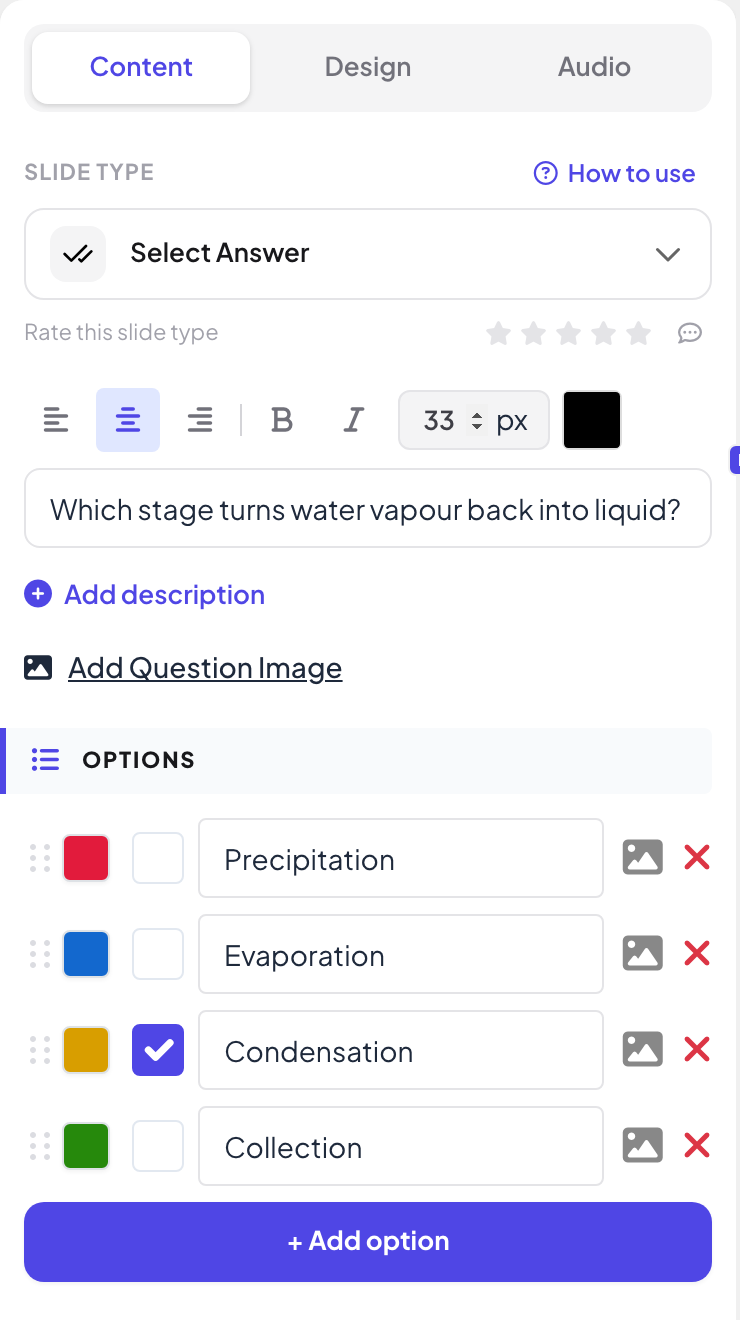
She starts a blank presentation called “Year 8 science: the water cycle” and adds five slides: Instructions, a List called “Four stages of the water cycle”, a Poll, a Select Answer question and a Leaderboard. Each slide has its question and options on the Content tab on the right, its colours and font on Design, and its music on Audio.
Tip: Click Participant view on the right edge of the slide to see exactly what a phone will show, and Try Play Game on a quiz slide to play the question yourself before the lesson.
- 2
Open with the joining slide
As the class comes in, she presses Present. The first slide is an Instructions slide with the join address, the code and a large QR code, and it stays up while everyone gets settled.
- On phones
- On phones: Pupils scan the QR code or type join.learnworkly.com and the code. No app, no account and no email address.
- On the big screen
- On the big screen: The join address, the code and the QR code in large type. The join bar with the code also stays at the top of every slide.
Tip: Change the code to something easy to say out loud with Edit code under Share → Audience Link, and download the QR code for a printed handout.
Big screen 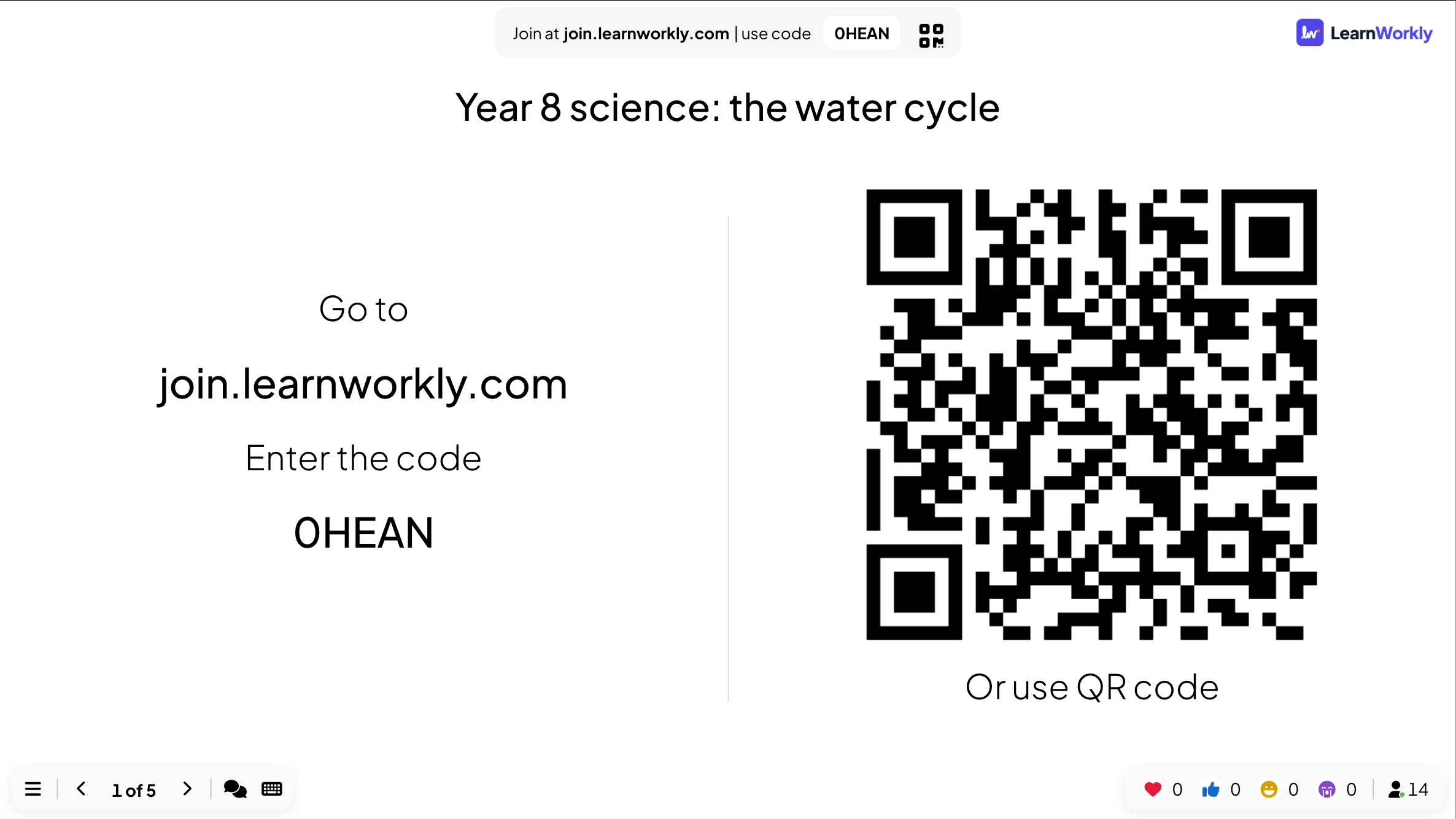
- 3
Teach with a list, one line at a time
She explains the four stages with a List slide. Each press of the right arrow reveals the next line, so the class listens to the point she is making instead of reading ahead.
- On phones
- On phones: The same lines appear on every phone at the same moment as on the big screen.
- On the big screen
- On the big screen: “Evaporation”, “Condensation” and “Precipitation” are revealed; “Collection” is still hidden.
Tip: Imported PowerPoint slides work the same way: each press plays the next animation step before moving on.
Big screen 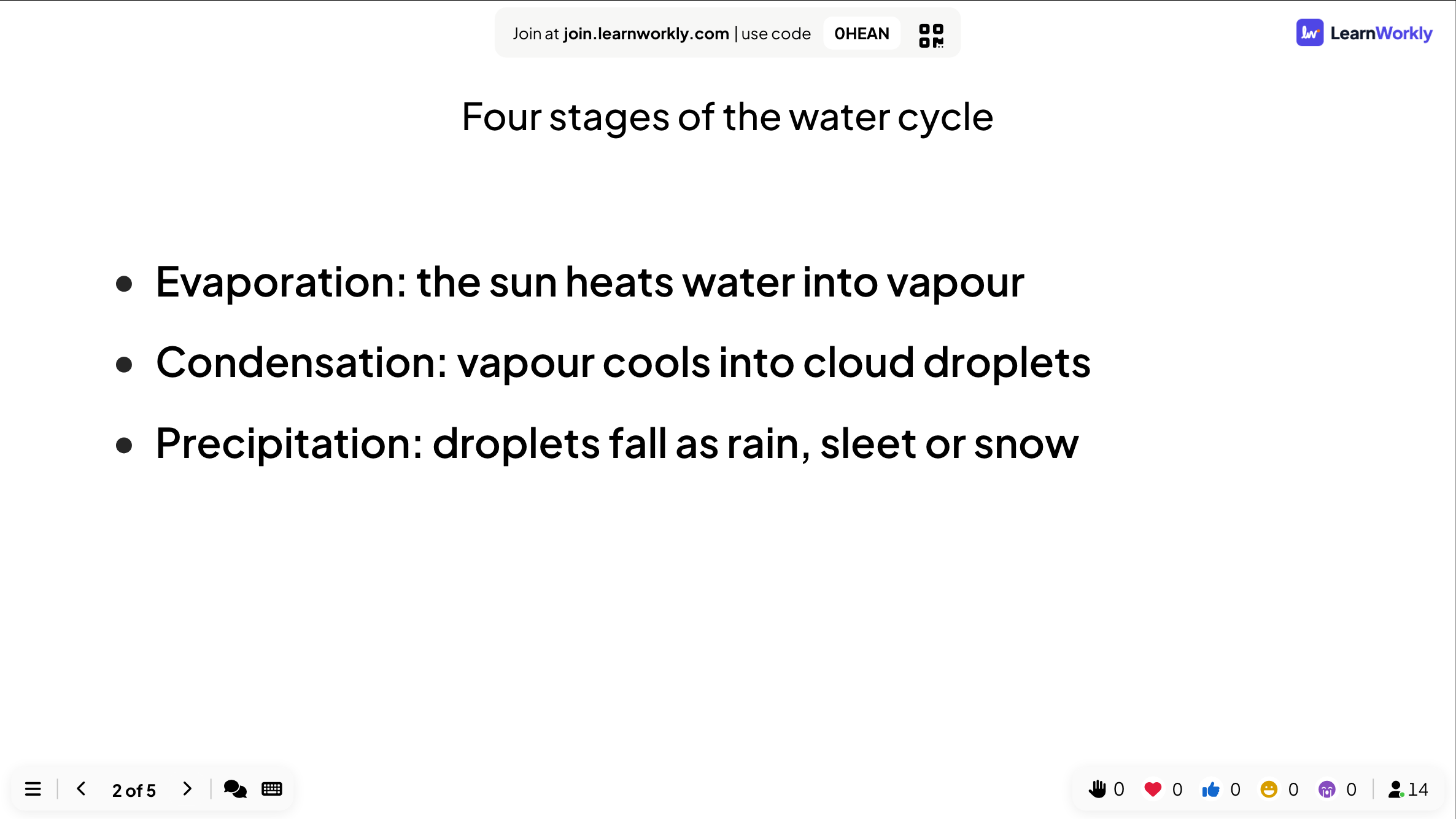
- 4
Check thinking with a poll
Before going further she asks “Where does most of the water vapour in the air come from?” with four options. She keeps the bars hidden while pupils vote, then shows them and asks the pupils who chose “Rivers and lakes” to explain their thinking.
- On phones
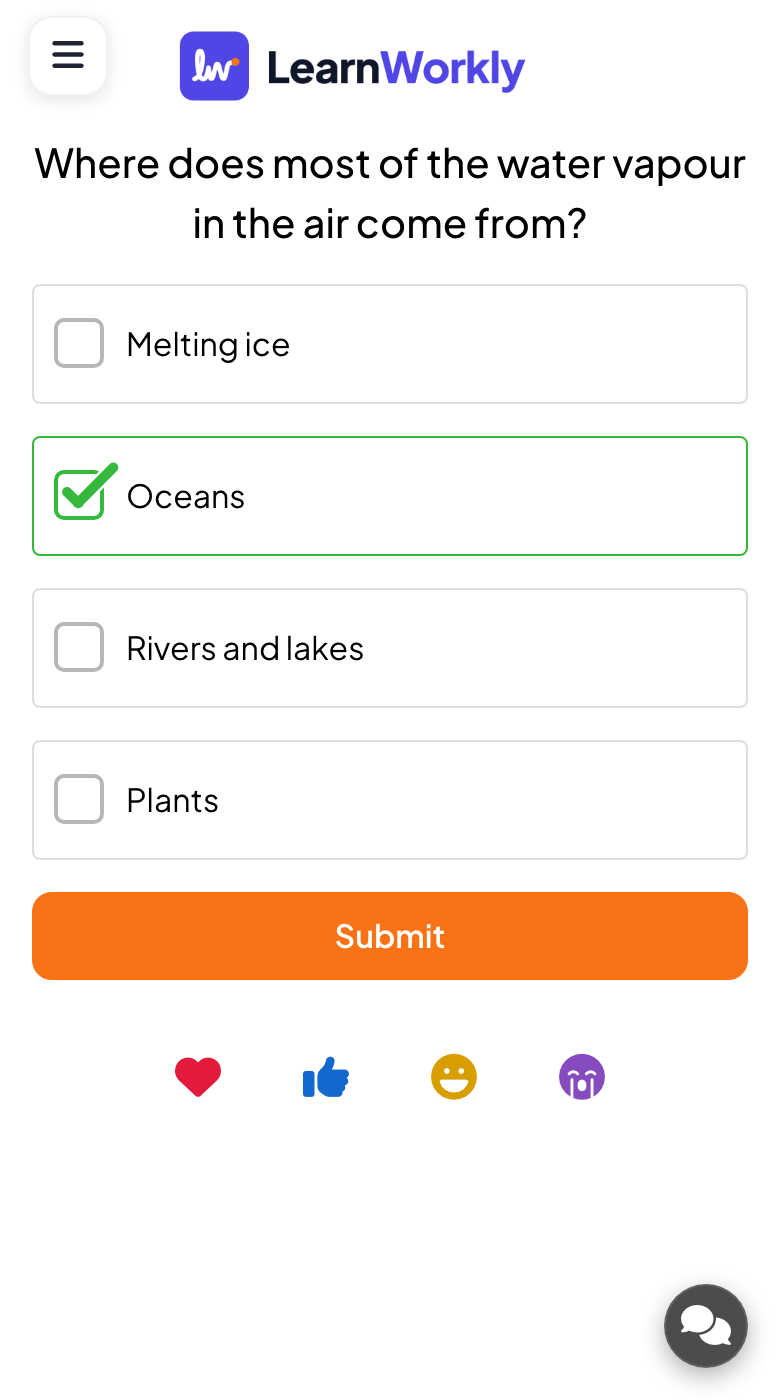
- On phones: A big button for each option and a Submit button. Pupils who have voted see that their answer was sent.
- On the big screen
- On the big screen: A bar chart that grows with every vote, and the number of answers in the bottom bar.
Tip: Turn on Hide result on the slide (or Hide Result in the ☰ menu while presenting) so nobody follows the crowd, then show the chart when everyone has voted.
Big screen 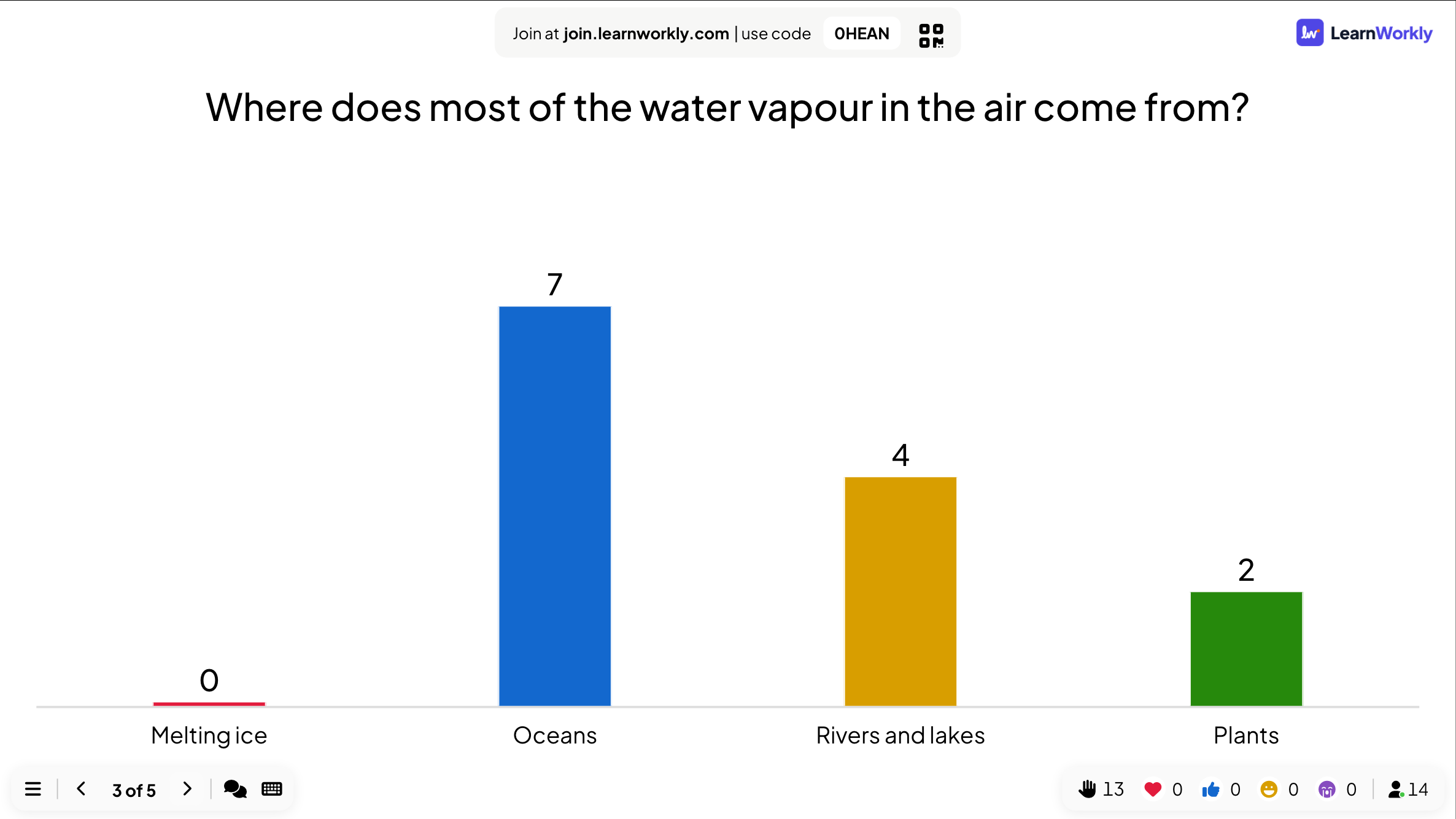
- 5
Finish with a quiz and the leaderboard
The last question, “Which stage turns water vapour back into liquid?”, is a Select Answer quiz with a 20-second timer. Fast correct answers score more points, and the Leaderboard slide after it shows who came out on top.
- On phones
- On phones: Pupils type a nickname before the first quiz question, tap an answer and see straight away whether they were right and how many points they earned.
- On the big screen
- On the big screen: A countdown, then how many chose each option with the right answer marked, then the ranking with nicknames and points.
Tip: Clear all results in the editor before you teach the same deck to the next class. The answers so far stay in the report as a separate session.
Big screen 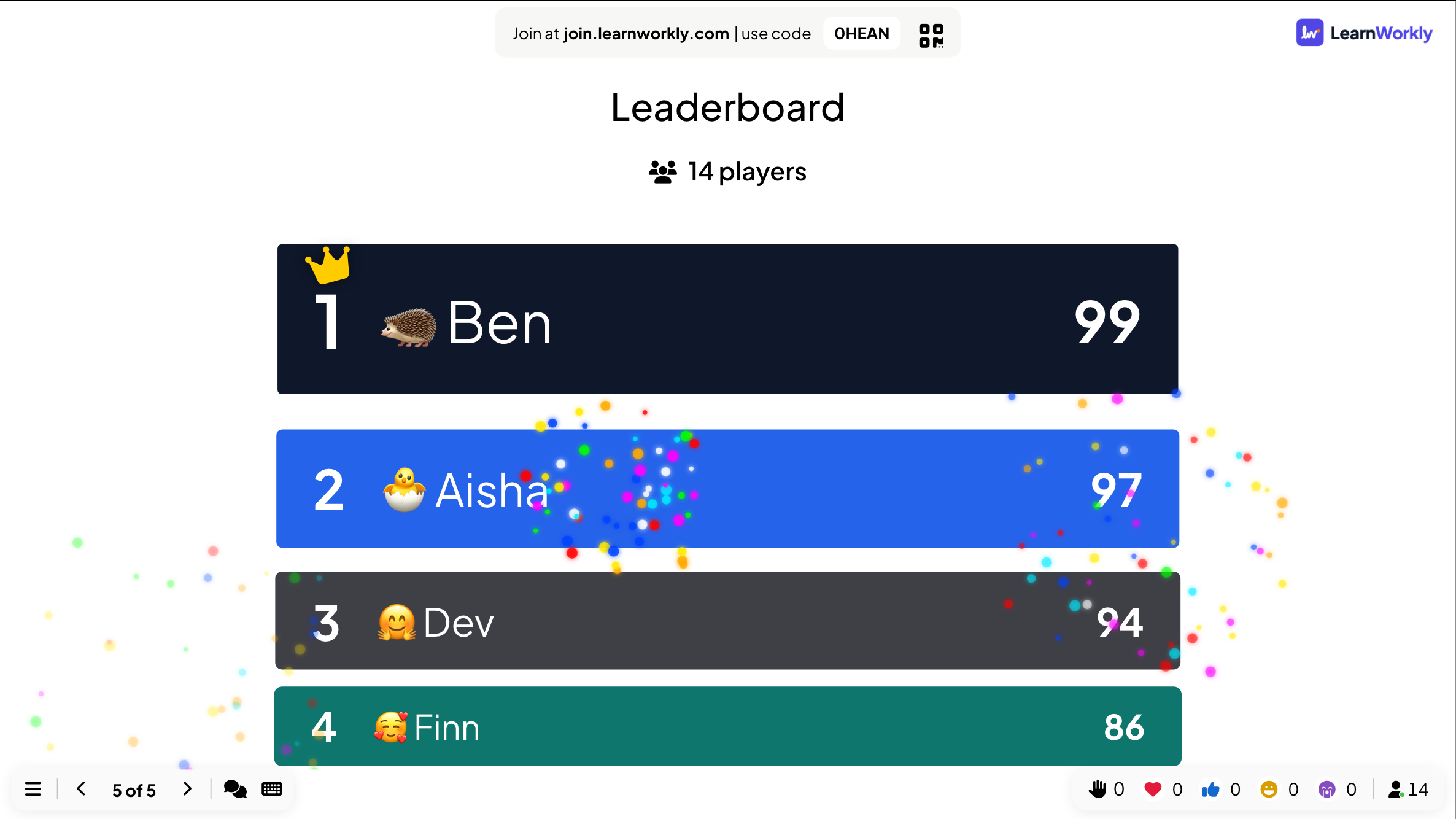
Settings that matter
Presentation-wide settings are in Presentation settings (the gear icon on the right edge of the editor) → General Settings. Each slide also has its own settings on its Content tab.
| Setting | What it does | Default |
|---|---|---|
| Engage Type | Presentation: you lead and phones follow your slide. Self-Paced: participants move through the slides with Back and Next on their phone, like a survey. | Presentation |
| Slide transition | The animation between slides: Fade, Slide up, Slide from right, a zoom effect or None. | Fade |
| Keyboard Magic | Effects you trigger with a key while presenting: C for confetti, D for a drumroll, M for a mic drop, B to blur the screen, Q for quiet, U for a curtain, X to clear them. | On |
| Hide Instructions Bar | Hides the join bar at the top of the slide; it comes back when you move the mouse to the top edge. | Off |
| Hide controls while presenting | The controls at the bottom left fade out after 3 seconds without activity. | Off |
| Enable reactions | Which reactions phones can send: heart, thumbs up, laugh and sad. They float up over your slide. | All four |
| Enable audio effects | The sounds built into slide types: quiz music, countdown ticks, the podium and Keyboard Magic. | On |
| Collect Participant Information | Asks for a name and any fields you add (a class, a team) before people can take part. | Off |
What participants see
Participants open join.learnworkly.com on any phone, tablet or laptop and type the code, or scan the QR code. Their screen follows your slide: buttons to vote, a box to type in, a card to draw on, a quiz with a timer. On content slides they see the same text you show.
Before the first quiz question they type a nickname for the leaderboard and can pick an emoji avatar. Speaker notes are never shown to them.
Limits by plan
| Feature | Free | Basic | Pro | Enterprise |
|---|---|---|---|---|
| Live participants at the same time | 10 | 100 | 5,000 | Flexible |
| Every slide type, present mode, reactions, AI, import | ✓ | ✓ | ✓ | ✓ |
| Team collaboration and shared templates | – | ✓ | ✓ | ✓ |
| Remote control from your phone | – | – | ✓ | ✓ |
| Your own logo | – | – | ✓ | ✓ |
Frequently asked questions
Do participants need an account or an app?
No. They open join.learnworkly.com on any device with a browser, type the code or scan the QR code, and take part. You can require a login or a personal access code if you need to control who joins.
Can I use my PowerPoint or PDF?
Yes. Import a .pptx file and its slides keep their animations and stay editable, or import a PDF and each page becomes a slide. Then add questions and games between them.
How many people can join?
Up to 10 live participants at the same time on Free, 100 on Basic and 5,000 on Pro. Enterprise limits are flexible. It is the number of people connected at once, not a monthly total.
Is presenting on the free plan?
Yes. Every slide type, present mode, reactions, Q&A, AI and import are on every plan, including Free.
Can I control the slides from my phone?
Yes, on Pro and Enterprise. Open the Remote control panel in the editor and scan its QR code: your phone shows the current slide, your speaker notes, next and previous, and the Q&A tab.
Where do I write speaker notes?
In the Add notes... box under each slide in the editor. Notes are never shown on the big screen or on phones; you read them in remote control.
Can people go through the deck on their own?
Yes. Set Engage Type to Self-Paced and participants move through the slides with Back and Next on their phone. For homework, Assignments and Surveys have their own links and results.
Can I present the same deck to several groups?
Yes. Click Clear all results between groups. Each group’s answers stay in the report as a separate session.
Does the join code change?
Each presentation keeps its code. Change it to something easy to say with Edit code under Share → Audience Link, as long as no other presentation uses it.
Learn more
- Help centerCreate your first presentation
- Help centerPresent on the big screen
- Help centerControl your presentation from your phone
- Help centerSlide transitions, Keyboard Magic and controls
- BlogHow to teach an interactive lesson: slides, questions, games
- BlogActive learning in large lectures: 12 techniques
- Use caseSchool teachers
- Use caseMeetings and presentations
Who uses it, and for what
Related features
Try it in your next session
Free for up to 10 live participants, with every slide type and game. Build your first deck in minutes.
Free for up to 10 participants · No credit card