Interactive lessons
Your slides, your questions and your games in one lesson
Instead of switching between a slideshow, a quiz site and a poll, teach the whole lesson from one deck. Import your PowerPoint or build slides in the browser, put interactive slides between them, and present: students join with the code or the QR code and answer on their own devices.
Sound familiar?
What gets in the way today
Too many tabs
Slides in one app, a quiz in another and a poll in a third. One deck keeps the lesson flowing.
The class drifts off
A question or a game every few slides gives everyone something to do.
You only find out at the test
Quick checks in the lesson show what the class understood while there is still time to fix it.
A real session, step by step
A Year 7 geography lesson on the water cycle
Five moments from one lesson taught entirely from one deck: a question to hook the class, the explanation, an ordering task, a written explanation and a quiz to finish. No switching between a slideshow, a quiz site and a poll.
- 1Poll 4 min
Hook: what does the class already think?
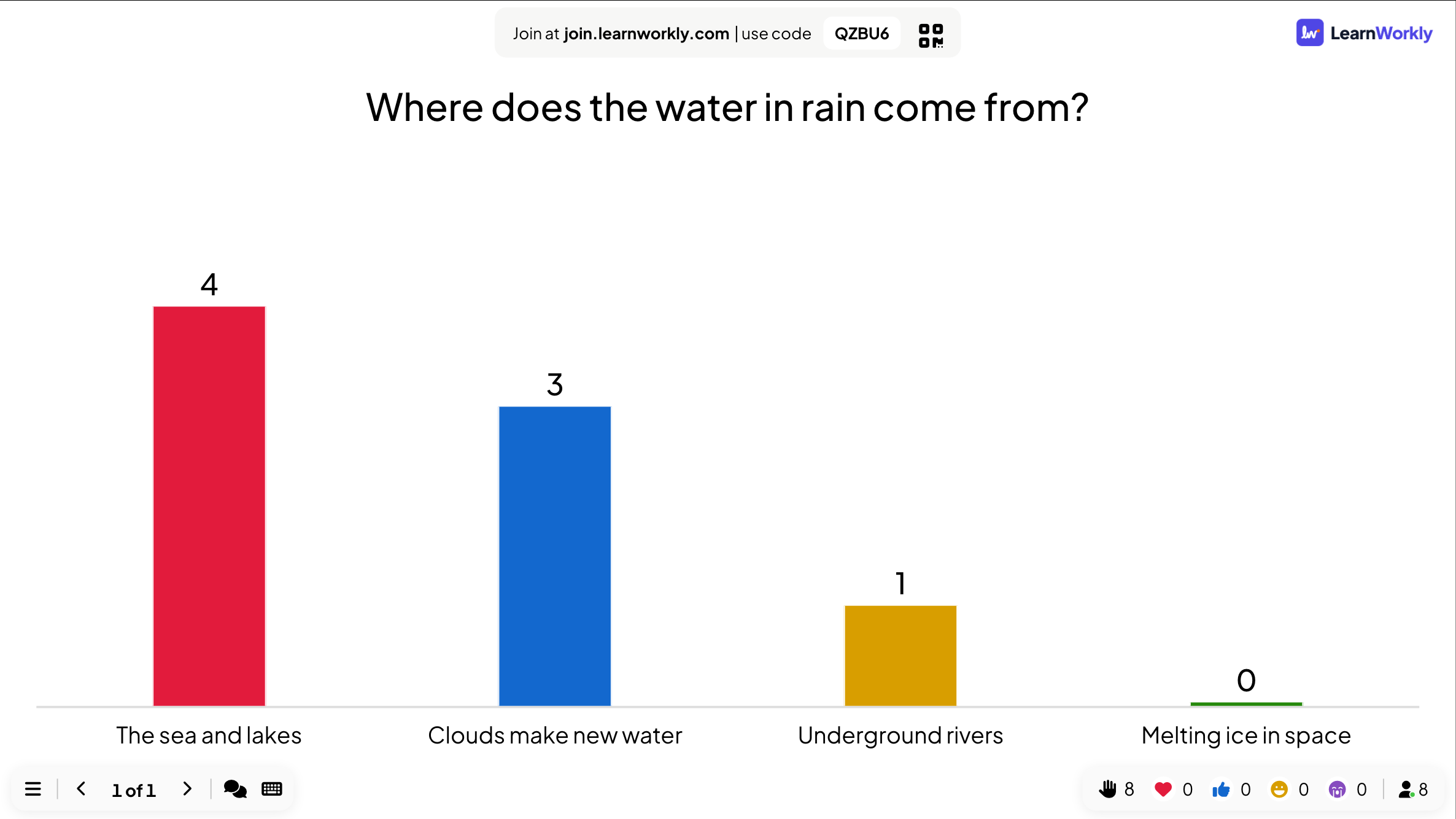
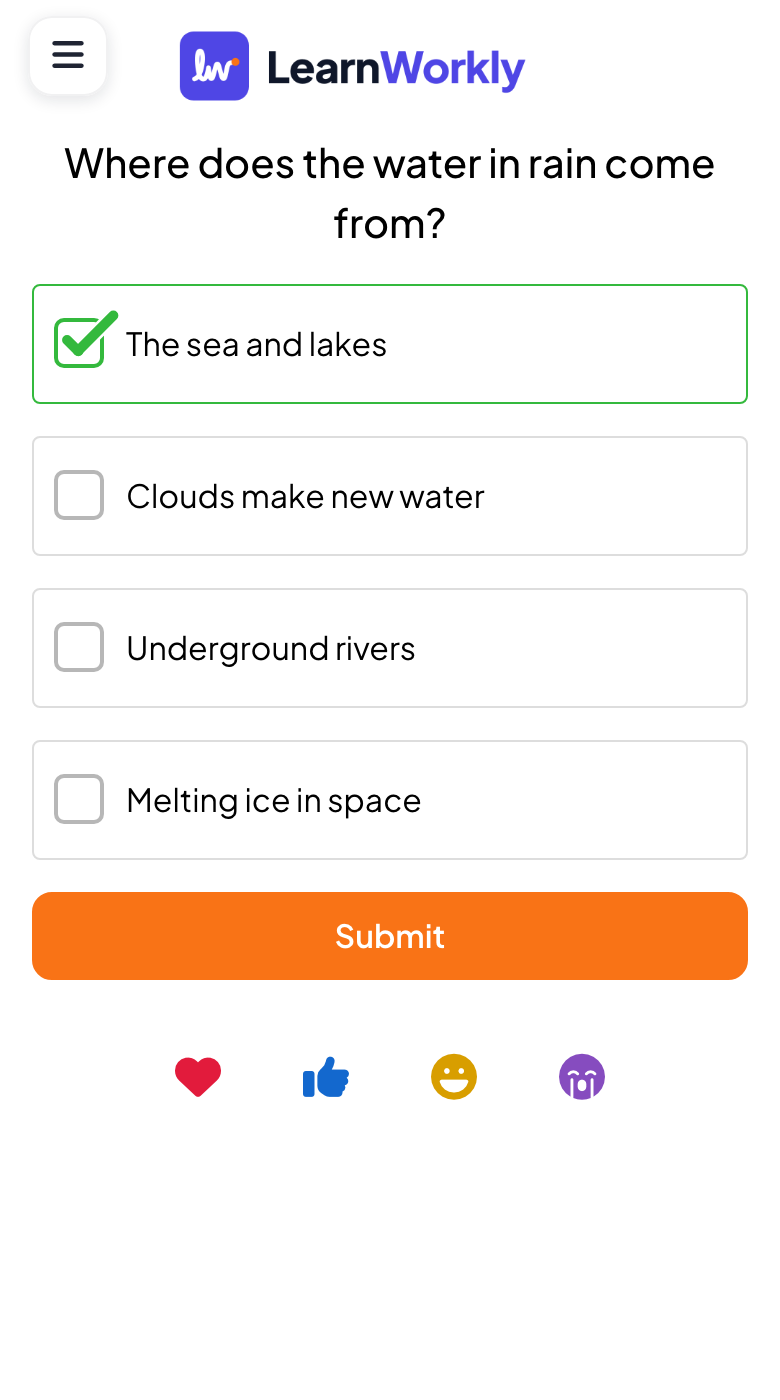
Where does the water in rain come from? The sea and lakes / Clouds make new water / Underground rivers / Melting ice in space
- You
- Start with a question the class can argue about. Don’t say who is right yet.
- On their phones
- Students tap an option and Submit, from the QR code on the board.
- On the big screen
- Four think the sea and lakes, three think clouds make new water. That second idea is what the lesson needs to change.
Tip: Add a misconception you have heard in class as one of the options. Turn on Hide result if you want to reveal the split later.
- 2List 10 min
Explain, one step at a time
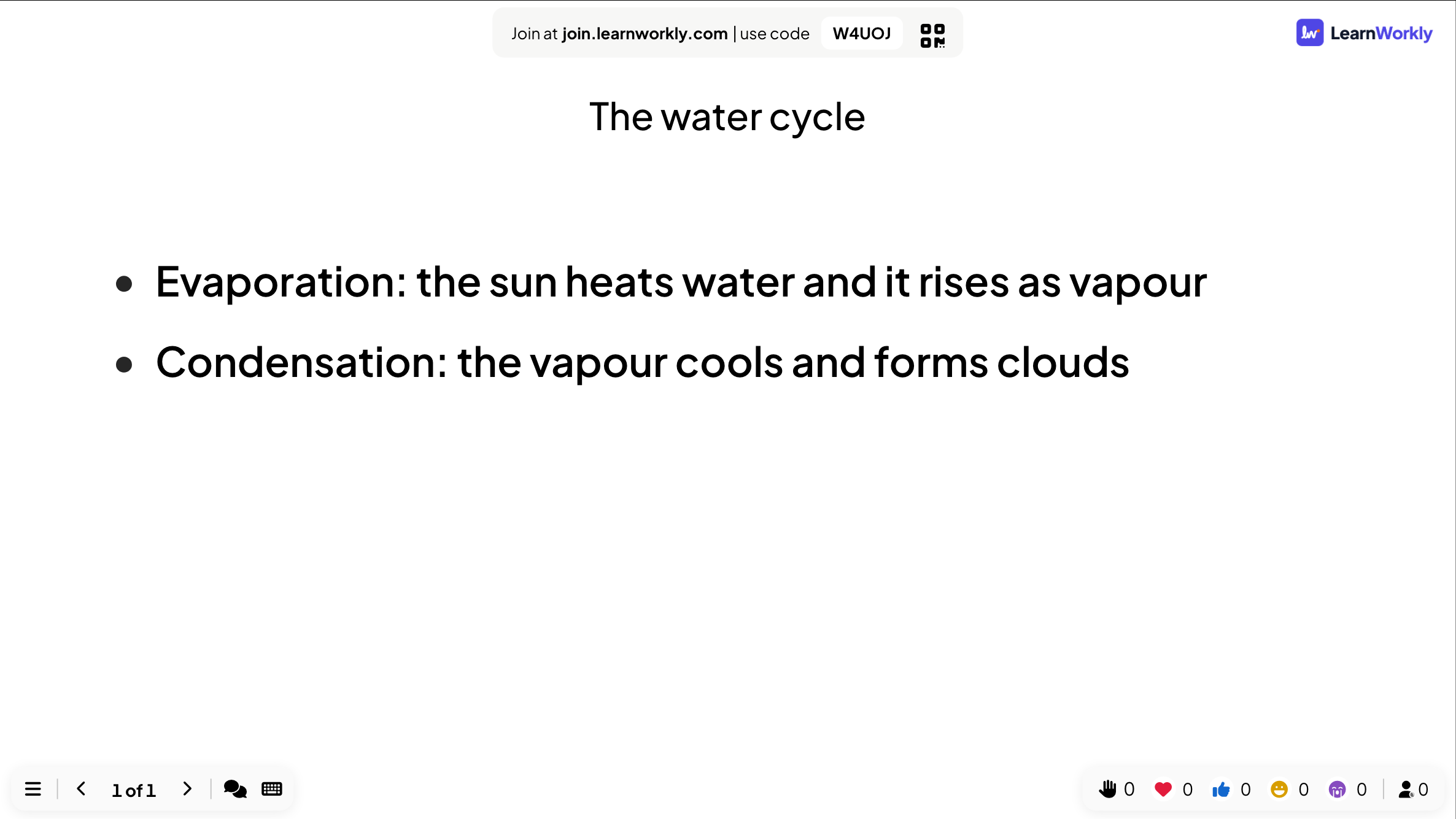
The water cycle: Evaporation / Condensation / Precipitation / Collection, each with one line of explanation
- You
- Reveal one line at a time with the keyboard and talk around each. Or present your own PowerPoint, imported with its animations.
- On their phones
- Phones wait for the next interactive slide.
- On the big screen
- The first two stages revealed, the rest still hidden.
Tip: Use 2 columns under Columns for a longer list, and keep each line short enough to read from the back.
- 3Puzzle 4 min
Put the stages in order
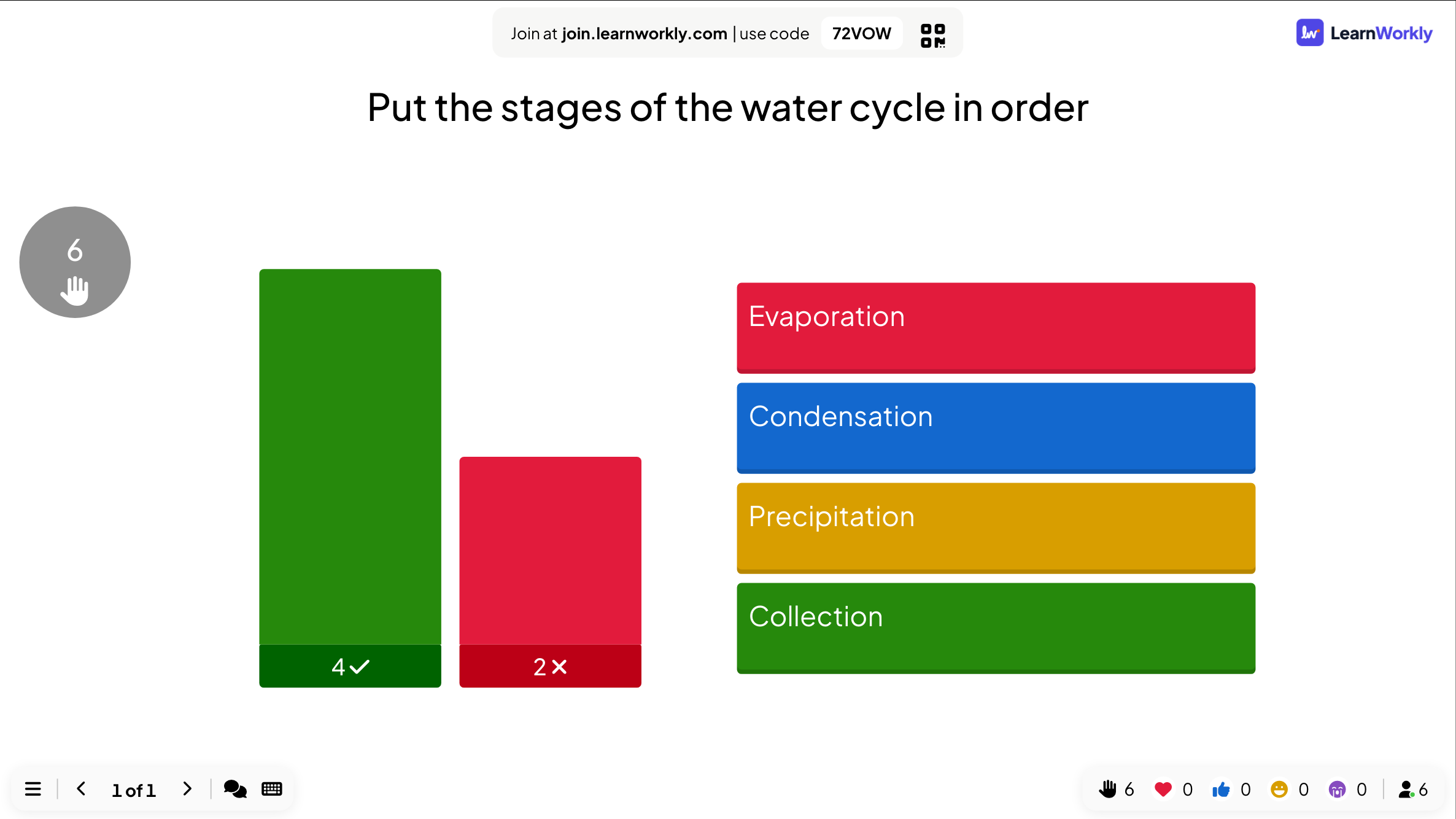
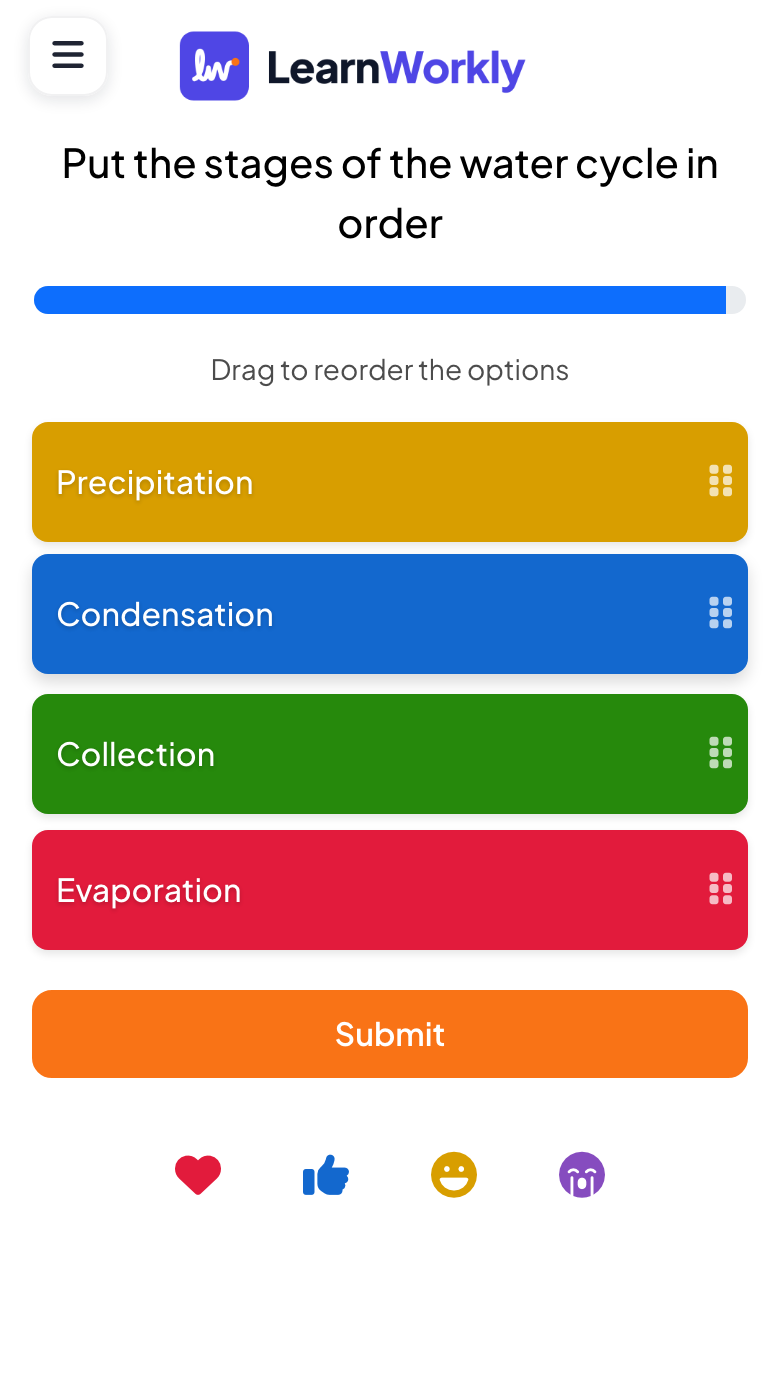
Put the stages of the water cycle in order: Evaporation, Condensation, Precipitation, Collection
- You
- Type the items in the right order; every phone gets them shuffled. Click Start Game.
- On their phones
- Students drag the items into order and tap Submit.
- On the big screen
- When time is up, the big screen shows the correct order: four of six got it right, two swapped condensation and precipitation or started with clouds.
Tip: Puzzle answers are all or nothing, so keep it to four to six items. For opinions with no right order, use Ranking instead.
- 4Open Ended 5 min
Explain it in a sentence
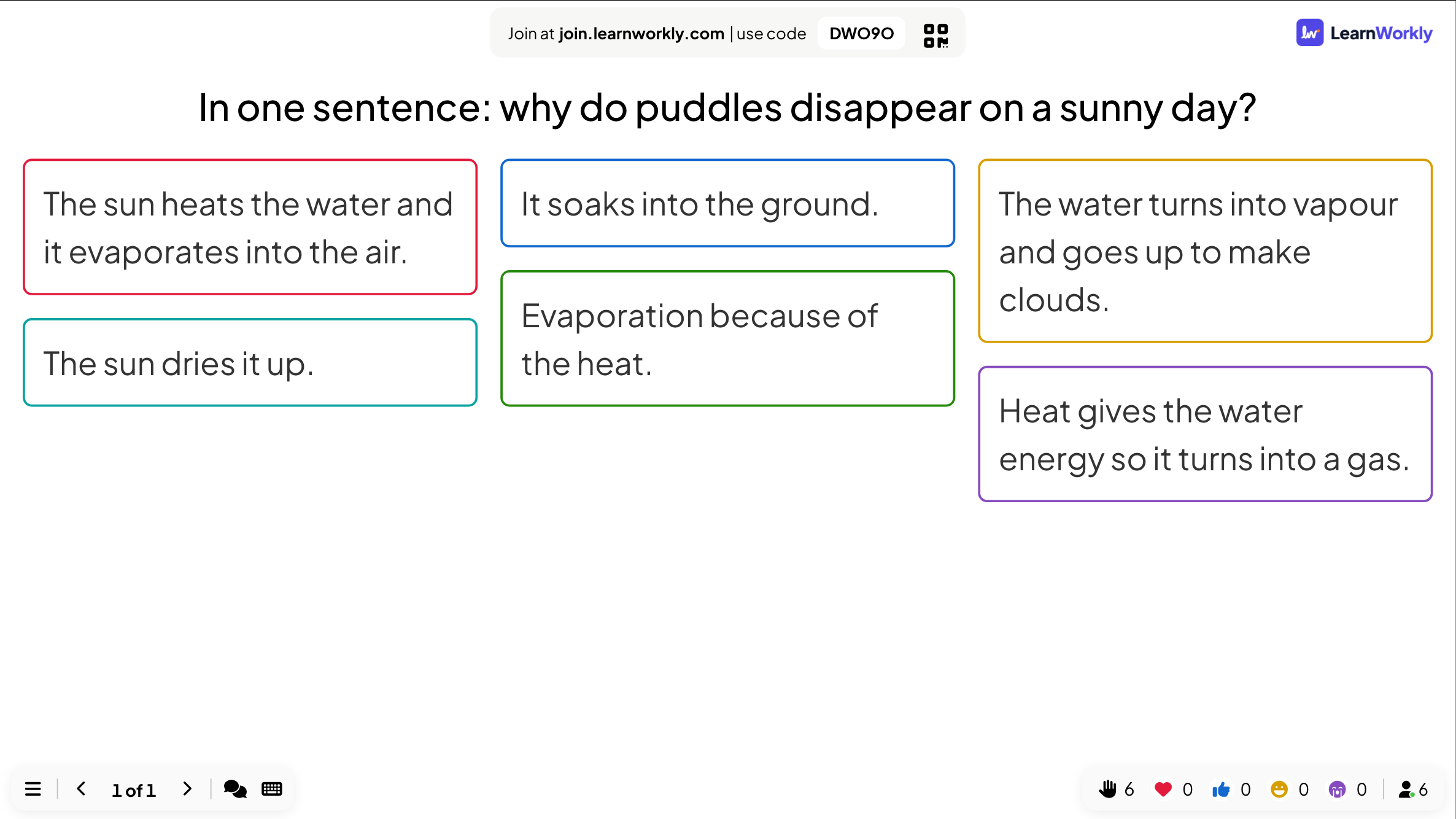
In one sentence: why do puddles disappear on a sunny day?
- You
- Ask for an explanation, not a word. Read two good answers out loud and one that is nearly there.
- On their phones
- Students write a sentence and tap Submit.
- On the big screen
- Answers arrive as cards. Most use evaporation correctly; one says the puddle soaks into the ground, which is also true, and worth a discussion.
Tip: If you want to know who wrote what, turn on Allow participants to enter their name. on this slide only.
- 5True or False 6 min
Finish with a quiz and a leaderboard
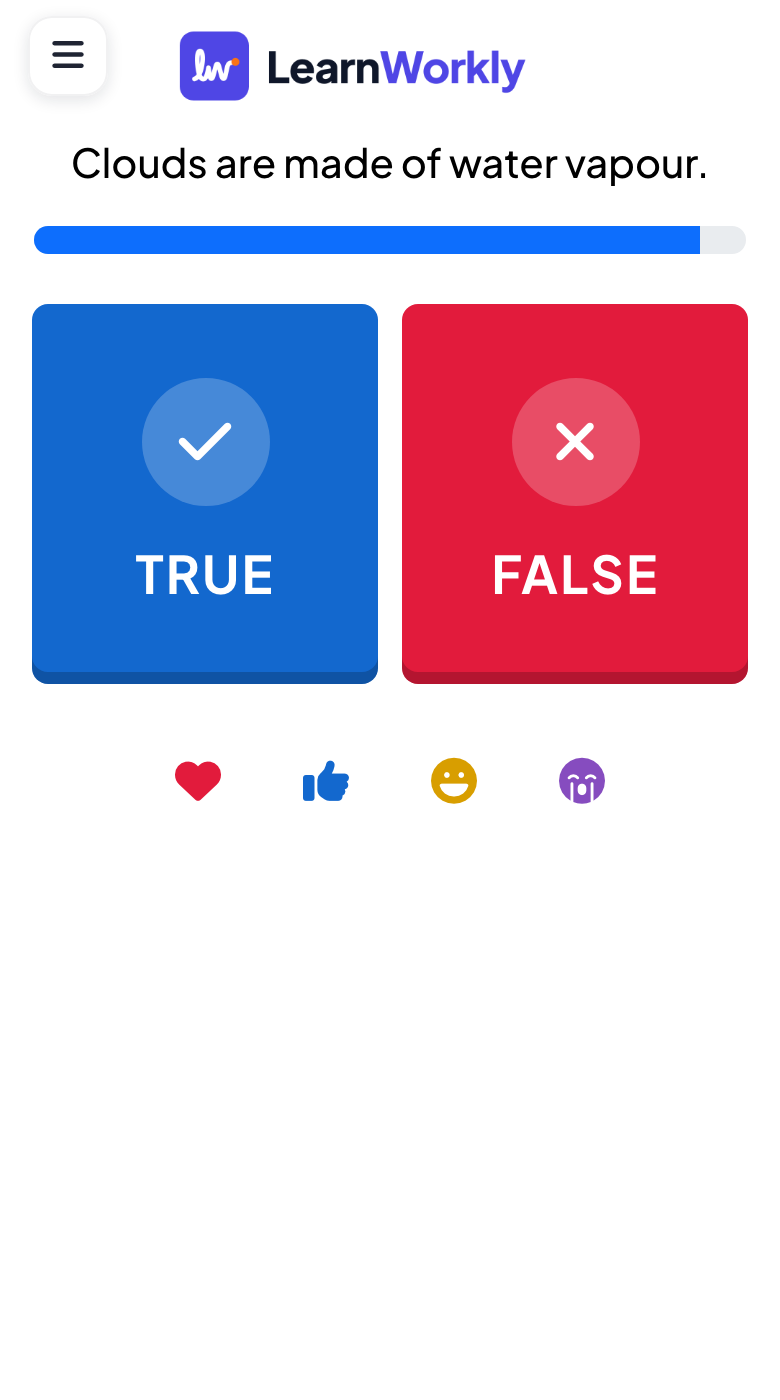
Clouds are made of water vapour. (False: they are tiny drops of liquid water.) Then: Which stage turns vapour into clouds?
- You
- Two quick questions, then the Leaderboard slide. Fill in Why? (shown at the reveal) so the answer explains itself.
- On their phones
- Two big buttons, True and False, then four options for the second question.
- On the big screen
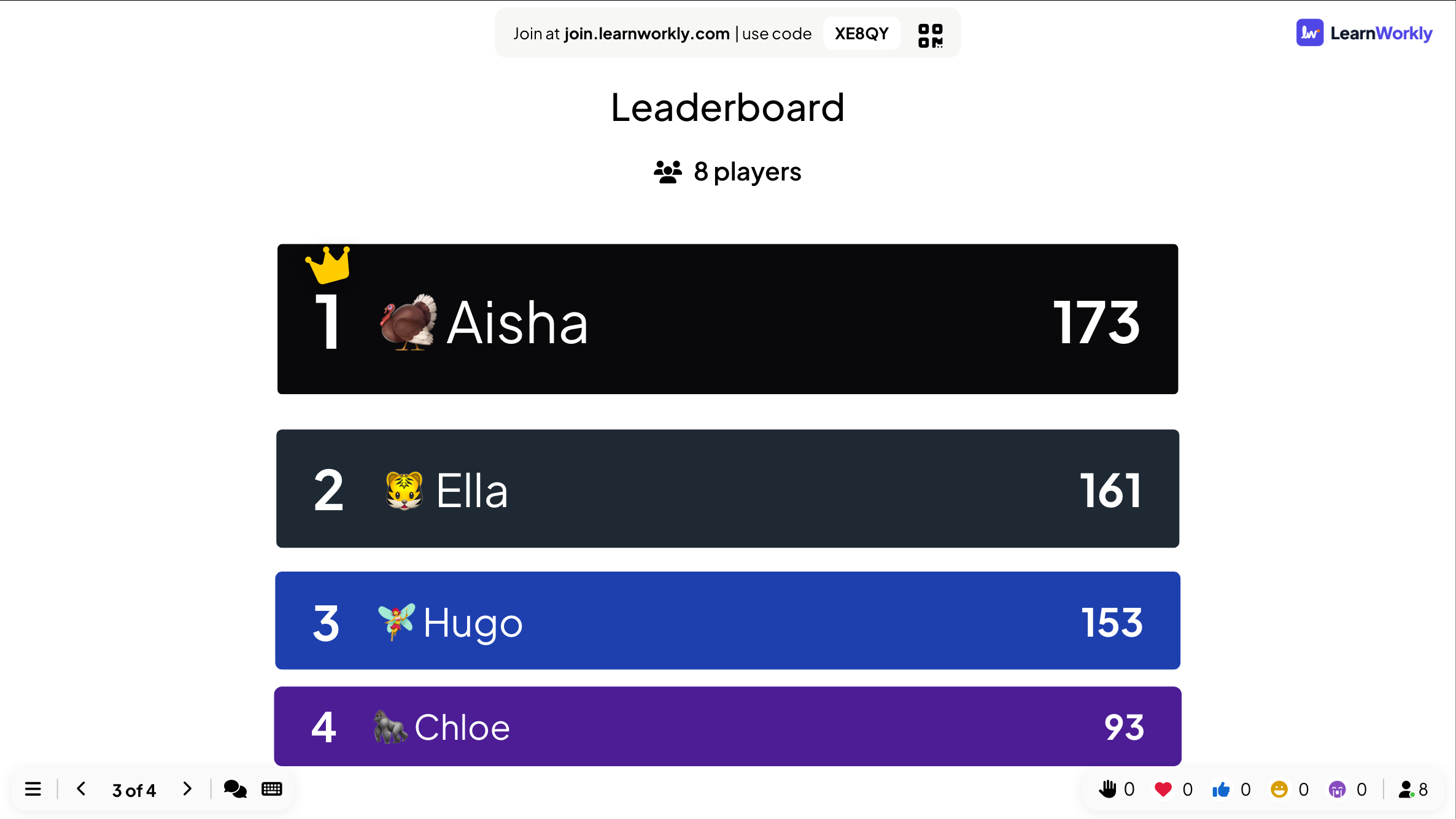
- The final leaderboard with nicknames and points, and a winner on the last one.
Tip: Share the same questions as an assignment for homework, so students who were away can catch up.
How LearnWorkly helps
Built for the way you work
Start from what you have
Import PowerPoint with its animations, or a PDF, or let AI draft the lesson from a topic.
About 50 slide types
Quizzes, games, polls, word clouds, Q&A, whiteboards, content slides and embedded web pages.
Join with a QR code
The join code and QR code sit beside your slide. Students need no account or app.
Your pace or theirs
Lead the class slide by slide, or let students go through the deck at their own pace.
Ideas to start from
Decks you can build in minutes
Slide lists to copy into a new presentation: add the slides in the editor, type your own questions and present.
Science lesson
Explain a process
- 1Poll: a prediction
- 2Your slides, imported with animations
- 3Pin Answer: tap the right part of a diagram
- 4Puzzle: put the steps in order
- 5Open Ended: explain it in a sentence
- 6Select Answer and a Leaderboard
History lesson
Sources and chronology
- 1Word Cloud: what do you know about the period?
- 2Content slide with a source
- 3Puzzle: put the events in order
- 4Vote · Discuss · Revote: what caused it?
- 5Open Ended: your judgement
Maths lesson
Practise a method
- 1Estimate: a guess before you calculate
- 2List: the method, step by step
- 3Type Answer: three practice questions
- 4Draw: show your working
- 5Last One Standing
Features you will use most
Read more
Frequently asked questions
Do students need accounts or an app?
No. They join at join.learnworkly.com with the code or the QR code shown beside your slide.
Do the PowerPoint animations still work?
Yes. Imported PowerPoint slides keep their animations, which play click by click when you present, and stay editable. PDFs come in with one slide per page.
Can students work through the lesson at their own pace?
Yes. Set the Engage Type to Self-Paced and students move through the slides themselves, or share the questions as an assignment.
Which slide types can I mix into a lesson?
About 50: quiz questions, polls, word clouds, open questions, Q&A, scales, drawings, whiteboards, games, content slides, countdowns and embedded web pages.
Can AI build the lesson for me?
It can draft one. Describe the lesson and AI creates a presentation you then check and edit. It is free while in beta.
Do I get the results afterwards?
Yes. Every presentation has a report with each slide’s results. Export to Excel or PDF is on Basic and above.
Does it work for online lessons?
Yes. Students at home join with the same code. Share your screen in your usual video call and they answer on their own device.
Is it free?
Yes, for up to 10 live participants with every slide type. Basic ($7.99 a month) allows 100 and Pro ($14.99 a month) 5,000.
Also made for
Try it in your next session
Start free, with nothing for anyone to install. Build your first deck in minutes.
Free for up to 10 participants · No credit card