The LearnWorkly add-in puts LearnWorkly slides inside your PowerPoint file, so you keep presenting from PowerPoint. Download it from the PowerPoint add-in page: there is one installer for Windows and one for Mac. It works with the PowerPoint desktop app (Microsoft 365, Office 2016 and later on Windows, Office 2019 and later on Mac) and is free on every plan.
Install on Windows
- 1
Download
Click Download for Windows on the PowerPoint add-in page.
- 2
Close PowerPoint
PowerPoint reads its add-ins when it starts. If it is open, the installer asks you to close it.
- 3
Run the installer
Open LearnWorkly-PowerPoint-Setup. If Windows shows Windows protected your PC, click More info, then Run anyway: the installer is not signed with a certificate yet. No administrator password is needed; it installs for your user account only.
- 4
Start
At the end, PowerPoint opens LearnWorkly - Get started with the LearnWorkly panel. From now on, LearnWorkly is on the Home tab in every file, and a small LearnWorkly icon sits in the notification area of the taskbar.
Install on Mac
- 1
Download
Click Download for Mac on the PowerPoint add-in page.
- 2
Quit PowerPoint
Press Cmd+Q in PowerPoint first.
- 3
Open the package
Right-click LearnWorkly-PowerPoint-Add-in.pkg and choose Open (the package is not signed yet, so a double-click is blocked). Follow the steps and type your Mac password when asked. If macOS asks to let the installer access data from other apps, allow it: that is how the add-in is added to PowerPoint.
- 4
Start
PowerPoint opens LearnWorkly - Get started with the LearnWorkly panel. From now on, LearnWorkly is on the Home tab.
Add LearnWorkly slides
- 1
Open the panel
Click LearnWorkly on the Home tab. The first time, sign in or create a free account. The panel links the file to a LearnWorkly presentation with the same name.
- 2
Choose where
Select the PowerPoint slide the new slide should follow.
- 3
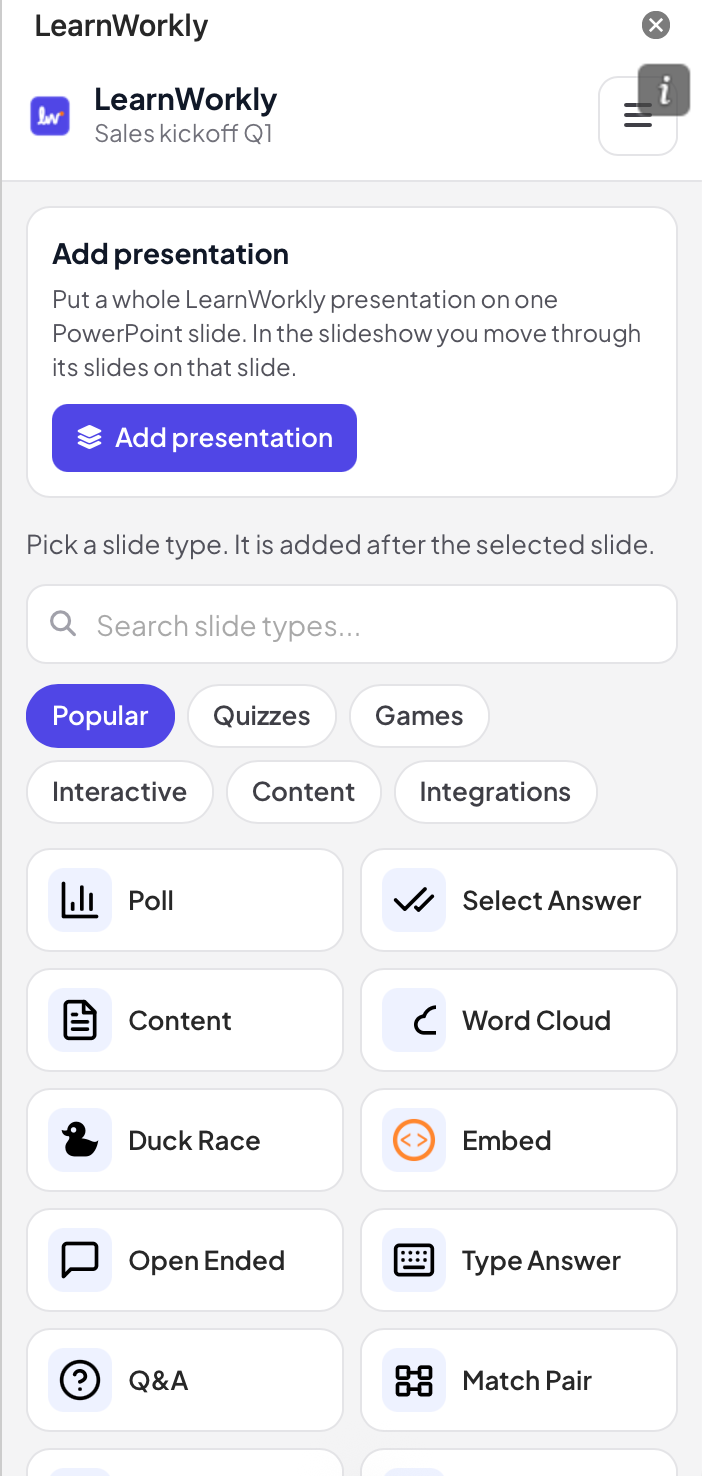
Pick a slide type
Click a slide type, or search for one. The slide types are grouped as Popular, Quizzes, Games, Interactive, Content and Integrations. A new PowerPoint slide with the LearnWorkly slide on it is added after the selected one.
- 4
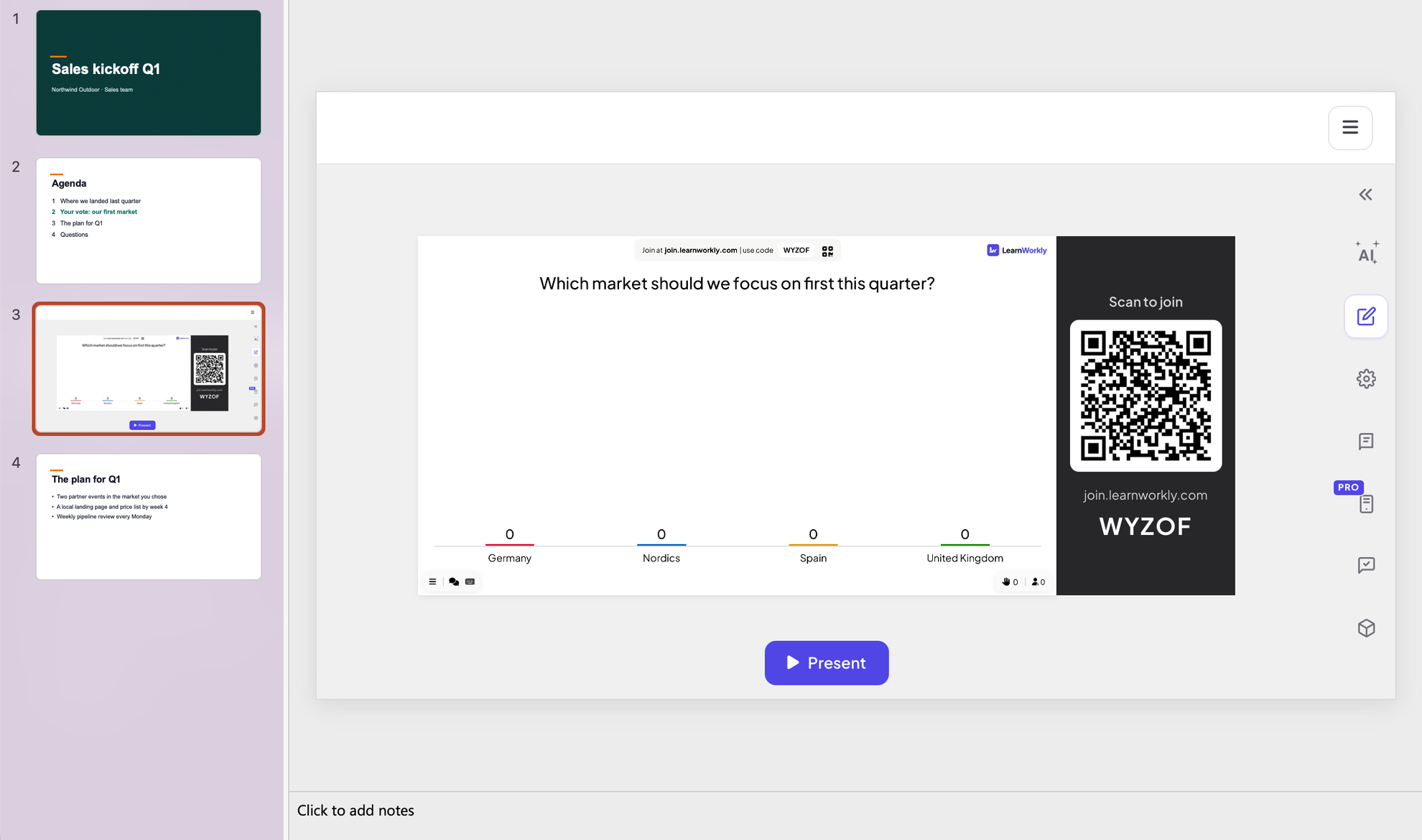
Edit it on the slide
In the edit view, the LearnWorkly slide shows its editor: type the question and options, and change the design and settings as in the LearnWorkly app.
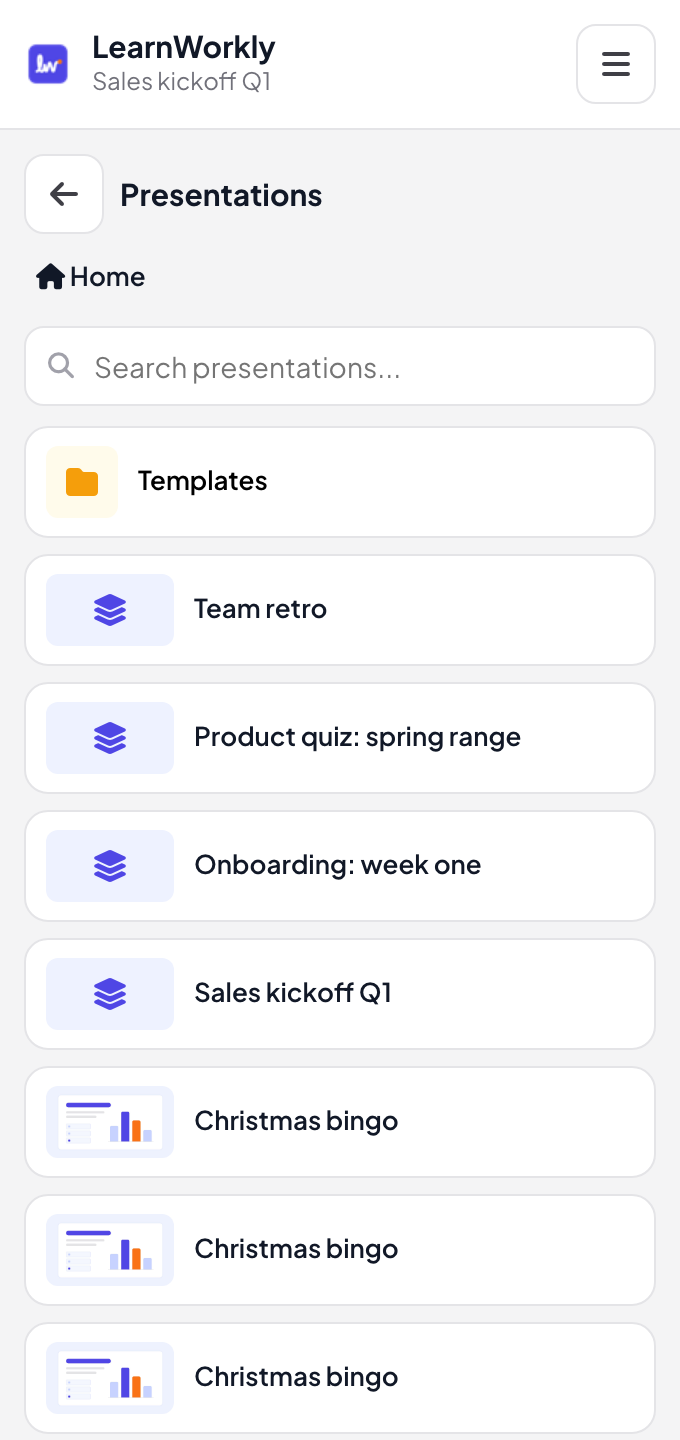
Add a whole presentation
To use a presentation you already made in LearnWorkly, click Add presentation in the panel and pick it from your presentations (folders and a search box help you find it). The whole presentation goes on one PowerPoint slide; in the slideshow you move through its slides on that slide, then on to your next PowerPoint slide.
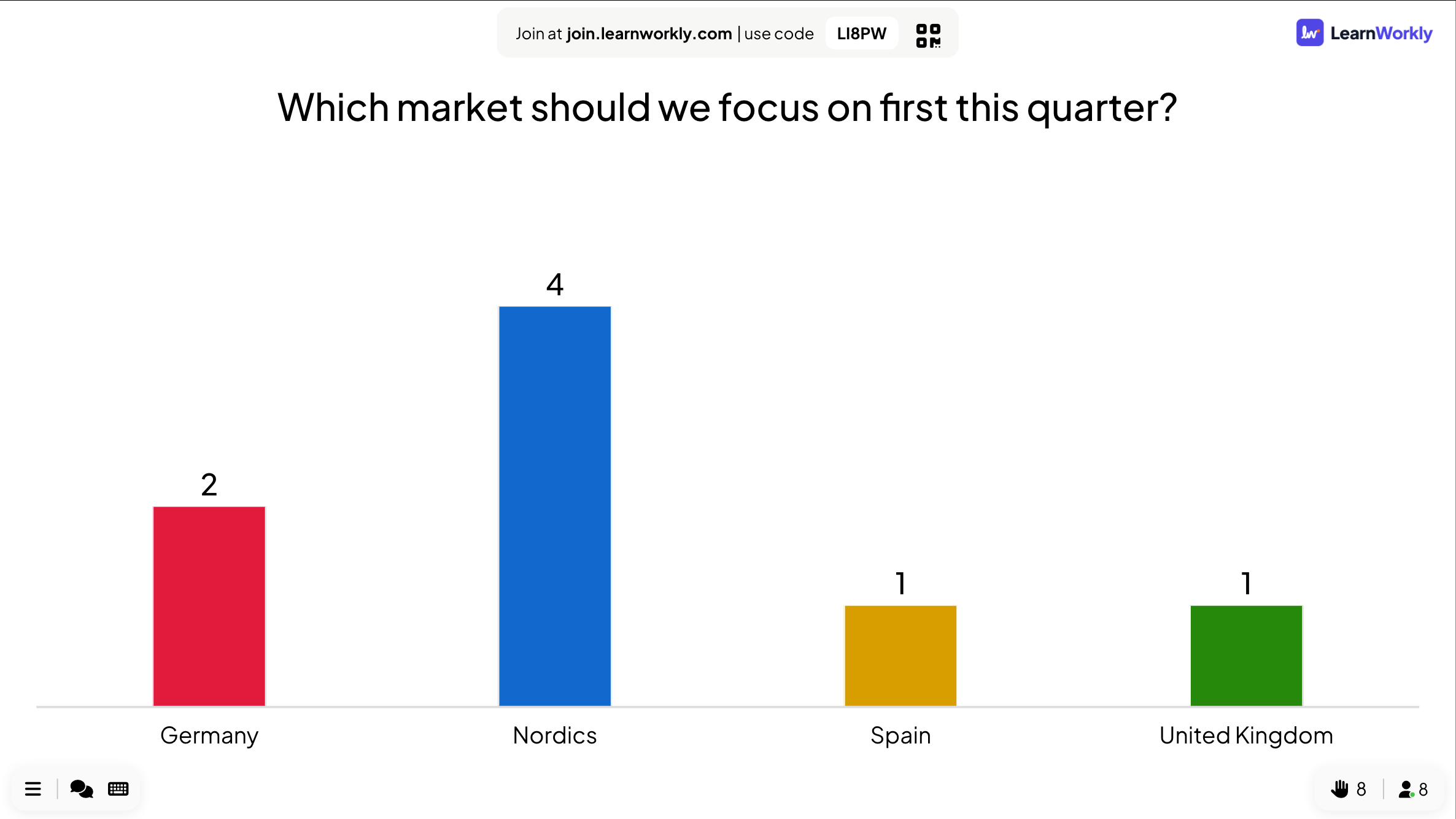
Present
Start the slideshow as usual. When a LearnWorkly slide comes up, it goes live: the join code and QR code are on the slide, participants join from their phones and their answers appear on the slide.
Move through the slideshow with the arrow keys, Page Down / Page Up or a presenter clicker, even after you click into a LearnWorkly slide. On a game slide, Enter starts the game and plays its next step; once the game does not need it any more, Enter moves on.
Your account in PowerPoint
- The ☰ menu at the top of the panel, and on a LearnWorkly slide, shows your name and plan with Profile, My Plan, Pricing and Log out.
- Pages you open from it have a back arrow to return to the panel or the slide.
Updates
New features reach the add-in on their own the next time PowerPoint opens it. On Windows, the helper also installs new versions by itself, never during a slideshow. On a Mac, the panel shows A new version of the LearnWorkly add-in is available with a Download button when you need a new package.
Uninstall
On Windows: Settings › Apps › LearnWorkly for PowerPoint › Uninstall. On a Mac: in Terminal, run sudo "/Library/Application Support/LearnWorkly/PowerPoint/uninstall.sh" (if it says macOS blocked a file, delete that file in Finder). LearnWorkly slides already in your files then show that the add-in is not available; install it again to use them.
Frequently asked questions
The LearnWorkly button is not on the Home tab.
Quit PowerPoint completely and open it again. On a Mac, open LearnWorkly - Get started once (the installer does this for you) so PowerPoint shows the button. If it is still missing, run the installer again.
A LearnWorkly slide says the add-in is not available.
The add-in that shows LearnWorkly slides is missing on this computer. Install the add-in, then open the file again.
I see two LearnWorkly entries in my add-ins.
LearnWorkly is the panel with the Home tab button; Slide player (needed by LearnWorkly) shows the LearnWorkly slides in your files. Keep both.
On Windows, a LearnWorkly slide does not go live when I reach it.
Check that the LearnWorkly icon is in the notification area. If it is not, sign out of Windows and in again, or run the installer again.
The arrow keys do nothing on a LearnWorkly slide.
Click once inside the LearnWorkly slide, then press the key again. On Windows, also check that the LearnWorkly helper is running.
Do participants need PowerPoint?
No. They join from their phone’s browser with the code on the slide, as in any LearnWorkly session.
Last checked against the app on 19 November 2026.
Related articles
- PowerPoint slide: show an online PowerPoint fileShow a PowerPoint file from PowerPoint on the web inside your presentation by pasting its embed code. For editable slides, import the .pptx instead.
- Import PowerPoint and PDF slidesImport a .pptx with its animations kept and editable, or turn every page of a PDF into a slide, then add quizzes and polls between your slides.
- PowerPoint Animated: imported slides with animationsImport a .pptx file and every slide keeps its PowerPoint animations. Edit text and layout, add or change animation steps, then present click by click.