PowerPoint add-in
A live escape room inside your PowerPoint
Most PowerPoint escape rooms are a maze of hyperlinked slides that one person clicks through for the whole room. With the free LearnWorkly add-in, an Escape Room slide sits between your own slides: in the slideshow, teams join on their phones, crack a chain of locks together, and the slide shows which team is closest to the exit.
Free on every plan. How to install and use it
Step by step
Escape Room in PowerPoint, step by step
- 1
Add Escape Room after any slide
Select the slide it should follow, click LearnWorkly on the Home tab and search for escape. The new PowerPoint slide starts with a sample escape room you can play straight away.
LearnWorkly panel in PowerPoint 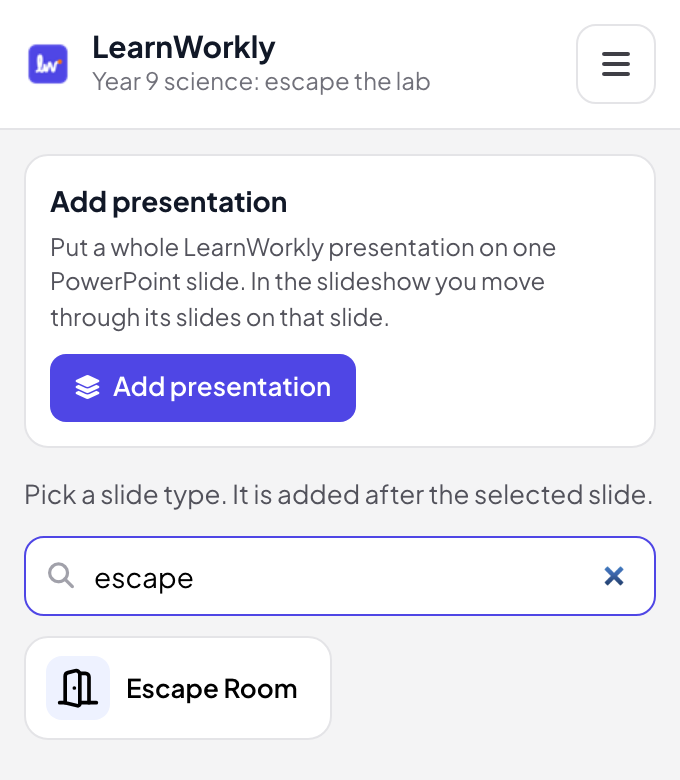
- 2
Write the story and the locks
In PowerPoint’s edit view, write the story and one lock per room: pick the right answer, a number padlock or a word. Or click Generate with AI with a topic and a level, or start from Escape the Science Lab, The Math Vault or Lost in the Library, then check every code before you play.
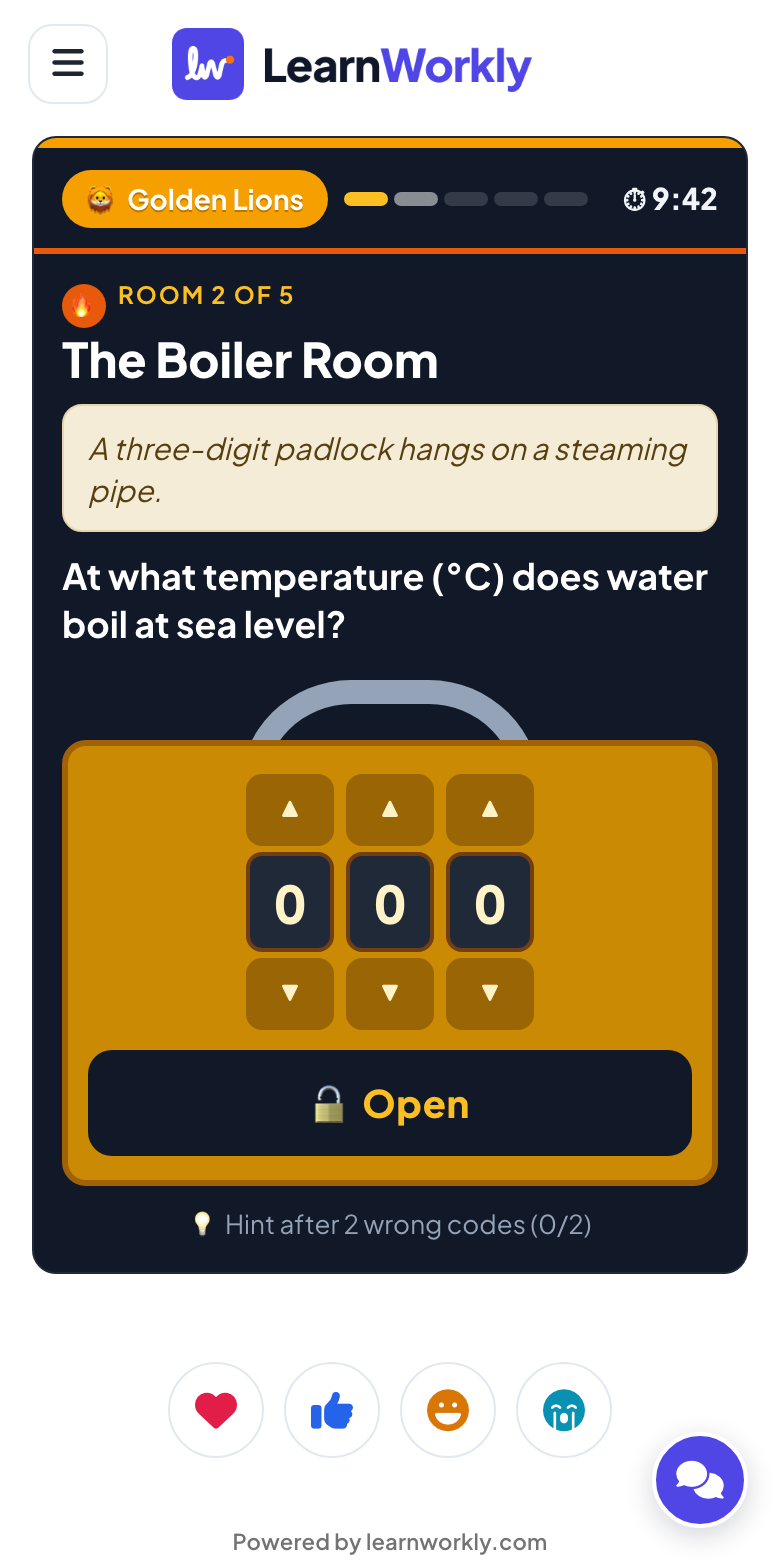
Tip: Write a hint for every room: after 2 wrong codes, a team can take it for 30 seconds on its time.
PowerPoint edit view 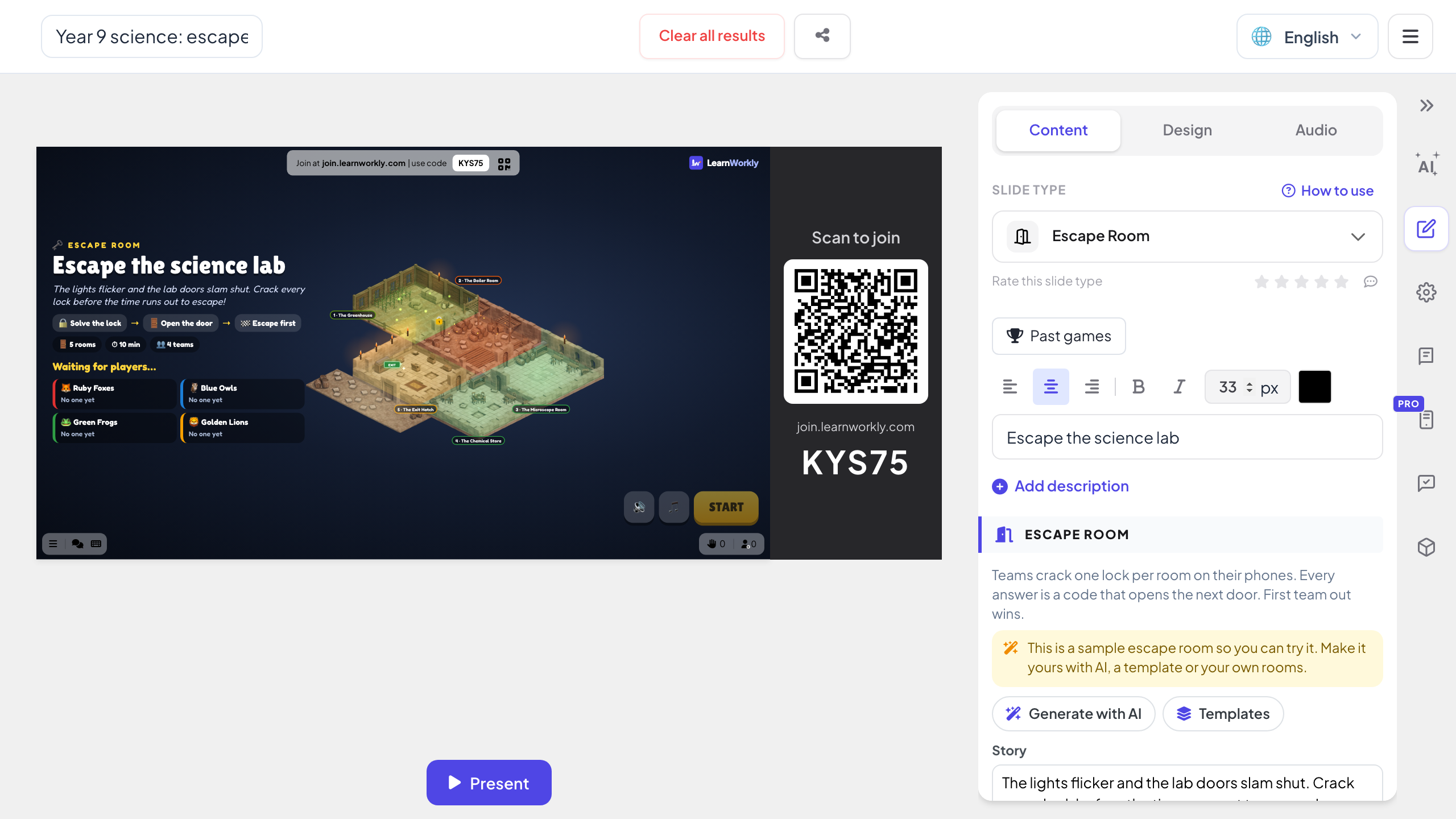
- 3
Teams race in the slideshow
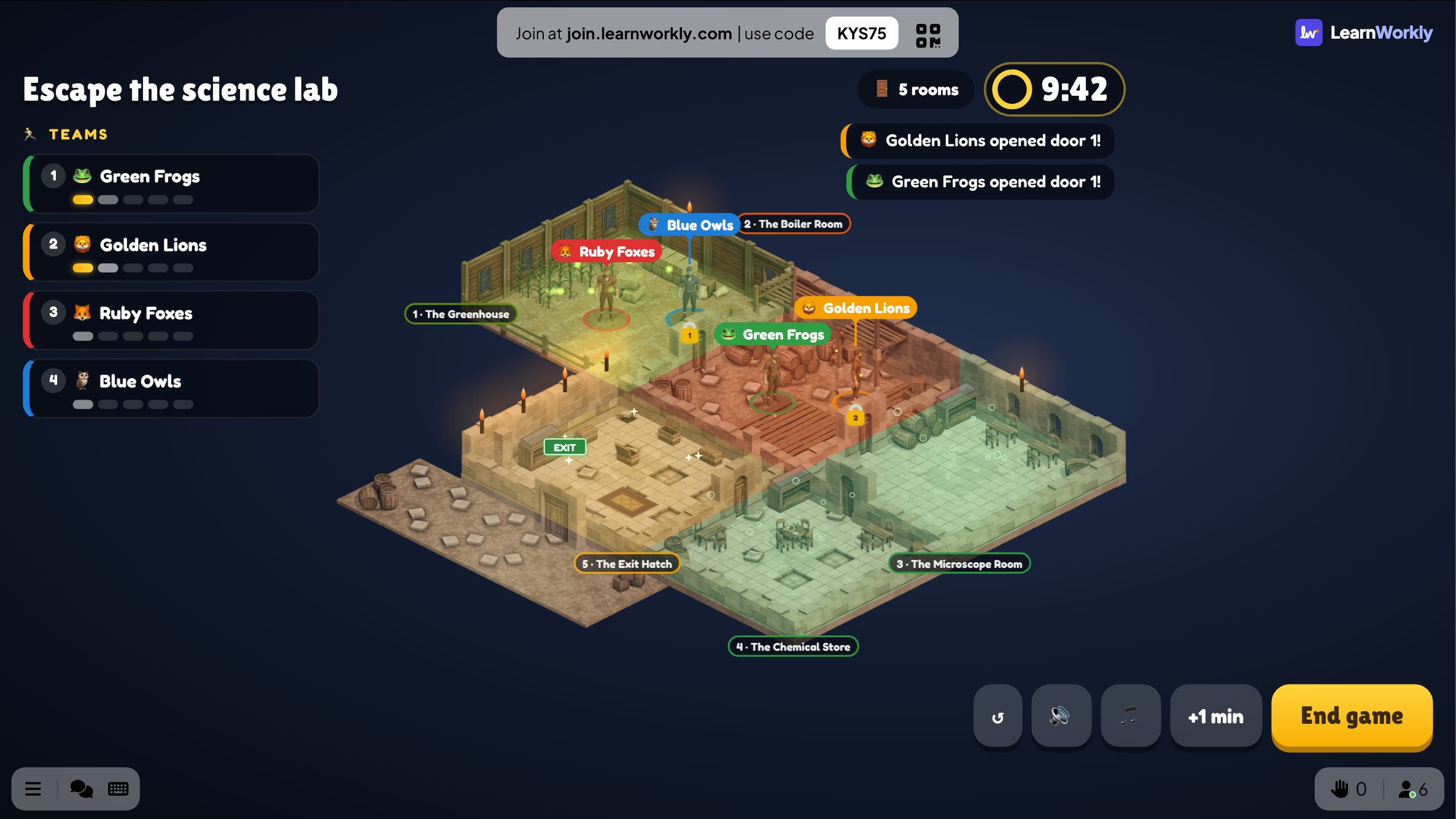
When the slideshow reaches the slide, players join with the code on it and are split into 2 to 6 teams, or play solo. Press START: the slide shows a map with every team’s position, news as doors open and the time left. Add a minute or end the game from the slide.
Tip: A wrong code jams the lock for the whole team for 10 seconds by default, so teams talk before they guess.
PowerPoint slideshow - 4
Crack the locks on the phones
The whole team sees the same lock and anyone can try a code. The first team out wins; when time runs out, the team that got furthest wins, and the slide shows the podium and the wrong codes per room.
A hyperlinked escape room deck or a live one?
Escape room templates for PowerPoint are slides joined by hyperlinks and triggers: a right answer jumps to the next room, a wrong one loops back. They take hours to build and only one person can click. Here is the difference when the rooms play on everyone’s phone.
| Feature | Template file | LearnWorkly add-in |
|---|---|---|
| Who plays | One person clicks for the whole room | Every player on their own phone, in teams or solo |
| Building the rooms | Hyperlinks and triggers on every slide | One slide: story, rooms and locks in a form, or Generate with AI |
| Locks | Click the button with the right answer | Choice, number padlock or word, with several accepted answers |
| Teams | Teams take turns at the computer | 2 to 6 teams race at once and the slide shows who is ahead |
| Time | A separate timer | 5 to 30 minutes on the slide; add a minute while playing |
| Guessing | Click every answer until one works | A wrong code jams the lock for the team; a hint after 2 wrong codes |
| After the game | Nothing recorded | The podium and the wrong codes per room, kept in past games |
Escape rooms to build
Revision before a test
One room per topic: the last door only opens when every topic has been solved.
Maths vault
Number padlocks whose codes are the answers to the sums in each room.
Reading detectives
Word locks about a class novel: a character, a place, the season a chapter is set in.
Onboarding escape
New starters crack codes about the company: the year it started, the name of the intranet, who to ask for help.
Offsite team building
Six teams, fifteen minutes, with music on the big screen that speeds up in the last 30 seconds.
Safety training
Each room is a situation with a choice lock: the safe action opens the door, a wrong one jams it.
Download the add-in
Close PowerPoint, run the installer, then click LearnWorkly on the Home tab.
Windows
Windows 10 or 11, PowerPoint from Microsoft 365 or Office 2016 and later
Version 1.0.1
Download for WindowsMac
macOS, PowerPoint from Microsoft 365 or Office 2019 and later
Version 1.0.2
Download for Mac
Frequently asked questions
Do I need hyperlinks or triggers?
No. The whole escape room is one slide that the add-in places in your deck: rooms, locks and teams all run on that slide during the slideshow.
How many rooms and teams can I have?
2 to 8 rooms (3 to 8 when the AI writes them) and 2 to 6 teams, or solo play. Players are split into teams as they join; Shuffle teams mixes them again before START.
A team is stuck. What can they do?
After 2 wrong codes in a room, the team can take the room’s hint for 30 seconds on its time. You can also add a minute to the game from the slide.
Does it work in PowerPoint for Mac?
Yes. The add-in installs on PowerPoint for Windows (Microsoft 365, or Office 2016 and later) and PowerPoint for Mac (Microsoft 365, or Office 2019 and later). PowerPoint on the web is not supported yet.
How many players can join?
It depends on your plan: up to 10 people at the same time on Free, more on the paid plans. The add-in itself is free on every plan.
Learn more
More activities for PowerPoint
Try it in your next session
Free for up to 10 live participants, with every slide type and game. Build your first deck in minutes.
Free for up to 10 participants · No credit card