PowerPoint add-in
A countdown timer inside your PowerPoint
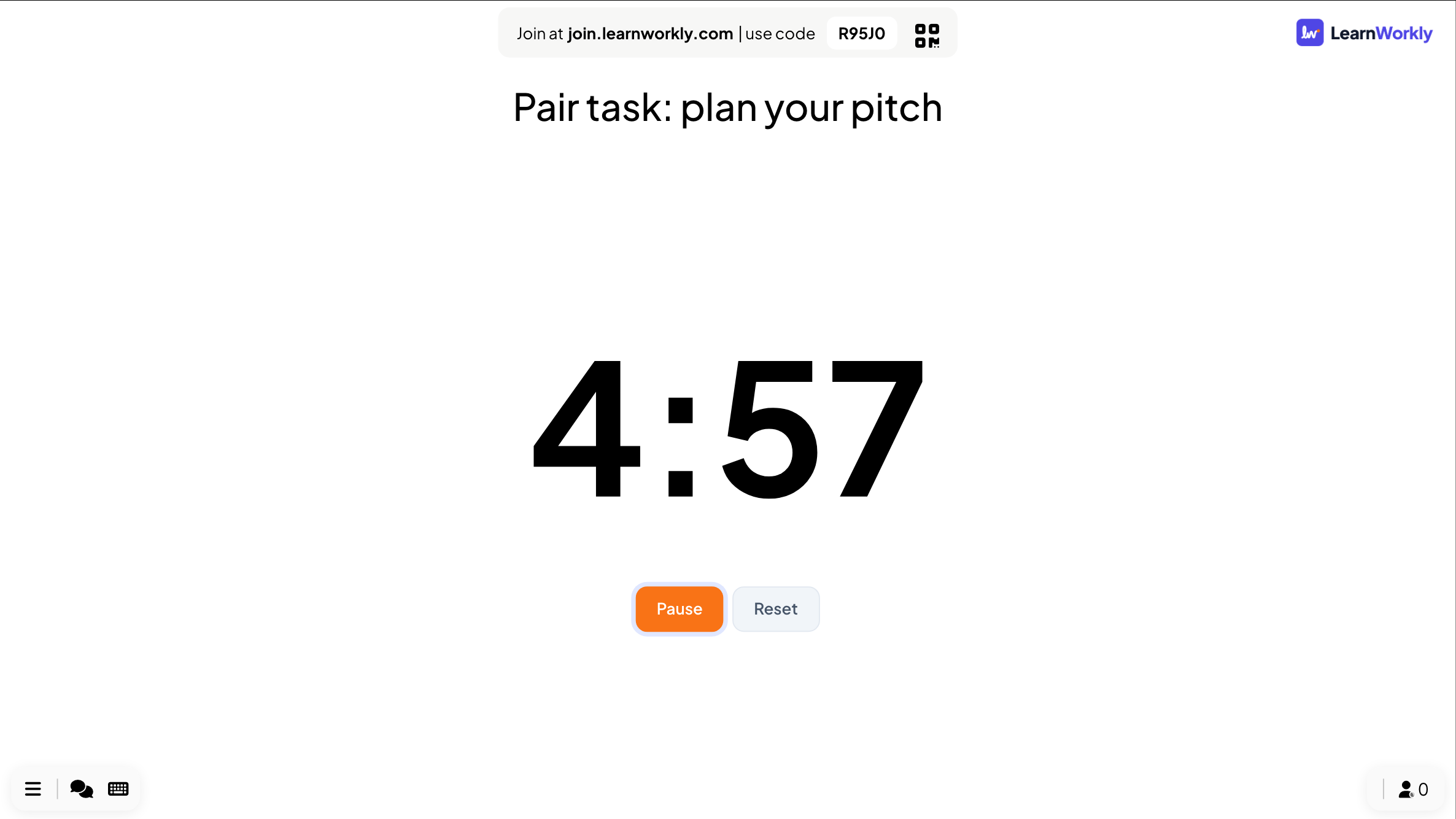
PowerPoint has no countdown slide of its own: templates fake one with a slide per second or a chain of timed animations, and a new time means rebuilding it. With the free LearnWorkly add-in, a Countdown slide shows a big timer you set in seconds, with Start, Pause and Reset right on the slide during the slideshow.
Free on every plan. How to install and use it
Step by step
Countdown in PowerPoint, step by step
- 1
Add a Countdown slide
Select the slide it should follow, click LearnWorkly on the Home tab and search for countdown. Give it a title such as "Pair task: plan your pitch".
LearnWorkly panel in PowerPoint 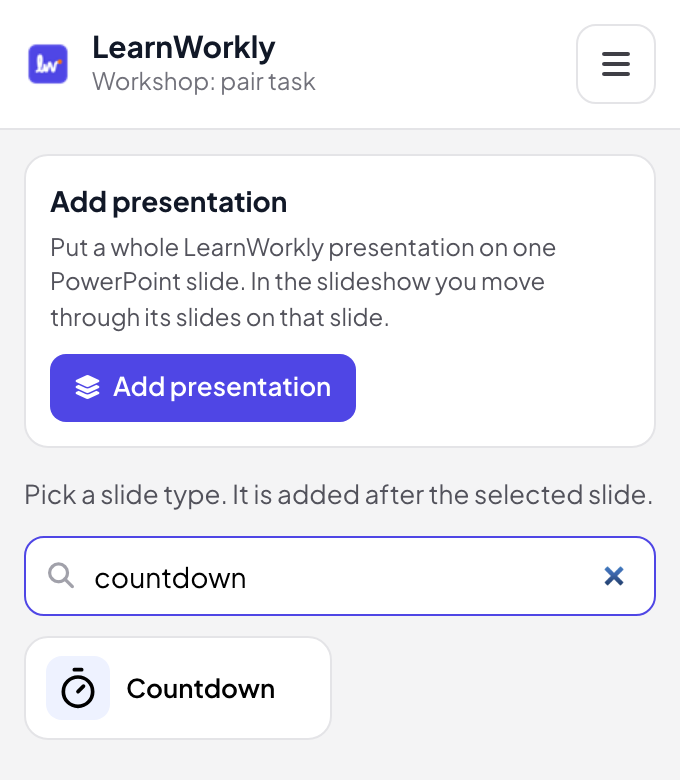
- 2
Set the time
In edit view, enter the Countdown duration in seconds, for example 300 for five minutes. Leave Auto start countdown off to start it yourself, or turn it on to start the timer as soon as the slide comes up.
PowerPoint edit view 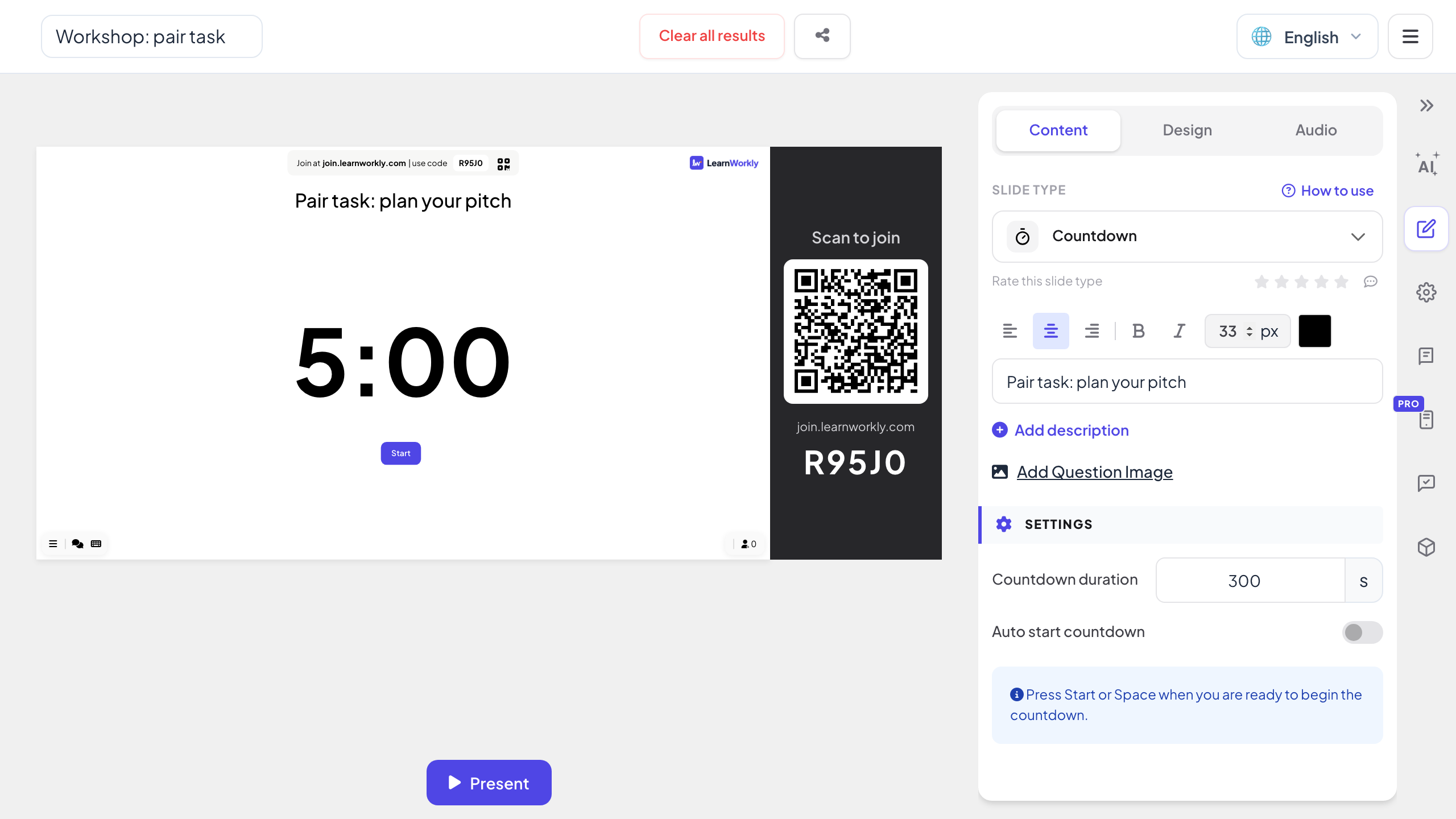
- 3
Start it in the slideshow
When you reach the slide, it shows the full time and a Start button. Click Start when the room is ready.
PowerPoint slideshow 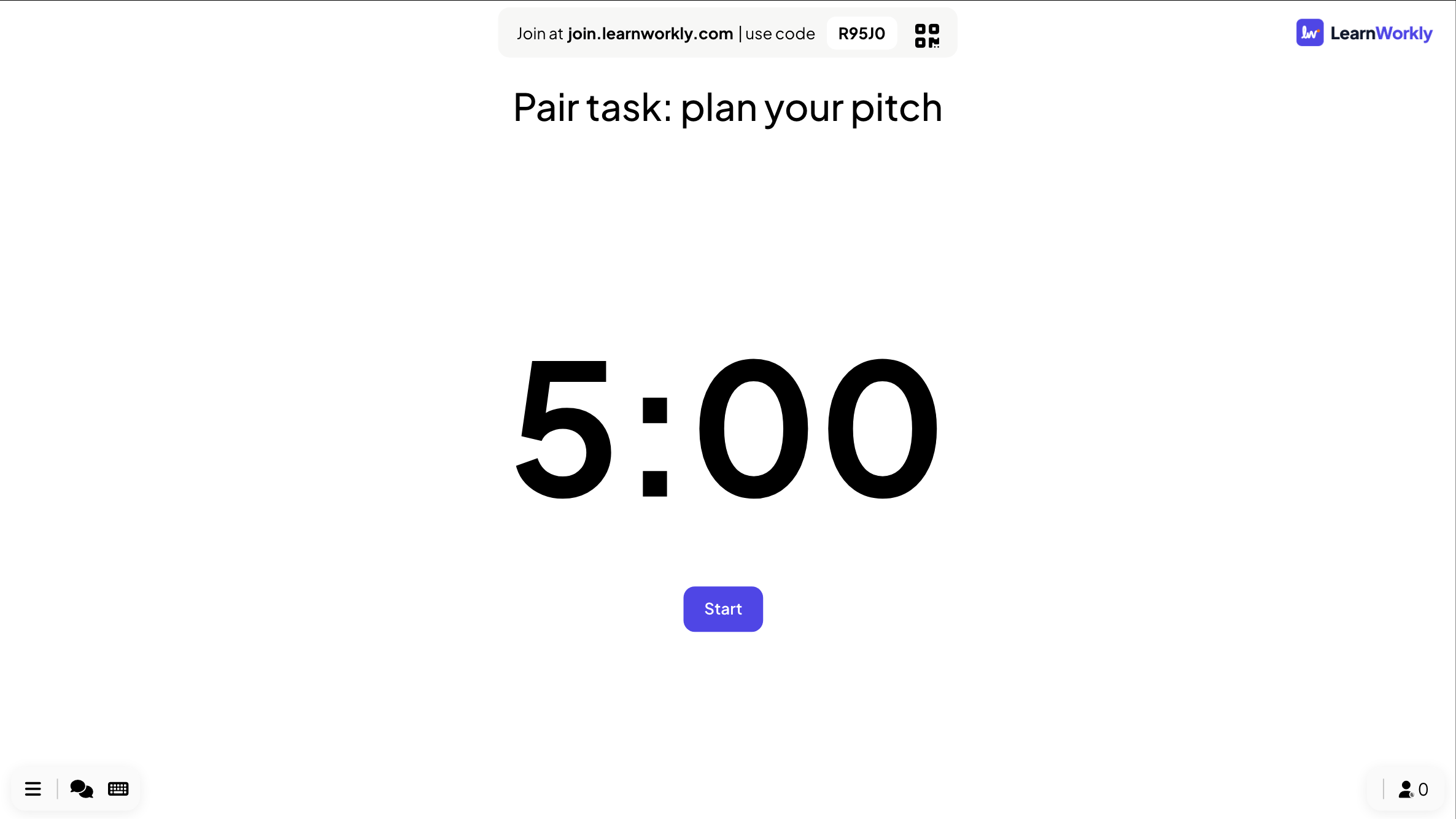
- 4
Pause, continue or reset
Pause and Reset sit under the timer while it runs, and Continue picks up where you paused. When the time runs out, the slide shows Time is up! and a Restart button.
Tip: Nobody needs to join for a timer. Phones that are already connected show View on presenter screen until the next interactive slide.
PowerPoint slideshow
A countdown template or a timer slide?
Countdown templates for PowerPoint are a run of slides that advance every second, or animations timed one after another. They work until you need a different time.
| Feature | Template file | LearnWorkly add-in |
|---|---|---|
| Changing the time | Add or delete slides, or retime every animation | Type a new number of seconds |
| Pausing | Not possible without stopping the slideshow | Pause and Continue on the slide |
| Starting | Starts with the slide or the animation | A Start button, or auto start |
| Starting again | Go back and run the slides again | Reset, or Restart when time is up |
| Size of the deck | One slide per second, or dozens of animations | One slide |
| When time is up | Whatever the last slide shows | Time is up! on the slide |
Timers to put in a deck
Think time
Thirty seconds of silence before the class discusses a question.
Group work
Ten minutes for a task, with the task itself as the title of the slide.
Coffee break
Fifteen minutes in a workshop, so everyone knows when to come back.
Timed practice
An exam question against the clock, the way it will feel on the day.
Speaker slots
Five minutes per speaker at a meetup or a pitch night.
Before you start
A countdown on the first slide while people arrive and find their seats.
Download the add-in
Close PowerPoint, run the installer, then click LearnWorkly on the Home tab.
Windows
Windows 10 or 11, PowerPoint from Microsoft 365 or Office 2016 and later
Version 1.0.1
Download for WindowsMac
macOS, PowerPoint from Microsoft 365 or Office 2019 and later
Version 1.0.2
Download for Mac
Frequently asked questions
Does PowerPoint have a built-in countdown timer?
Not as a slide you can set and pause. The usual workarounds are a slide per second or timed animations. The add-in’s Countdown slide is one slide with a timer you set in seconds.
Can I pause the timer?
Yes. Pause and Reset sit under the timer while it runs, and Continue picks up where it stopped.
Can it start on its own?
Turn on Auto start countdown and the timer starts as soon as the slide comes up in the slideshow.
Can the timer play music?
Yes. Add music to the slide in its Audio tab.
Does it work in PowerPoint for Mac?
Yes. The add-in installs on PowerPoint for Windows (Microsoft 365, or Office 2016 and later) and PowerPoint for Mac (Microsoft 365, or Office 2019 and later). PowerPoint on the web is not supported yet.
Learn more
More activities for PowerPoint
Try it in your next session
Free for up to 10 live participants, with every slide type and game. Build your first deck in minutes.
Free for up to 10 participants · No credit card