Meetings and presentations
Meetings where everyone has a say
All-hands, team meetings, webinars, conference talks: put polls, word clouds and Q&A between your slides and everyone answers on their phone. The room votes on the questions it wants answered, and a colleague can moderate them while you present.
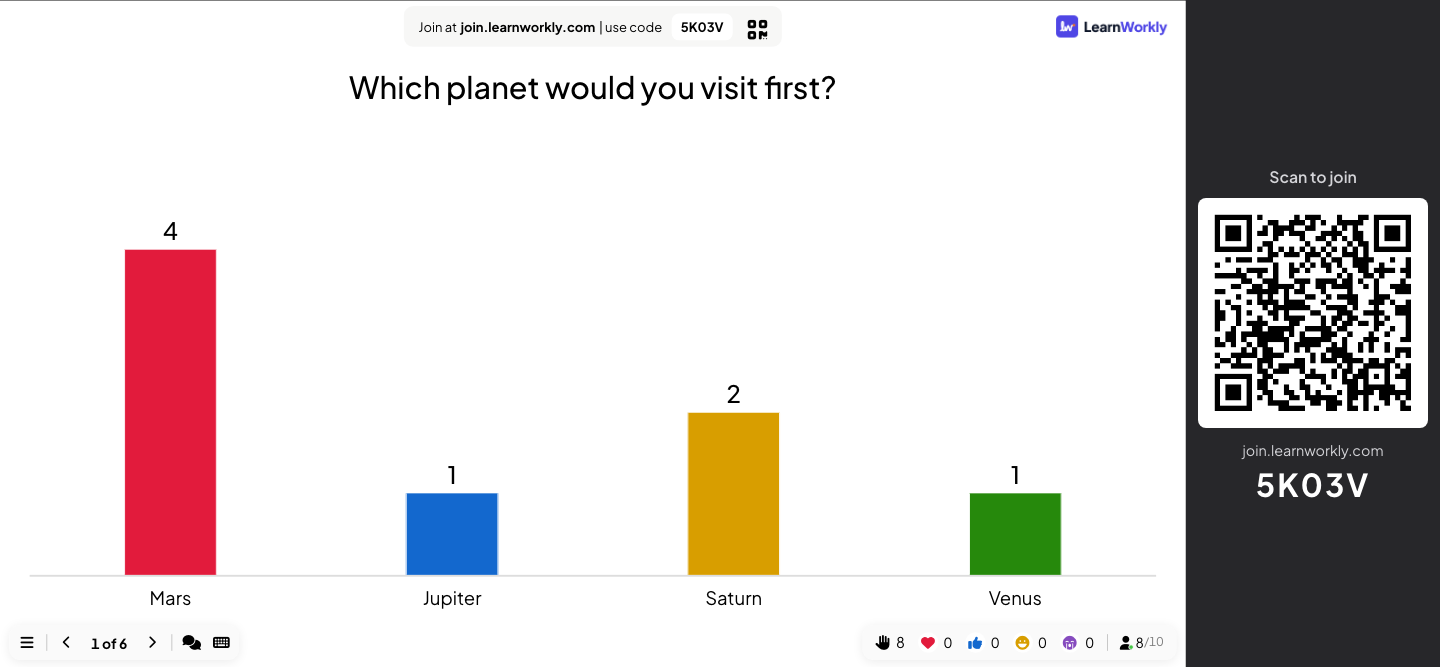
Sound familiar?
What gets in the way today
“Any questions?” Silence.
People ask from their phones, anonymously if they like, and upvote what they want answered.
Decisions by the loudest voice
Polls, rankings and 100 points show what the whole team thinks.
Remote people left out
Anyone with the code joins from their own device, wherever they are.
A real session, step by step
A 30-minute monthly all-hands
Fifty people in the room and online, one deck: a quick pulse, open questions for the leadership team, a ranking of priorities, a budget vote and one thing to stop doing. Here is each moment as people saw it.
- 1Poll 2 min
Take the pulse
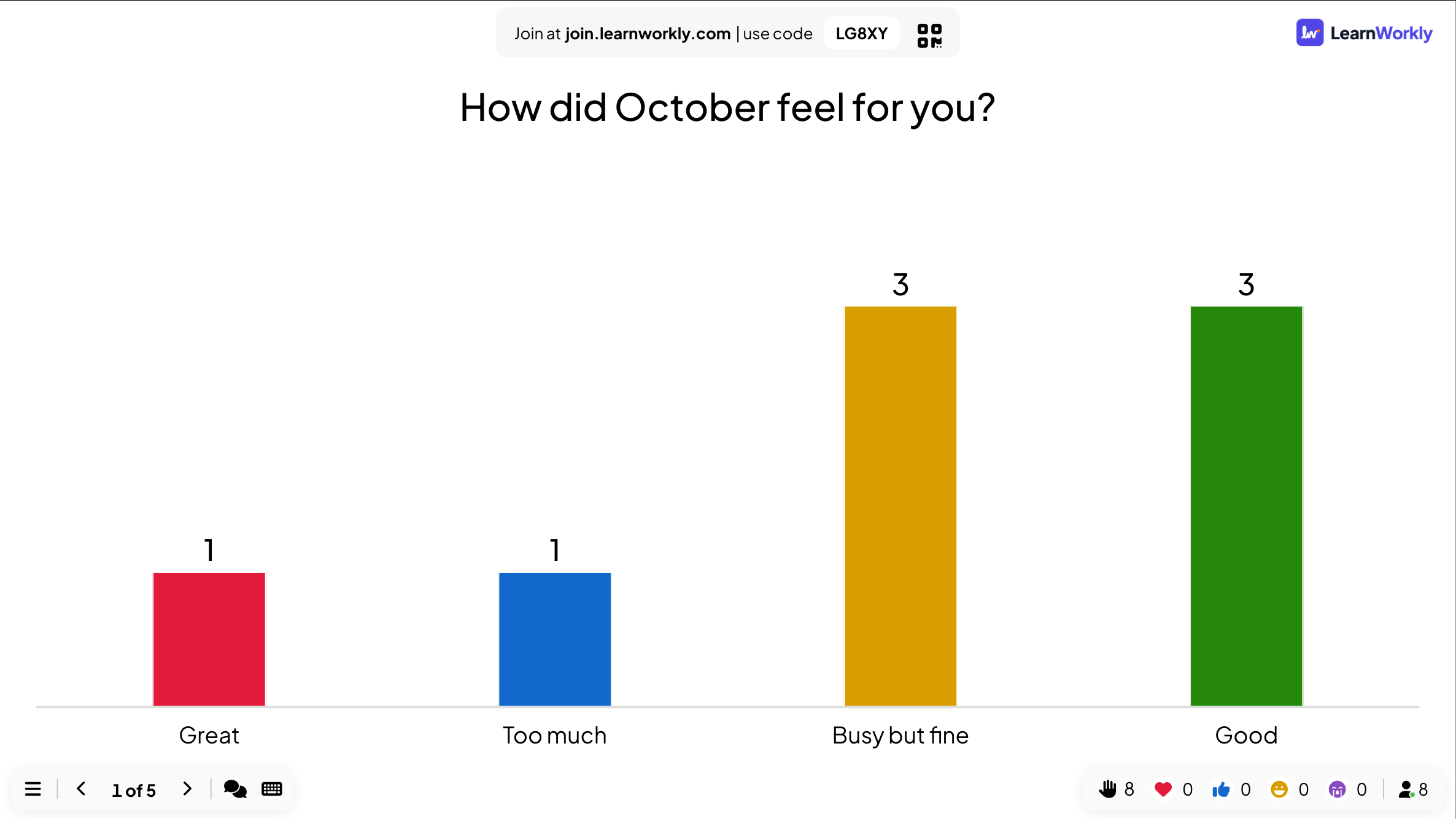
How did October feel for you? Great / Good / Busy but fine / Too much
- You
- Open with the poll while people settle. Comment on the result honestly; it sets the tone for the questions later.
- On their phones
- One tap and Submit, without a name.
- On the big screen
- Good and busy but fine tie at three each, and one person says too much. Worth saying out loud that you noticed.
Tip: Keep the first question light and anonymous. People who answer in the first two minutes keep answering for the rest of the meeting.
- 2Q&A 10 min
Questions the room really wants answered
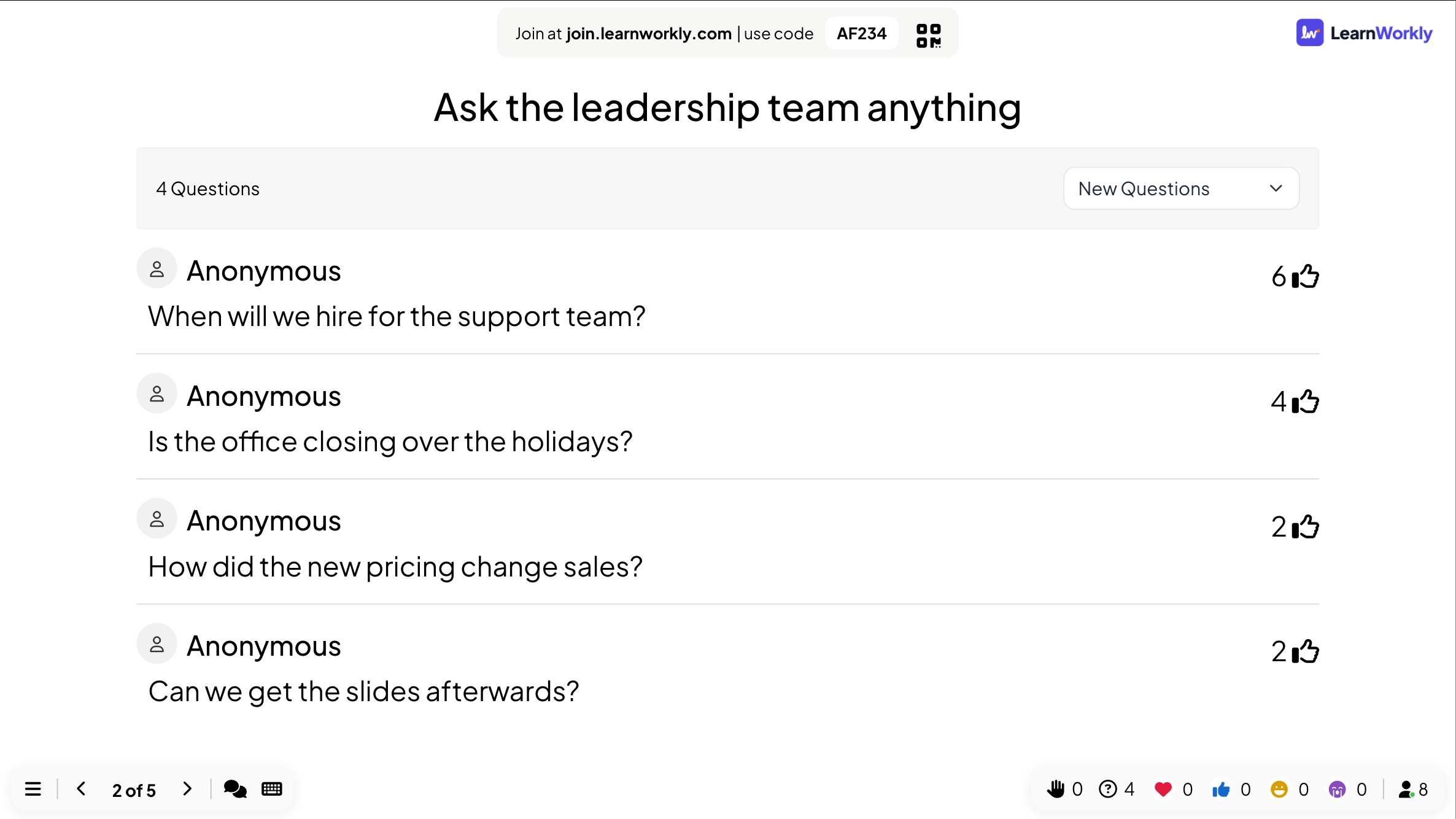
Ask the leadership team anything
- You
- Keep Q&A open while you present the update, then answer the top questions and Mark as Answered as you go.
- On their phones
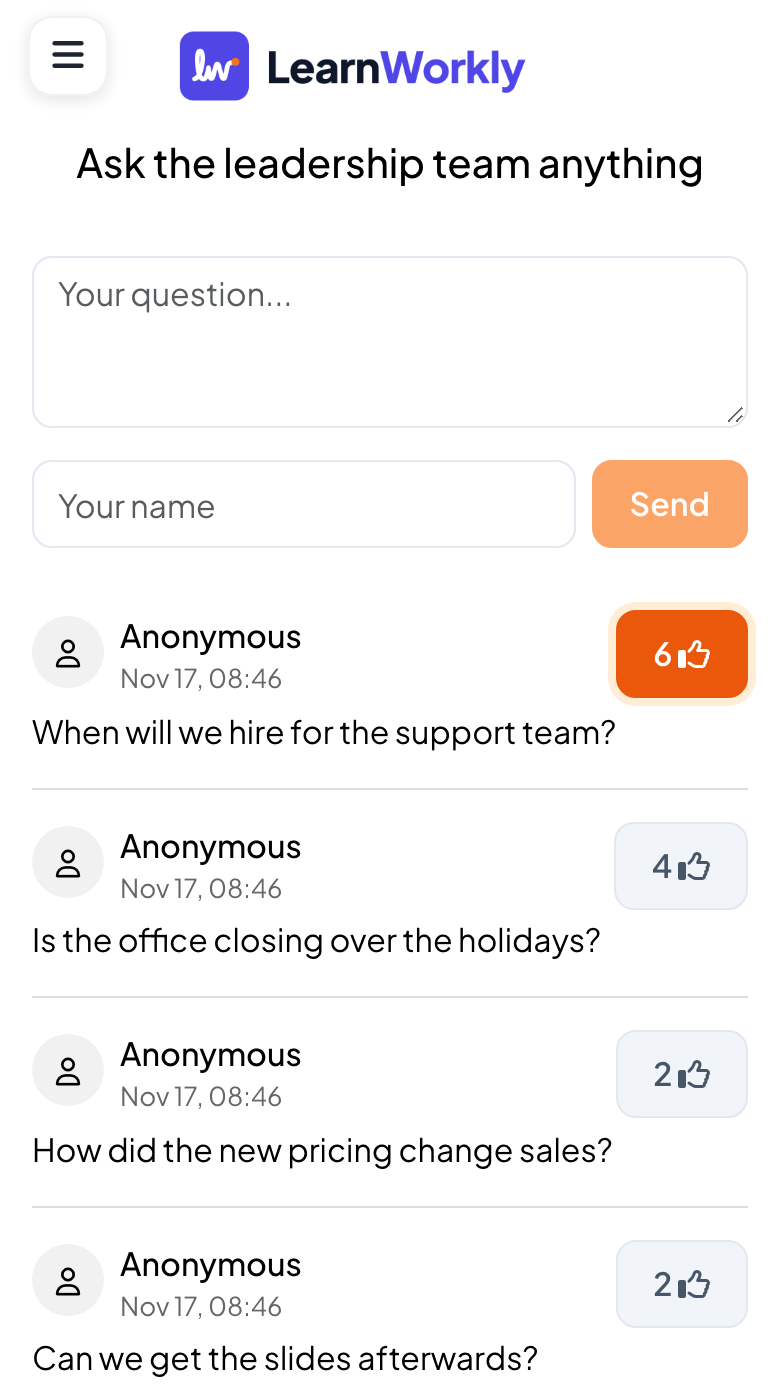
- People type a question, with or without a name, and upvote the questions they want answered.
- On the big screen
- Questions sorted by upvotes: hiring for the support team comes first with six votes, the holiday closing second.
Tip: Turn on Moderation Q&A and share the moderator link with a colleague, who approves questions while you speak. Enable Profanity Filter for company-wide meetings.
- 3Ranking 3 min
Rank next quarter’s priorities
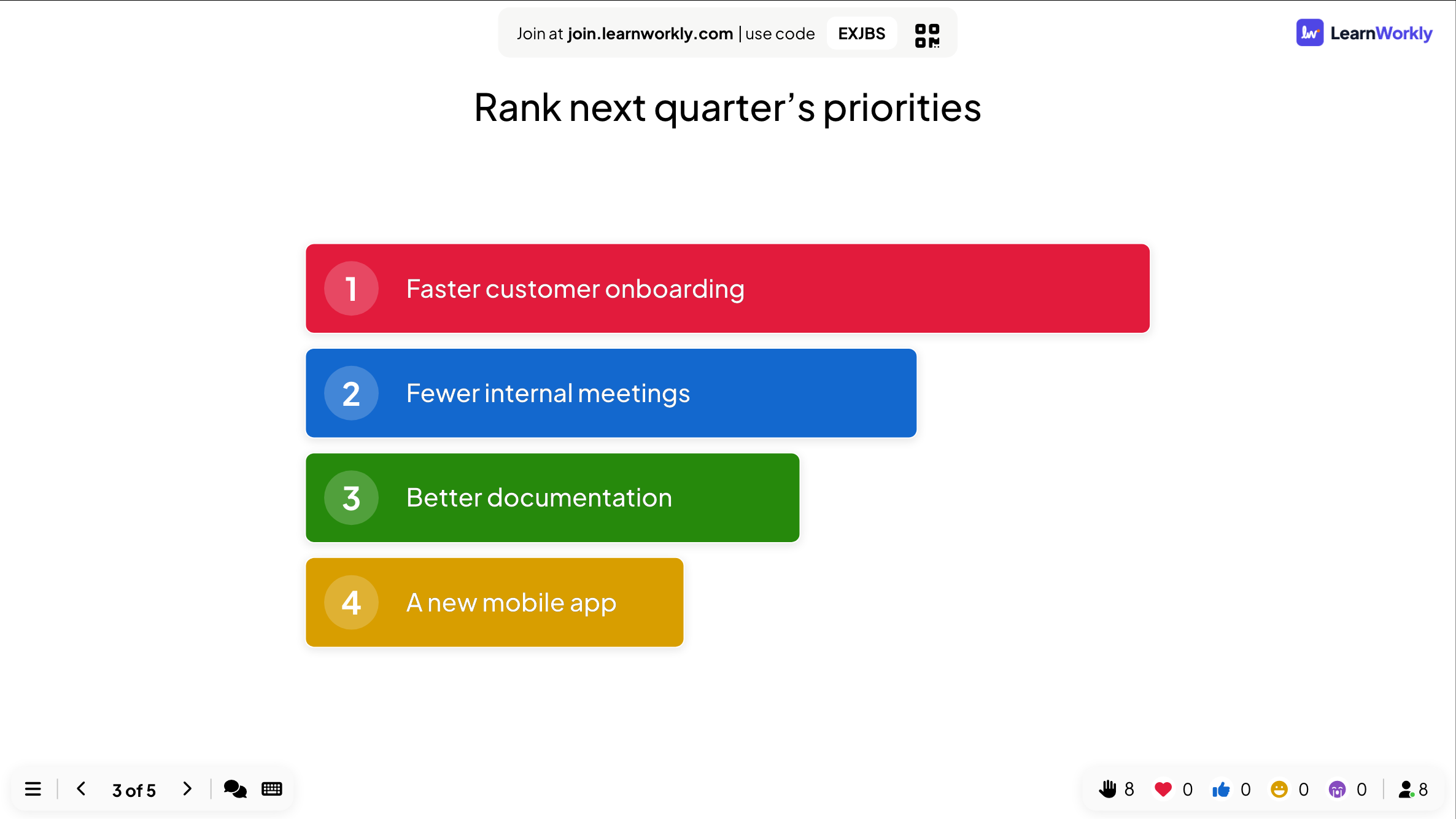
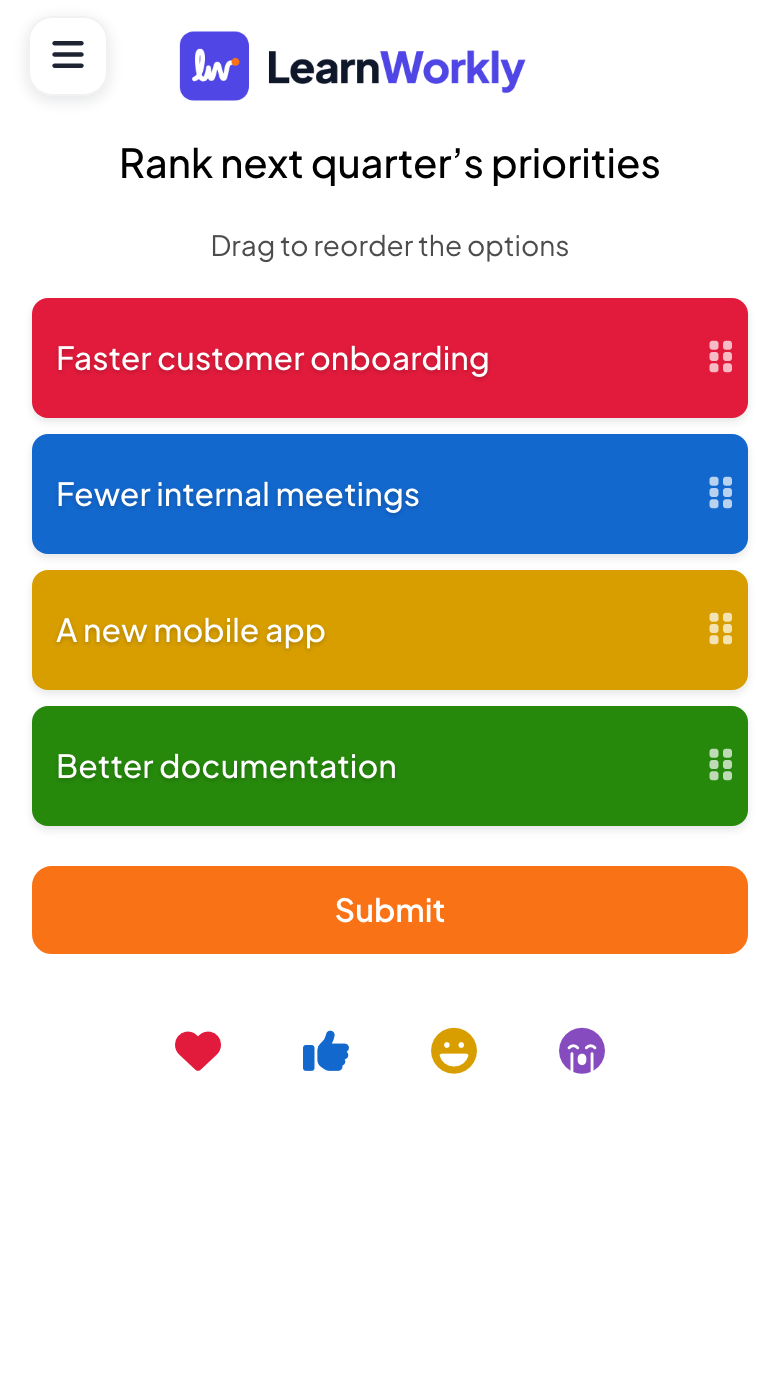
Rank next quarter’s priorities: Faster customer onboarding / Fewer internal meetings / A new mobile app / Better documentation
- You
- Ask before you announce the plan, not after. If the room disagrees with the plan, you want to know now.
- On their phones
- People drag the options into their order and tap Submit.
- On the big screen
- The options as bars, from the highest ranked to the lowest: faster customer onboarding first, a new mobile app last. It updates as answers come in.
Tip: Ranking has no right answer. To see how strongly people feel, follow it with 100 Points.
- 4100 Points 3 min
Share out a budget
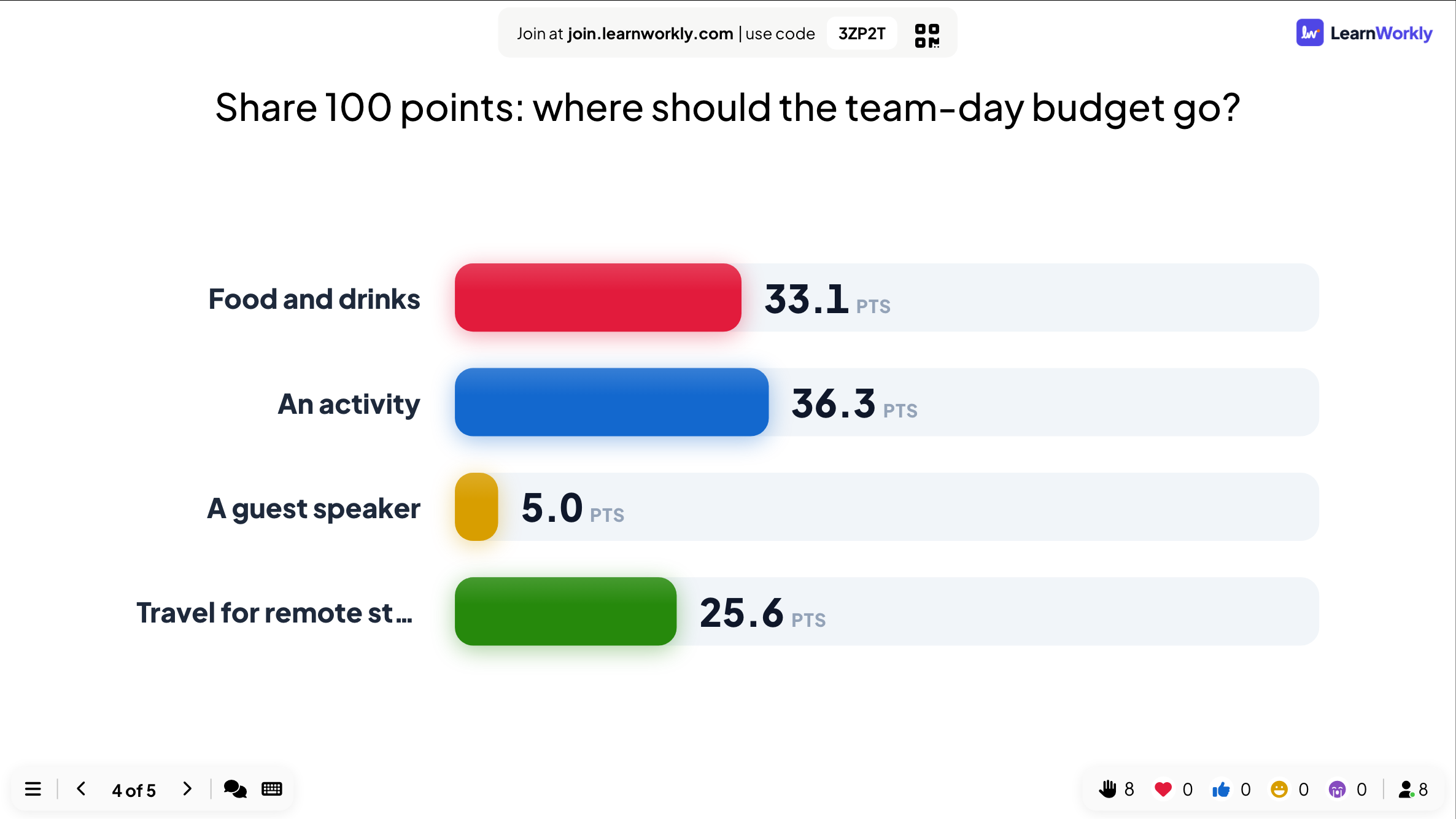
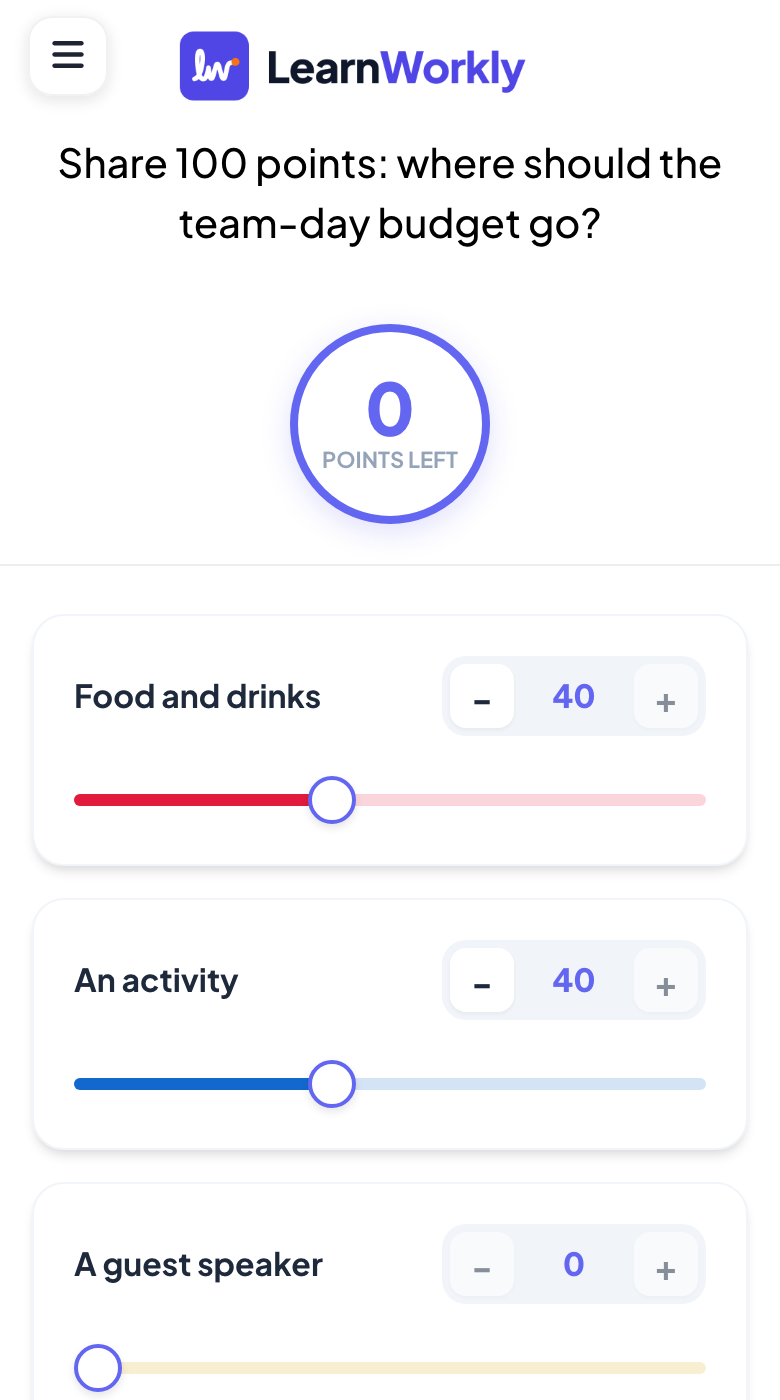
Share 100 points: where should the team-day budget go? Food and drinks / An activity / A guest speaker / Travel for remote staff
- You
- Use it when every option sounds good. Limited points show what people would actually give up.
- On their phones
- Plus and minus buttons for each option, with Points left counting down from 100.
- On the big screen
- The average points per option: an activity (36) and food (33) lead, travel for remote staff gets 26 and a guest speaker only 5. A clearer answer than any show of hands.
Tip: Keep it to four to six options so people can split points in a minute.
- 5Open Ended 3 min
One thing to stop doing
One thing we should stop doing next month
- You
- End with an open question and read a few answers out. Then share the slides or the report.
- On their phones
- A short answer and Submit.
- On the big screen
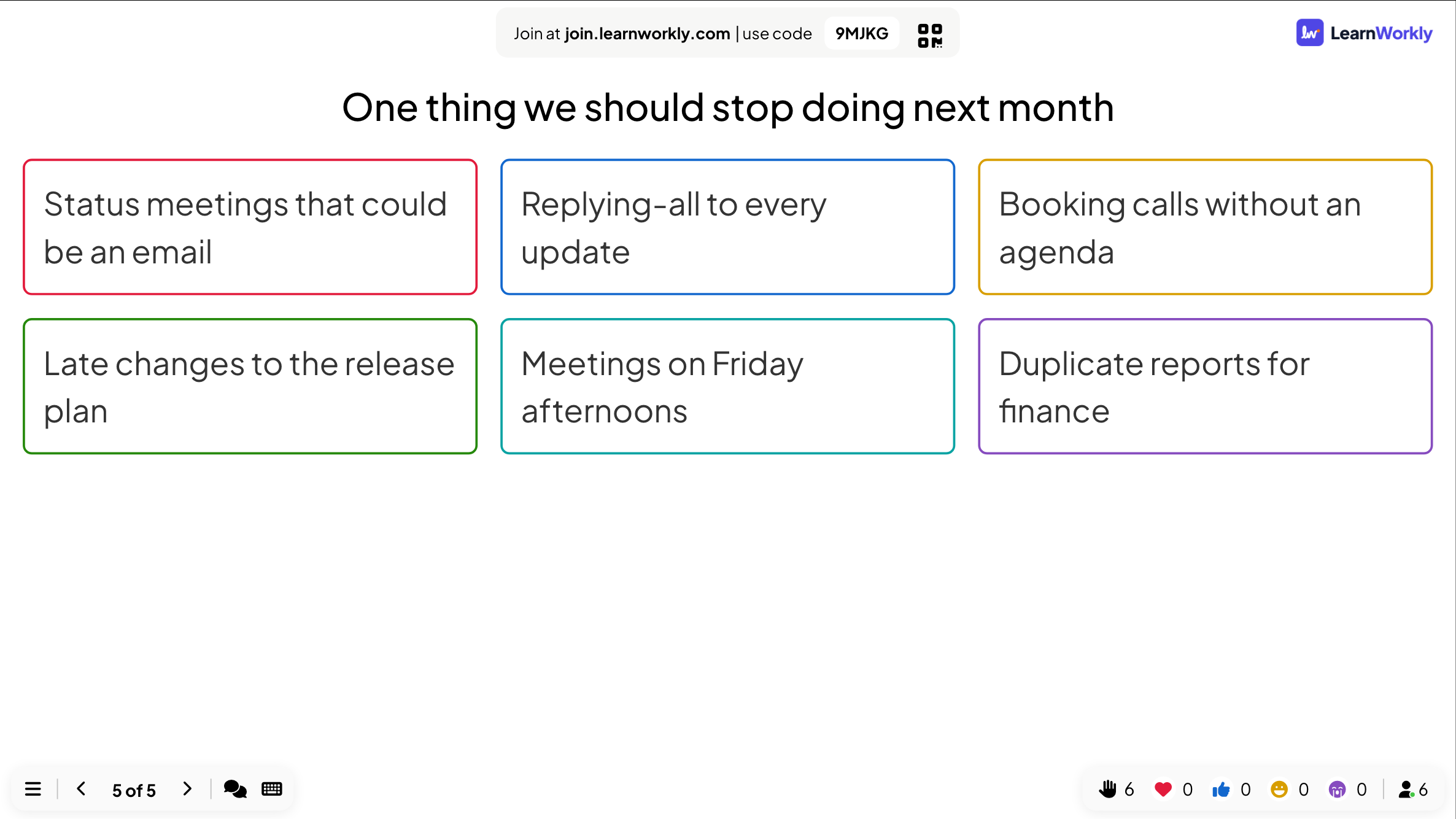
- Answers as cards: status meetings that could be an email, reply-all, calls without an agenda.
Tip: Open the report afterwards for every answer from the meeting, and export it on Basic and above to share with the team.
How LearnWorkly helps
Everything for an interactive meeting
Q&A with moderation
Upvotes, a moderator link, a profanity filter and questions marked as answered.
Live polls
Bar and pie charts that build up as people vote, shown live or revealed when you are ready.
Word clouds and open questions
Collect ideas and feedback from everyone at once.
Your own slides
Import PowerPoint or PDF, or show a Google Slides, PowerPoint or Gamma link inside the deck.
Ideas to start from
Decks you can build in minutes
Slide lists to copy into a new presentation: add the slides in the editor, type your own questions and present.
All-hands
Monthly company update
- 1Poll: how did the month feel?
- 2Your update slides, imported
- 3Q&A with moderation
- 4Ranking: next quarter’s priorities
- 5Open Ended: one thing to stop doing
Conference talk
A 30-minute session on stage
- 1Word Cloud: why are you here?
- 2Your talk, imported with animations
- 3Poll: a prediction mid-talk
- 4Q&A with upvotes
- 5Scale: rate the session
Team planning
Prioritise the next quarter
- 1Open Ended: ideas
- 22x2 Grid: effort against impact
- 3100 Points: where to spend
- 4Ranking: final order
- 5Remote Retro for the last quarter
Webinar
Online audience, any size
- 1Quick Form: what is your role?
- 2Your slides
- 3Poll every ten minutes
- 4Q&A
- 5Survey link for feedback
Features you will use most
Read more
Frequently asked questions
Do people need an app or an account?
No. They scan the QR code or go to join.learnworkly.com and type the code, on any phone or laptop.
Can remote people take part?
Yes. Anyone with the code joins from their own device, wherever they are, and answers along with the room while you share your screen in your usual video call.
Are questions anonymous?
They can be. Questions without a name show as Anonymous, and polls and word clouds never ask for a name.
Can someone else moderate the questions?
Yes. Turn on Moderation Q&A and share the moderator link: your colleague approves questions before they appear on screen.
Can I use my own slides?
Yes. Import PowerPoint (animations kept) or PDF, or show a Google Slides, PowerPoint or Gamma link inside the deck.
Can I run it from my phone?
Yes, with remote control on Pro and Enterprise: move through the slides, see Q&A and your speaker notes on your phone while the deck runs on the big screen.
How many people can join?
Up to 10 on Free, 100 on Basic ($7.99 a month) and 5,000 on Pro ($14.99 a month), enough for a company-wide meeting or a conference session. Enterprise limits are flexible.
Can we use our company branding?
Fonts, colours and background images are on every plan. Your logo is on Pro and Enterprise; company-wide branding and white label are on Enterprise.
What do I get after the meeting?
A report with every answer and question from the session, on every plan. Export it to Excel or PDF on Basic and above.
Also made for
Make your next meeting interactive
Start free, with nothing for anyone to install. Build your first deck in minutes.
Free for up to 10 participants · No credit card