PowerPoint add-in
A spinning wheel inside your PowerPoint
Spinner wheels made in PowerPoint are a pie chart with a spin animation, so the wheel stops wherever the animation ends. With the free LearnWorkly add-in, the Spinner Wheel slide makes a random pick on every spin: names, prizes, topics or questions, typed on the slide, uploaded as a CSV file of up to 200,000 entries, or sent by the audience from their phones.
Free on every plan. How to install and use it

Step by step
Spinner Wheel in PowerPoint, step by step
- 1
Add the wheel after any slide
Select a slide, click LearnWorkly on the Home tab and search for spinner. A Spinner Wheel slide is added after it.
LearnWorkly panel in PowerPoint 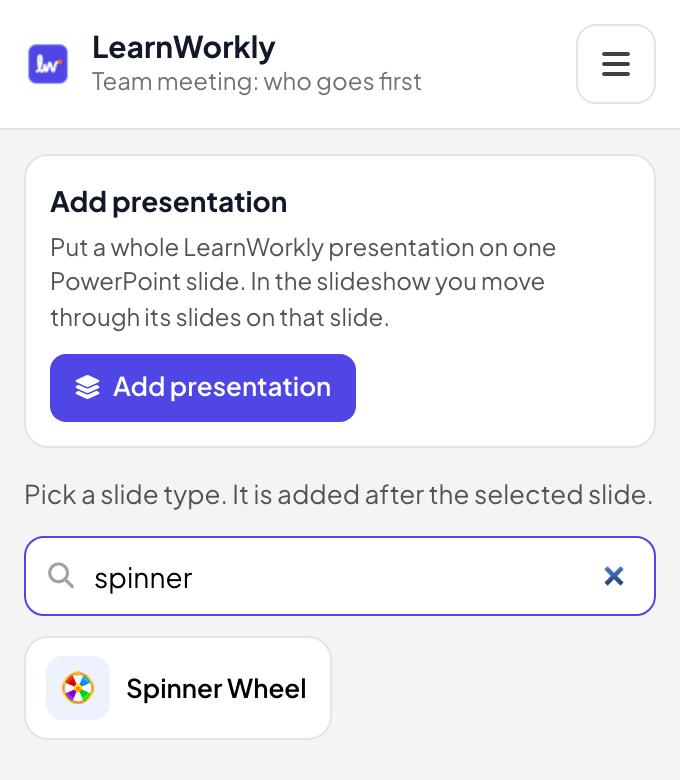
- 2
Type the entries
In edit view, type one entry per line and the wheel updates as you type, or upload a CSV file. To let people add themselves, turn on Allow participants to take part.
Tip: Type an entry on two lines to give it two slices and twice the chance.
PowerPoint edit view 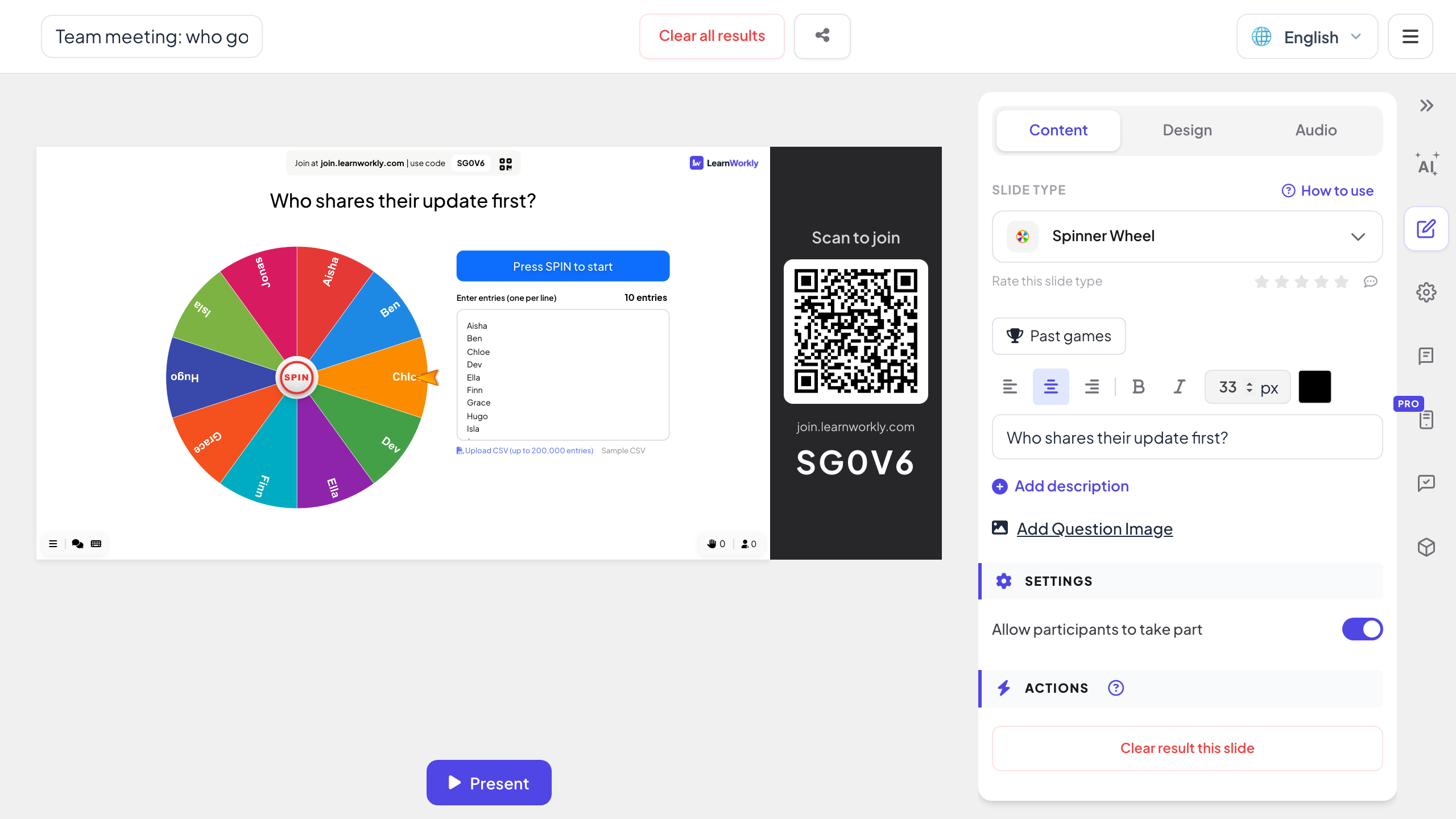
- 3
Spin in the slideshow
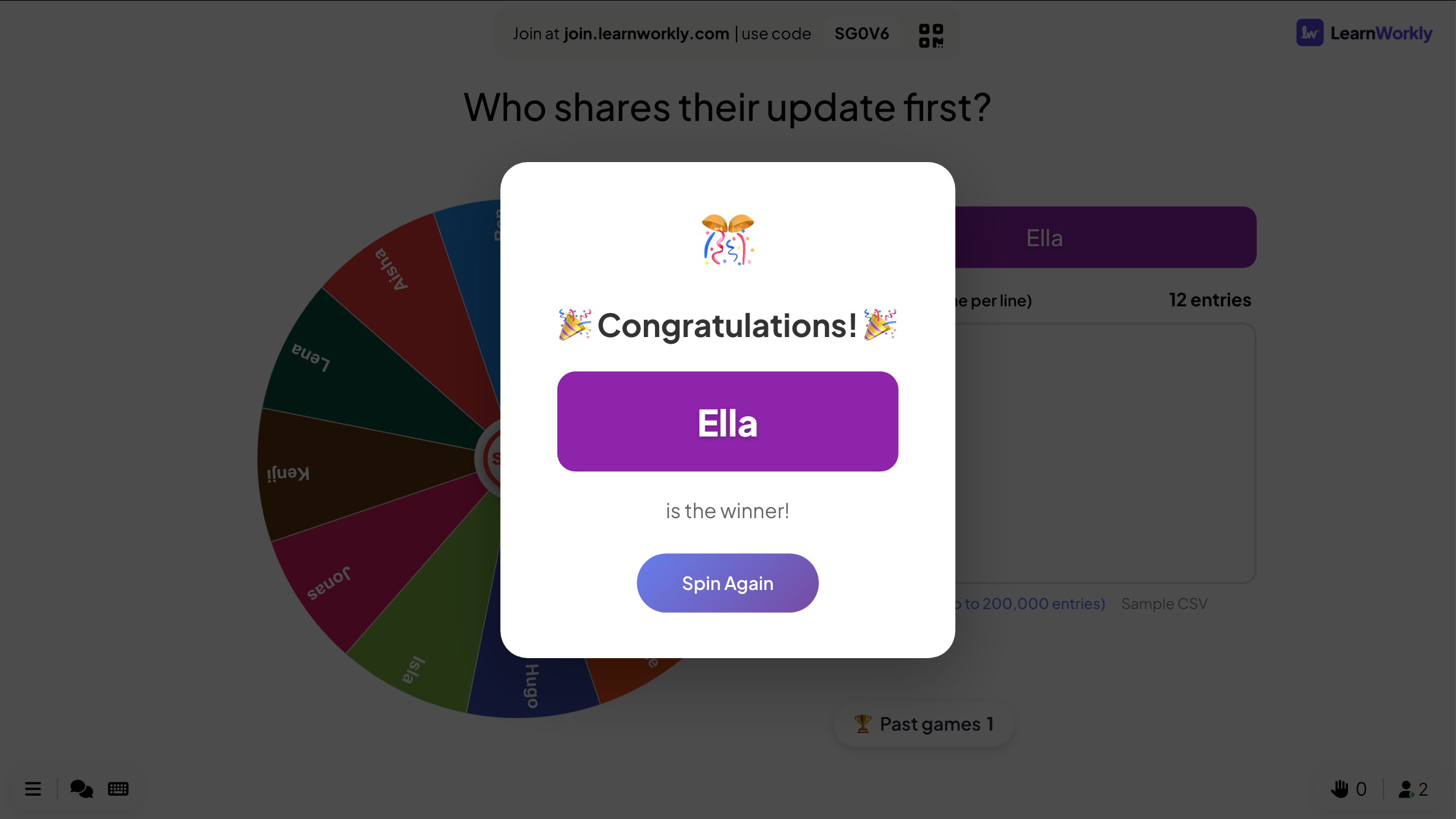
Press SPIN in the middle of the wheel. It slows down, stops on the winner and names them in a pop-up. Press Spin Again for the next pick.
Tip: Every spin picks from the whole list. Delete a winner from the list if each entry should win only once.
PowerPoint slideshow - 4
People add their own names
With Allow participants to take part on, phones show a Your name box. Each name sent is added to the wheel, so a room can enter a draw without a list made in advance.
An animated pie chart or a real random wheel?
Spinner wheel templates for PowerPoint put a spin animation on a pie chart, or link out to a wheel website. Here is what you get with the wheel on the slide itself.
| Feature | Template file | LearnWorkly add-in |
|---|---|---|
| Random | The animation stops at the angle it was built with | A random pick on every spin, every entry with an equal chance |
| Entries | Edit the chart labels by hand | One per line, or a CSV file of up to 200,000 entries |
| Long lists | Slices too thin to read | Above 30 entries, slices hold blocks of entry numbers and the winner’s number is shown |
| The audience | Watches | Can send their names from their phones to join the wheel |
| The winner | You read where it stopped | A pop-up names the winner, then Spin Again |
| Staying in the slideshow | A link opens a browser over your slides | The wheel is a slide in your deck |
Wheels to spin
Who answers next
The class list on the wheel, so it is not always the same hands going up.
Prize draw at an event
Upload the ticket numbers as a CSV file and spin once for each prize.
Pick the next topic
Discussion questions or revision topics on the wheel: spin to choose what comes next.
Who goes first
The team on the wheel to share their updates in a random order.
Raffle with the room
Turn on Allow participants to take part so people enter from their phones.
Rewards and challenges
Fun day challenges or classroom rewards, such as choosing the music for the next activity.
Download the add-in
Close PowerPoint, run the installer, then click LearnWorkly on the Home tab.
Windows
Windows 10 or 11, PowerPoint from Microsoft 365 or Office 2016 and later
Version 1.0.1
Download for WindowsMac
macOS, PowerPoint from Microsoft 365 or Office 2019 and later
Version 1.0.2
Download for Mac
Frequently asked questions
Is the result really random?
Yes. Every spin picks from the whole list and each line has the same chance. It is not an animation that always stops in the same place.
Can the same entry win twice?
Yes. Delete a winner from the list before the next spin if each entry should win only once.
Does it work offline?
No. The wheel runs in the LearnWorkly add-in, which needs an internet connection during the slideshow.
Do participants see their names on the big screen?
Only if you turn on Allow participants to take part and they send a name. Ask people to use nicknames for a public screen.
Does it work in PowerPoint for Mac?
Yes. The add-in installs on PowerPoint for Windows (Microsoft 365, or Office 2016 and later) and PowerPoint for Mac (Microsoft 365, or Office 2019 and later). PowerPoint on the web is not supported yet.
Learn more
More activities for PowerPoint
Try it in your next session
Free for up to 10 live participants, with every slide type and game. Build your first deck in minutes.
Free for up to 10 participants · No credit card