PowerPoint add-in
Live polls and quizzes inside PowerPoint
Keep presenting from PowerPoint. The LearnWorkly add-in puts interactive slides between your own: pick a poll, a quiz or a game in a panel next to your slides, edit it right on the slide, and run it in the slideshow while your audience answers on their phones. No switching windows, no copying links.
Free on every plan. How to install and use it
Stays in PowerPoint
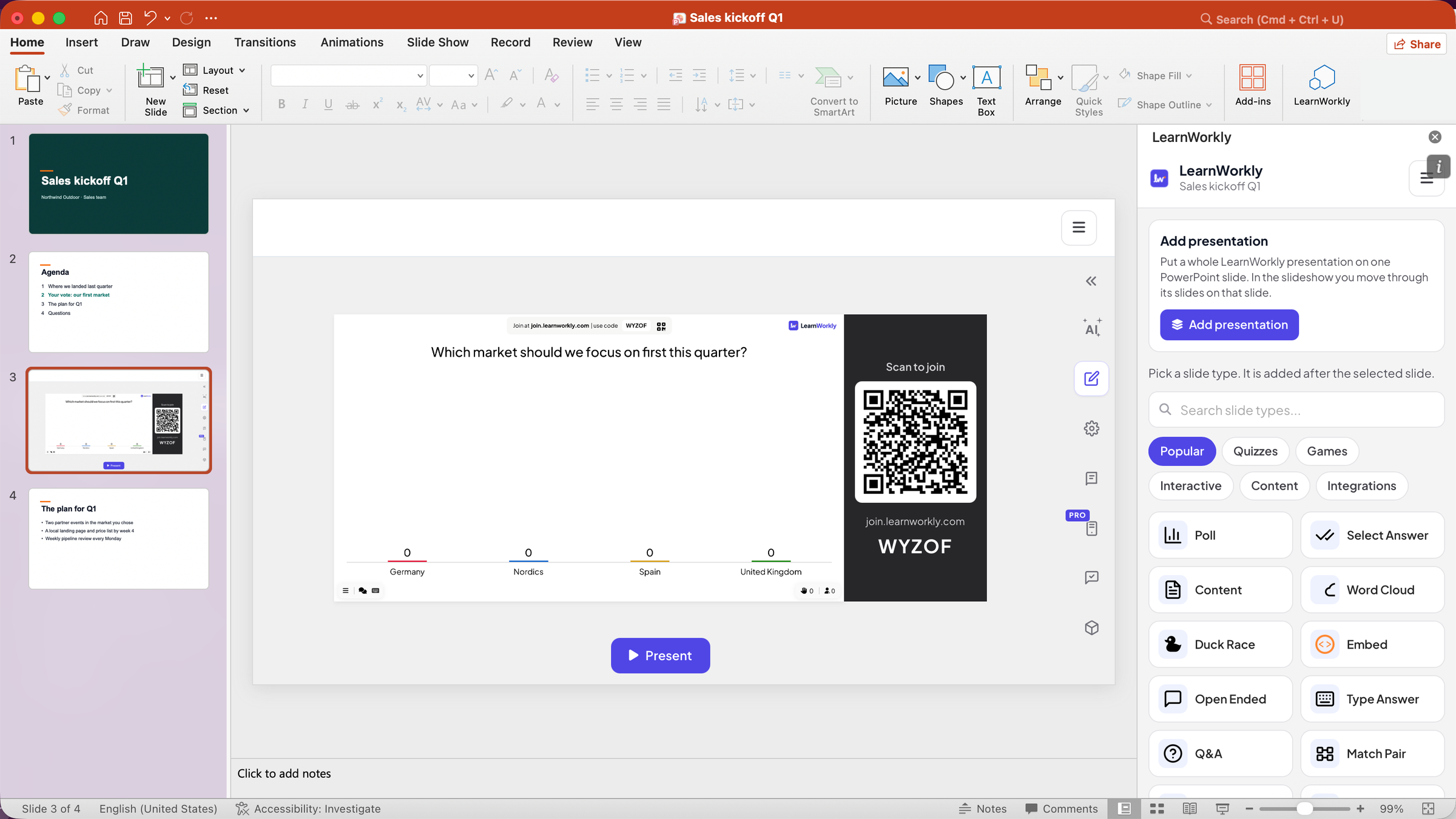
A LearnWorkly button on the Home tab opens a panel beside your slides. What you add is a normal PowerPoint slide you can move, copy or delete.
Every slide type
Polls, word clouds, open questions, quizzes and games such as Duck Race and Bingo: the same slides as in the LearnWorkly app.
Phones join from the slide
The join code and QR code are on the slide during the slideshow. Answers show on the slide as they come in.
Your clicker keeps working
Move through the slideshow with the arrow keys or a presenter clicker as usual, even after you click into a LearnWorkly slide.
In a real session
A sales kickoff that asks the room first
A sales director prepares the quarterly kickoff in PowerPoint, as always. This time she wants the team to vote on the first market to focus on before she shows her own plan, without leaving her deck.
- 1
Open LearnWorkly in PowerPoint
With the deck open, she clicks LearnWorkly on the Home tab. The panel opens beside the slides and links the file to a LearnWorkly presentation with the same name, Sales kickoff Q1.
Tip: The first time, the panel asks you to sign in or create a free account. Your profile, plan and Log out are in the ☰ menu at the top of the panel.
- 2
Add a poll after the agenda slide
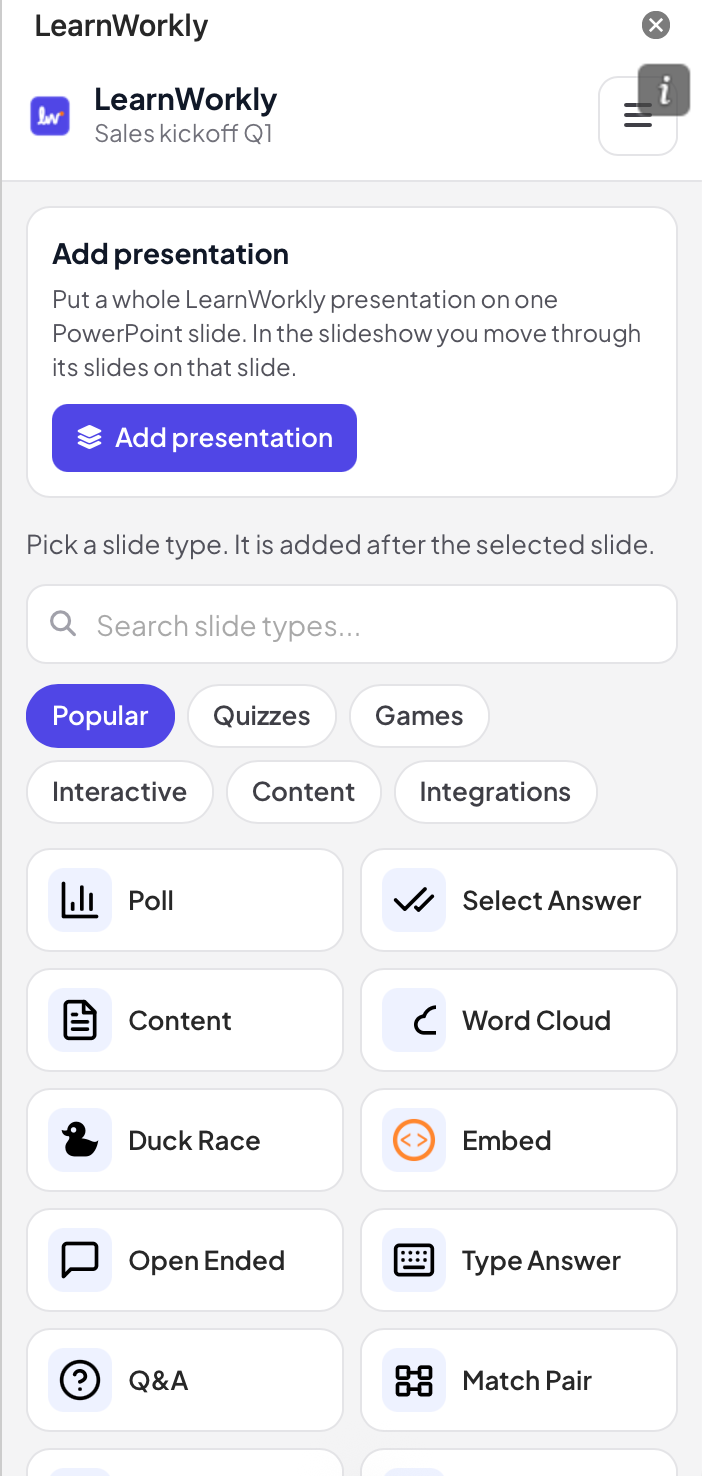
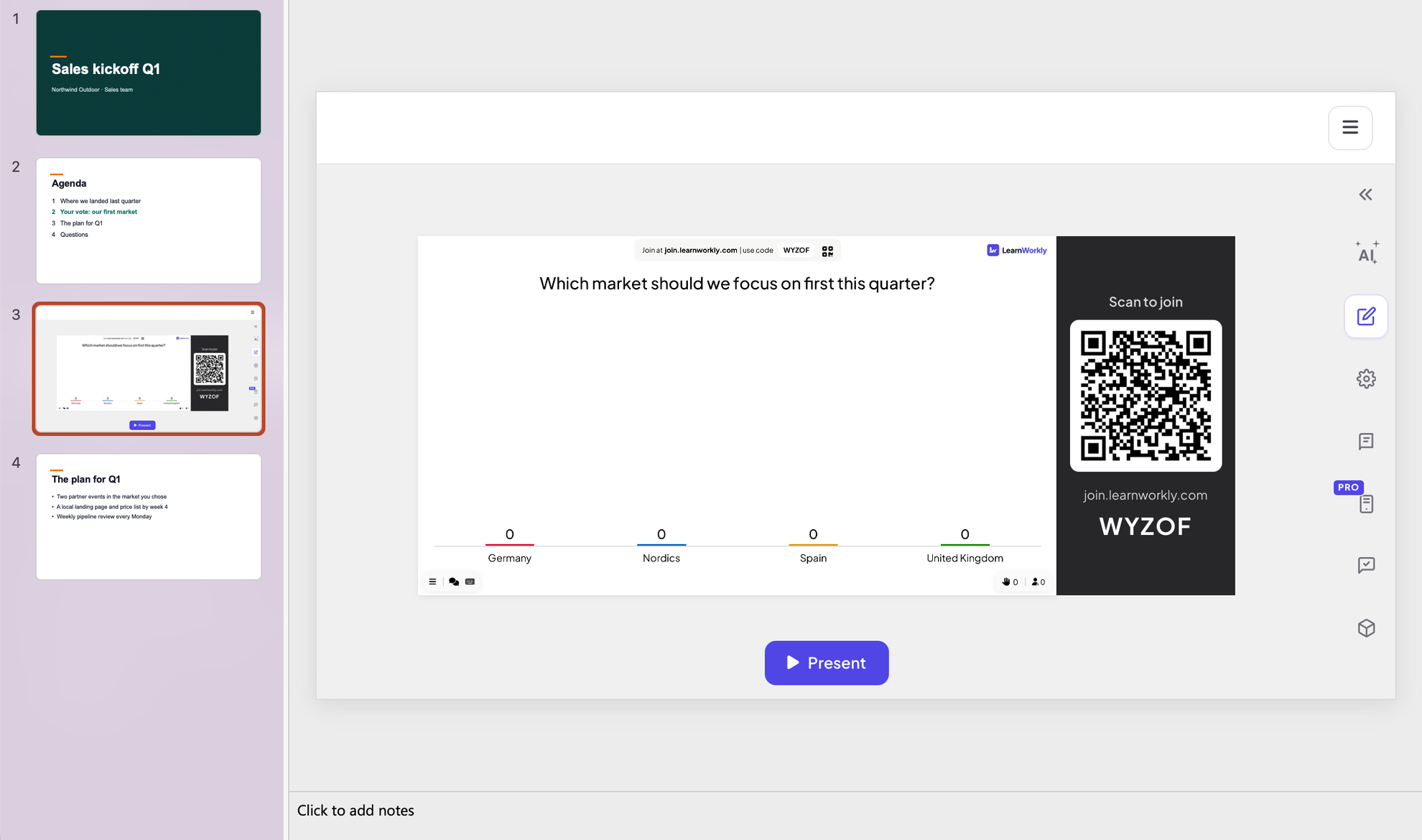
She selects the agenda slide and picks Poll in the panel. A new PowerPoint slide appears right after it with the poll on it. In PowerPoint’s edit view the slide shows the LearnWorkly editor, where she types the question and four markets as options.
Tip: Every slide type of the app is in the panel, grouped as Popular, Quizzes, Games, Interactive, Content and Integrations, with a search box.
- 3
Run it in the slideshow
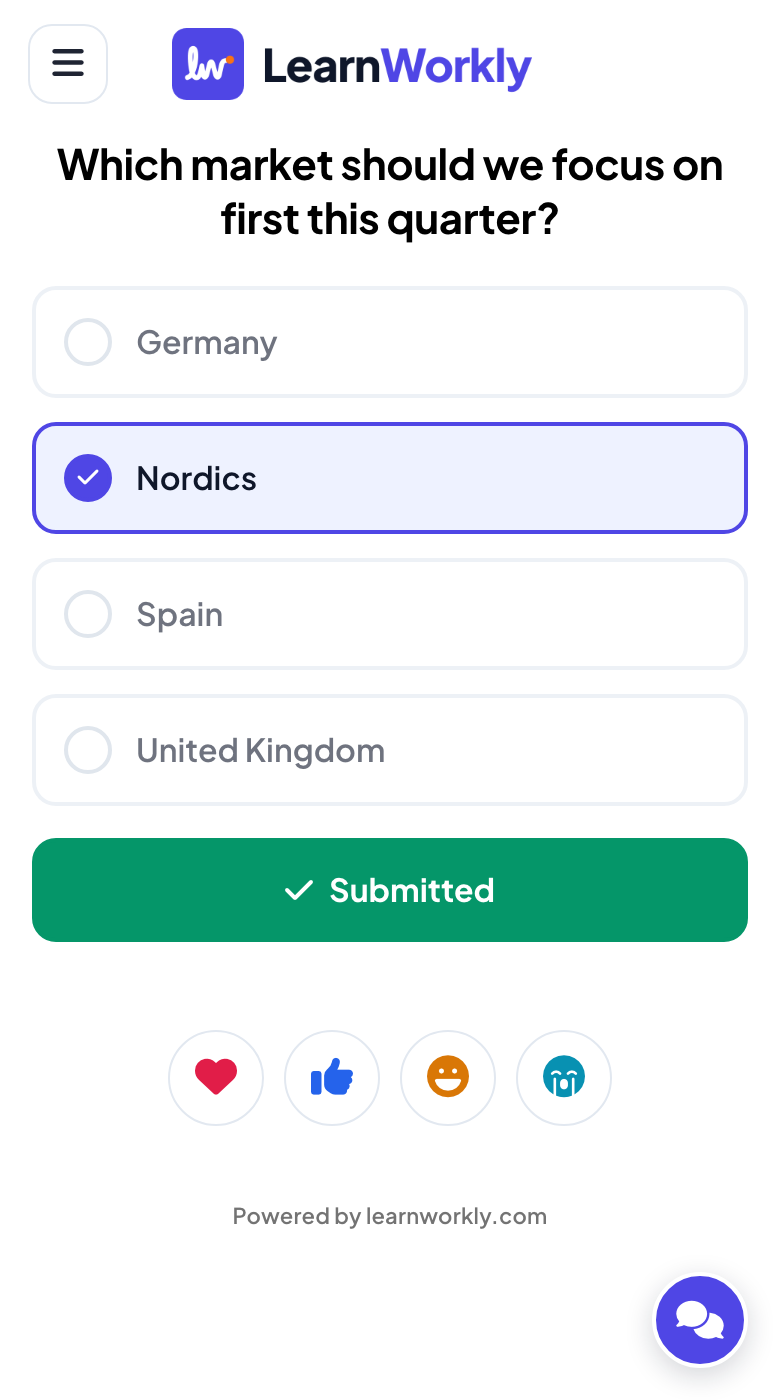
She starts the slideshow. When the poll comes up, it goes live: the join code and QR code are on the slide, the team joins from their phones and the bars grow as votes arrive. Nordics wins with 4 of 8 votes.
- On phones
- On phones: The question and the four markets as big buttons; after voting, Submitted.
- On the big screen
- On the big screen: The live chart on the PowerPoint slide, with the join bar above it.
Tip: Arrow keys, Enter and a clicker work as usual. On Windows, the LearnWorkly helper makes the poll go live the moment you reach it.
Big screen 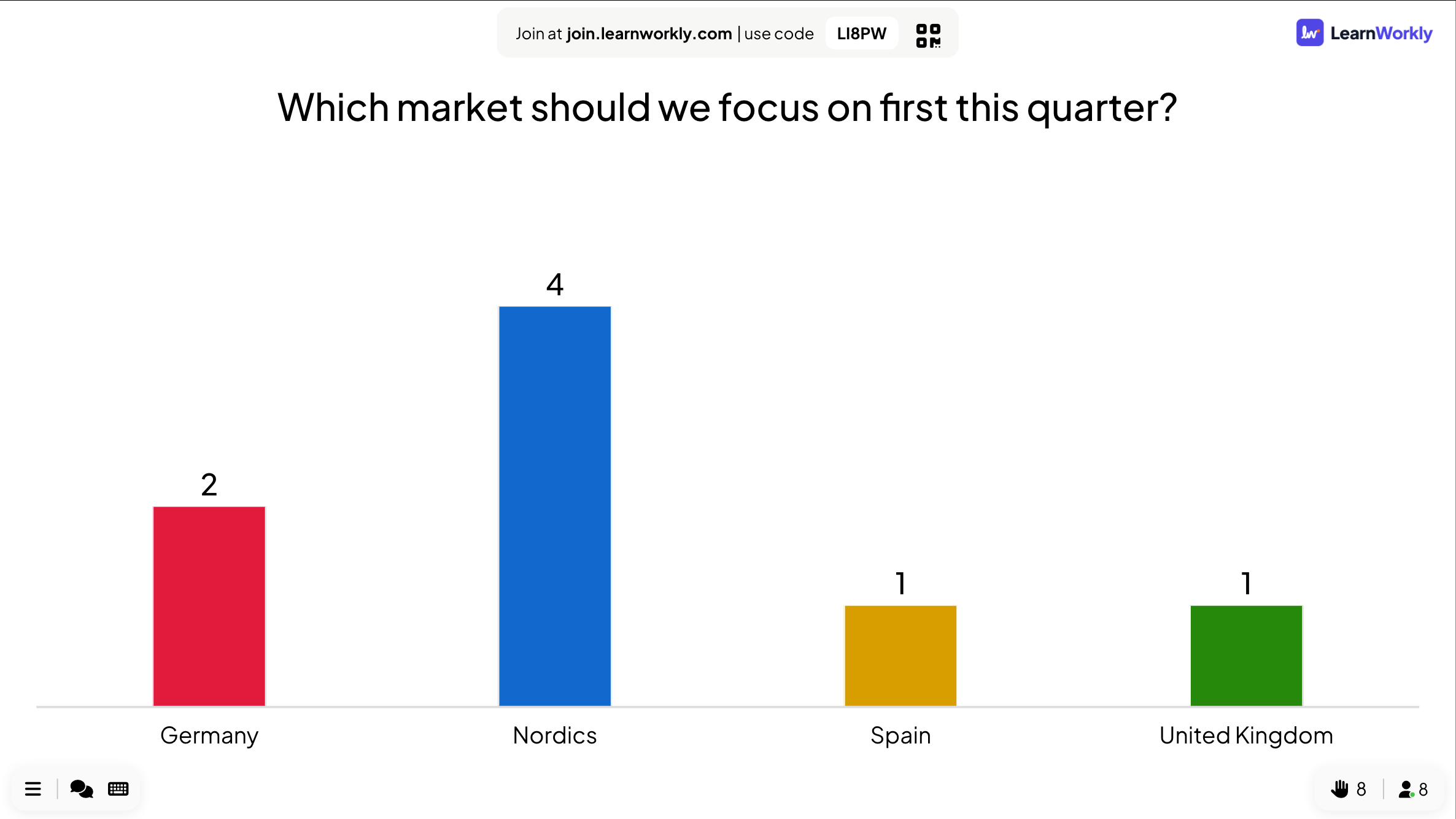
- 4
Bring a whole LearnWorkly presentation
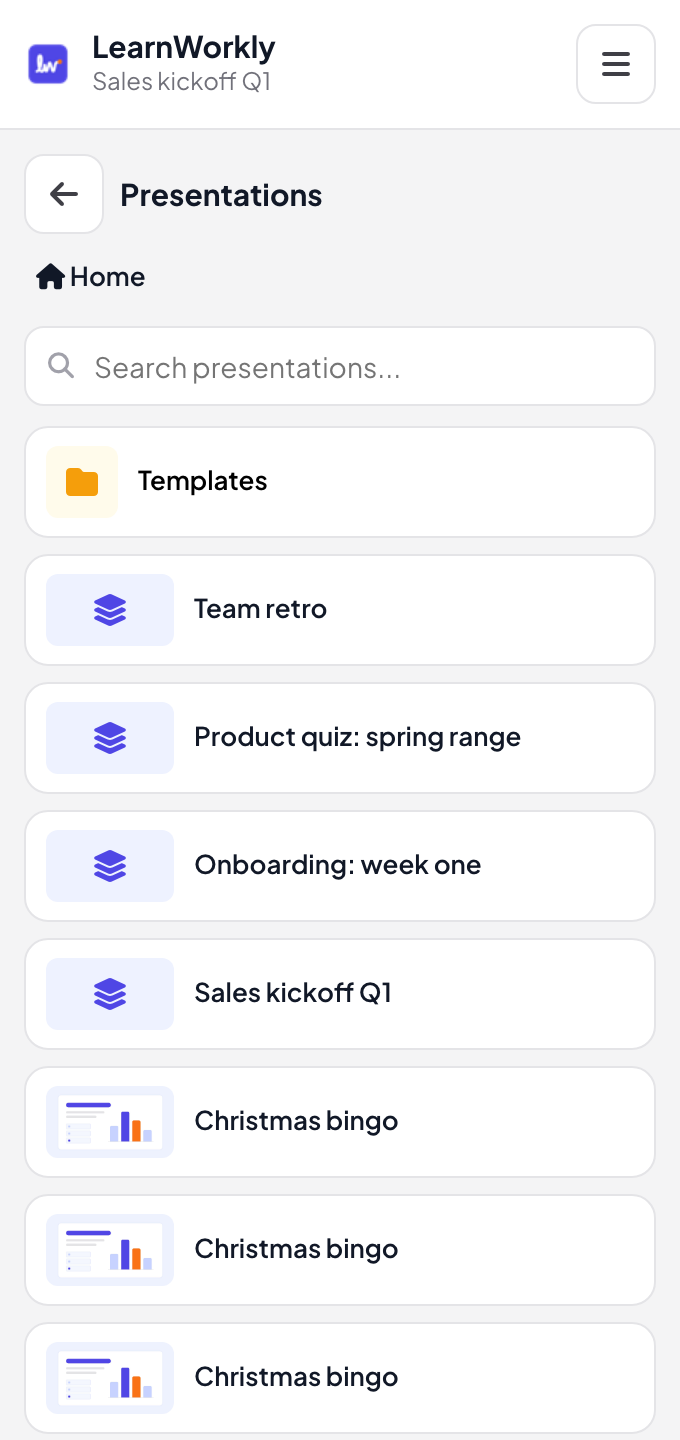
For the product quiz she already built in LearnWorkly, she uses Add presentation and picks it from her presentations. The whole quiz sits on one PowerPoint slide, and in the slideshow she moves through its questions on that slide.
Tip: Folders and a search box help you find the presentation.
Settings that matter
Where things are in PowerPoint once the add-in is installed.
| Setting | What it does | Default |
|---|---|---|
| LearnWorkly | The button on the Home tab: opens the LearnWorkly panel. | Home tab |
| Slide types | Popular, Quizzes, Games, Interactive, Content and Integrations, with a search box. A click adds the slide after the selected one. | In the panel |
| Add presentation | Puts a whole LearnWorkly presentation on one PowerPoint slide. | In the panel |
| ☰ menu | Profile, My Plan, Pricing and Log out. | Panel and slides |
What participants see
People join from their phone’s browser with the code or the QR code on the slide: no app, no account.
When a LearnWorkly slide is on screen in the slideshow, their phones show its buttons; between your own slides they wait for the next one.
Limits by plan
| Feature | Free | Basic | Pro | Enterprise |
|---|---|---|---|---|
| Live participants at the same time | 10 | 100 | 5,000 | Flexible |
| PowerPoint add-in (Windows and Mac) | ✓ | ✓ | ✓ | ✓ |
Games and activities in PowerPoint
How each one runs in the slideshow, step by step with screenshots, and what it does that a template file cannot.
- Bingo in PowerPointPlay live bingo inside PowerPoint: every phone gets its own card, you draw the calls on the slide and every BINGO is checked for you. Free add-in, Windows and Mac.
- Escape Room in PowerPointRun a live escape room inside PowerPoint: teams crack locks on their phones while the slide shows the race to the exit. Free add-in for Windows and Mac.
- Treasure Hunt in PowerPointPlay a live treasure hunt inside PowerPoint: everyone answers your questions on their phone and opens treasure chests for gold. Free add-in for Windows and Mac.
- Spinner Wheel in PowerPointAdd a spinning wheel to PowerPoint: pick a name, prize or topic at random in the slideshow, and let people add their own names from their phones.
- Countdown in PowerPointPut a countdown timer on a PowerPoint slide for breaks, group work or thinking time, and start, pause or reset it in the slideshow. Free add-in, Windows and Mac.
- Quiz in PowerPointRun a quiz game in PowerPoint: everyone answers on their phone, fast right answers score more and a live leaderboard ranks the room. Free add-in, Windows and Mac.
- Match Pair in PowerPointAdd a live matching game to PowerPoint: players match words, terms or translations on their phones and the slide draws the right pairs. Free add-in, Windows and Mac.
- Games in PowerPointPlay live games inside PowerPoint: duck races, tug of war, bingo, escape rooms and more, with everyone on their phone. Free add-in for Windows and Mac.
Download the add-in
Close PowerPoint, run the installer, then click LearnWorkly on the Home tab.
Windows
Windows 10 or 11, PowerPoint from Microsoft 365 or Office 2016 and later
Version 1.0.1
Download for WindowsMac
macOS, PowerPoint from Microsoft 365 or Office 2019 and later
Version 1.0.2
Download for Mac
Frequently asked questions
Which versions of PowerPoint does it work with?
PowerPoint for Windows (Microsoft 365, or Office 2016 and later on Windows 10 or 11) and PowerPoint for Mac (Microsoft 365, or Office 2019 and later). The installers are for the desktop apps; PowerPoint on the web is not supported yet.
Is the add-in free?
Yes, on every plan. Your plan sets how many people can join at the same time, as it does in the LearnWorkly app.
Do participants need PowerPoint or an app?
No. They scan the QR code or open the join address in their phone’s browser and type the code shown on the slide.
What does the Windows installer add?
The add-in and a small LearnWorkly helper that starts with Windows and sits in the notification area. It tells the add-in which slide is on screen, so the right LearnWorkly slide goes live when you change slides, and it hands your keyboard and clicker back to PowerPoint.
Windows or macOS warns me when I open the installer.
The installers are not signed with a certificate yet. On Windows click More info, then Run anyway. On a Mac, right-click the package and choose Open.
How do updates work?
New features in the add-in reach you on their own. On Windows the helper also installs new versions by itself; on a Mac the LearnWorkly panel tells you when a new version is ready to download.
Why are there two LearnWorkly entries in my add-ins?
LearnWorkly is the panel with the Home tab button. Slide player (needed by LearnWorkly) shows the LearnWorkly slides in your files. Keep both installed.
I would rather present from LearnWorkly.
Then import your .pptx into LearnWorkly instead: your slides keep their animations and you add polls and quizzes between them in the app.
Learn more
Related features
Try it in your next session
Free for up to 10 live participants, with every slide type and game. Build your first deck in minutes.
Free for up to 10 participants · No credit card