PowerPoint add-in
A treasure hunt quiz inside your PowerPoint
Treasure hunt templates for PowerPoint are usually a map of hyperlinked spots that you click through for the class. With the free LearnWorkly add-in, a Treasure Hunt slide sits in your deck: in the slideshow, everyone answers your questions on their own phone at their own pace, and every right answer opens a treasure chest. The richest player when time is up wins.
Free on every plan. How to install and use it
Step by step
Treasure Hunt in PowerPoint, step by step
- 1
Add Treasure Hunt to your deck
Select a slide, click LearnWorkly on the Home tab and search for treasure. The new slide starts with sample questions so you can try the game first.
LearnWorkly panel in PowerPoint 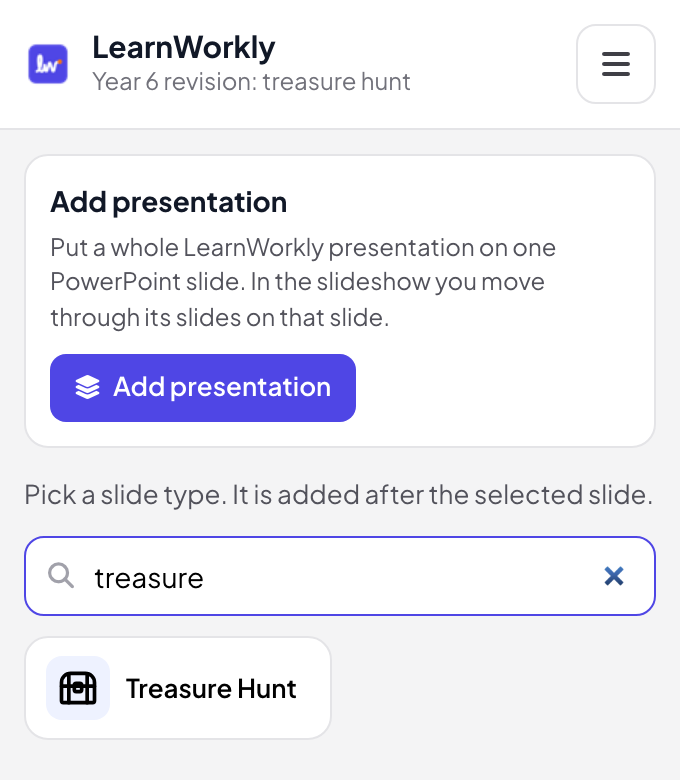
- 2
Add your questions
In edit view, click Generate with AI with a topic, a level and 5 to 20 questions, paste a list (Question | *Correct answer | Wrong | Wrong), or add questions one by one. Make true / false turns a question into a true or false one.
Tip: You need at least 3 questions; 8 to 20 work best, because players get them in their own order and missed ones come back.
PowerPoint edit view 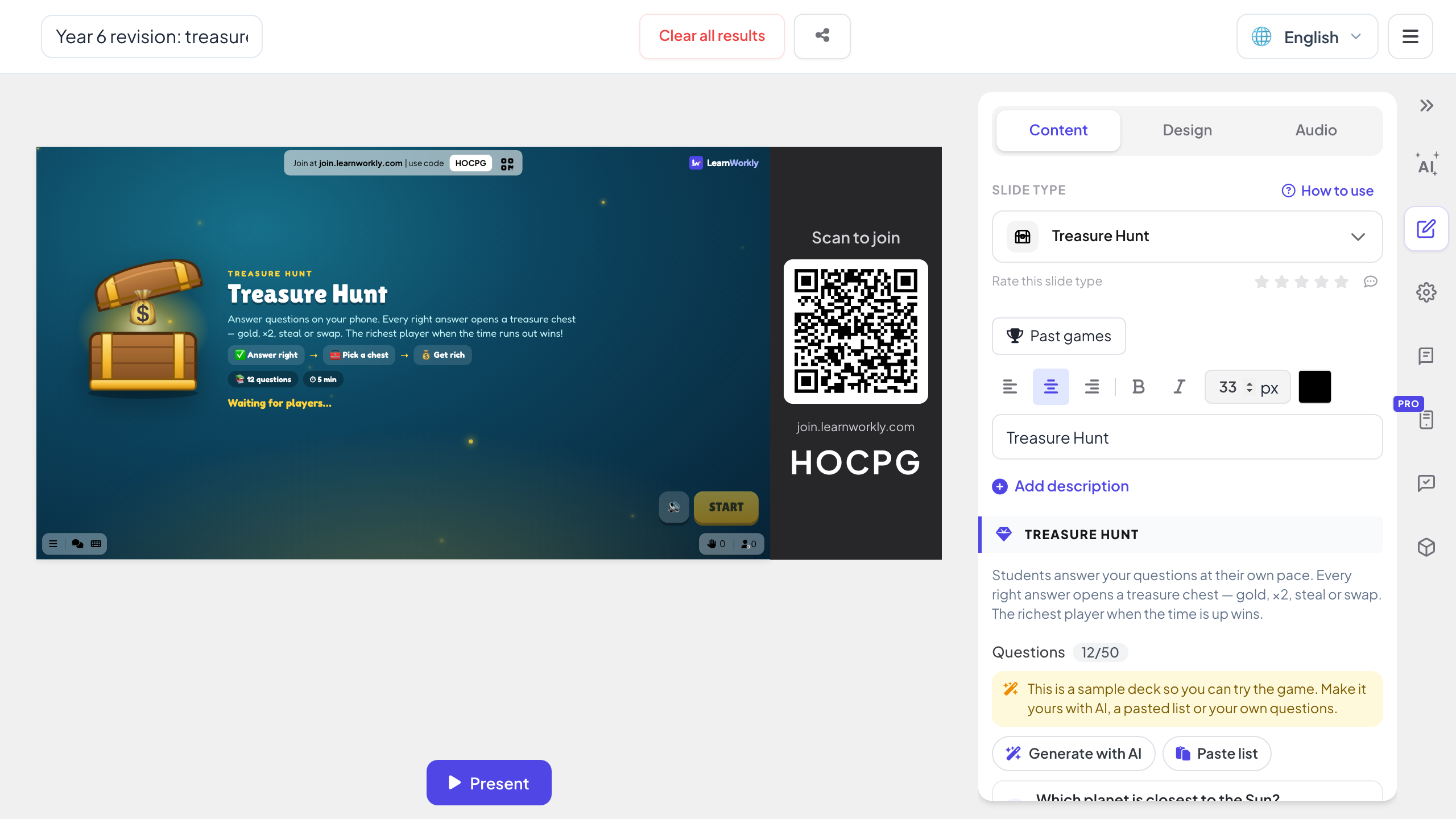
- 3
Run it in the slideshow
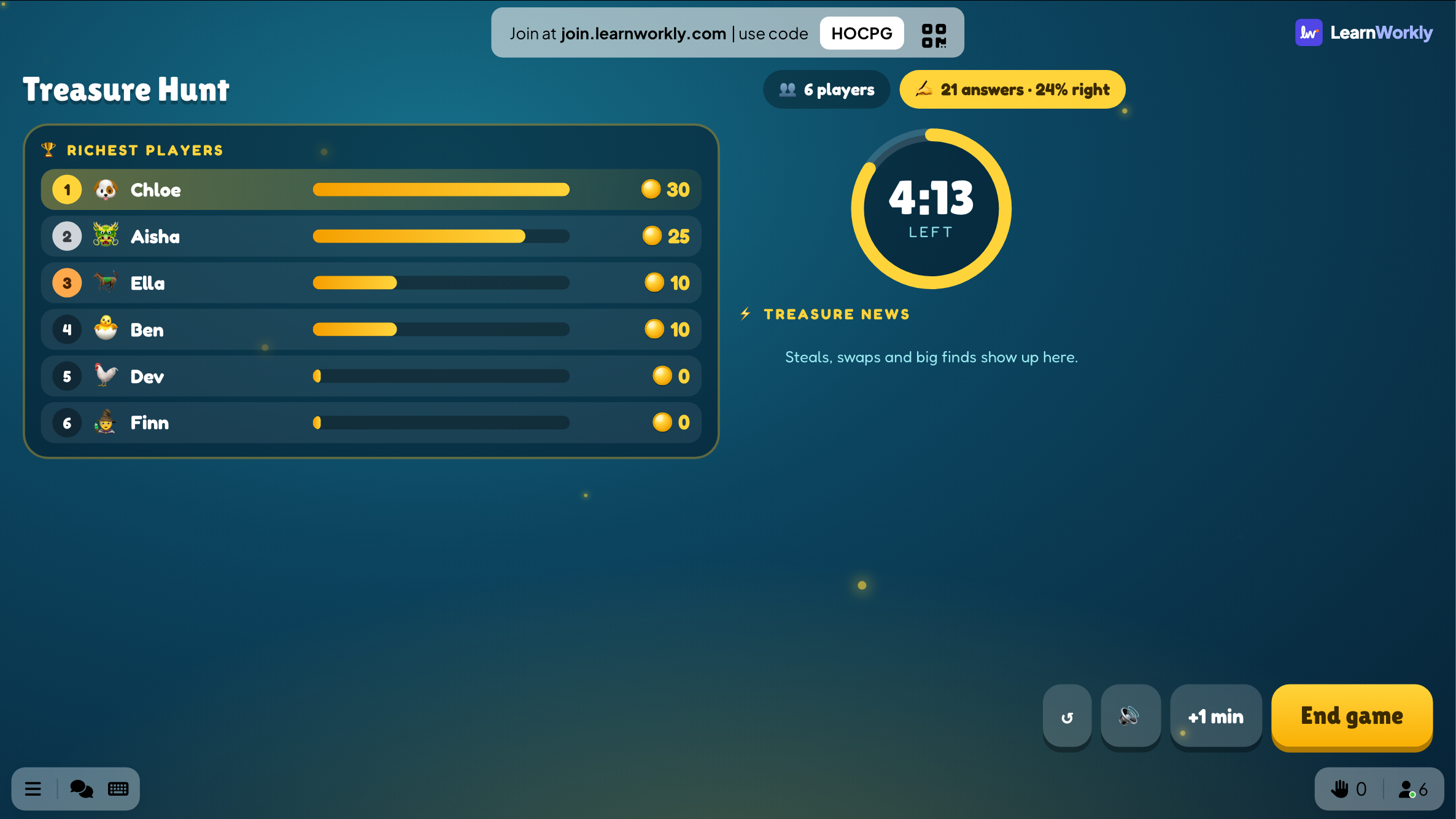
Players join with the code on the slide. Press START: everyone answers at their own pace for 3 to 10 minutes while the slide shows the time left, the richest players and the treasure news: steals, swaps and big finds.
Tip: For younger classes, turn on Kind mode: chests then only give gold, ×2 or ×3, so nobody loses anything.
PowerPoint slideshow - 4
Open a chest after every right answer
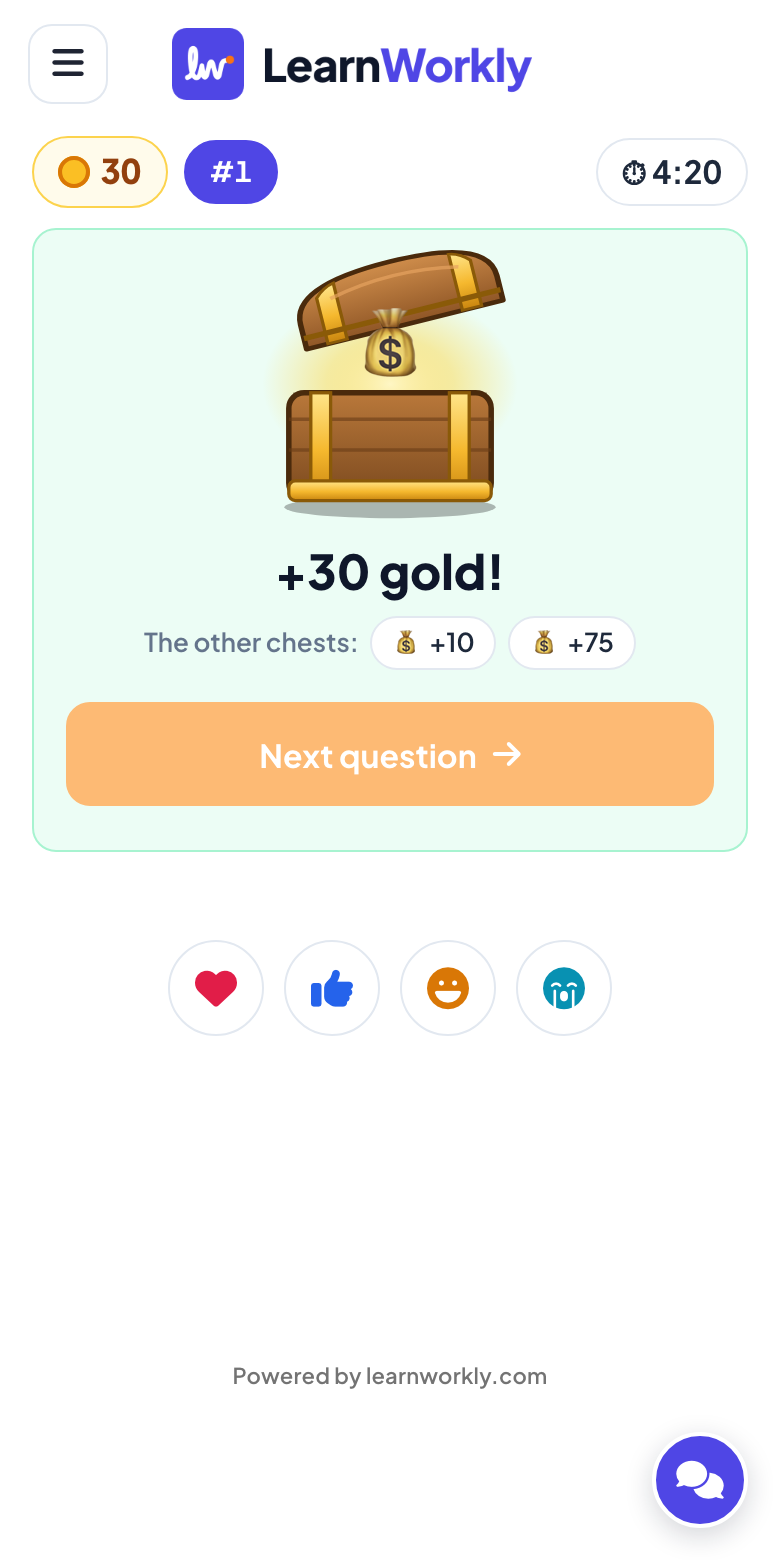
After a right answer, the phone shows three chests: gold, ×2 or ×3, a steal or a swap, an empty chest, or a dragon that eats some gold. The luck keeps everyone in the race. At the end, the slide shows the final treasure and the questions to review.
A treasure map template or a live treasure hunt?
Treasure hunt templates for PowerPoint are a map where each spot links to a question slide, and the class answers out loud one question at a time. Here is what changes when every player hunts on their own phone.
| Feature | Template file | LearnWorkly add-in |
|---|---|---|
| Who answers | One student or the whole room, out loud | Everyone at once, each on their own phone |
| Pace | One question at a time for everyone | Self-paced: fast players do not wait, slower ones are not rushed |
| Questions | A slide per question, linked from the map | A list on one slide: typed, pasted or written with AI |
| Scoring | You keep score on the board | Gold, ×2, ×3, steals and swaps, counted for you |
| Missed questions | Gone once clicked | They come back a few questions later |
| After the game | Nothing recorded | The final treasure and the questions to review |
Treasure hunts to run
End-of-unit review
Fifteen questions from the unit for eight minutes, then the questions to review on the slide.
Reuse your quiz
Already added quiz slides with the add-in? From quiz slides turns them into treasure hunt questions.
Younger classes
Kind mode on and true or false questions, so every right answer only adds gold.
Pirate day
A themed general-knowledge hunt for a fun day or the last lesson before a holiday.
Training check
Ten questions on a new process after the training slides, with the most missed ones on screen at the end.
Club night
A five-minute hunt between talks, with the richest player named on the big screen.
Download the add-in
Close PowerPoint, run the installer, then click LearnWorkly on the Home tab.
Windows
Windows 10 or 11, PowerPoint from Microsoft 365 or Office 2016 and later
Version 1.0.1
Download for WindowsMac
macOS, PowerPoint from Microsoft 365 or Office 2019 and later
Version 1.0.2
Download for Mac
Frequently asked questions
Do I need to build a treasure map?
No. There is no map to link up: players answer on their phones and open chests, while the slide shows the race. One slide holds all the questions.
How long does a game last?
3, 5, 8 or 10 minutes, 5 by default. You can add a minute or end the game early from the slide.
Can players lose their gold?
With Kind mode off, yes: a chest can steal, swap or hide a dragon that eats some gold. With Kind mode on, chests only give gold, ×2 or ×3.
Someone joined after START.
The game is self-paced, so they start answering straight away.
Does it work in PowerPoint for Mac?
Yes. The add-in installs on PowerPoint for Windows (Microsoft 365, or Office 2016 and later) and PowerPoint for Mac (Microsoft 365, or Office 2019 and later). PowerPoint on the web is not supported yet.
Learn more
More activities for PowerPoint
Try it in your next session
Free for up to 10 live participants, with every slide type and game. Build your first deck in minutes.
Free for up to 10 participants · No credit card