Video stage
Give the room the microphone
Sometimes the best answer is a voice. Add a Video Stage slide: people raise a hand on their phone, you invite them on stage, and they speak to the room with their camera and microphone. You can also start a 1-to-1 voice or video call with a single participant, right from your presentation.
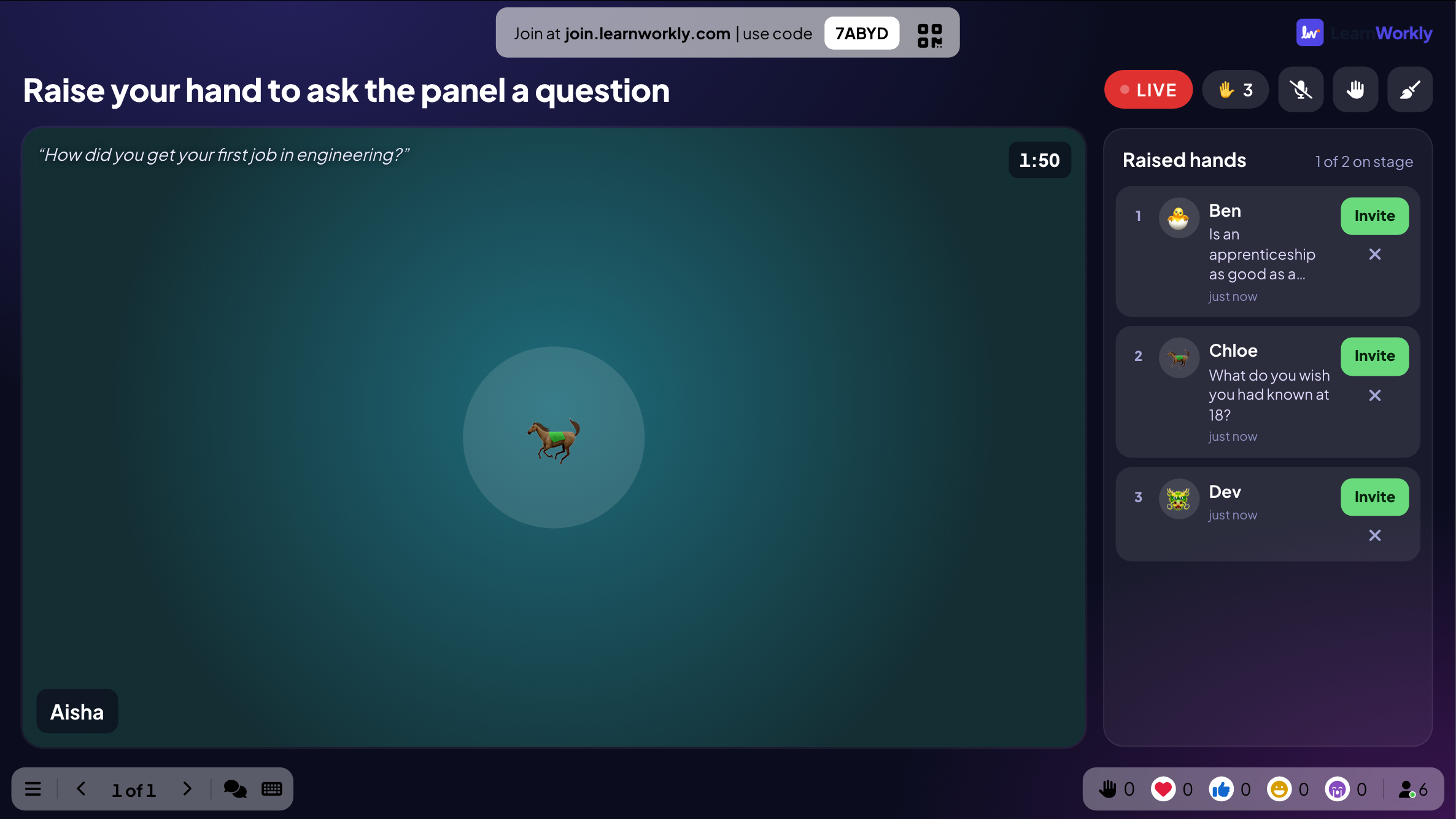
Raise a hand
Participants raise a hand on their phone. You see the list of raised hands and choose who comes on stage.
On stage with camera and mic
People on stage are shown on the big screen and speak to the room. You choose how many can be on stage at once, and clear the stage when you are done.
1-to-1 calls
Start a voice or video call with one participant during the session, for a question or a quick check-in.
On every plan
Video stage and calls are included on Free, Basic, Pro and Enterprise, in the browser, with nothing to install.
In a real session
A careers evening where the audience asks the panel
A school hosts a careers evening in the hall: three guests on a panel, 120 pupils and parents in the seats, and one handheld microphone that never reaches the back row. The host adds a Video Stage slide so people can ask their question from their seat, through their own phone.
- 1
Set up the stage
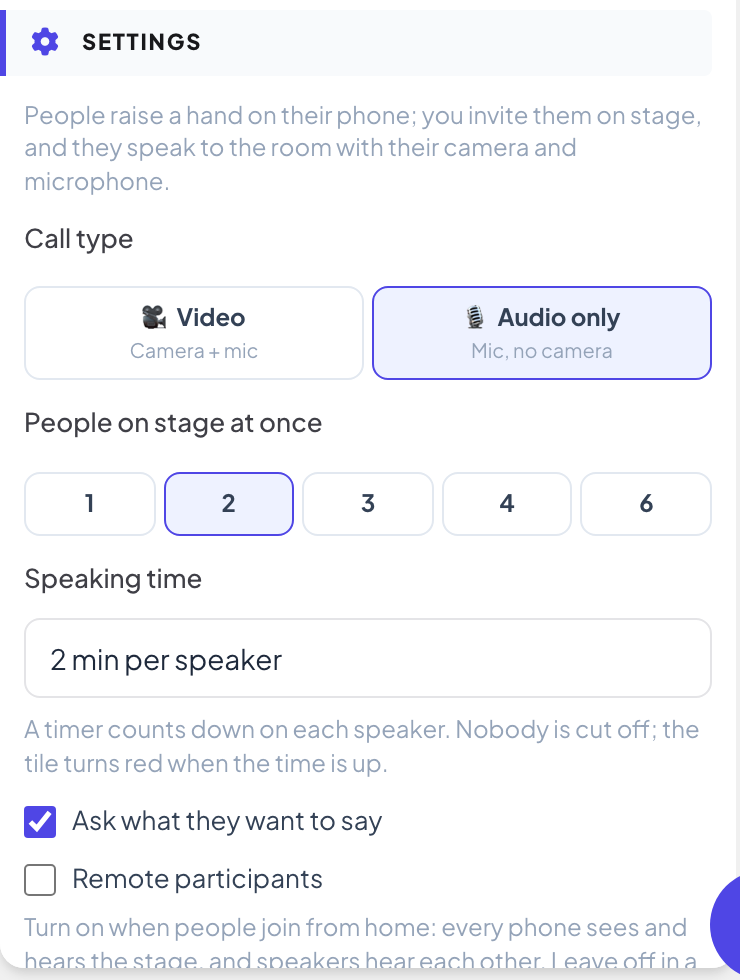
The host adds a Video Stage slide called “Raise your hand to ask the panel a question”. Because everyone is in the same hall, she picks Audio only as the Call type, People on stage at once 2, a Speaking time of 2 minutes and Ask what they want to say on, so she can choose a good mix of questions.
Tip: Leave Remote participants off in a room: phones then never play the stage sound, so there is no echo. Turn it on when people join from home.
- 2
People raise a hand from their seat
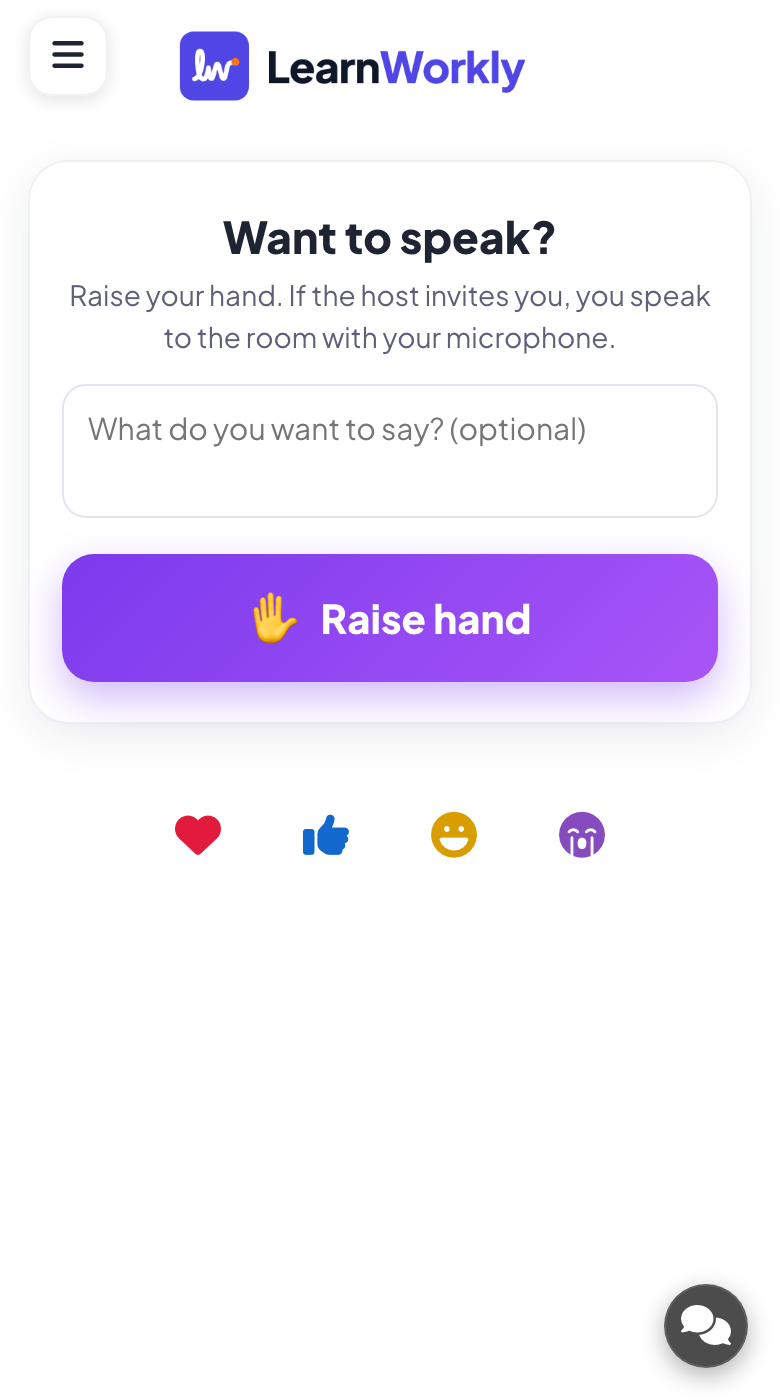
When the slide comes up, the room sees the invitation to speak. Pupils who want to ask type a short note, such as “Is an apprenticeship as good as a degree?”, and tap Raise hand.
- On phones
- On phones: Want to speak?, an optional What do you want to say? (optional) box and a big Raise hand button. After raising a hand, their place in the queue (“#2 in line”) and a reminder to stay on the page.
- On the big screen
- On the big screen: The slide title with three steps, Raise your hand, Get invited and Go live, and a count of raised hands.
- 3
Choose who speaks
Raised hands lists everyone waiting, in order, with their note. The host reads the notes and invites the apprenticeship question first, because two panellists did apprenticeships.
- On the big screen
- On the big screen: Raised hands with each name and note and an Invite button. Invite is greyed out when the stage is full.
Tip: Use the hands button to close hands when the queue is long enough, and open them again for the next round.
Big screen 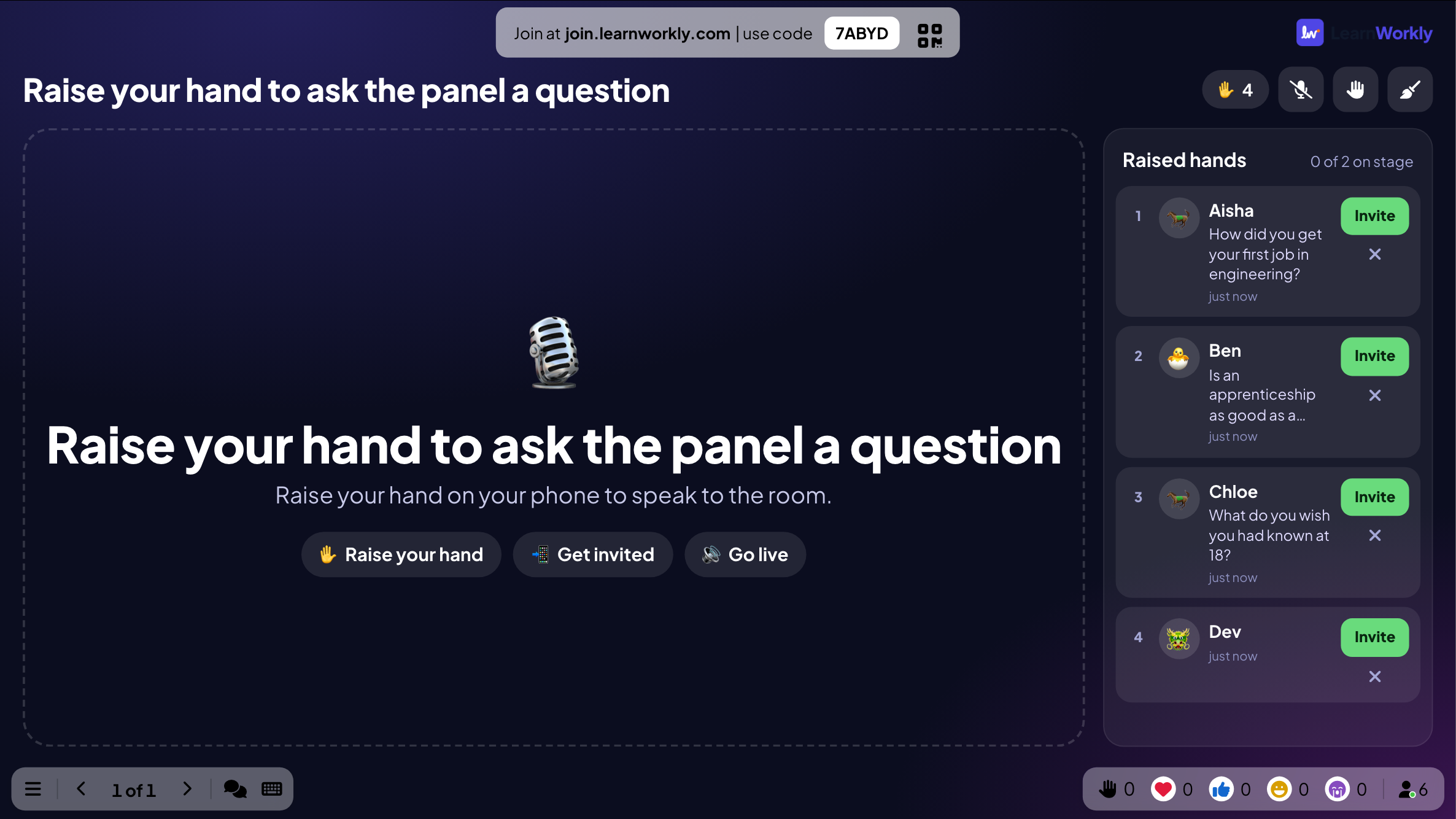
- 4
The invited person checks their mic and goes live
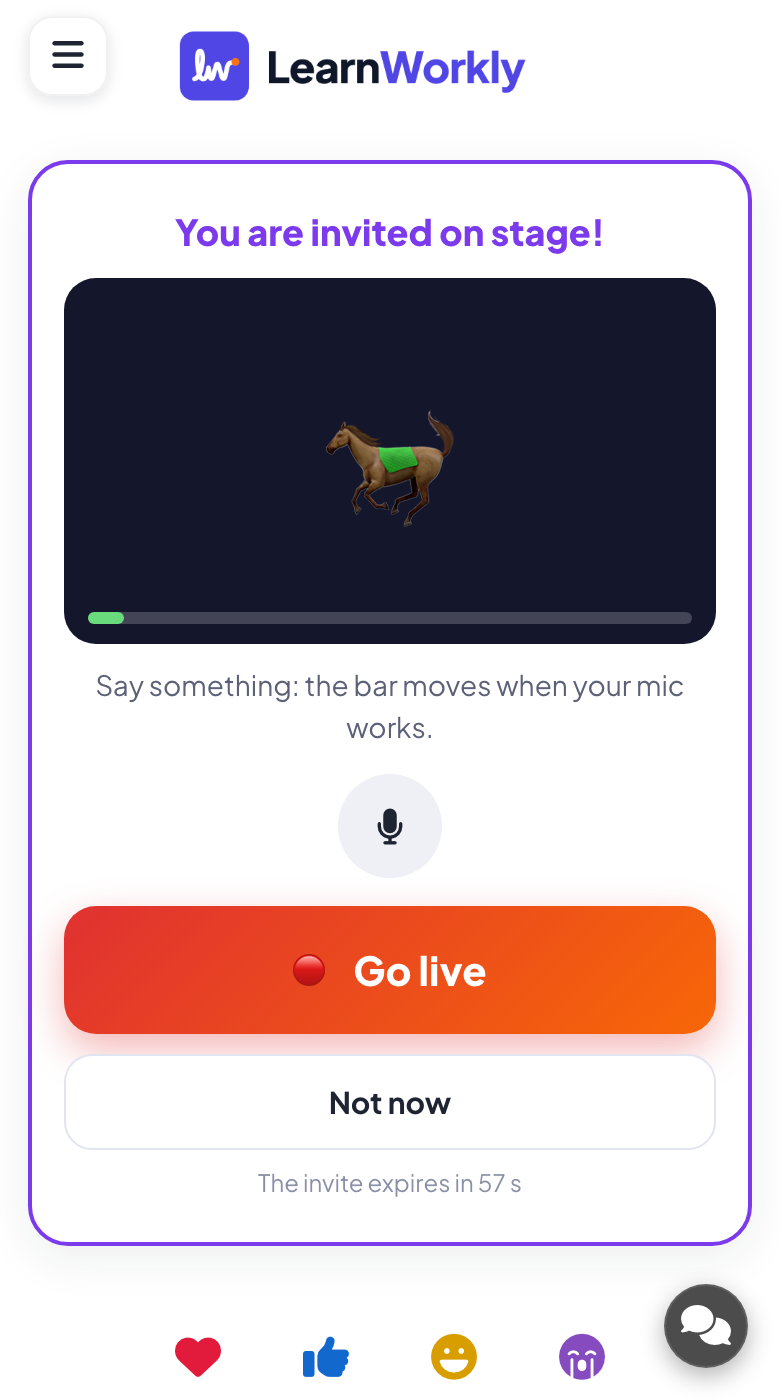
The invited pupil’s phone rings. They check that their microphone works and tap Go live, or Not now if they changed their mind. The invite expires after a minute if nobody answers.
- On phones
- On phones: You are invited on stage!, a level bar that moves when the mic picks up sound, Go live and Not now.
Tip: Nobody’s camera or microphone is ever turned on without their tap. Video Stage is not recorded.
- 5
They speak to the room
Their voice plays through the hall speakers from the presenting laptop, and their name is on the big screen while they speak. A timer counts the 2 minutes; nobody is cut off, the tile just turns red when the time is up. The host can mute a speaker, remove them or clear the whole stage.
- On phones
- On phones: LIVE, the time on stage, a mic button and Leave stage.
- On the big screen
- On the big screen: Each speaker’s tile with their name, and their camera in Video mode.
Tip: For a single question during any slide, use the call button on an Open Ended answer or a Q&A question instead: Enable Video Call starts a 1-to-1 call with that person.
Big screen
Settings that matter
Video Stage settings are on the slide’s Content tab. The 1-to-1 call is a presentation setting.
| Setting | What it does | Default |
|---|---|---|
| Call type | Video (camera and microphone) or Audio only (microphone, no camera). | Video |
| People on stage at once | 1, 2, 3, 4 or 6 speakers at the same time. | 4 |
| Speaking time | No limit, or 1, 2, 3 or 5 minutes per speaker, with a timer on each tile. | No limit |
| Ask what they want to say | People can add a short note when they raise a hand. | On |
| Show my camera on stage | Video only: your own camera can join the stage. | On |
| Remote participants | Every phone sees and hears the stage, for people joining from home. Leave off in a room to avoid echo. | Off |
| Enable Video Call | Presentation setting (General Settings → Q&A): a Call button on answer cards to call one participant. | On |
What participants see
A phone only asks for the camera or microphone after its owner is invited and taps Go live (or accepts a call), and the browser asks for permission first. People can turn their camera off, mute themselves or Leave stage at any time.
For a 1-to-1 call, the participant sees Presenter is calling…, chooses camera on or off and taps Accept or Decline. Calls and the stage run in the browser through LearnWorkly’s own call service, with nothing to install, and are not recorded.
Limits by plan
| Feature | Free | Basic | Pro | Enterprise |
|---|---|---|---|---|
| Live participants at the same time | 10 | 100 | 5,000 | Flexible |
| Video Stage and 1-to-1 calls | ✓ | ✓ | ✓ | ✓ |
| Raised hands, notes, speaking time | ✓ | ✓ | ✓ | ✓ |
Frequently asked questions
Do participants need to install anything?
No. Calls and the stage run in the browser. The browser asks for the camera and microphone only when someone is invited and taps Go live, or accepts a call.
Are calls recorded?
No. Video Stage and 1-to-1 calls are not recorded.
Can I turn on someone’s camera or mic?
No. Only the participant can turn them on. You can mute a speaker’s microphone, remove them from the stage or clear the stage.
How many people can be on stage?
You choose 1, 2, 3, 4 or 6 at once with People on stage at once. Everyone else waits in Raised hands.
What is the difference between Video Stage and a call?
Video Stage is a slide where people raise a hand and speak to the room one after another. A call is a 1-to-1 voice or video call with one participant, started from their answer or question.
Will it echo in a room?
Not with Remote participants off (the default): phones in the room never play the stage sound. Turn it on only when people join from home.
Is it on the free plan?
Yes. Video Stage and calls are on every plan.
Does it replace my video meeting tool?
No. It is for bringing participants into your presentation. For a whole online class or meeting, keep using your usual video call next to LearnWorkly.
Learn more
- Help centerVideo Stage: bring participants on screen to speak
- Help centerCall a participant from the big screen
- Help centerQ&A slide: questions from the audience, upvoted
- BlogIELTS Speaking practice online: a 6-week plan for tutors
- Use caseESL and language teachers
- Use caseEvents and team building
- Use caseUniversity lecturers
Who uses it, and for what
Related features
Try it in your next session
Free for up to 10 live participants, with every slide type and game. Build your first deck in minutes.
Free for up to 10 participants · No credit card