PowerPoint add-in
A quiz game show inside your PowerPoint
Quiz game templates for PowerPoint, such as game-show boards, run on hyperlinks and a scoreboard you update by hand. With the free LearnWorkly add-in, quiz slides sit between your own slides: everyone answers on their phone before the countdown ends, fast right answers score more, and a Leaderboard slide ranks the room and celebrates the winner at the end.
Free on every plan. How to install and use it

Step by step
Quiz in PowerPoint, step by step
- 1
Add a quiz question
Select a slide, click LearnWorkly on the Home tab and search for Select Answer, the classic multiple-choice question. More quiz types sit in the Quizzes group: True or False, Type Answer, Match Pair, Puzzle and others.
LearnWorkly panel in PowerPoint 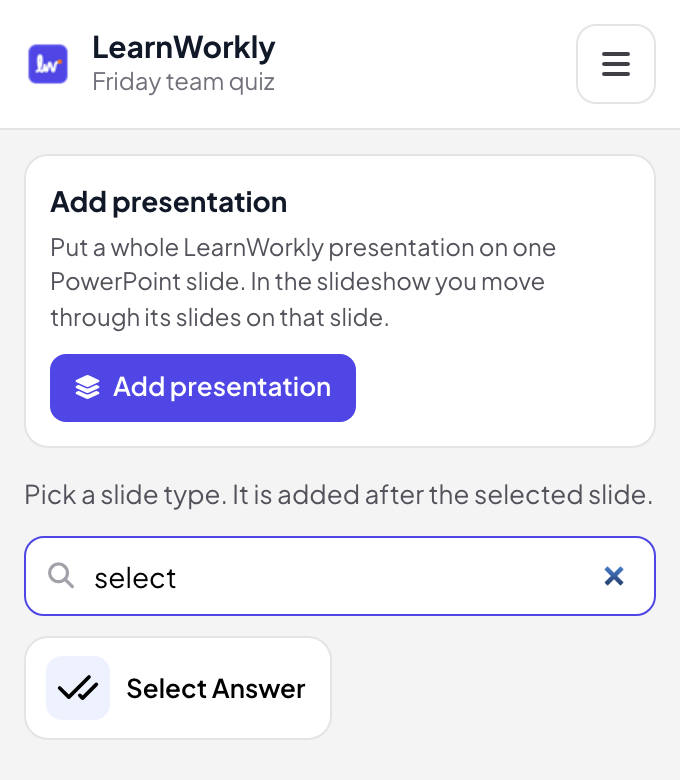
- 2
Write the question and the options
In edit view, type the question and up to 6 options, and tick the right ones. Under Settings, set the seconds to answer and the points: by default a fast right answer scores up to 100.
Tip: Put a Leaderboard slide after each round of questions, and another one at the end of the deck.
PowerPoint edit view 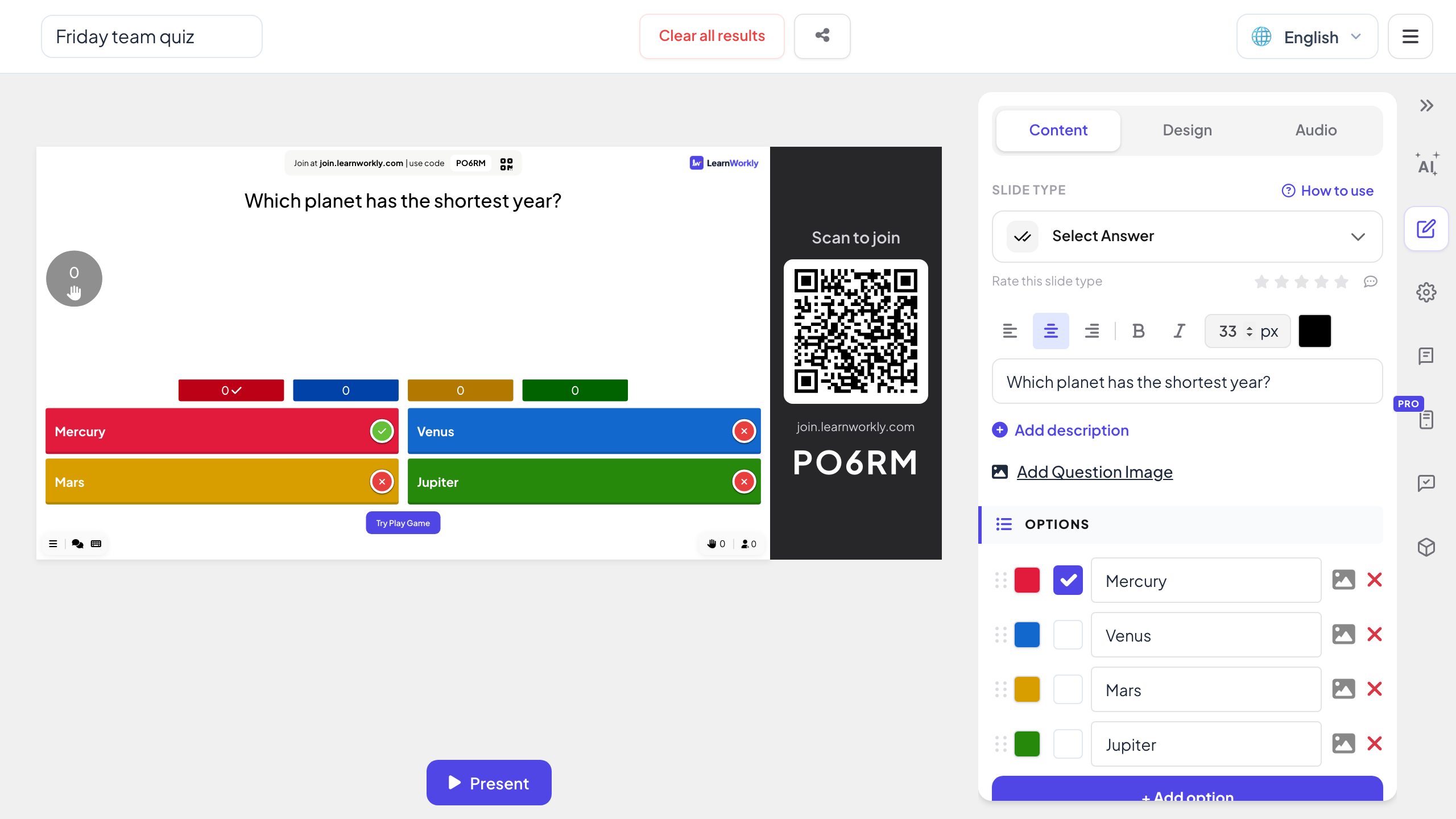
- 3
Play it in the slideshow
At the first question, the slide shows the lobby with everyone who joined. Click Start Game: the countdown runs on the slide and on every phone, then the slide marks the right answer and shows how many people chose each option.
PowerPoint slideshow 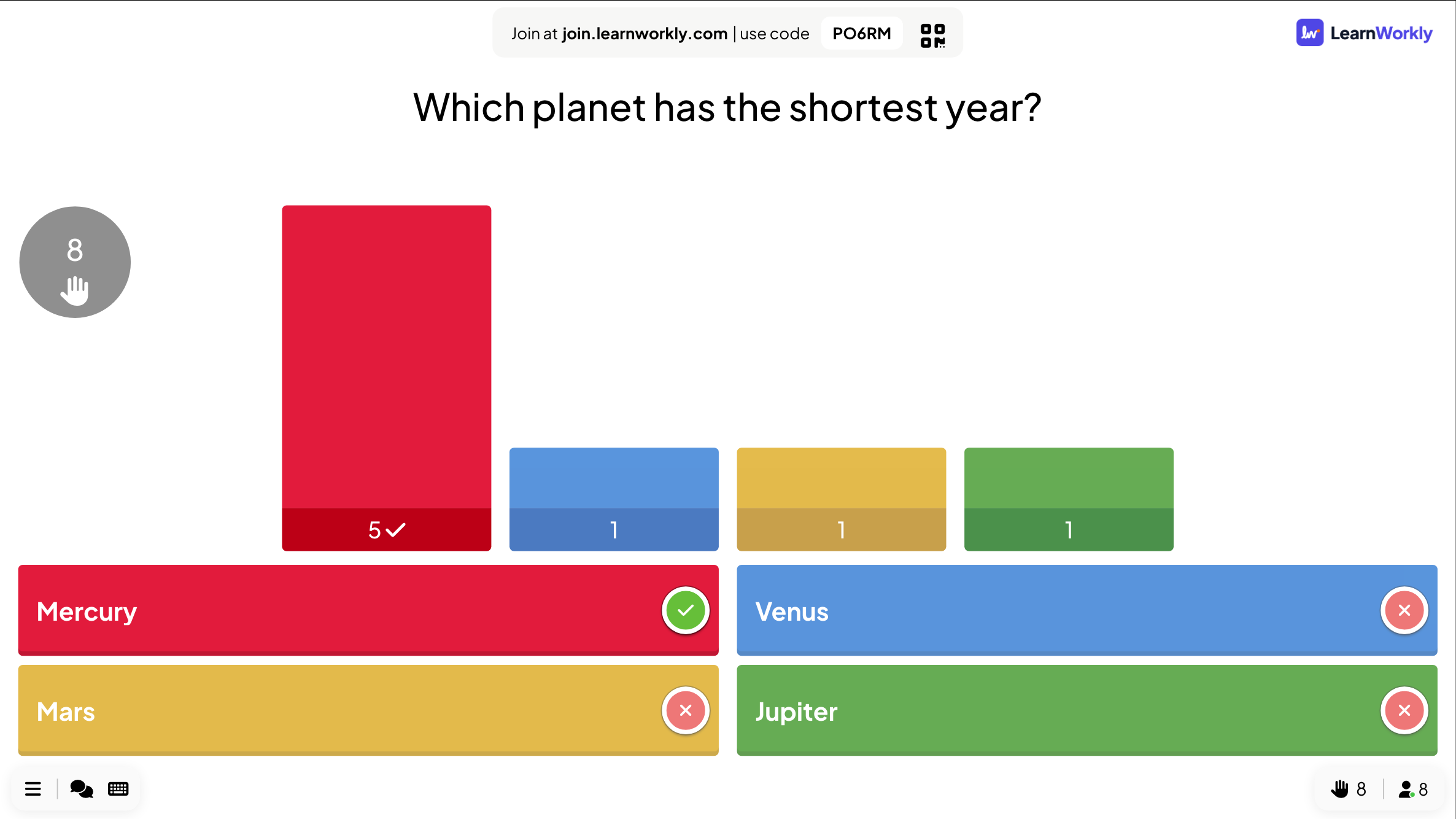
- 4
Show the leaderboard
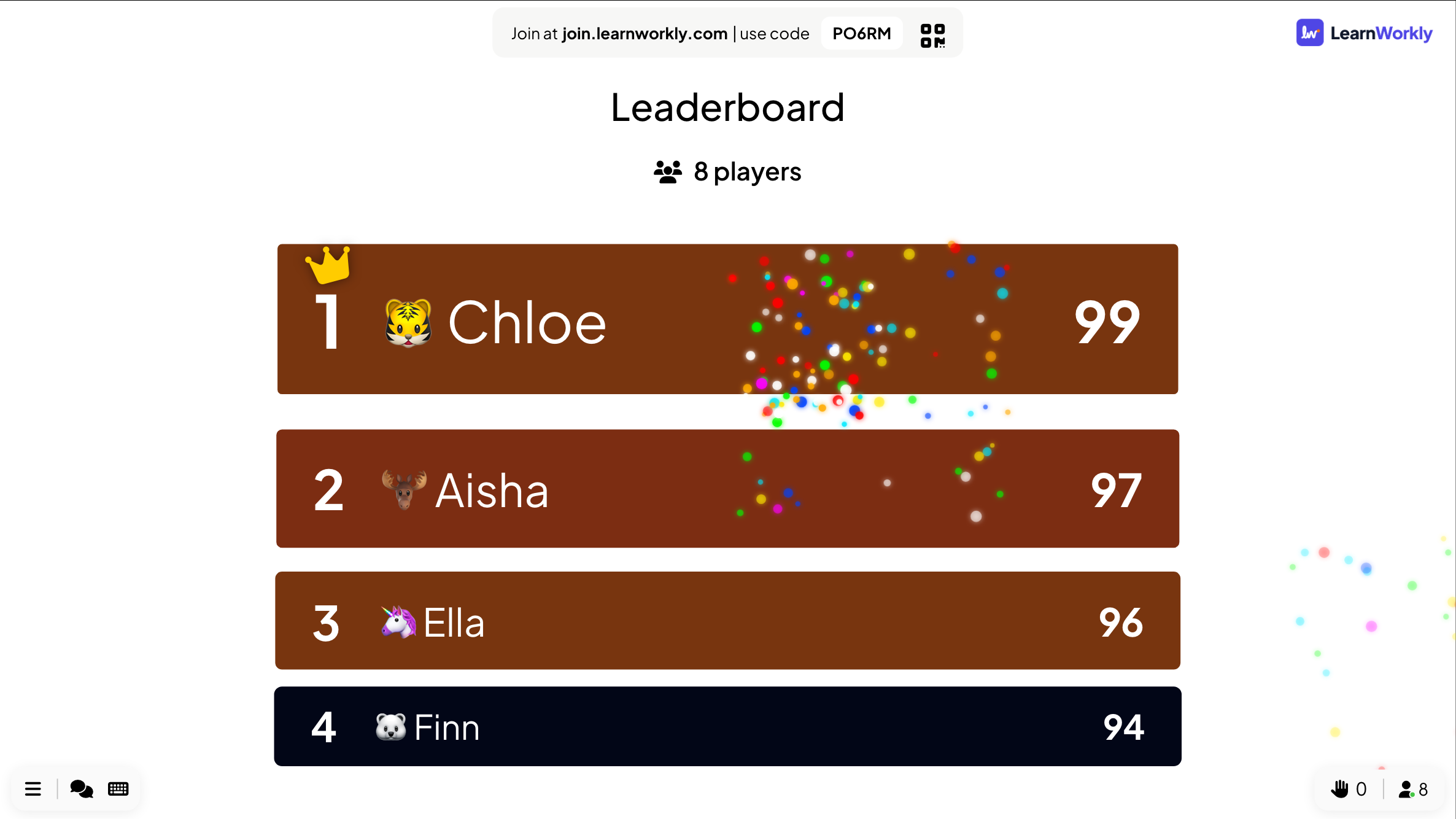
The Leaderboard slide lists every player with their rank and score, moving from the scores before the last question to the new totals. When no quiz slide comes after it, the winner gets a CONGRATULATIONS! pop-up with fireworks.
Tip: Turn on Team quiz mode for a team ranking next to the individual one.
PowerPoint slideshow
A game-show template or a live quiz?
Quiz game templates for PowerPoint are boards of hyperlinked questions with a scoreboard you edit as you go, and one team answers at a time. Here is the difference when every player answers on their phone.
| Feature | Template file | LearnWorkly add-in |
|---|---|---|
| Who answers | One team or a volunteer at a time | Everyone at once, on their own phone |
| Scoring | You add the points by hand | Points for every right answer, more for fast ones |
| Scoreboard | Typed into a slide | A Leaderboard slide with ranks, teams and the winner |
| Timer | A separate countdown, if any | Seconds to answer on every question, on the slide and the phones |
| Question types | Multiple choice by hyperlink | Select Answer, True or False, Type Answer, Match Pair, Puzzle and more |
| Results | Gone when you close the file | Every answer kept in the report |
Quiz games to run from PowerPoint
Retrieval starter
Three questions on last week’s lesson at the start, with the leaderboard at the end.
Quiz night
Rounds of five questions with a leaderboard after each round and a final winner.
Team building
Team quiz mode with average points, so the size of a team does not decide who wins.
Training check
A short knowledge check after each module, with every answer in the report.
Exam practice
Past-paper questions with partial scoring when more than one answer is right.
Conference quiz
Questions on the talks so far, played before the closing keynote.
Download the add-in
Close PowerPoint, run the installer, then click LearnWorkly on the Home tab.
Windows
Windows 10 or 11, PowerPoint from Microsoft 365 or Office 2016 and later
Version 1.0.1
Download for WindowsMac
macOS, PowerPoint from Microsoft 365 or Office 2019 and later
Version 1.0.2
Download for Mac
Frequently asked questions
Do players need an app?
No. They join from their phone’s browser with the code or QR code on the slide, and type a nickname that appears on the leaderboard.
How are the points counted?
By default a right answer scores between 0 and 100 points, more for a fast answer. Turn off More points for fast correct answers to give every right answer the same points.
Can we play in teams?
Yes. With Team quiz mode, players pick one of 2 to 50 teams when they join, and the leaderboard opens on the team ranking.
How do I run the quiz again with a new group?
Click Clear all results in the editor. Scores start from zero and the earlier answers stay in the report.
Does it work in PowerPoint for Mac?
Yes. The add-in installs on PowerPoint for Windows (Microsoft 365, or Office 2016 and later) and PowerPoint for Mac (Microsoft 365, or Office 2019 and later). PowerPoint on the web is not supported yet.
How many players can join?
It depends on your plan: up to 10 people at the same time on Free, more on the paid plans. The add-in itself is free on every plan.
Learn more
More activities for PowerPoint
Try it in your next session
Free for up to 10 live participants, with every slide type and game. Build your first deck in minutes.
Free for up to 10 participants · No credit card