Games
Spinner Wheel: pick a random name, prize or topic
A lucky wheel that picks a player, a prize or a topic.
Opens a demo in the app. No sign-up needed.
What is Spinner Wheel?
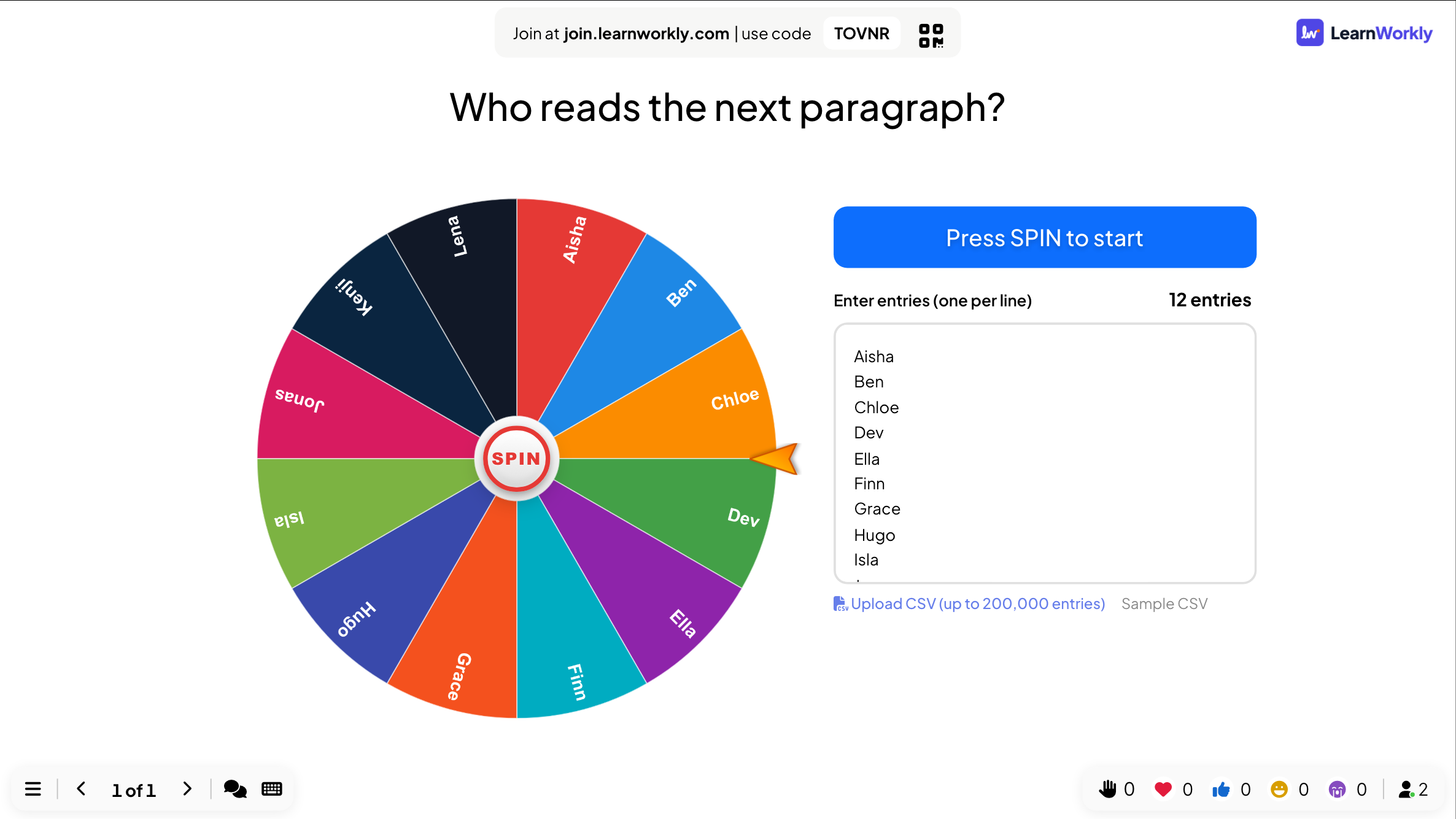
The Spinner Wheel is a random picker you spin on the big screen. Each entry becomes a slice: the names of learners, prizes in a raffle, discussion topics or tasks. Press spin, the wheel slows down and a pop-up announces the result. You can type the entries, upload a CSV file for very long lists, or let participants add their own name from their phones. It is a simple, visible way to make choices that everyone in the room can watch happen.
Read the full guide to Spinner WheelOn the big screen
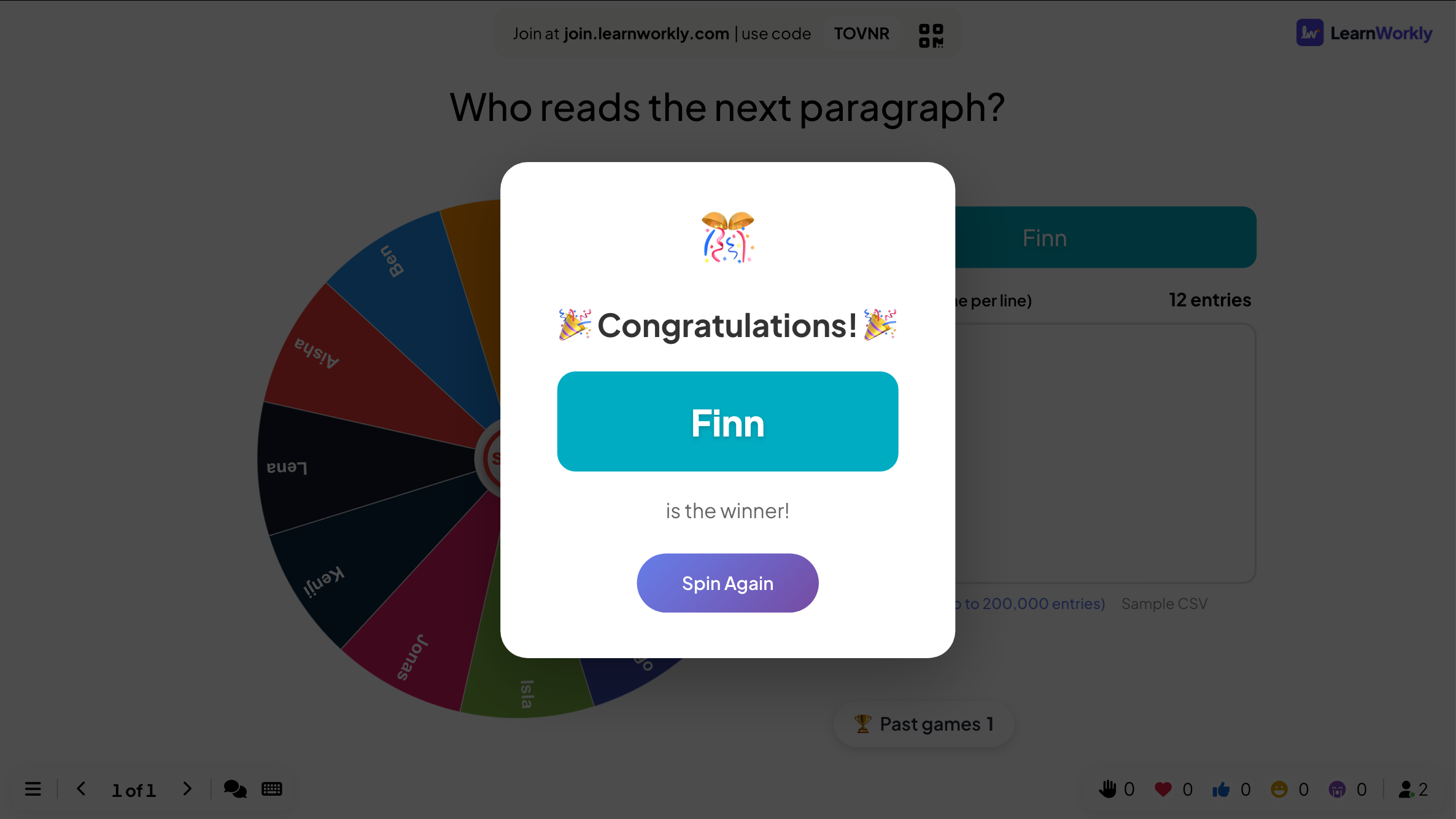
The big screen shows the coloured wheel with your entries on its slices and a prompt to press SPIN. When it stops, a congratulations pop-up names the winning entry. With more than 30 entries, the slices show blocks of entry numbers instead.
On phones
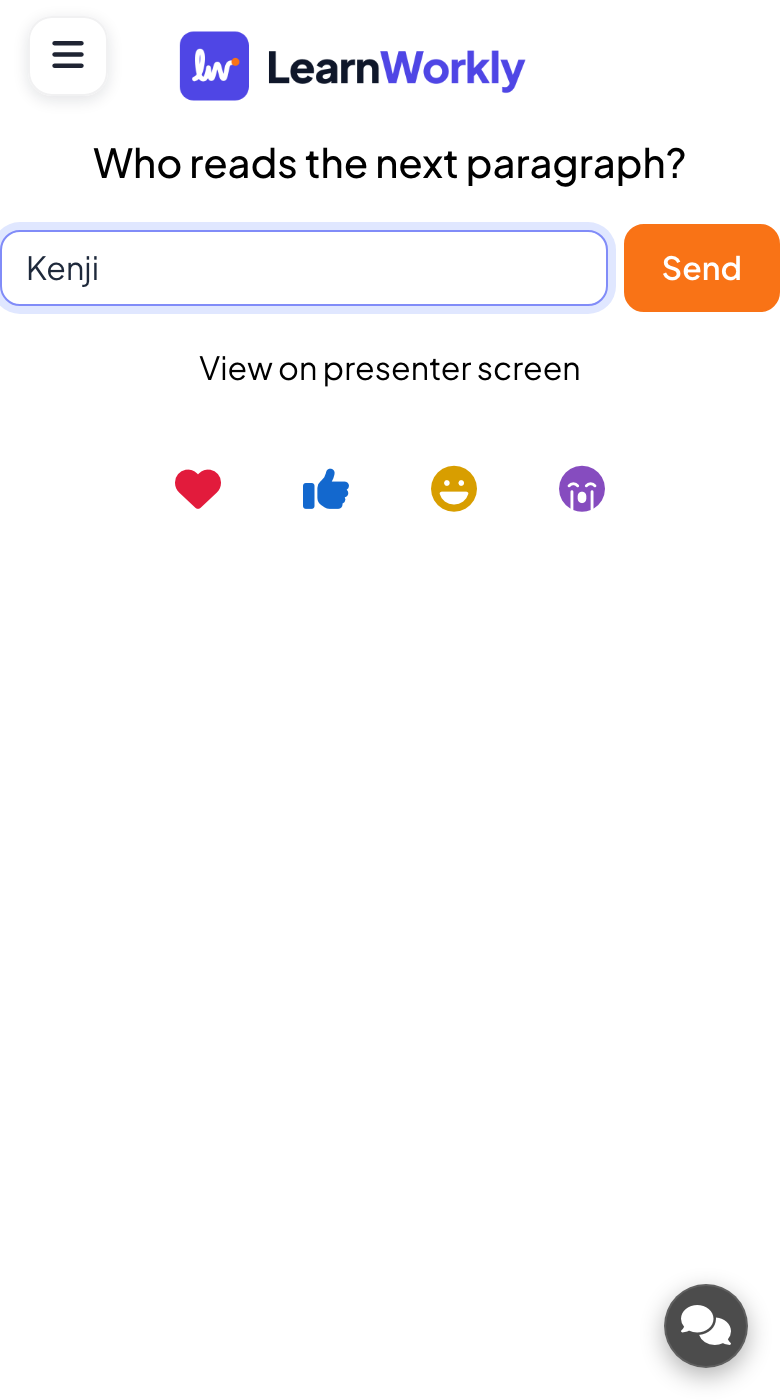
If you let participants take part, each phone shows a name field and a Send button, and every name sent appears on the wheel. Otherwise phones simply tell people to watch the presenter screen.
What you control
You type one entry per line or upload a CSV of up to 200,000 entries, and can let participants add their own names from their phones. Press SPIN to spin and Spin Again for another go.
Great for
Choosing who answers
Spin to pick who answers the next question, so the choice is random and visible to the whole class.
School teachersChoosing discussion topics
Put case studies or discussion prompts on the wheel and let it decide what a workshop group tackles next.
Trainers and L&D teamsRaffles and giveaways
Upload the attendee list as a CSV and spin for each prize at a conference, fair or company party.
Events and team buildingMeeting rotations
Spin to pick who gives their update first or who takes notes in a recurring team meeting.
Meetings and presentationsWheels to build
Copy one into a Spinner Wheel slide, or use them as a starting point for your own.
Play it live- 1
Class names, deleting each one after they have answered
- 2
Revision topics: fractions, decimals, percentages, ratio, area, volume
- 3
Speaking prompts: your weekend, your dream job, a favourite meal, a place you love
- 4
Prize draw: gift card, coffee voucher, early finish on Friday, team lunch, book
- 5
Icebreakers: two truths and a lie, best holiday, hidden talent, first job
Run it in three steps
- 1
In the editor, click + New Slide and pick Spinner Wheel. Change the sample content to your own.
- 2
Click Present. People join on their phones with the code or QR code on the screen.
- 3
Start the game: it plays out on the big screen while everyone takes part on their phone.
See it in action
Spinner Wheel: frequently asked questions
Can the Spinner Wheel pick the same name twice?
Yes, every spin draws from the full list. If each entry should only win once, remove the winner from your entries before you spin again. The wheel updates as soon as the list changes.
How do I give one entry a better chance?
Write it on more than one line. Every line is its own slice of the wheel, so an entry that appears three times is three times as likely to come up as one that appears once.
How many entries can the wheel hold?
You can upload a CSV with up to 200,000 entries. Above 30 entries the slices become blocks of entry numbers, the wheel lands on the block holding the winner and the result shows the entry number. Every entry keeps an equal chance.
Can participants add themselves to the wheel?
Yes. Turn on the setting that lets participants take part, and each person can send their name from their phone. Suggest nicknames if the screen will be seen by a wide audience, because every name sent appears on the wheel.
More activities like this
All activities
See it in your next session
Free for up to 10 live participants. No credit card, nothing for your audience to install.
Free for up to 10 participants · No credit card