PowerPoint add-in
Play bingo inside your PowerPoint
Add a Bingo slide between your own slides with the free LearnWorkly add-in. In the slideshow, everyone who joins gets a different card on their phone, you draw the calls on the slide, and the moment someone presses BINGO their card is checked against the calls. Numbers, words, or words called by their clue: no cards to print, no macros.
Free on every plan. How to install and use it
Step by step
Bingo in PowerPoint, step by step
- 1
Add Bingo after any slide
Select the slide it should follow, click LearnWorkly on the Home tab and type bingo in the search box. One click adds a new PowerPoint slide holding the game.
Tip: The slide is a normal PowerPoint slide: move it, copy it into another deck or delete it like any other.
LearnWorkly panel in PowerPoint 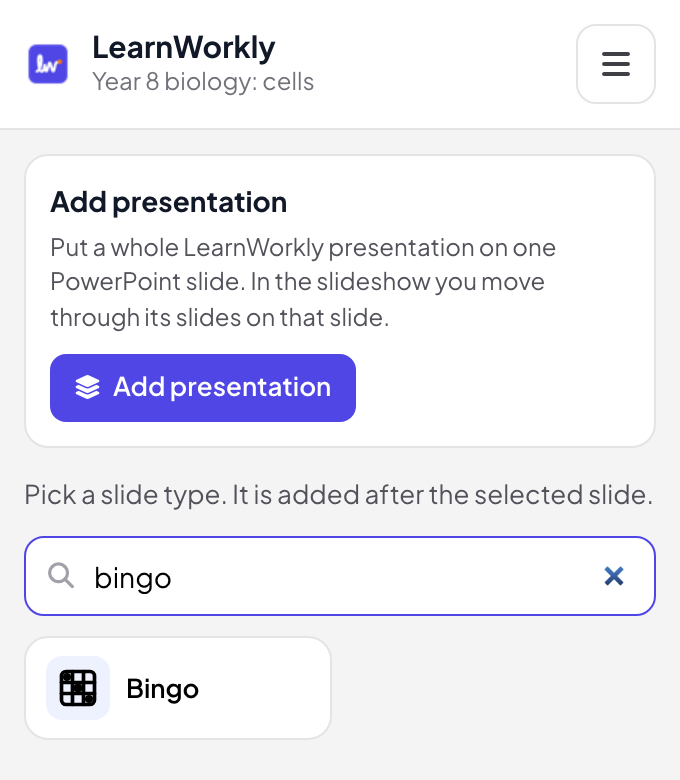
- 2
Type your words on the slide
In PowerPoint’s edit view the slide shows the Bingo editor. Start from Meeting Bingo, Science Vocabulary or Classic Bingo (numbers 1–75), or type your own words, one per line. Write word | clue and the screen shows the clue while players hunt for the word.
Tip: Add a few more words than one card holds (9, 16 or 25 cells) so the cards differ more and fewer people finish together.
PowerPoint edit view 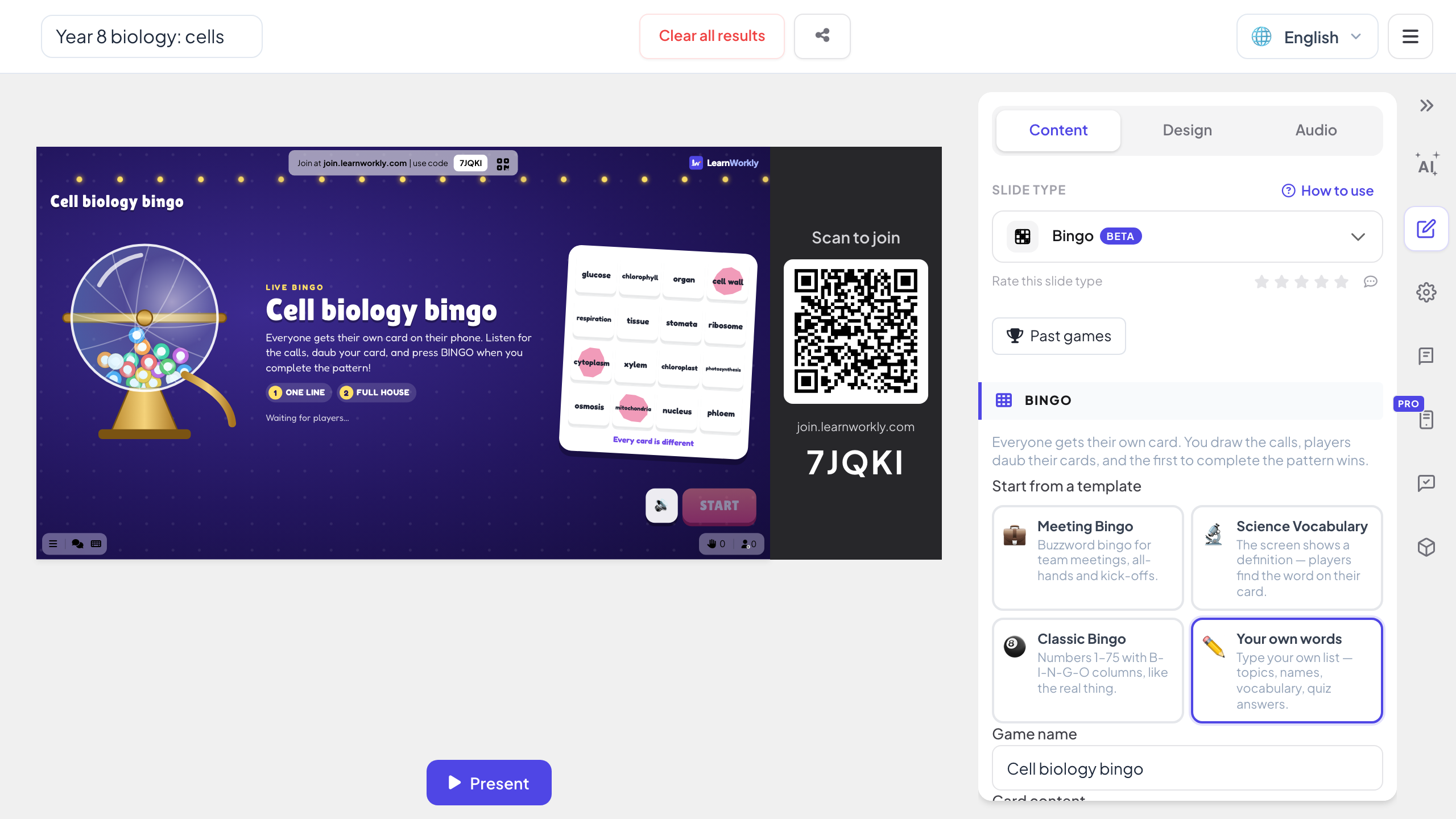
- 3
Draw the calls in the slideshow
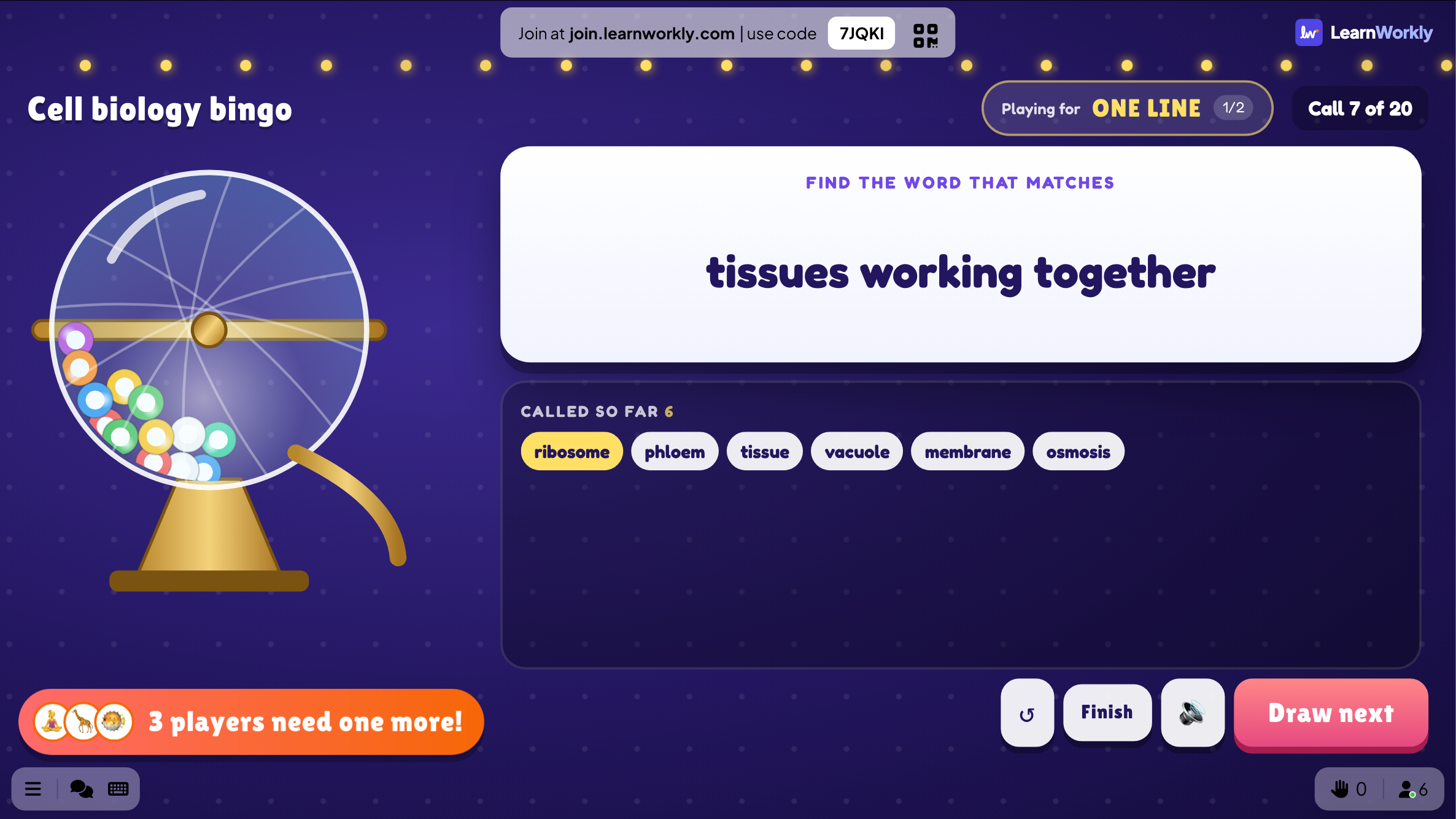
Start the slideshow as usual. When you reach the Bingo slide, the join code and QR code are on it and each phone that joins is dealt its own card. Press START, then Draw next for each call, or let calls come on their own every few seconds.
Tip: The slide shows the call, the calls so far, the prize you are playing for and who needs just one more cell, so the whole room follows the race.
PowerPoint slideshow - 4
Players daub, the app checks
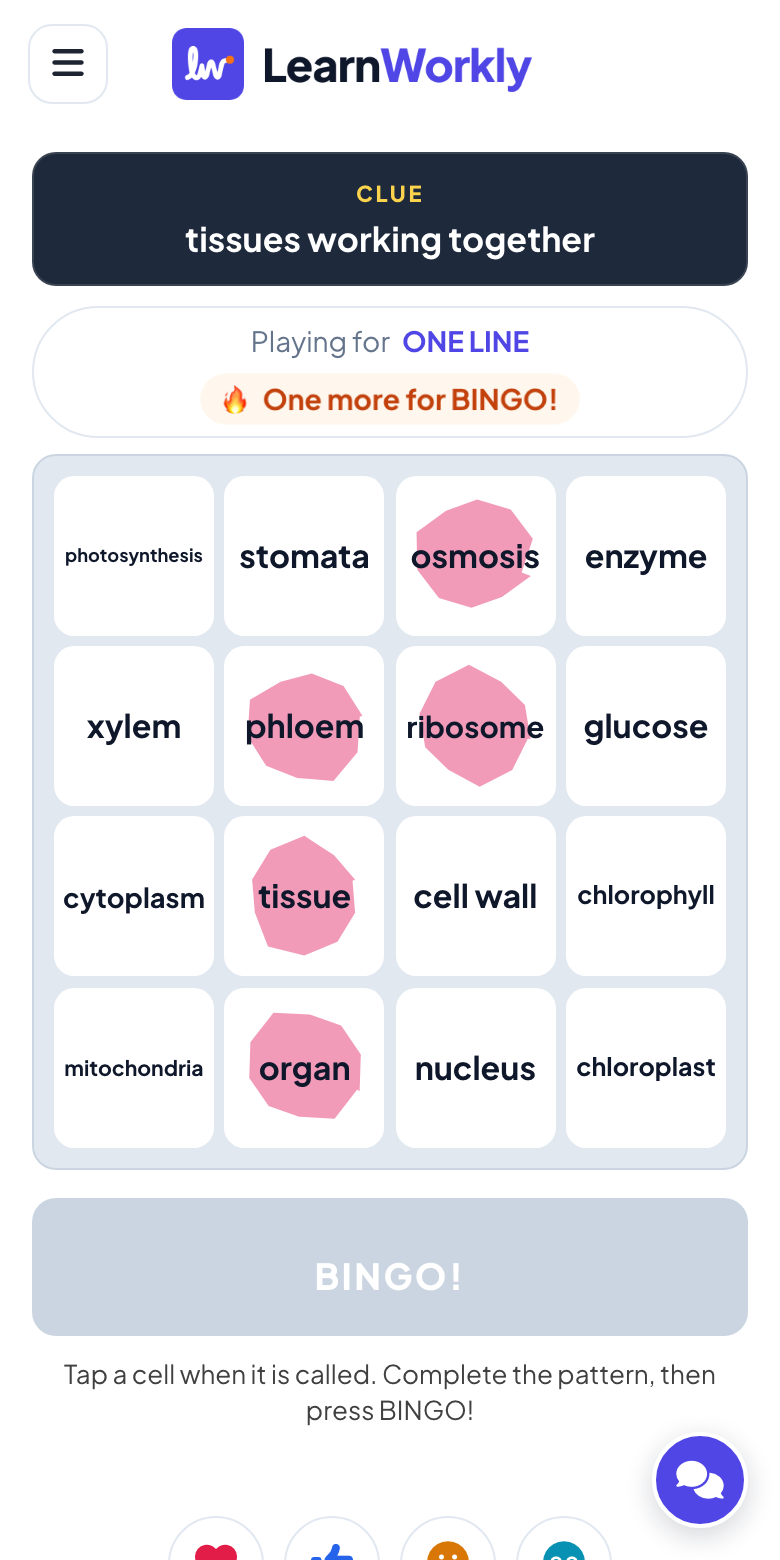
Players tap a cell when its word is called and press BINGO when the line is complete. The card is compared with the calls: a cell that was not called does not count, and a false claim just tells the player to check their card. Then play on for two lines or a full house.
A bingo template file or live bingo in your slides?
Bingo templates for PowerPoint are usually a caller deck with printed cards, sometimes with a macro that picks the numbers. They work for a small room with paper. Here is what changes when the game runs live in the slide.
| Feature | Template file | LearnWorkly add-in |
|---|---|---|
| Cards | Printed or sent as a PDF before the session, often the same few designs | Dealt to every phone as it joins, every card different |
| Calls | Click through slides, or a macro picks a random number | Draw next on the slide, or automatic every 5 to 20 seconds |
| Macros | Office blocks macros in files downloaded from the internet by default | No macros: an Office add-in for PowerPoint on Windows and Mac |
| Checking a win | You read the card back against the calls | Checked against the calls the moment a player presses BINGO |
| Words and clues | Build every card by hand | Type a list once; word | clue calls the clue and players find the word |
| Prizes | You keep track of who won what | One line, two lines, full house in a row; winners on the same call share the prize |
| Players at a distance | Only if they can see and print the cards | Anyone with the code joins from a phone browser, no app or account |
Bingo games to add to a deck
End-of-lesson vocabulary
Put a word | definition bingo after the last teaching slide: the screen reads the definition, students find the term.
Times tables
Write 42 | 6 × 7 so the slide shows the sum and players hunt for the answer on their card.
Language class
Call the English word and let learners find manzana, pan or queso on a Spanish card.
Meeting or kickoff bingo
A card of the phrases everyone expects to hear, daubed during the talk, for a lighter all-hands.
Fun day number bingo
Classic 1–75 numbers with one line, two lines, then full house, from the same deck as the event slides.
People bingo icebreaker
Cells such as “has a pet” or “speaks three languages” to open a workshop where people do not know each other yet.
Download the add-in
Close PowerPoint, run the installer, then click LearnWorkly on the Home tab.
Windows
Windows 10 or 11, PowerPoint from Microsoft 365 or Office 2016 and later
Version 1.0.1
Download for WindowsMac
macOS, PowerPoint from Microsoft 365 or Office 2019 and later
Version 1.0.2
Download for Mac
Frequently asked questions
Do I need macros or a special template?
No. The Bingo slide is added by the LearnWorkly add-in, so there is no macro to enable and no file to download per game. Any deck you open in PowerPoint can hold a Bingo slide.
Does it work in PowerPoint for Mac?
Yes. The add-in installs on PowerPoint for Windows (Microsoft 365, or Office 2016 and later) and PowerPoint for Mac (Microsoft 365, or Office 2019 and later). PowerPoint on the web is not supported yet.
Can I print the cards?
No. Every card lives on a player’s phone, which is how the app deals a different card to everyone and checks each BINGO. For players without a phone, let them pair up and share one.
Can I play number bingo from 1 to 75?
Yes. Pick Numbers or the Classic Bingo template: on a 5 × 5 card each column has its own range, B 1–15, I 16–30, N 31–45, G 46–60 and O 61–75, and the numbers are called in random order.
How many players can join?
It depends on your plan: up to 10 people at the same time on Free, more on the paid plans. The add-in itself is free on every plan.
What happens if someone presses BINGO by mistake?
Their card is checked against the calls. If the pattern is not complete, they are asked to check their card and the game goes on for everyone else.
Learn more
More activities for PowerPoint
Try it in your next session
Free for up to 10 live participants, with every slide type and game. Build your first deck in minutes.
Free for up to 10 participants · No credit card