Q&A and chat
Questions from the whole room, the best ones first
Add a Q&A slide and people send their questions from their phones, anonymously if they like. The room upvotes the ones it wants answered, and you or a moderator decide what goes on the big screen. Live chat and emoji reactions keep everyone involved between questions.
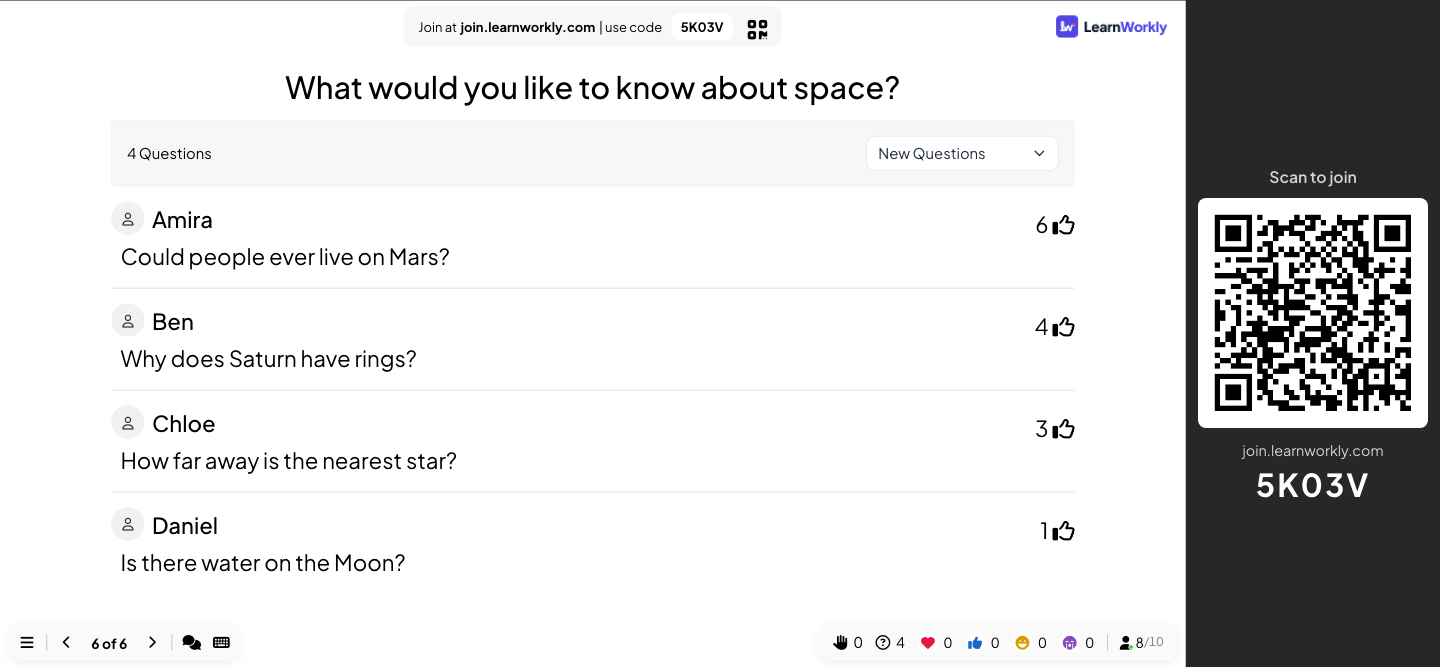
Upvotes
Participants upvote the questions they want answered, so the most important ones rise to the top.
Moderation
Approve questions before they appear on the big screen, and share a moderator link so a colleague can do it for you.
Profanity filter
Turn on the filter and rude words are hidden in Q&A questions, chat, word clouds and typed answers.
Live chat
A chat during the presentation for comments, links and questions that do not need the big screen.
Reactions
Hearts, likes, laughs and sad faces float across your slide when the room reacts.
In a real session
An all-hands meeting with a moderator
The leadership team of a mid-sized company holds its monthly all-hands in the canteen, with some staff joining from home. One person presents, a colleague from the people team moderates questions on a laptop at the side, and the session ends with 15 minutes of Q&A.
- 1
Turn on Q&A and moderation before the meeting
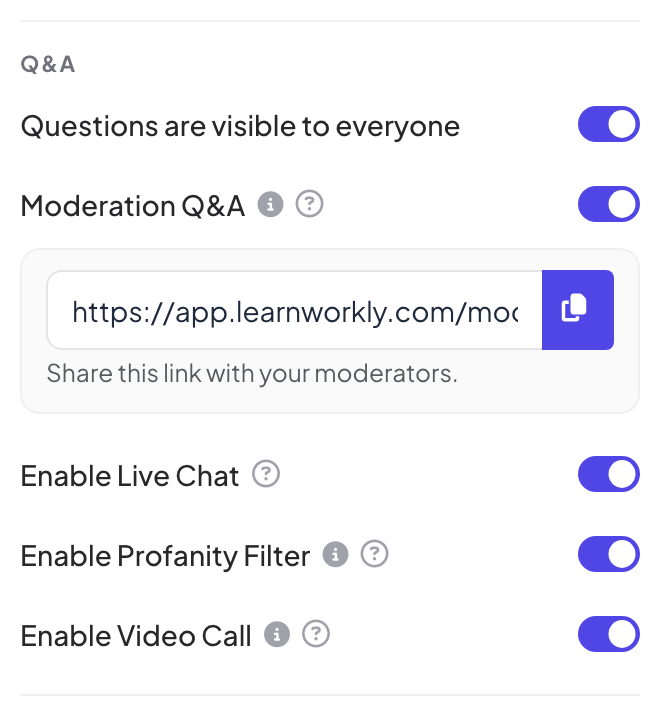
In Presentation settings → General Settings → Q&A, the organiser turns on Questions are visible to everyone (so people can ask from any slide, not only the Q&A slide), Moderation Q&A and Enable Profanity Filter. A moderation link appears under the setting; she copies it and sends it to the moderator.
Tip: Anyone with the moderation link can approve and delete questions, so send it only to the people who will moderate.
- 2
People ask from the first slide
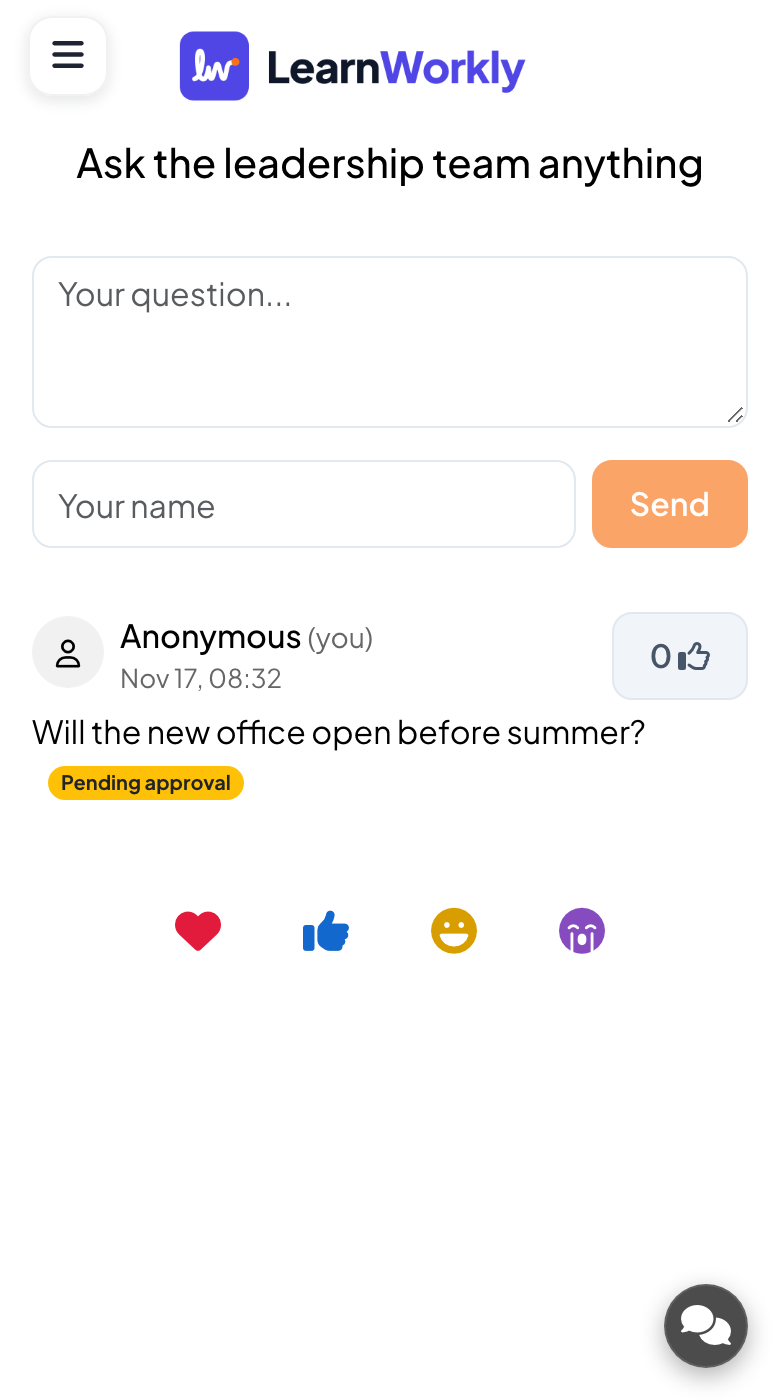
Questions open with the agenda, so nobody has to remember theirs for 40 minutes. Staff type questions such as “Will the new office open before summer?” and “How will the hybrid policy change next year?”.
- On phones
- On phones: A box marked Your question..., an optional Your name field and a Send button. Leave the name empty and the question is shown as Anonymous. With moderation on, the asker sees their question marked Pending approval.
- On the big screen
- On the big screen: Nothing yet: unapproved questions never reach the big screen.
Tip: Tell the room at the start that questions can be anonymous. People ask the questions they would not raise with a hand up.
- 3
The moderator approves and tidies
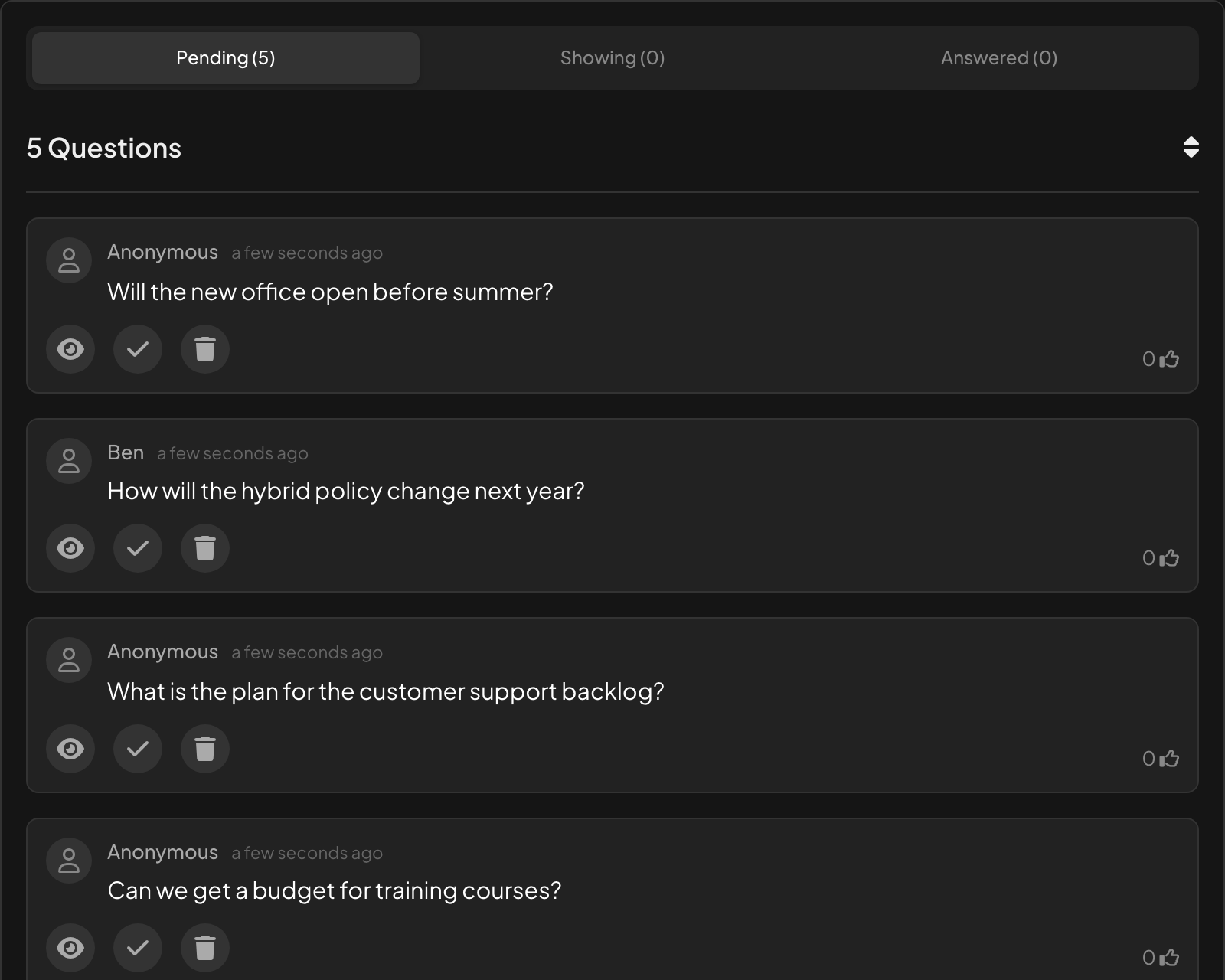
On the moderation page, new questions wait under Pending. The moderator approves four of the five with Approve and show on Canvas. The fifth, already covered earlier in the talk, stays in Pending; anything off-topic or repeated can go with Delete Question.
- On the big screen
- On the big screen: Each approved question appears on the Q&A slide as soon as it is approved.
Tip: Remote control (Pro and Enterprise) has the same Q&A tab, so a presenter without a moderator can approve questions from their phone.
- 4
Upvotes put the room’s priorities first
When the Q&A slide comes up, the list is sorted by upvotes. The hybrid policy question has the most votes, so the presenter starts there instead of with whatever was asked first.
- On phones
- On phones: Every approved question with a thumbs-up to upvote it.
- On the big screen
- On the big screen: The number of questions and a filter for New Questions and Answered Questions. Click a question to show it large.
Tip: With Enable Video Call on, a question from a participant has a call button, so the person can ask it in their own voice. See Video stage and calls.
Big screen 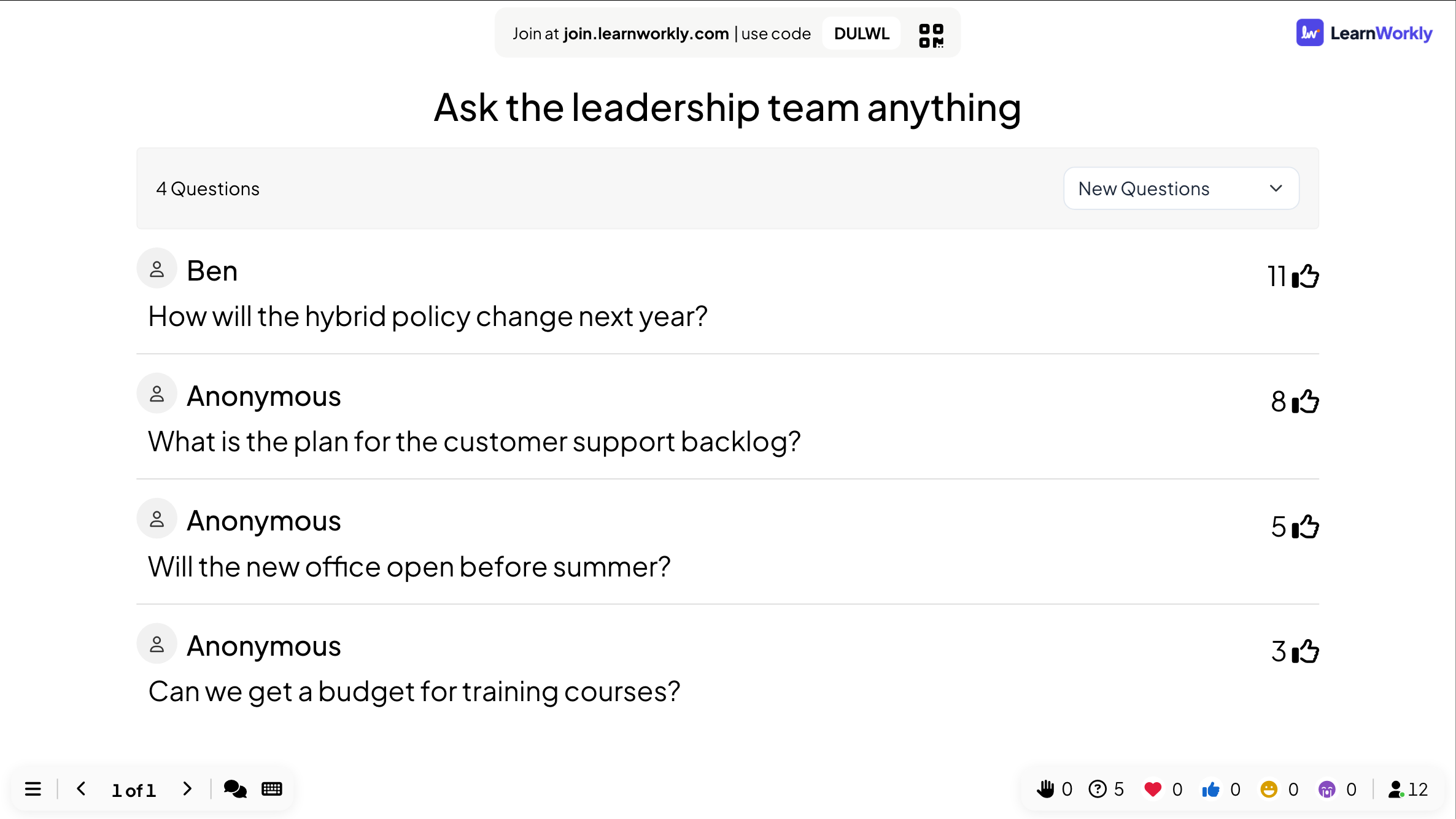
- 5
Mark them answered, then read the report
Each time a question is answered, the presenter or the moderator marks it with the check mark and it moves to Answered Questions. After the meeting, the Q&A tab of the report lists every question with its upvotes and whether it was Answered or Unanswered, so the ones there was no time for can be answered in the newsletter.
- On the big screen
- On the big screen: Answered questions leave the main list, so the next one is always at the top.
Tip: Basic, Pro and Enterprise can export the report to PDF or Excel to share the unanswered questions with the right teams.
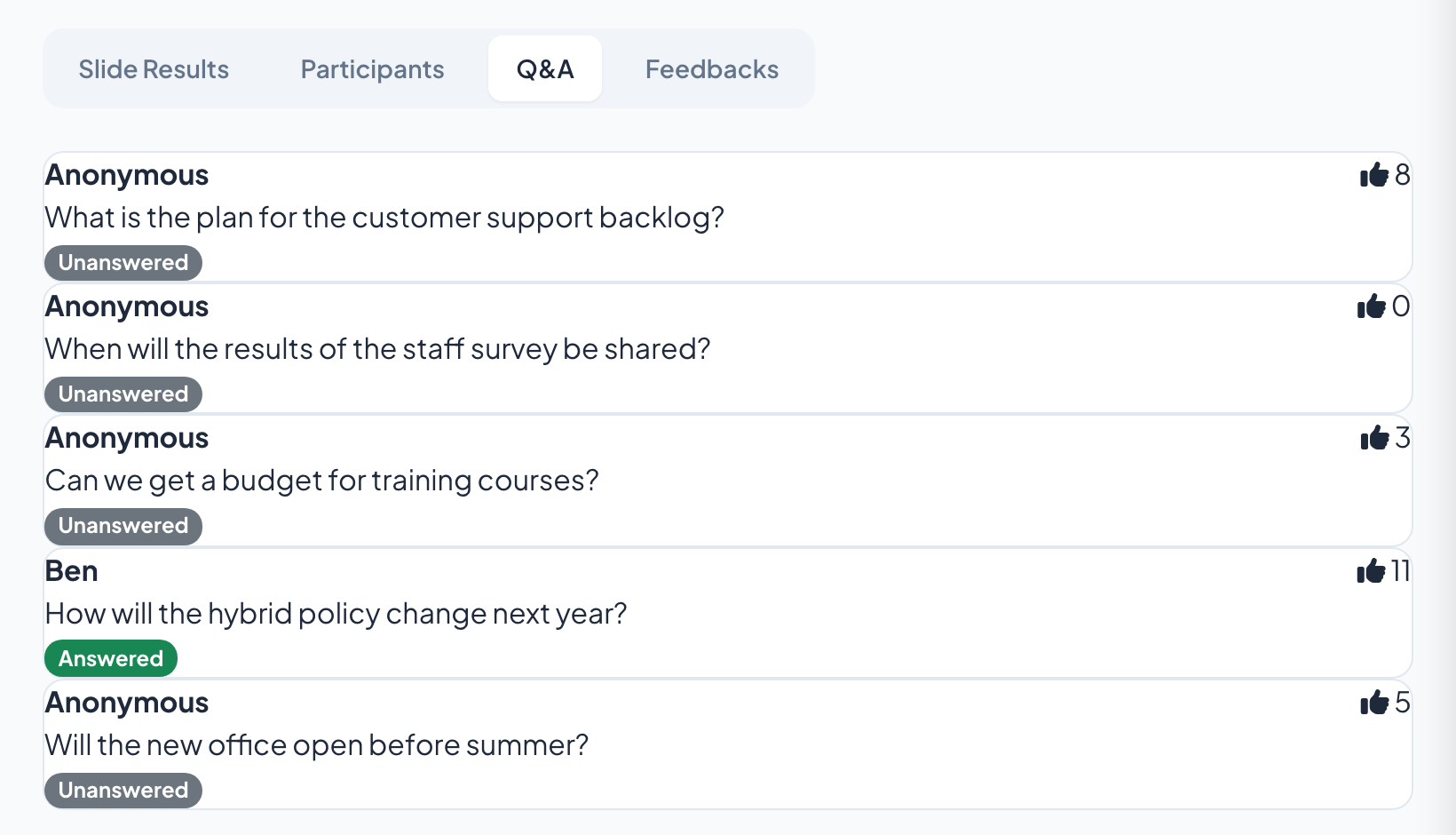
Settings that matter
All in Presentation settings (the gear icon on the right edge of the editor) → General Settings → Q&A, except the Q&A slide itself.
| Setting | What it does | Default |
|---|---|---|
| Questions are visible to everyone | Adds an Ask button to phones on every slide, so people can ask at any time. In remote control it is called Enable Q&A on all slides. | Off |
| Moderation Q&A | New questions stay hidden until you approve them, and a moderation link appears to share with a colleague. | Off |
| Enable Profanity Filter | Hides offensive words on the big screen in Q&A, Open Ended, Word Cloud and Type Answer. What people sent is kept unchanged in your results. | Off |
| Enable Live Chat | A chat for everyone in the session, for comments and links that do not need the big screen. | On |
| Enable reactions | Hearts, thumbs up, laughs and sad faces float up on the big screen. Tick the ones you allow. | All four |
| Enable Video Call | Shows a call button on questions and answer cards, so you can call one participant. | On |
What participants see
On a Q&A slide, phones show the question box, an optional name and the list of questions with a thumbs-up to upvote. With Questions are visible to everyone on, an Ask button is there on every other slide too.
Questions without a name are shown as Anonymous. With moderation on, the person who asked sees Pending approval until a moderator approves it. Nobody else sees it until then.
Limits by plan
| Feature | Free | Basic | Pro | Enterprise |
|---|---|---|---|---|
| Live participants at the same time | 10 | 100 | 5,000 | Flexible |
| Q&A, moderation, moderator link, profanity filter, chat, reactions | ✓ | ✓ | ✓ | ✓ |
| Export the questions with the report | – | ✓ | ✓ | ✓ |
| Moderate from your phone with remote control | – | – | ✓ | ✓ |
Frequently asked questions
Can people ask anonymously?
Yes. The name field is optional, and questions without a name are shown as Anonymous.
Is Q&A moderation on the free plan?
Yes. Q&A, moderation, the moderation link, the profanity filter, live chat and reactions are on every plan.
Can a colleague moderate the questions?
Yes. Turn on Moderation Q&A, copy the moderation link and send it to a colleague. They approve, mark answered or delete questions from their own laptop or phone while you present.
Do I need a Q&A slide?
No. With Questions are visible to everyone on, an Ask button is on phones during every slide. A Q&A slide is useful when you want the questions on the big screen.
How are questions sorted?
By upvotes, so the questions most people want answered come first. Answered questions move to Answered Questions.
What does the person who asked see while a question waits?
Their question marked Pending approval. Nobody else sees it until it is approved.
Can I take questions from people joining from home?
Yes. Everyone joins with the same code or link, wherever they are, and their questions arrive in the same list.
Can someone ask their question out loud?
Yes. With Enable Video Call on, click the call button on a question to call that person, or use a Video Stage slide to bring several people on screen one after another.
Are the questions saved?
Yes. They are in the Q&A tab of the presentation’s report. Basic, Pro and Enterprise can export the report to PDF or Excel.
Learn more
- Help centerQ&A slide: questions from the audience, upvoted
- Help centerModerate Q&A and filter profanity
- Help centerMusic, sound effects, reactions and live chat
- Help centerControl your presentation from your phone
- BlogActive learning in large lectures: 12 techniques
- Use caseMeetings and presentations
- Use caseEvents and team building
- Use caseUniversity lecturers
Who uses it, and for what
Related features
Try it in your next session
Free for up to 10 live participants, with every slide type and game. Build your first deck in minutes.
Free for up to 10 participants · No credit card