Polls and word clouds
Hear from everyone in the room, not just the loudest
Ask a question and watch the answers arrive: votes turn into bars or a pie chart, short answers into a word cloud, longer ones into a wall of cards. Everyone answers on their own phone, so the quiet people count as much as the confident ones.
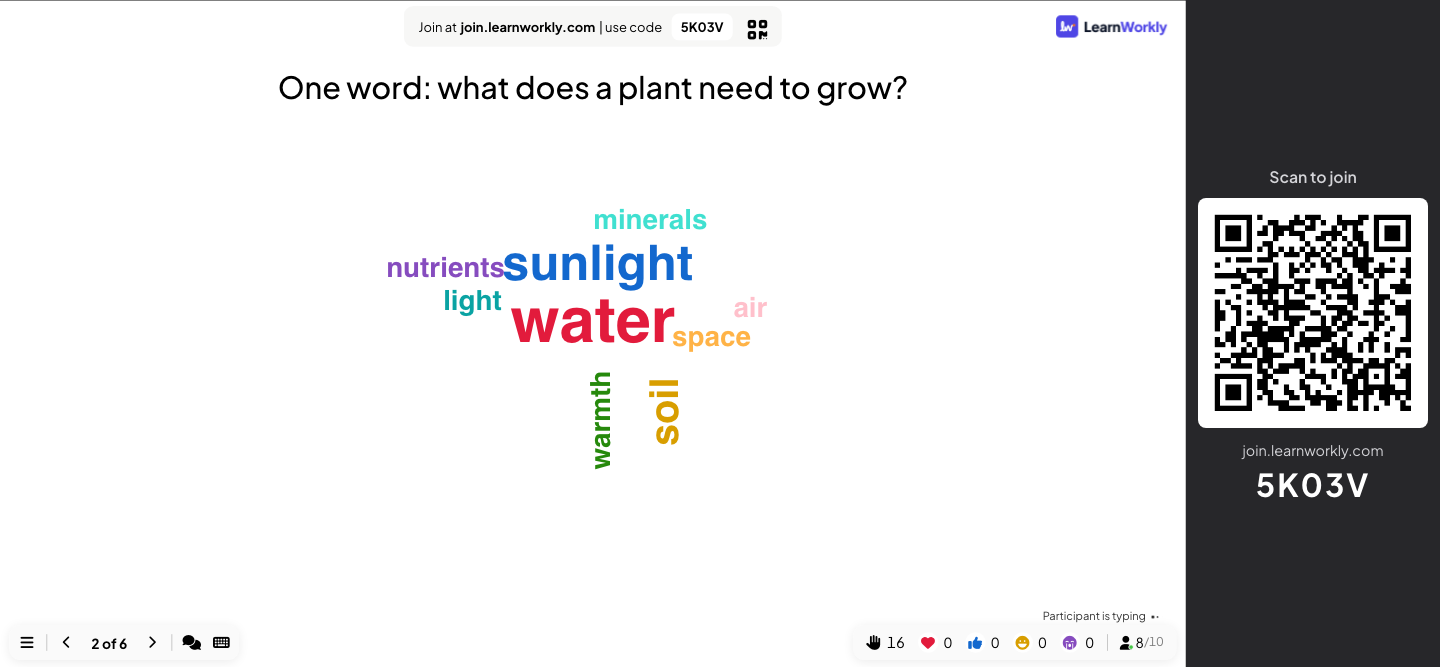
Polls
Multiple choice shown as bar or pie charts, live as votes arrive or revealed when you are ready.
Word clouds
Short text answers grow bigger the more people send them. A profanity filter keeps the screen clean.
Open ended
Collect ideas, feedback and longer answers as free text, shown as cards on the big screen.
Scales and rankings
Rate statements on a scale, rank options in order, share out 100 points or place items on a 2×2 grid.
Pins, drawings and boards
Let people pin a spot on an image, draw on their phone, brainstorm on a whiteboard or run a retro with sticky notes.
Quick forms
Collect the details you need, such as a team name or a department, with a custom form of several fields.
In a real session
A staff training session on giving feedback
A trainer runs a 90-minute workshop for 24 team leaders on giving useful feedback. Four interactive slides do most of the work: a word cloud to open, a poll, a confidence scale and an open question to finish. Every answer is anonymous unless people choose to add a name.
- 1
Open with a word cloud
The first slide asks “One word: how does getting feedback usually feel?”. Number of responses is set to 2, so each person can send two words. Within a minute, “useful” and “nervous” are the biggest words on the screen, with “awkward” close behind, and the trainer has her opening: the same feedback can feel useful and nerve-racking at once.
- On phones
- On phones: Two Your text... boxes (up to 50 characters each) and a Submit button. After submitting, View my submission shows what they sent.
- On the big screen
- On the big screen: Words grow bigger the more people send them. Click a word to Edit a typo or Delete it.
Tip: Turn on Enable Profanity Filter in the presentation settings before a session with a new group. Rude words are hidden on the big screen and kept as sent in your results.
Big screen 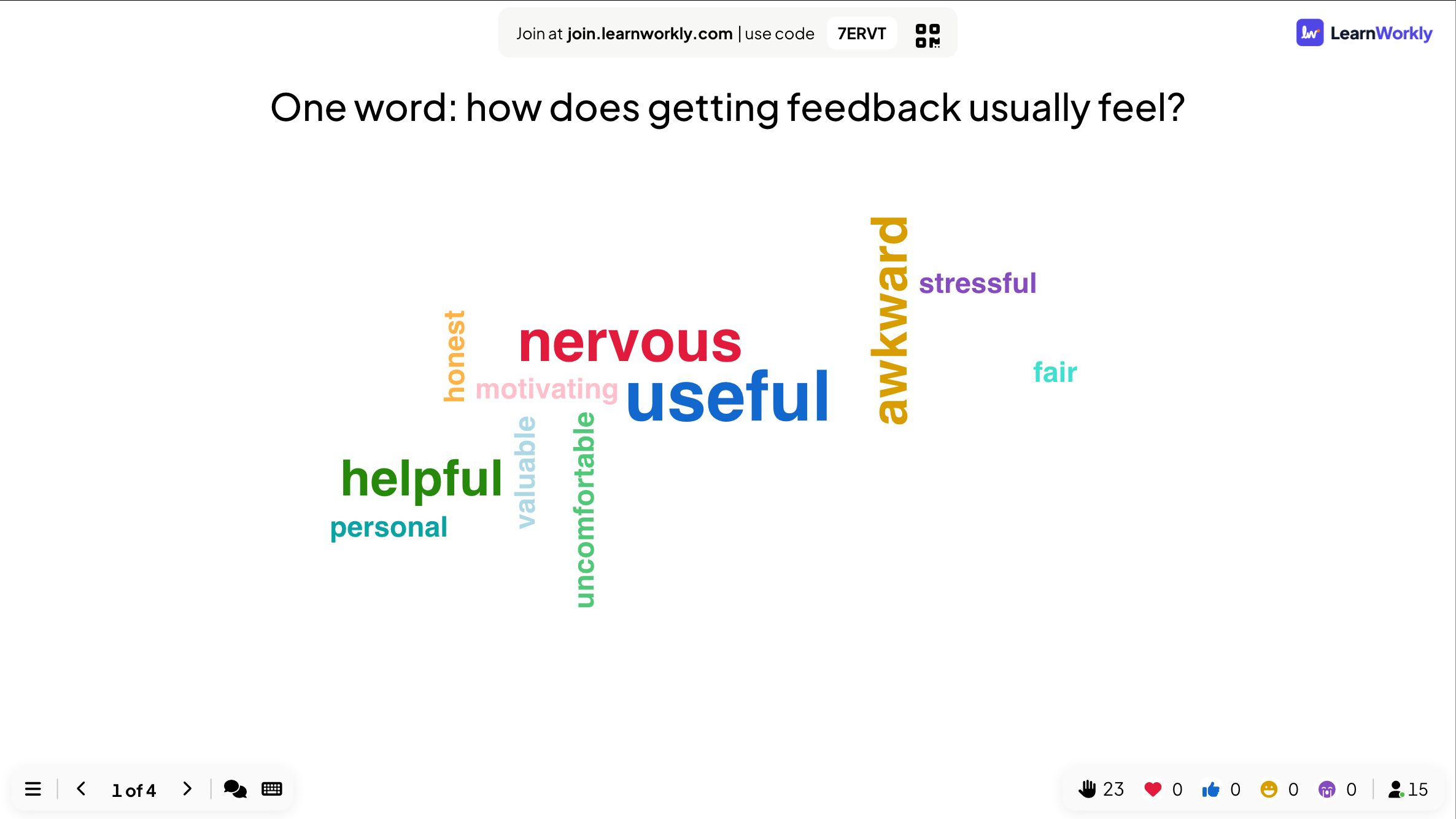

- 2
Ask a poll and talk about the result
“How do you prefer to get feedback?” has four options. She keeps the bars hidden until everyone has voted, then shows them: face to face wins, but almost as many prefer the weekly one-to-one. The group discusses why.
- On phones
- On phones: A button for each option and a Submit button. A vote cannot be changed once it is sent.
- On the big screen
- On the big screen: A bar chart (or a pie chart) that grows with each vote. Click a bar to switch between counts and percentages.
Tip: Hide result keeps the chart empty while people vote, so the first votes do not sway the rest. Show it with Show result on the slide.
Big screen 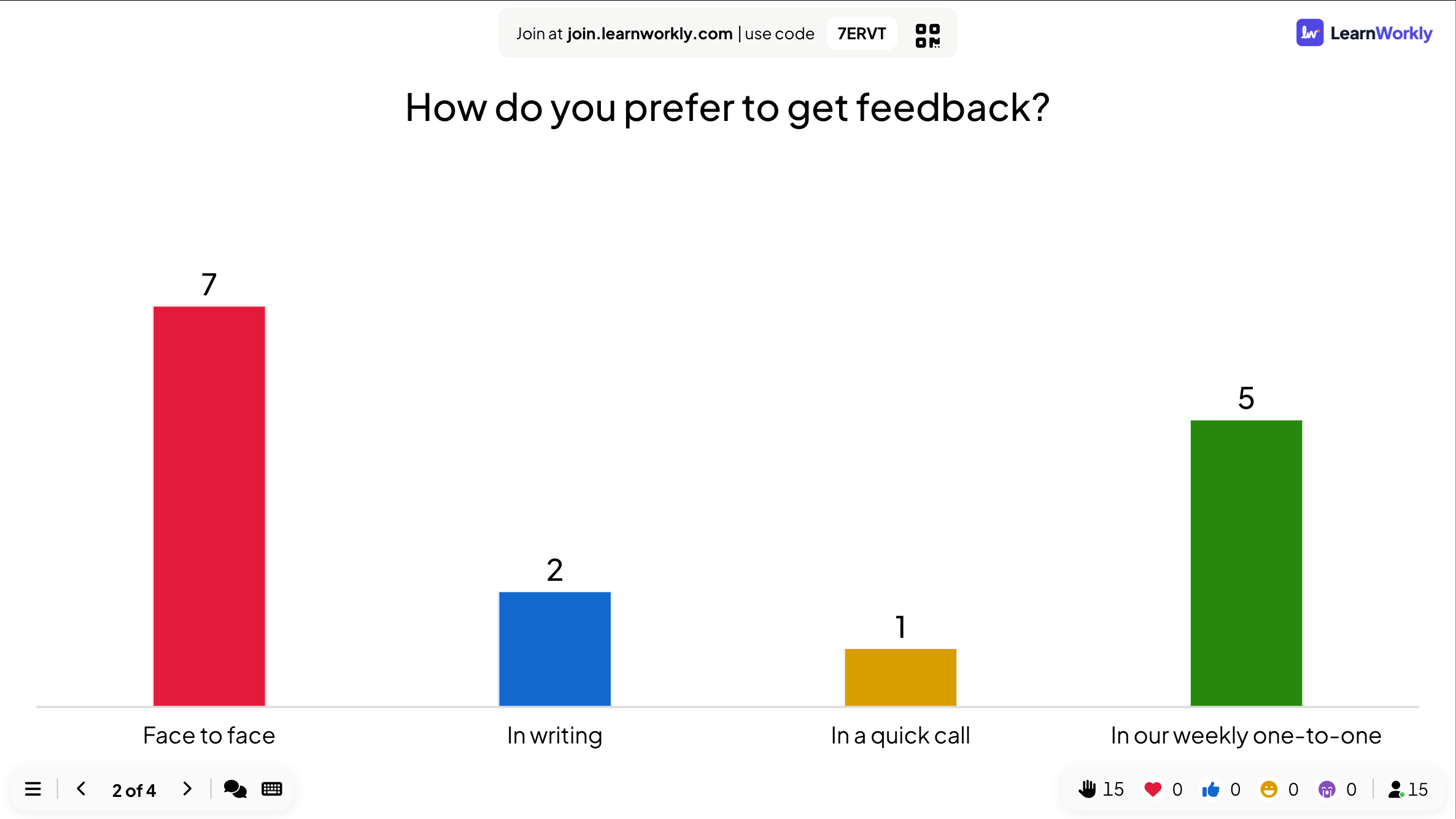
- 3
Measure confidence with a scale
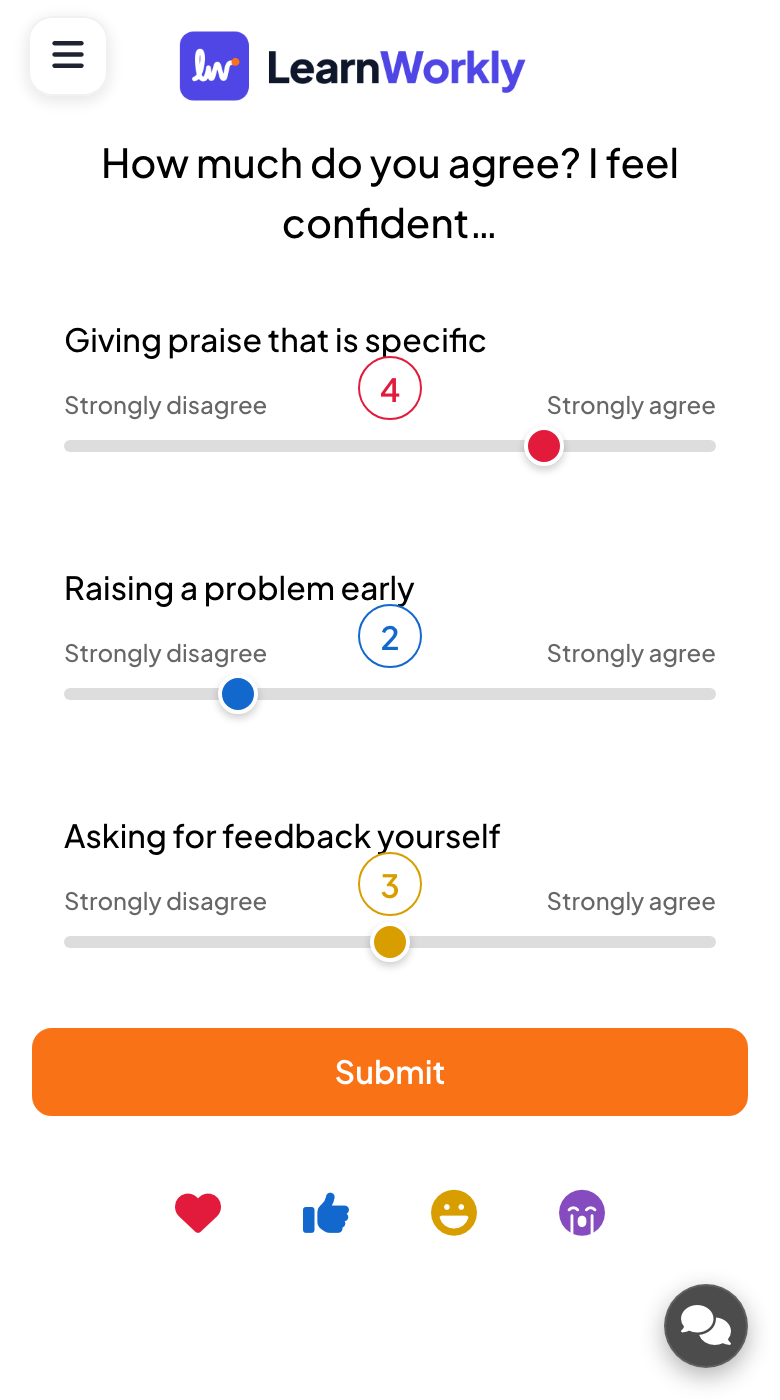
A Scale slide asks “How much do you agree? I feel confident…” about three statements: giving praise that is specific, raising a problem early and asking for feedback yourself, from 1 (Strongly disagree) to 5 (Strongly agree). “Raising a problem early” scores lowest, so that is where the afternoon’s role play goes.
- On phones
- On phones: A slider for each statement with your labels at both ends, then Submit.
- On the big screen
- On the big screen: How the answers spread for each statement, the average of each one and an overall average line.
Tip: Run the same scale at the end of the day. The report keeps both, so you can show the group how much their confidence moved.
Big screen 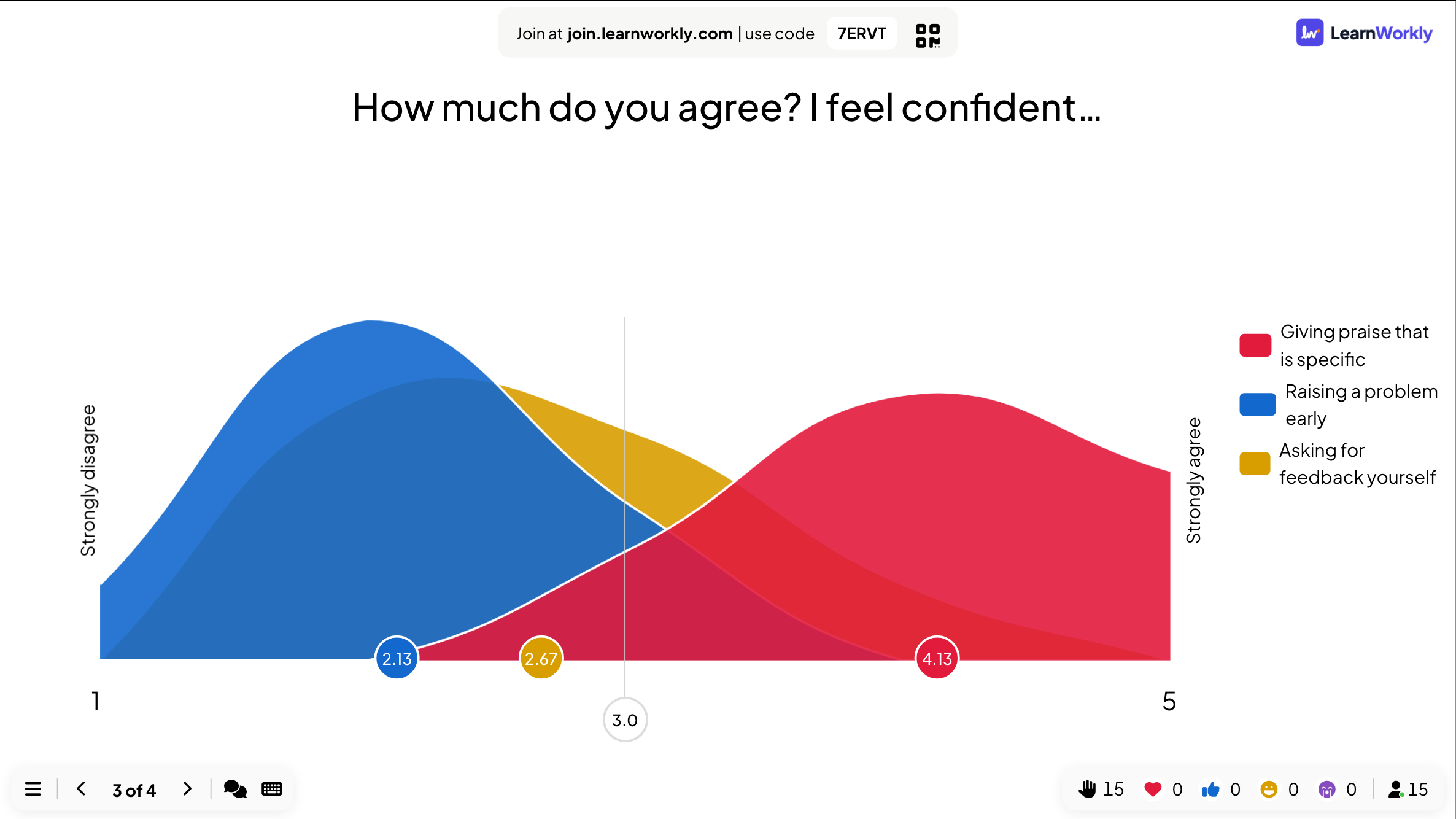
- 4
Close with an open question
The last slide asks “What is the best piece of feedback you have ever had?”. Answers arrive as cards, and she reads out a few to end on a positive note.
- On phones
- On phones: A text box, and if you allow it, a photo or a drawing. Multiple Submissions lets people send more than one answer.
- On the big screen
- On the big screen: A wall of cards. Click one to show it large, or use its menu to Edit or Delete it.
Tip: Turn on Allow participants to enter their name. only when you need to know who wrote what. Without it, open answers are anonymous.
Big screen 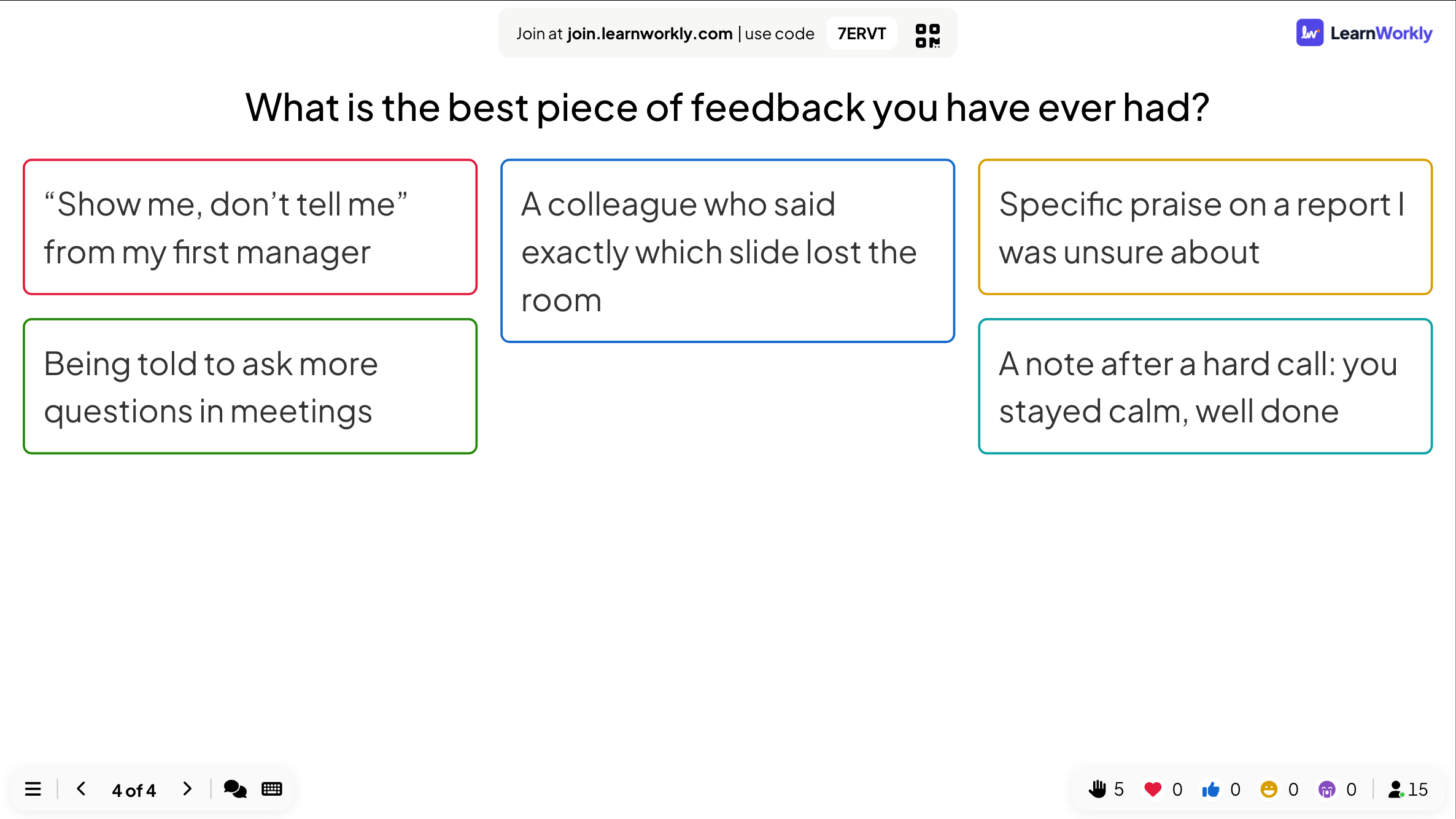
Settings that matter
These settings are under Settings on each slide’s Content tab. Each slide type only shows the ones that apply to it.
| Setting | What it does | Default |
|---|---|---|
| Select chart type | Bar chart or Pie chart for a poll. | Bar chart |
| Hide result | Keeps the results off the big screen while people answer. | Off |
| Stop Submission | Closes the slide: phones show Submission stopped. | Off |
| Time limit | A countdown of Seconds to answer on phones; when it ends, answers close. | Off (60 s when turned on) |
| Allow picking more than one option | Lets people tick several options in a poll. | Off |
| This slide has correct answer | Marks the right option(s) in a poll, with no points. Use a quiz slide for points. | Off |
| Number of responses | How many words each person sends to a word cloud at once, 1 to 7. | 1 |
| Multiple Submissions | People can send more answers after the first one (Word Cloud, Open Ended). | Off |
What participants see
Phones show the question and the right input: buttons for a poll, boxes for a word cloud, sliders for a scale, a list to drag for a ranking, plus and minus buttons for 100 Points, a picture to tap for Pin on image. Big buttons, no zooming in.
Poll charts and word clouds never show names. Open-ended answers, drawings and grids only ask for a name if you turn that on for the slide.
Limits by plan
| Feature | Free | Basic | Pro | Enterprise |
|---|---|---|---|---|
| Live participants at the same time | 10 | 100 | 5,000 | Flexible |
| Every poll and interactive question type | ✓ | ✓ | ✓ | ✓ |
| Results in the report | ✓ | ✓ | ✓ | ✓ |
| Export the results to PDF and Excel | – | ✓ | ✓ | ✓ |
Interactive questions
Opinions, ideas and questions from the whole room, shown live on the big screen.
- PollCollect opinions and show them as bar or pie charts.
- Word CloudShort answers grow bigger the more people send them.
- Open EndedCollect ideas and feedback as free text.
- Q&AParticipants ask questions and upvote their favourites.
- ScaleRate agreement with statements on a scale.
- RankingRank options in order of preference.
- 100 PointsShare out 100 points between the options.
- 2x2 GridPlace answers on a grid with two scales.
- Pin on ImageClick a spot or an area on an image.
- Quick FormCollect details through a custom form with several fields.
- WhiteboardA shared board for visual brainstorming.
- DrawEveryone draws on their phone and the drawings pop up in a live gallery.
- Remote RetroA retrospective with sticky notes, voting and discussion.
- Flip CardsCards to flip for learning, memorising and Q&A sessions.
- Video StagePeople raise a hand on their phone and you bring them on screen to speak.
Frequently asked questions
Can answers be anonymous?
Yes. Poll charts and word clouds never show names. Open-ended slides only ask for a name if you turn on Allow participants to enter their name. for that slide.
Can I hide the results until everyone has voted?
Yes. Turn on Hide result on the slide, or use Hide Result in the ☰ menu while presenting, then show the results when you are ready.
Can people change their vote?
No. Once they press Submit, the vote is counted and their phone shows that it was sent.
How many options can a poll have?
Up to 9, each with its own colour and an optional image. Ranking and Scale also take up to 9; 100 Points takes up to 50 options.
Can a poll have a right answer?
Yes, with This slide has correct answer, so the chart marks the right option. It gives no points: for points, use a quiz slide such as Select Answer.
What stops rude words appearing on screen?
Enable Profanity Filter in the presentation settings hides offensive words on the big screen in word clouds, open answers, Type Answer and Q&A. You can also click a word or a card to edit or delete it.
Can I close a poll at a set time?
Yes. Turn on Time limit and set Seconds to answer, or close it yourself with Stop Submission.
Can I run a poll without presenting?
Yes. Put the questions in a survey and share the link: people answer in their own time and you see the results as they come in.
Where do the results go?
Every answer is kept in the report of the presentation. Basic, Pro and Enterprise can export it to PDF or Excel.
Learn more
- Help centerPoll: ask the room and show the votes live
- Help centerWord Cloud: collect short answers as a live cloud
- Help centerScale: rate statements on a slider
- Help centerResponse settings for interactive slides
- BlogWord cloud activities: 15 ways to use a live word cloud
- BlogCheck for understanding strategies: 40 for every student
- Use caseTrainers and L&D teams
- Use caseMeetings and presentations
Who uses it, and for what
Related features
Try it in your next session
Free for up to 10 live participants, with every slide type and game. Build your first deck in minutes.
Free for up to 10 participants · No credit card