PowerPoint and PDF import
Bring the slides you already have, then make them interactive
You have spent hours on your slides; keep them. Import a PowerPoint file and each slide keeps its look and its animations, and stays editable in the browser. Import a PDF and each page becomes a slide. Then put polls, quizzes, word clouds and games between them and present the whole thing from LearnWorkly.
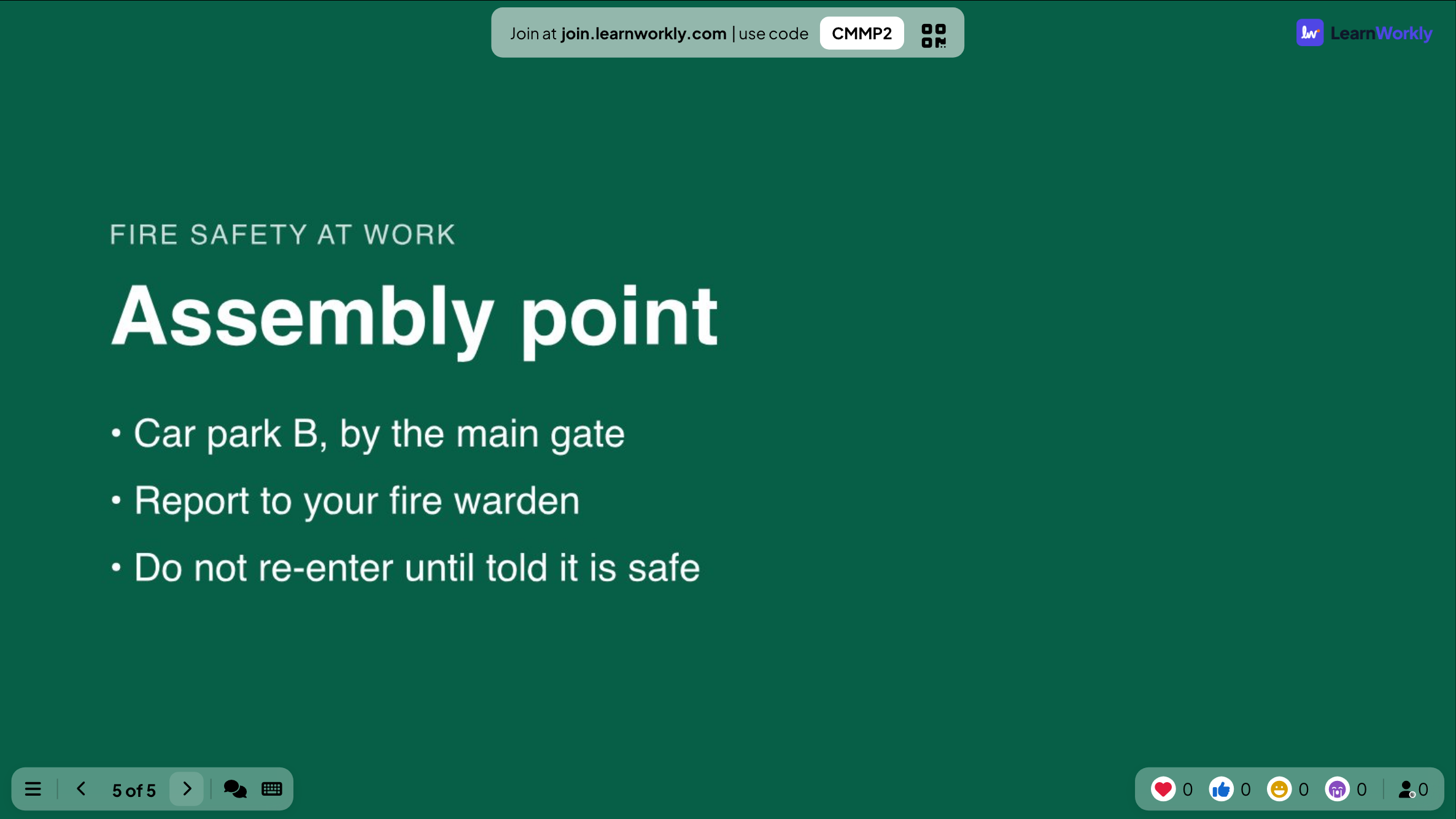
Animations kept
PowerPoint slides come in as animated slides: change the text, the layout and the animation steps, then play them click by click when you present.
PDF too
Every page of a PDF becomes a slide, ready to present with your interactive slides in between.
Or link a deck
Show a Google Slides or PowerPoint link, a Miro board or a Gamma page inside your deck with an integration slide.
In a real session
A fire safety refresher, built from last year’s slides
A facilities manager runs the yearly fire safety refresher for every team. The slides already exist, as a PowerPoint deck and as a PDF someone exported. Instead of rebuilding them, she imports them and adds two questions that tell her whether people actually know where to go.
- 1
Start the import from Home
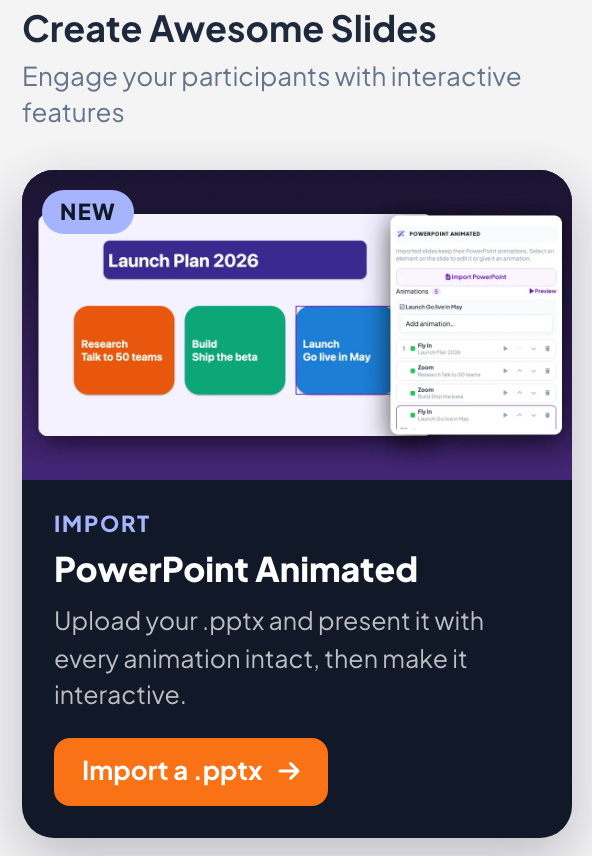
On Home, Import PowerPoint (animated) (or Import a .pptx in the panel on the right) takes a .pptx file and creates a new presentation from it. A window follows the import step by step: the presentation is created, the file is uploaded, then the slides and their animations are converted.
Tip: Old .ppt files cannot be imported. Open them in PowerPoint, save as .pptx and import that. A big deck can take up to a minute.
- 2
Check the slides and their animations
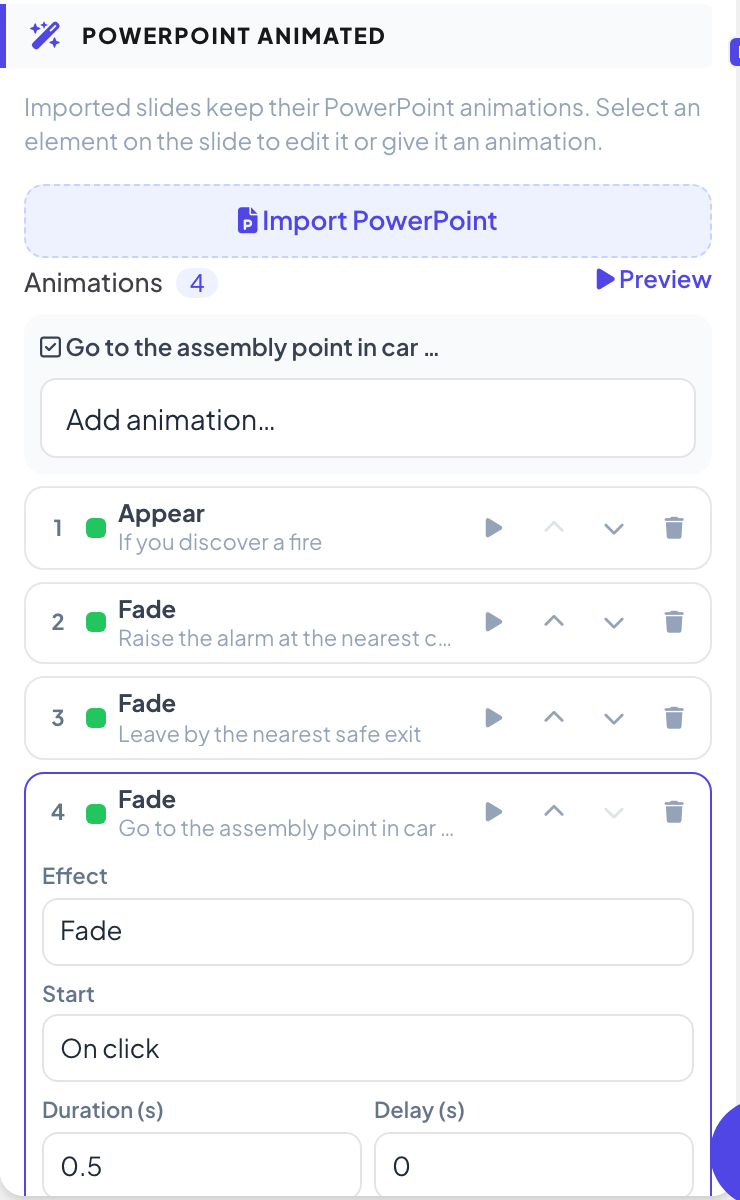
Each PowerPoint slide becomes a PowerPoint Animated slide. Click an element to move or resize it, double-click text to fix a typo, and use the Animations list on the right to see every effect in order. Here, the title appears first and each instruction fades in on its own click.
Tip: Click an effect to change its Effect, Direction, Start (On click, With previous or After previous), Duration (s) and Delay (s). Preview plays the slide’s animations in the editor.
- 3
Or bring in a PDF, then add questions
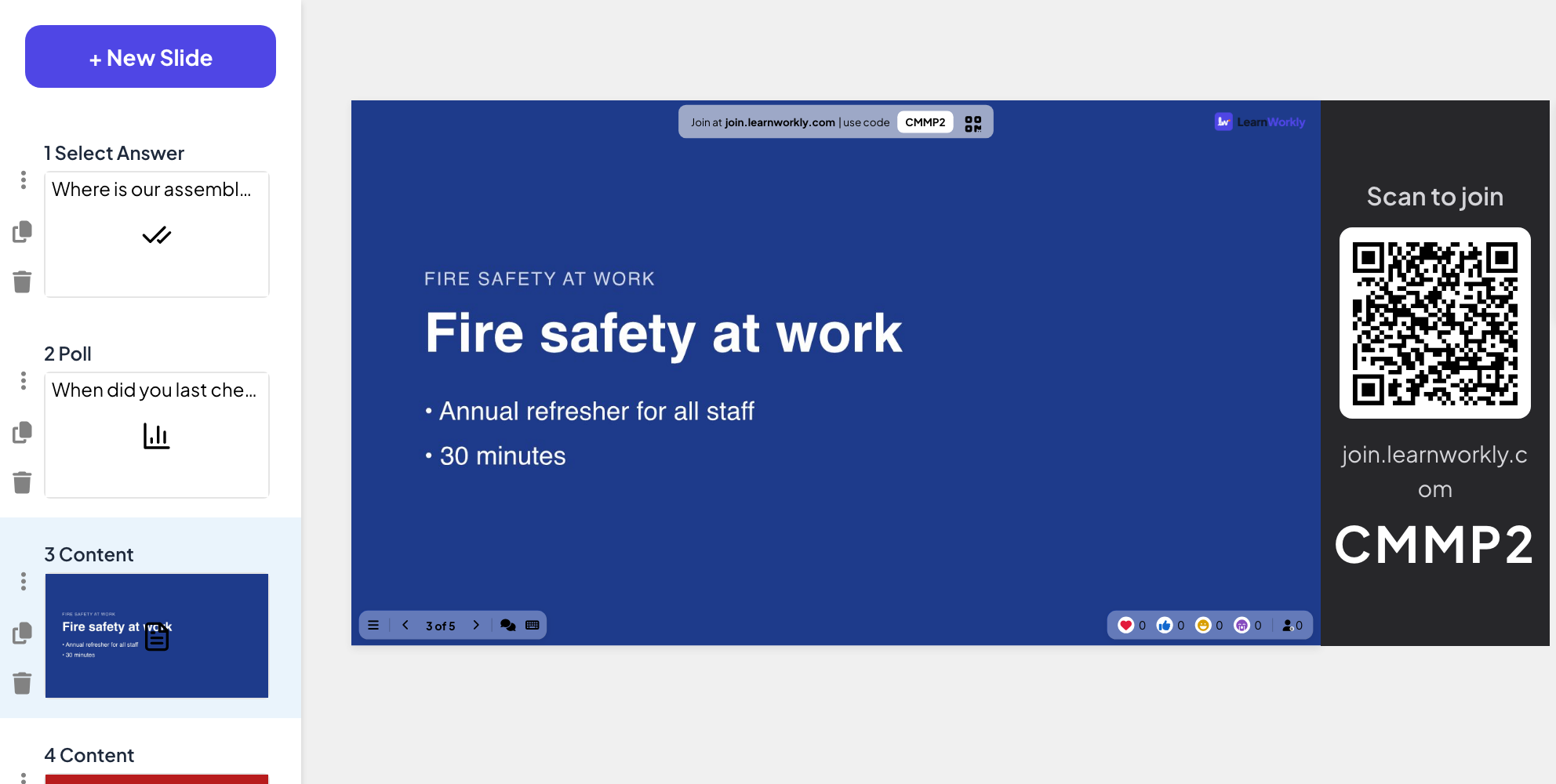
The PDF version goes in with Import PPT/PDF at the bottom of the slide list: each of its three pages becomes a slide. Between them she adds a Select Answer question (“Where is our assembly point?”) and a Poll (“When did you last check where your nearest fire exit is?”).
Tip: PDF pages are pictures of the page, so their text cannot be edited. Fix the text in the original file and import it again if you need to.
- 4
Present the whole thing from one place
In the session, she presents imported slides, quiz and poll from the same deck. The join code stays at the top of every slide, so people who arrive late can still join before the questions.
- On phones
- On phones: On imported slides, phones show the same slide at the same animation step as the big screen. On the quiz and the poll, they get their answer buttons.
- On the big screen
- On the big screen: The imported page in 16:9, with the join bar above it. On PowerPoint Animated slides, each press of the right arrow plays the next animation step before moving on.
Tip: Prefer to keep the deck where it is? A PowerPoint or Google Slides slide shows a file you have shared online, without importing it.
Big screen
Settings that matter
What you can change after an import.
| Setting | What it does | Default |
|---|---|---|
| Import PowerPoint (animated) | On Home: a new presentation from a .pptx, with animations kept. | Every plan |
| Import PPT/PDF | At the bottom of the slide list: add a .pptx or a PDF to the presentation you are editing. | Every plan |
| Add animation… | Select an element, then add an Entrance, Emphasis or Exit effect. | Effects from the file |
| Start | On click, With previous or After previous, for each effect. | From the file |
| Duration (s) / Delay (s) | How long each effect lasts and how long it waits. | From the file |
| Add text / Add image | Toolbar buttons above a PowerPoint Animated slide to add your own elements. | Not applicable |
What participants see
Participants see your imported slides on their phones, at the same step as the big screen. Phones jump straight to each step instead of playing the animation.
Between imported slides, your quiz, poll and game slides work as usual: big buttons on the phone, results on the big screen.
Limits by plan
| Feature | Free | Basic | Pro | Enterprise |
|---|---|---|---|---|
| Live participants at the same time | 10 | 100 | 5,000 | Flexible |
| PowerPoint (.pptx) and PDF import | ✓ | ✓ | ✓ | ✓ |
| Edit text, layout and animations | ✓ | ✓ | ✓ | ✓ |
Frequently asked questions
Can I edit the imported slides?
Yes. PowerPoint slides stay editable: text, layout and animation steps. PDF pages are imported as pictures of the page.
Which animations are kept?
Animations, click steps and timing are kept. In the Animations list you can change each effect’s Effect, Direction, Start (On click, With previous or After previous), Duration (s) and Delay (s), or add Entrance, Emphasis and Exit effects.
What about old .ppt files?
Save them as .pptx in PowerPoint first, then import them.
How long does an import take?
Usually seconds. A big PowerPoint deck can take up to a minute while its slides and animations are converted.
Do participants see my imported slides?
Yes. Phones show the slide at the same animation step as the big screen; they jump straight to each step without playing the animation.
Is import on the free plan?
Yes. PowerPoint and PDF import are on every plan.
Can I add slides to a deck I already imported?
Yes. Click Import PPT/PDF at the bottom of the slide list to add more pages or slides, then drag them into place.
Is there a PowerPoint add-in?
Yes, for PowerPoint on Windows and Mac: it adds LearnWorkly slides to your deck so you keep presenting from PowerPoint. See the PowerPoint add-in page. A Google Slides add-on is coming soon.
Learn more
- Help centerImport PowerPoint and PDF slides
- Help centerPowerPoint Animated: imported slides with animations
- Help centerPowerPoint add-in: install and use it
- Help centerPowerPoint slide: show an online PowerPoint file
- Help centerGoogle Slides slide: present a published deck
- BlogHow to teach an interactive lesson: slides, questions, games
- Use caseMeetings and presentations
- Use caseTrainers and L&D teams
- Use caseUniversity lecturers
Who uses it, and for what
Related features
Try it in your next session
Free for up to 10 live participants, with every slide type and game. Build your first deck in minutes.
Free for up to 10 participants · No credit card