A Quick Form shows a short form on every phone. Use it to collect sign-ups, contact requests or registration details during a session.
Build the form
- 1
Add the slide
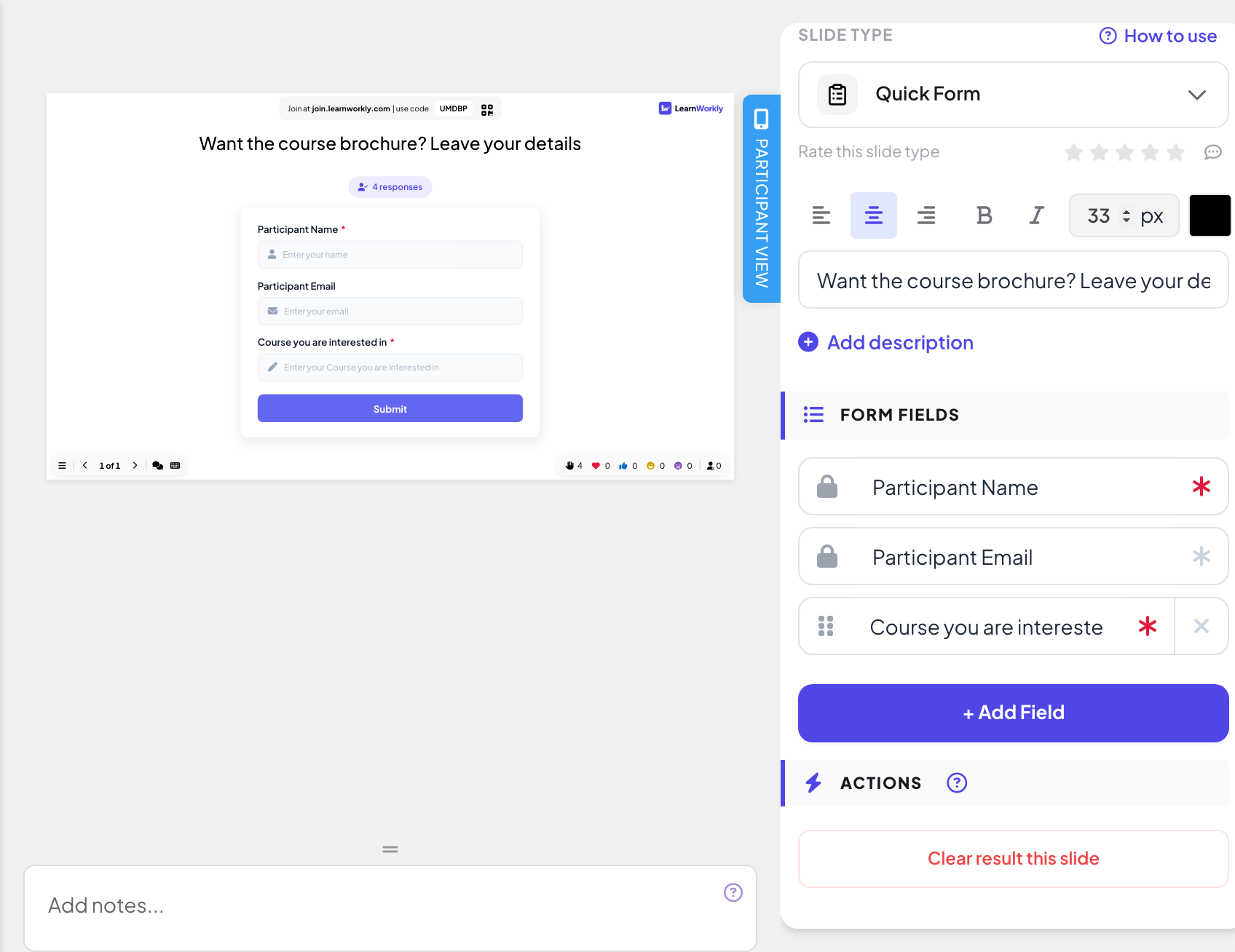
In the editor, click + New Slide. In Choose Slide Type, open the Interactive tab and pick Quick Form. Type a title such as "Want the course brochure? Leave your details".
- 2
Check the fixed fields
Under Form Fields, Participant Name and Participant Email are always there, shown with a lock.
- 3
Add your own fields
Click + Add Field and type a title, for example "Course you are interested in". Drag a field by its dots to reorder it, and remove a field you added with the cross.
- 4
Mark required fields
Click the asterisk next to a field: when it turns red, the field is Required and people cannot submit until it is filled in.
Run it live
- 1
Present the slide
Click Present. People join at join.learnworkly.com with your code or the QR code, and the slide appears on their phones.
- 2
People fill in the form
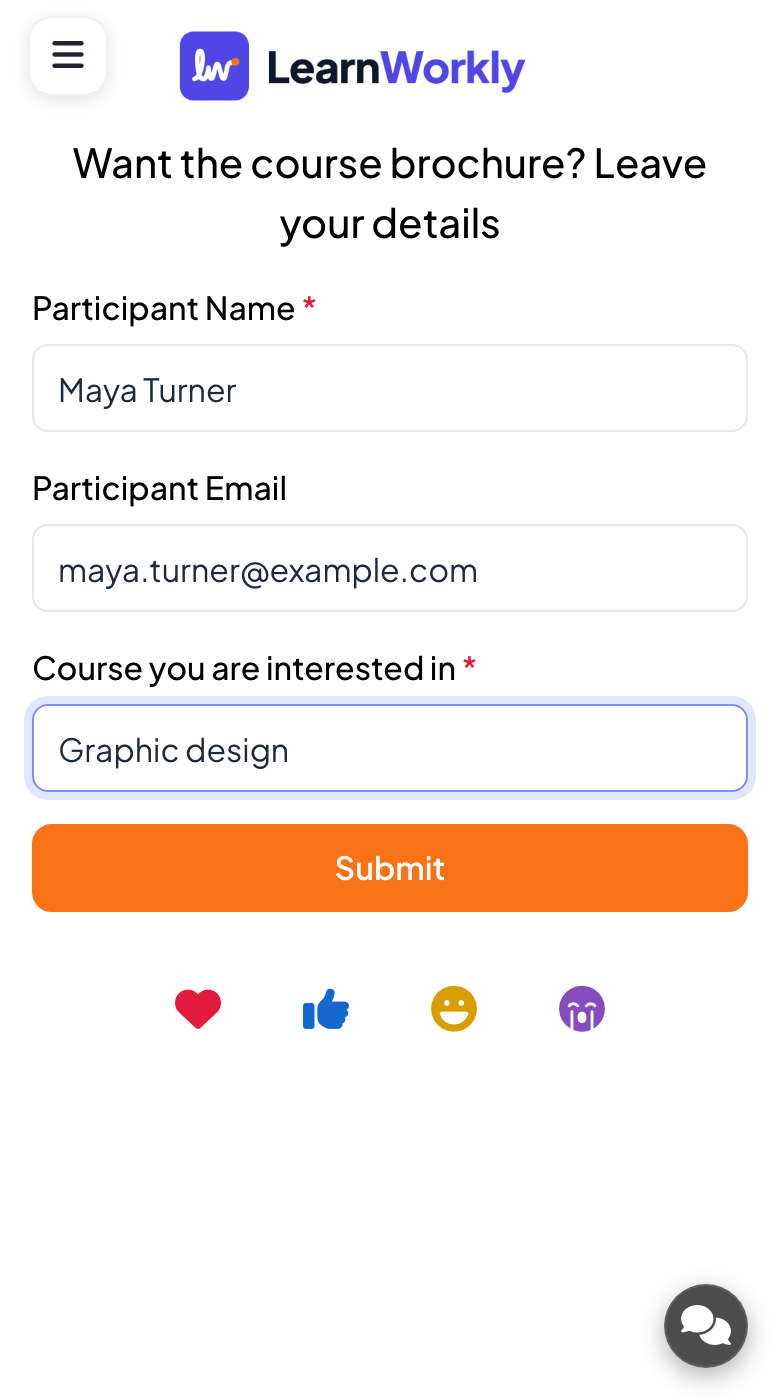
Each phone shows your fields, with a red asterisk on the required ones. Participants press Submit and see Thanks! Your response has been submitted.
- 3
Watch the count
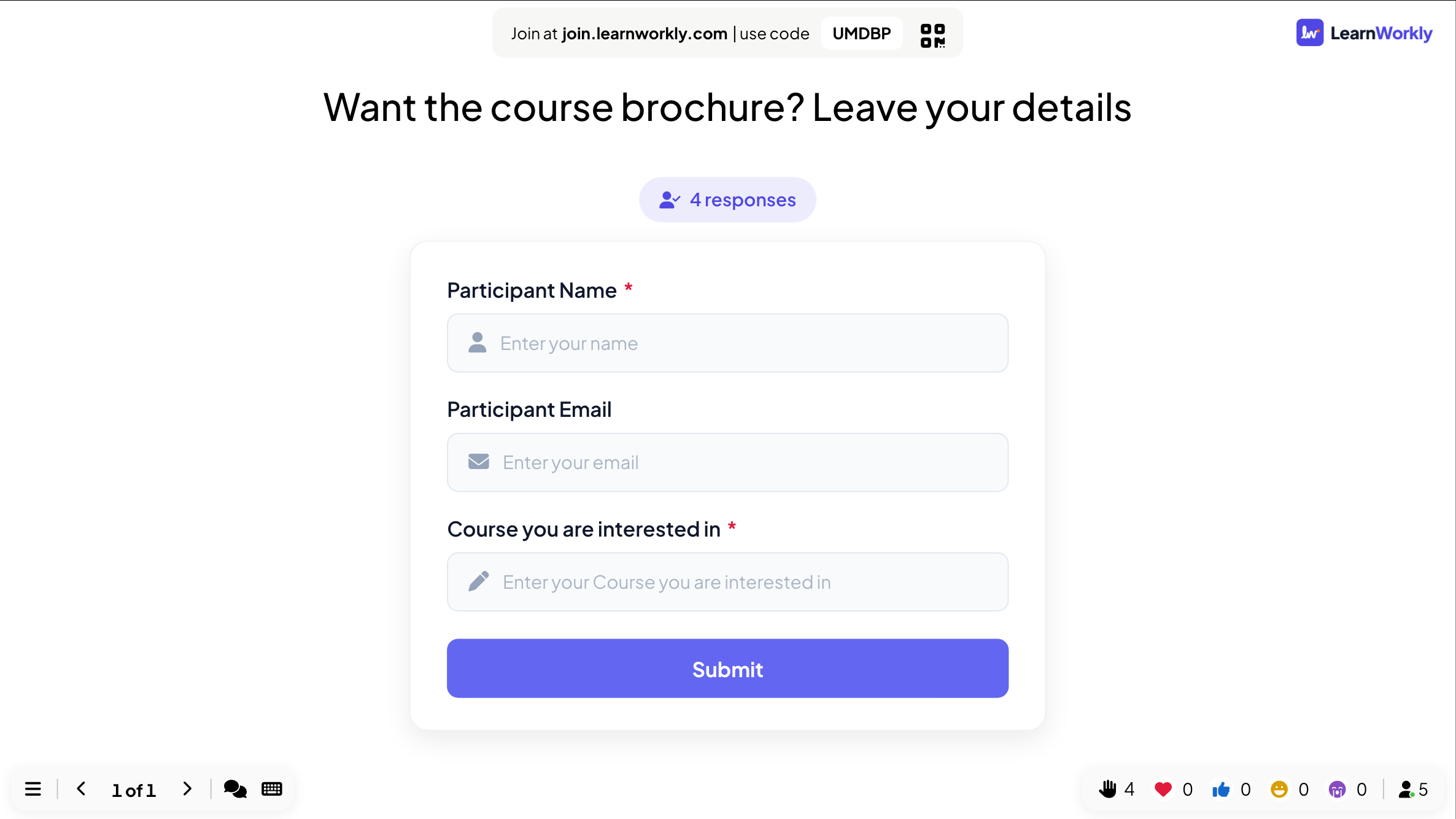
The big screen shows a preview of the form and a live count of responses, never the answers themselves.
Results in the report
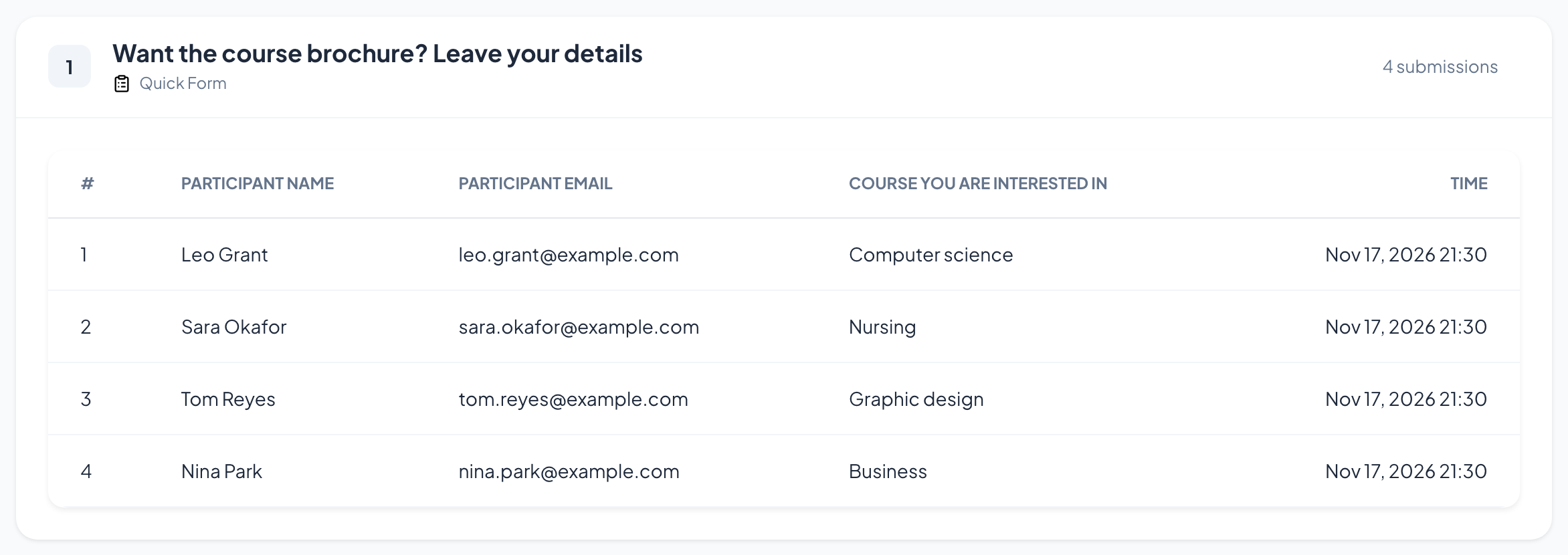
After the session, open the presentation’s report (the report button in the editor’s top bar, or Report in your presentation list) and go to Slide Results. See Read the report of a presentation. A Quick Form becomes a table with one row per response, one column per field and the time it was sent. Download it with Export Excel on the Basic plan and above.
Frequently asked questions
Can I remove the name or email field?
No, they are fixed. Leave them optional (grey asterisk) and people can skip them.
Can people see each other’s answers?
No. Phones only show their own form, and the big screen only shows the number of responses.
Can someone submit twice?
No. After Submit their phone keeps showing the thank-you message, even if they reload the page.
Last checked against the app on 17 November 2026.
Related articles
- Collect participant informationAsk participants for their name and any other details you need, such as a team or a department, before they can take part in your presentation.
- Read the report of a presentationEvery presentation has a report: participants, submissions, reactions and ratings, the results of each slide, who answered what and audience feedback.
- Export results to PDF or ExcelDownload the report of a presentation as an Excel file or a PDF on Basic, Pro and Enterprise, and export survey and assignment results on any plan.