With 100 Points, every participant distributes a total of 100 points among options. Because points are limited, it shows how strongly people prefer one option over another, not just which one they like.
Set it up
- 1
Add the slide
In the editor, click + New Slide. In Choose Slide Type, open the Interactive tab and pick 100 Points.
- 2
Write the question
For example "Share 100 points: where should the team-day budget go?".
- 3
Add the options
Under Options, add the options people share points between, up to 50.
- 4
Choose the settings
Use Hide result or Stop Submission if you need them: see Response settings. There is no time limit: use Stop Submission to close the slide.
Run it live
- 1
Present the slide
Click Present. People join at join.learnworkly.com with your code or the QR code, and the slide appears on their phones.
- 2
People share out their points
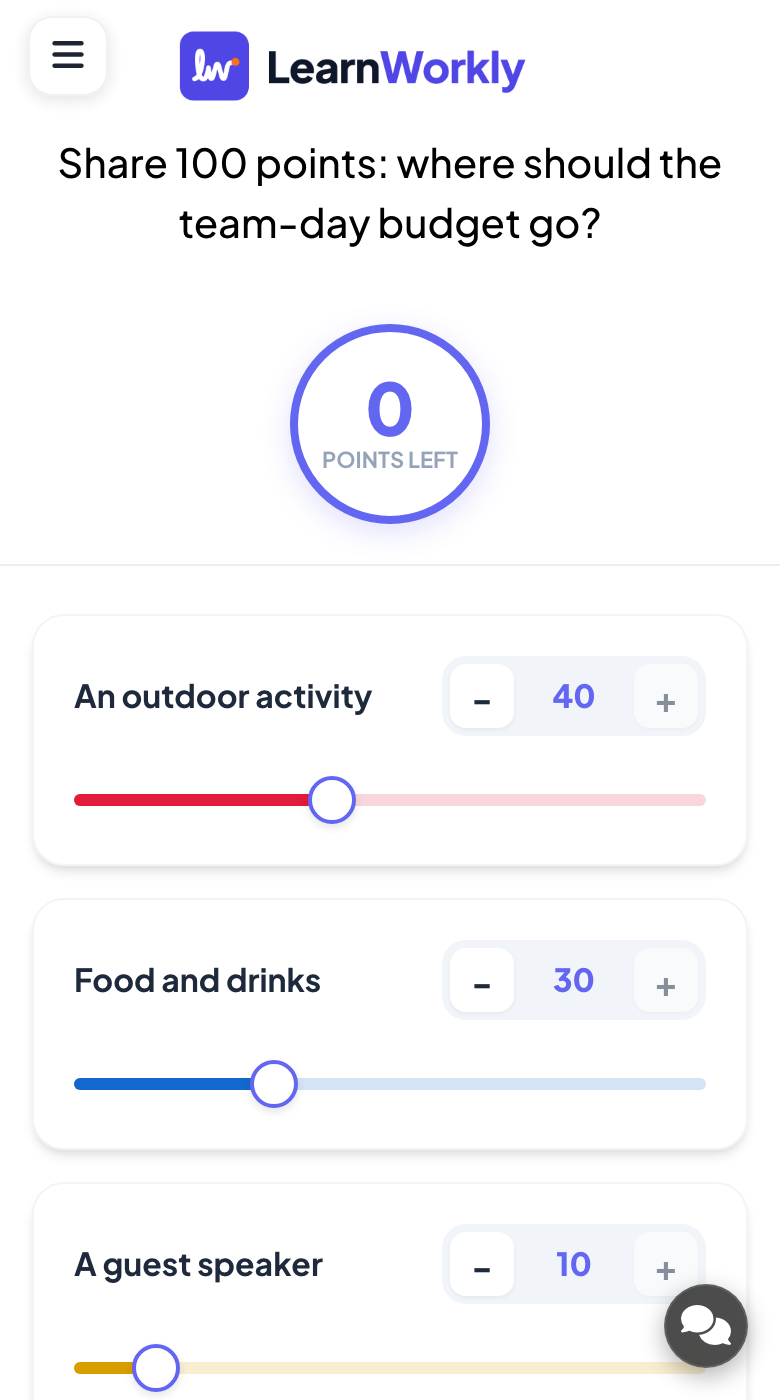
Each option on the phone has - and + buttons, a number field and a slider. The circle at the top shows Points left. Participants cannot give out more than 100 points, then press Submit.
- 3
Read the result
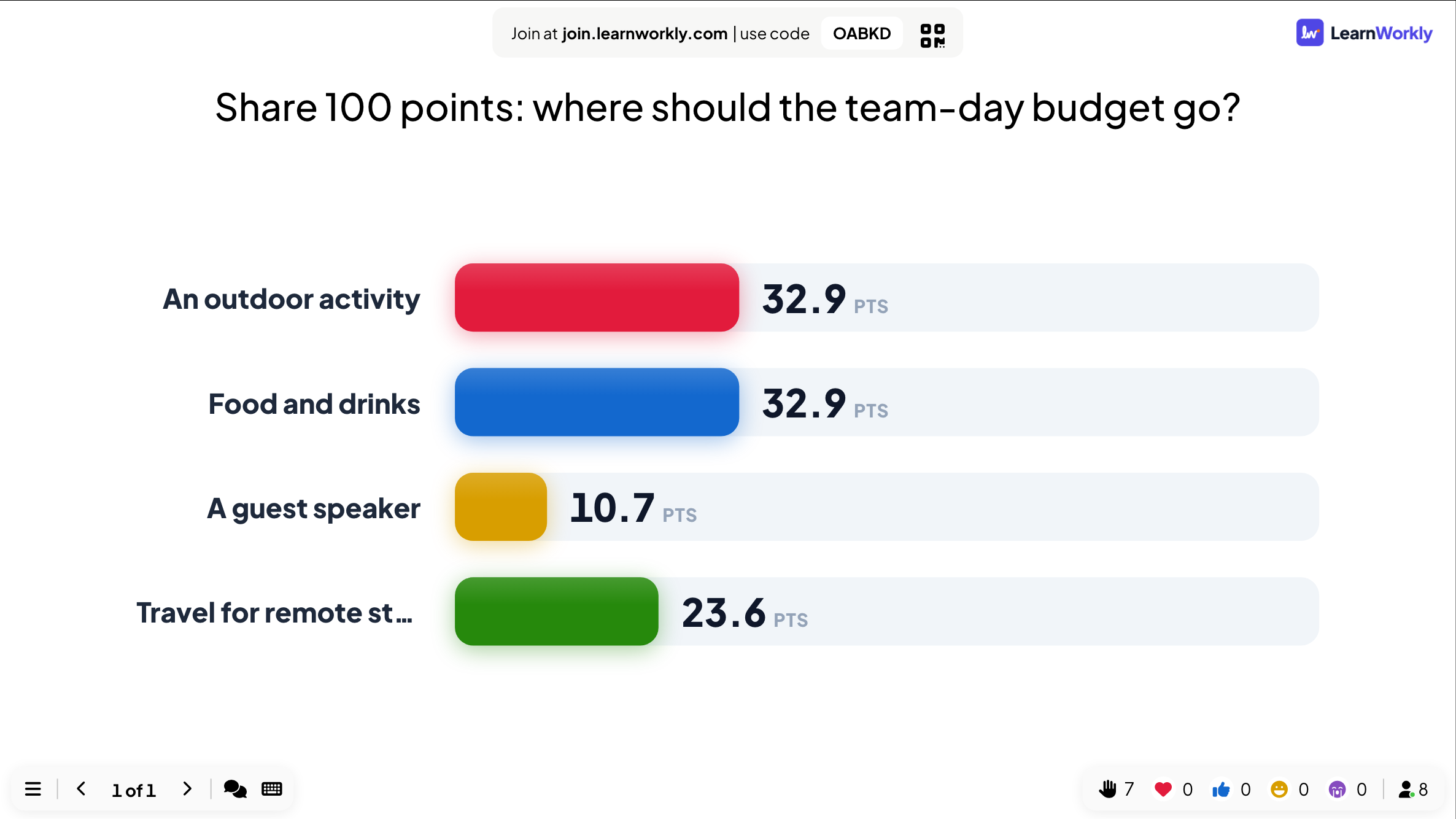
The big screen shows the average number of points each option received.
Results in the report
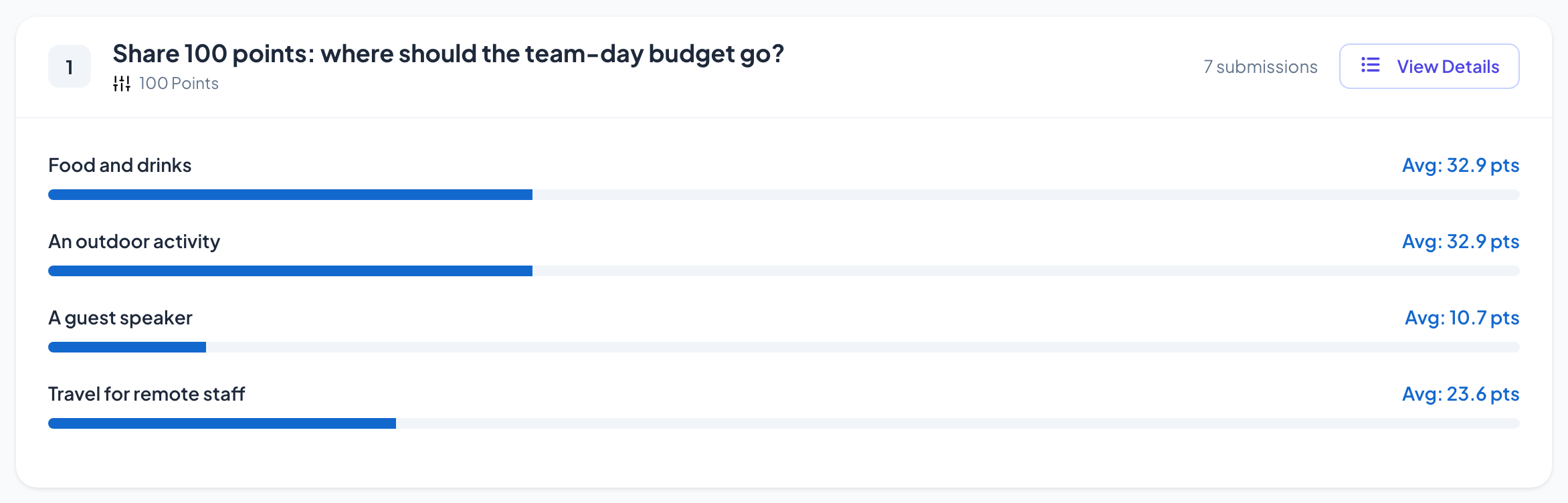
After the session, open the presentation’s report (the report button in the editor’s top bar, or Report in your presentation list) and go to Slide Results. See Read the report of a presentation. Each option shows its average points.
Frequently asked questions
Do people have to use all 100 points?
No. They can submit with points left; they just cannot give out more than 100.
Why are the averages not whole numbers?
They are the average points across everyone who answered, so they often have a decimal.
When should I use this instead of a ranking?
A Ranking only shows the order. 100 Points also shows how much more one option matters than another.
Last checked against the app on 17 November 2026.
Related articles
- Ranking: put options in order of preferenceParticipants drag options into their order of preference on their phones, and the big screen ranks the options by the combined result of the room.
- Poll: ask the room and show the votes liveSurvey participant opinions and show them as a bar or pie chart. Set up options, allow more than one pick, mark a correct answer or hide results.
- 2x2 Grid: plot items on two axesParticipants rate each item on two axes, such as effort and impact, and the big screen plots the average position of every item on a 2x2 grid.