On a Draw slide, everyone draws their own picture on their phone and the drawings pop up in a live gallery on the big screen. Use it for quick sketches, "draw what you understood", diagrams or just for fun. To draw together on one board instead, use the Whiteboard.
Set it up
- 1
Add the slide
In the editor, click + New Slide. In Choose Slide Type, open the Interactive tab and pick Draw. Write the prompt, for example "Draw your perfect summer day in 60 seconds".
- 2
Choose the paper
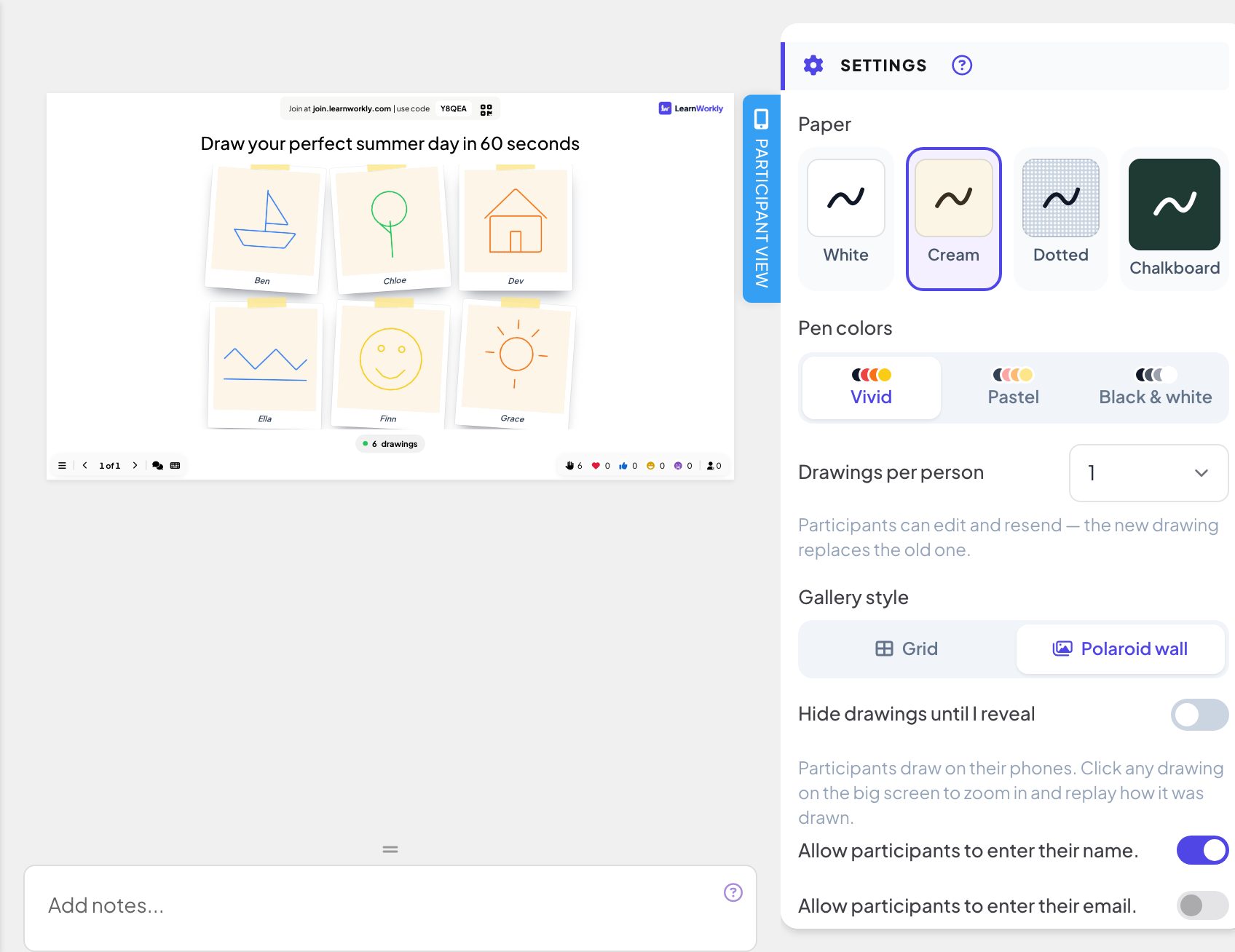
Under Paper, pick White, Cream, Dotted or Chalkboard.
- 3
Choose the pens
Under Pen colors, pick Vivid, Pastel or Black & white.
- 4
Set how many drawings
Drawings per person can be 1, 2, 3, 5 or Unlimited (1 by default). With 1, participants can edit and resend: the new drawing replaces the old one.
- 5
Pick the gallery
Under Gallery style, choose Grid or Polaroid wall.
More settings
- Hide drawings until I reveal: drawings are collected but stay hidden until you click Reveal drawings. Phones tell participants that the host will reveal them soon.
- Allow participants to enter their name.: names appear under the drawings. Without it, drawings show no names.
- Stop Submission and Time limit: see Response settings.
Run it live
- 1
Present the slide
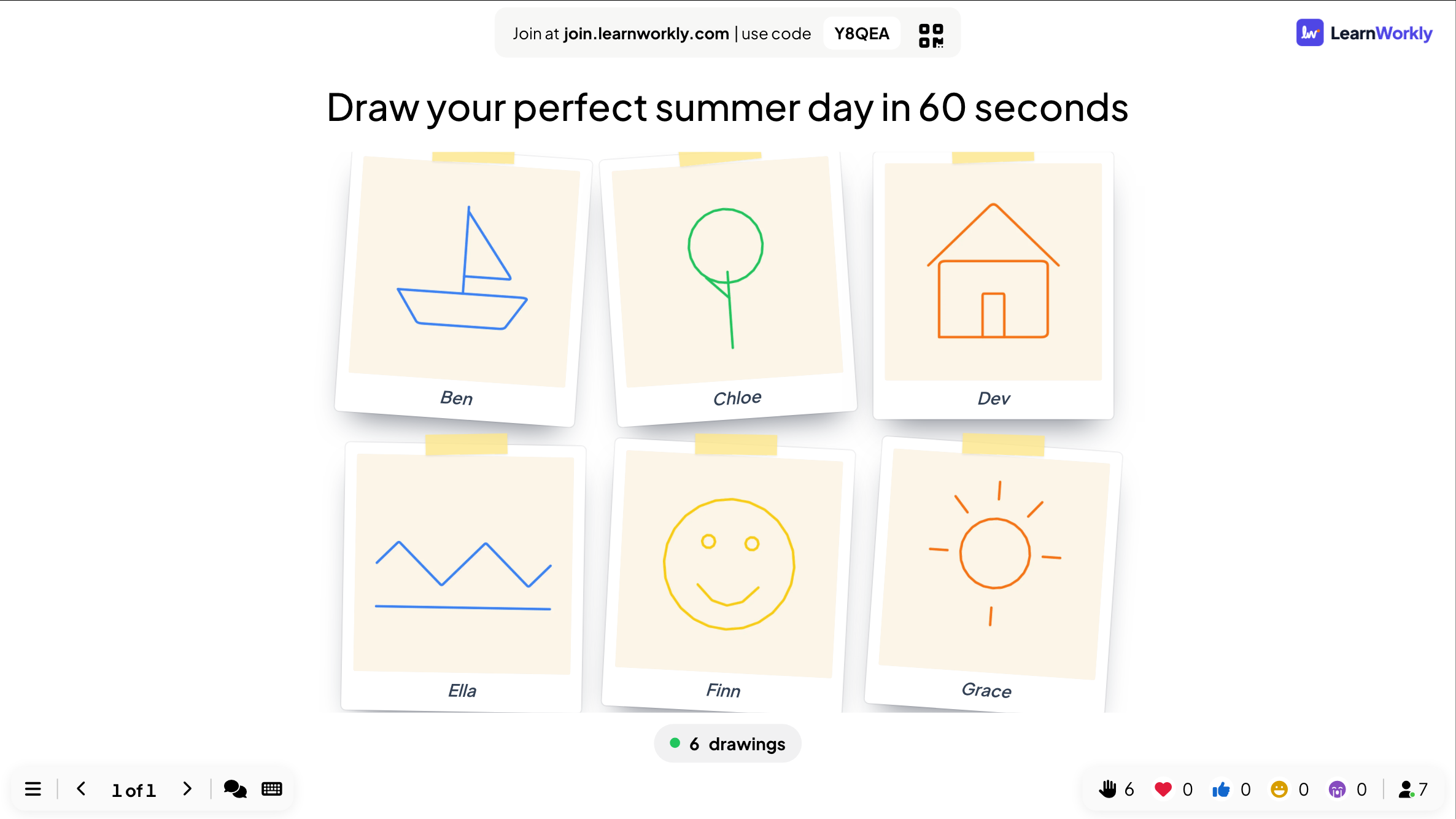
Click Present. People join at join.learnworkly.com with your code or the QR code, and the slide appears on their phones.
- 2
People draw
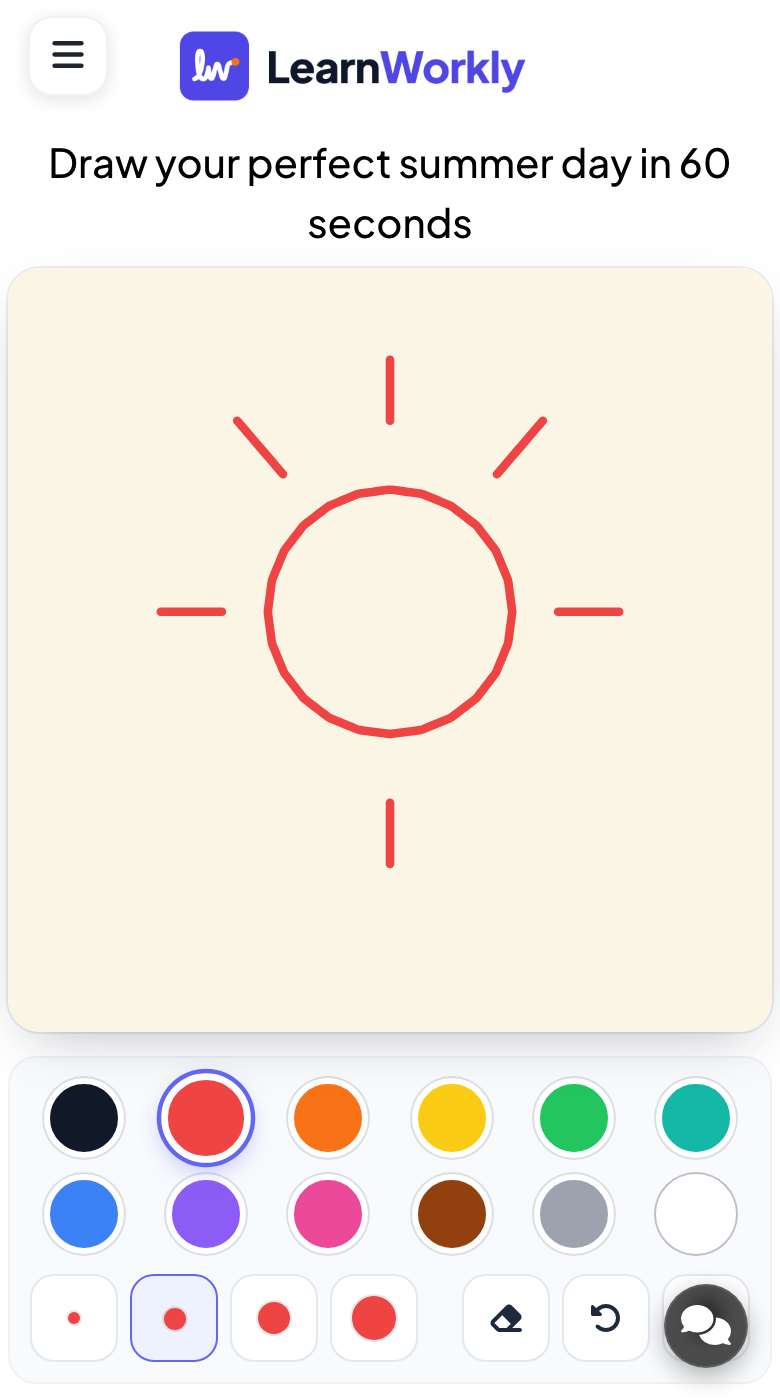
Phones show a drawing area (Draw here with your finger) with the pen colours, a brush size, Eraser, Undo and Clear. Participants press Send my drawing; depending on your settings they can then Draw another or Edit my drawing.
- 3
Show the gallery
The counter on the big screen shows how many drawings have arrived. Click any drawing to zoom in, step through drawings with Previous and Next, and use Replay drawing to watch how it was drawn.
Results in the report
After the session, open the presentation’s report (the report button in the editor’s top bar, or Report in your presentation list) and go to Slide Results. See Read the report of a presentation. The report shows every drawing with the participant’s name, or Anonymous.
Frequently asked questions
A phone says "Please enter your name".
You turned on the name setting, so participants type a name before they send a drawing.
Can people send more than one drawing?
Set Drawings per person to 2, 3, 5 or Unlimited. When someone reaches the limit, their phone tells them so.
Can I show drawings one at a time?
Yes. Click a drawing to open it large, then use Previous and Next.
Last checked against the app on 17 November 2026.
Related articles
- Whiteboard: draw together on one shared boardOne shared board for the whole room: you draw on the big screen, participants draw from their phones, and every stroke appears for everyone live.
- Draw & Guess: draw on your phone, the room guessesA live draw-and-guess game: players take turns drawing on their phone while everyone else races to guess the word. Faster guesses score more.
- Response settings for interactive slidesTurn on correct answers, hide results, stop submissions, allow several answers, set a time limit and clear results on polls, word clouds and other slides.