A Whiteboard slide is one shared board. You draw on it from the big screen, and participants draw on the same board from their phones. Every stroke appears for everyone as it is drawn. Use it for brainstorming, sketching a plan together, labelling a diagram or a quick class mind map.
Set it up
- 1
Add the slide
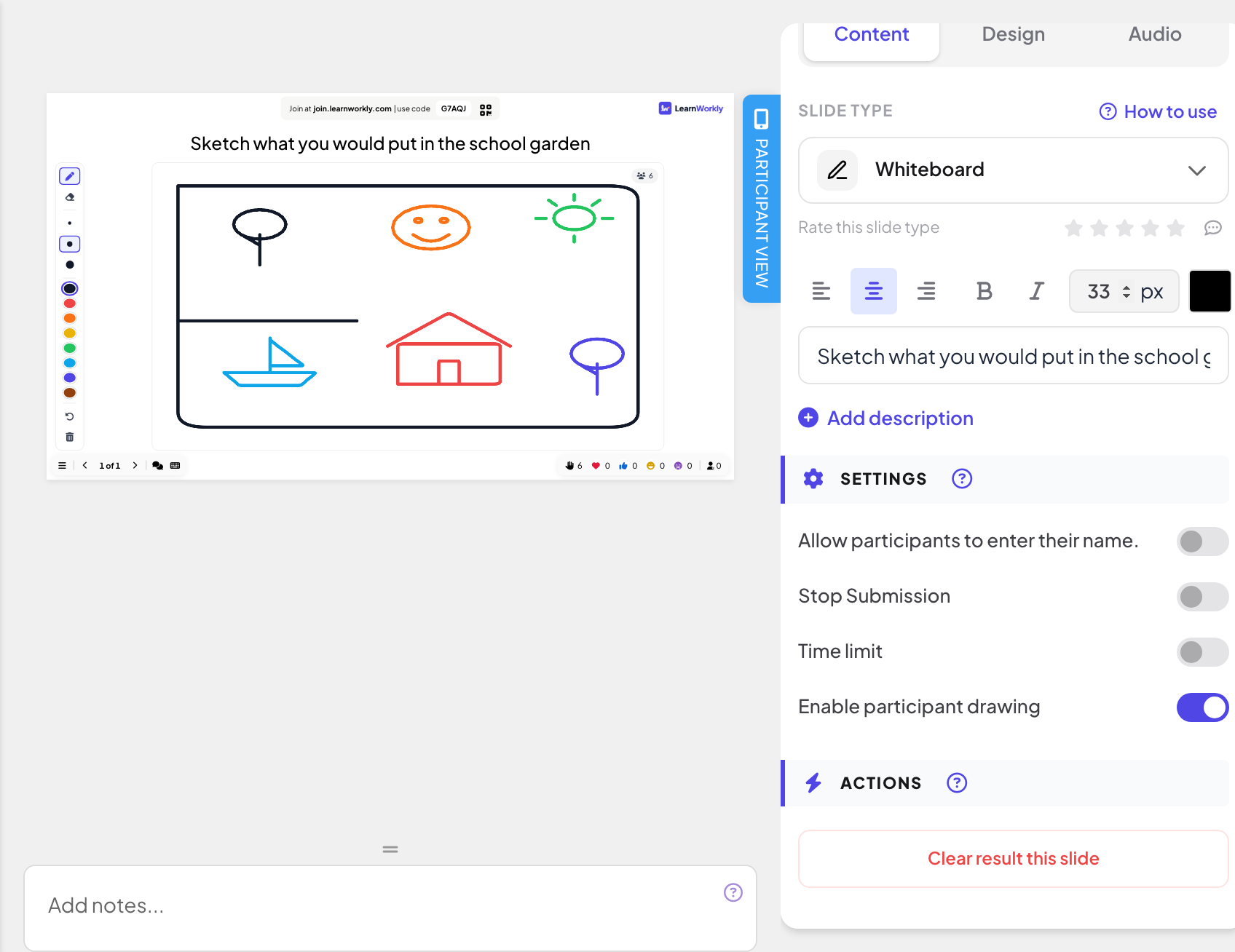
In the editor, click + New Slide. In Choose Slide Type, open the Interactive tab and pick Whiteboard. Give it a title, for example "Sketch what you would put in the school garden".
- 2
Choose who can draw
Under Settings, Enable participant drawing is on by default: participants draw on the board from their phones. Turn it off to keep the board for yourself; phones then show Only the presenter can draw on this board.
- 3
Other settings
Allow participants to enter their name. asks for a name before drawing (it only appears in the report). Stop Submission freezes the board for participants, and Time limit closes it when the countdown ends: see Response settings.
Draw on the big screen
- 1
Pick a tool
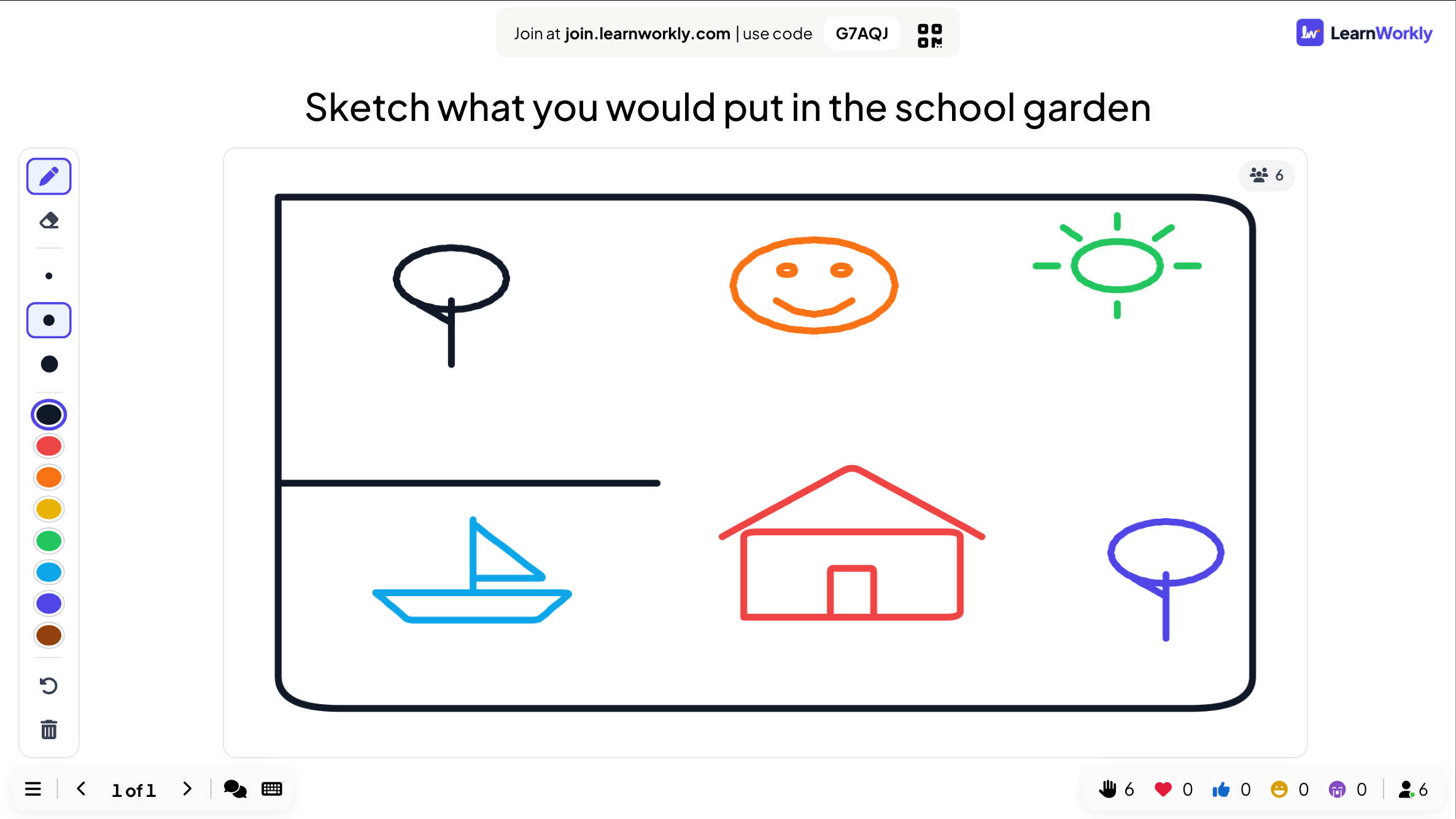
The toolbar beside the board has Pen and Eraser, three sizes (Small, Medium, Large) and eight colours.
- 2
Draw
Draw with the mouse, a pen or your finger on a touch screen. You can draw in the editor too, before you present.
- 3
Undo or start again
Undo removes your last stroke. Clear board wipes everyone’s drawing after you confirm.
What participants do
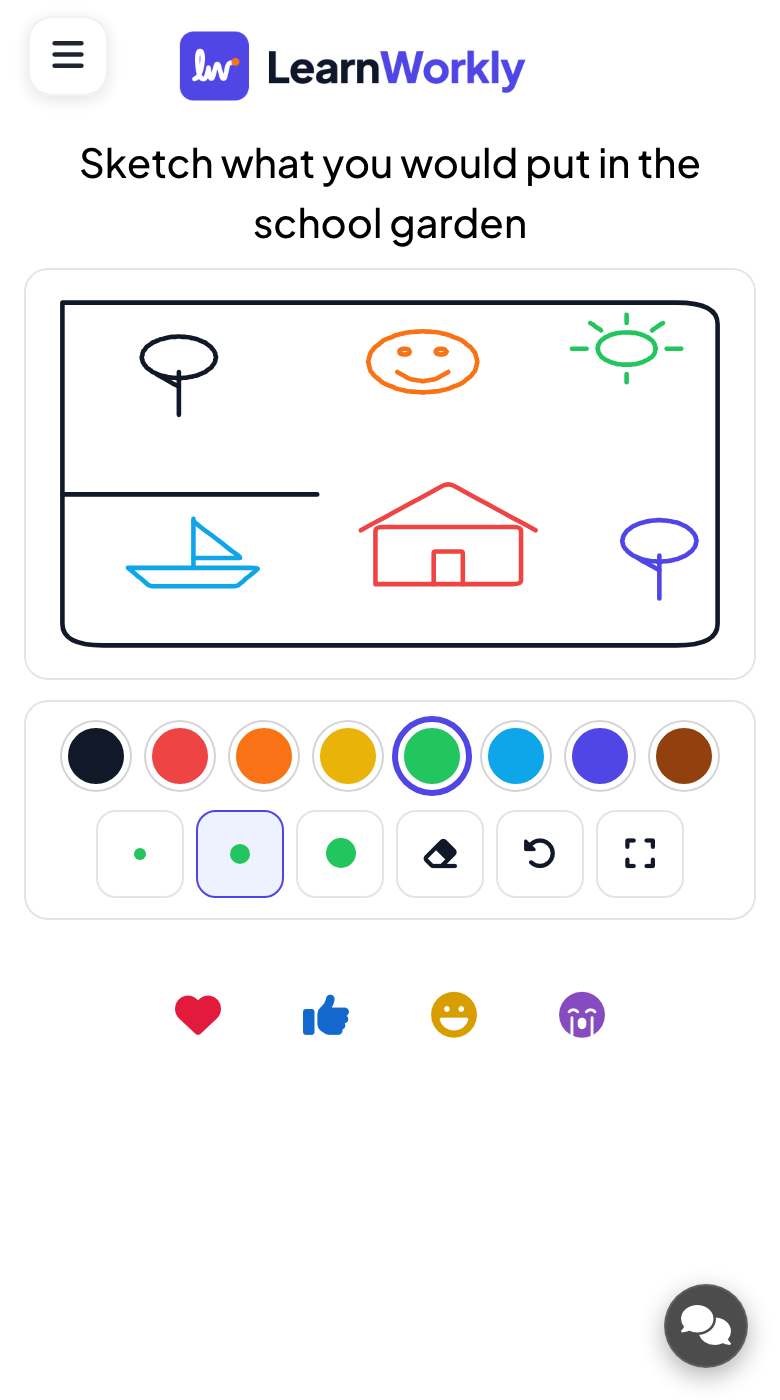
With participant drawing on, each phone shows the board (Draw here with your finger) and a toolbar with eight colours, three brush sizes, Eraser, Undo and Full screen. Strokes are saved as soon as the finger lifts and appear on the big screen and on every phone. Participants can only undo or erase their own strokes; your eraser and Clear board affect everyone’s.
Results in the report
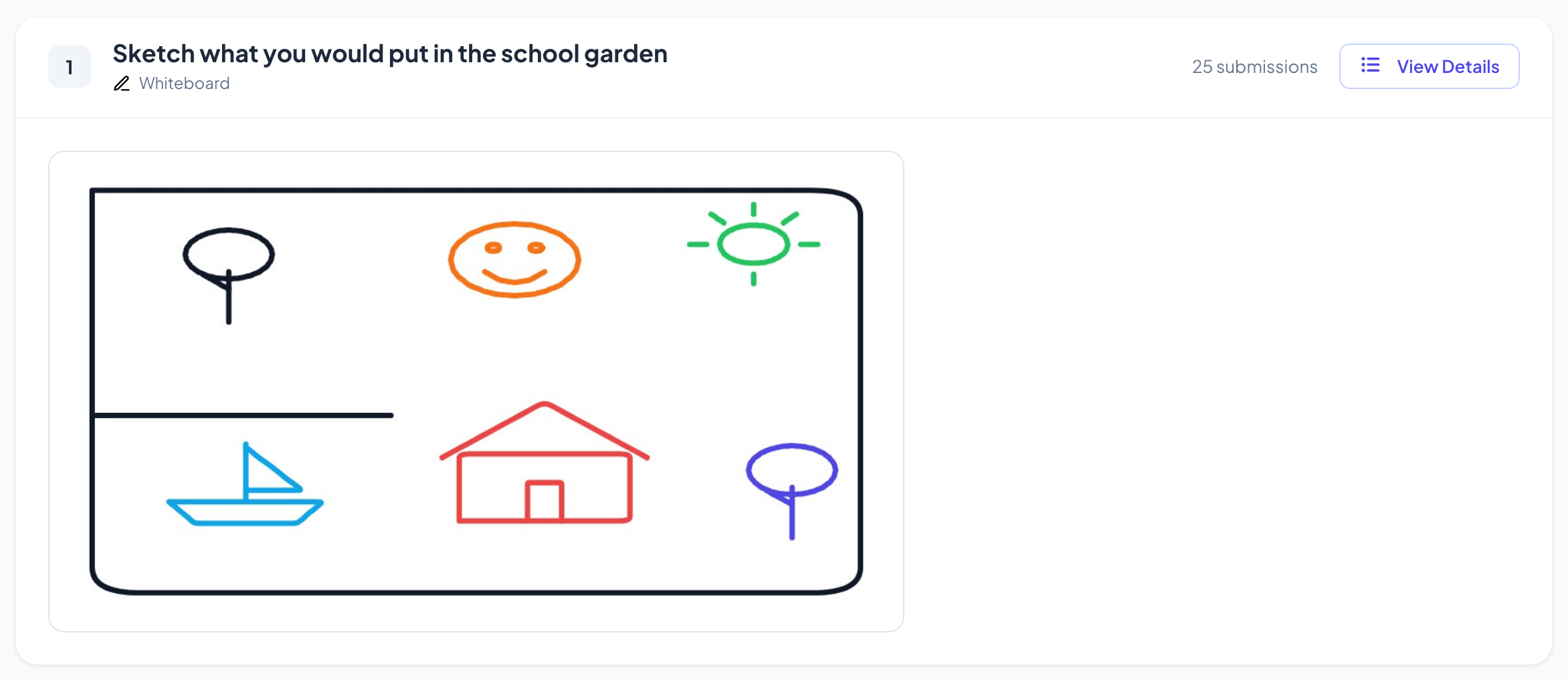
After the session, open the presentation’s report (the report button in the editor’s top bar, or Report in your presentation list) and go to Slide Results. See Read the report of a presentation. The report shows the finished board, and View Details shows each person’s own strokes.
Frequently asked questions
A phone says "The board is full".
A board holds a large but limited number of strokes. Click Clear board to start again, or add a second Whiteboard slide.
Can a participant rub out someone else’s drawing?
No. Participants can only undo or erase their own strokes. Only you can erase anything on the board or clear it.
Can I lock the board for a moment?
Turn on Stop Submission: phones show Submissions are closed and can no longer draw. Turn it off to let them draw again.
Do names appear on the board?
No. The board only shows the strokes. Who drew is only listed in the report.
Last checked against the app on 17 November 2026.
Related articles
- Draw: everyone draws, the screen shows a galleryEveryone draws on their phone and the drawings pop up in a live gallery. Choose paper, pen colours, drawings per person and when to reveal them.
- Remote Retro: run a retrospective with sticky notesRun a sprint retrospective step by step: ideas on sticky notes, grouping, voting and action items with owners, with participants on their phones.
- Draw & Guess: draw on your phone, the room guessesA live draw-and-guess game: players take turns drawing on their phone while everyone else races to guess the word. Faster guesses score more.