A Word Cloud creates a cloud from short text answers. Every word participants send appears on the big screen, and words sent more often are drawn larger. It works well for warm-ups, vocabulary, first impressions and "one word to describe…" questions.
Set up a word cloud
- 1
Add the slide
In the editor, click + New Slide. In Choose Slide Type, open the Interactive tab and pick Word Cloud.
- 2
Write the question
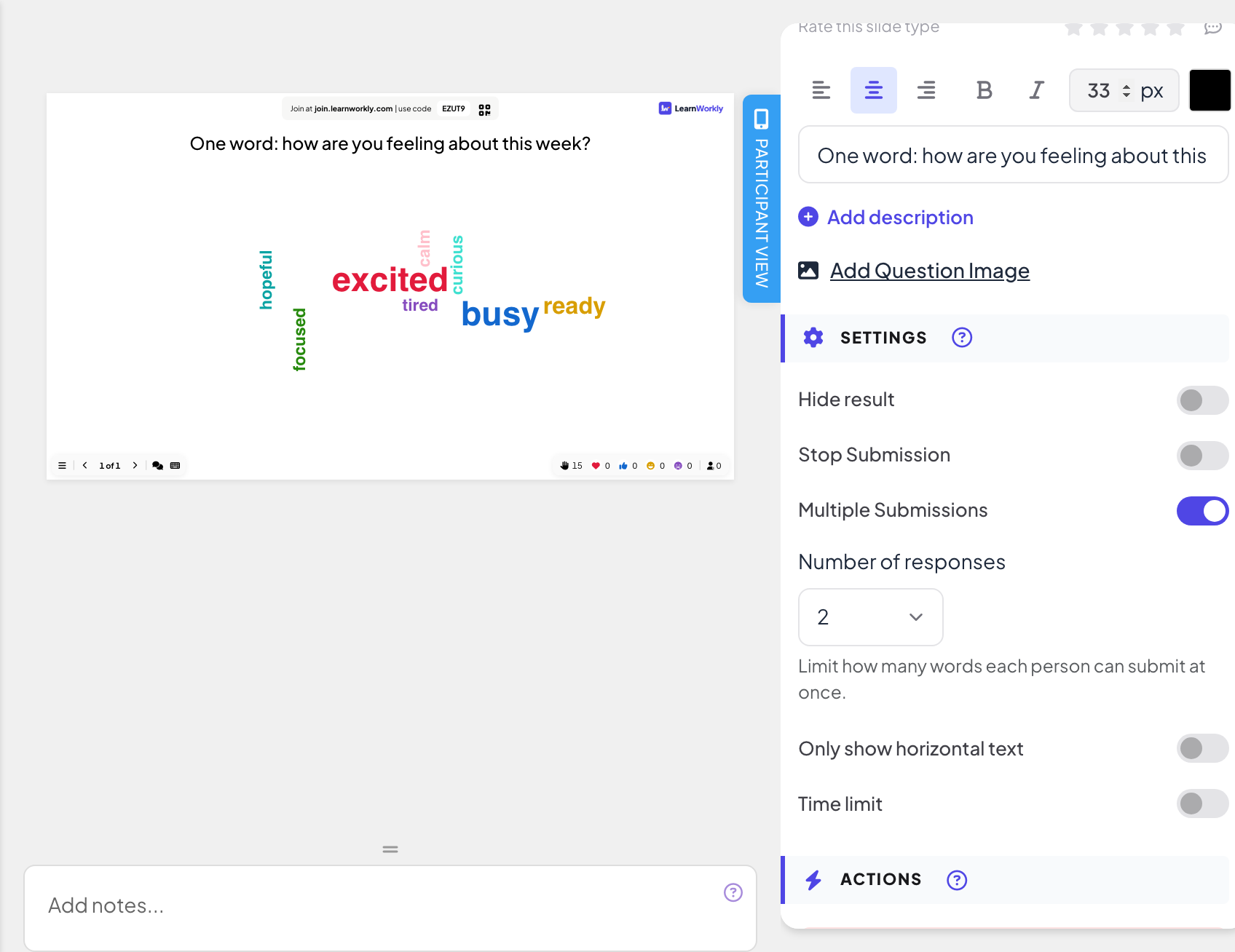
Type it in the question field, for example "One word: how are you feeling about this week?".
- 3
Choose how many words
Under Settings, Number of responses lets each person send 1 to 7 words at once (1 by default). Their phone shows that many boxes.
- 4
Allow more rounds
Multiple Submissions is on by default: people can send more words after their first submit. Turn it off to accept one submission per person.
- 5
Pick the layout
Turn on Only show horizontal text if you prefer every word to be written straight across.
Run it live
- 1
Present the slide
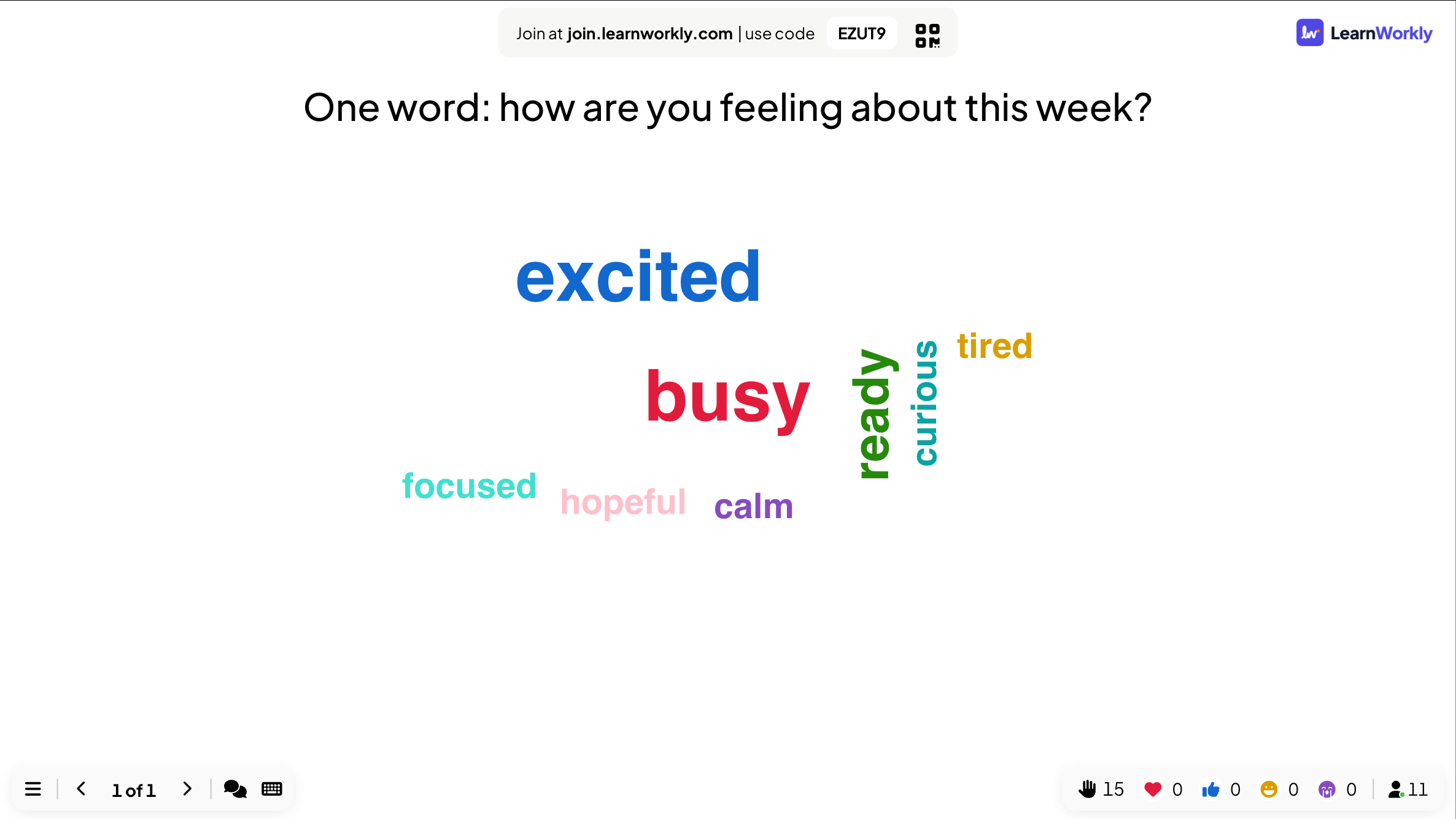
Click Present. People join at join.learnworkly.com with your code or the QR code, and the slide appears on their phones.
- 2
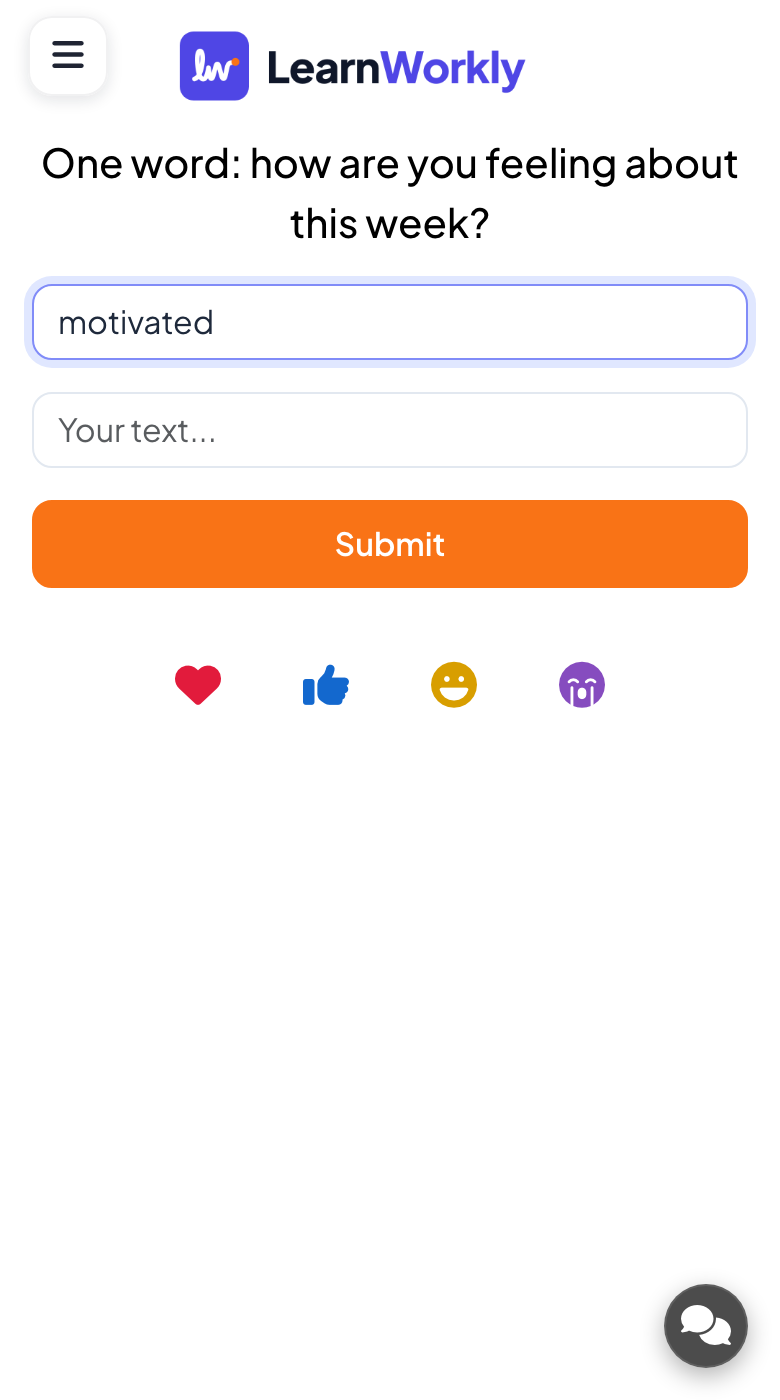
People type their words
Participants type into the Your text... boxes (up to 50 characters each) and press Submit. Afterwards they can tap View my submission to see what they sent.
- 3
Watch the cloud grow
Each new word appears on the big screen. The more people send the same word, the larger it gets.
- 4
Tidy up
Click a word on the cloud to Edit it (for example to fix a typo) or Delete it.
Results in the report
After the session, open the presentation’s report (the report button in the editor’s top bar, or Report in your presentation list) and go to Slide Results. See Read the report of a presentation. A word cloud lists every word with the number of times it was sent.
Frequently asked questions
Do names appear next to the words?
No. The cloud only shows the words.
Can I stop rude words from appearing?
Turn on the profanity filter in the presentation settings: see Q&A moderation and profanity filter. You can also delete a word by clicking it on the cloud.
Why are "Excited" and "excited" counted together?
They are the same word in a different case, so they grow the same word in the cloud.
People can only send one word.
Raise Number of responses, and check that Multiple Submissions is on if they should be able to send again.
Last checked against the app on 17 November 2026.
Related articles
- Open Ended: collect free-text answers and ideasCollect open answers and feedback as free text, with optional photos or drawings. Answers appear as a wall of cards on the big screen.
- Poll: ask the room and show the votes liveSurvey participant opinions and show them as a bar or pie chart. Set up options, allow more than one pick, mark a correct answer or hide results.
- Response settings for interactive slidesTurn on correct answers, hide results, stop submissions, allow several answers, set a time limit and clear results on polls, word clouds and other slides.