Remote Retro runs a sprint retrospective with sticky notes, voting and discussion. You move the whole room through five steps, shown at the top of the slide: Prime Directive, Idea Generation, Grouping, Vote and Action Items.
Set it up
- 1
Add the slide
In the editor, click + New Slide. In Choose Slide Type, open the Interactive tab and pick Remote Retro. Give it a title such as "Sprint 14 retro".
- 2
Choose a template
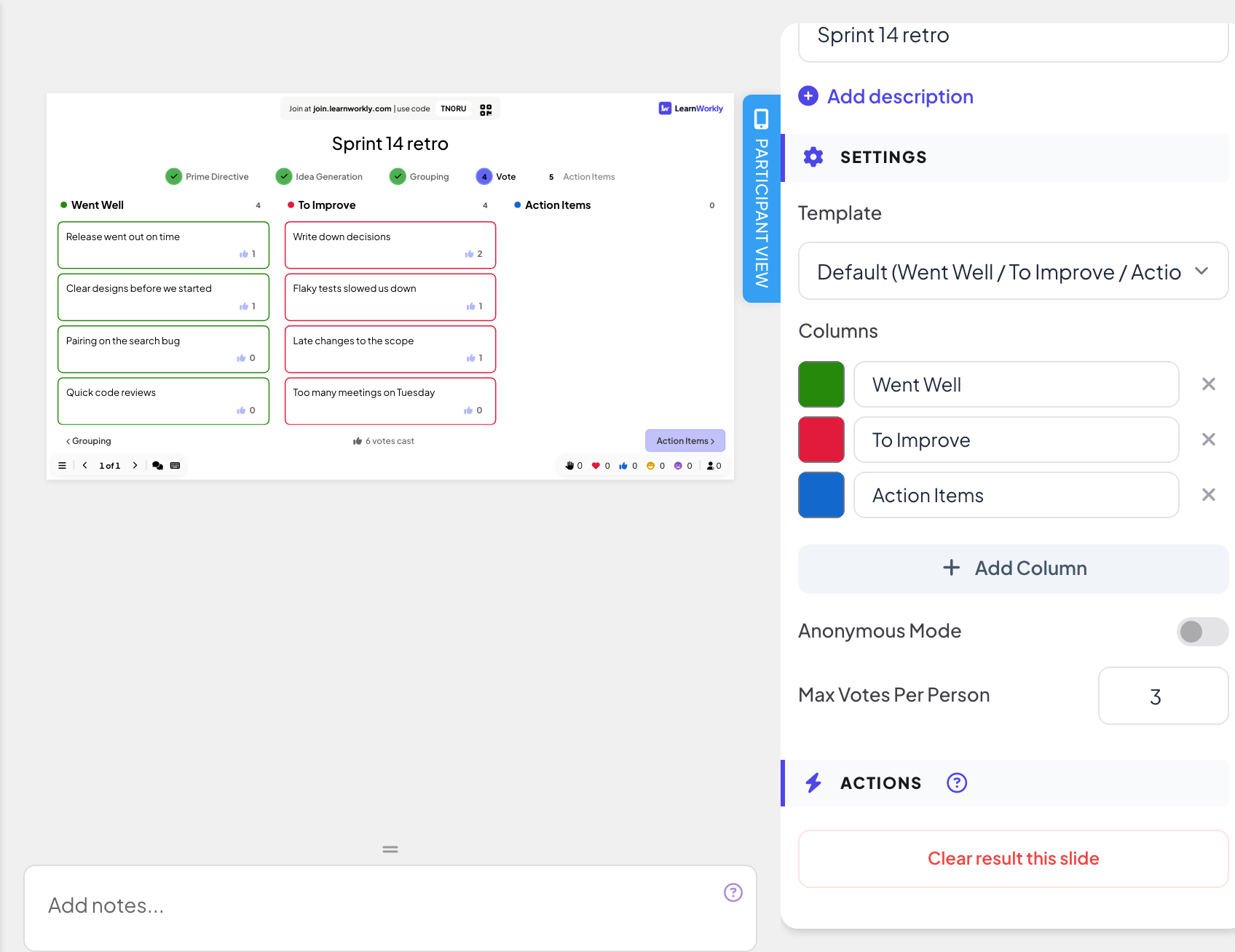
Under Template, pick Default (Went Well / To Improve / Action Items), 4Ls (Liked / Learned / Lacked / Longed For), Starfish (Keep / Less / More / Stop / Start) or Custom.
- 3
Edit the columns
Under Columns, rename columns, click Add Column (up to 6) or remove one (at least 2 stay).
- 4
Names or not
Turn on Anonymous Mode to hide who wrote each note.
- 5
Votes
Set Max Votes Per Person (1 to 10, 3 by default).
Running the retro
- Prime Directive: the slide shows the retrospective prime directive. Click Start Idea Generation when you are ready.
- Idea Generation: participants pick a column at the top of their phone and type notes (Type your note here...). Notes appear on the big screen in their column.
- Grouping: click cards to select them, then Group Selected. Drag a card to move it to another column. Phones show that the facilitator is grouping ideas.
- Vote: participants tap notes to spend their votes; phones show votes remaining and the slide counts votes cast.
- Action Items: mark notes as Discussed, and add action items with an Owner. Tick an action item when it is done.
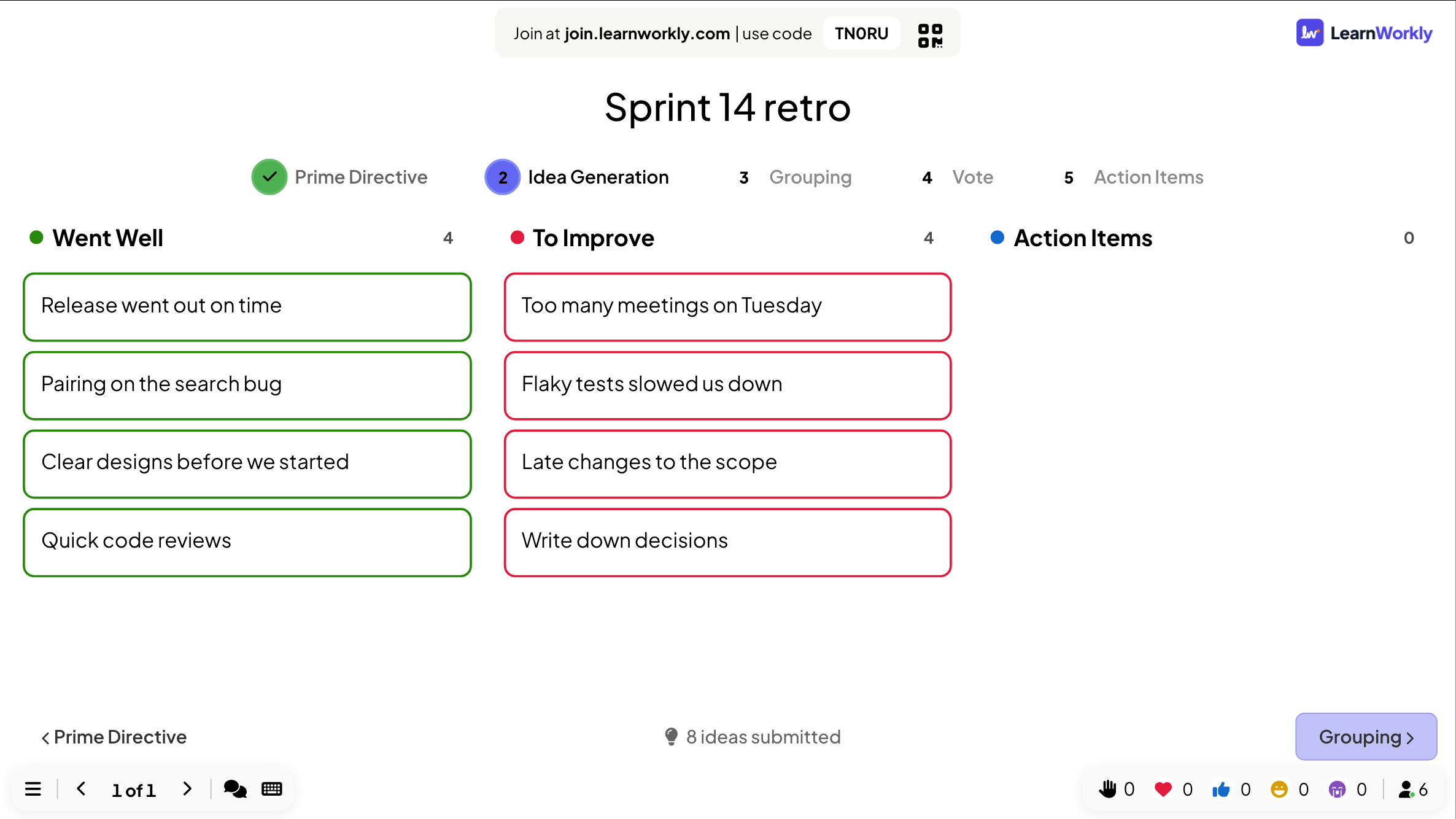
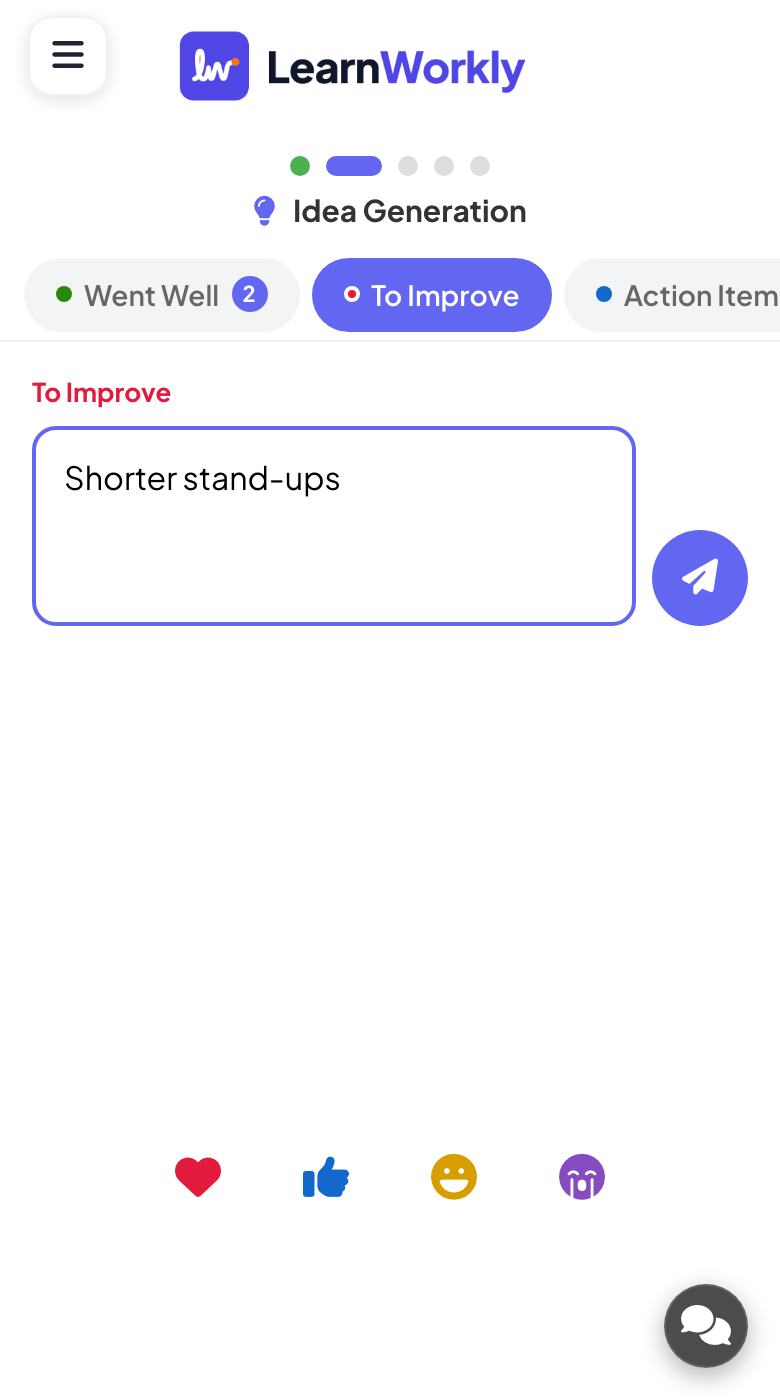
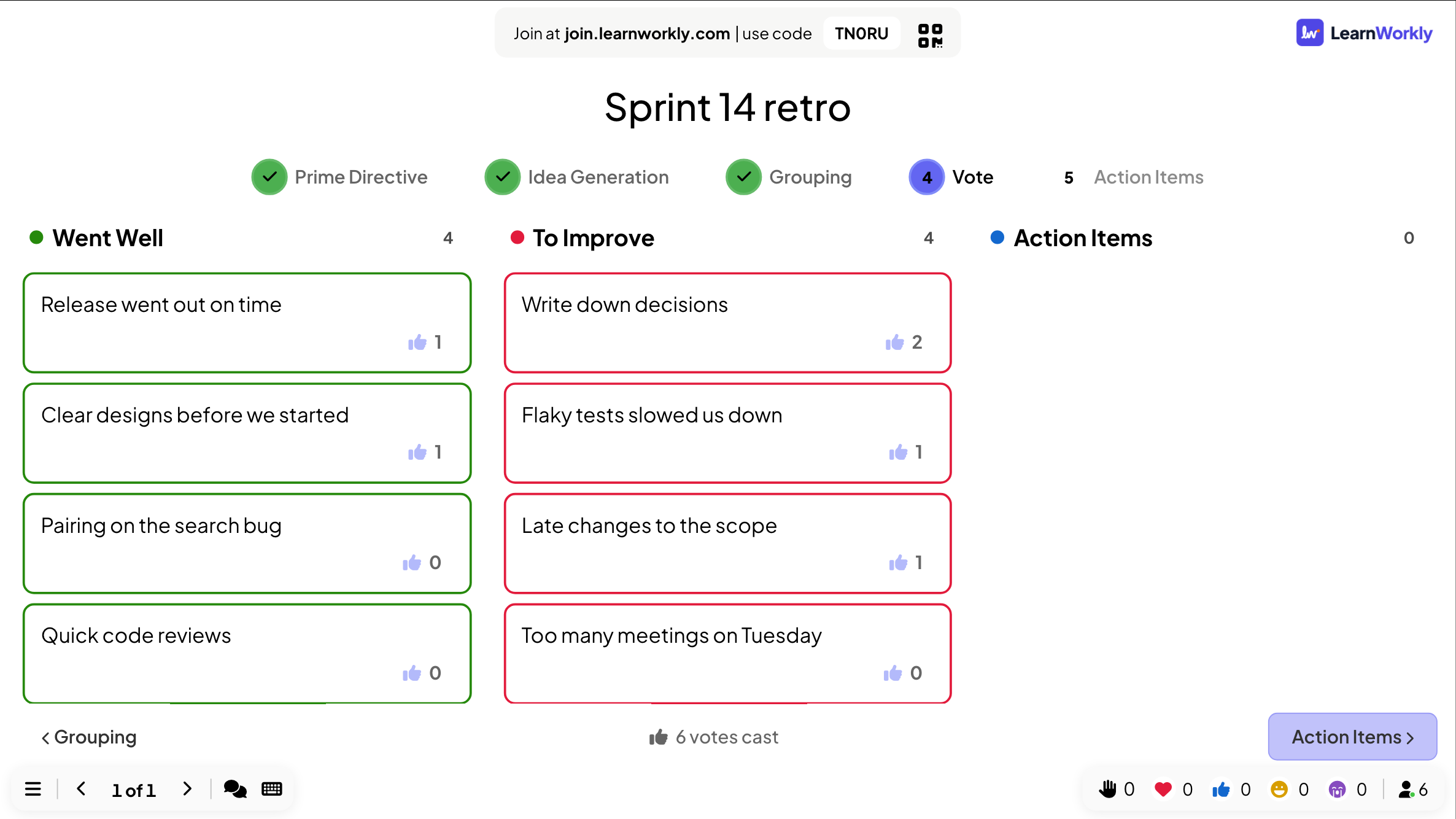
Move between steps with the buttons at the bottom of the slide, or click a step at the top. Phones follow the step you are on.
Results in the report
After the session, open the presentation’s report (the report button in the editor’s top bar, or Report in your presentation list) and go to Slide Results. See Read the report of a presentation. The retro shows every column with its notes, their votes and the action items.
Frequently asked questions
Can I go back to an earlier step?
Yes. Click the step at the top of the slide. Notes and votes are kept.
Does Anonymous Mode hide names from me too?
Yes. Notes show no author on the big screen. Without it, the name a participant gave appears on their notes from the Grouping step on.
Can I run the same retro every sprint?
Duplicate the presentation, or use Clear result this slide to start fresh. Earlier retros stay in the report.
Last checked against the app on 17 November 2026.
Related articles
- Whiteboard: draw together on one shared boardOne shared board for the whole room: you draw on the big screen, participants draw from their phones, and every stroke appears for everyone live.
- 100 Points: share out points between optionsParticipants split 100 points between options to show what matters most to them. The big screen shows the average points each option received.
- Control your presentation from your phoneOpen a private remote link on your phone to change slides, read speaker notes and moderate Q&A while the big screen shows the presentation.