A Q&A slide lets participants ask questions and upvote their favourites. The list on the big screen is sorted by votes, so the questions the room cares about most come first.
Set up a Q&A slide
- 1
Add the slide
In the editor, click + New Slide. In Choose Slide Type, open the Interactive tab and pick Q&A. Give it a title, or leave it empty and phones show Q&A.
- 2
Decide on moderation
Open Presentation settings (the gear on the right edge of the editor). With Moderation Q&A on, new questions stay hidden until you approve them, and you get a moderation link to share with a colleague.
- 3
Present it
Click Present. People join at join.learnworkly.com with your code or the QR code, and the slide appears on their phones.
What participants do
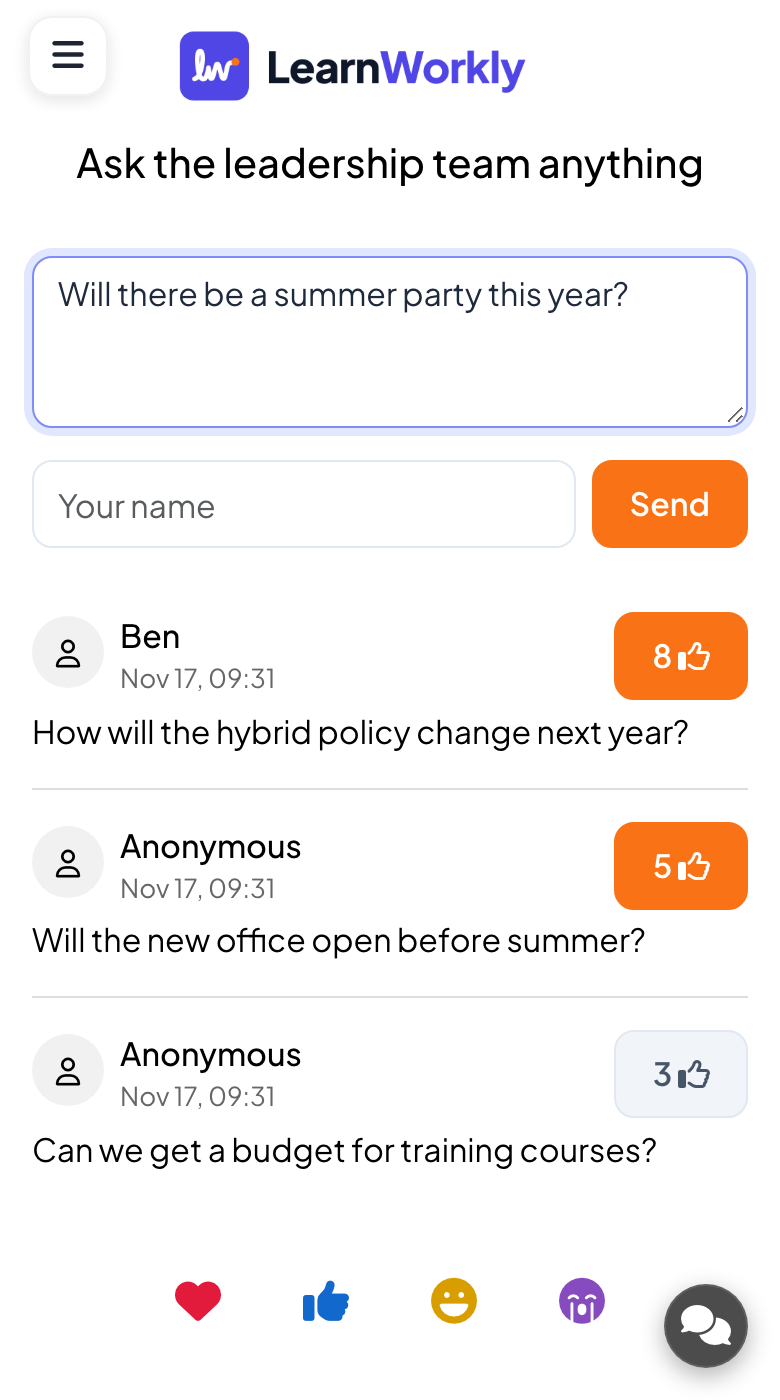
Participants type in Your question..., add their name in Your name if they want to (otherwise they appear as Anonymous), and press Send. They tap the thumbs-up on any question to upvote it; their own upvotes turn orange. With moderation on, their question shows Pending approval until you approve it.
Moderate the questions
- 1
Open the moderation view
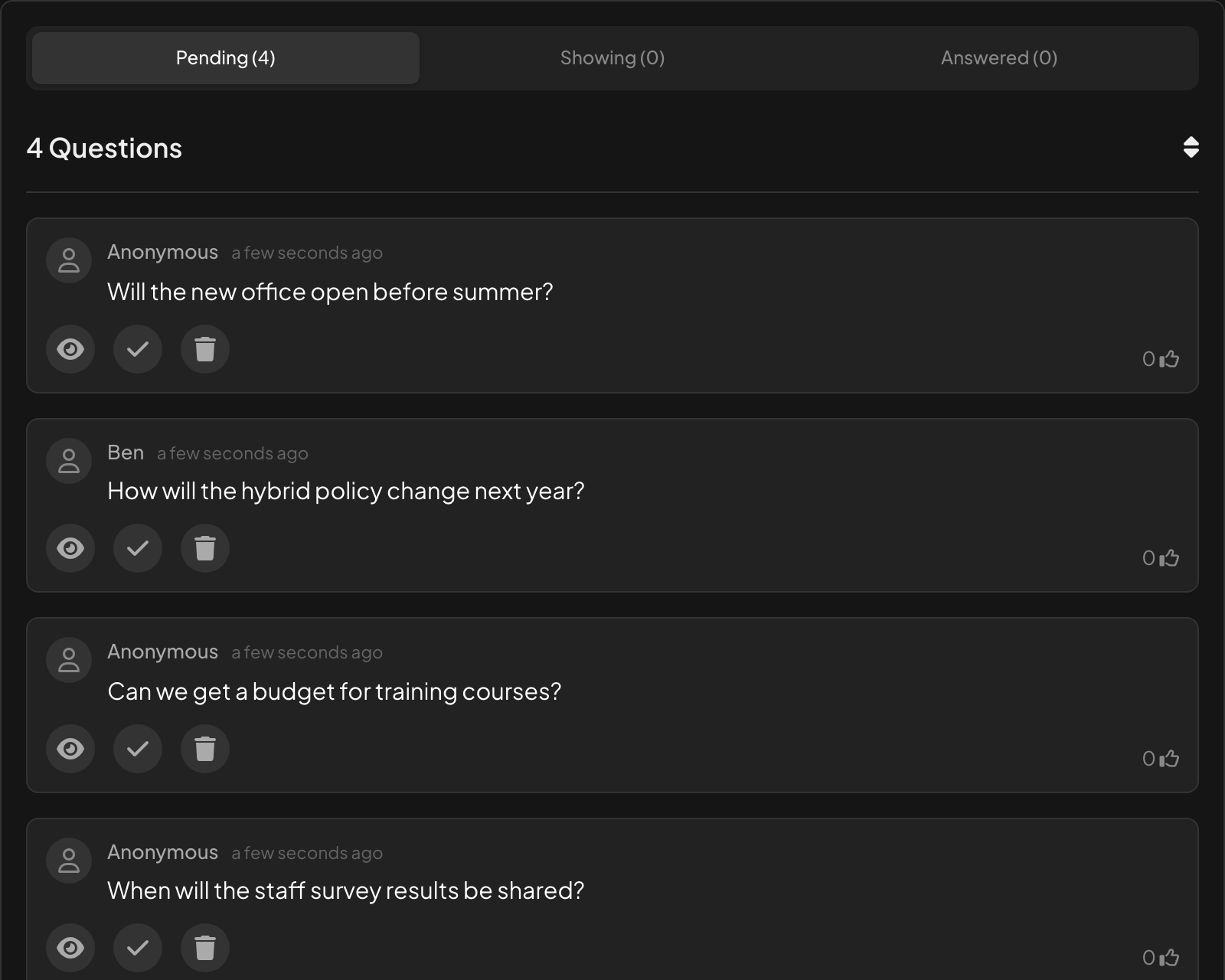
Use the moderation link from Presentation settings, or the Remote control panel. Questions arrive under Pending.
- 2
Approve, answer or delete
On each question, the eye Approve and show on Canvas, the check mark Mark as Answered and the bin Delete Question. Approved questions move to Showing, answered ones to Answered.
While you present
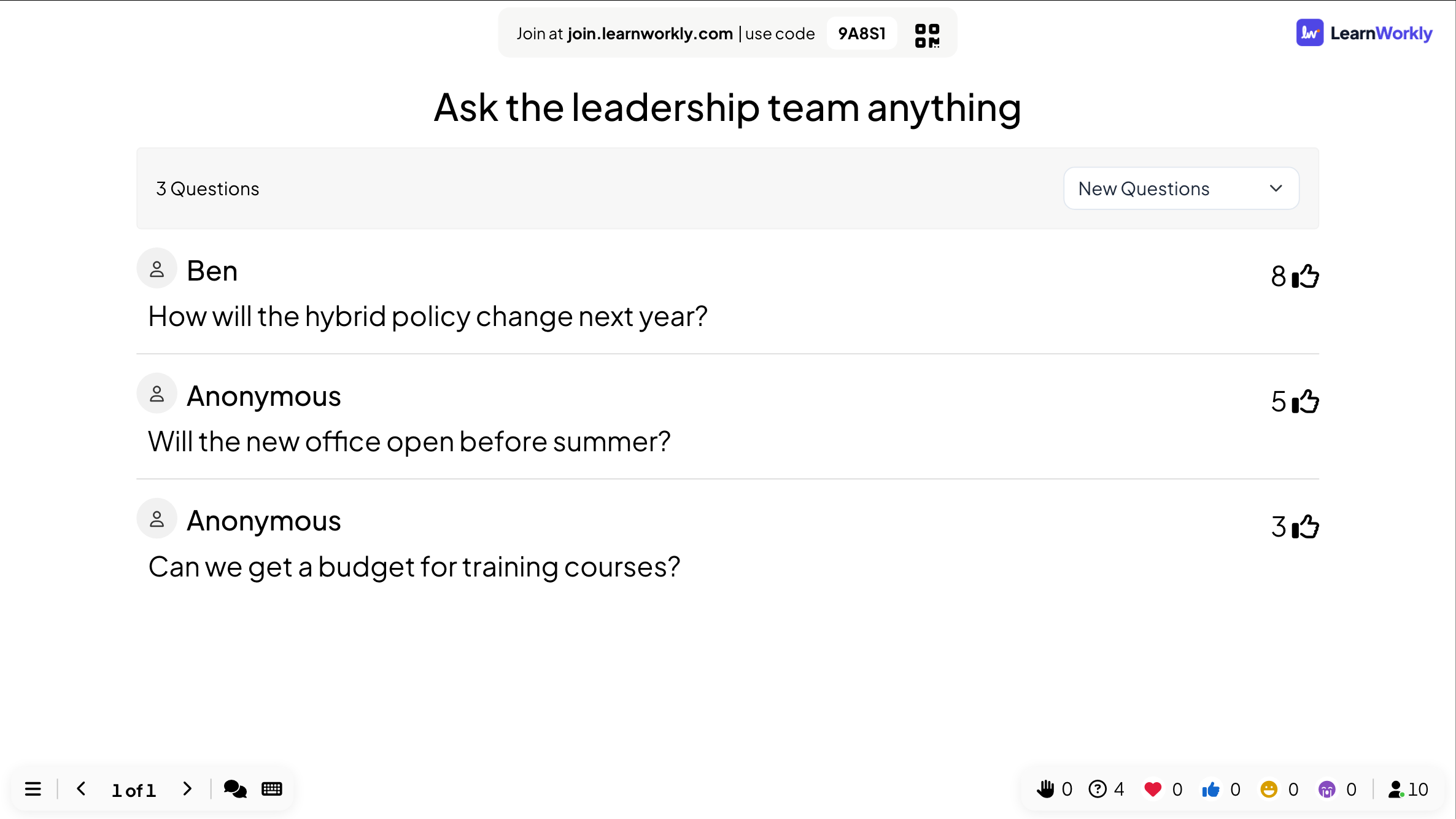
The slide shows the number of questions and a filter with New Questions and Answered Questions. Questions are sorted by upvotes. Click a question to show it large on screen, and click the check mark to mark it answered.
When video calls are on, each question from a participant has a button to call that person, so they can ask in their own voice: see Video call.
Results in the report
Questions are listed in the Q&A tab of the report, with their upvotes. The tab appears when Questions are visible to everyone is on in the presentation settings. See Read the report of a presentation.
Questions on every slide
You do not need a Q&A slide to take questions. In the presentation settings, Questions are visible to everyone adds an Ask button to phones on other slides. See Q&A moderation and profanity filter.
Frequently asked questions
A participant’s question does not appear on screen.
Moderation Q&A is on: approve it in the moderation view. Their phone shows Pending approval until you do.
Can people take back an upvote?
Yes. Tapping the thumbs-up again removes their upvote.
Can I see who asked?
Only if they typed a name. Otherwise the question shows Anonymous everywhere, including the report.
Can a colleague moderate while I present?
Yes. Share the moderation link from Presentation settings; they approve and answer questions from their own device.
Last checked against the app on 17 November 2026.
Related articles
- Moderate Q&A and filter profanityApprove questions before they reach the big screen, share a moderator link with a colleague and hide offensive words in answers.
- Control your presentation from your phoneOpen a private remote link on your phone to change slides, read speaker notes and moderate Q&A while the big screen shows the presentation.
- Open Ended: collect free-text answers and ideasCollect open answers and feedback as free text, with optional photos or drawings. Answers appear as a wall of cards on the big screen.