By default, people join with just the code. If you need to know who answered, ask for details when they join. The answers appear in the report next to each participant.
- 1
Open the setting
In the editor, open Presentation settings (the gear on the right edge) → General Settings → Participants.
- 2
Turn it on
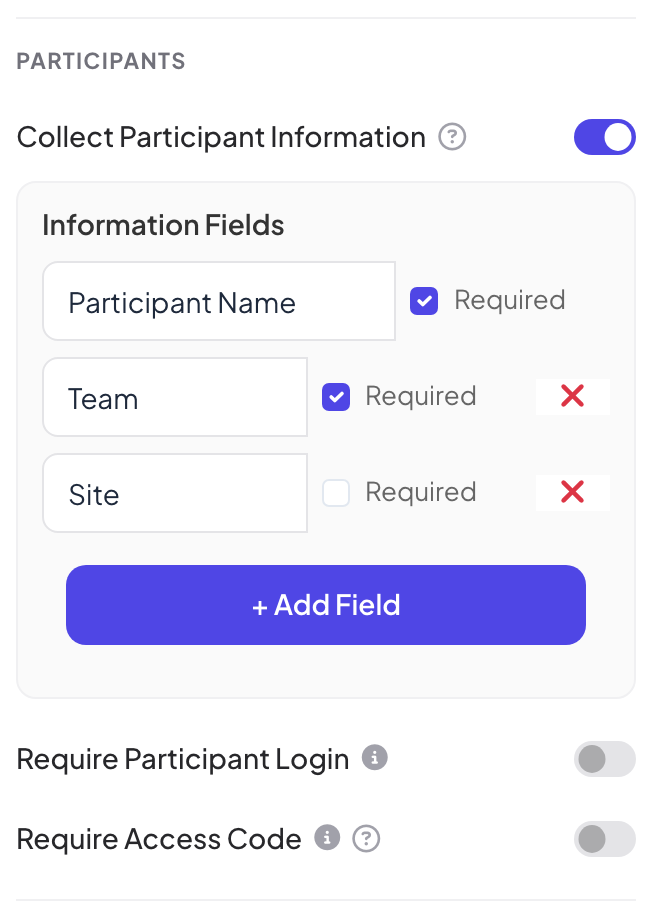
Turn on Collect Participant Information. Information Fields appears with a Participant Name field that is always required.
- 3
Add fields
Click + Add Field and type a title, for example "Team" or "Site". Tick Required if people must fill it in. Click the red cross to remove a field.
What participants see
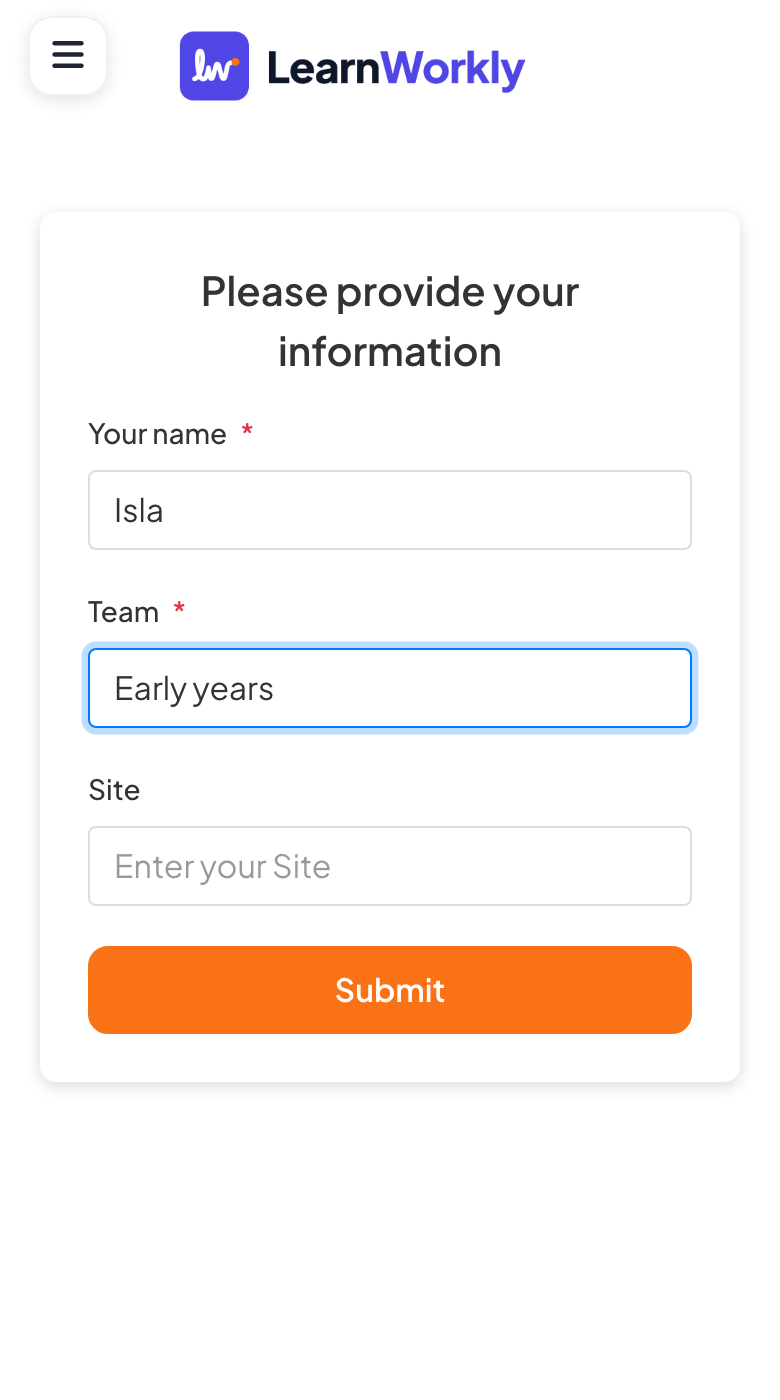
After entering the code, participants see Please provide your information with one box per field (required ones are marked with a red star) and a Submit button. They can only take part once every required field is filled in.
Frequently asked questions
Where do I see the answers?
In the report: on the Participants tab and when you click View Details on a slide, each answer is listed with the details the person entered.
Can I ask for a name on one slide only?
Yes. Some slide types, such as Open Ended, Draw or 2x2 Grid, can ask for a name, email or avatar on that slide only. See Response settings.
Can a field be a list to choose from?
No. Every field is a text box. If you need fixed answers, such as a team name, tell people what to type, or ask with a Poll slide.
Last checked against the app on 17 November 2026.
Related articles
- Private sessions, login and access codesLimit who can join your presentation: make it private, ask participants to log in, or give each person a unique access code to enter.
- Read the report of a presentationEvery presentation has a report: participants, submissions, reactions and ratings, the results of each slide, who answered what and audience feedback.
- Quick Form: collect details with a short formCollect audience information with a custom form: name, email and your own fields such as company or phone, each optional or required.