Video Stage turns a slide into a live stage. People raise a hand on their phone; you invite them on stage, and they speak to the room with their camera and microphone. It uses LearnWorkly’s built-in call: nobody needs another app.
Set it up
- 1
Add the slide
In the editor, click + New Slide. In Choose Slide Type, open the Interactive tab and pick Video Stage.
- 2
Choose the call type
Under Call type, pick Video (camera + mic) or Audio only (mic, no camera).
- 3
Choose how many speakers
People on stage at once can be 1, 2, 3, 4 or 6 (4 by default).
- 4
Set a speaking time
Under Speaking time, choose No limit or 1, 2, 3 or 5 minutes per speaker. A timer counts down on each speaker; nobody is cut off, the tile turns red when the time is up.
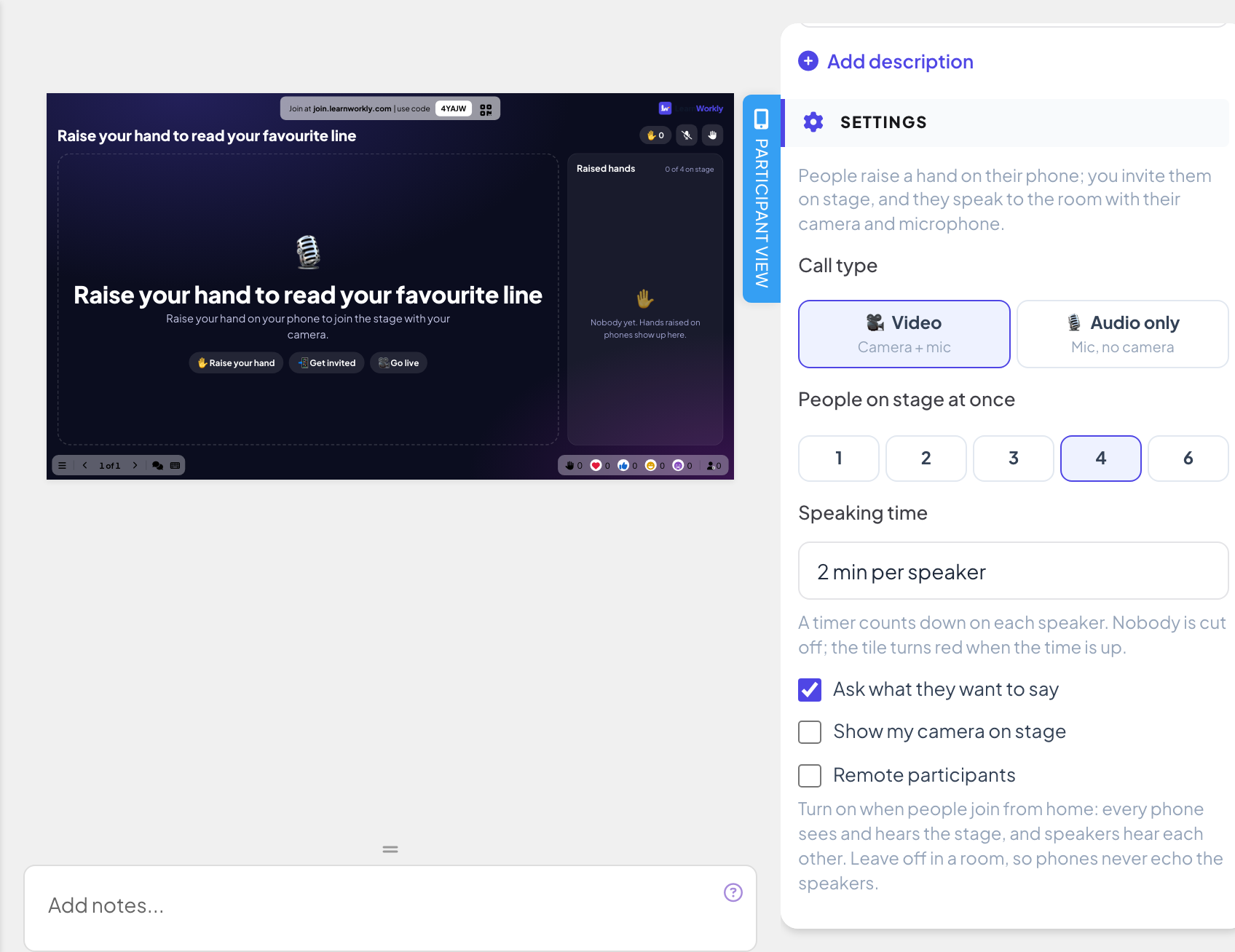
More settings
- Ask what they want to say (on by default): people can add a short note when they raise their hand.
- Show my camera on stage (video only, on by default): your own camera can join the stage.
- Remote participants (off by default): turn on when people join from home, so every phone sees and hears the stage and speakers hear each other. Leave it off in a room, so phones never echo the speakers.
Run it live
- 1
Present the slide
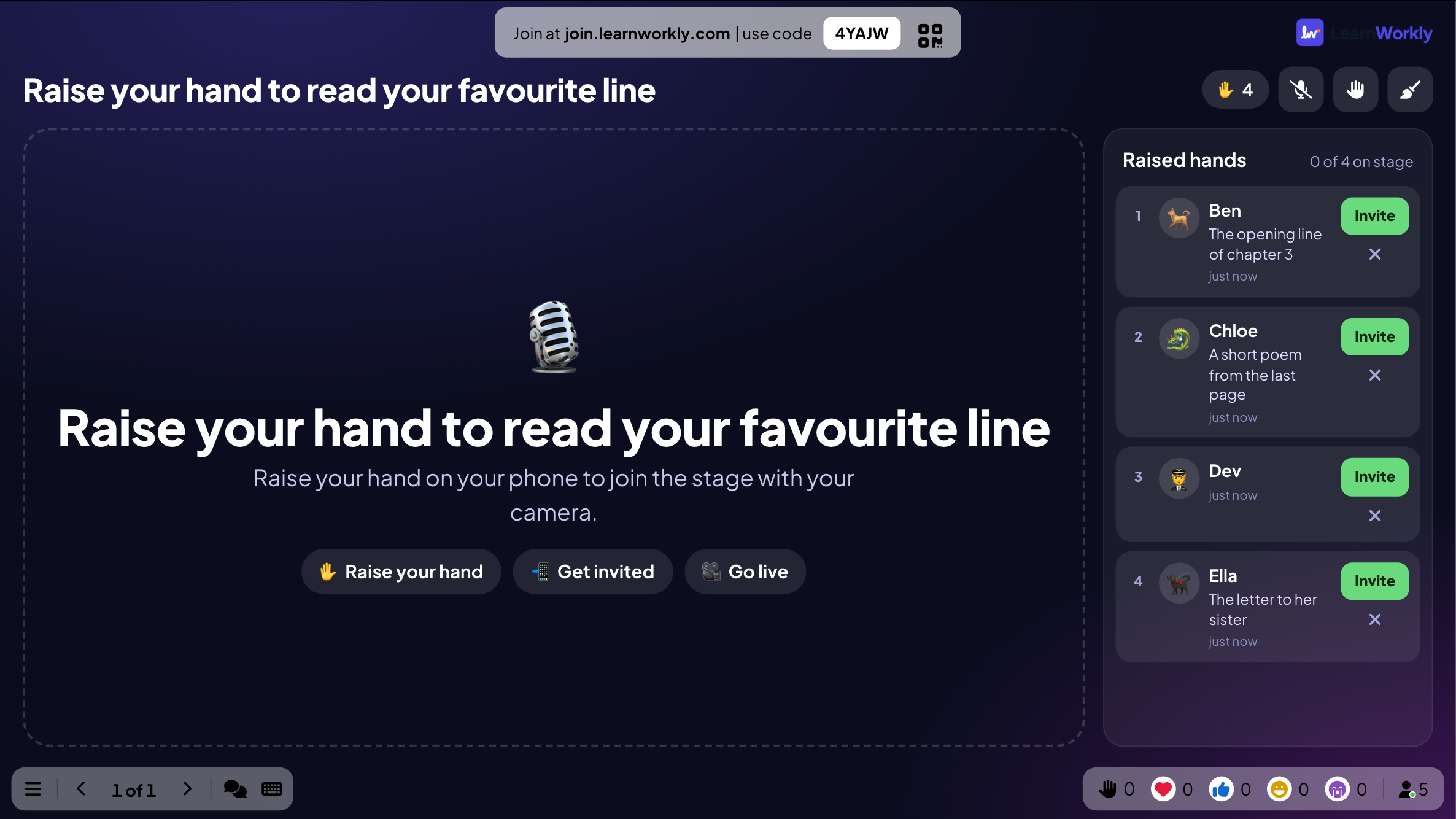
Click Present. People join at join.learnworkly.com with your code or the QR code, and the slide appears on their phones.
- 2
People raise a hand
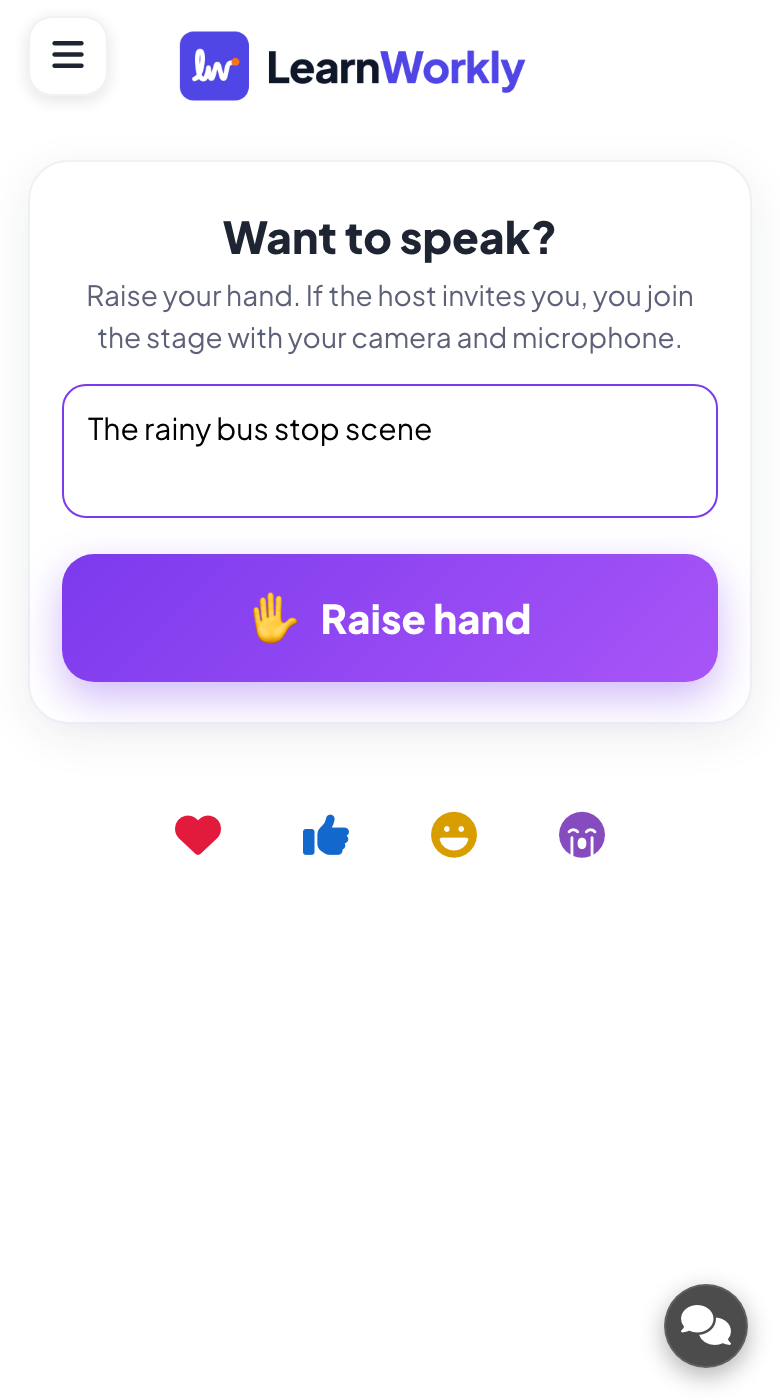
Phones show Want to speak? and a Raise hand button, plus What do you want to say? (optional) if you ask for a note. Their place in the queue is shown, and they should stay on the page: the phone rings when they are invited.
- 3
Invite a speaker
Raised hands on the big screen lists everyone waiting, with their note. Click Invite to bring someone on stage.
- 4
They go live
The invited person checks their camera and mic, then taps Go live, or Not now to decline. The invite expires after a minute. On stage, they can Leave stage at any time.
- 5
Manage the stage
You can Spotlight a speaker, Mute them or Remove from stage, and Clear the stage. Stop new hands closes the queue; Let people raise hands opens it again. Video and sound play in the presenting window.
Frequently asked questions
The phone says to allow camera and microphone access.
The browser blocked them. The participant allows camera and microphone for the site in their browser settings, then taps Go live again.
Phones echo the speaker in the room.
Turn Remote participants off when everyone is in the same room: then only the big screen plays the stage.
Can I speak to the stage myself?
Yes. With Show my camera on stage on, your camera and microphone join the stage from the presenting window.
Is it recorded?
No. Nothing on the stage is recorded.
Last checked against the app on 17 November 2026.
Related articles
- Call a participant from the big screenStart a voice or video call with one participant straight from their answer, so they can explain it to the room. Built in, no other app needed.
- Present on the big screenStart presenting from the editor, move through slides with the keyboard, use the menu while you present and stop when you are done.
- Q&A slide: questions from the audience, upvotedParticipants send questions from their phones and upvote the ones they want answered. The most popular rise to the top; mark each one answered.