An Open Ended slide collects answers and feedback as free-form text. Each answer becomes a card on the big screen. Use it for ideas, explanations, "muddiest point" checks and feedback.
Set up an open-ended question
- 1
Add the slide
In the editor, click + New Slide. In Choose Slide Type, open the Interactive tab and pick Open Ended.
- 2
Write the question
Type it in the question field. Add description and Add Question Image are there if you need them.
- 3
Decide what people can send
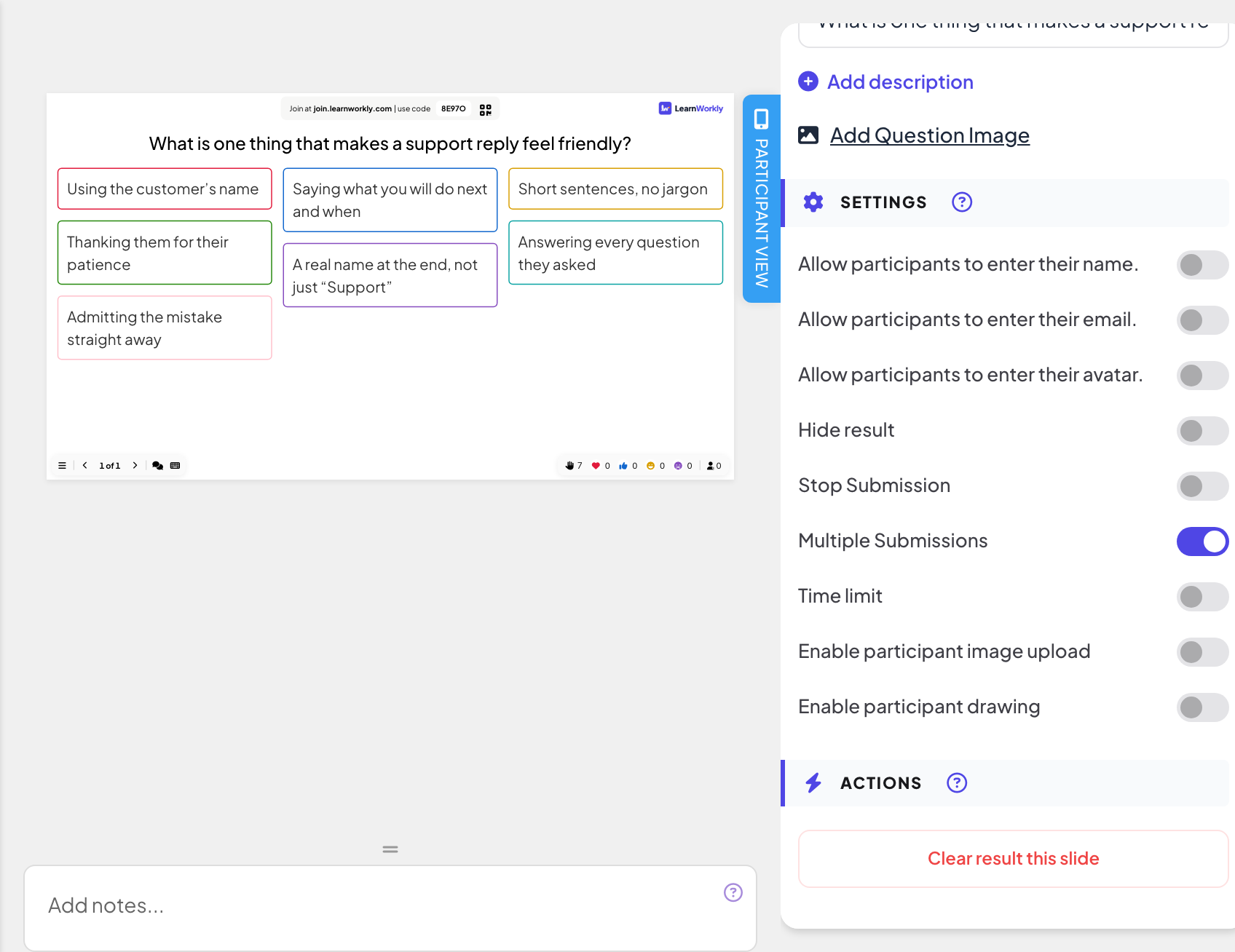
Under Settings, turn on Enable participant image upload to let them add a photo, or Enable participant drawing to give them a drawing area above the text box.
- 4
Ask for details only if you need them
Turn on Allow participants to enter their name., Allow participants to enter their email. or Allow participants to enter their avatar. to add those fields under the answer. All three are off by default, so answers are anonymous.
- 5
One answer or several
Multiple Submissions is on by default. Turn it off to accept one answer per person.
Run it live
- 1
Present the slide
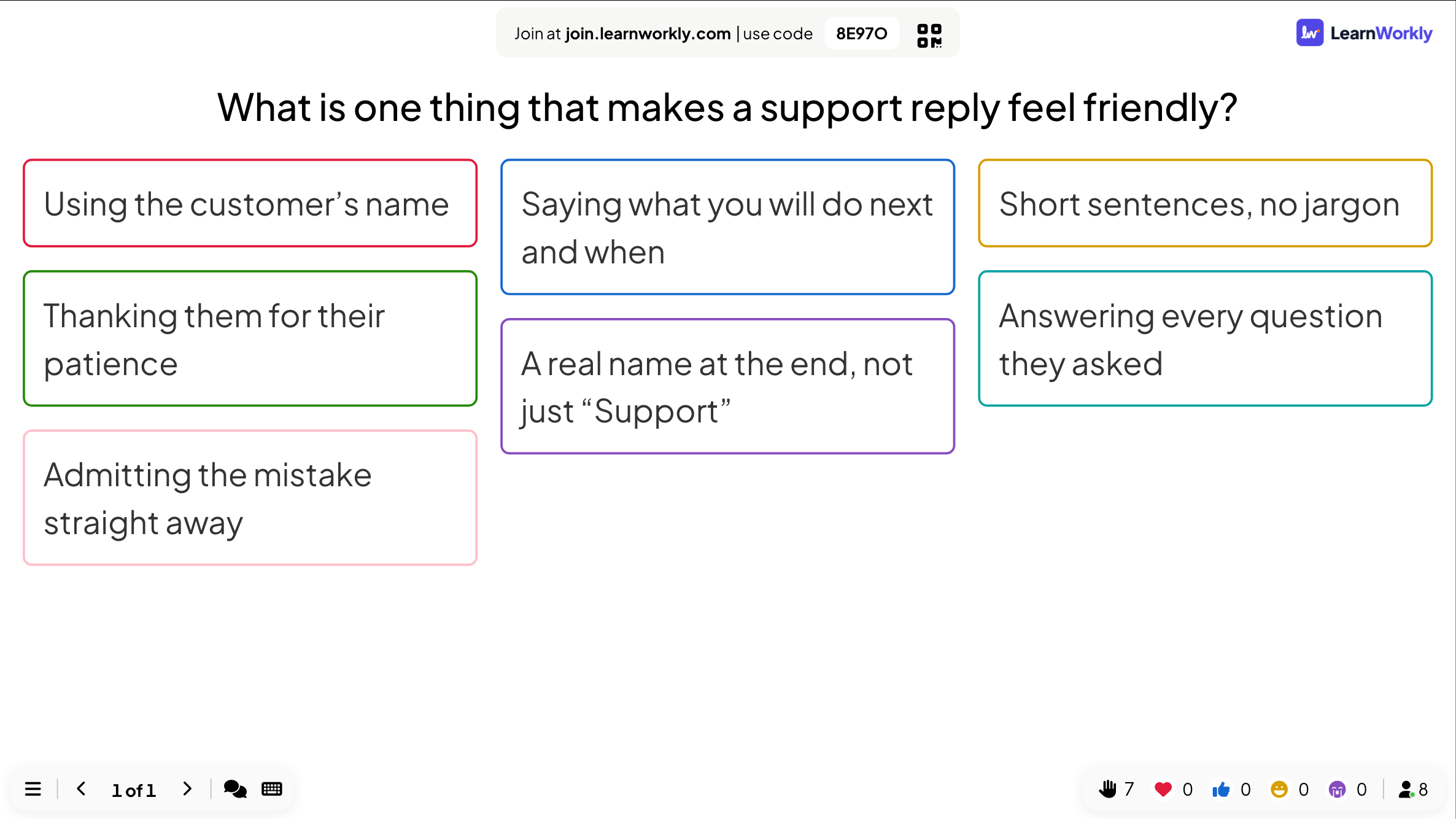
Click Present. People join at join.learnworkly.com with your code or the QR code, and the slide appears on their phones.
- 2
People write
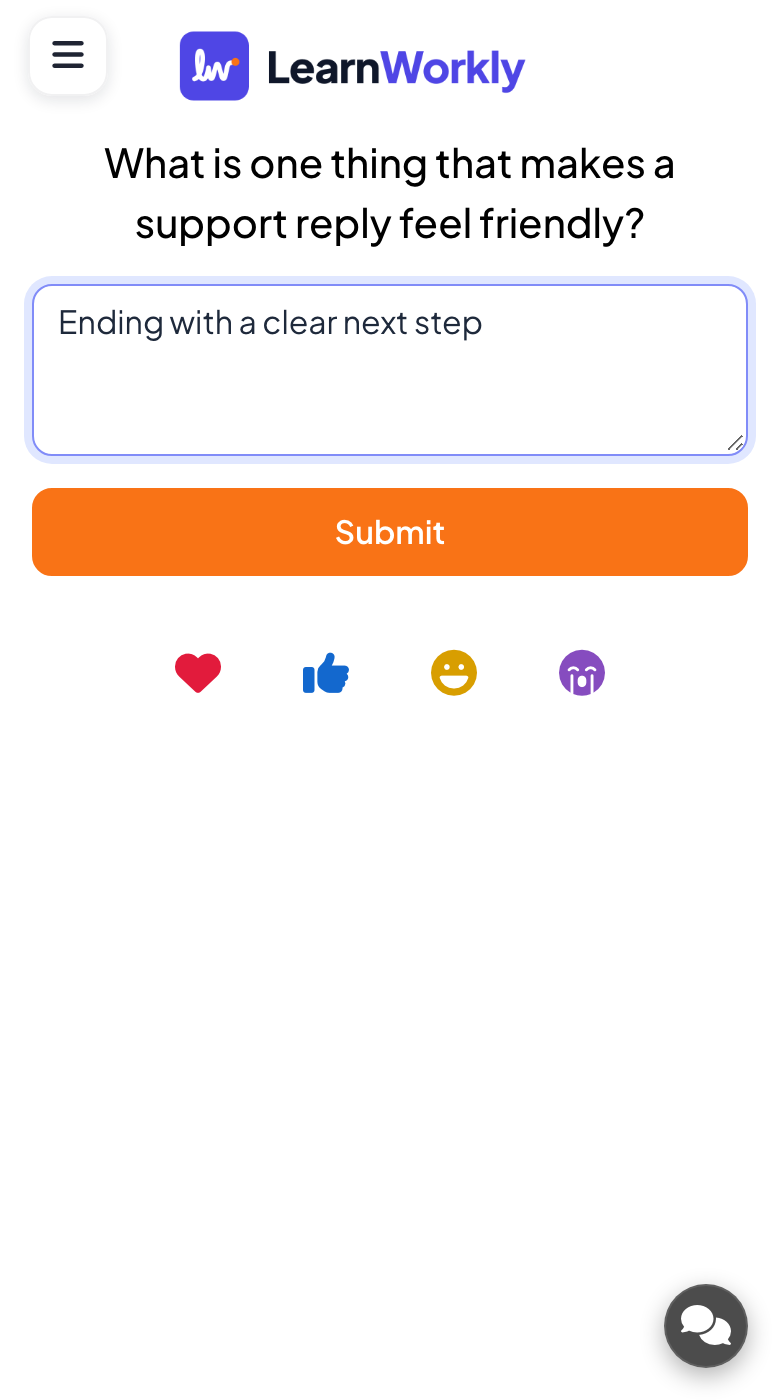
Participants type in Your text... and press Submit. If you allowed them, they can also tap Add Image or draw (with Undo and Clear).
- 3
Read the wall
New answers fly onto the wall of cards. Click a card to show it large. The menu on a card lets you Edit or Delete it.
Results in the report
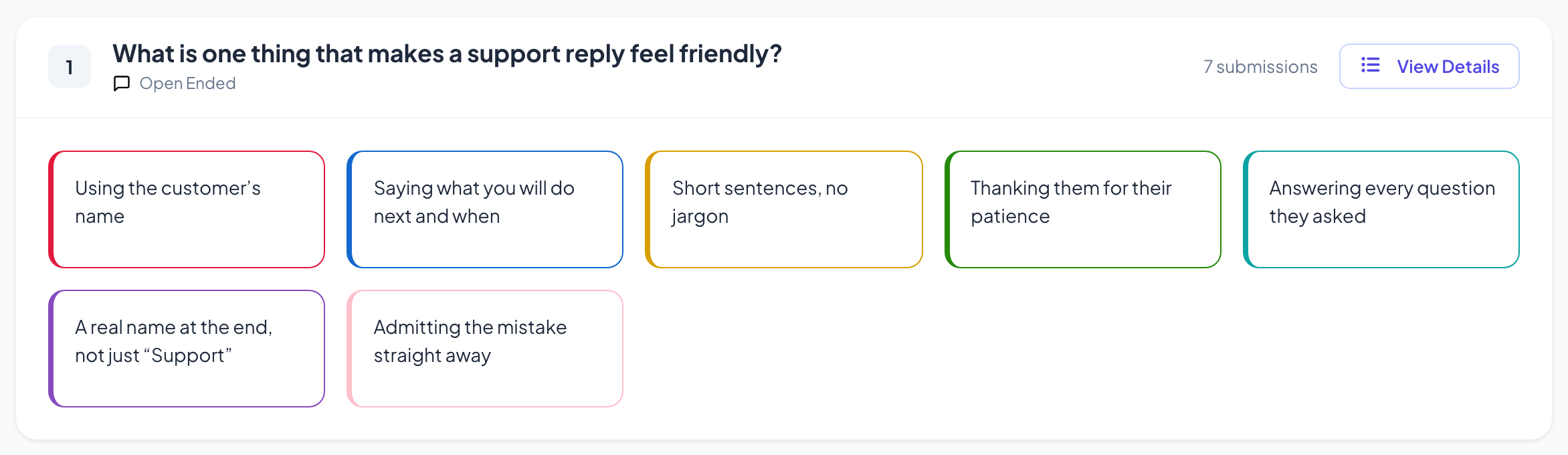
After the session, open the presentation’s report (the report button in the editor’s top bar, or Report in your presentation list) and go to Slide Results. See Read the report of a presentation. Open-ended answers appear as cards, with the participant’s name and details when you asked for them.
Frequently asked questions
Can I hide an answer that should not be on screen?
Yes. Use the menu on the card and choose Delete. To check every answer before it appears, use Hide result and only show the wall when you are ready.
The phone says "Write or draw something first".
The participant pressed Submit with an empty answer. They need to type, add a picture or draw first.
Can I talk to the person who wrote an answer?
When video calls are on for the presentation, a card from a participant has a button to start a call with that person: see Video call.
Last checked against the app on 17 November 2026.
Related articles
- Word Cloud: collect short answers as a live cloudParticipants type short words on their phones and the most common answers grow biggest on the screen. Set the number of answers and multiple submissions.
- Q&A slide: questions from the audience, upvotedParticipants send questions from their phones and upvote the ones they want answered. The most popular rise to the top; mark each one answered.
- Call a participant from the big screenStart a voice or video call with one participant straight from their answer, so they can explain it to the room. Built in, no other app needed.