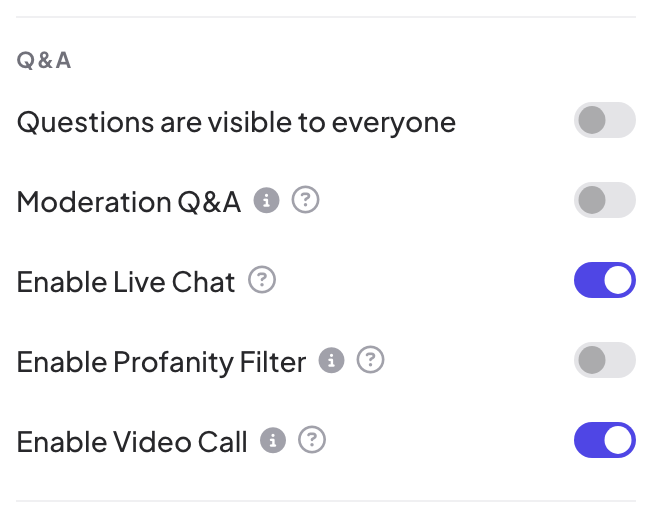
These settings are in Presentation settings (the gear on the right edge of the editor) → General Settings → Q&A. They work with the Q&A slide and with questions asked from any slide.
| Setting | What it does |
|---|---|
| Questions are visible to everyone | Participants can ask questions from any slide, not only on a Q&A slide. On the remote this is called Enable Q&A on all slides. |
| Moderation Q&A | New questions stay hidden until you approve them. The person who asked sees their question marked Pending approval. |
| Enable Live Chat | A chat for everyone in the session (on by default). See Music, sound effects, reactions and live chat. |
| Enable Profanity Filter | Offensive words are hidden on the big screen for Open Ended, Word Cloud, Type Answer and Q&A. What participants sent is kept unchanged in your results. |
| Enable Video Call | A Call button on answer cards. See Call a participant. |
Moderate questions
- 1
Turn on Moderation Q&A
A moderation link appears under the setting. Click the copy button and send it to whoever will moderate. Share it only with your moderators: anyone with it can moderate.
- 2
Participants ask
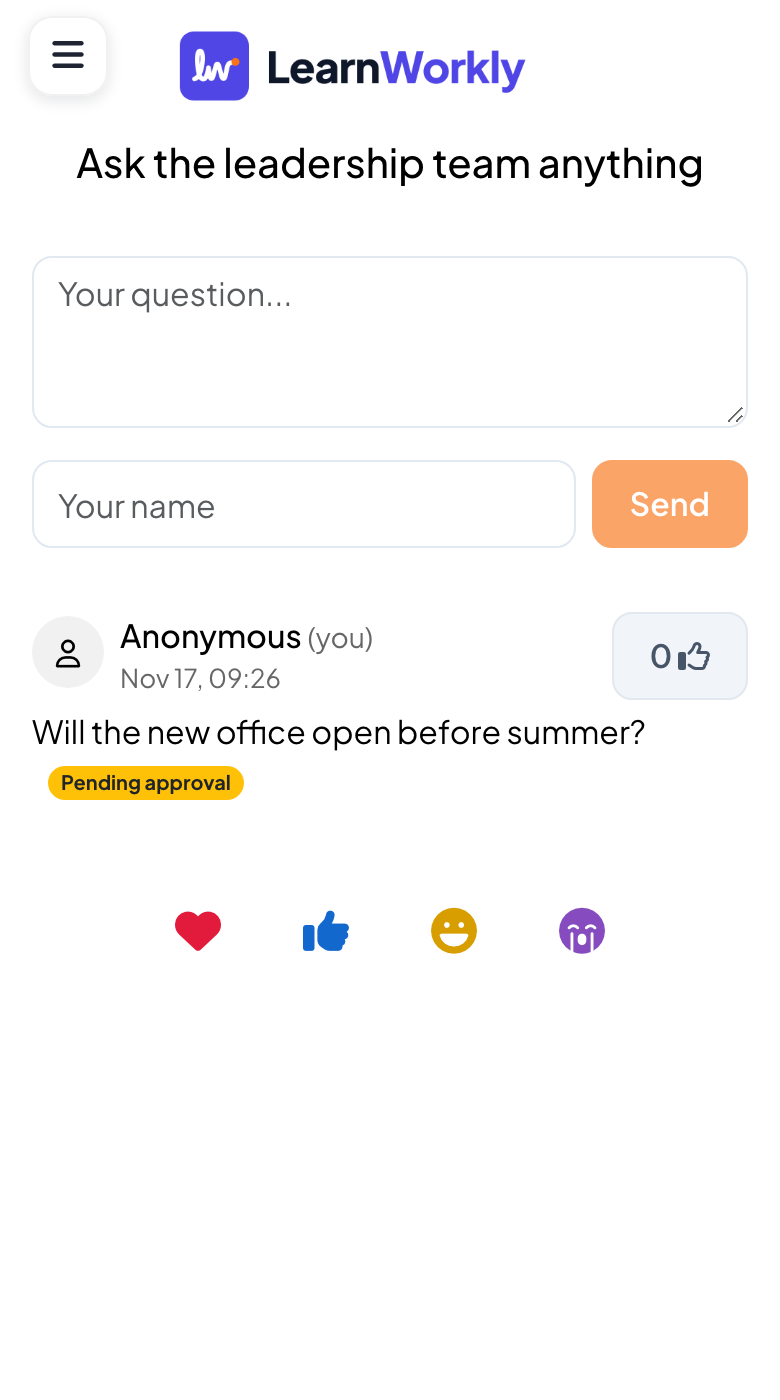
They type in Your question..., add a name in Your name if they want, and tap Send. Their question shows Pending approval until you approve it.
- 3
Review the questions
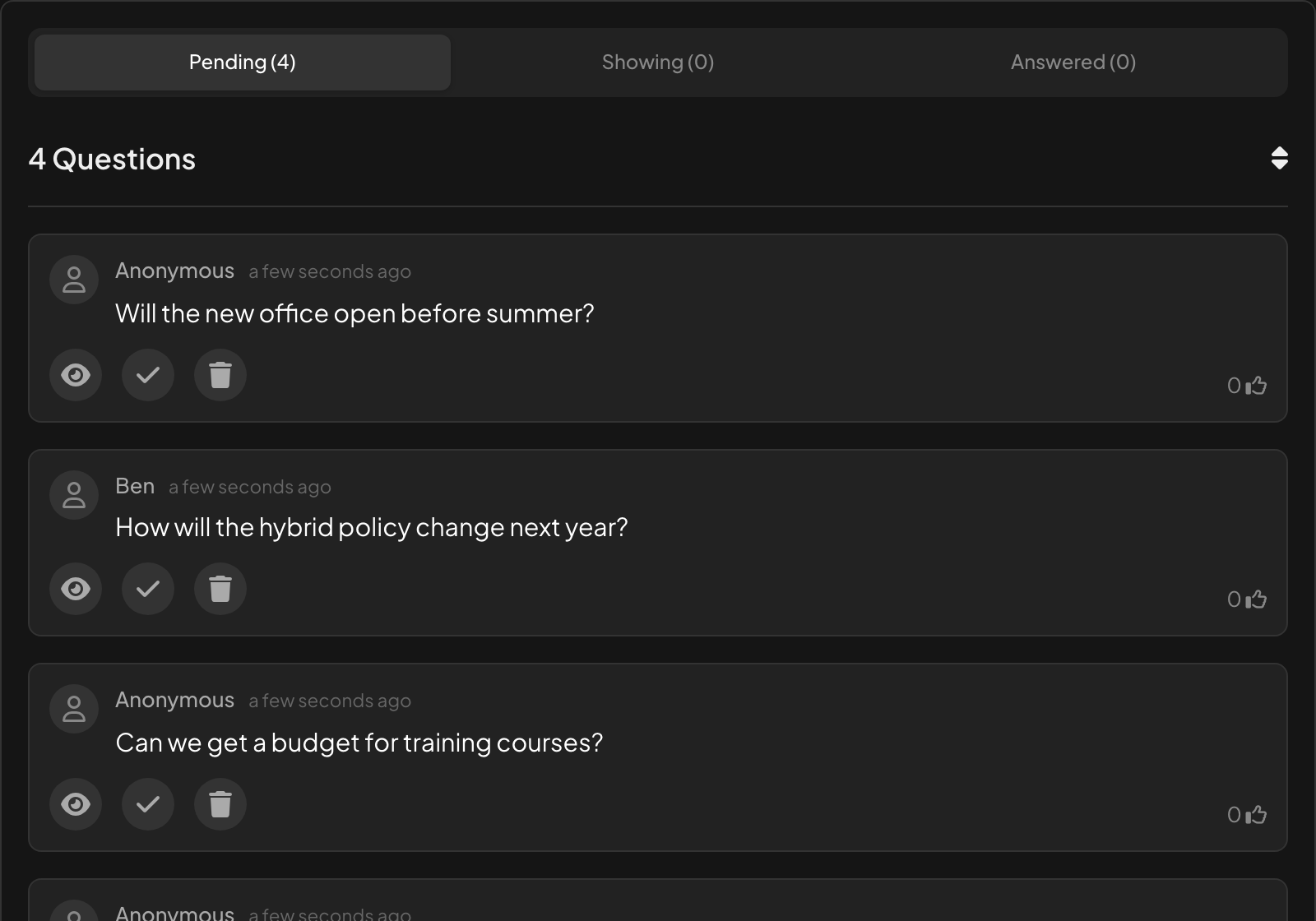
Open the moderation link, or the Q&A tab of remote control. New questions wait under Pending; the other tabs are Showing and Answered.
- 4
Approve, answer or delete
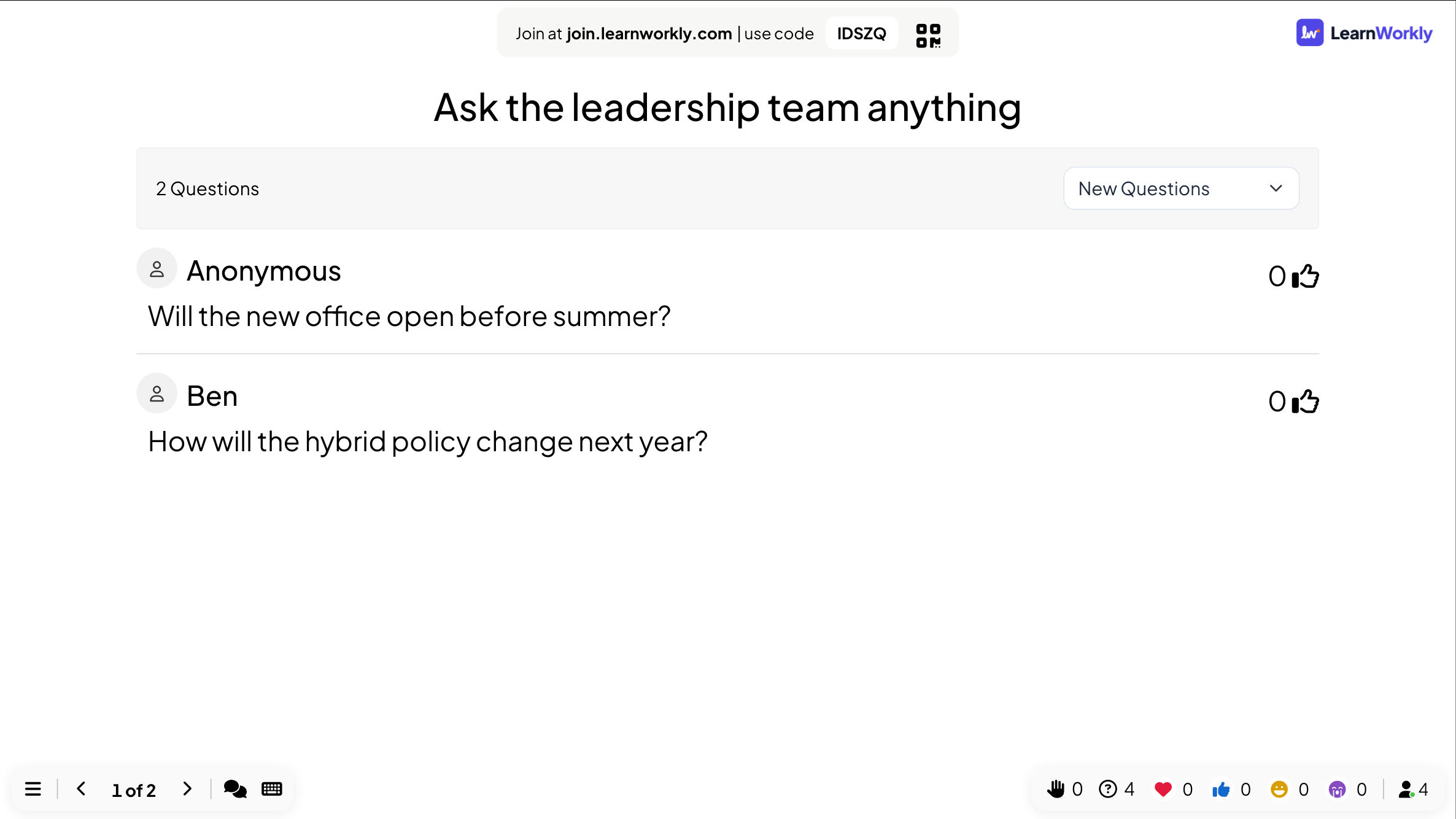
Under each question, the eye shows it on the big screen, the tick marks it answered and the bin deletes it.
Frequently asked questions
Can participants ask anonymously?
Yes. Questions without a name are shown as Anonymous.
Can participants vote for questions?
Yes. Each question has a thumbs-up count; participants tap it to vote, and the list can be sorted.
Does the profanity filter change what was sent?
No. It only hides words on the big screen. The original answer stays in your results and the report.
Last checked against the app on 17 November 2026.
Related articles
- Q&A slide: questions from the audience, upvotedParticipants send questions from their phones and upvote the ones they want answered. The most popular rise to the top; mark each one answered.
- Control your presentation from your phoneOpen a private remote link on your phone to change slides, read speaker notes and moderate Q&A while the big screen shows the presentation.
- Music, sound effects, reactions and live chatAdd background music to a presentation, mute built-in sounds, choose which reactions people can send and use the live chat.