Interactive slides such as Poll, Word Cloud, Open Ended, Scale or Ranking share a set of options under Settings in the Content tab. Each slide only shows the options that apply to it. Quiz and game slides have their own settings, explained in their own articles.
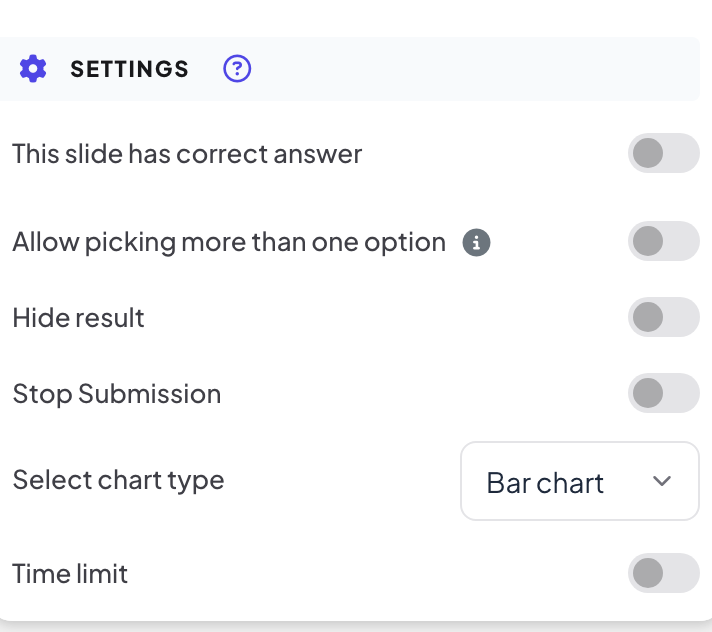
The shared settings
| Setting | What it does | Found on |
|---|---|---|
| This slide has correct answer | Mark one or more options as correct, so the big screen can show which answer was right. | Poll |
| Allow picking more than one option | Participants can select more than one option. Turns on by itself when you mark two or more correct options. | Poll |
| Hide result | Keeps the results off the big screen while people answer, so nobody follows the crowd. | Poll, Word Cloud, Open Ended, Scale, Ranking, 2x2 Grid, 100 Points, Pin on image |
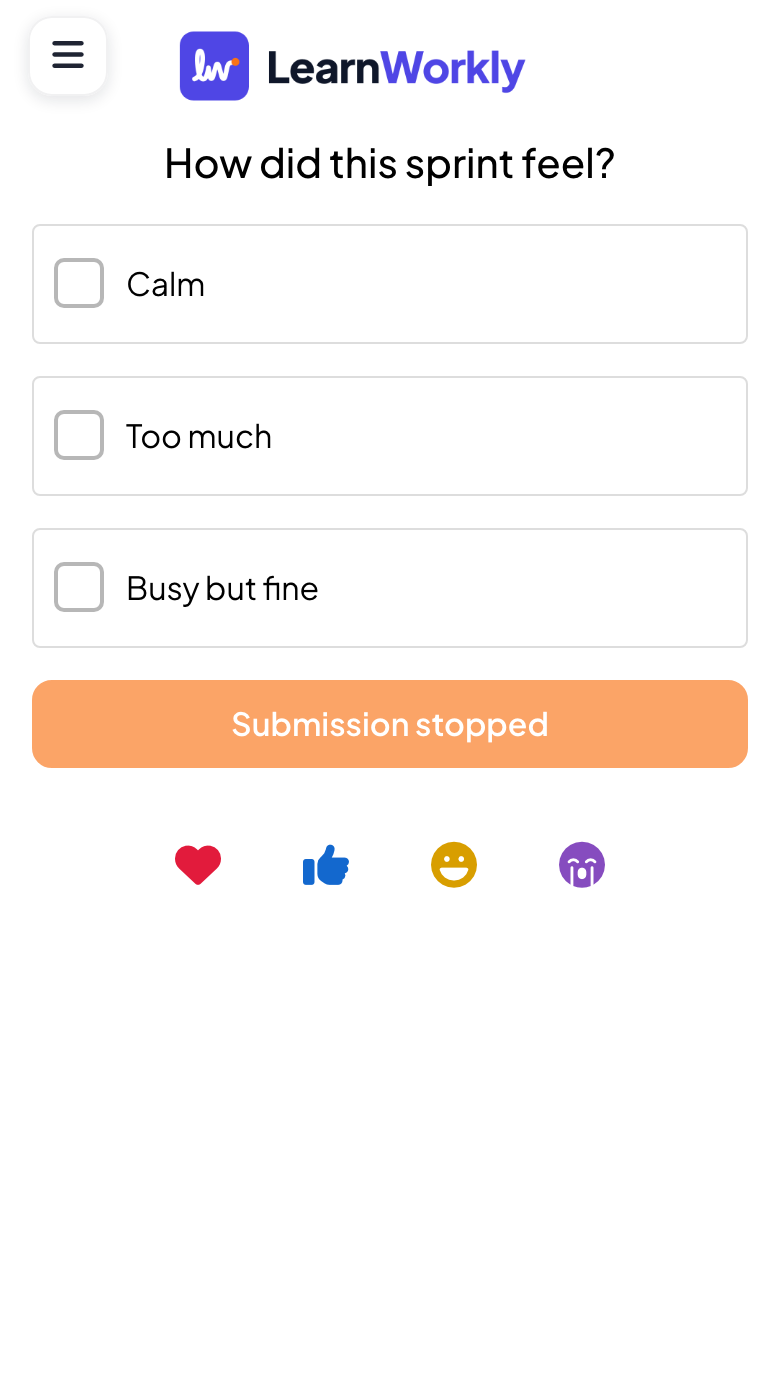
| Stop Submission | Closes the slide: phones show Submission stopped and no new answers come in. | Poll, Word Cloud, Open Ended, Scale, Ranking, 2x2 Grid, 100 Points, Pin on image, Whiteboard, Draw |
| Multiple Submissions | Lets each person send more than one answer. | Word Cloud, Open Ended |
| Number of responses | Limits how many words each person can submit at once, from 1 to 7. | Word Cloud |
| Time limit | Gives people a set number of seconds to answer (Seconds to answer, 60 when you first turn it on). A progress bar counts down on phones while you present. | Poll, Word Cloud, Open Ended, Pin on image, Scale, Ranking, Whiteboard, Draw |
| Allow participants to enter their name., …email., …avatar. | Asks for a name, email or avatar with each answer. | Open Ended, 2x2 Grid, Whiteboard, Draw |
| Enable participant image upload | Participants can attach a picture to their answer. | Open Ended |
| Enable participant drawing | Participants can draw as their answer. | Open Ended, Whiteboard |
Clear the results of a slide
Under Actions, Clear result this slide deletes the answers collected on this slide so you can run it again with a new group.
Change settings while presenting
- 1
Open the menu
You do not have to go back to the editor. While presenting, open the ☰ menu at the bottom left of the big screen.
- 2
Pick the action
Use Stop Submission, Hide Result or Reset slide result on the current slide. After Stop Submission, phones show that the slide is closed.
Frequently asked questions
I do not see a setting from the table.
Each slide type only shows the settings that apply to it. Check the Found on column, and look under Settings on the Content tab of that slide.
Can I reopen a slide after Stop Submission?
Yes. Turn Stop Submission off in the slide settings, or click Enable Submission on the big screen, to let answers in again.
Can I get the answers back after Clear result this slide?
No. The answers of that slide are deleted. To keep a copy, export the report first, or use Clear all results in the top bar, which keeps the old answers in the report as an earlier session.
Last checked against the app on 17 November 2026.
Related articles
- Poll: ask the room and show the votes liveSurvey participant opinions and show them as a bar or pie chart. Set up options, allow more than one pick, mark a correct answer or hide results.
- Word Cloud: collect short answers as a live cloudParticipants type short words on their phones and the most common answers grow biggest on the screen. Set the number of answers and multiple submissions.
- Collect participant informationAsk participants for their name and any other details you need, such as a team or a department, before they can take part in your presentation.