Sometimes the best answer deserves a voice. With the built-in call (in beta), you can call one participant from their answer card and talk to them in front of the room. To bring several people on screen one after another, use the Video Stage slide.
- 1
Check the setting
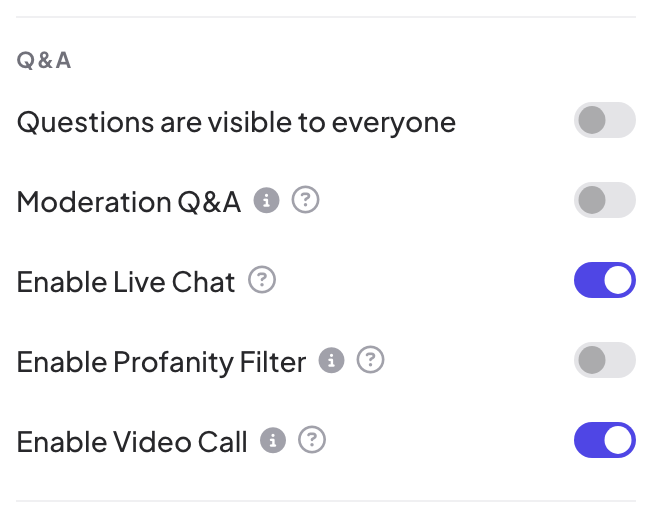
Enable Video Call is on by default: Presentation settings → General Settings → Q&A.
- 2
Click Call on an answer
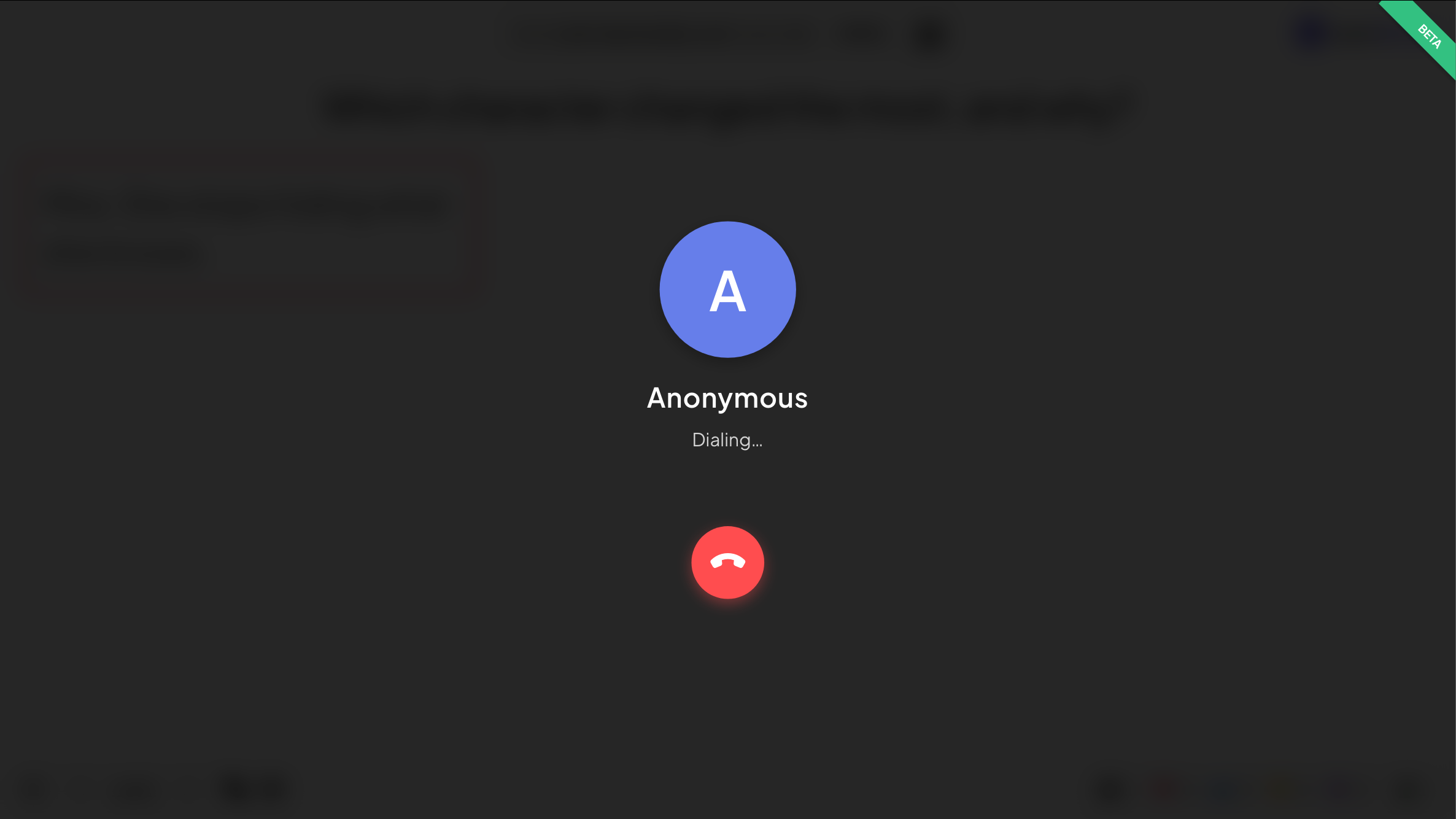
While presenting an Open Ended or Q&A slide, point at an answer card and click Call. The screen shows the participant’s name (or Anonymous) and Dialing....
- 3
The participant answers
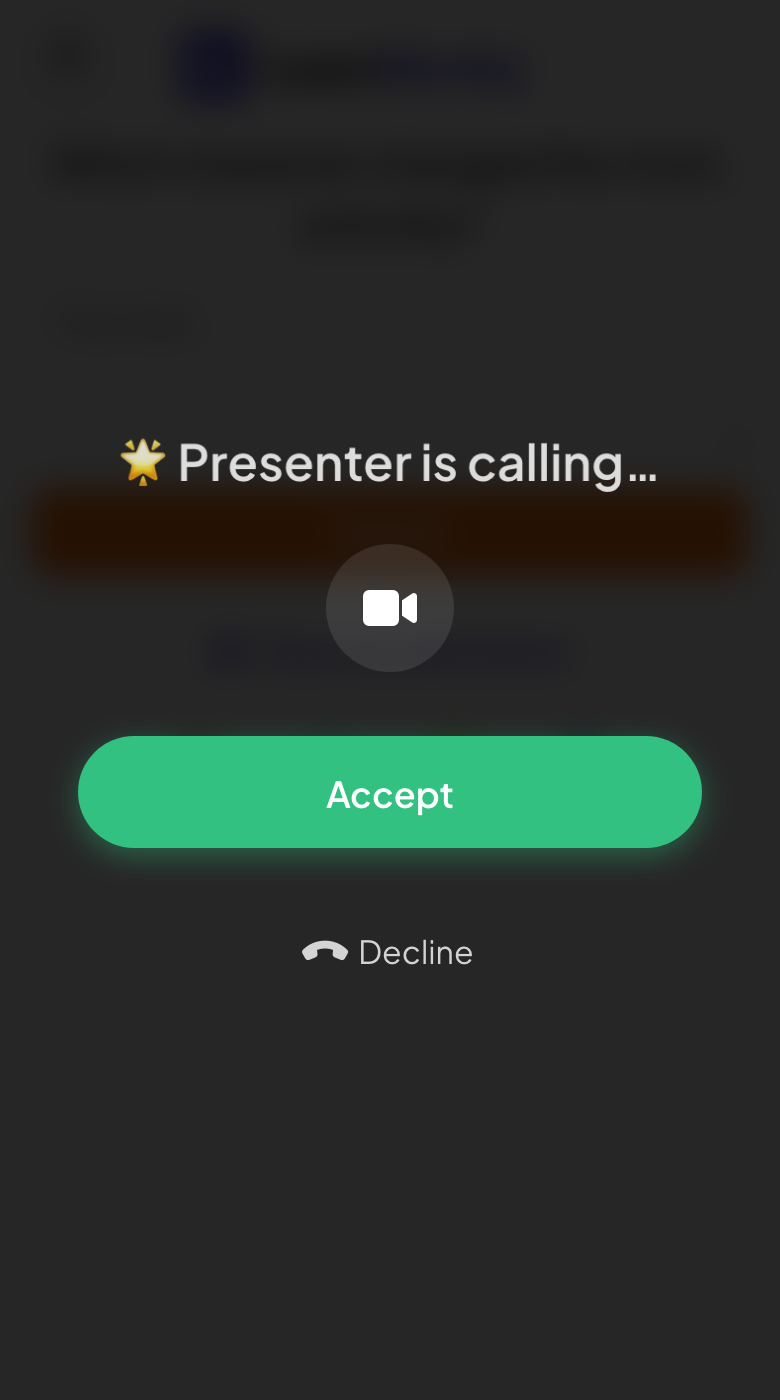
Their phone shows Presenter is calling…. They can turn their camera on or off, then tap Accept or Decline.
- 4
Talk, then hang up
The call shows a timer and the participant’s video if their camera is on. Click the phone button to end the call.
Frequently asked questions
I do not see the Call button.
Check that Enable Video Call is on, then point at an answer card while you present: the button appears on the card.
The participant cannot hear me.
Allow the browser to use your microphone when it asks. On the phone, the participant must accept the call and allow the microphone.
Is the call available on every plan?
Yes. Live video call is part of every plan, including Free.
Last checked against the app on 17 November 2026.
Related articles
- Video Stage: bring participants on screen to speakA live call stage: people raise a hand on their phone and you invite them on the big screen to speak with camera and mic, with an optional time limit.
- Open Ended: collect free-text answers and ideasCollect open answers and feedback as free text, with optional photos or drawings. Answers appear as a wall of cards on the big screen.
- Music, sound effects, reactions and live chatAdd background music to a presentation, mute built-in sounds, choose which reactions people can send and use the live chat.