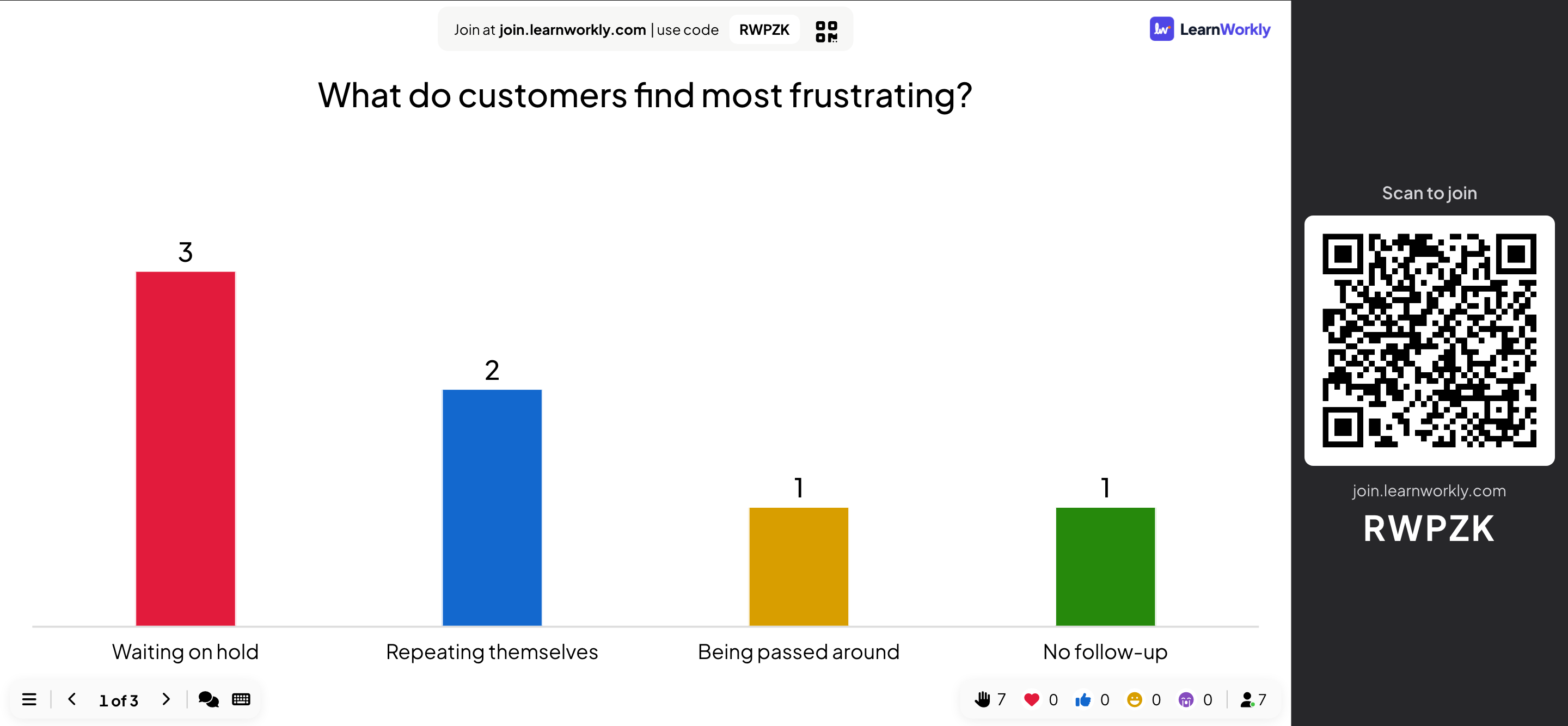
Present mode shows your slides in 16:9 on the projector or the screen you share, with the joining instructions beside them. Participants follow along on their phones, and results update live.
Start presenting
- 1
Click Present
In the editor, click Present at the top right. It starts from the slide you have selected.
- 2
Or pick where to start
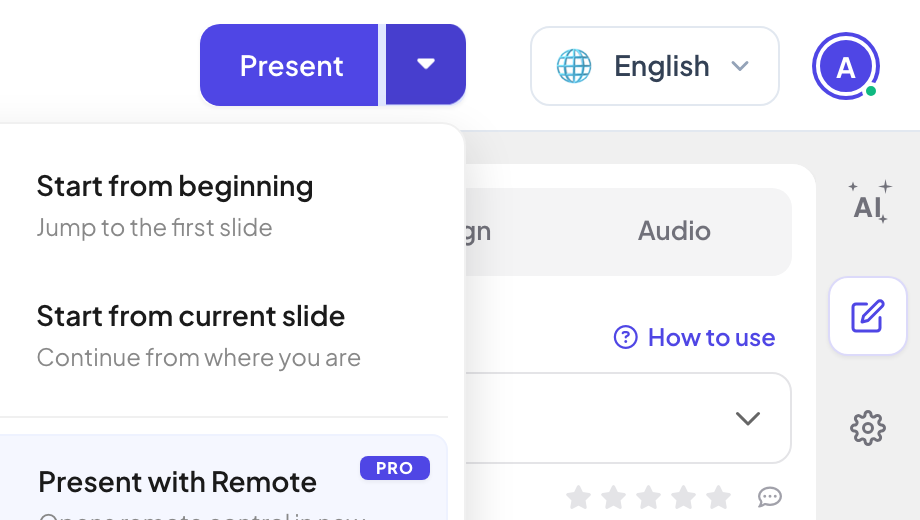
The arrow next to Present offers Start from beginning, Start from current slide and Present with Remote, which also opens remote control in a new window (Pro and Enterprise).
- 3
Go full screen
Open the ☰ menu at the bottom left of the slide and click Full screen.
- 4
Move through the slides
Use the arrows at the bottom left (the counter shows, for example, 1 of 3) or the keyboard (see below).
- 5
Stop
Press Esc, or open the ☰ menu and click Stop Present. You go back to the editor.
Keyboard
| Key | What it does |
|---|---|
| Right arrow, Down arrow, Enter, Space, Page Down | Next slide. On a List slide it reveals the next line first; on a PowerPoint Animated slide it plays the next animation step first. |
| Left arrow, Up arrow, Page Up | Previous slide (or hides the last line / undoes the last animation step). |
| Enter, Space, Right arrow | On a quiz lobby screen, starts the question. |
| Esc | Stops presenting. |
The menu at the bottom left
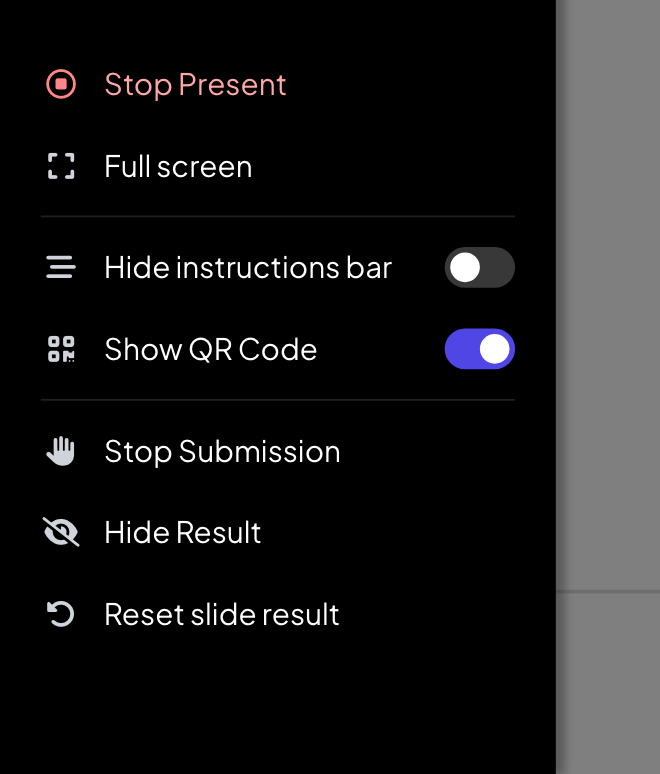
The ☰ menu has Stop Present, Full screen, the switches Hide instructions bar and Show QR Code, and, for the current slide, Stop Submission, Hide Result and Reset slide result. The bottom bar also shows the number of answers, reactions and how many people are connected.
Frequently asked questions
How do I start again with no answers?
In the editor, click Clear all results at the top. The answers so far are kept in the report.
Can I reset just one slide?
Yes. While presenting, use Reset slide result in the ☰ menu. In the editor, use Reset results this slide in the slide’s ⋮ menu.
Can I skip a slide without deleting it?
Yes. Use Skip slide in the slide’s ⋮ menu in the slide list. Skipped slides are passed over when you present.
Phones say the presentation has reached its access limit.
More people are connected than your plan allows at the same time: 10 on Free, 100 on Basic and 5,000 on Pro. The count at the bottom right of the slide shows people connected and, on Free and Basic, your limit. See Plans and billing.
Last checked against the app on 17 November 2026.
Related articles
- The join bar and QR codeThe bar at the top of each slide and the QR column beside it tell people how to join. Learn how to show, hide, share and print them.
- Control your presentation from your phoneOpen a private remote link on your phone to change slides, read speaker notes and moderate Q&A while the big screen shows the presentation.
- Slide transitions, Keyboard Magic and controlsPick the slide transition, add confetti, drumrolls and other effects from the keyboard, and hide the controls while you present.