Remote control lets you walk around the room and run the presentation from your phone or a second device. It is part of the Pro and Enterprise plans; on other plans the panel shows Upgrade Now.
Open the remote
- 1
Open the Remote control panel
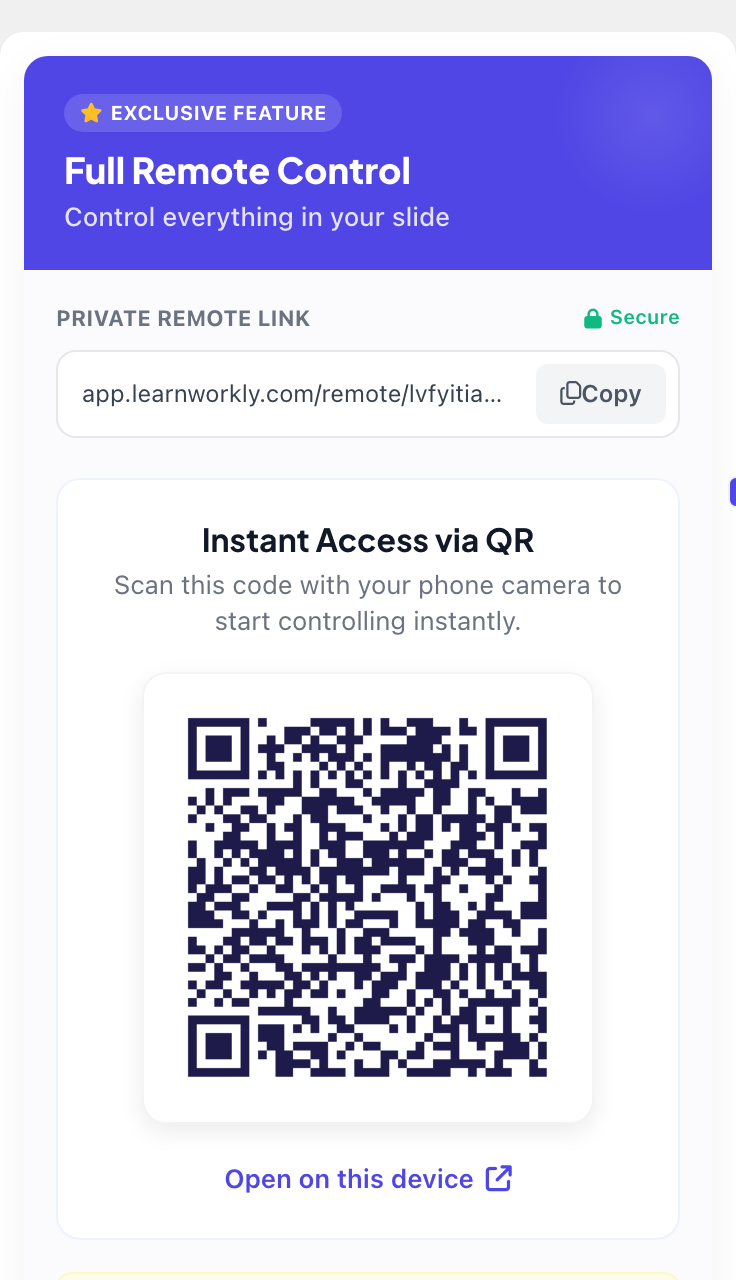
In the editor, click the Remote control icon (marked Pro) on the right edge. It shows your Private Remote Link and a QR code under Instant Access via QR.
- 2
Open it on your phone
Scan the QR code with your phone camera, click Copy to send the link to yourself, or click Open on this device. Log in with the same account on that device if asked.
- 3
Present
Start presenting on the big screen. You can also choose Present with Remote under the arrow next to Present, which opens the remote in a new window.
What you can do on the remote
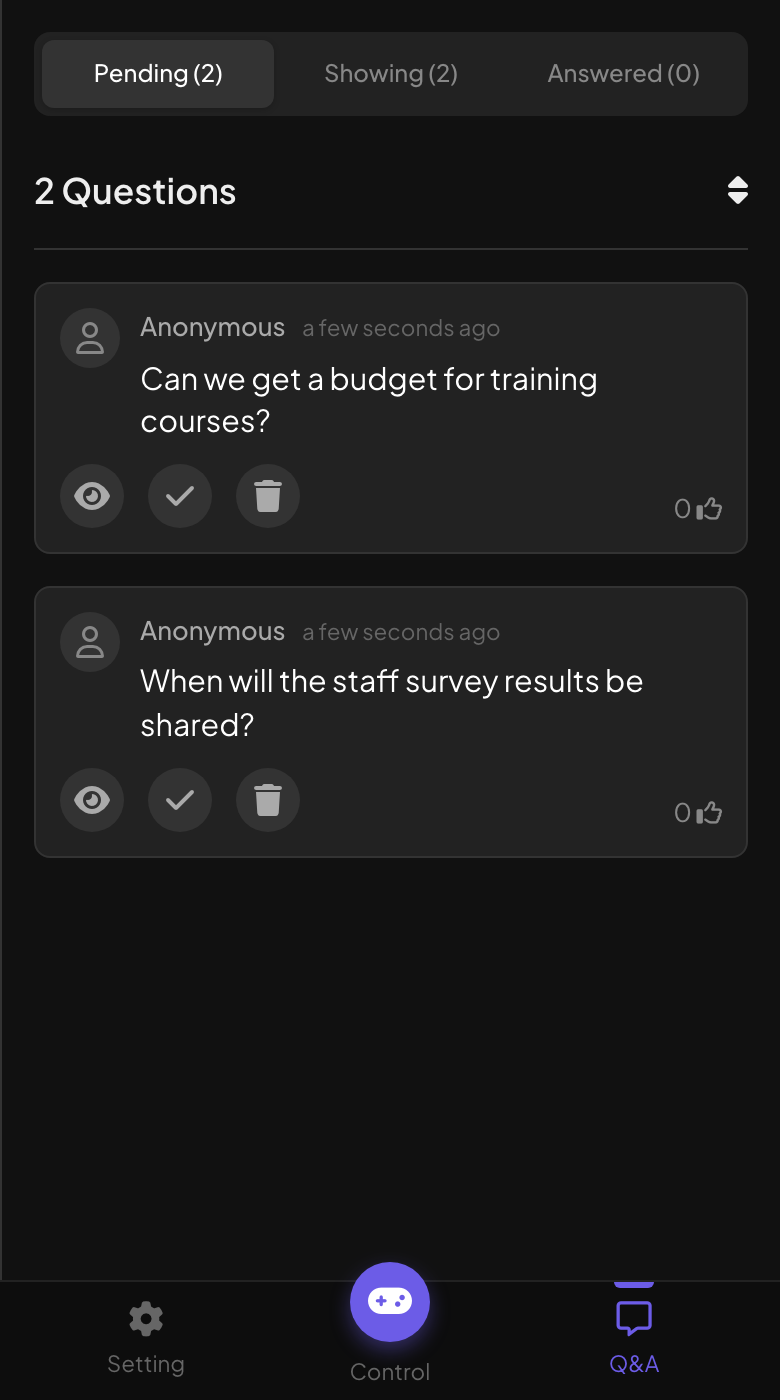
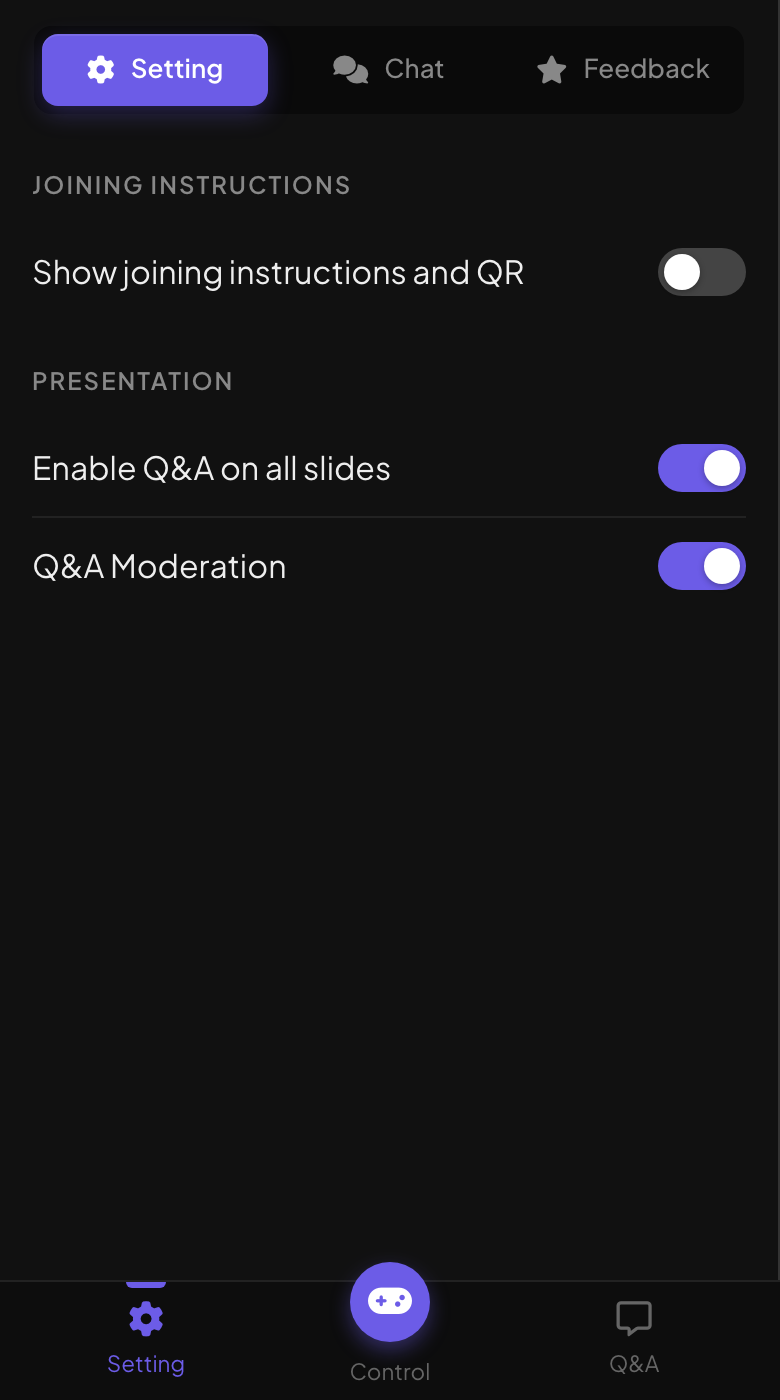
The remote has three tabs at the bottom: Control, Q&A and Setting.
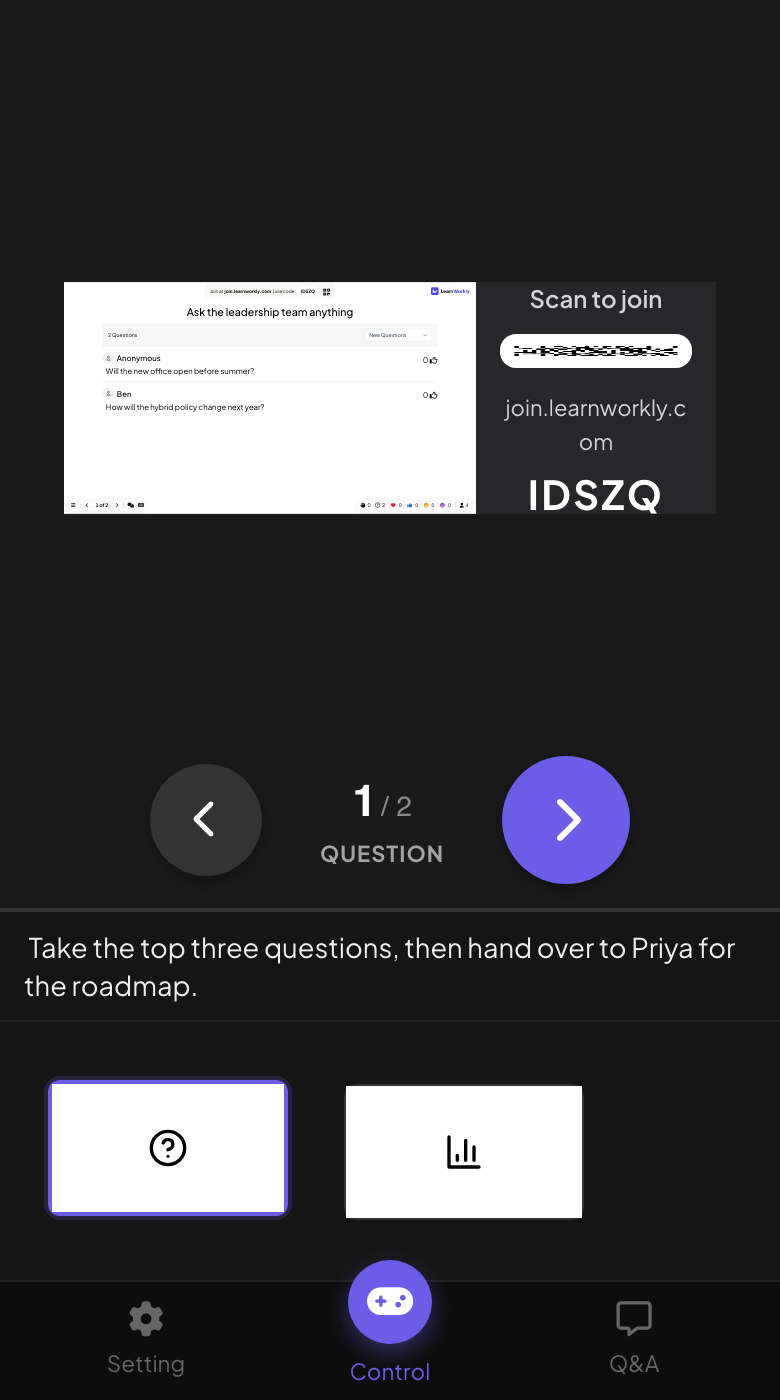
- Control: a live preview of the big screen, previous and next buttons, the slide number and type, your speaker notes and the slide list to jump to any slide.
- Q&A: questions from participants under Pending, Showing and Answered, with buttons to show a question on the big screen, mark it answered or delete it.
- Setting: Show joining instructions and QR, Enable Q&A on all slides and Q&A Moderation, plus the Chat and Feedback tabs to read the live chat and audience feedback.
Frequently asked questions
The remote opens the log-in page.
Log in on that device with the account that owns the presentation, or one that has been invited to edit it, then open the link again.
Can a colleague moderate Q&A without the remote?
Yes. Send them the moderation link from Moderation Q&A: see Moderate Q&A and filter profanity.
Do I need the remote to read my notes?
Notes only show in the editor and on the remote, not in present mode. To read them while presenting, use the remote on a phone or a second screen.
Last checked against the app on 17 November 2026.
Related articles
- Present on the big screenStart presenting from the editor, move through slides with the keyboard, use the menu while you present and stop when you are done.
- Speaker notes: keep your talking points privateWrite speaker notes under each slide in the editor and read them on your phone with remote control while you present. Participants never see them.
- Moderate Q&A and filter profanityApprove questions before they reach the big screen, share a moderator link with a colleague and hide offensive words in answers.