A Scenario is a branching story. Each step shows a situation and two to four choices. The room votes on what to do, the winning choice changes the meters (for example customer happiness or budget) and leads to the next step, until the story reaches an ending. It is made for training: customer service, security awareness, safety, leadership, or any decision you want people to talk through. Scenario is marked Beta in the editor.
Write the story
- 1
Add the slide
In the editor, click + New Slide. In Choose Slide Type, open the Games tab and click Scenario. The game’s content and its Settings are in the Content tab of the column on the right.
- 2
Start from a template
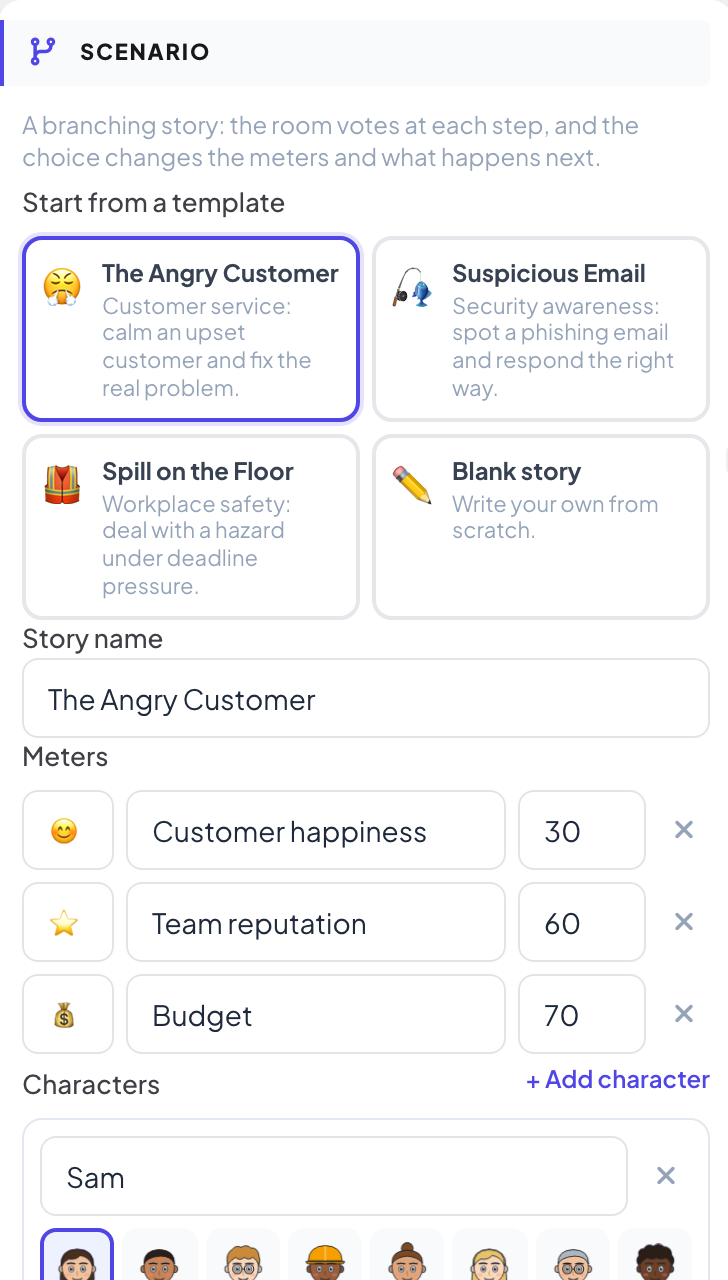
Under Start from a template, pick The Angry Customer, Suspicious Email or Spill on the Floor, or Blank story to write your own from scratch.
- 3
Set the meters and characters
Give the story a Story name. Under Meters, click Add meter and set its name, Icon and Starting value. Under Characters, click Add character for up to four people in the story.
- 4
Write the steps
Each step has a Title, a Scene, Who speaks (the Narrator or a character), a Mood and the situation. Add two to four choices with Add choice. For each one, set where it Leads to, how it changes each meter, the character’s Reaction and the feedback shown after the vote. Tick Best choice on the ideal answer.
- 5
Add endings
Click Add ending, choose its Outcome (good, okay or bad) and describe what happened in the end. Make this the start sets the first step. A step marked Needs attention is missing something.
Settings
| Setting | What it does | Default |
|---|---|---|
| Time to vote | 10, 15, 20, 30, 45, 60 or 90 seconds per step. Voting closes early once everyone has voted. | 20 s |
| Show votes while voting | On: vote counts show during the vote. Off: the split is only shown at the reveal, so people think for themselves. | Off |
| On a tie | Pick at random or Prefer the best choice. | Pick at random |
Play it live
- 1
Open the lobby
Click Present. The big screen shows the game’s lobby. People join on their phone with the code or the QR code, with no app or account, and type a nickname. The lobby fills up as they join. The lobby shows the story name and its meters. Press START.
- 2
Vote
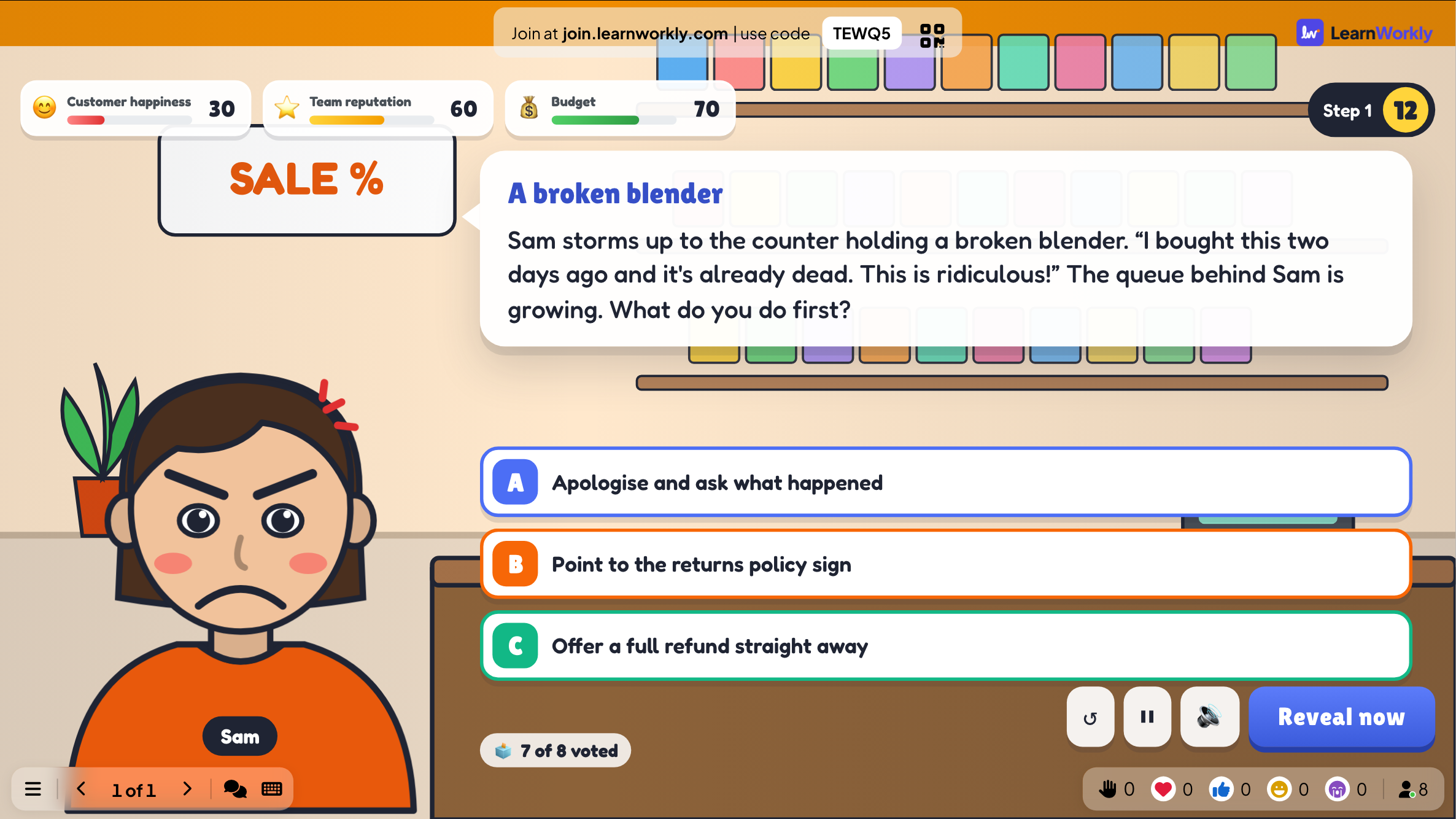
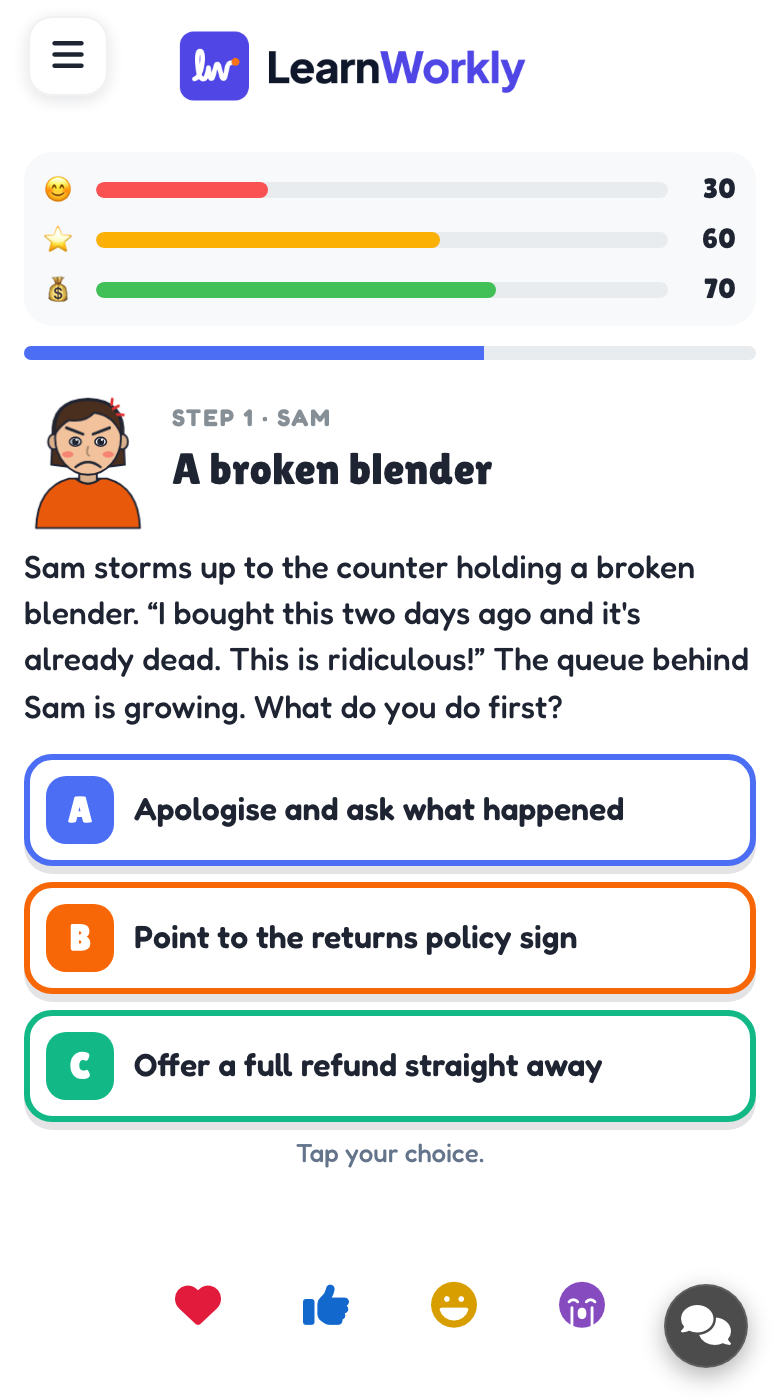
Each step shows the scene, the character and the choices on the big screen, with the meters at the top and how many have voted. Participants tap their choice on their phone and can change it until voting closes. Press Reveal now to close the vote early.
- 3
See the result
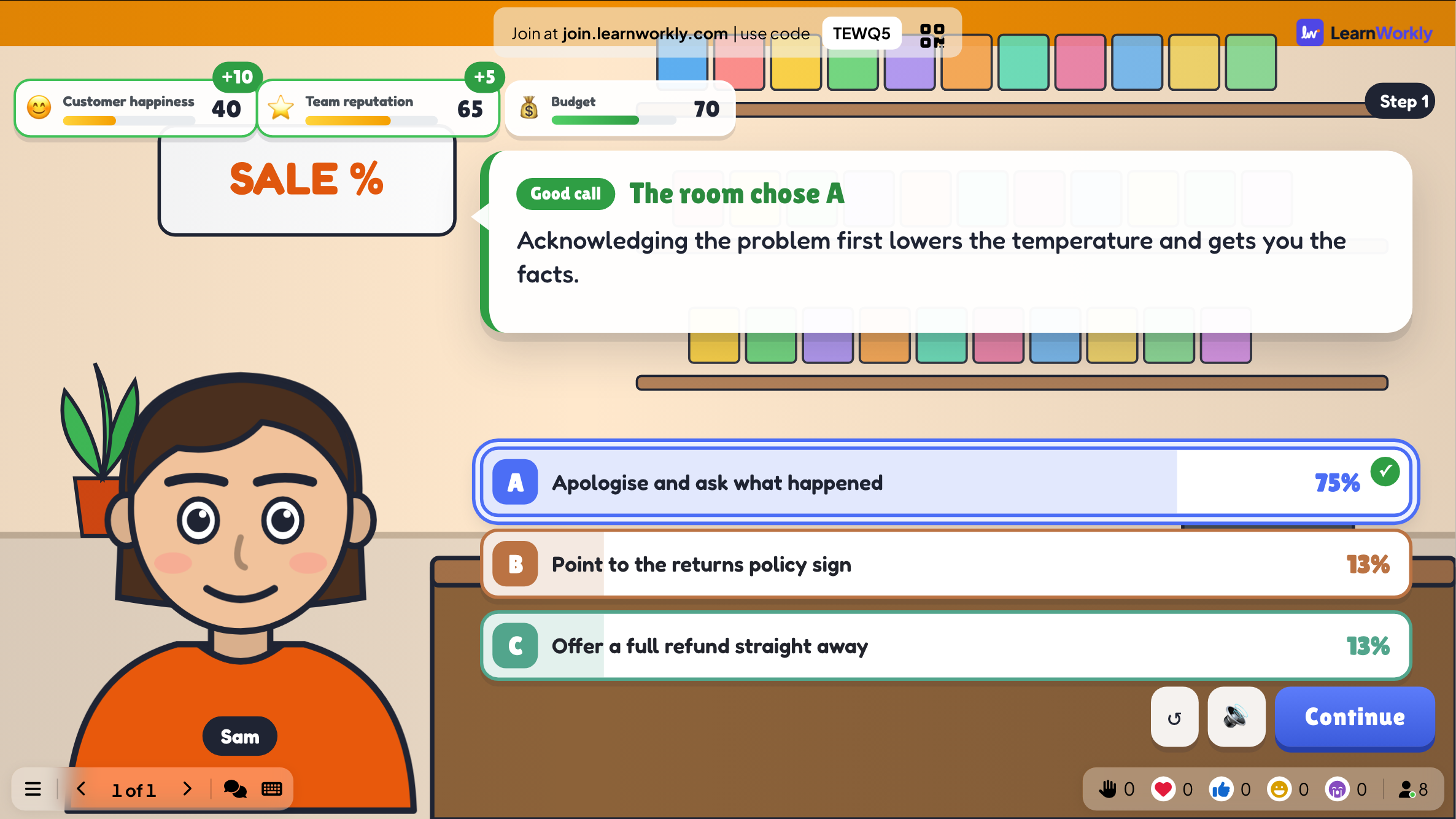
The result shows which choice the room picked, the share of votes for each choice, how the meters moved and the feedback for that choice. The story then waits for you, so the room can discuss: press Continue to go on.
- 4
The ending
At the end, the big screen shows the ending (good, okay or bad), and See the path compares the room’s path with the best path.
See the results later
Every finished game is saved with its results. Click Past games on the slide (or at the top of its Content tab) to see earlier plays, and find them in the report for the presentation.
Frequently asked questions
Does anyone score points?
No. A scenario is played by the whole room together: the votes steer the story. The meters and the ending show how well the room did.
The story moved on before we finished talking.
It does not move on by itself after a vote: it waits until you press Continue.
Can I write a scenario for my own workplace?
Yes. Pick Blank story, or start from a template and change the steps, characters and meters.
How do I play again?
Press Play again on the final screen, or Restart while the game is running. The finished game stays in Past games.
Last checked against the app on 17 November 2026.
Related articles
- Vote · Discuss · Revote: peer instructionEveryone votes alone with no points, discusses with a neighbour, then votes again for points. The big screen shows how the room changed its mind.
- Poll: ask the room and show the votes liveSurvey participant opinions and show them as a bar or pie chart. Set up options, allow more than one pick, mark a correct answer or hide results.
- Present on the big screenStart presenting from the editor, move through slides with the keyboard, use the menu while you present and stop when you are done.
- How participants join your presentationPeople join at join.learnworkly.com with your code or by scanning the QR code, with no app and no account. See what they do and how to change the code.