Vote · Discuss · Revote runs a peer-instruction round in one slide. Ask a question that makes people think: everyone votes alone (no points), talks it over with a neighbour, then votes again. The second vote scores points for the leaderboard. A new slide starts with a sample physics question.
Set it up
- 1
Add the slide
In the editor, click + New Slide. In Choose Slide Type, open the Quizzes tab and click Vote · Discuss · Revote. A Leaderboard slide is added right after it, unless the next slide already is one.
- 2
Write the question and options
Write the question and the options, and mark the right answer. The best questions split the room: about half right on the first vote.
- 3
Set the timings
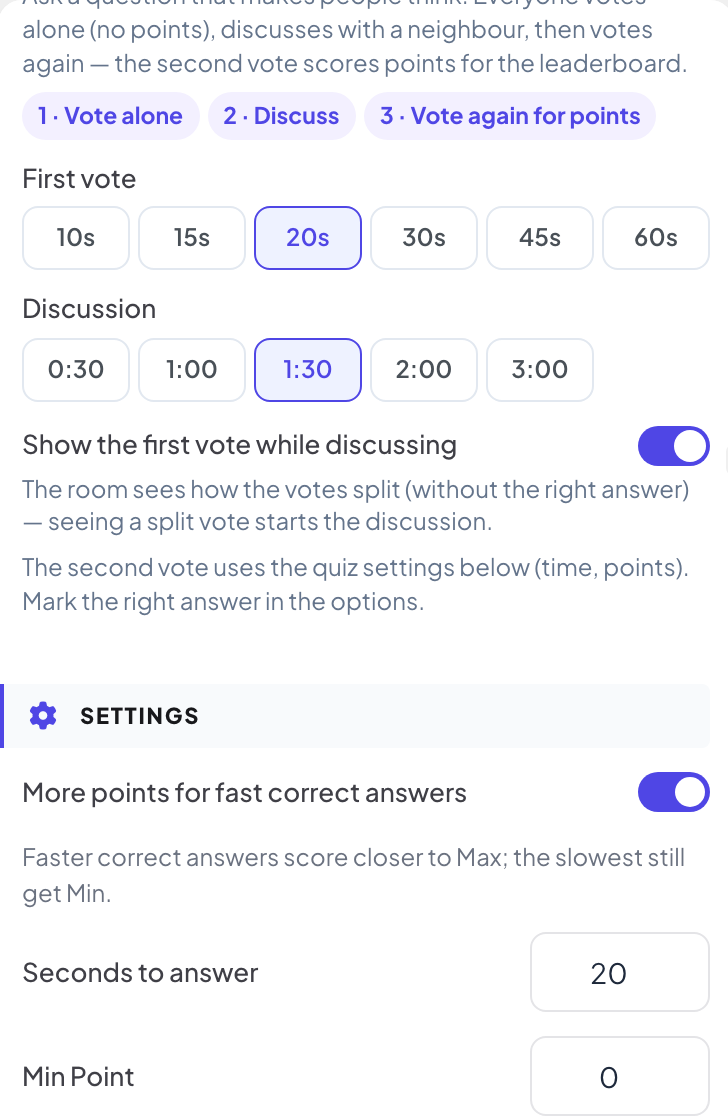
Choose how long the First vote lasts (10 to 60 seconds, 20 to start with) and how long the Discussion lasts (30 seconds to 3 minutes, 90 seconds to start with).
- 4
Choose what the room sees
With Show the first vote while discussing on (the default), the room sees how the votes split, without the right answer. Turn it off to keep the split hidden until the end, so nobody just follows the majority.
- 5
Set the second vote
The second vote uses the quiz settings below: Seconds to answer and the points.
Play it live
- 1
First vote
If this is the first quiz slide, click Start Game in the lobby. Later in a game, the first vote opens as soon as you move to the slide. Phones ask What do you think? This first vote gives no points. The big screen shows how many have voted.
- 2
Discussion
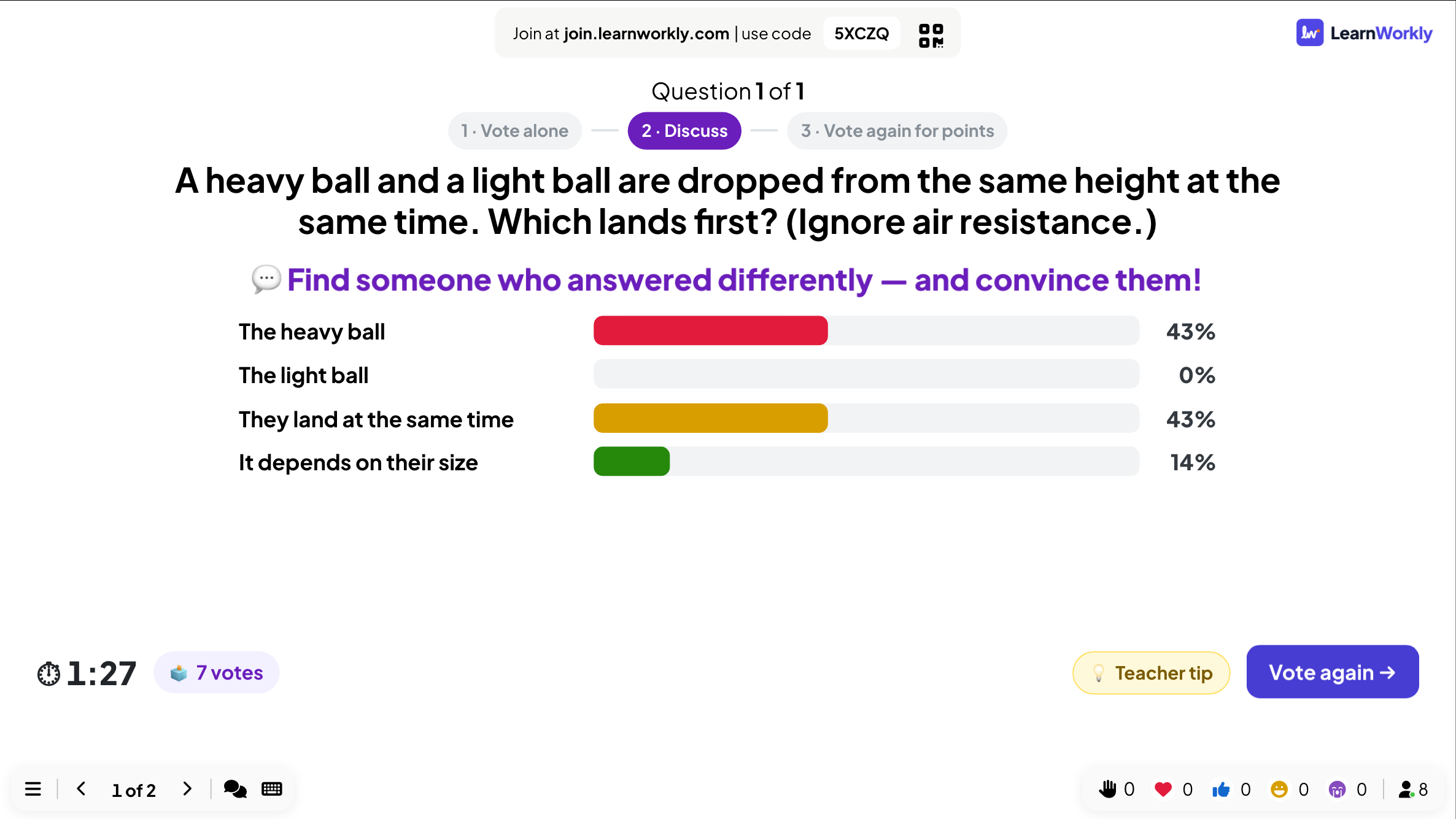
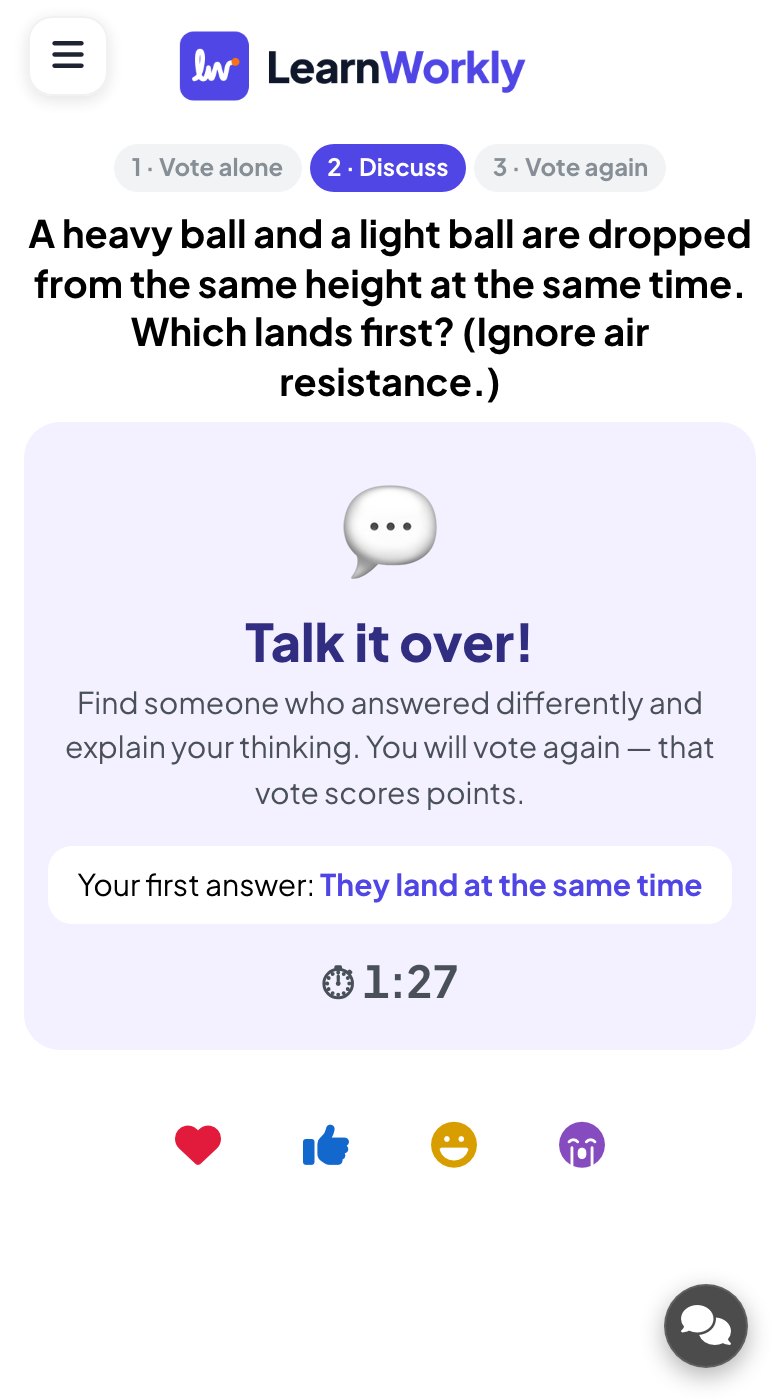
When the timer ends, or when you click Close vote & discuss, phones say Talk it over! and ask people to find someone who answered differently. The big screen shows the split (if you chose to show it), the discussion timer and a Teacher tip button with advice based on how many got it right.
- 3
Second vote
When the discussion timer ends, or when you click Vote again, everyone votes a second time, for points.
- 4
Reveal
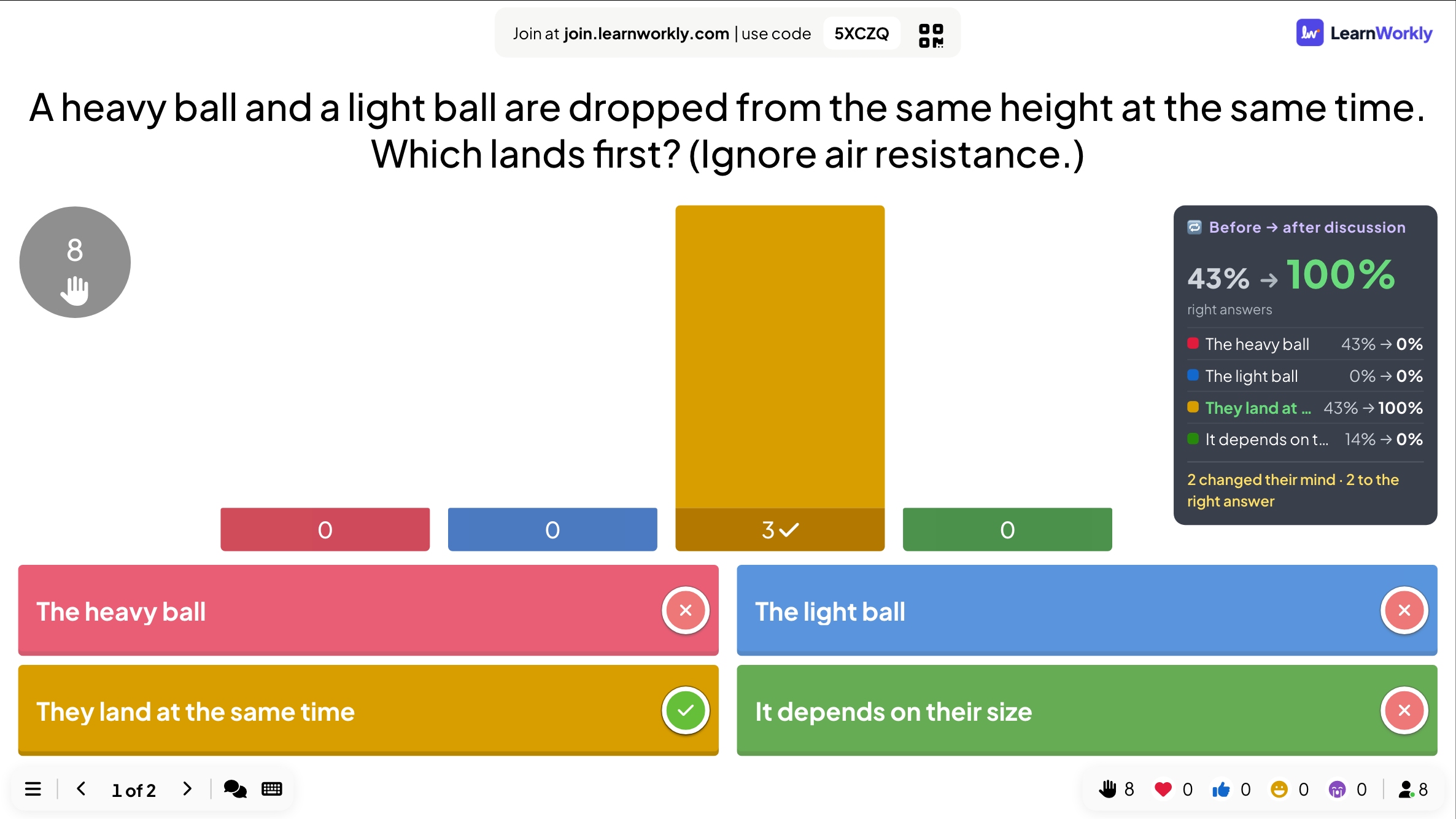
The big screen shows the votes Before → after discussion: how many people changed their mind and how many moved to the right answer. Each phone shows whether the person kept or changed their first answer, or did not vote the second time.
Frequently asked questions
Does the first vote count for points?
No. Only the second vote scores, so people can answer honestly the first time.
Can I shorten the discussion?
Yes. Click Vote again whenever the room is ready.
Almost everyone got the first vote right.
Then a discussion adds little. Click Close vote & discuss and Vote again quickly, and use a harder question next time.
Last checked against the app on 17 November 2026.
Related articles
- Select Answer: multiple-choice quiz questionsAsk a multiple-choice question with up to six options, mark the right answers, set the time and points, and play it live with a countdown and a reveal.
- True or False: fact or myth questionsWrite a statement, pick the right side and explain why. Players choose on their phone, then the answer is stamped on screen with your explanation.
- Poll: ask the room and show the votes liveSurvey participant opinions and show them as a bar or pie chart. Set up options, allow more than one pick, mark a correct answer or hide results.