Duck Race is a visual race on the big screen. Every participant picks a duck on their phone and the ducks race down a river to the finish line. Use it as a lucky draw for a prize, to pick who goes first, or as a quick energiser.
Set it up
- 1
Add the slide
In the editor, click + New Slide. In Choose Slide Type, open the Games tab and click Duck Race. The game’s content and its Settings are in the Content tab of the column on the right.
- 2
Write the title
Type what the race is for, for example "Who picks the Friday film?". It is shown above the race.
- 3
Check the settings
Set the Race Duration (seconds), choose whether people can boost their duck, and pick a Theme (see the table).
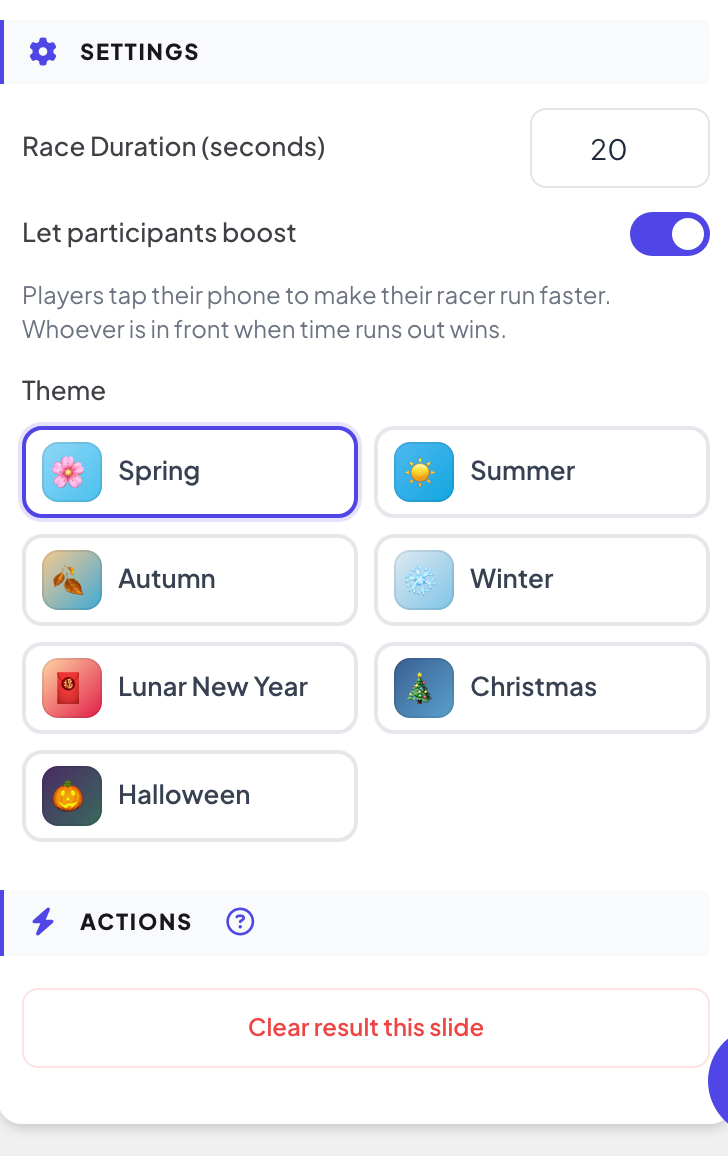
Settings
| Setting | What it does | Default |
|---|---|---|
| Race Duration (seconds) | How long the race lasts. The shortest race is 5 seconds. | 45 |
| Let participants boost | On: players tap their phone to make their duck swim faster, and whoever is in front when time runs out wins. Off: the winner is picked at random and phones just show the race status, which suits a prize draw. | On |
| Theme | The scenery: Spring, Summer, Autumn, Winter, Lunar New Year, Christmas or Halloween. | Spring |
Run the race
- 1
Open the lobby
Click Present. The big screen shows the game’s lobby. People join on their phone with the code or the QR code, with no app or account, and type a nickname. The lobby fills up as they join. The lobby counts the racers who are ready.
- 2
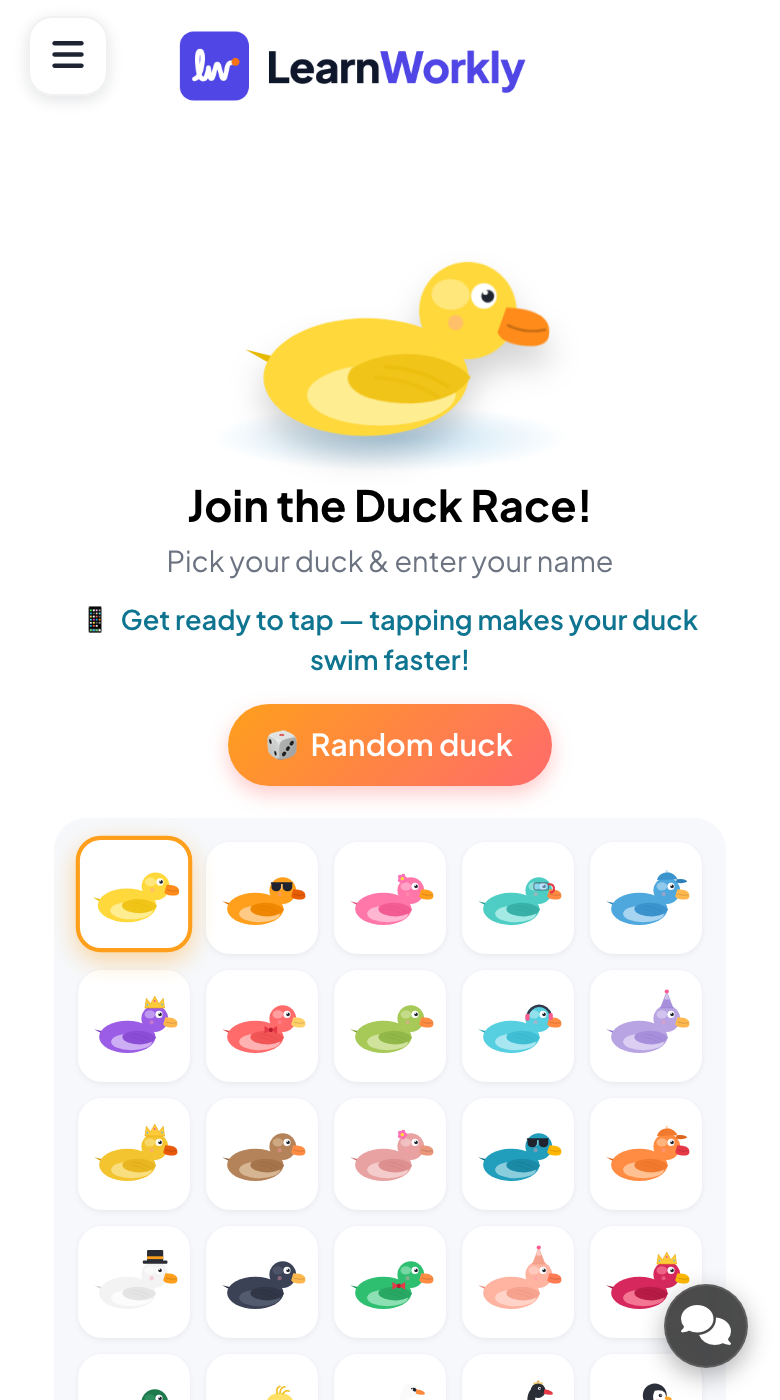
People pick a duck
Phones show Join the Duck Race!. People tap a duck (or Random duck) and enter their name.
- 3
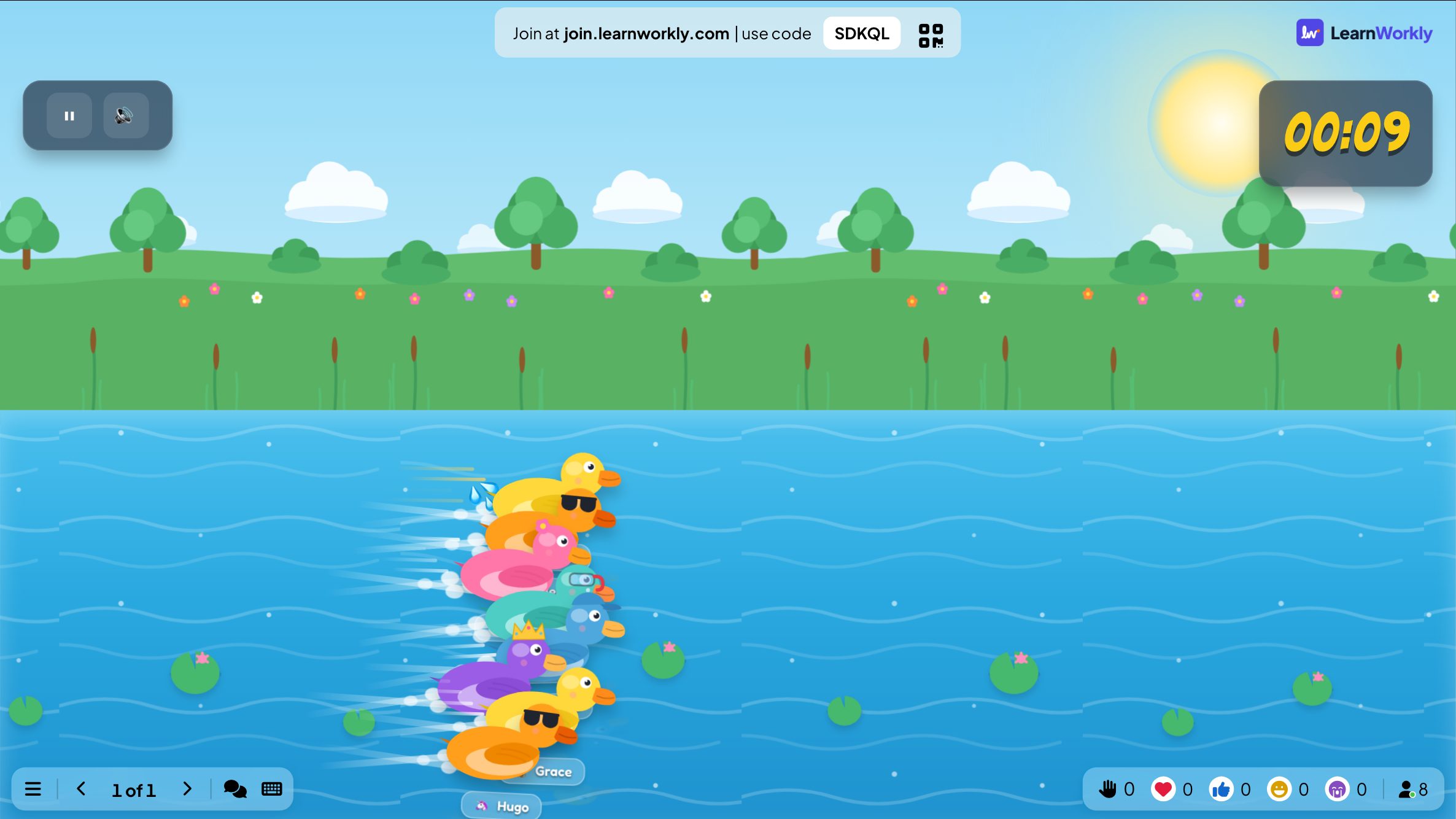
Start
Press GO!. With boost on, every phone shows a big TAP TO SWIM! button and counts the taps, with the player’s place at the top. The big screen follows the ducks and slows down for the finish.
- 4
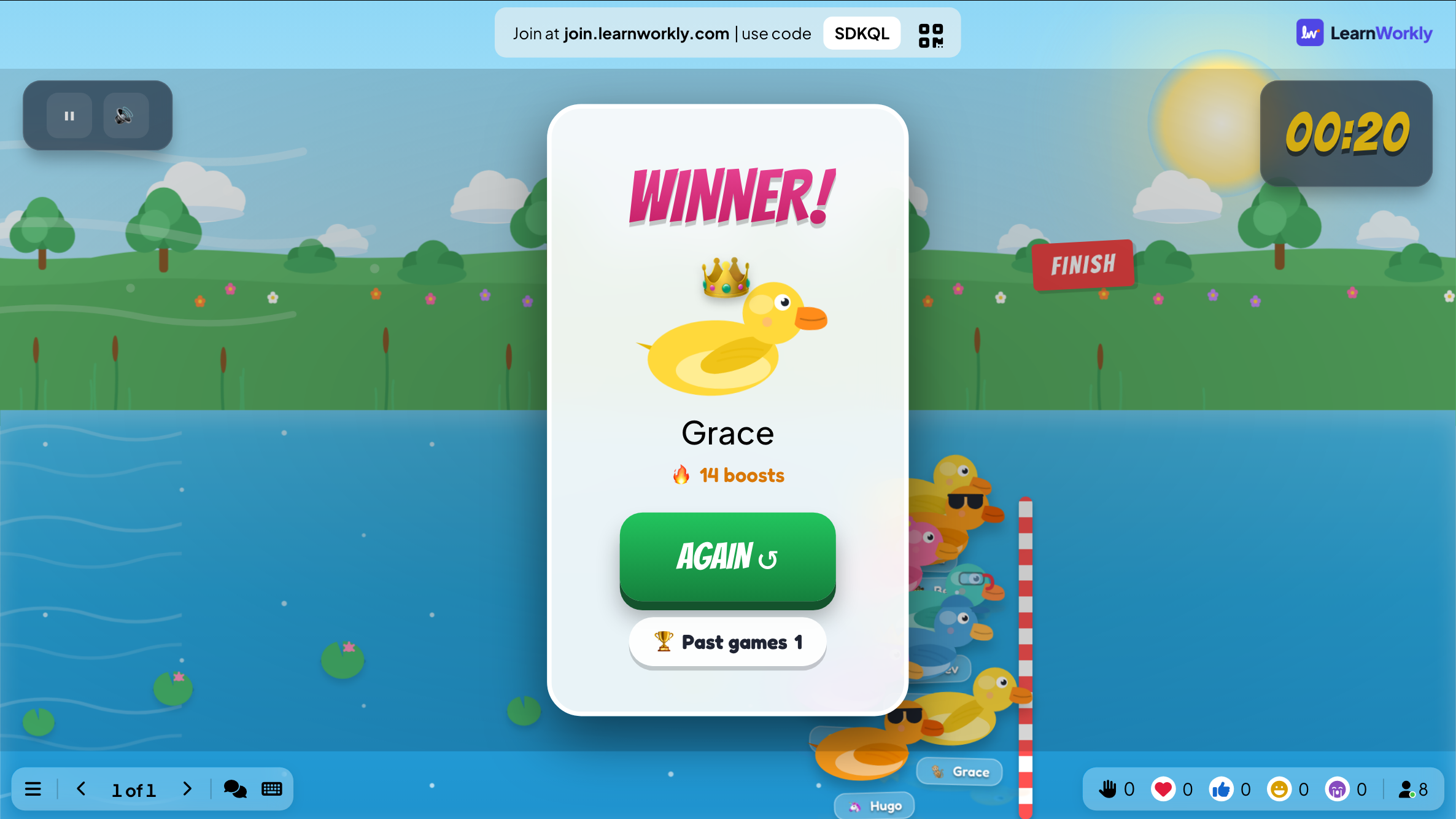
The winner
The winner is shown with their duck and number of boosts. Each phone shows the player’s place, for example "You finished #3 of 24". Press AGAIN ↺ to go back to the lobby, then GO! for another race.
See the results later
Every finished game is saved with its results. Click Past games on the slide (or at the top of its Content tab) to see earlier plays, and find them in the report for the presentation.
Frequently asked questions
Is it fair as a prize draw?
Turn off Let participants boost. The winner is then picked at random, and tapping does nothing.
Someone joined after GO!
Press AGAIN ↺ when the race is over. The lobby opens again with everyone who has joined; press GO! to race.
Can I pause the race?
Yes. Use the pause button in the top-left corner of the race. Phones show Paused.
Can people play without their real name?
Yes. They choose any nickname on their phone. Ask for nicknames rather than full names if you will show the screen to a wider audience.
Last checked against the app on 17 November 2026.
Related articles
- Zombie Race: a spooky race to the brainsA spooky race: everyone picks a zombie on their phone and taps to shamble faster toward the brains. The first zombie past the finish line wins.
- Spinner Wheel: pick a name or a prize at randomA lucky spinner wheel that picks a random name, prize or topic. Type the entries, upload a CSV file or let participants add their own names.
- Present on the big screenStart presenting from the editor, move through slides with the keyboard, use the menu while you present and stop when you are done.
- How participants join your presentationPeople join at join.learnworkly.com with your code or by scanning the QR code, with no app and no account. See what they do and how to change the code.