Every presentation has its own code. Participants use a phone, a tablet or a laptop: no app to install and no account, unless you choose to require one.
What participants do
- 1
Open the join page
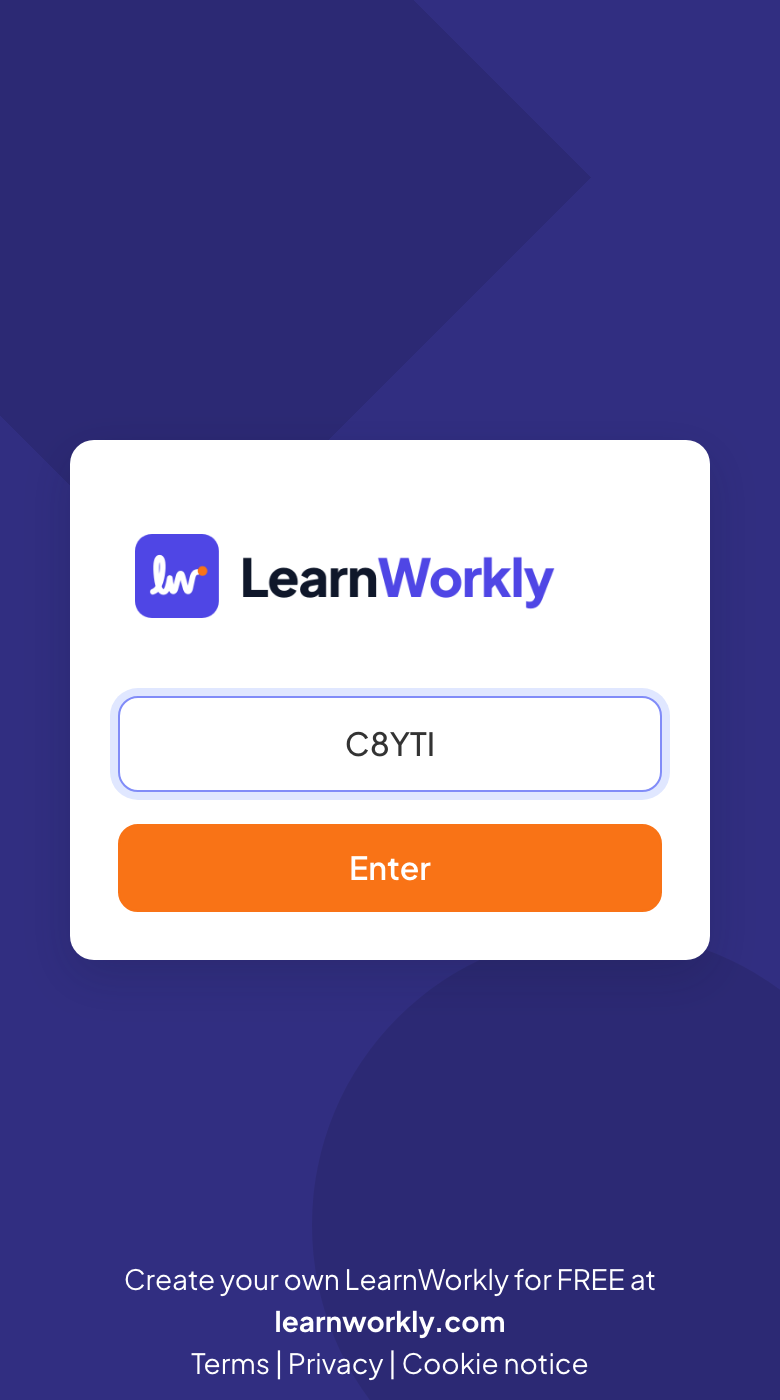
They go to join.learnworkly.com, type the code in Presentation Code and tap Enter. Scanning the QR code on your screen, or opening join.learnworkly.com/ followed by the code, takes them straight in.
- 2
Pick a nickname when asked
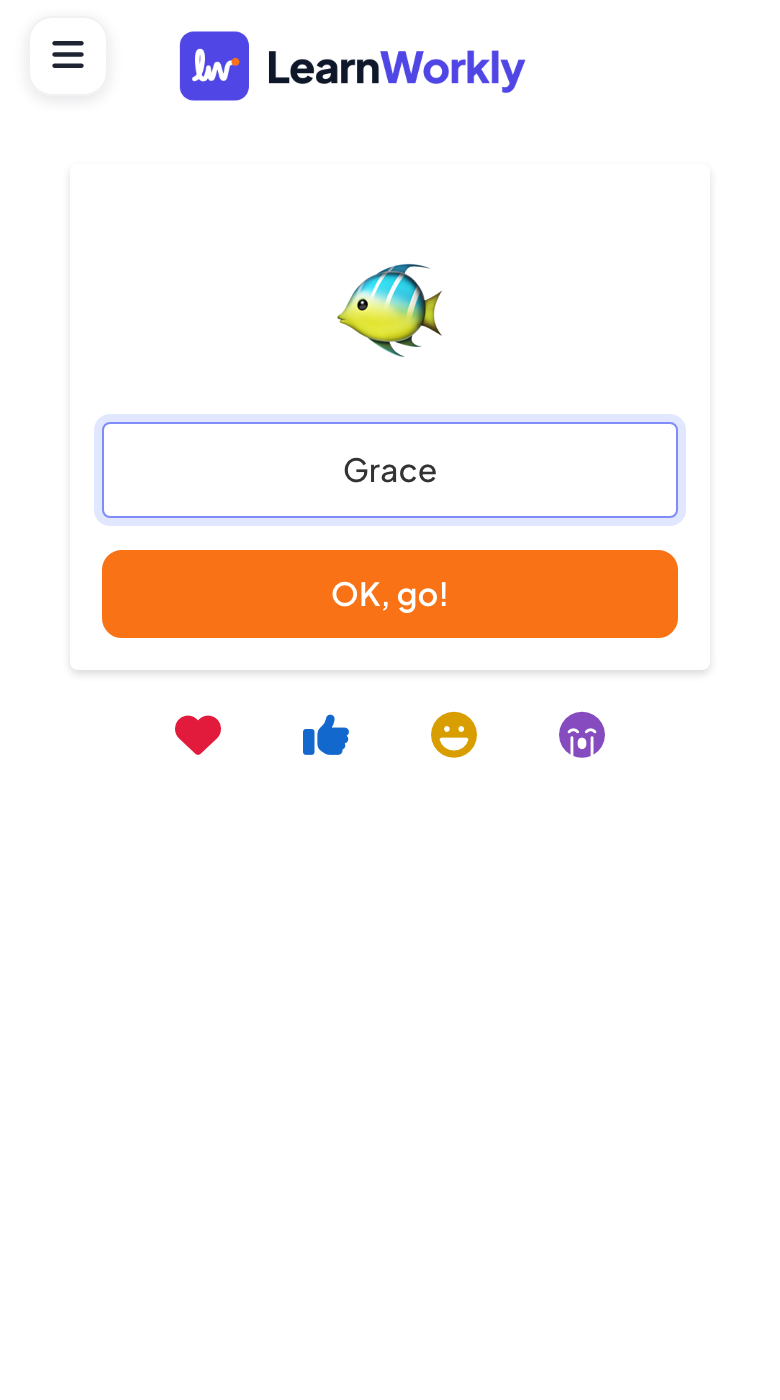
Quiz and game slides ask for a nickname (with a random avatar) before they play: they type it and tap OK, go!.
- 3
Take part
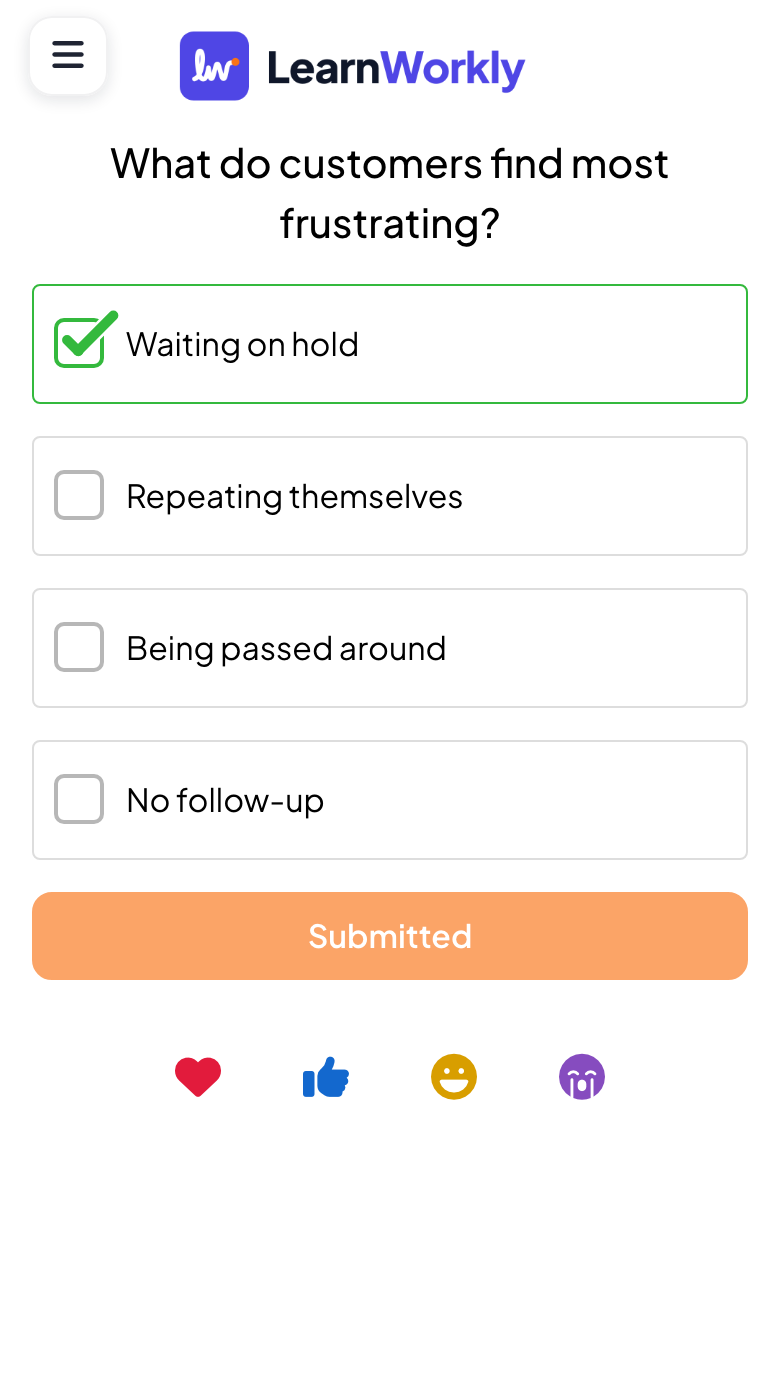
Their screen follows your slides: they answer, vote, play and send reactions with the buttons at the bottom.
Where to find the code
While you present, the bar at the top of the slide reads Join at join.learnworkly.com | use code and your code, and the Scan to join column beside the slide shows the QR code. See The join bar and QR code.
Share the link or choose your own code
- 1
Open Audience Link
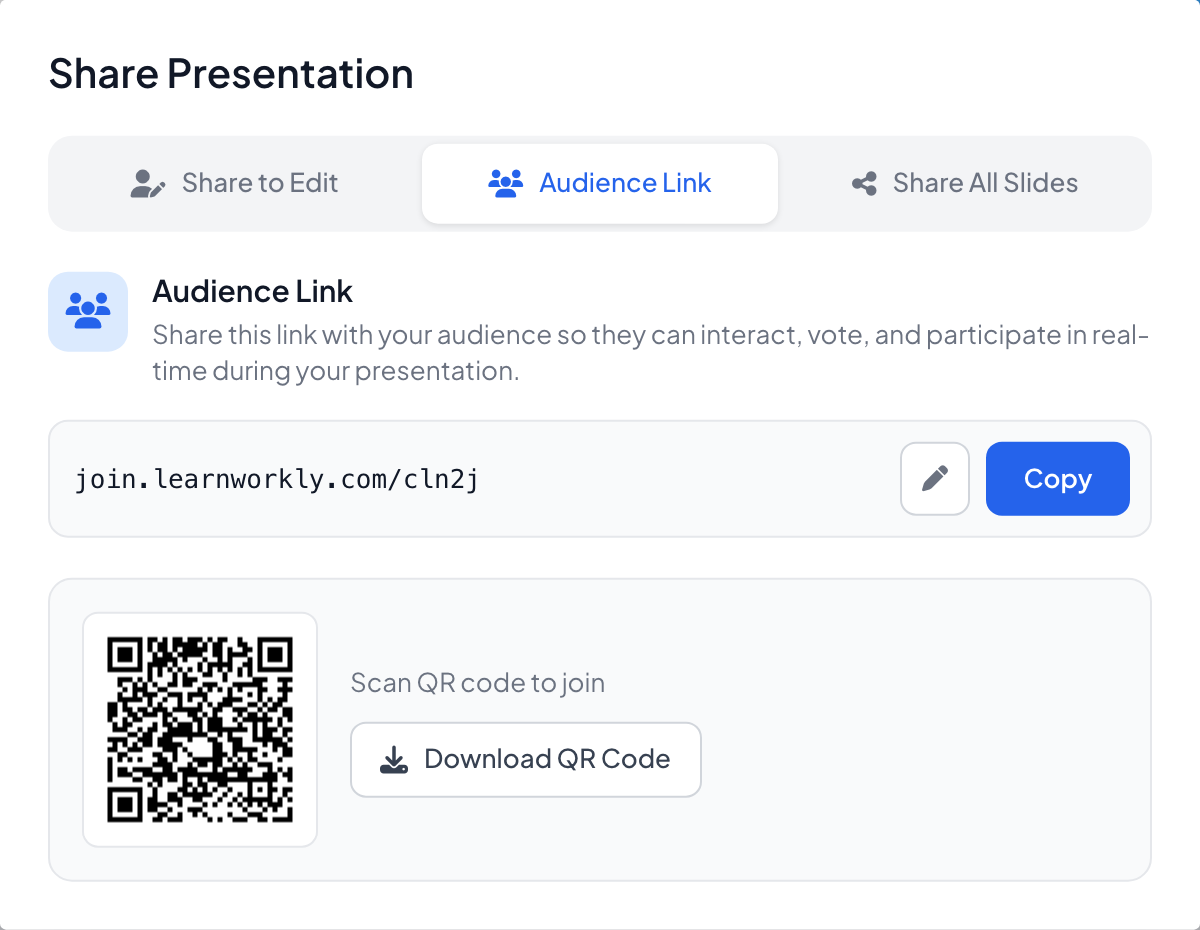
In the editor, click the share icon in the top bar, then Audience Link. It shows the join link, the QR code and Download QR Code to print it or put it on a handout.
- 2
Change the code
Click the pencil next to the link to type a code that is easy to remember, then save. It cannot contain spaces and must not be in use by another presentation.
Frequently asked questions
Participants see "This presentation is private".
The presentation is set to private. Click the eye icon next to the presentation name in the editor to make it public again.
A participant sees “Presentation not found.”
Check the code on your screen: it is not case-sensitive, but every letter and digit must match. If you changed the code with the pencil in Audience Link, the old code no longer works.
Can I ask for names or emails when people join?
Yes. See Collect participant information.
Can I limit who can join?
Yes, with a login or a personal access code for each participant. See Private sessions, login and access codes.
Last checked against the app on 17 November 2026.
Related articles
- The join bar and QR codeThe bar at the top of each slide and the QR column beside it tell people how to join. Learn how to show, hide, share and print them.
- Collect participant informationAsk participants for their name and any other details you need, such as a team or a department, before they can take part in your presentation.
- Private sessions, login and access codesLimit who can join your presentation: make it private, ask participants to log in, or give each person a unique access code to enter.