A Lucky Draw runs a prize draw from your presentation: an end-of-year party, a conference raffle, a team day, a school fair. You list the prizes and how many of each you give away. People scan the QR code, type their name and get a ticket with a short code. On the big screen you pick a prize and draw its winners; each prize goes to as many people as its quantity.
The winners are picked at random by the LearnWorkly server, not by the presenter’s computer, and every draw is saved as it happens. If the page reloads or you open a second presenting window, the results are still there.
Set it up
- 1
Add the slide
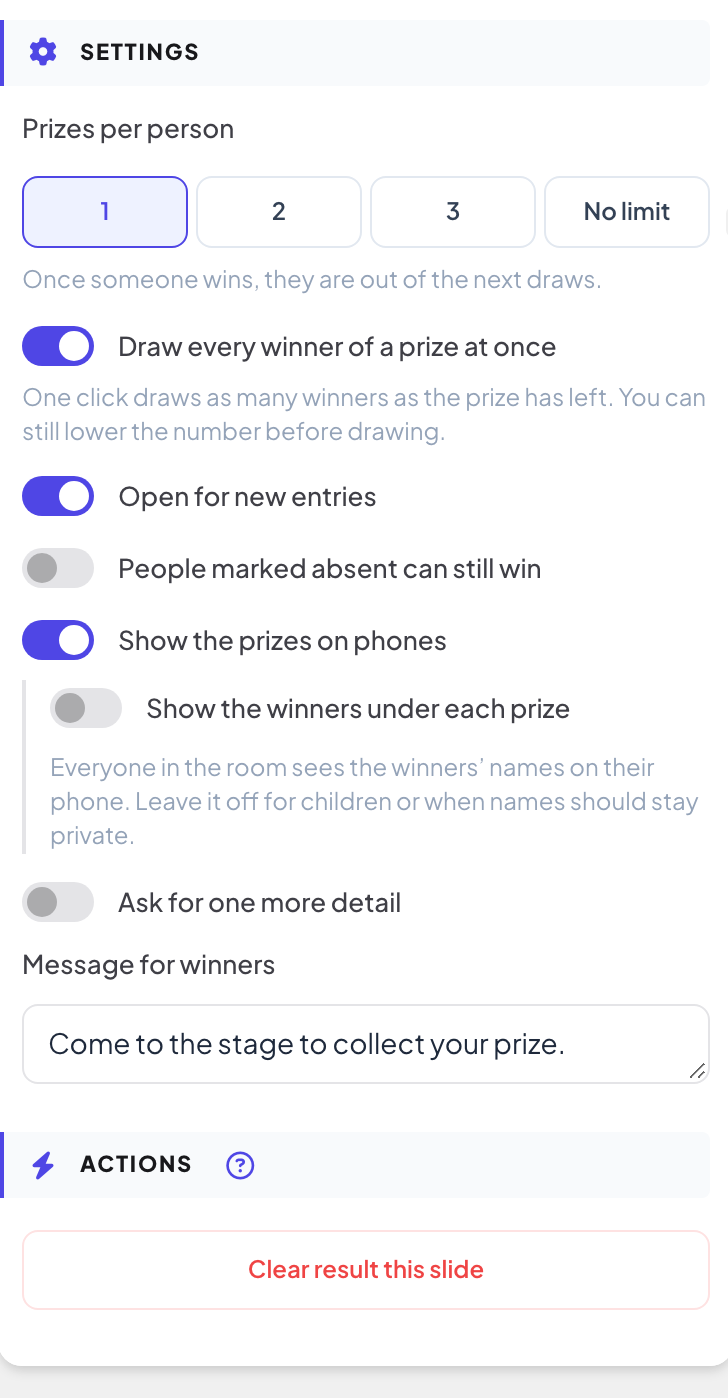
In the editor, click + New Slide. In Choose Slide Type, open the Games tab and click Lucky Draw. The game’s content and its Settings are in the Content tab of the column on the right. A new slide starts with three sample prizes.
- 2
List the prizes
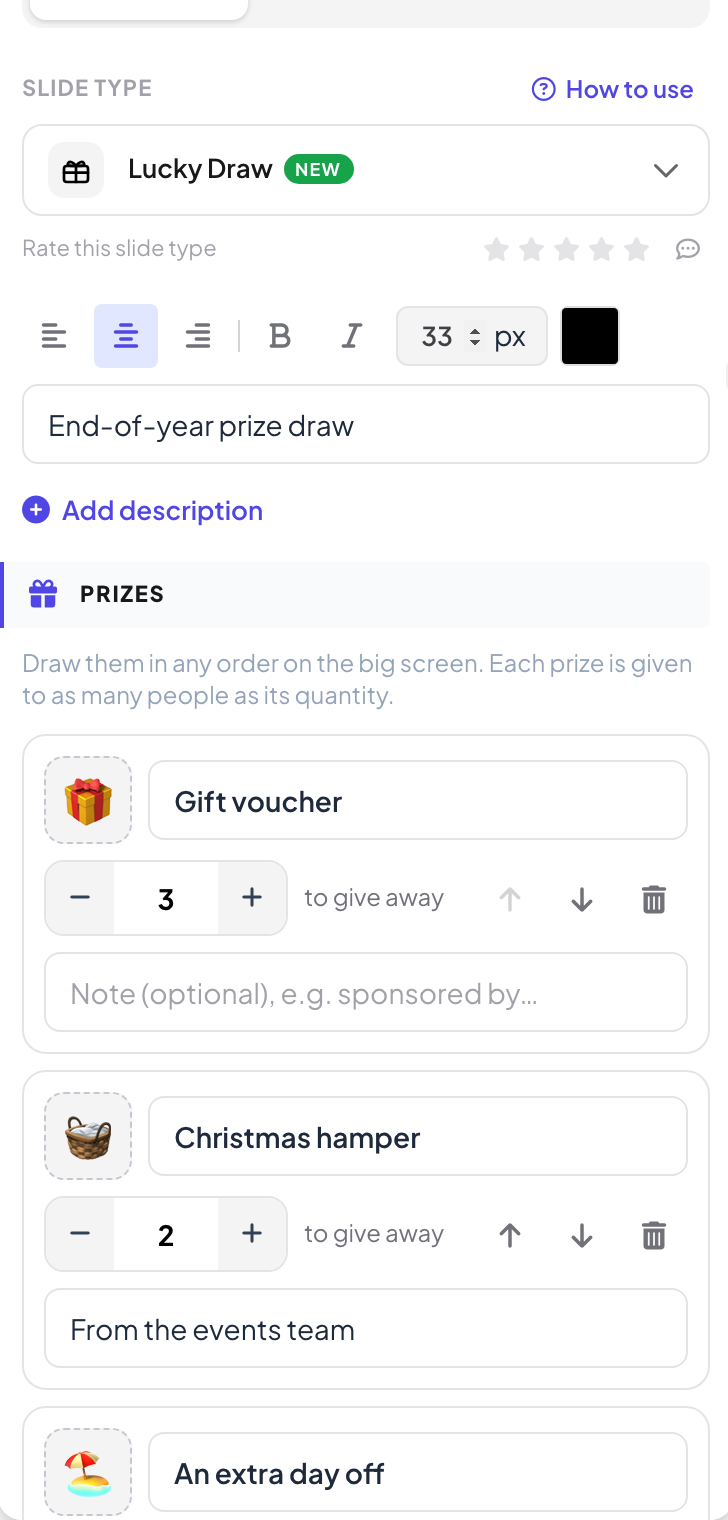
Under Prizes, type each Prize name and set how many to give away with − and +. Click the picture square to Upload picture or pick an icon. Note (optional) is a line under the prize, for example who sponsored it. Use the arrows to change the order and Add prize for more.
- 3
Choose the settings
See the table below. The defaults suit most events: one prize per person and every winner of a prize drawn at once.
Settings
| Setting | What it does | Default |
|---|---|---|
| Prizes per person | 1, 2, 3 or No limit. Nobody can win the same prize twice. | 1 |
| Draw every winner of a prize at once | One click draws as many winners as the prize has left. Off: each click draws one winner. You can change the number before each draw either way. | On |
| Open for new entries | Off: nobody new can join (people already in stay in). You can also switch it from the chip at the top of the slide. | On |
| People marked absent can still win | Off: someone marked Not here is left out of the next draws. | Off |
| Show the prizes on phones | Phones list the prizes and how many there are. | On |
| Show the winners under each prize | Phones also list the winners’ names under each prize, once the big screen has revealed them. | Off |
| Ask for one more detail | One extra field on the phone that you name, such as an employee ID or a table number, and whether it is Required. | Off |
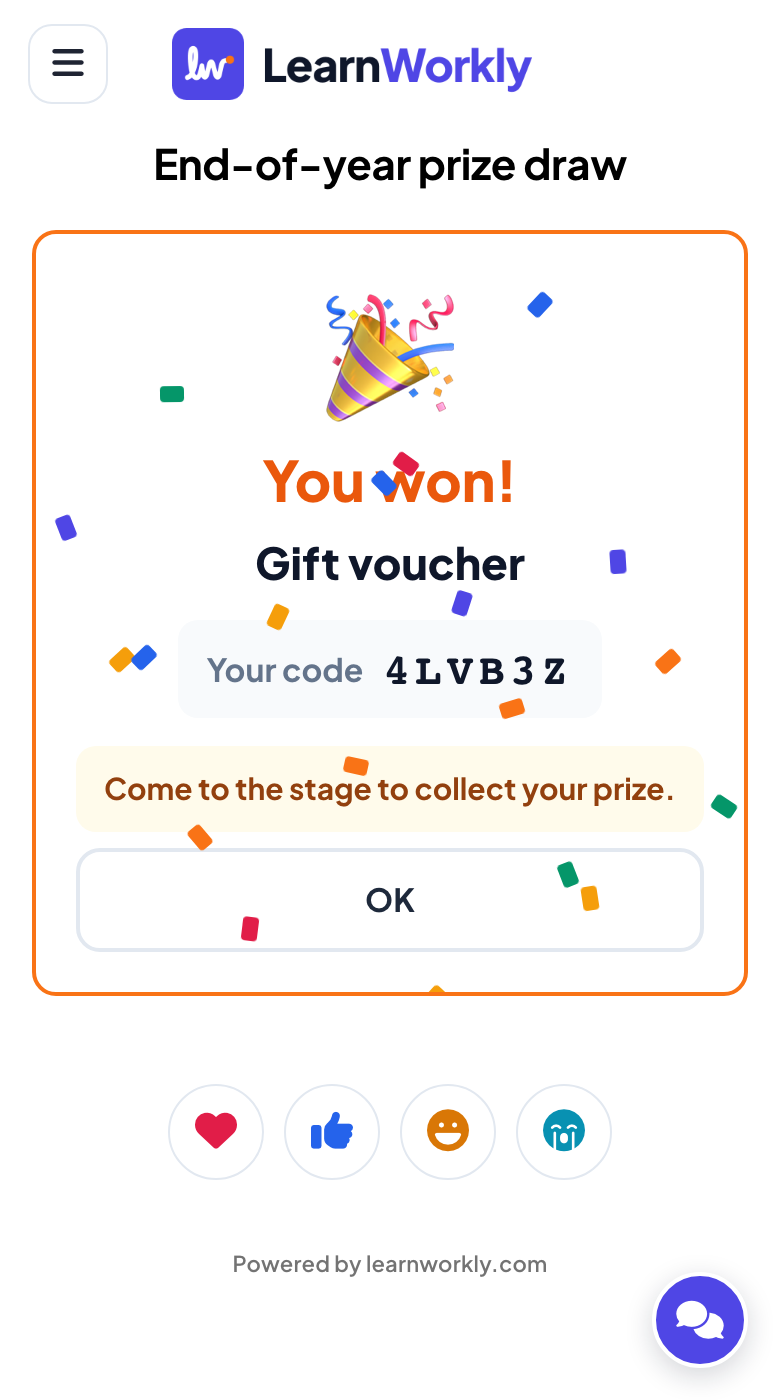
| Message for winners | Shown on the winners’ phones, for example “Come to the stage to collect your prize.” | Empty |
Run the draw
- 1
Let people join
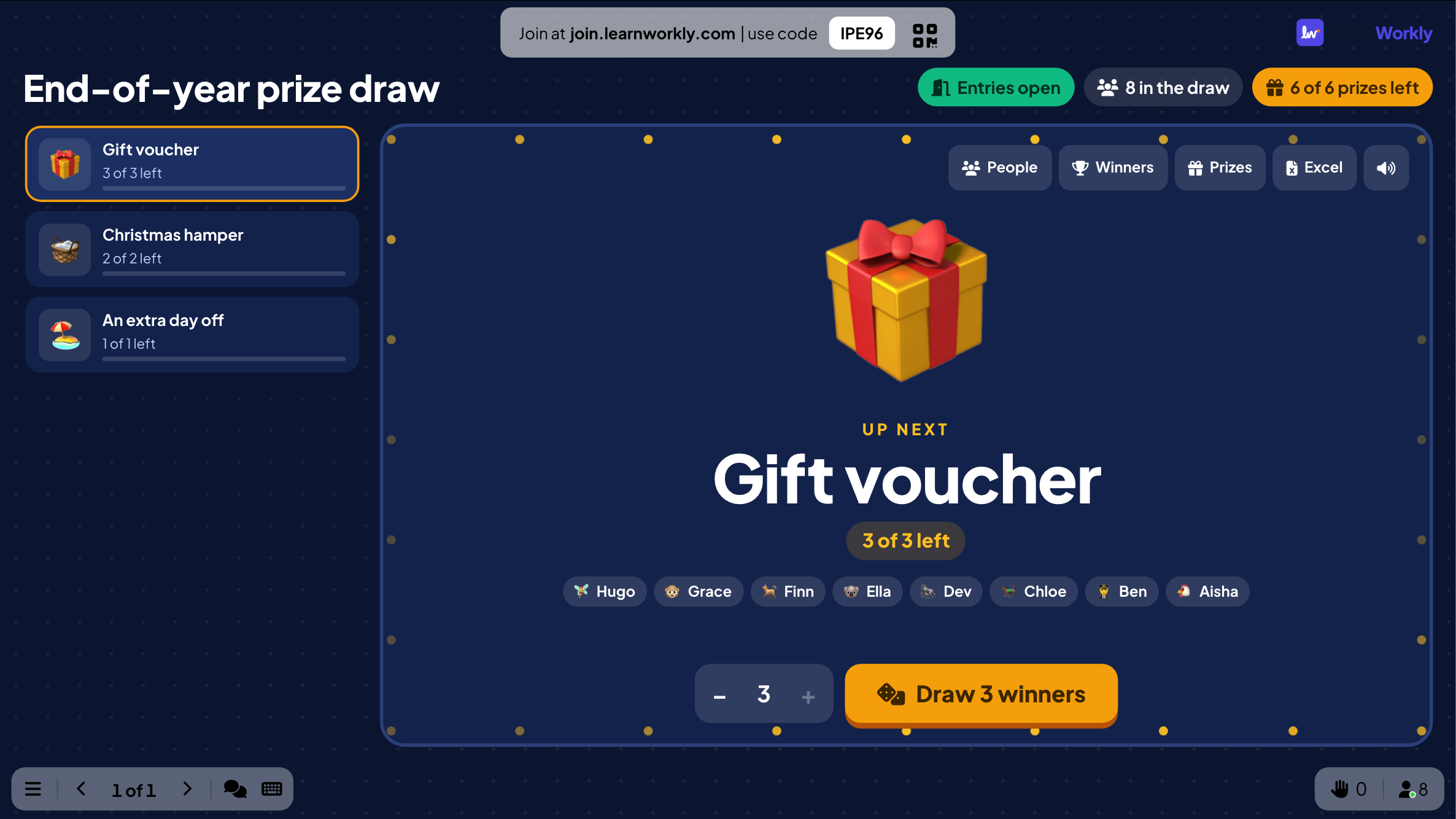
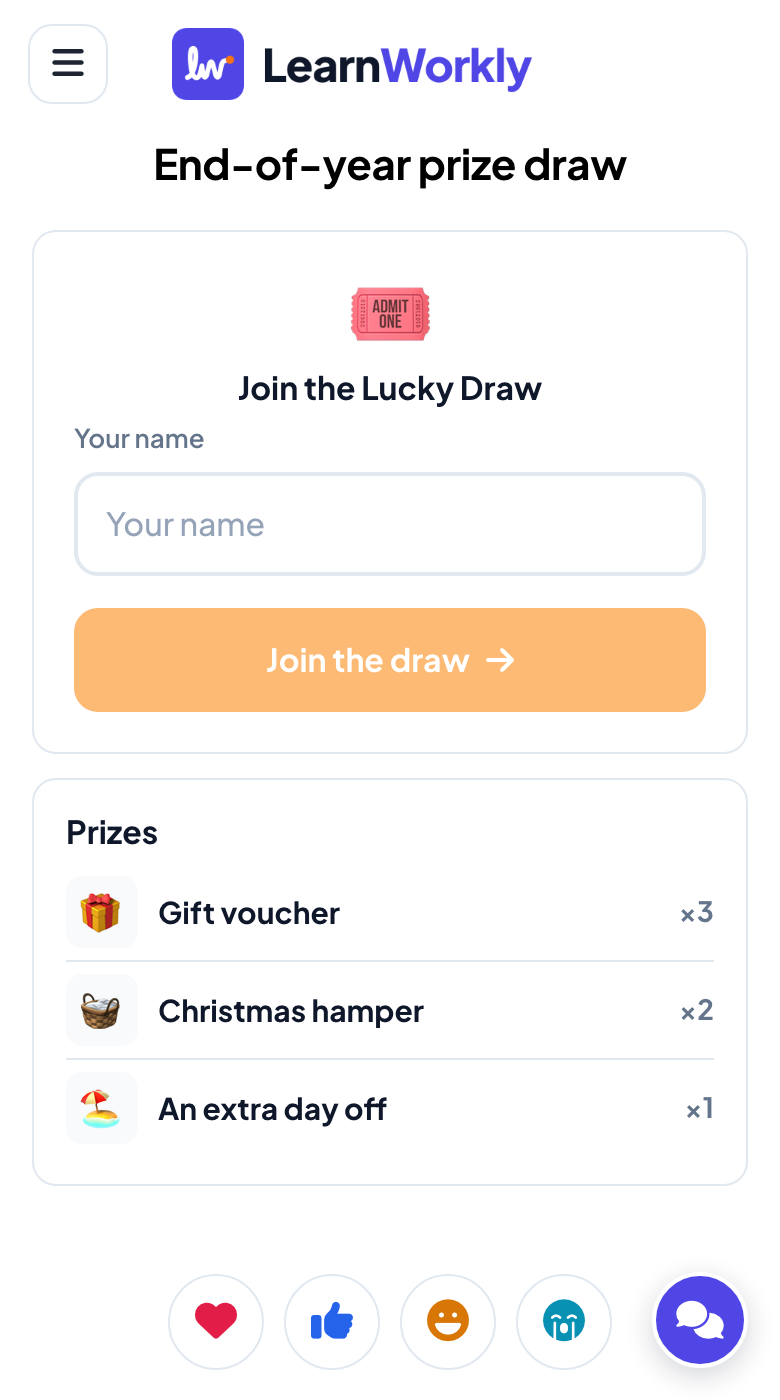
Click Present. Each person scans the QR code or types the code, writes their name and taps Join the draw. The big screen shows the next prize, how many people are in the draw and their names as they join.
- 2
Draw the winners
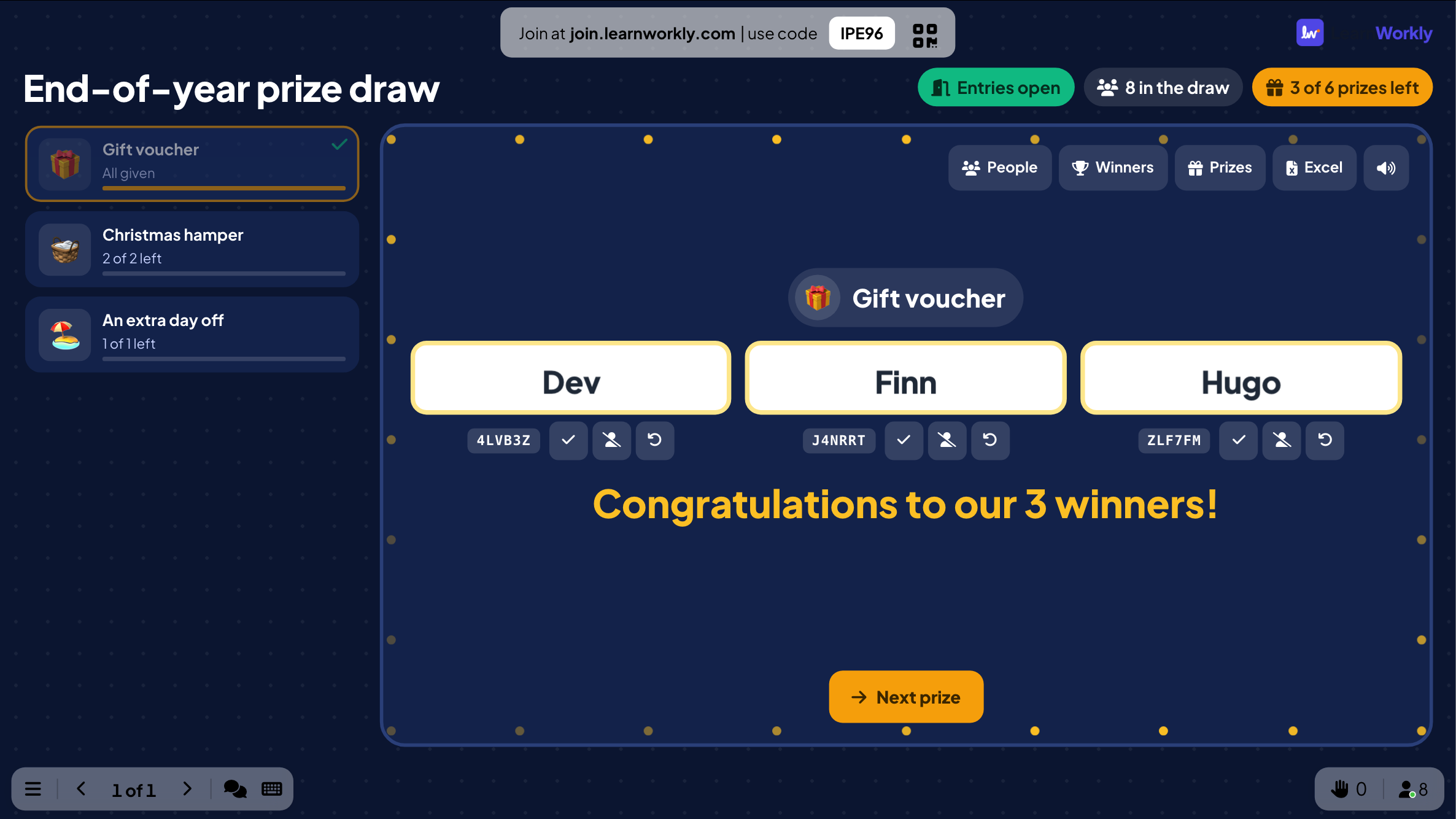
Pick a prize on the left (the next one with prizes left is picked for you), check the number of winners and click Draw. Name reels spin and stop one after another on each winner.
- 3
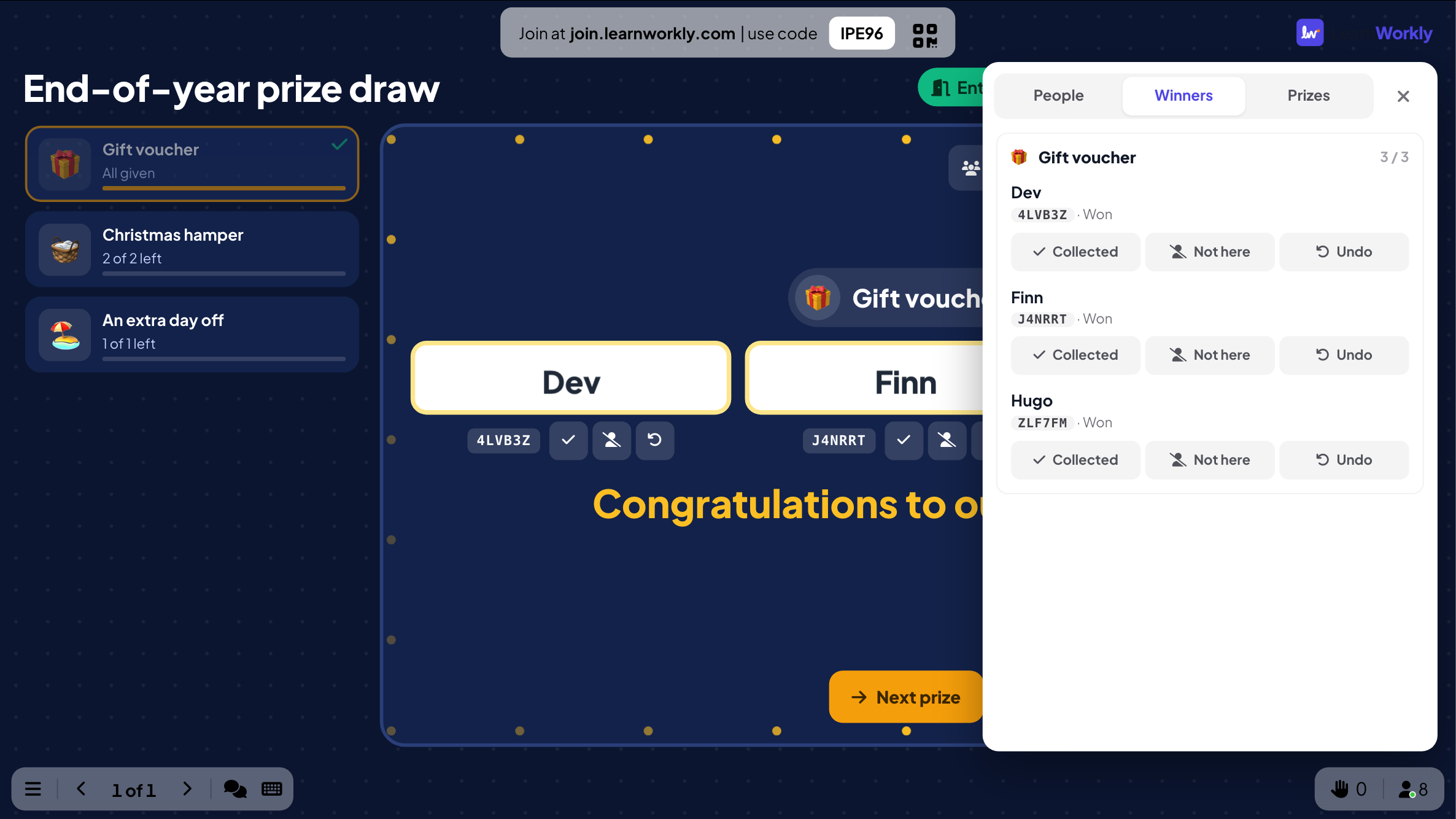
Hand out the prizes
Under each winner, the code helps you check the right person at the prize desk. Click ✓ when they have collected the prize. If a winner is not in the room, click Not here: the prize goes back and Draw 1 more draws someone else.
- 4
Move on
Click Next prize and draw the next one. A prize is ticked once all of it is given.
Change things during the event
The buttons at the top of the stage open a panel you can use while presenting:
People: search by name or code, remove someone from the draw (or put them back), and add names for people without a phone, one per line.
Winners: every winner by prize, with Collected, Not here and Undo. Undo gives the prize back to the pool.
Prizes: give away more or fewer of a prize. You cannot go below the number already given.
Excel downloads the results; the sound button mutes the drumroll.
On participants’ phones
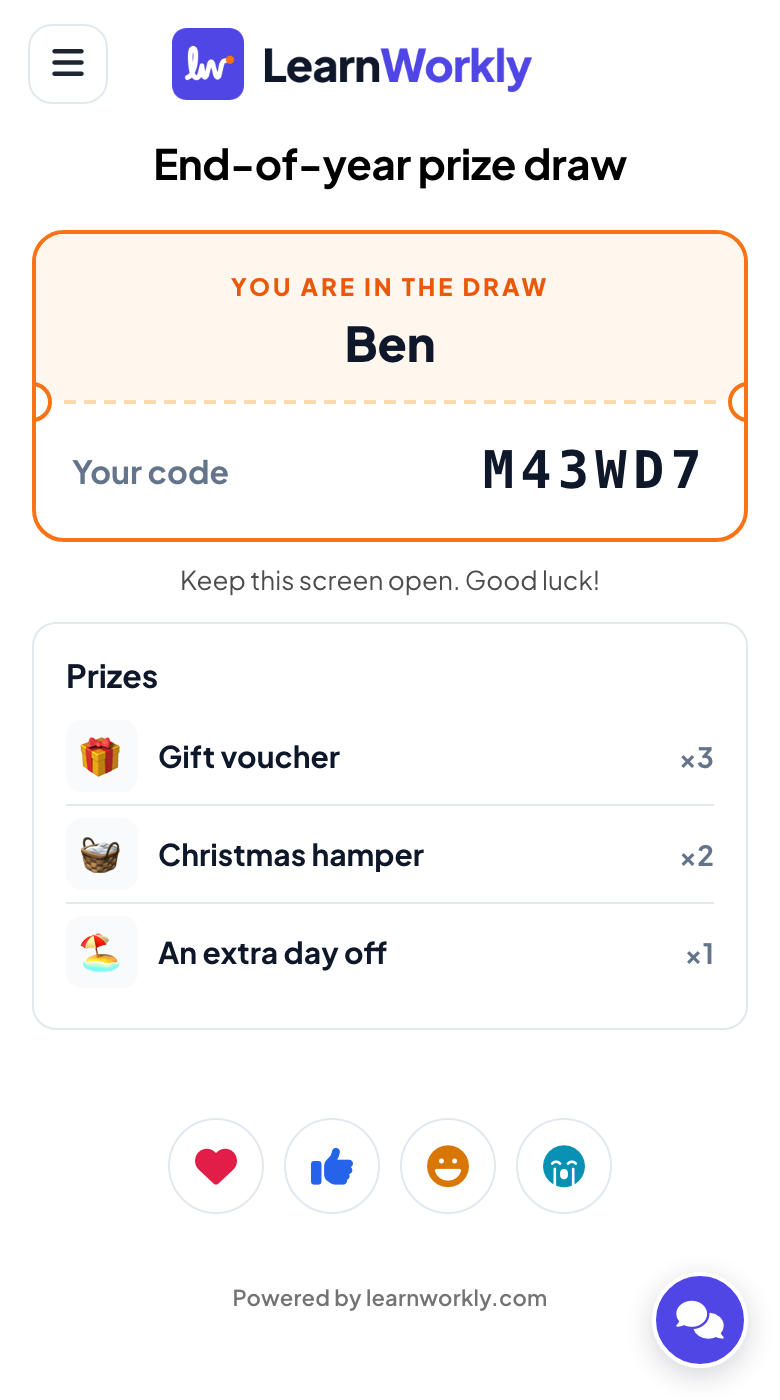
People type their name (and your extra detail, if you asked for one) and get a ticket with their code. During a draw the phone shows Drawing…; when the reels stop, winners see You won! with the prize, their code and your message, and the others see No prize this time. Their ticket lists any prize they have won and whether it is collected.
Results and Excel
Click Excel on the slide to download a file with four sheets: Winners (prize, name, code, your extra detail, status, time), Prizes (quantity, awarded, remaining), Participants (everyone in the draw and what they won) and Activity log (every draw, including people marked not here and undone wins). The draw also appears in the report for the presentation. Clear result this slide empties the draw so you can run it again.
Frequently asked questions
Can the presenter choose or influence the winner?
No. The server picks the winners at random among everyone who can still win that prize. The big screen only plays the animation.
The winner is not in the room. What now?
Click Not here under their name. The prize goes back, and Draw 1 more draws a replacement. With the default settings, people marked not here are left out of the next draws.
Can someone win twice?
Not with Prizes per person set to 1 (the default). Set it to 2, 3 or No limit to allow it; nobody can win the same prize twice.
Some guests do not have a phone.
Open People on the slide and add their names, one per line. They get a code like everyone else.
Can I draw all the small prizes in one go?
Yes. With Draw every winner of a prize at once on (the default), one click draws every winner of the prize you picked.
Someone joined twice or used a silly name.
Open People, search for the name and remove it from the draw. Removed people cannot join again from the same phone.
Last checked against the app on 21 November 2026.
Related articles
- Spinner Wheel: pick a name or a prize at randomA lucky spinner wheel that picks a random name, prize or topic. Type the entries, upload a CSV file or let participants add their own names.
- Heads or Tails: call the coinEveryone calls the coin on their phone, the big screen flips it and wrong calls are out, until the number of winners you chose is left.
- Present on the big screenStart presenting from the editor, move through slides with the keyboard, use the menu while you present and stop when you are done.
- How participants join your presentationPeople join at join.learnworkly.com with your code or by scanning the QR code, with no app and no account. See what they do and how to change the code.