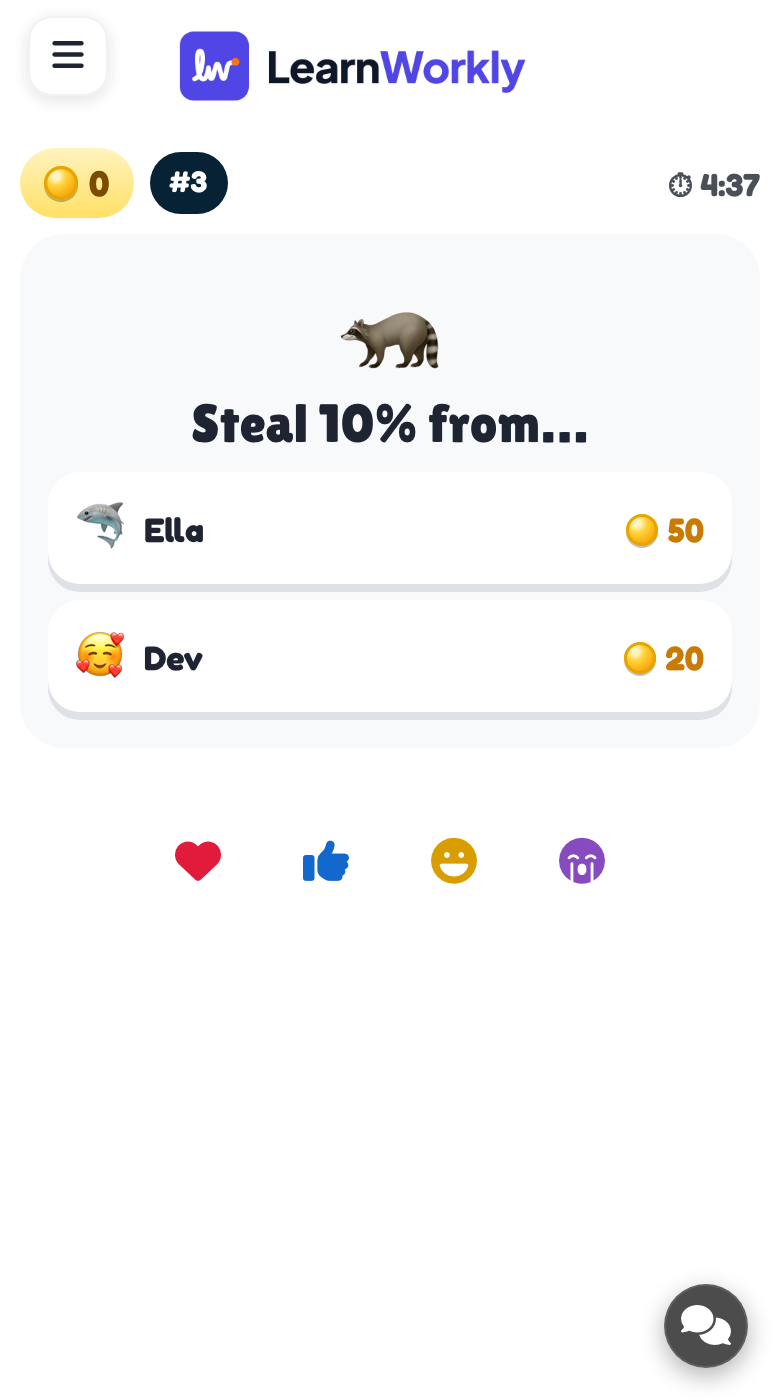
In Treasure Hunt, everyone answers your questions on their phone at their own pace until the time runs out. Every right answer lets the player open one of three treasure chests: gold, ×2 or ×3, a steal from or a swap with another player, an empty chest, or a dragon that eats some gold. The richest player wins. The luck keeps everyone in the race, and a missed question comes back a few questions later.
Set it up
- 1
Add the slide
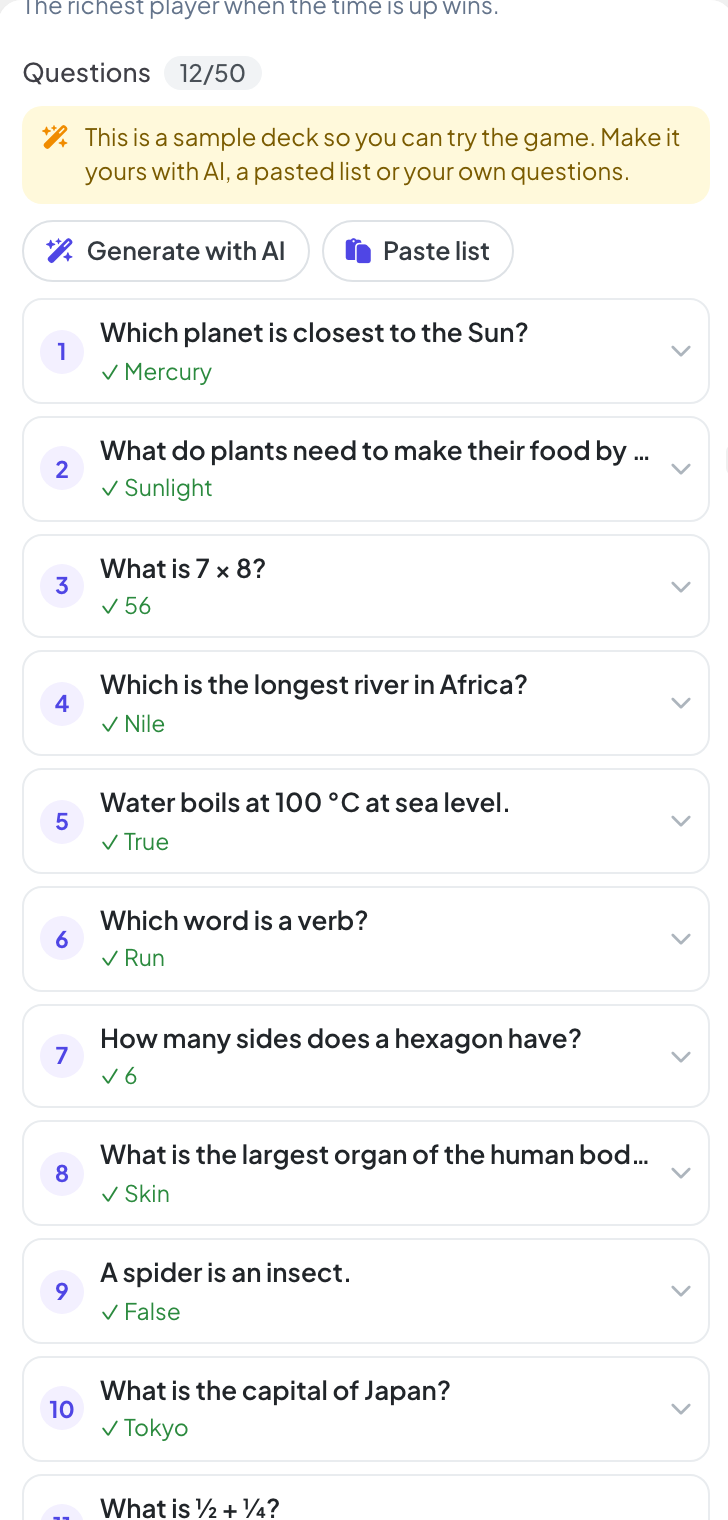
In the editor, click + New Slide. In Choose Slide Type, open the Games tab and click Treasure Hunt. The game’s content and its Settings are in the Content tab of the column on the right. It starts with a sample deck so you can try the game.
- 2
Write the questions with AI
Click Generate with AI, enter a Topic, choose the Level and How many questions (5, 10, 15 or 20), then click Generate. Check the questions before you play.
- 3
Or add them yourself
Use Paste list (one per line: Question | *Correct answer | Wrong | Wrong), From quiz slides to add the multiple-choice questions already in the presentation, or Add question. Make true / false turns a question into a true or false one.
Settings
| Setting | What it does | Default |
|---|---|---|
| Game time | 3, 5, 8 or 10 minutes. You can add a minute or end early while playing. | 5 min |
| Kind mode | On: chests only give gold, ×2 or ×3, so nobody can steal, swap or lose gold. Good for younger classes. Off: chests can also steal, swap or lose gold, so the race stays open until the end. | Off |
Play it live
- 1
Open the lobby
Click Present. The big screen shows the game’s lobby. People join on their phone with the code or the QR code, with no app or account, and type a nickname. The lobby fills up as they join. Press START.
- 2
Answer and open chests
Each phone shows a question. After a right answer, the phone says Right! Pick a chest and shows three chests. The player taps one to see what is inside, then taps Next question.
- 3
Watch the race
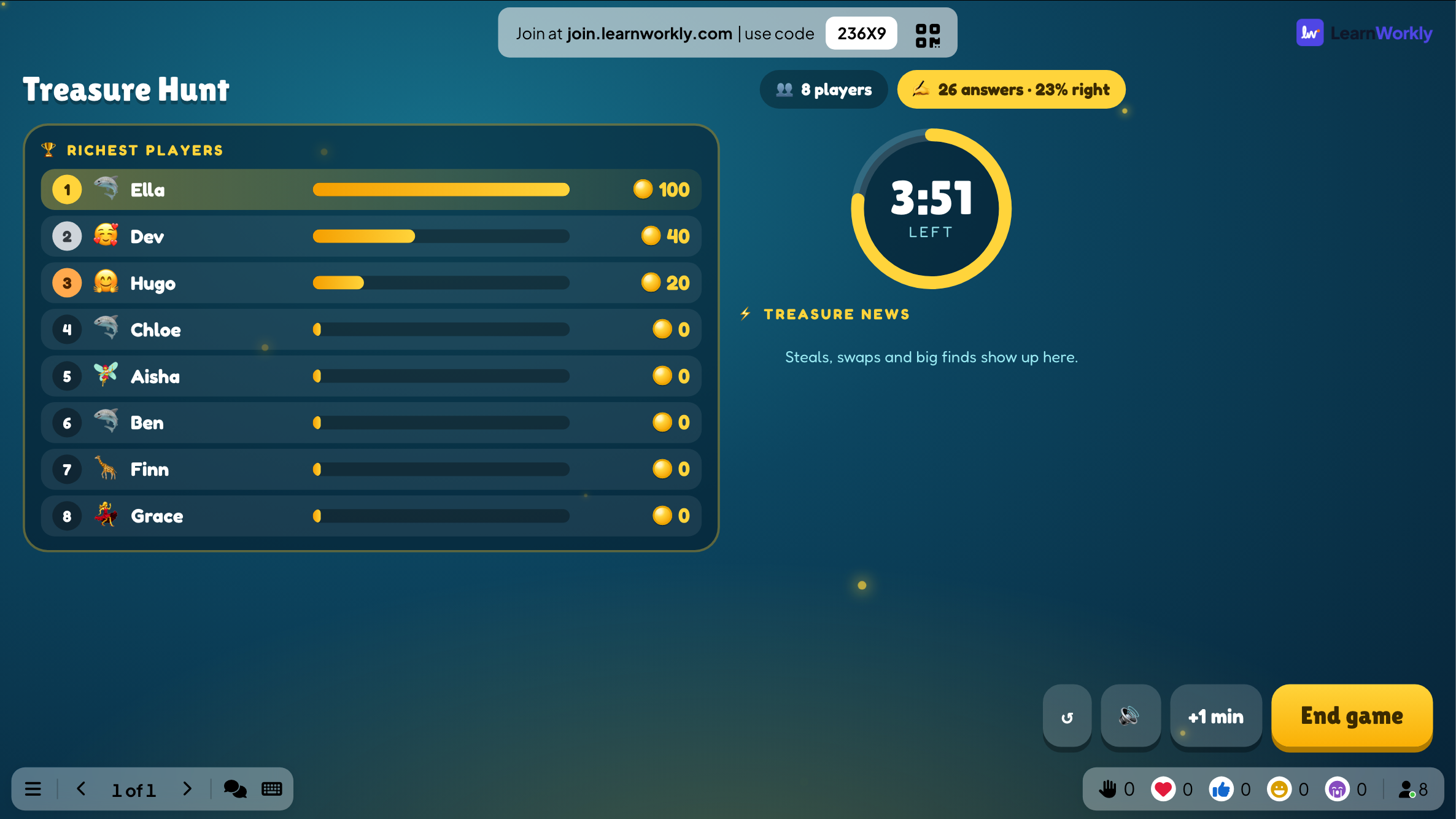
The big screen shows the time left, the Richest players and the Treasure news (steals, swaps and big finds). Press End game to stop early.
- 4
The end
The big screen shows the Final treasure and a Class report with the questions to review.
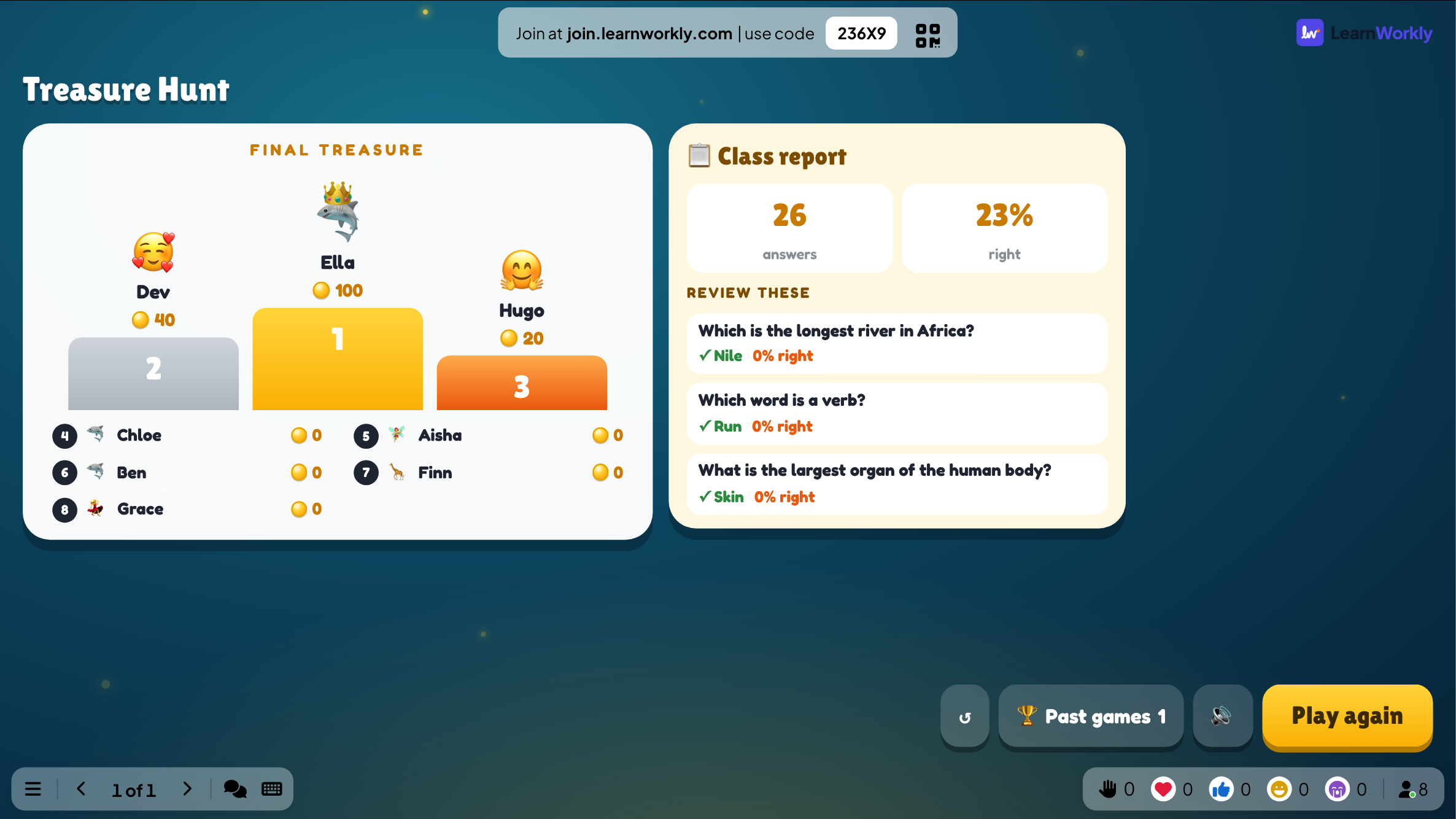
Every finished game is saved with its results. Click Past games on the slide (or at the top of its Content tab) to see earlier plays, and find them in the report for the presentation.
Frequently asked questions
Someone joined after START.
The game is self-paced: they start answering straight away.
Players are upset when their gold is stolen.
Turn on Kind mode: chests then only give gold, ×2 or ×3.
Can I use the questions from my quiz slides?
Yes. Click From quiz slides to add the multiple-choice questions already in the presentation.
How do I play again?
Press Play again on the final screen, or Restart while the game is running. The finished game stays in Past games.
Last checked against the app on 17 November 2026.
Related articles
- Escape Room: crack the locks to get outTeams crack a chain of locks on their phones: every answer is a code that opens the next door. The first team out wins.
- Create a presentation with AIDescribe what you need in one sentence and AI builds the slides for you, then refine them with the AI Assistant inside the editor. Free while in beta.
- Present on the big screenStart presenting from the editor, move through slides with the keyboard, use the menu while you present and stop when you are done.
- How participants join your presentationPeople join at join.learnworkly.com with your code or by scanning the QR code, with no app and no account. See what they do and how to change the code.