In Bingo, everyone gets their own card on their phone and every card is different. You draw the calls, players daub their cards, and the first to complete the pattern presses BINGO. Cards can hold numbers, words, or words with a clue, so the same game works for a meeting, a vocabulary review or a classic number bingo.
Set it up
- 1
Add the slide
In the editor, click + New Slide. In Choose Slide Type, open the Games tab and click Bingo. The game’s content and its Settings are in the Content tab of the column on the right.
- 2
Start from a template
Pick Meeting Bingo, Science Vocabulary or Classic Bingo, or Your own words to type your own list.
- 3
Choose the card
Give the game a Game name. Under Card content, pick Words or Numbers, then the Card size: 3 × 3, 4 × 4 or 5 × 5. On a 3 × 3 or 5 × 5 card you can keep a FREE space in the middle.
- 4
Add the words
Type one word per line. To call a clue instead of the word, write word | clue: the big screen shows the clue and players find the matching word. You need at least as many words as the card holds; add a few more so the cards are more different. In numbers mode, the numbers are called in random order, with each column in its own range (B 1–15, I 16–30, N 31–45, G 46–60, O 61–75 on a 5 × 5 card).
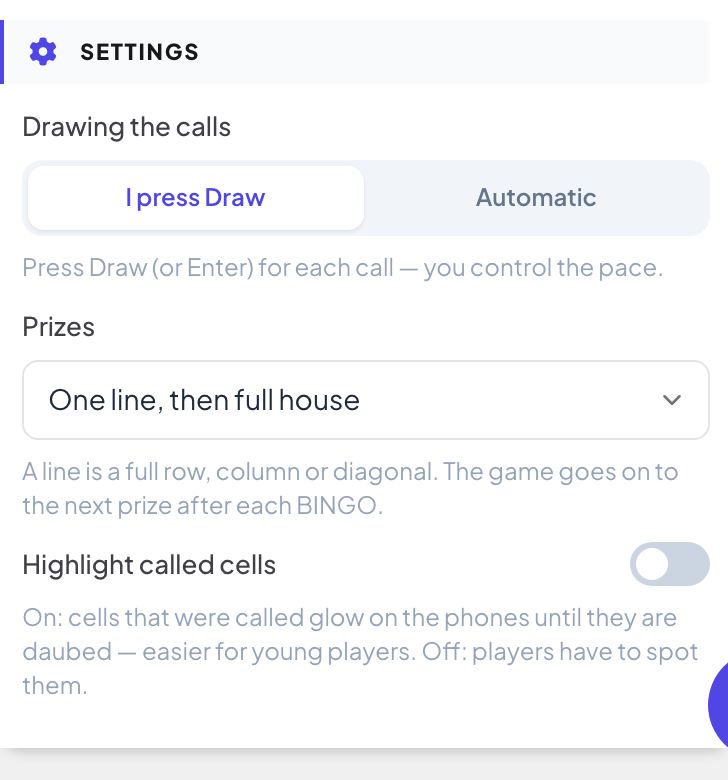
Settings
| Setting | What it does | Default |
|---|---|---|
| Drawing the calls | I press Draw: press Draw next (or Enter) for each call, so you control the pace. Automatic: a new call comes every 5, 8, 10, 15 or 20 seconds (A new call every), and you can pause at any time. | I press Draw, 8 s |
| Prizes | One line, One line, then full house, One line, two lines, then full house or Full house only. A line is a full row, column or diagonal. After each BINGO, the game goes on to the next prize. | One line, then full house |
| Highlight called cells | On: called cells glow on the phones until they are daubed, which is easier for young players. Off: players have to spot them. | Off |
Play it live
- 1
Open the lobby
Click Present. The big screen shows the game’s lobby. People join on their phone with the code or the QR code, with no app or account, and type a nickname. The lobby fills up as they join. Each phone is dealt its own card. Press START.
- 2
Draw the calls
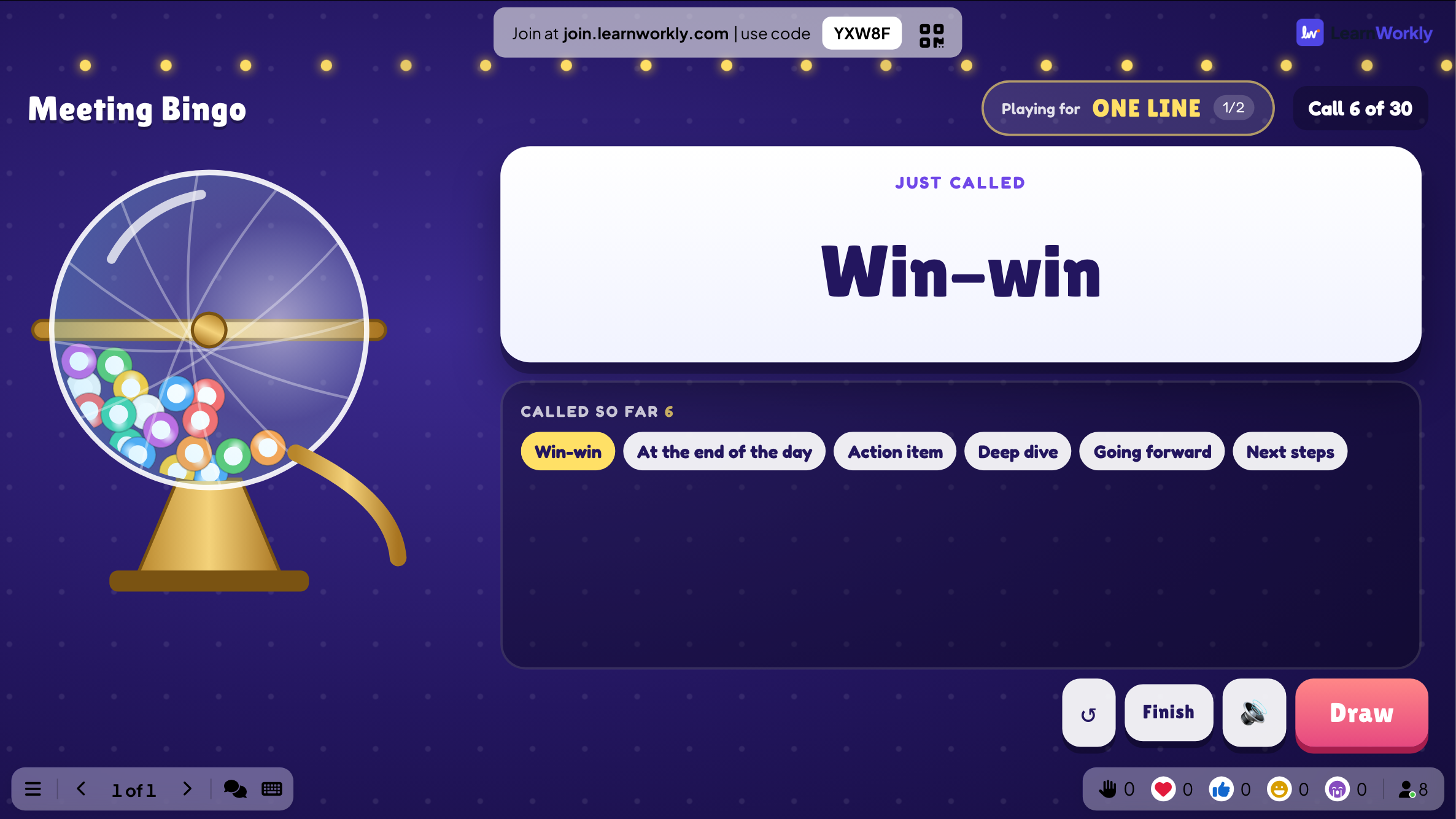
Press Draw next for each call. The big screen shows Just called, the list Called so far, which prize the room is Playing for and players who need one more cell.
- 3
Players daub
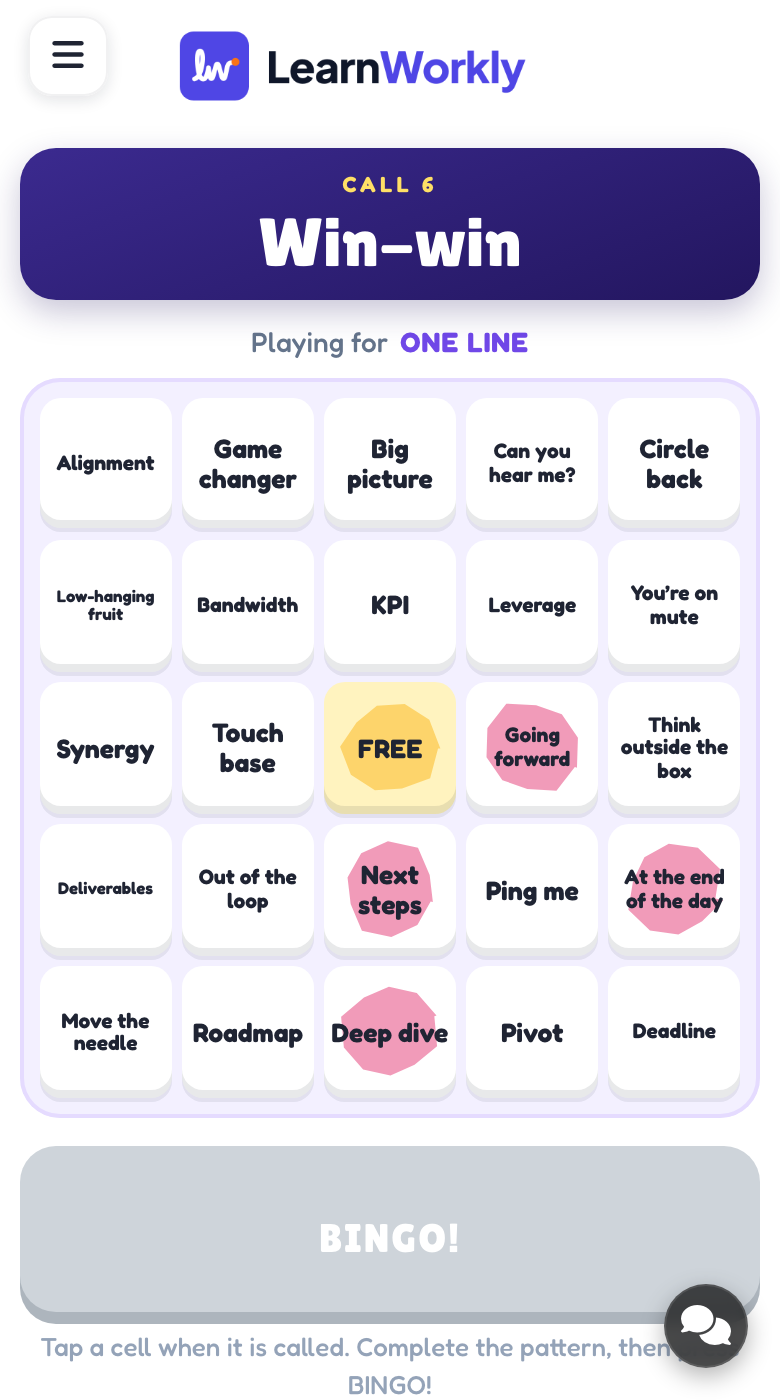
Players tap a cell when it is called, then press BINGO when they complete the pattern. The card is checked against the calls: a cell that was not called does not count.
- 4
Prizes
BINGOs on the same call share the prize. Press Continue to play on for the next prize, or Finish to end the game.
See the results later
Every finished game is saved with its results. Click Past games on the slide (or at the top of its Content tab) to see earlier plays, and find them in the report for the presentation.
Frequently asked questions
A player pressed BINGO by mistake.
The card is checked against the calls. If the pattern is not complete, the player is told Not quite — check your card. and the game goes on.
Someone joined after the game started.
They get their own card when they join and can daub the calls that come after.
How many words do I need?
At least as many as the card holds (9, 16 or 25, minus the FREE space). Add more so that cards differ more.
How do I play again?
Press Play again on the final screen, or Restart while the game is running. The finished game stays in Past games.
Last checked against the app on 17 November 2026.
Related articles
- Last One Standing: an elimination quizAn elimination quiz: everyone stands on a tile, a wrong answer drops it, and the last player standing wins. Add lives and a final showdown.
- Fill in the Blank: complete the sentenceHide words in a sentence with brackets. Participants type the missing words or pick them from a word bank, with partial scoring per blank.
- Present on the big screenStart presenting from the editor, move through slides with the keyboard, use the menu while you present and stop when you are done.
- How participants join your presentationPeople join at join.learnworkly.com with your code or by scanning the QR code, with no app and no account. See what they do and how to change the code.