In Sort It, players sort every item into the right group on their phone before the time runs out. Then the big screen reveals the answers and the items the room missed most. Use it for categories in any subject: recycling bins, animal groups, parts of speech, roles in a process.
Set it up
- 1
Add the slide
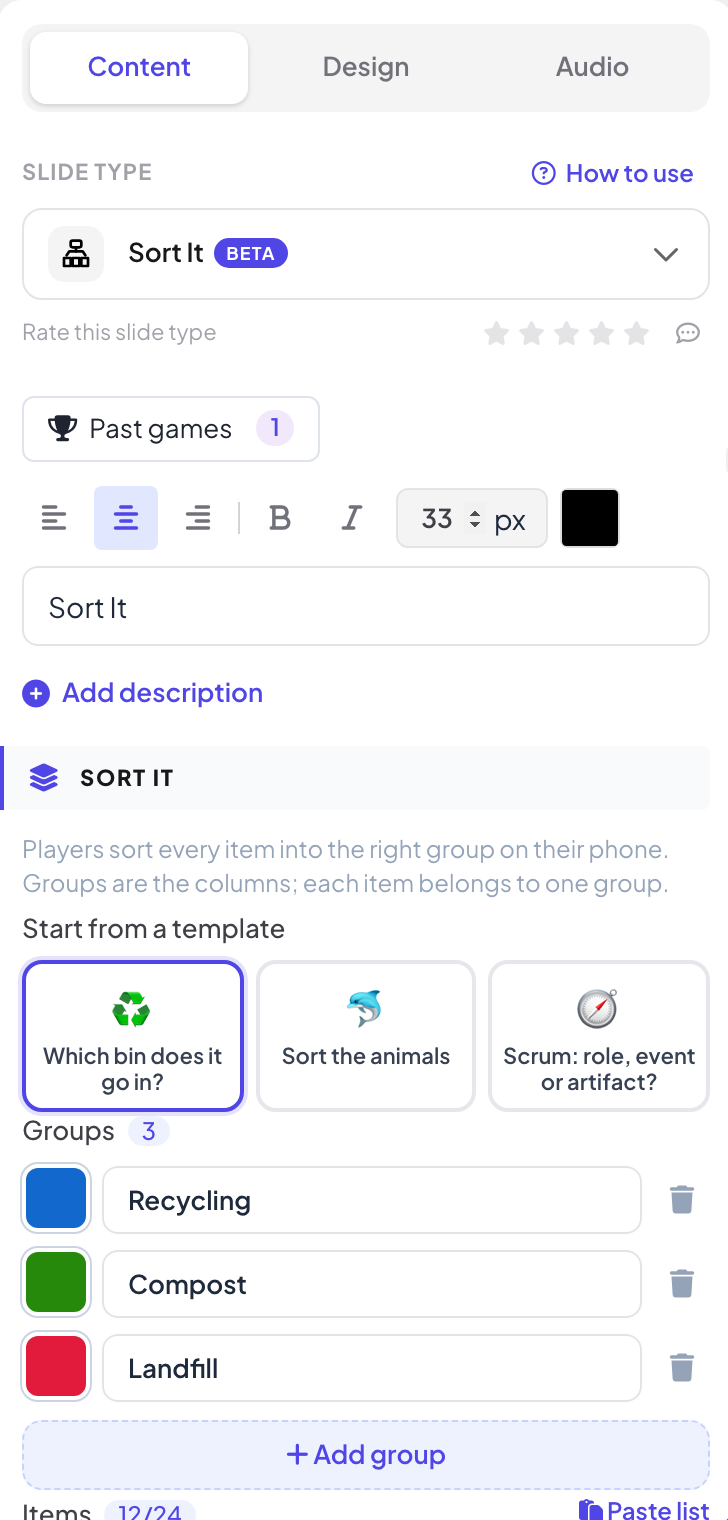
In the editor, click + New Slide. In Choose Slide Type, open the Games tab and click Sort It. The game’s content and its Settings are in the Content tab of the column on the right.
- 2
Start from a template (optional)
Pick Which bin does it go in?, Sort the animals or Scrum: role, event or artifact?.
- 3
Add the groups
Under Groups, name two to four groups and pick a Color for each. Use Add group for more.
- 4
Add the items
Under Items, add each item to its group (type it, then press Enter), up to 24 items. Paste list adds many at once, one per line: Item | Group. Items with the same name are only played once. 8 to 16 items make a good round.
Settings
| Setting | What it does | Default |
|---|---|---|
| Time limit | 30, 45, 60, 90 or 120 seconds. The round closes early once everyone has submitted. | 60 s |
| Show players their mistakes | After the reveal, each phone lists the items that player put in the wrong group and where they belong. | On |
Play it live
- 1
Open the lobby
Click Present. The big screen shows the game’s lobby. People join on their phone with the code or the QR code, with no app or account, and type a nickname. The lobby fills up as they join. Press START.
- 2
Sort
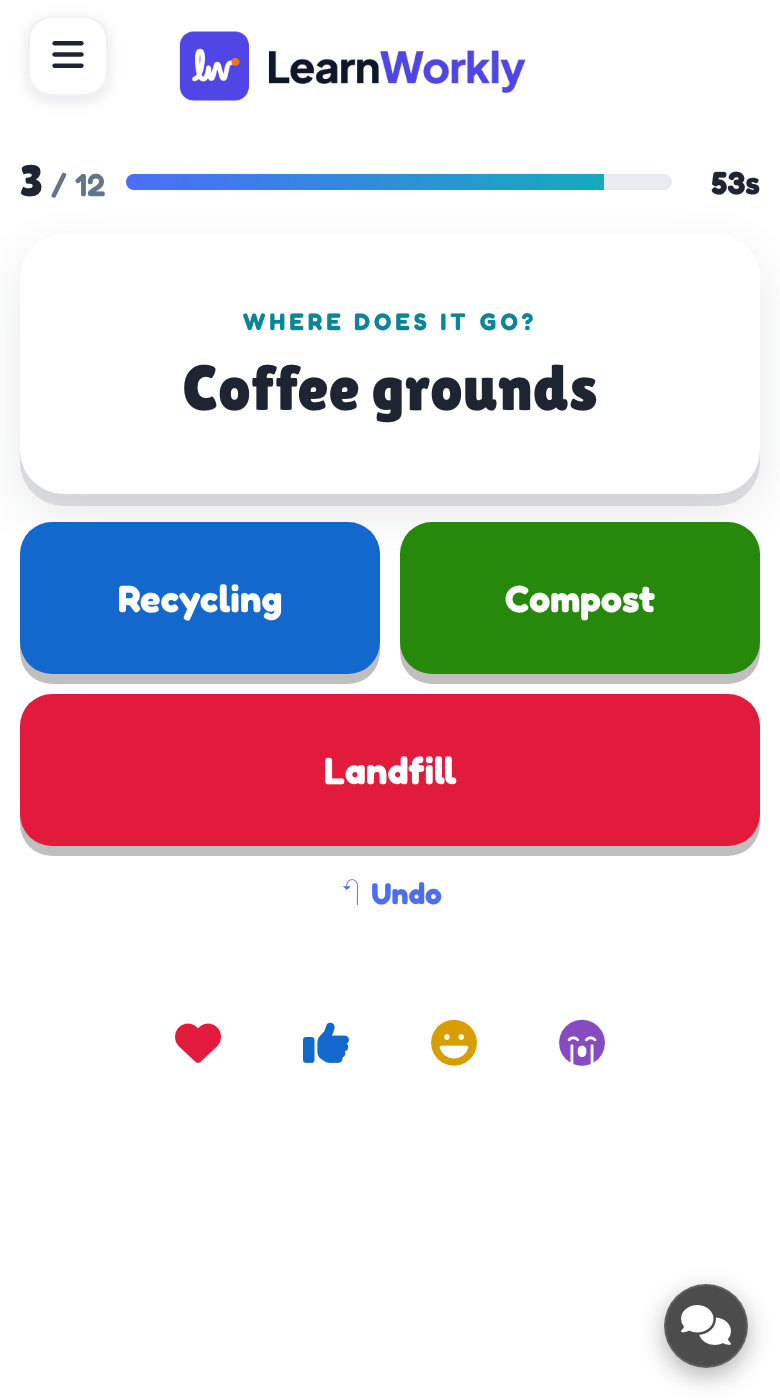
Each phone shows one item at a time with Where does it go? and a button for every group. Players tap a group for each item; when all are sorted they can tap an item to move it, then press Submit.
- 3
Close the round
The big screen shows how many players are done. Press Reveal now to close the round early.
- 4
Reveal
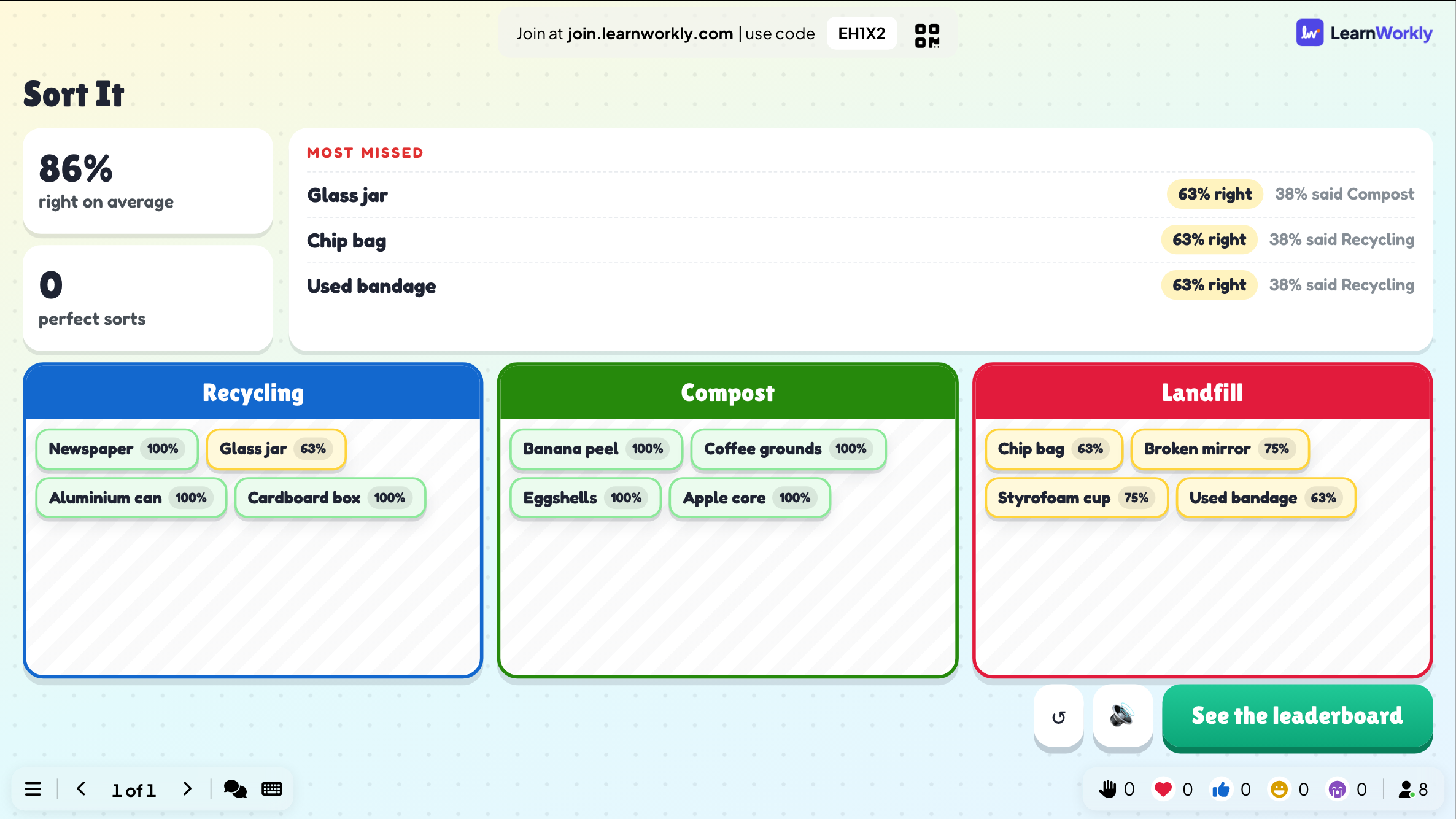
The reveal shows how the room did and the Most missed items, with the share of the room that put each one in each group. Then See the leaderboard.
Scoring
100 points per right item, plus up to 50 more per item for a fast submit.
Every finished game is saved with its results. Click Past games on the slide (or at the top of its Content tab) to see earlier plays, and find them in the report for the presentation.
Frequently asked questions
A player made a mistake before submitting.
Once every item is sorted, they can tap any item to move it to another group, or use Undo, before pressing Submit.
Someone joined after START.
They can sort the items as long as the round is open.
Can items belong to two groups?
No. Each item has one right group. If an item fits two groups, rewrite it or leave it out.
How do I play again?
Press Play again on the final screen, or Restart while the game is running. The finished game stays in Past games.
Last checked against the app on 17 November 2026.
Related articles
- Match Pair: match items between two columnsWrite pairs such as words and translations, terms and definitions or countries and capitals. Players match each item with its pair on their phone.
- Puzzle: put the options in the right orderPlayers drag items into the correct order on their phone: steps of a process, dates on a timeline or sizes from smallest to largest.
- Present on the big screenStart presenting from the editor, move through slides with the keyboard, use the menu while you present and stop when you are done.
- How participants join your presentationPeople join at join.learnworkly.com with your code or by scanning the QR code, with no app and no account. See what they do and how to change the code.