In Tug of War, the room splits into two teams on one rope. In a Quiz battle, every right answer adds pull power to the team, and faster answers pull harder. In a Tap battle there are no questions: both teams tap their phones as fast as they can. Pull the flag over your line and the other team lands in the mud.
Set it up
- 1
Add the slide
In the editor, click + New Slide. In Choose Slide Type, open the Games tab and click Tug of War. The game’s content and its Settings are in the Content tab of the column on the right.
- 2
Choose the mode
Pick Quiz battle or Tap battle.
- 3
Name the teams
Under Teams, rename the two teams (they start as Red Rockets and Blue Sharks) and click the colour swatch to change a team’s colour.
- 4
Write the questions (Quiz battle)
A new slide starts with five sample questions so you can try it. Click Add question, type the question and two to four answers, then click the letter next to the right answer (Mark as correct). Use Paste list to add many questions at once, one per line: the question, then the answers separated by a vertical bar, with a star before the right one. For example: What is the capital of Spain? | *Madrid | Barcelona | Seville. If no question can be played, the game becomes a tap battle.
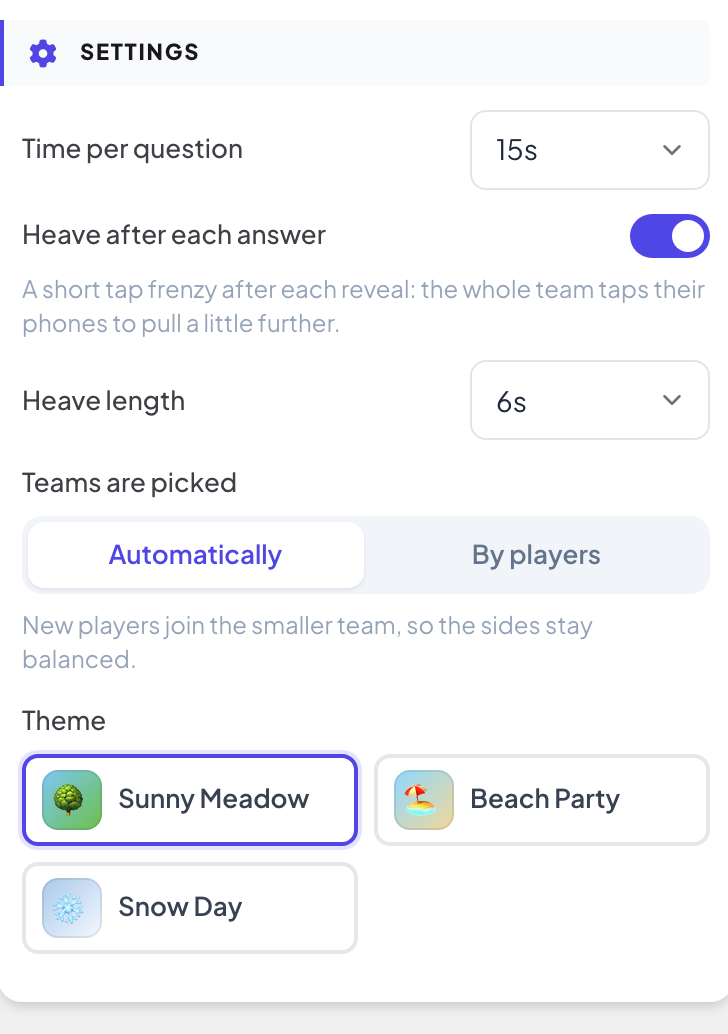
Settings
| Setting | What it does | Default |
|---|---|---|
| Time per question | Quiz battle only: 10, 15, 20, 30, 45 or 60 seconds. | 15 s |
| Heave after each answer | Quiz battle only: a short tap frenzy after each reveal, where the whole team taps their phones to pull a little further. | On |
| Heave length | How long each heave lasts: 4, 6, 8 or 10 seconds. | 6 s |
| Battle length | Tap battle only: 15, 20, 30, 45, 60 or 90 seconds. | 30 s |
| Teams are picked | Automatically: new players join the smaller team, so the sides stay balanced. By players: players pick a side on their phone before the game starts. | Automatically |
| Theme | Sunny Meadow, Beach Party or Snow Day. | Sunny Meadow |
Play it live
- 1
Open the lobby
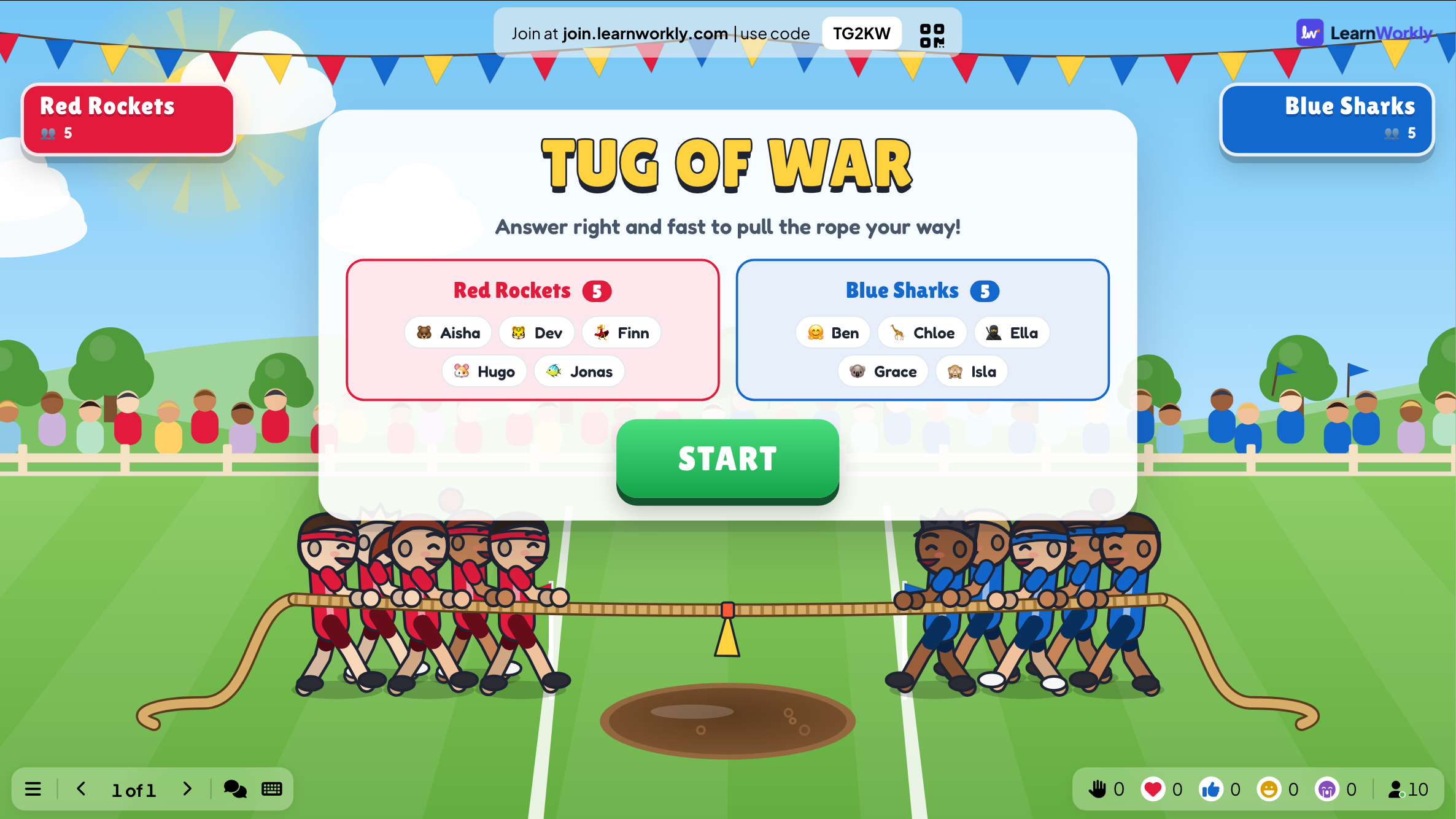
Click Present. The big screen shows the game’s lobby. People join on their phone with the code or the QR code, with no app or account, and type a nickname. The lobby fills up as they join. Each player lands on a team, and the lobby shows both teams with their members.
- 2
Start
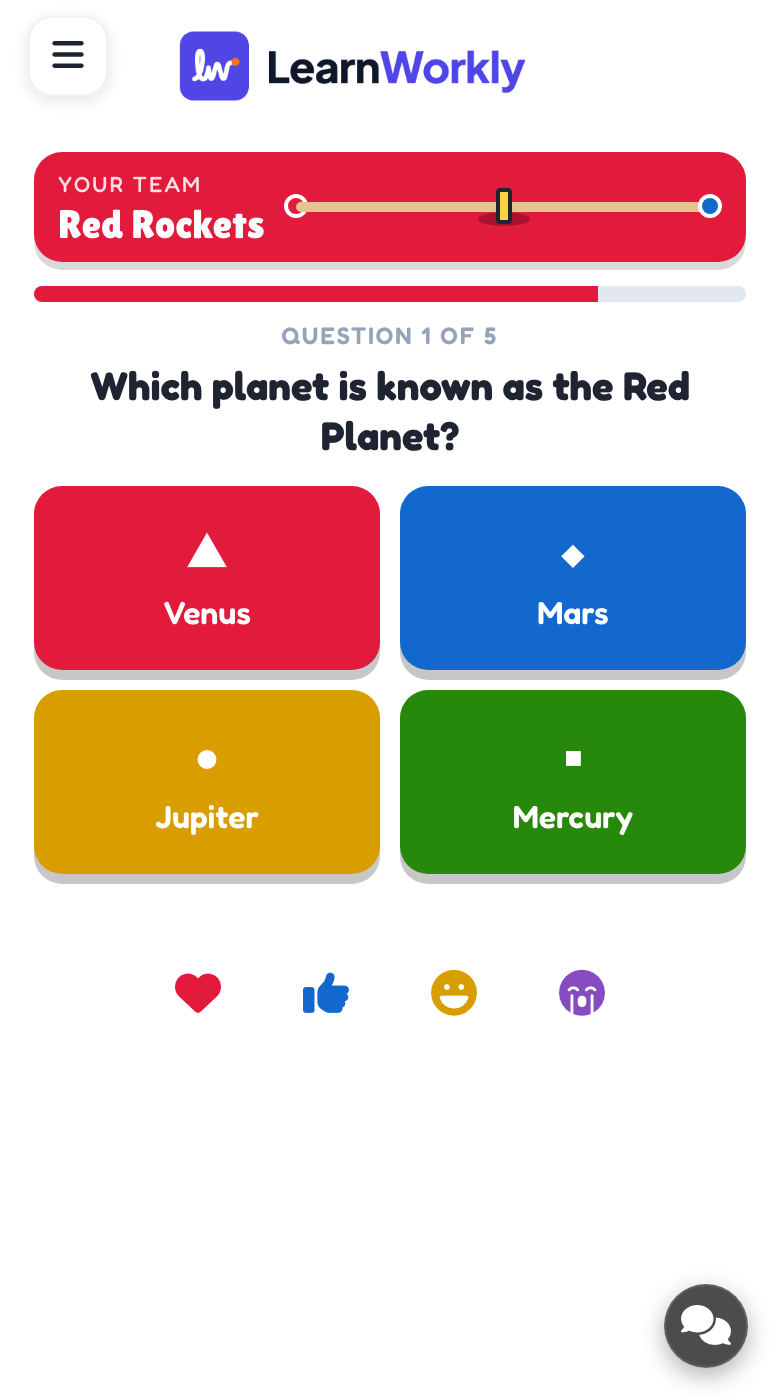
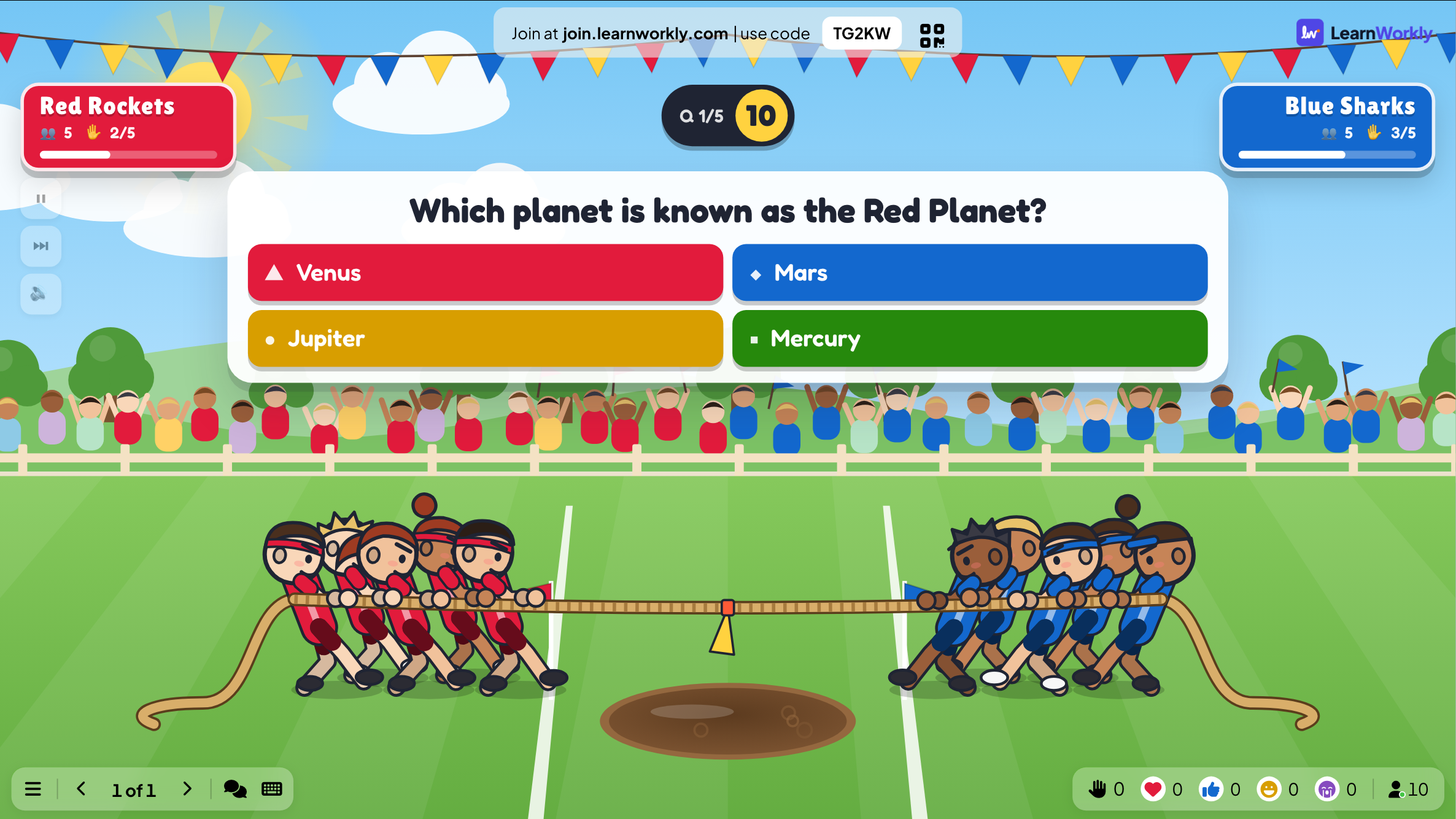
Press START. In a quiz battle, each question shows on the big screen and on the phones, with the team panels counting how many in each team got it right.
- 3
Answer and pull
Players tap an answer before the time runs out. At the reveal, the rope moves toward the team that answered better. With Heave after each answer on, phones then show a big PULL! button for a short tap frenzy.
- 4
The winner
A team that pulls the flag over its line wins by K.O. Otherwise the team ahead when the questions run out wins on rope position. If the rope ends dead even, a SUDDEN DEATH! heave decides it.
See the results later
Every finished game is saved with its results. Click Past games on the slide (or at the top of its Content tab) to see earlier plays, and find them in the report for the presentation.
Frequently asked questions
The teams are uneven.
With Teams are picked: Automatically, new players join the smaller team. Faster answers and the heave matter more than team size, so a smaller team can still win.
Can people choose their team?
Yes. Set Teams are picked to By players: phones show the two sides before the game starts.
Someone joined after START.
They join a team (the smaller one when teams are picked automatically) and play from the next question.
How do I play again?
Press Play again on the final screen, or Restart while the game is running. The finished game stays in Past games.
Last checked against the app on 17 November 2026.
Related articles
- Escape Room: crack the locks to get outTeams crack a chain of locks on their phones: every answer is a code that opens the next door. The first team out wins.
- Team quiz mode: play a quiz in teamsLet participants join teams when they enter the quiz. Set the number of teams, the team size and how team points are counted for the team leaderboard.
- Present on the big screenStart presenting from the editor, move through slides with the keyboard, use the menu while you present and stop when you are done.
- How participants join your presentationPeople join at join.learnworkly.com with your code or by scanning the QR code, with no app and no account. See what they do and how to change the code.