In Last One Standing, every player stands on a floor tile on the big screen. A wrong or missing answer drops the tile and the player falls. If everybody still standing gets a question wrong, nobody falls. The last player standing wins.
Set it up
- 1
Add the slide
In the editor, click + New Slide. In Choose Slide Type, open the Games tab and click Last One Standing. The game’s content and its Settings are in the Content tab of the column on the right. A new slide starts with sample questions so you can try it.
- 2
Write the questions
Click Add question, type the question and two to four answers, then click the letter next to the right answer (Mark as correct). Use Paste list to add many questions at once, one per line: the question, then the answers separated by a vertical bar, with a star before the right one. For example: What is the capital of Spain? | *Madrid | Barcelona | Seville.
- 3
Add enough questions
Add 10 or more questions so the floor has time to empty: the game ends when the questions run out, and the players still standing share the win.
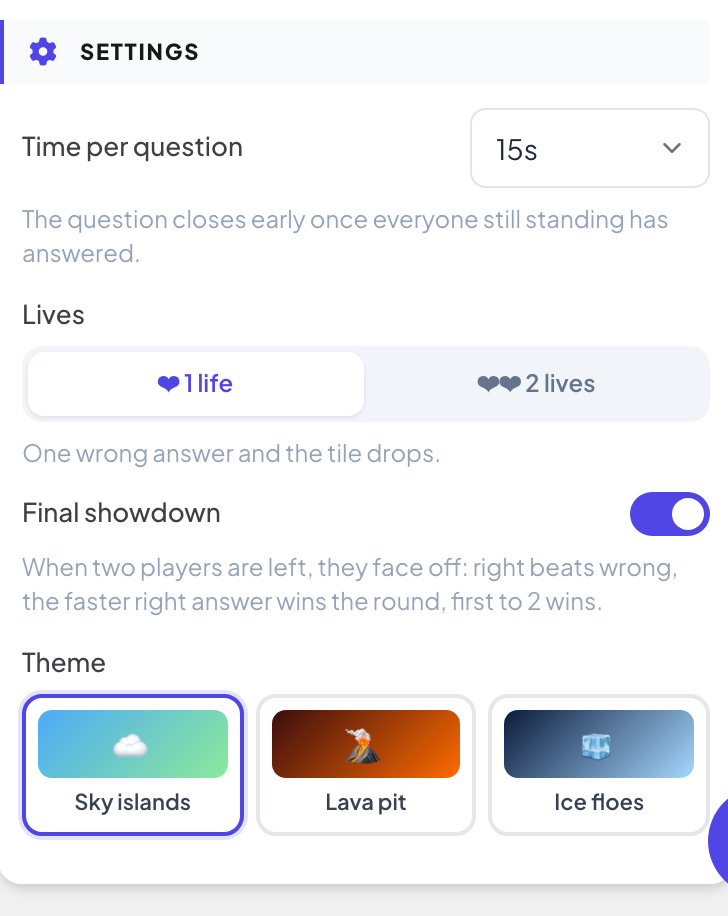
Settings
| Setting | What it does | Default |
|---|---|---|
| Time per question | 10, 15, 20 or 30 seconds. The question closes early once everyone still standing has answered. | 15 s |
| Lives | 1 life: one wrong answer and the tile drops. 2 lives: the first wrong answer cracks the tile, the second one drops it. | 1 life |
| Final showdown | When two players are left, they face off: right beats wrong, the faster right answer wins the round, and the first to 2 wins. | On |
| Theme | Sky islands, Lava pit or Ice floes. | Sky islands |
Play it live
- 1
Open the lobby
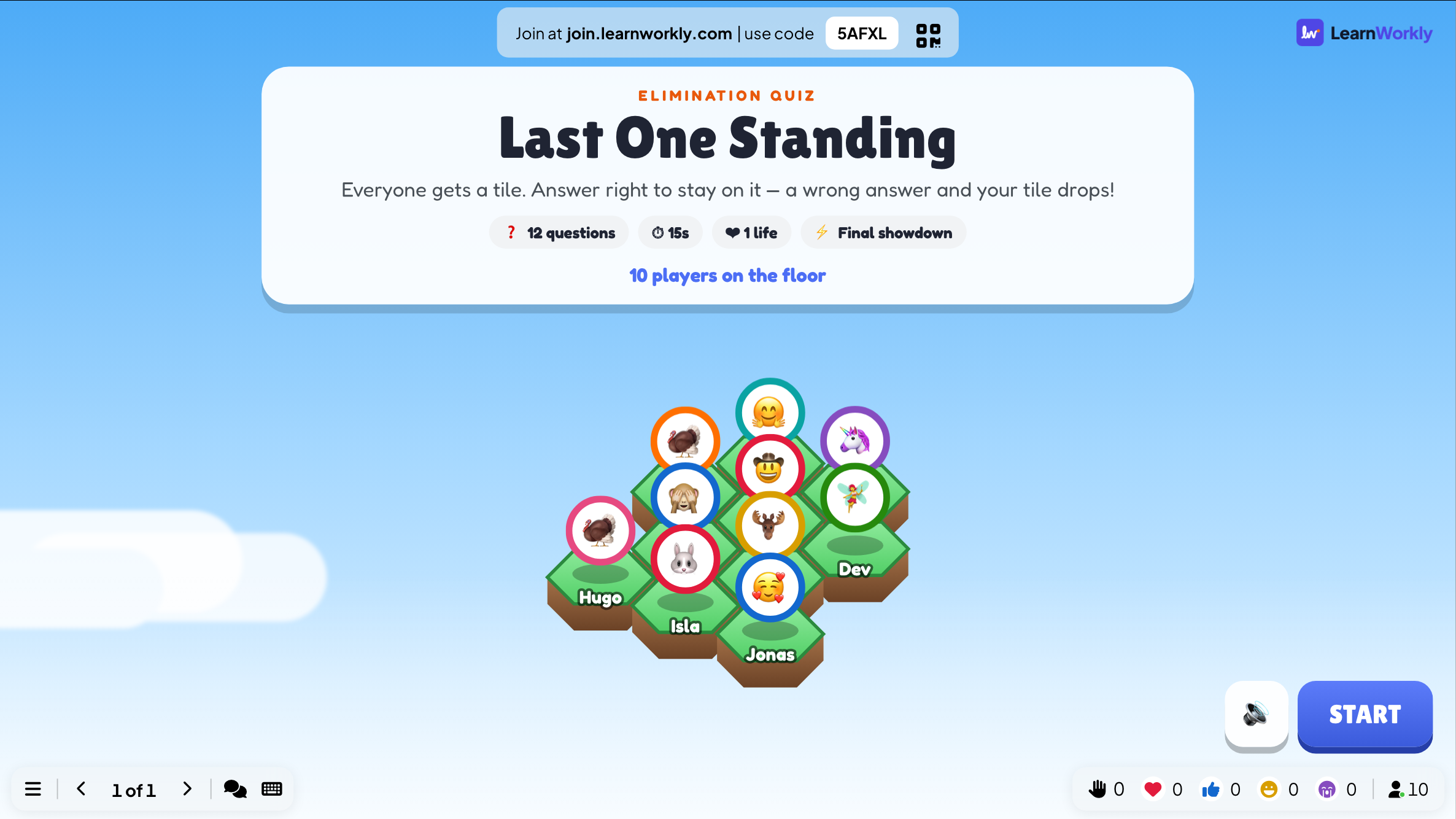
Click Present. The big screen shows the game’s lobby. People join on their phone with the code or the QR code, with no app or account, and type a nickname. The lobby fills up as they join. Every player gets a tile on the floor. The lobby shows the number of questions, the time, the lives and whether the final showdown is on. Press START.
- 2
Answer
Each question shows on the big screen and the phones, with how many have answered. Players tap an answer and see Answer locked in!. Press Reveal now to close a question early.
- 3
The reveal
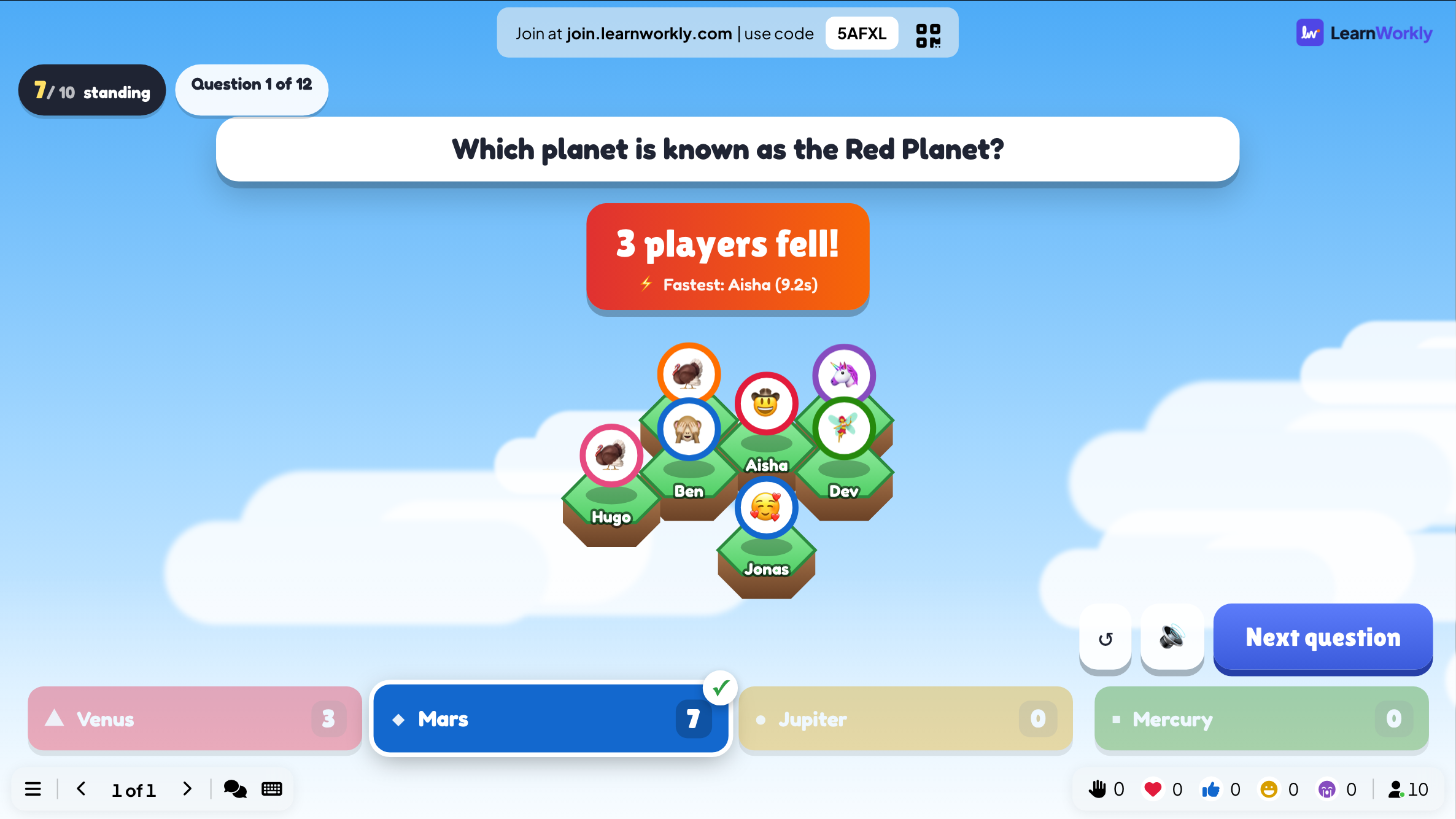
The big screen shows who fell, how many picked each answer and the fastest right answer. Press Next question.
- 4
The winner
At the end, the big screen shows the winner and which question made the most players fall.
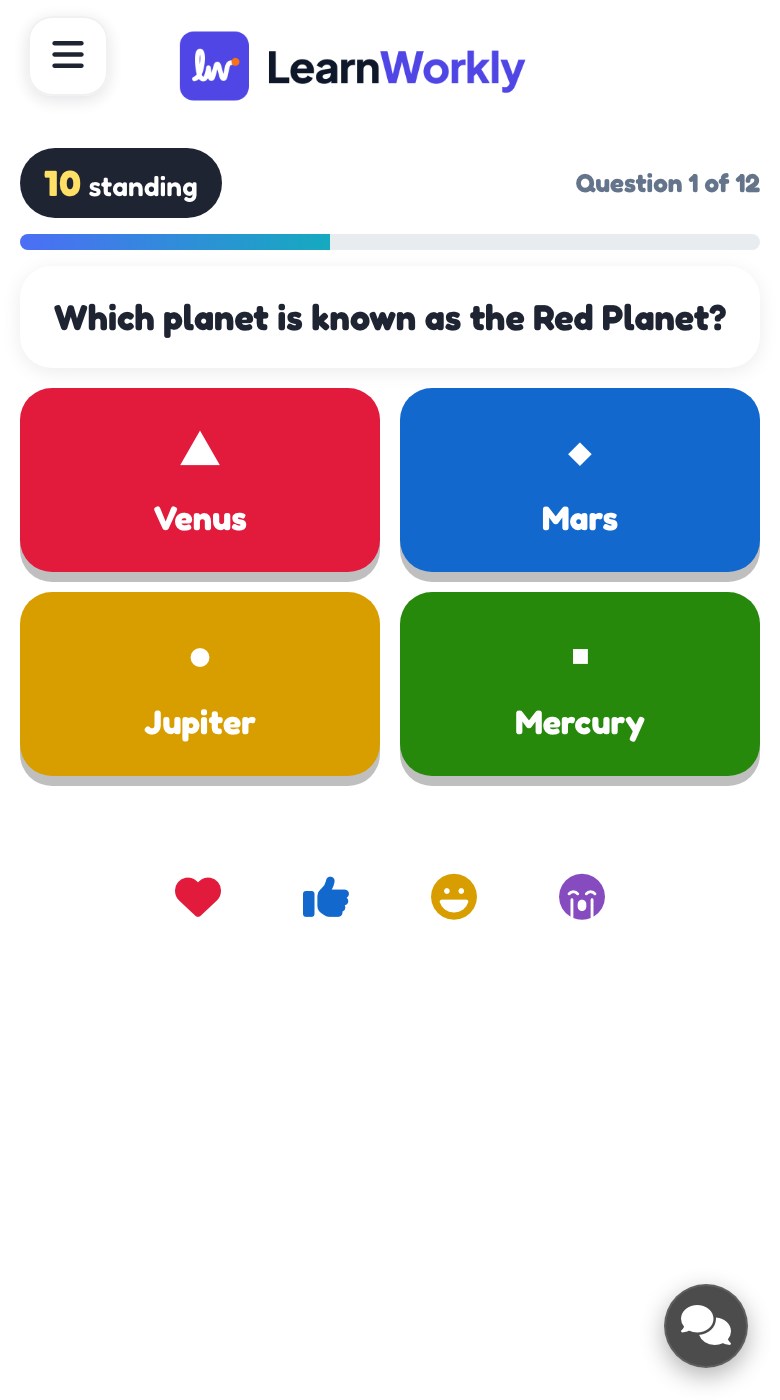
On participants’ phones
After the reveal, players see whether they are Still standing!, their tile cracked or it dropped. Players who fall watch the rest of the game on the big screen.
Every finished game is saved with its results. Click Past games on the slide (or at the top of its Content tab) to see earlier plays, and find them in the report for the presentation.
Frequently asked questions
Someone joined after START.
They watch this game on the big screen and can play the next one.
Everyone got the question wrong.
Nobody falls: the big screen says Nobody got it — everyone survives!
The questions ran out before one player was left.
The players still standing share the win. Add more questions, or use 1 life, so the floor empties faster.
How do I play again?
Press Play again on the final screen, or Restart while the game is running. The finished game stays in Past games.
Last checked against the app on 17 November 2026.
Related articles
- Select Answer: multiple-choice quiz questionsAsk a multiple-choice question with up to six options, mark the right answers, set the time and points, and play it live with a countdown and a reveal.
- Tug of War: two teams on one ropeTwo teams on one rope: answer right and fast to pull, then tap to heave the other team into the mud. Play it as a quiz battle or a pure tap battle.
- Present on the big screenStart presenting from the editor, move through slides with the keyboard, use the menu while you present and stop when you are done.
- How participants join your presentationPeople join at join.learnworkly.com with your code or by scanning the QR code, with no app and no account. See what they do and how to change the code.