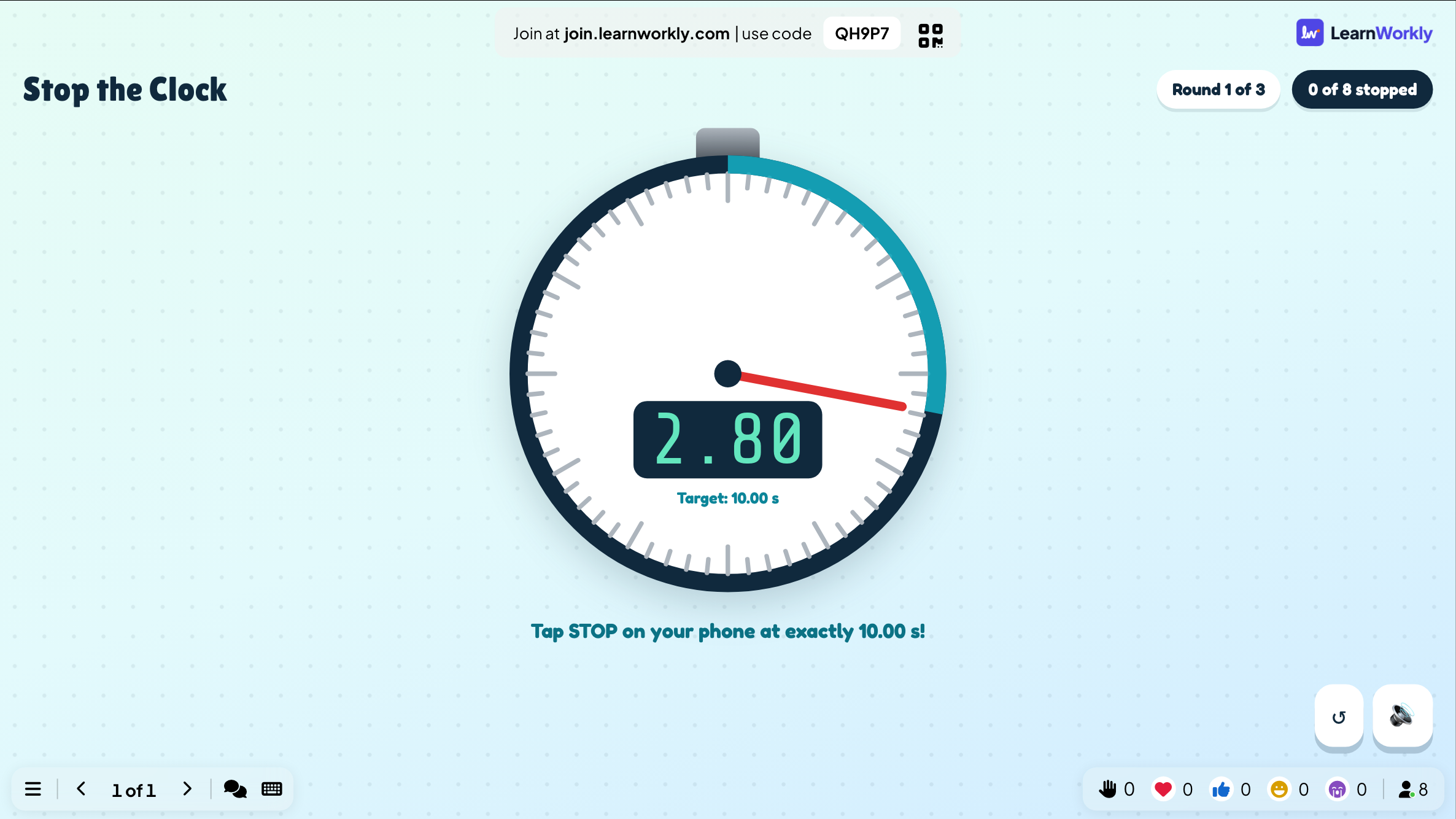
In Stop the Clock, a clock starts counting on every phone and on the big screen, then disappears. Players tap STOP when they think it reads exactly the target time, 10.00 seconds by default. It needs no content and makes a calm, focused warm-up.
Set it up
- 1
Add the slide
In the editor, click + New Slide. In Choose Slide Type, open the Games tab and click Stop the Clock. The game’s content and its Settings are in the Content tab of the column on the right.
- 2
Choose the target and rounds
Set the Target time, the number of Rounds and when to Hide the clock after (see the table).
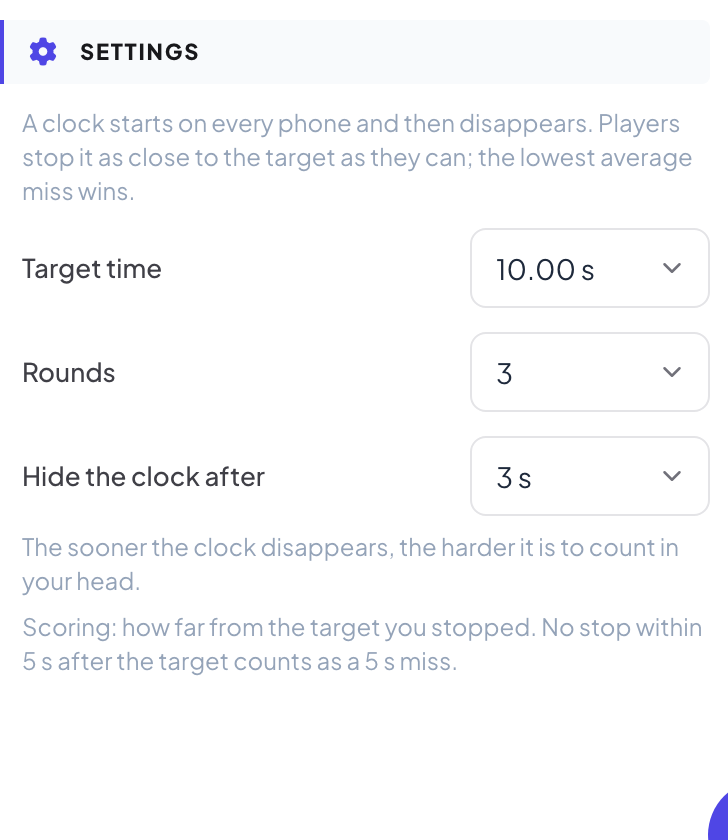
Settings
| Setting | What it does | Default |
|---|---|---|
| Target time | 5, 7, 10, 15 or 20 seconds. | 10 s |
| Rounds | 1, 3 or 5 rounds. | 3 |
| Hide the clock after | 2, 3 or 5 seconds, or Never (easy). The sooner the clock disappears, the harder it is to count in your head. | 3 s |
Play it live
- 1
Open the lobby
Click Present. The big screen shows the game’s lobby. People join on their phone with the code or the QR code, with no app or account, and type a nickname. The lobby fills up as they join. Press START.
- 2
Count in your head
Each round starts with a 3-2-1 countdown. The big screen shows the target and how many have stopped. The clock hides after the time you chose.
- 3
Stop
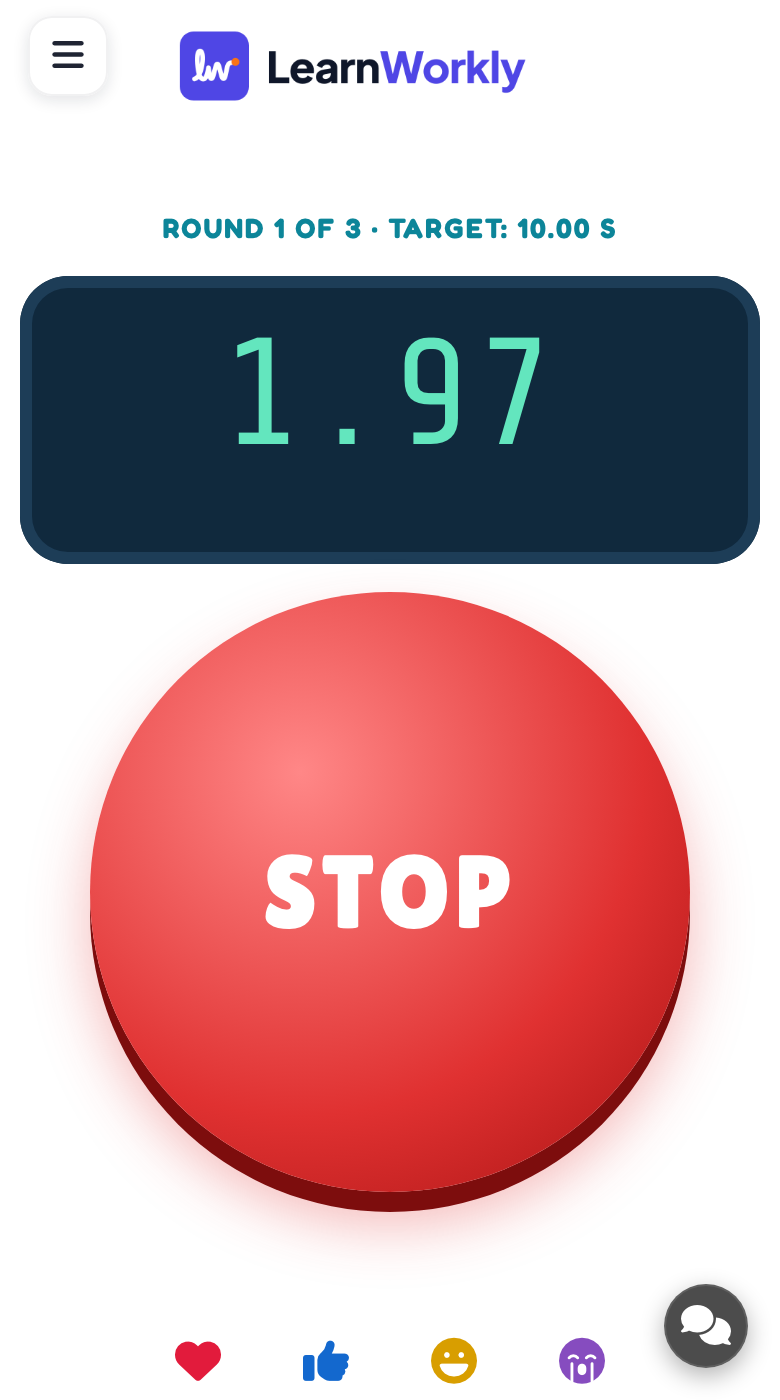
Players tap STOP when they think the target is reached. The phone shows their time and how far off it was.
- 4
Round results
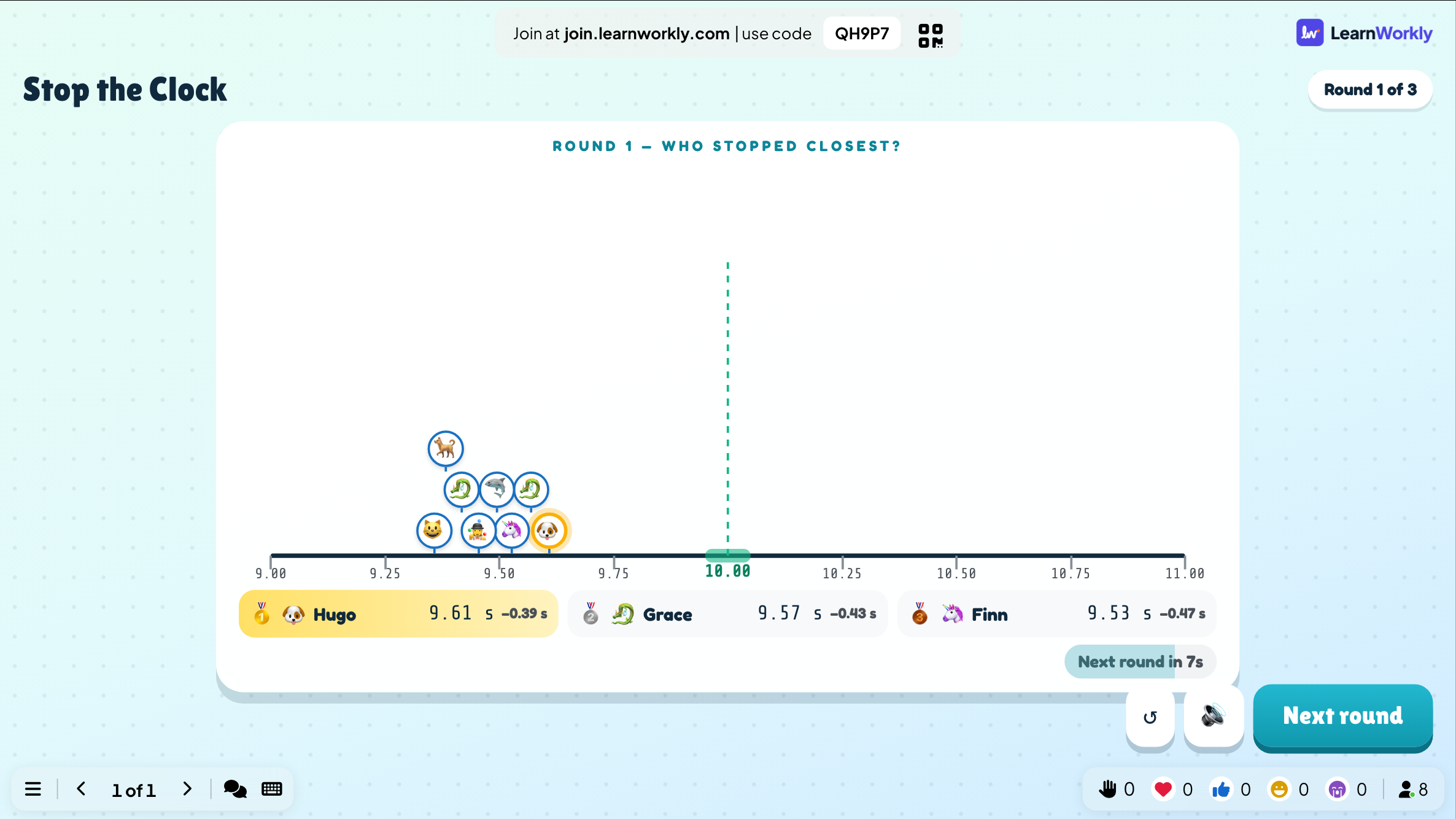
The big screen shows who stopped closest. A stop within a hundredth of a second is PERFECT!. The next round starts by itself. After the last round, the lowest average miss wins.
Each phone times itself from the moment its own clock started, so the network never decides. No stop within 5 seconds after the target counts as a 5-second miss. Every finished game is saved with its results. Click Past games on the slide (or at the top of its Content tab) to see earlier plays, and find them in the report for the presentation.
Frequently asked questions
It is too easy.
Hide the clock sooner (2 seconds) or pick a longer Target time.
It is too hard for young players.
Choose Never (easy) under Hide the clock after: the clock stays visible.
How do I play again?
Press Play again on the final screen, or Restart while the game is running. The finished game stays in Past games.
Last checked against the app on 17 November 2026.
Related articles
- Quick Draw: a reaction gameA reaction game: phones turn red, then green after a random wait, and the fastest tap wins. Tap too early and it is a false start.
- Estimate: guess a number on a sliderPlayers drag a slider to guess a number. The closer the guess, the more points. Set the answer, the slider range, the unit and who scores points.
- Present on the big screenStart presenting from the editor, move through slides with the keyboard, use the menu while you present and stop when you are done.
- How participants join your presentationPeople join at join.learnworkly.com with your code or by scanning the QR code, with no app and no account. See what they do and how to change the code.