The Spinner Wheel picks one entry at random: a name, a prize, a topic, a question to discuss. Use it to choose who answers next, run a prize draw or pick the next activity.
Set it up
- 1
Add the slide
In the editor, click + New Slide. In Choose Slide Type, open the Games tab and click Spinner Wheel. The game’s content and its Settings are in the Content tab of the column on the right.
- 2
Add the entries
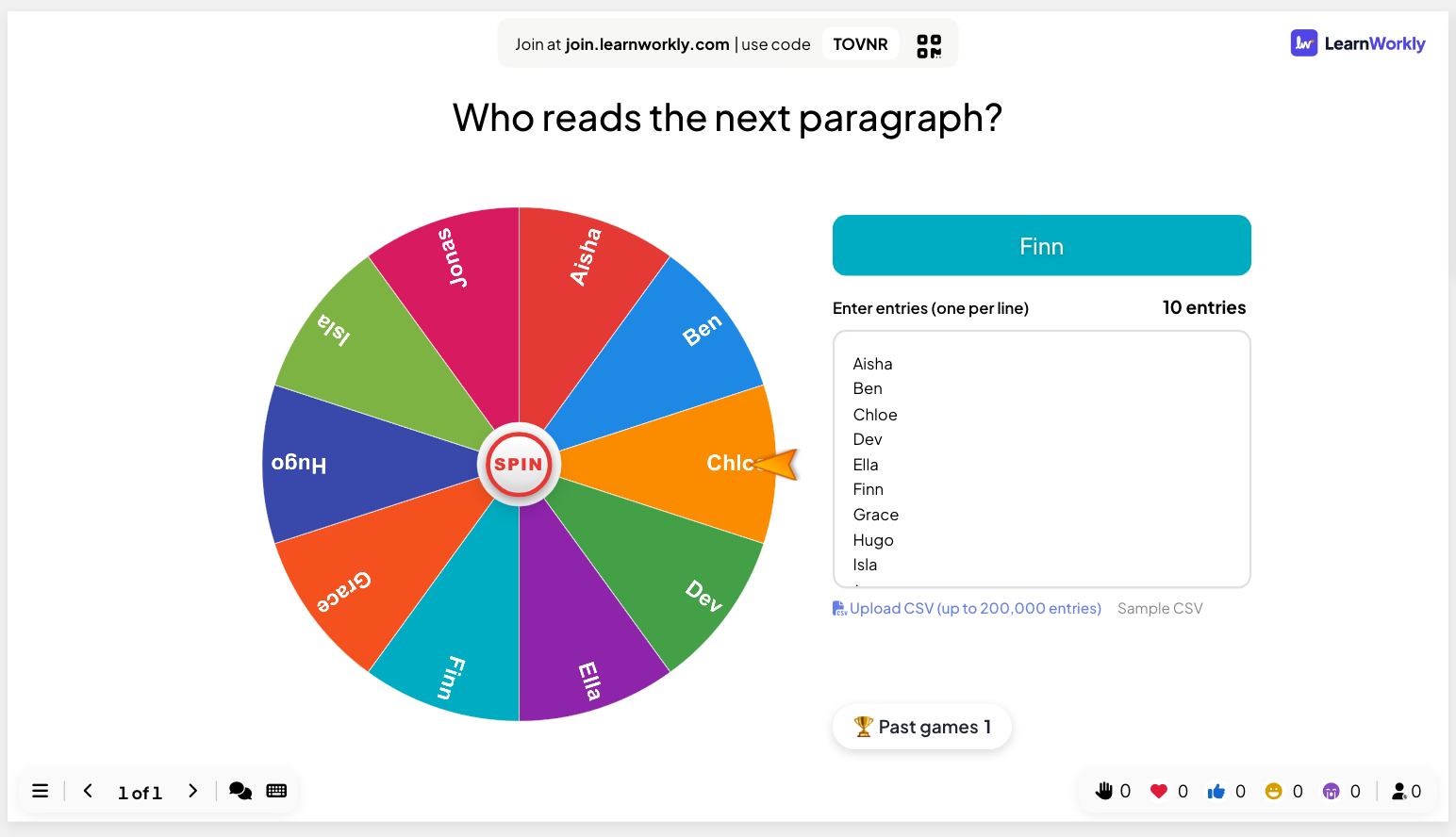
Type the entries on the slide, in Enter entries (one per line). The count of entries is shown above the list and the wheel updates as you type.
- 3
Or upload a CSV file
Click Upload CSV (up to 200,000 entries). Sample CSV downloads an example file. A CSV list is read-only: use Replace file to change it or Remove file to go back to typed entries.
- 4
Let participants join the wheel (optional)
Under Settings, turn on Allow participants to take part. Each participant can then send their name from their phone, and it is added to the wheel.
Spin it
- 1
Present the slide
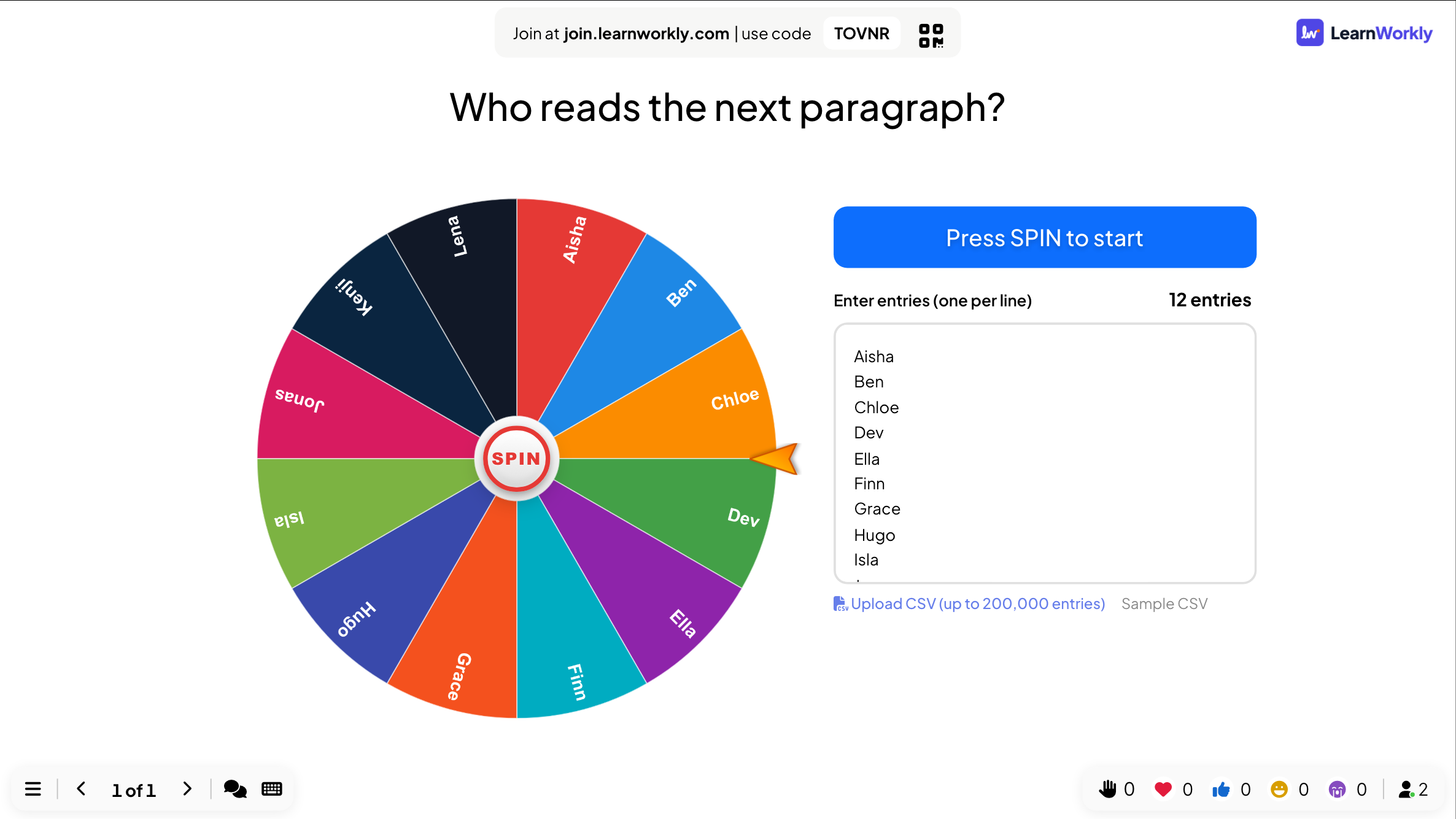
Click Present. The wheel shows Press SPIN to start.
- 2
Spin
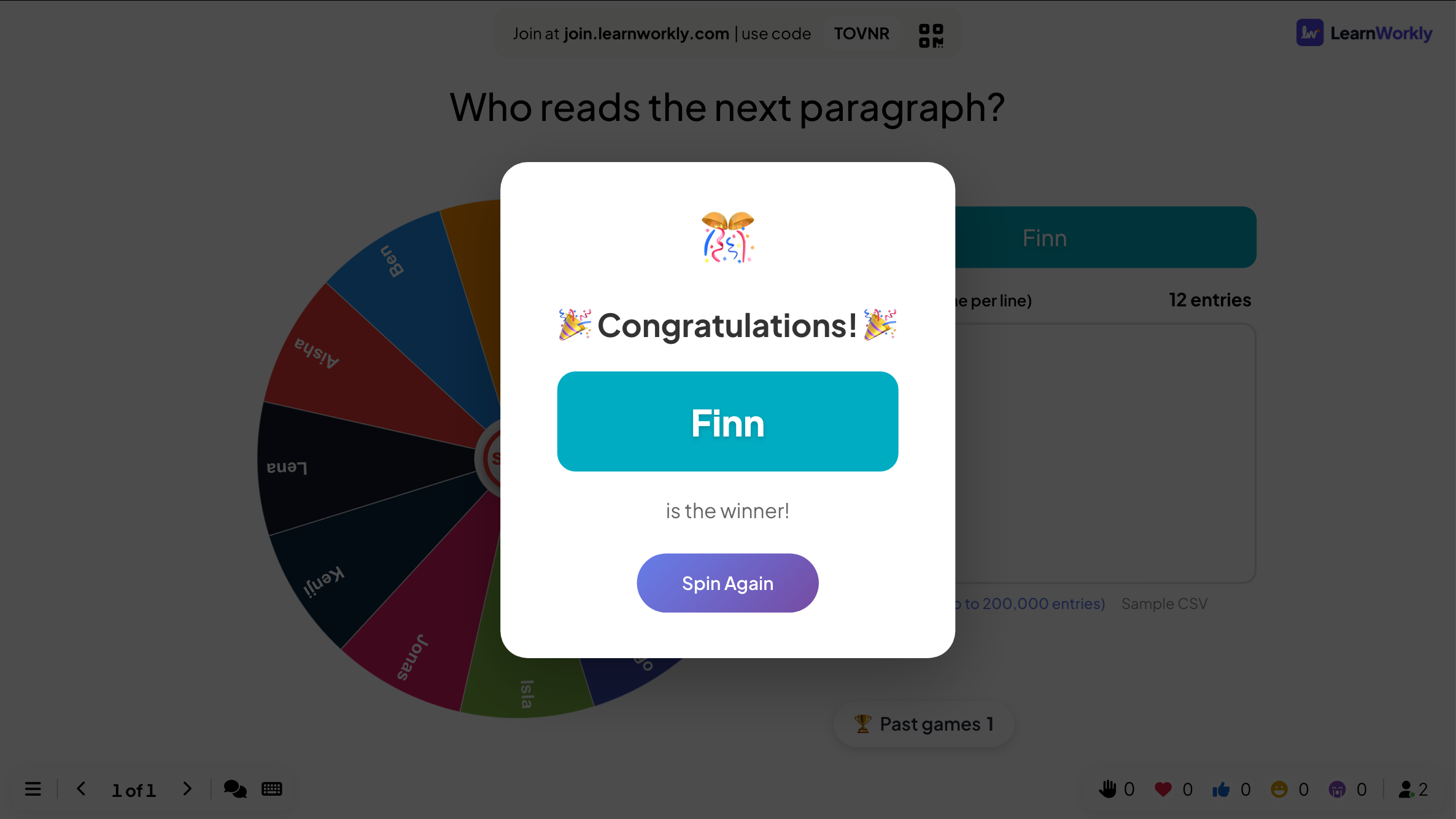
Press SPIN in the middle of the wheel. It slows down and stops on the winner, and a pop-up shows the winning entry.
- 3
Spin again
Press Spin Again for another spin.
On participants’ phones
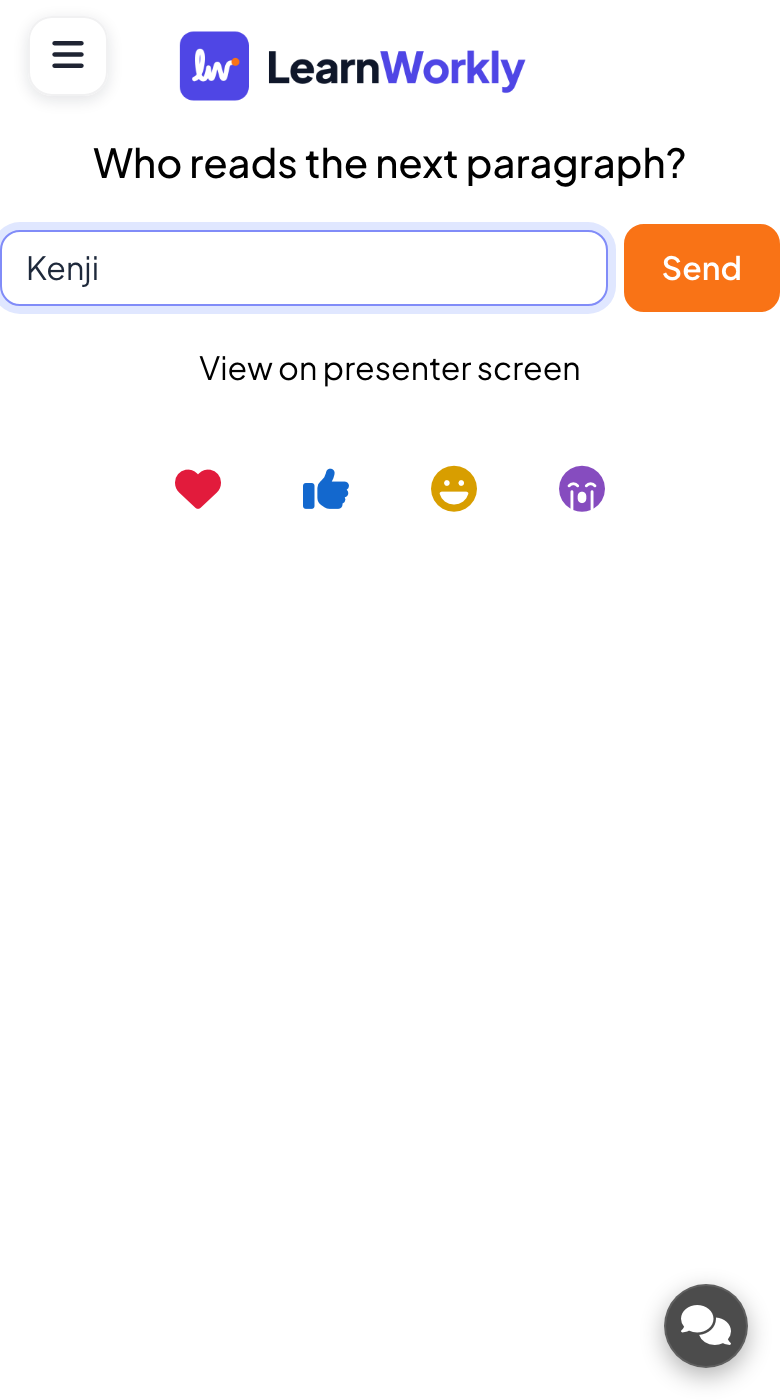
With Allow participants to take part on, phones show a Your name field and a Send button; each name sent is added to the wheel. Otherwise they show View on presenter screen.
Very long lists
With more than 30 entries, each slice of the wheel is a block of entry numbers and the wheel stops on the block that holds the winner. Every entry still has an equal chance, and the winner’s entry number is shown, for example “Entry #1,204 of 5,000”.
Every finished game is saved with its results. Click Past games on the slide (or at the top of its Content tab) to see earlier plays, and find them in the report for the presentation.
Frequently asked questions
Can the same entry win twice?
Yes. Every spin picks from the whole list. Delete a winner from the list before the next spin if each entry should win once.
How do I make one entry more likely?
Type it on more than one line. Each line is one slice of the wheel.
Do participants see their names on the big screen?
Only if you turn on Allow participants to take part and they send a name. Use nicknames for a public screen.
Last checked against the app on 17 November 2026.
Related articles
- Duck Race: a race on the big screenEveryone picks a duck on their phone and races down the river on the big screen. Let people tap to swim faster, or let chance pick the winner.
- Heads or Tails: call the coinEveryone calls the coin on their phone, the big screen flips it and wrong calls are out, until the number of winners you chose is left.
- Present on the big screenStart presenting from the editor, move through slides with the keyboard, use the menu while you present and stop when you are done.
- How participants join your presentationPeople join at join.learnworkly.com with your code or by scanning the QR code, with no app and no account. See what they do and how to change the code.