Google Slides add-on
Live polls and quizzes inside Google Slides
Keep your deck in Google Slides. The LearnWorkly add-on opens in a panel beside your slides: pick a poll, a quiz or a game, write the question in the panel, and a slide for it appears in your deck. When you present, your audience answers on their phones and the results appear live.
Coming soon to the Google Workspace Marketplace. Free on every plan. How to install and use it
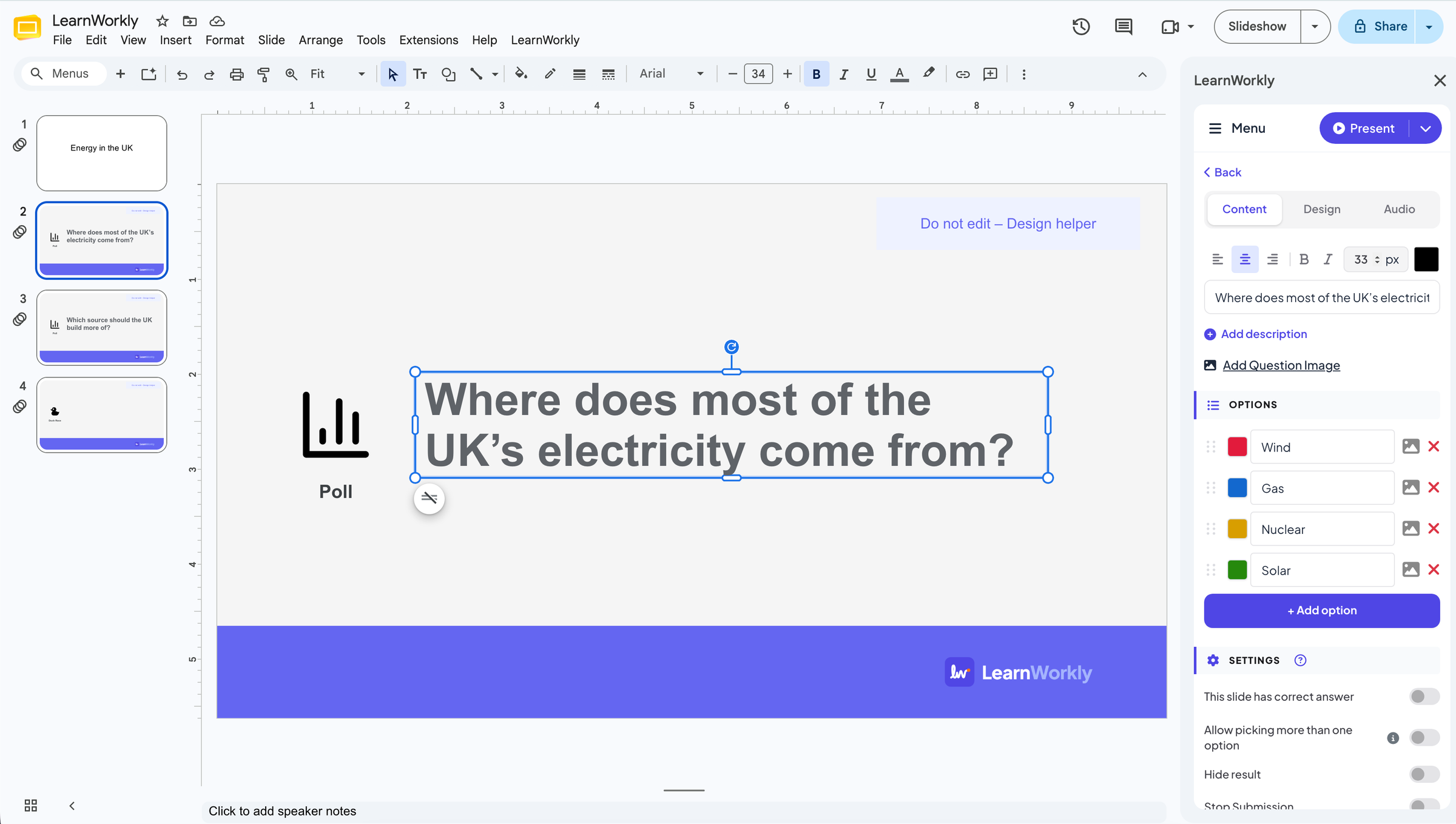
Stays in Google Slides
Extensions › LearnWorkly opens a panel beside your slides. Each LearnWorkly slide is a normal Google slide you can move, copy or delete.
Every slide type
Polls, word clouds, open questions, quizzes and games such as Duck Race and Spinner Wheel: the same slides as in the LearnWorkly app.
Edit in the panel
Type the question and the options in the panel. The question on the Google slide changes as you type.
Phones join with a code
Participants open the join address or scan the QR code in their phone’s browser. No app, no account.
In a real session
A geography lesson that asks the class first
A geography teacher has her lesson on energy in Google Slides. Before she shows the figures, she wants the class to guess where most of the UK’s electricity comes from, without rebuilding the deck in another tool.
- 1
Open LearnWorkly in Google Slides
With the deck open, she chooses Extensions › LearnWorkly › Open Panel. The panel opens beside the slides and links the deck to a LearnWorkly presentation with the same name.
Tip: The first time, the panel asks you to sign in or create a free account. Copy participant link, Help Center and Logout are in the ☰ menu at the top of the panel.
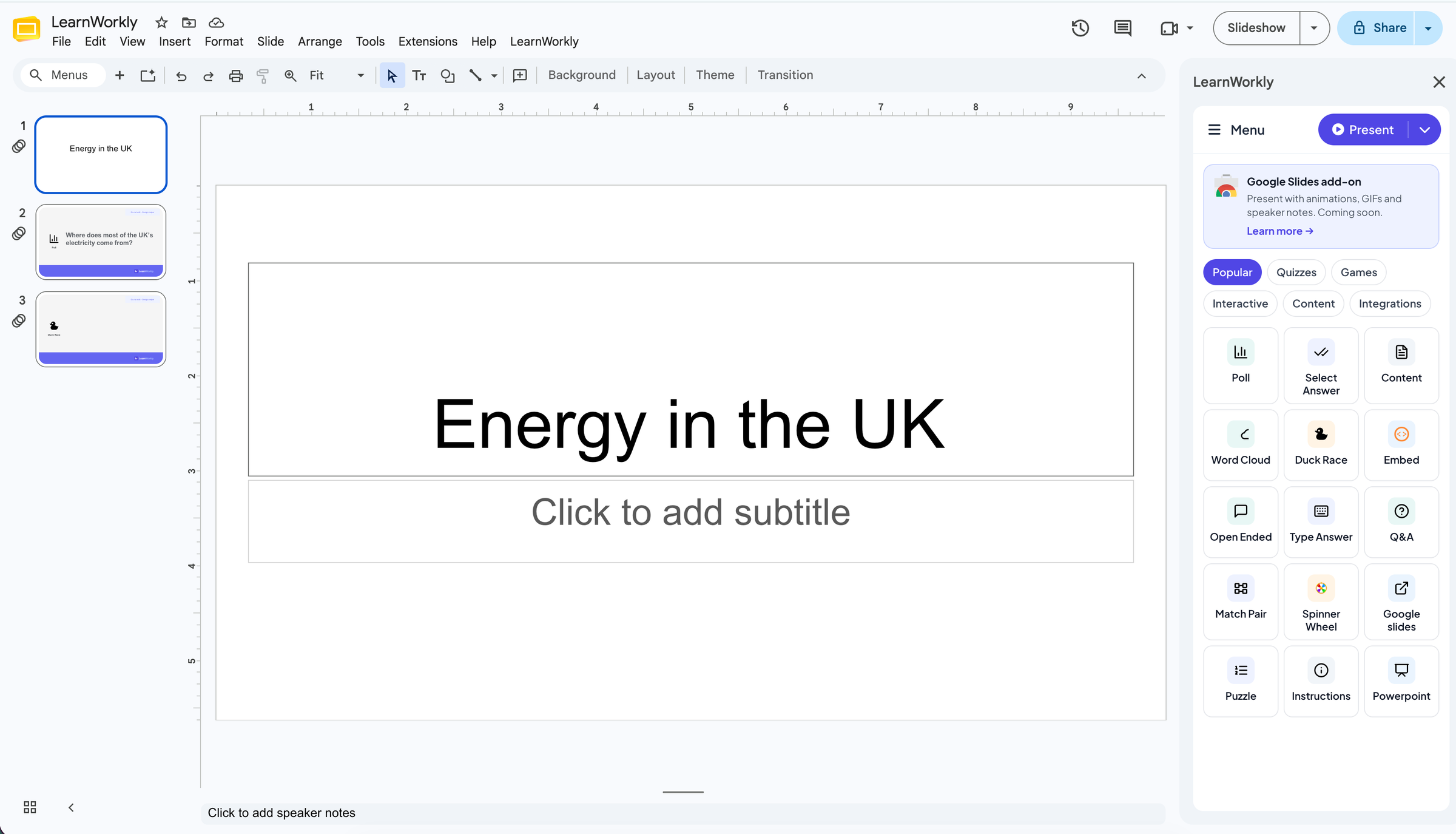
- 2
Add a poll after the title slide
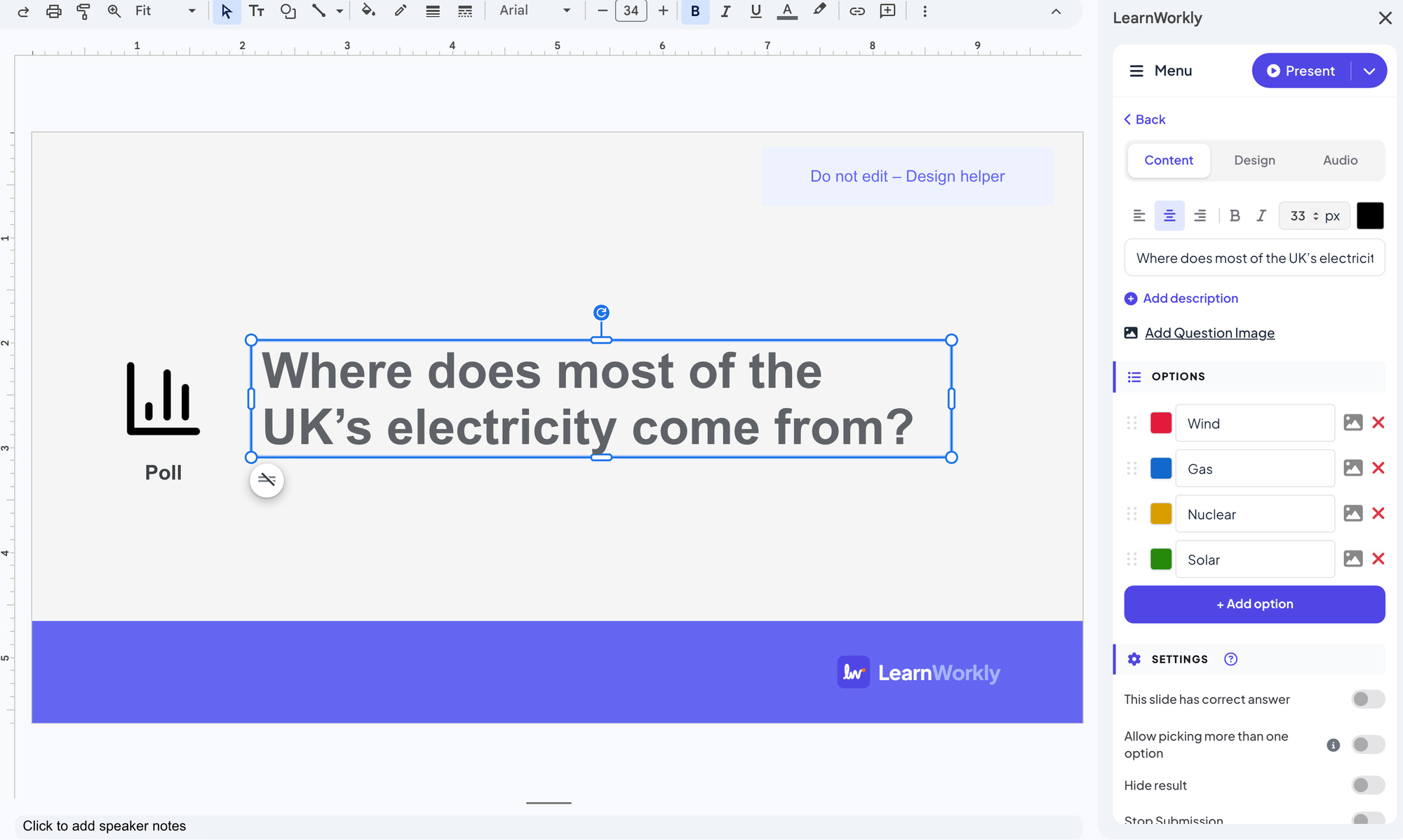
She selects the title slide and picks Poll in the panel. A LearnWorkly slide appears after it in the deck, and the panel shows the poll editor, where she types the question and four sources of electricity as options.
Tip: Click a LearnWorkly slide in the deck later and choose Click to edit in the panel to change it again.
- 3
Present it
She clicks Present in the panel. When the poll comes up, it goes live: the join code is at the top of the slide, the class joins from their phones and the bars grow as votes arrive. Wind wins with 4 of 8 votes.
- On phones
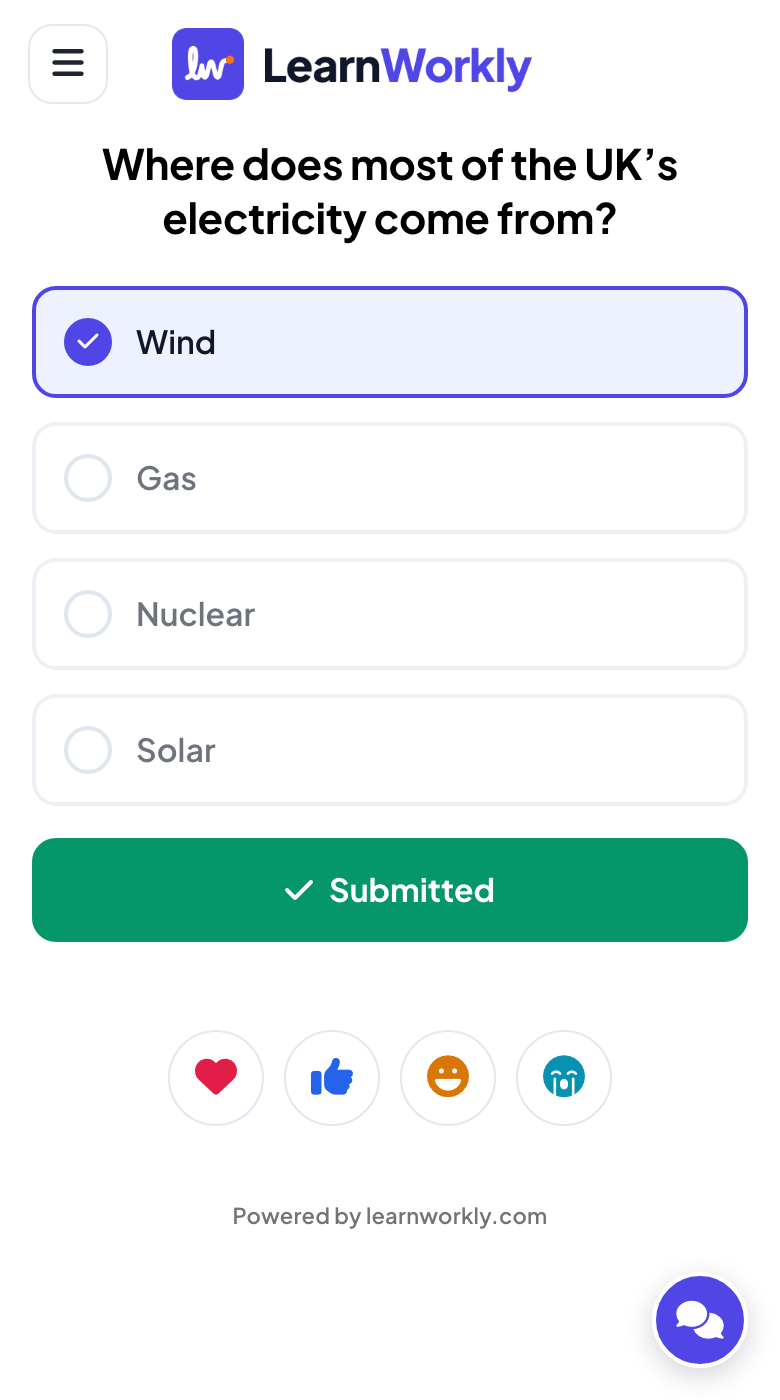
- On phones: The question and the four sources as big buttons; after voting, Submitted.
- On the big screen
- On the big screen: The live chart, with the join code at the top.
Big screen 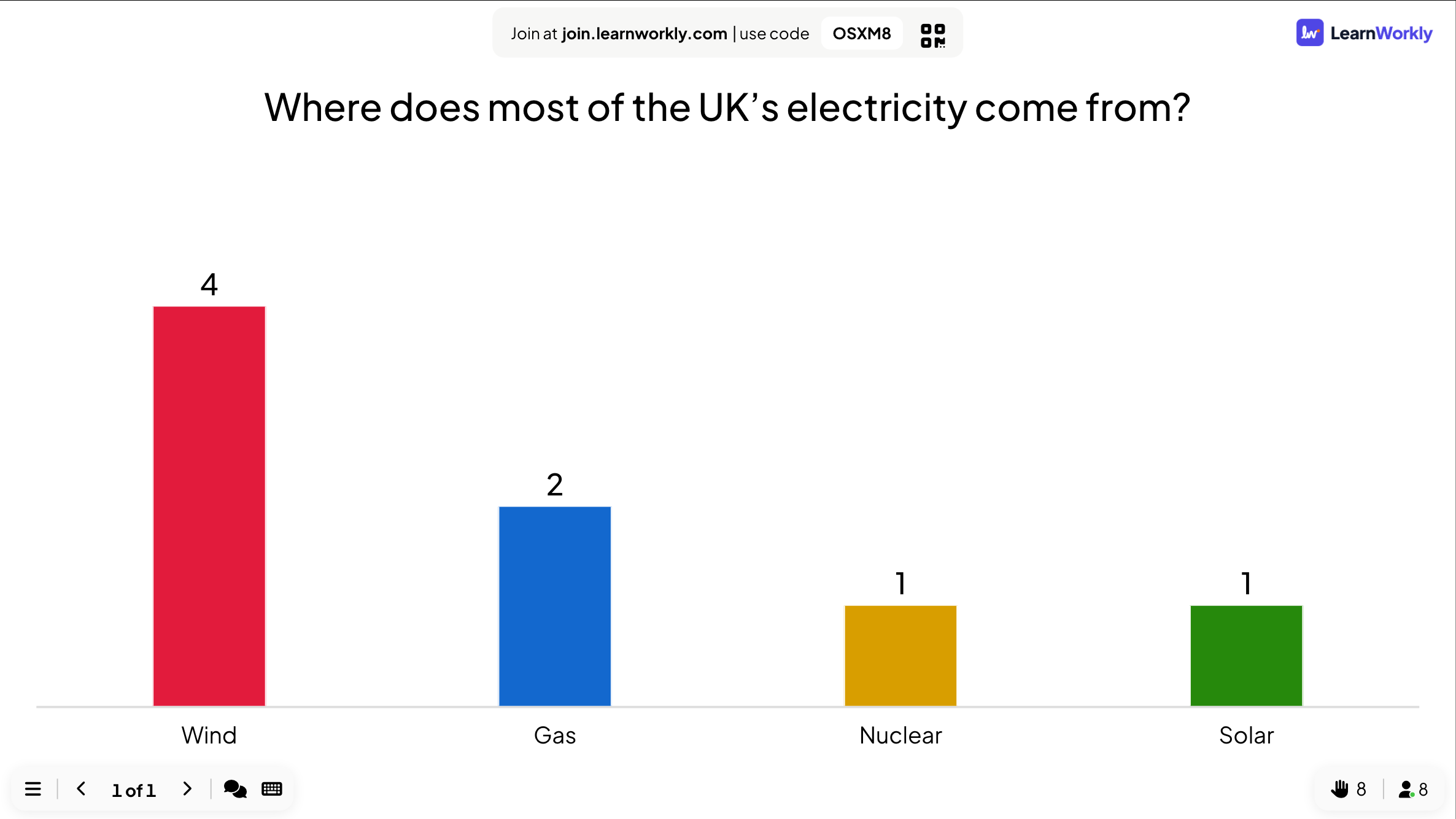
Settings that matter
Where things are in Google Slides once the add-on is installed.
| Setting | What it does | Default |
|---|---|---|
| Extensions › LearnWorkly › Open Panel | Opens the LearnWorkly panel beside your slides. | Extensions menu |
| Slide types | Popular, Quizzes, Games, Interactive, Content and Integrations. A click adds the slide after the current one. | In the panel |
| Click to edit | Shown when a LearnWorkly slide is selected in the deck: opens its question and options in the panel. | In the panel |
| Present | Starts presenting from the beginning or from the current slide. | Top of the panel |
| ☰ menu | Copy participant link, Reset results, Help Center, Contact Us, Language and Logout. | Top of the panel |
What participants see
People join from their phone’s browser with the code or the QR code on the slide: no app, no account.
When a LearnWorkly slide is on screen, their phones show its buttons; between your own slides they wait for the next one.
Limits by plan
| Feature | Free | Basic | Pro | Enterprise |
|---|---|---|---|---|
| Live participants at the same time | 10 | 100 | 5,000 | Flexible |
| Google Slides add-on | ✓ | ✓ | ✓ | ✓ |
Frequently asked questions
When can I install it?
The add-on is coming soon to the Google Workspace Marketplace. The install button will appear on this page as soon as it is listed.
Is the add-on free?
Yes, on every plan. Your plan sets how many people can join at the same time, as it does in the LearnWorkly app.
How do I present a deck with LearnWorkly slides?
Click Present at the top of the panel. Your deck opens in LearnWorkly in a new tab: your Google slides as pictures, and the LearnWorkly slides live, with the join code on screen. A LearnWorkly extension for Chrome, coming soon, will let you present from Google Slides itself, with your animations, GIFs and speaker notes.
Do participants need Google Slides or an account?
No. They scan the QR code or open the join address in their phone’s browser and type the code shown on the slide.
What does the add-on access in my Google account?
Only the presentation you open it in. It adds LearnWorkly slides to that deck, keeps their questions up to date as you edit them, and makes pictures of your slides so LearnWorkly can show them when you present. It does not open your other files.
I would rather present from LearnWorkly.
Then import your deck instead: download it from Google Slides as a .pptx or a PDF, import it into LearnWorkly, and add polls and quizzes between your slides in the app.
Learn more
Related features
Try it in your next session
Free for up to 10 live participants, with every slide type and game. Build your first deck in minutes.
Free for up to 10 participants · No credit card