You do not have to rebuild a deck you already have. Import it, then add interactive slides between your own.
What happens to each file type
- PowerPoint (.pptx): every slide becomes a PowerPoint Animated slide. Animations, click steps and timing are kept, and you can edit text, layout and animation steps in the browser.
- PDF: each page becomes a Content slide showing that page.
- Old .ppt files cannot be imported. Open the file in PowerPoint, save it as .pptx and import that.
Import a PowerPoint into a new presentation
- 1
Start the import
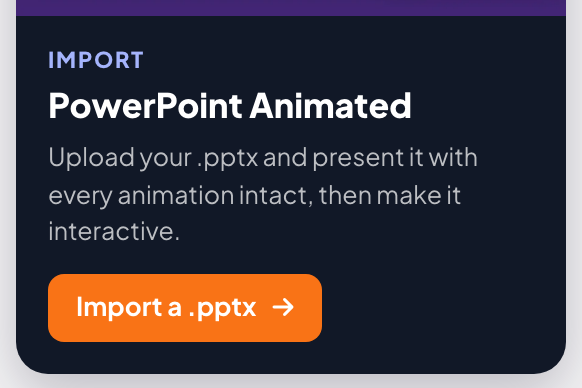
On Home, click Import PowerPoint (animated), or Import a .pptx on the PowerPoint Animated card on the right, and choose your file.
- 2
Wait for the slides
A window shows the steps: Create presentation, Upload file and Convert slides and animations. Big decks can take up to a minute. When it says Your slides are ready, the presentation opens.
Import into the presentation you are editing
- 1
Click Import PPT/PDF
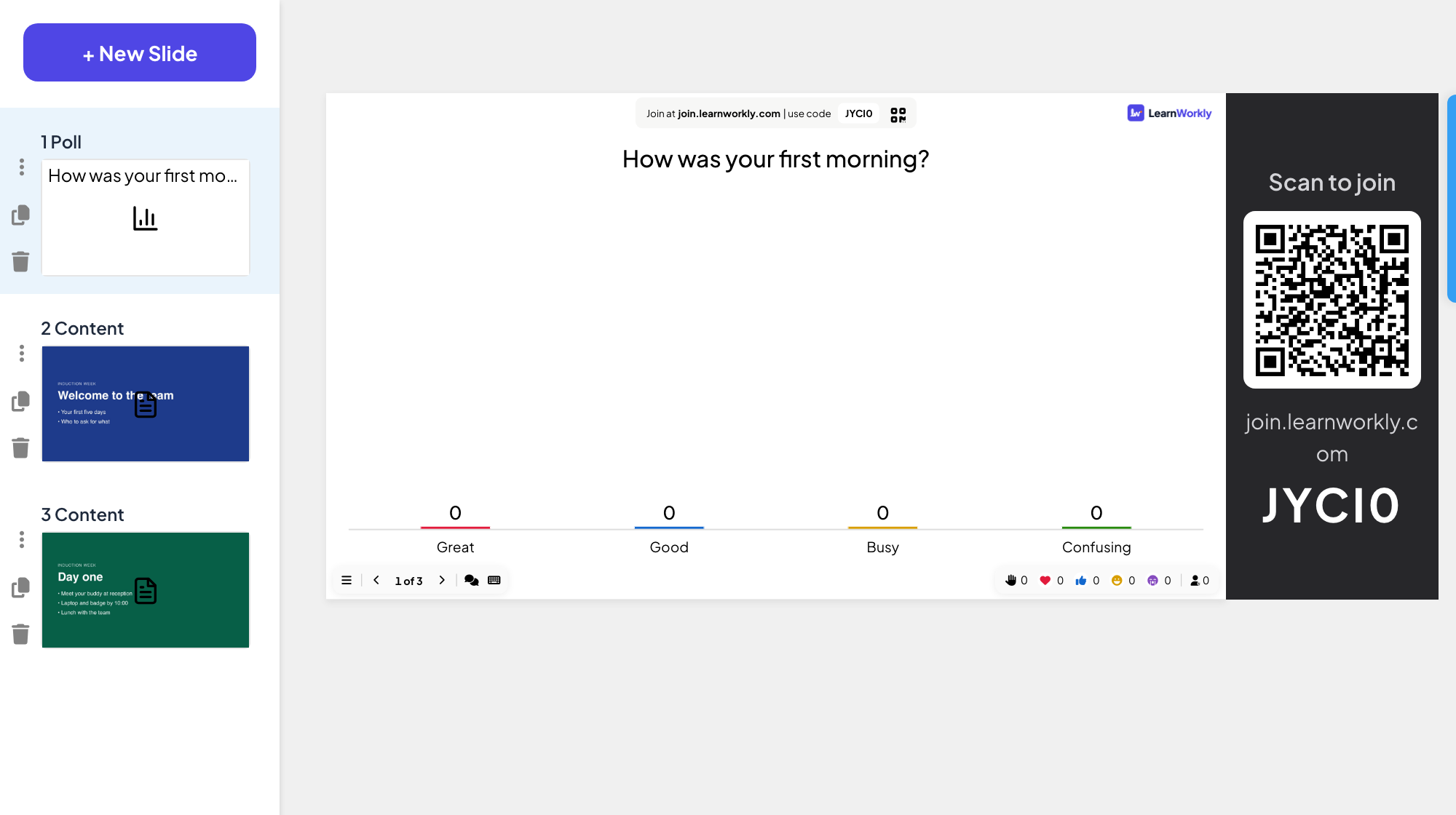
The button is at the bottom of the slide list on the left. Choose a PDF or a .pptx.
- 2
Place your slides
The new slides are added after your existing ones. Drag them into place and add interactive slides between them.
Frequently asked questions
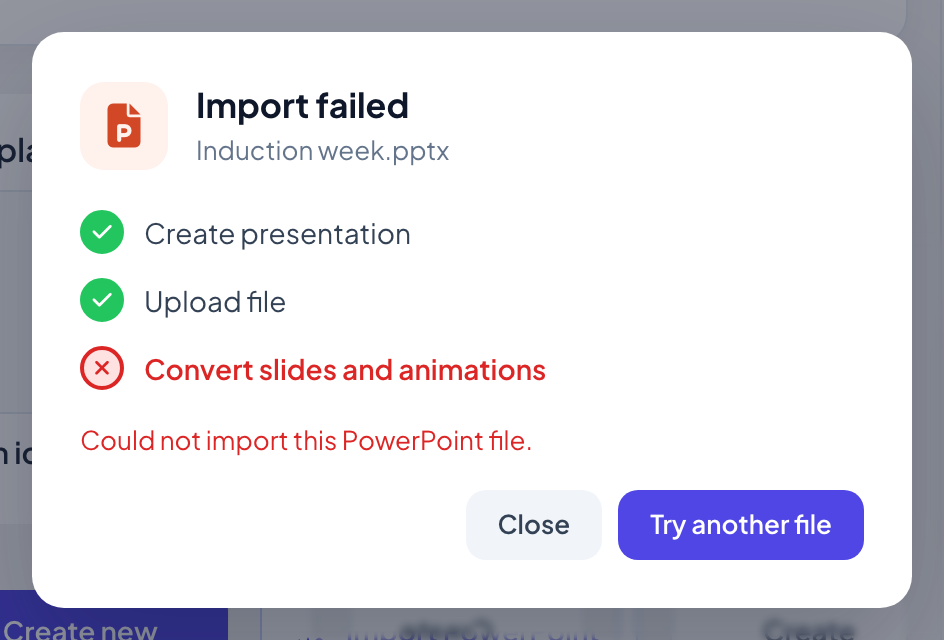
It says Import failed.
The window shows which step failed. Click Try another file, and check that the file is a .pptx or a PDF that opens normally on your computer. If a .pptx keeps failing, try exporting it as PDF.
Are my fonts kept?
Text keeps its font when the font is available in the browser. A PDF page is shown exactly as it looks in the file, but its text is no longer editable.
Can I link a PowerPoint or Google Slides file instead?
Yes: the PowerPoint and Google Slides slides show a file you share online, without importing it.
Last checked against the app on 17 November 2026.
Related articles
- PowerPoint Animated: imported slides with animationsImport a .pptx file and every slide keeps its PowerPoint animations. Edit text and layout, add or change animation steps, then present click by click.
- Create your first presentationStart a blank presentation, add slides from more than 50 slide types, write your questions and check what participants will see before you present.
- Present on the big screenStart presenting from the editor, move through slides with the keyboard, use the menu while you present and stop when you are done.