The Powerpoint slide links and presents your PowerPoint files. It shows a file you have shared from PowerPoint on the web, so the file stays where it is and you edit it there.
If you want the slides inside LearnWorkly, with their animations and editable text, import the file instead: see PowerPoint Animated slides.
To do the opposite, LearnWorkly polls, quizzes and games inside your PowerPoint file while you present from PowerPoint, use the PowerPoint add-in.
Get the embed code
- 1
Open the file online
Go to PowerPoint on the web and find your presentation.
- 2
Embed it
Select File > Share > Embed.
- 3
Copy the code
Click Copy in the bottom right corner. You now have the embed code, which starts with <iframe.
Add it to your presentation
- 1
Add the slide
In the editor, click + New Slide. In Choose Slide Type, open the Integrations tab and pick Powerpoint.
- 2
Paste the code
Paste the whole embed code into Powerpoint Embed Code. Need help with the link? shows the same steps in the app.
- 3
Choose the display settings
Turn on Show fullscreen to give the file the whole slide, and the participant view setting if phones should show it too.
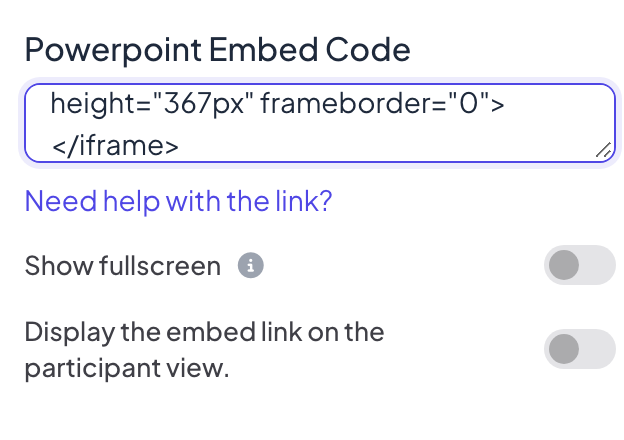

Display settings
- Show fullscreen: the embedded content fills the whole slide, edge to edge, and the slide title is hidden. The top header and bottom control bar float on top, so you can still move between slides. Off by default.
- Display the embed link on the participant view: when this is on, participants can open and browse the same content on their own phones. When it is off (the default), their phones show View on presenter screen.
Present it
Click Present. The file shows in PowerPoint’s own web viewer: use its controls to move through its slides, then the bottom control bar to go on to your next LearnWorkly slide.
Frequently asked questions
I pasted the link and nothing shows.
This slide needs the embed code (it starts with <iframe), not the normal sharing link. Copy it from File > Share > Embed.
Do animations play?
Only as far as PowerPoint’s web viewer plays them. For animations you can edit and step through with Next, import the .pptx as PowerPoint Animated slides.
Can I add polls between the PowerPoint slides?
The embedded file is one LearnWorkly slide. To put polls and quizzes between its slides, import the file instead.
Last checked against the app on 17 November 2026.
Related articles
- PowerPoint add-in: install and use itInstall the LearnWorkly add-in for PowerPoint on Windows or Mac, add polls, quizzes and games to your slides and run them in the slideshow.
- PowerPoint Animated: imported slides with animationsImport a .pptx file and every slide keeps its PowerPoint animations. Edit text and layout, add or change animation steps, then present click by click.
- Import PowerPoint and PDF slidesImport a .pptx with its animations kept and editable, or turn every page of a PDF into a slide, then add quizzes and polls between your slides.